The Managed Site view in Manage is a centralized dashboard for monitoring performance and performing technical maintenance. To access it, navigate to My Elementor, click the Sites tab, and select Managed Sites. Click on any specific site to manage its plugins, themes, WordPress versions, SEO health, and database cleanup tools.
How do I access the Managed Site view?
To navigate to the site-specific management dashboard, follow these steps:
- Go to your My Elementor dashboard.
- Under the Sites tab in the top bar, go to Managed Sites. You’ll see a full list of your managed sites.
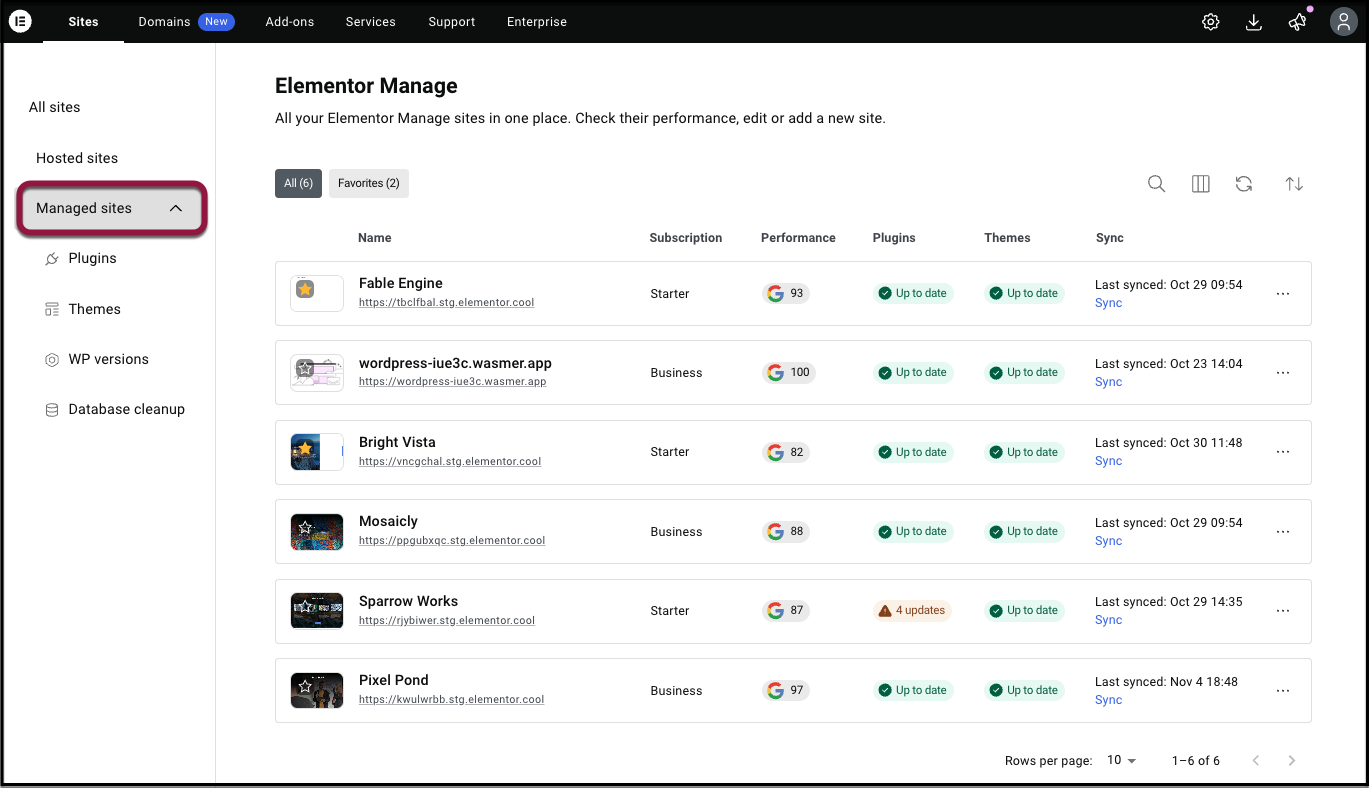
- Here you can control:
- WordPress Tools (Plugins, Themes, WP Version)
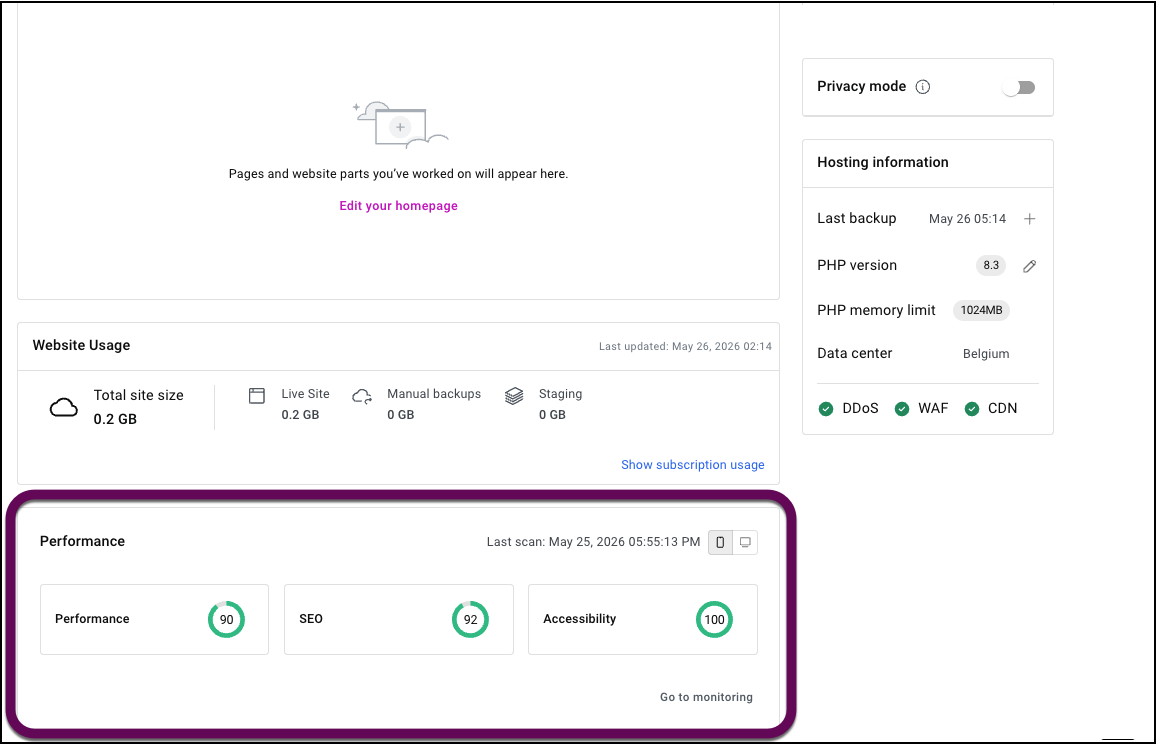
- Monitoring (Performance, SEO, Accesibility)
- Database Cleanup tools
- The Activity Log
What WordPress tools are available?
The WordPress Tools section allows you to handle core maintenance tasks for a single site:
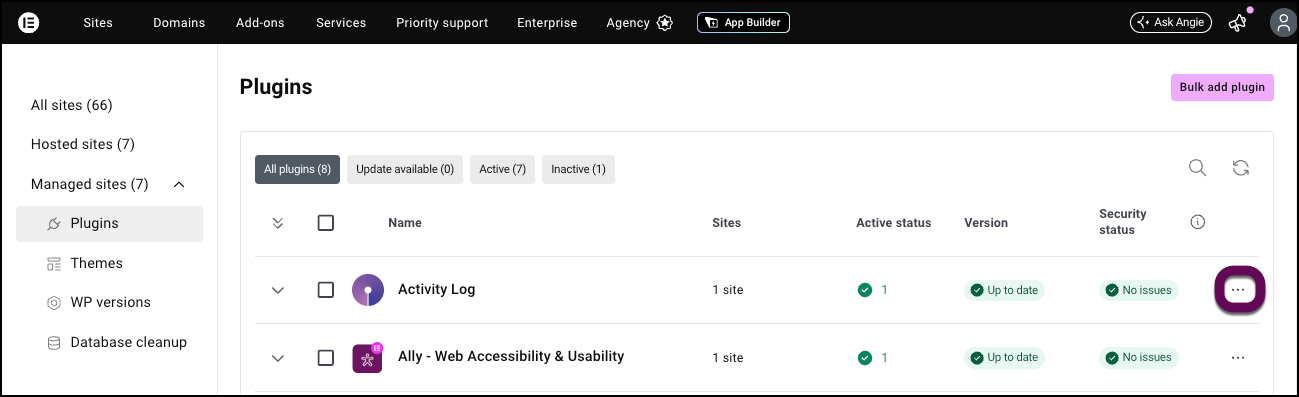
- Plugins Management: View active plugins, see changelogs, and use the Three Dots Menu to update, deactivate, or rollback versions.
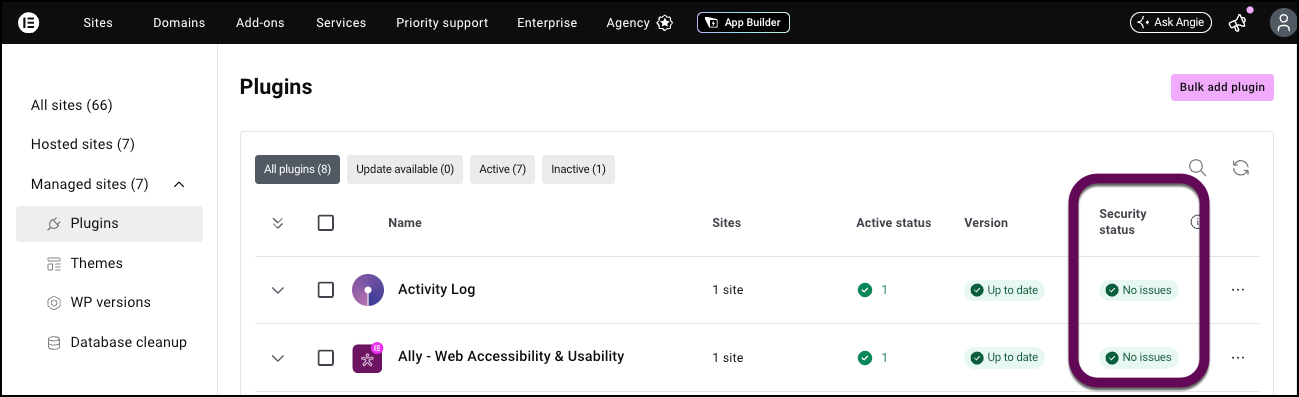
- Security Monitoring: Check for vulnerabilities identified by Patchstack under the Security Status column.
- Theme Controls: Identify the active theme, switch themes, or delete unused ones to improve security.
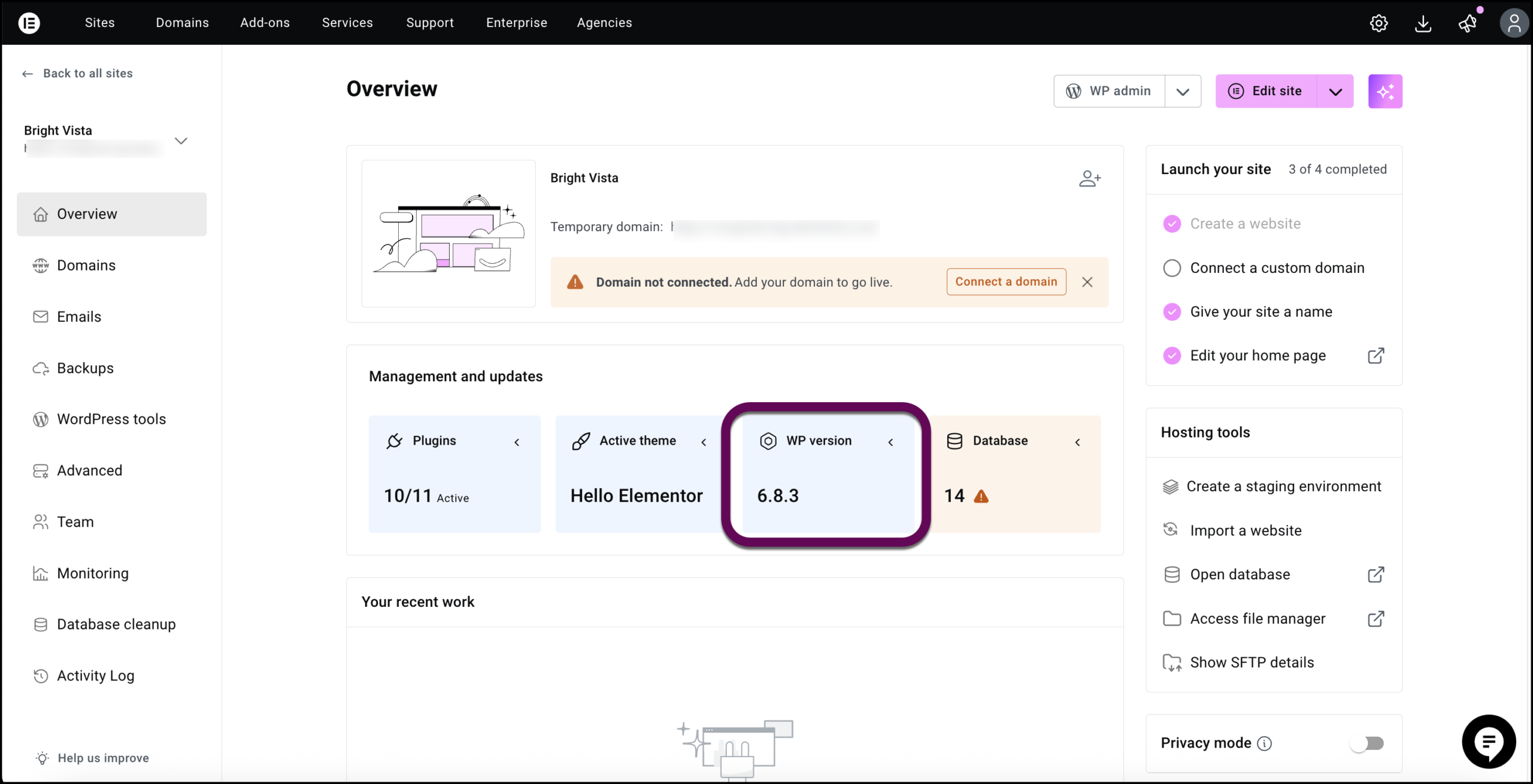
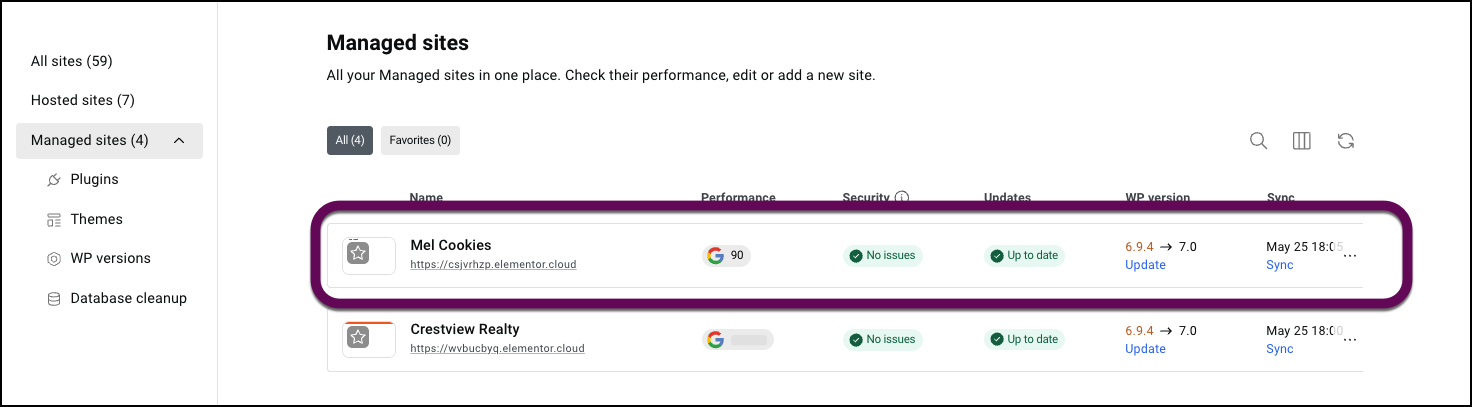
- WP Versioning: View the current WordPress Core version and trigger updates directly from the dashboard.
How do I check the plugins status?
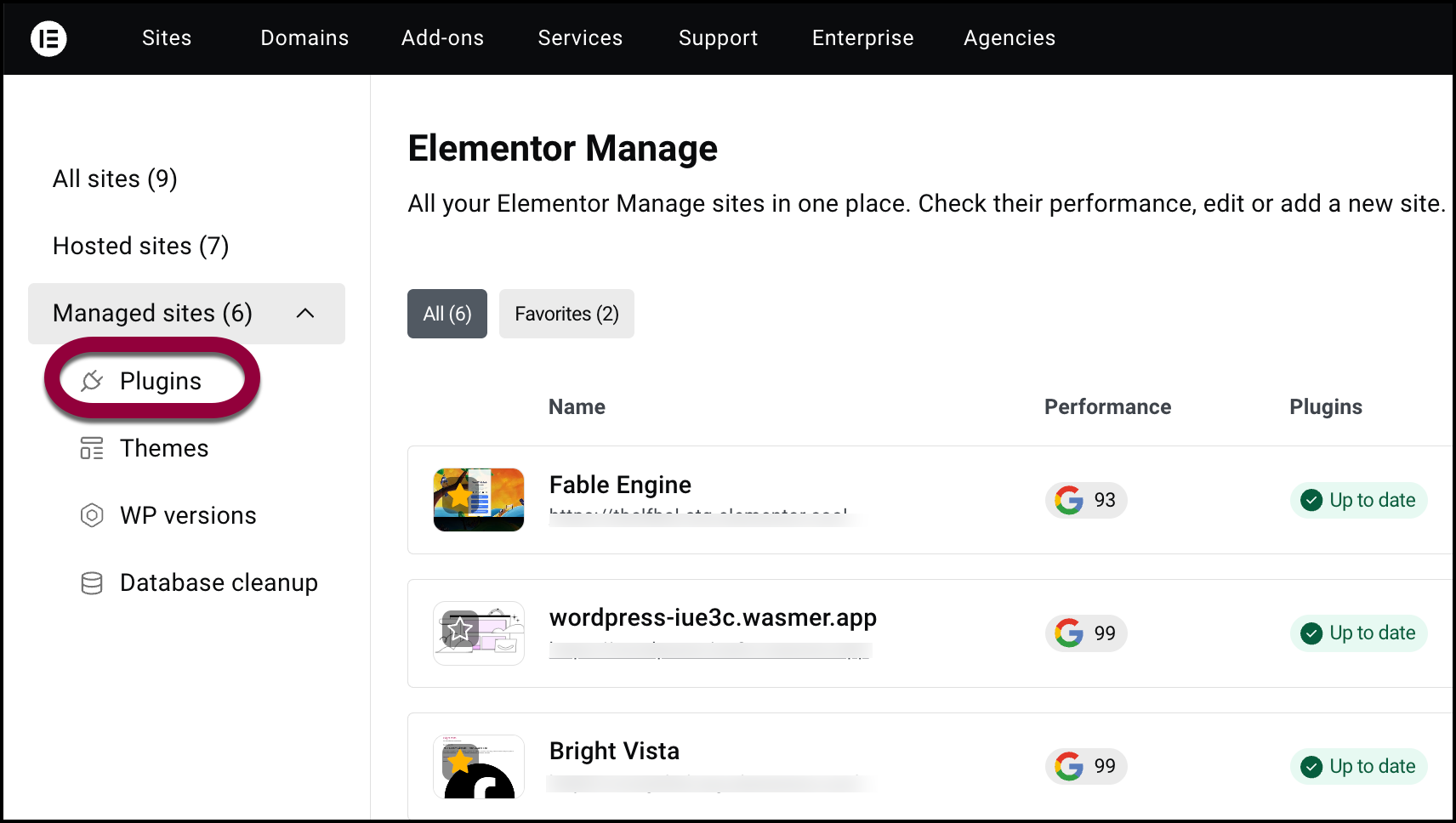
- Click Plugins.
- Click the ellipses to Deactivate, Update, Rollback and Delete plugins.
- Vulnerability information is displayed under security status.
How do I update or delete themes?
- Click the Themes tab.
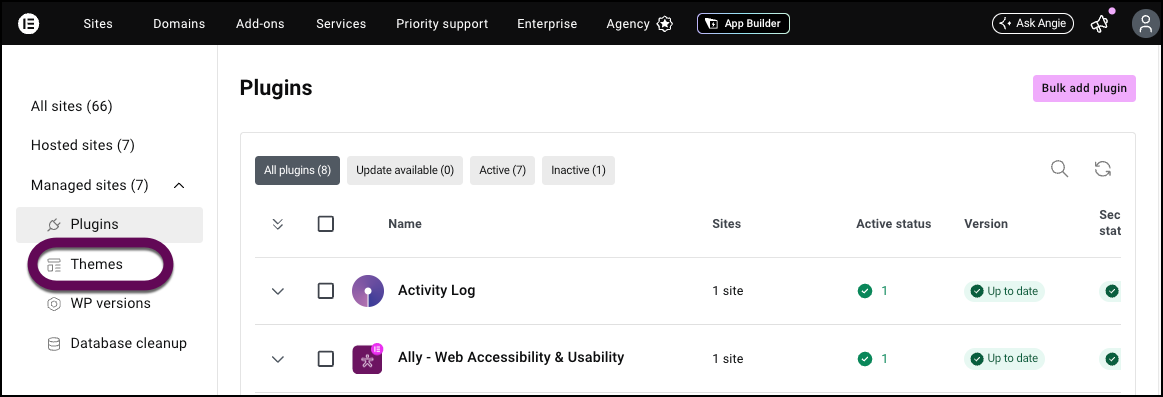
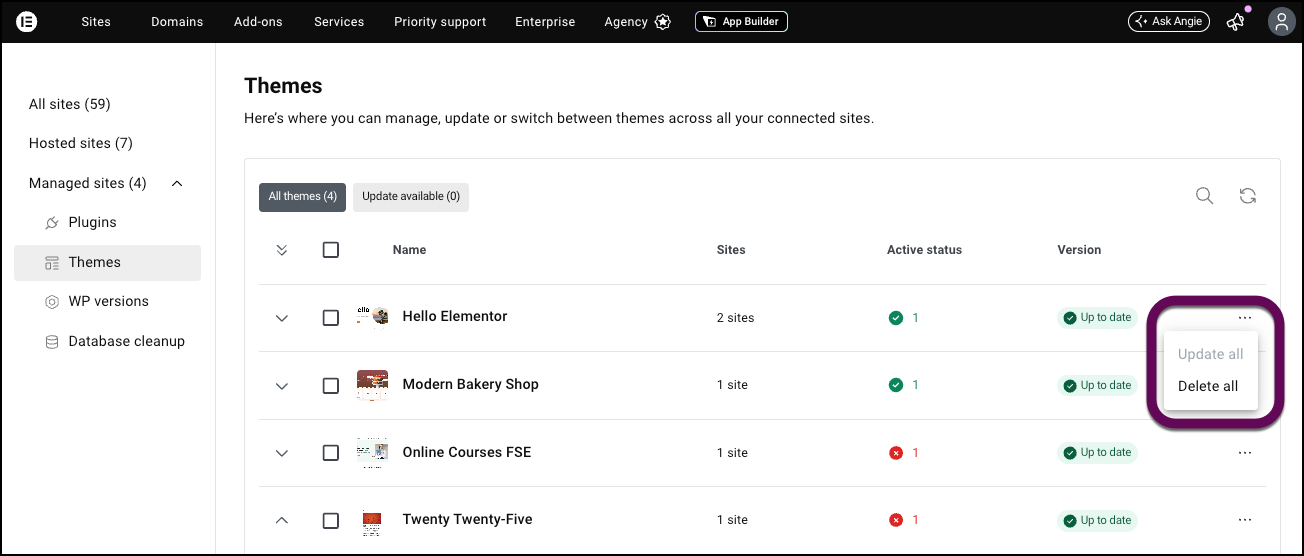
- Click the ellipses on the right to update all instances of this theme or delete all instances of this theme.
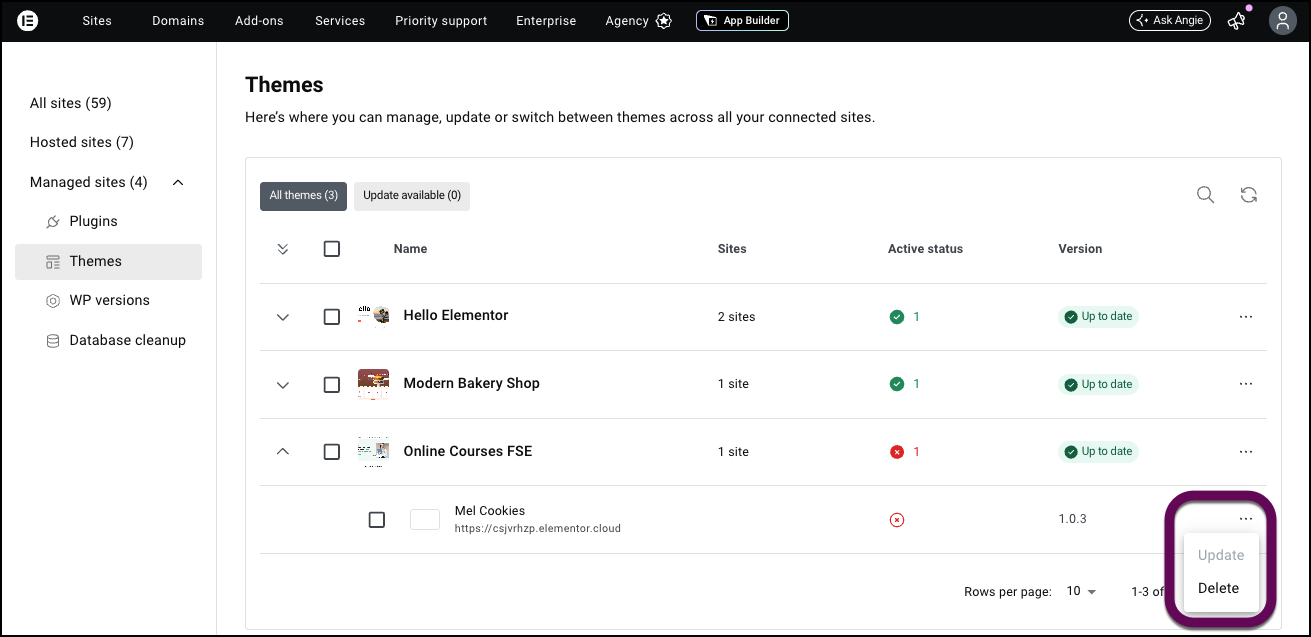
- To delete or update the theme for a particular site, click the theme and it will list all the sites where it is used.
- Use the single site ellipses to Update or Delete the theme of that individual site.
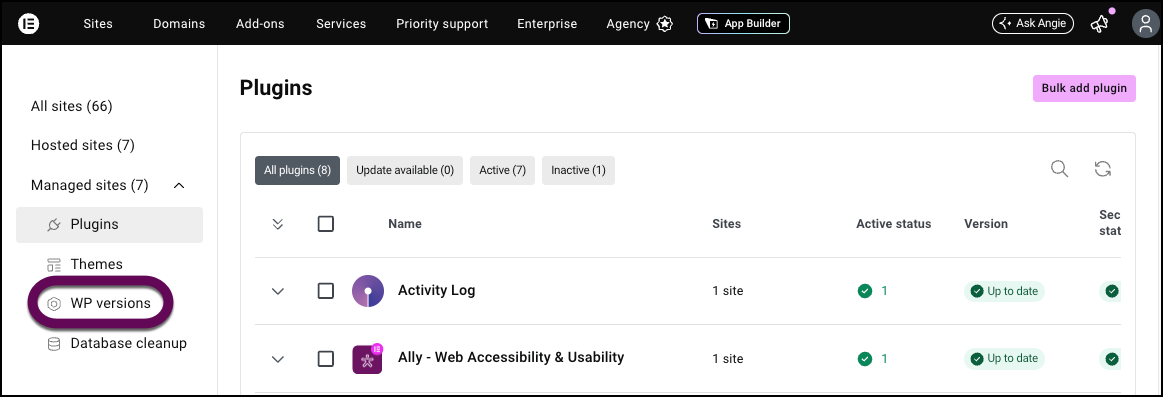
How do I change the WordPress version?
- Click WP version to switch WordPress versions.
How do I check my site’s performance
- Click an individual site.
- Scroll down to the Performance section to check your site’s performance.
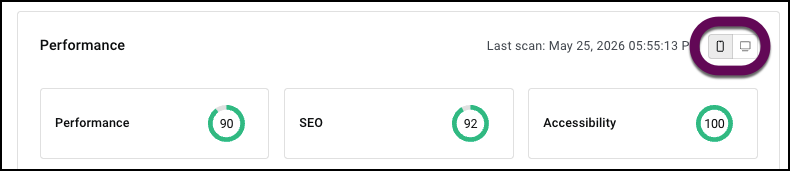
- Use the Mobile/Desktop toggle to switch between measuring site performance for desktop computers or mobile devices.
- Click Performance for details about your site’s speed.
- Click SEO tab to view the SEO score and statistics.
- Click Accessibility to view your site’s Accessibility score and statistics.
For more details, see Monitor Performance in Manage
How do I cleanup my database?
This tab allows you to free space and clean up unneeded data by reviewing and clearing unnecessary database entries.
- Click Database cleanup.
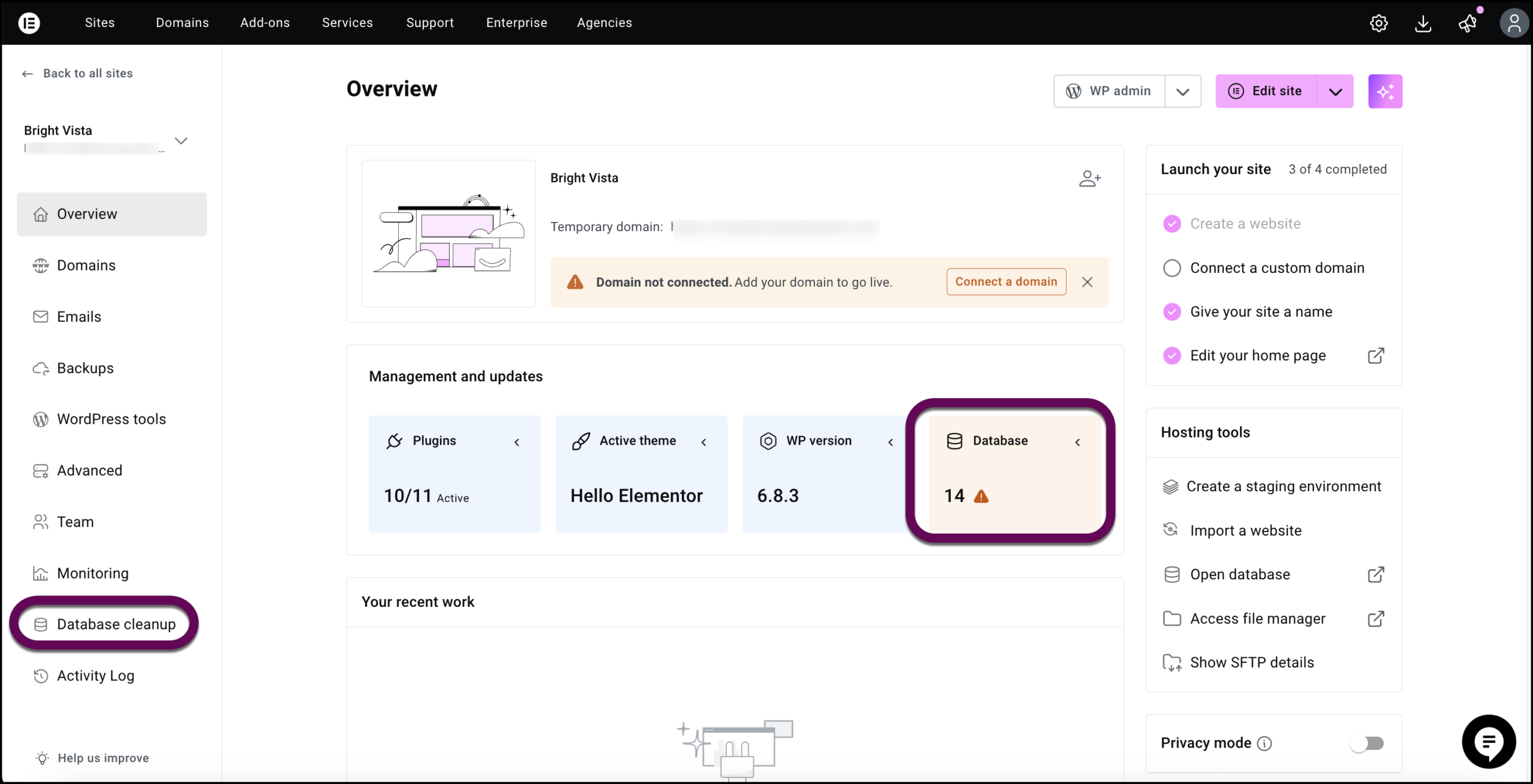
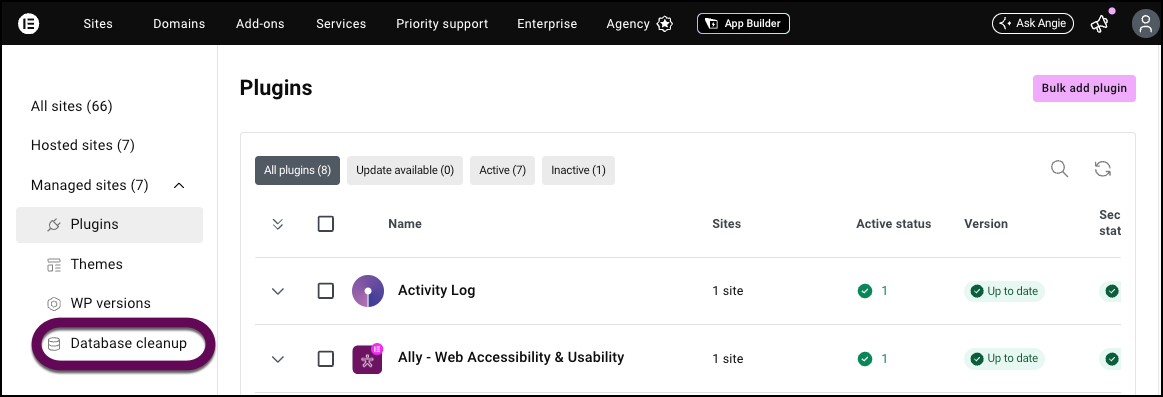
This brings up the Database cleanup screen.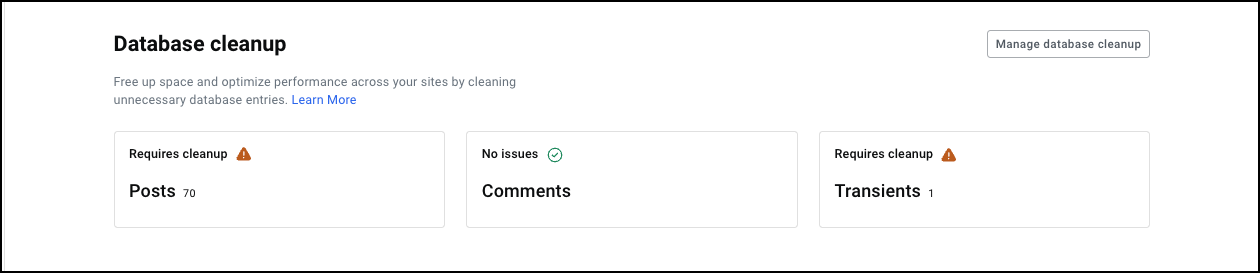
- Posts: Old revisions, auto-saved drafts, and trashed posts can bloat the database if not managed.
- Comments: Spam and deleted comments that clutter the site and can be deleted.
- Transients: Temporary cached data that’s expired but still stored in the database. It can be safely removed and regenerated if needed.
Activity Log
View a detailed record of all significant actions performed on your site through Manage. These can be related to Plugins, Themes, WordPress Versions, Database, and any automatic actions related to performance.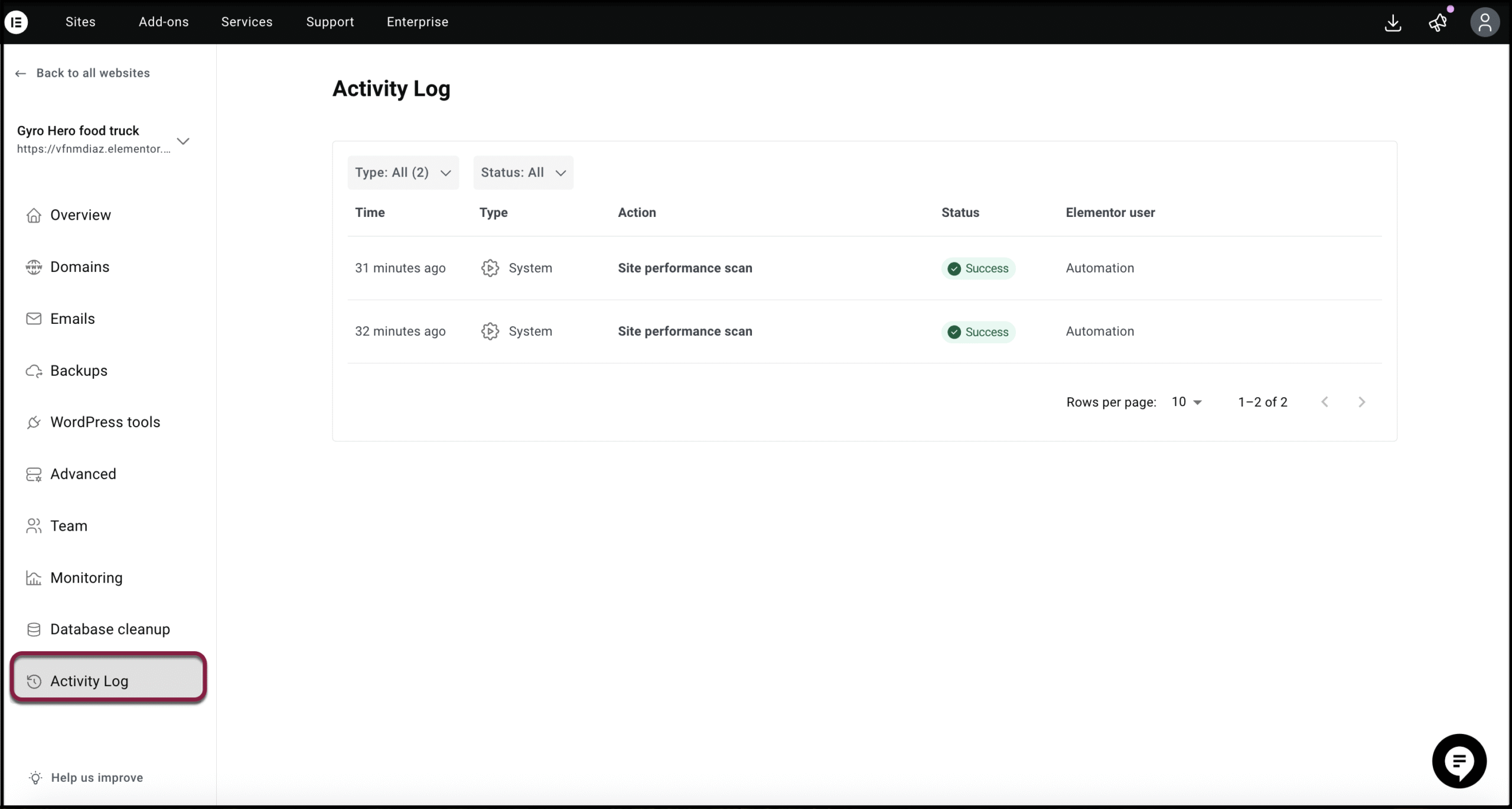
See this Help Center article for more details: Exploring the Manage Activtity Log