What you need to get started
Before you start using Elementor One, make sure you have:
- A WordPress site with access to WP Admin
- An Elementor account (or be ready to create one during purchase)
- An Elementor One subscription (purchase Elementor One or upgrade from Elementor Pro)
- The latest version of Elementor or any Elementor app installed and updated on your site
Purchasing an Elementor One Subscription
You can get an Elementor One subscription in one of these ways:
- Purchase Elementor One from elementor.com
- Upgrade an existing Elementor Pro subscription to Elementor One.
Option 1: Purchase Elementor One from elementor.com
- Go to elementor.com.
- From the top menu, click Products.
- Select Elementor One.
- Choose a plan.
- Elementor One plans include Elementor Pro and other supported Elementor plugins/apps.
- The plan also includes Elementor Credits, which can be used by any supported plugin/app.
- Complete the purchase flow.
- You now need to connect your Elementor One subscription from WP Admin. For details, see Connect and activate your Elementor One subscription.
Option 2: Upgrade to Elementor One from an existing Elementor Pro subscription
If you already own Elementor Pro, you can upgrade that subscription to Elementor One.
You can start the upgrade from:
WP Admin
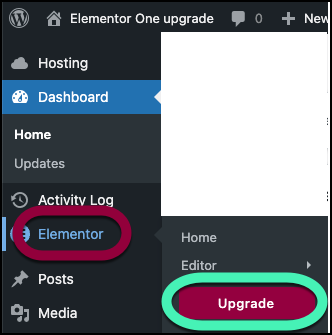
- On WP Admin, navigate to the Elementor>Home.
- Click Upgrade.
- Use the dropdown menu to select the subscription you want to upgrade.

- Choose a plan to upgrade to.
- Complete the upgrade process.
- Connect and activate your subscription as described below.
My Elementor dashboard
- Select Upgrade from any Elementor Pro subscription page on your My Elementor dashboard.
- Choose a plan from the upgrade page.
- Complete the upgrade flow.
- Connect and activate your subscription as described below.
Connect and activate your Elementor One subscription
After you purchase Elementor One (or complete an upgrade from Elementor Pro), you’ll need to connect and activate the Elementor One subscription.
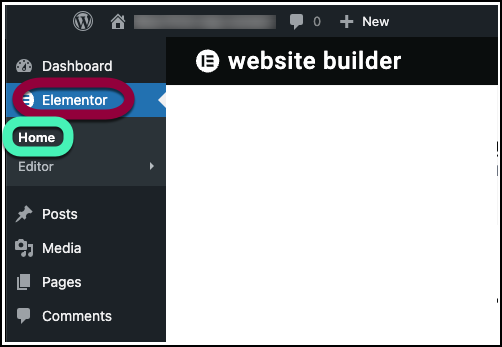
- In WP Admin, navigate to Elementor>Home.
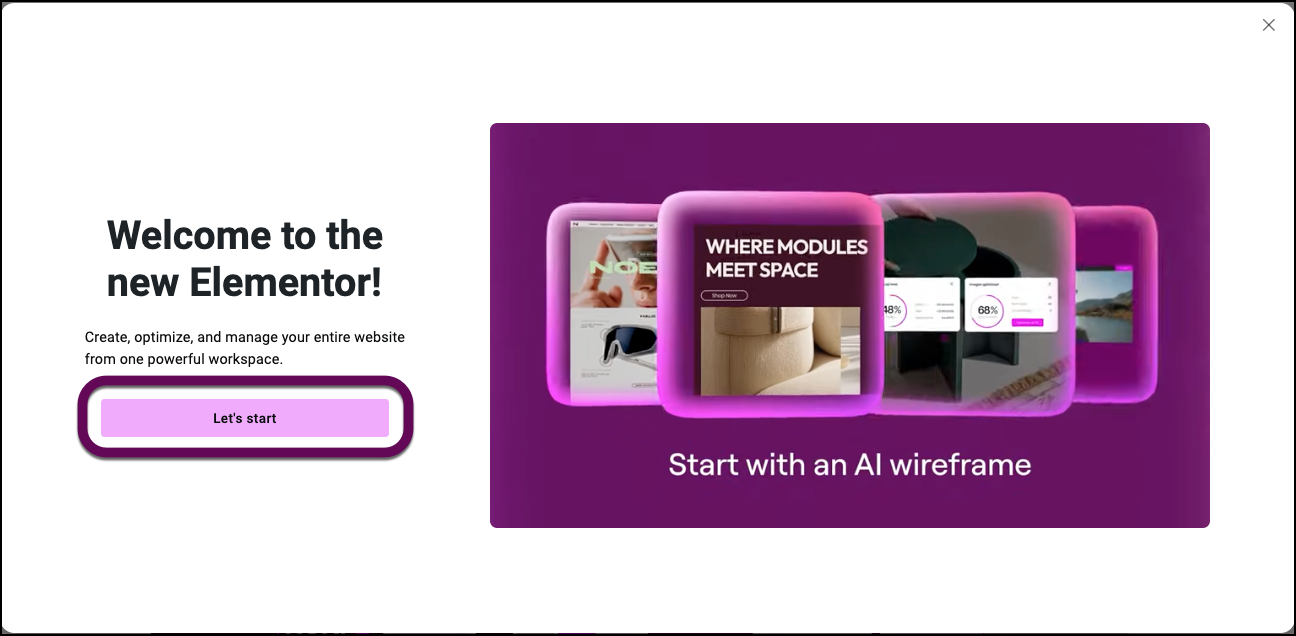
- Click Let’s start.
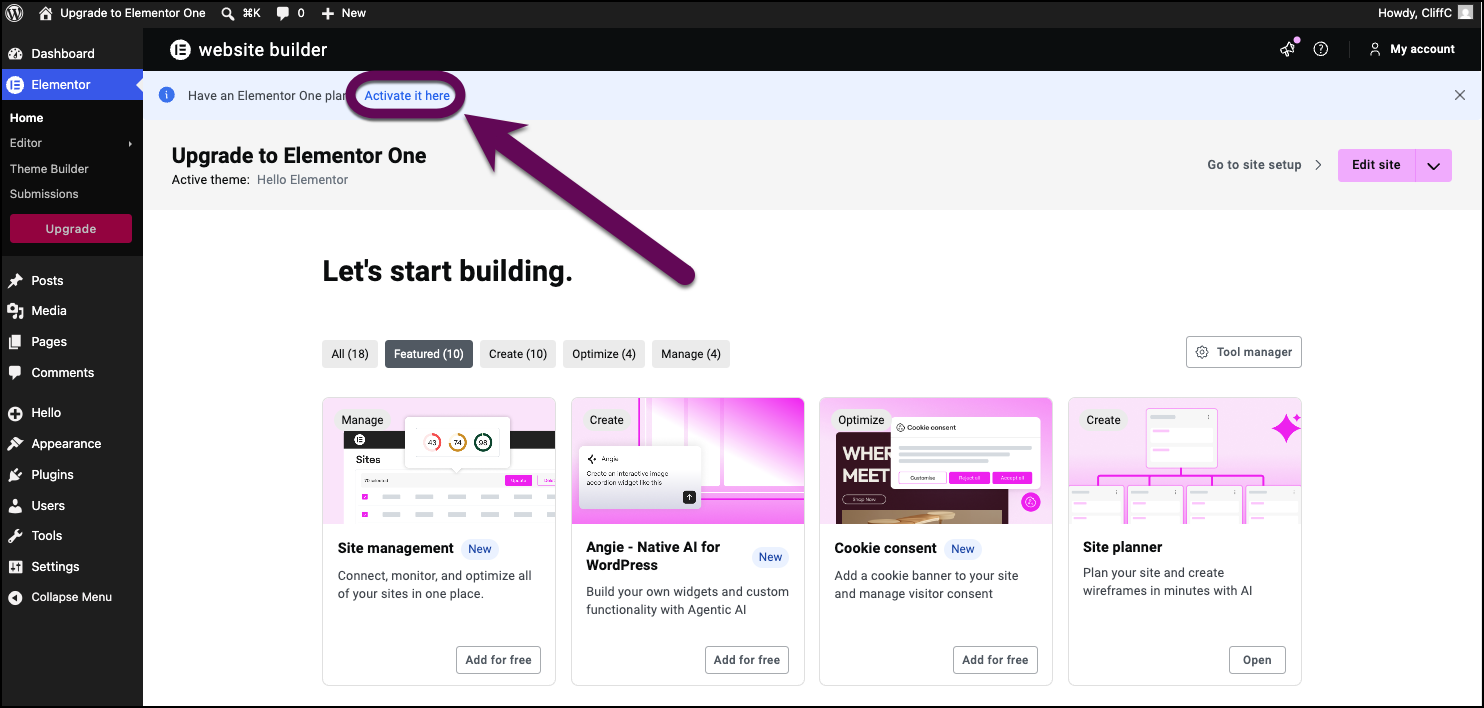
- Click Activate it here.
- Sign in and confirm the email associated with your Elementor One subscription.
- If the email shown isn’t the right one, click Switch accounts and sign in with the correct email.
- Confirm the site/domain you’re connecting to.
Warning: The email address associated with the account is used for several purposes including account recovery. Make sure you use an email address you have access to. You can change the email address at any time.
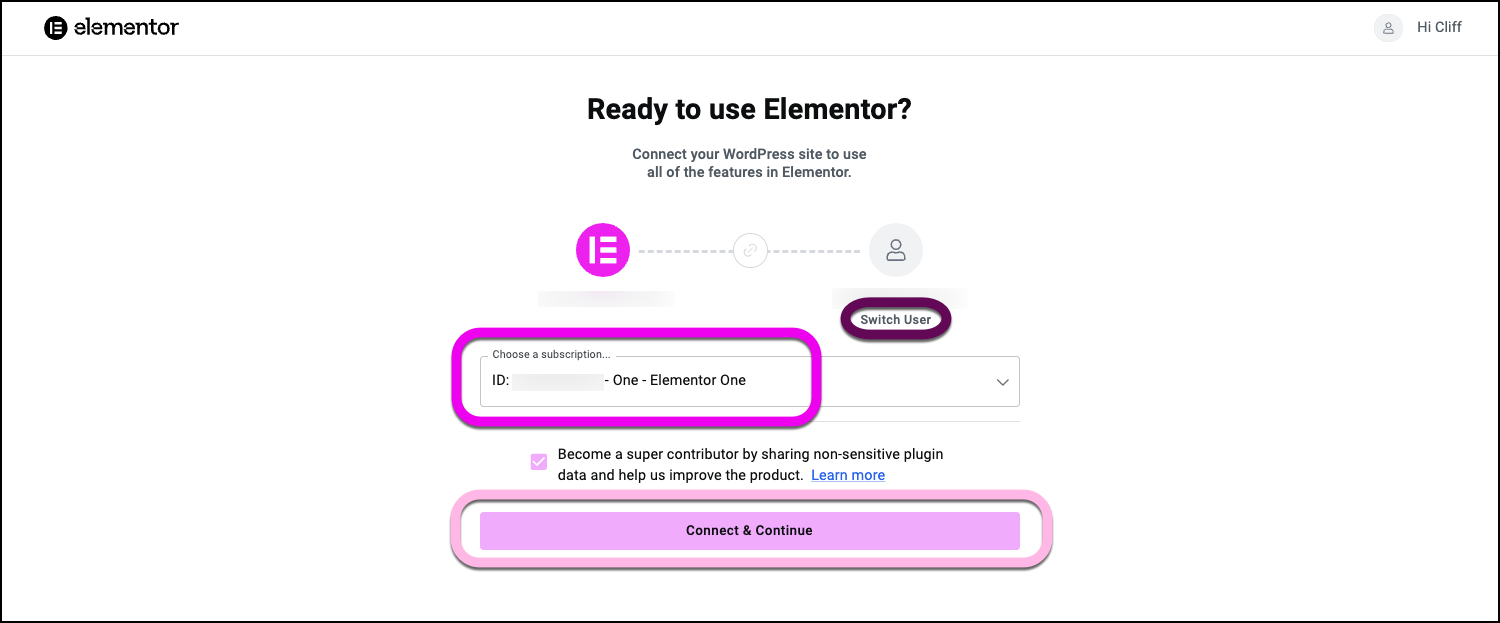
- If prompted, select the Elementor One subscription from the dropdown list.
- Click Connect & Continue.
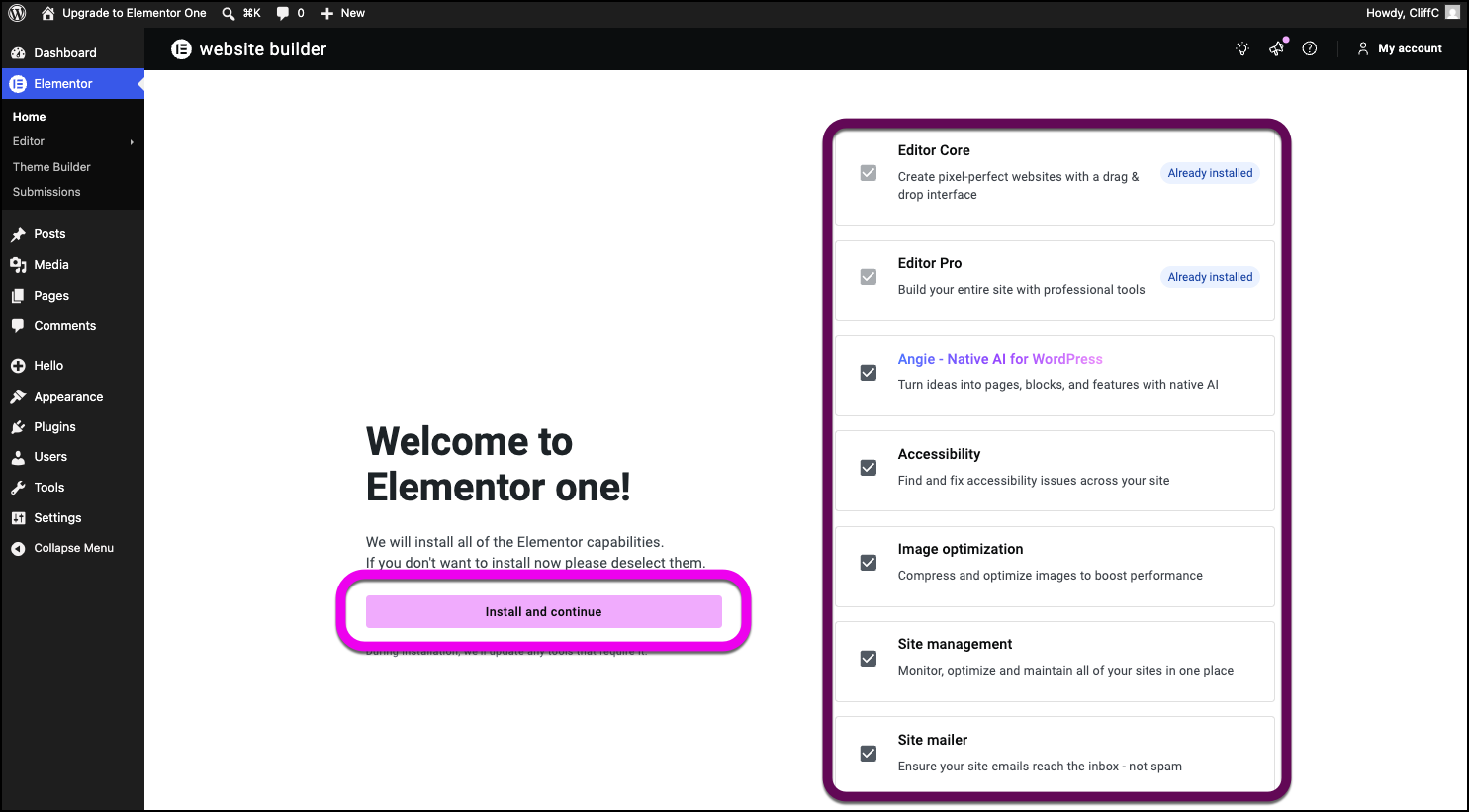
- Click Install and continue.
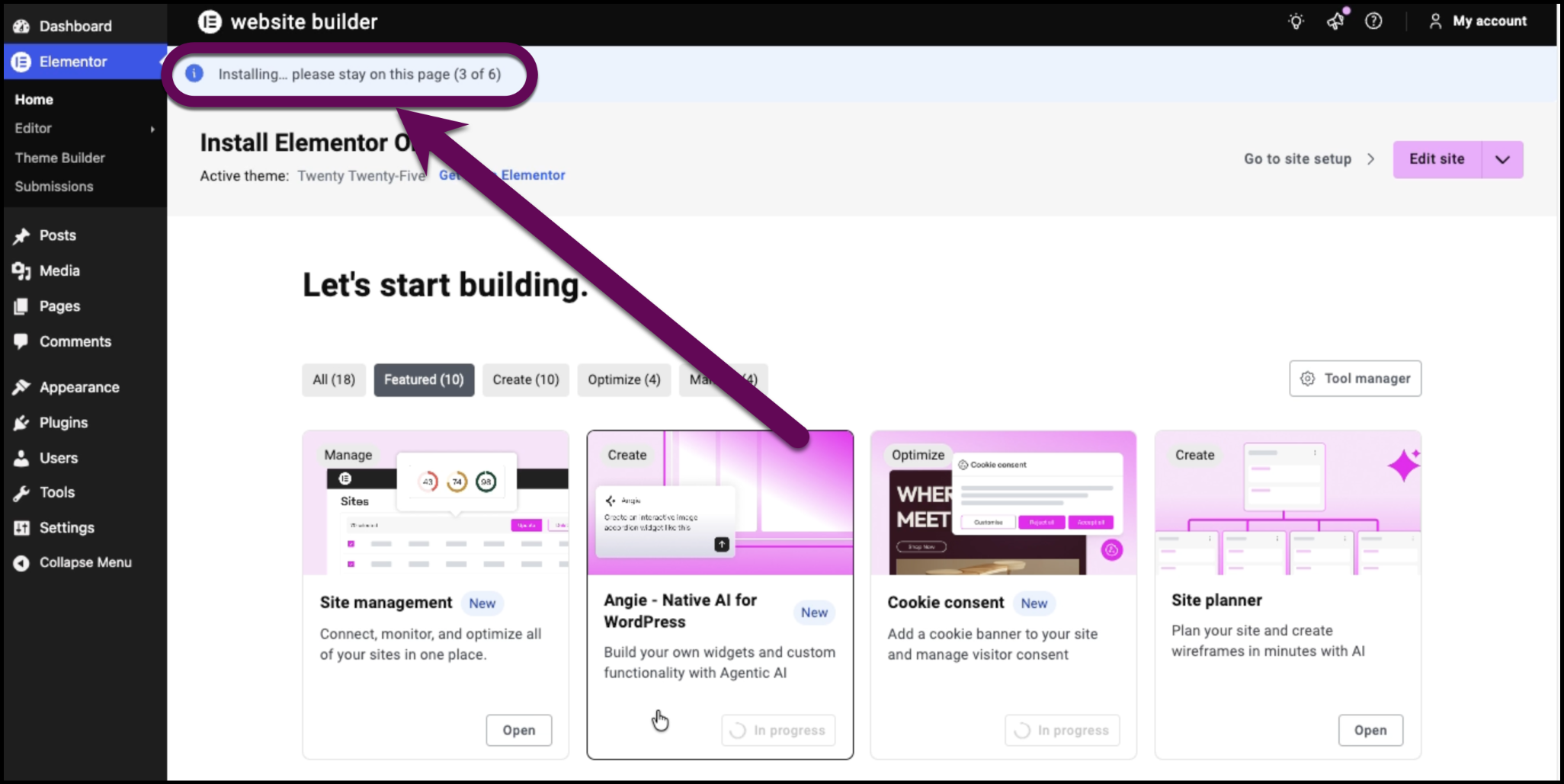
- Let the activation process complete.
- If Elementor Pro (or any Elementor app) is installed, make sure it’s updated to the latest version.
- If Elementor Pro (or any Elementor app) is installed, make sure it’s updated to the latest version.
- After the activation process, you can select which apps to install and activate. Selected apps will be installed, updated, activated and connected to Elementor One (essentially they will be ready for use).NoteActivating Elementor One also activates any Elementor app that is not already connected to an individual subscription.
- If you have any Elementor apps, you can migrate them to Elementor One to take advantage of the Elementor One credit pool. See below for the migration process.NoteYou should update your Elementor apps when you install Elementor One.
- When the process finishes, you can use any supported Elementor plugin with the credits granted by Elementor One.
Moving existing apps to Elementor One
If you already have Elementor apps installed on your site that are connected to individual subscriptions, you can move them to Elementor One through the Tool Manager on Elementor Home.
Important: A plugin can be connected to only one subscription at a time. Switching an app to Elementor One disconnects it from its individual subscription on this site, but it doesn’t cancel that subscription.
Move an app to Elementor One (via Tool Manager)
- In WP Admin, go to Elementor>Home.
- Open Tool Manager.
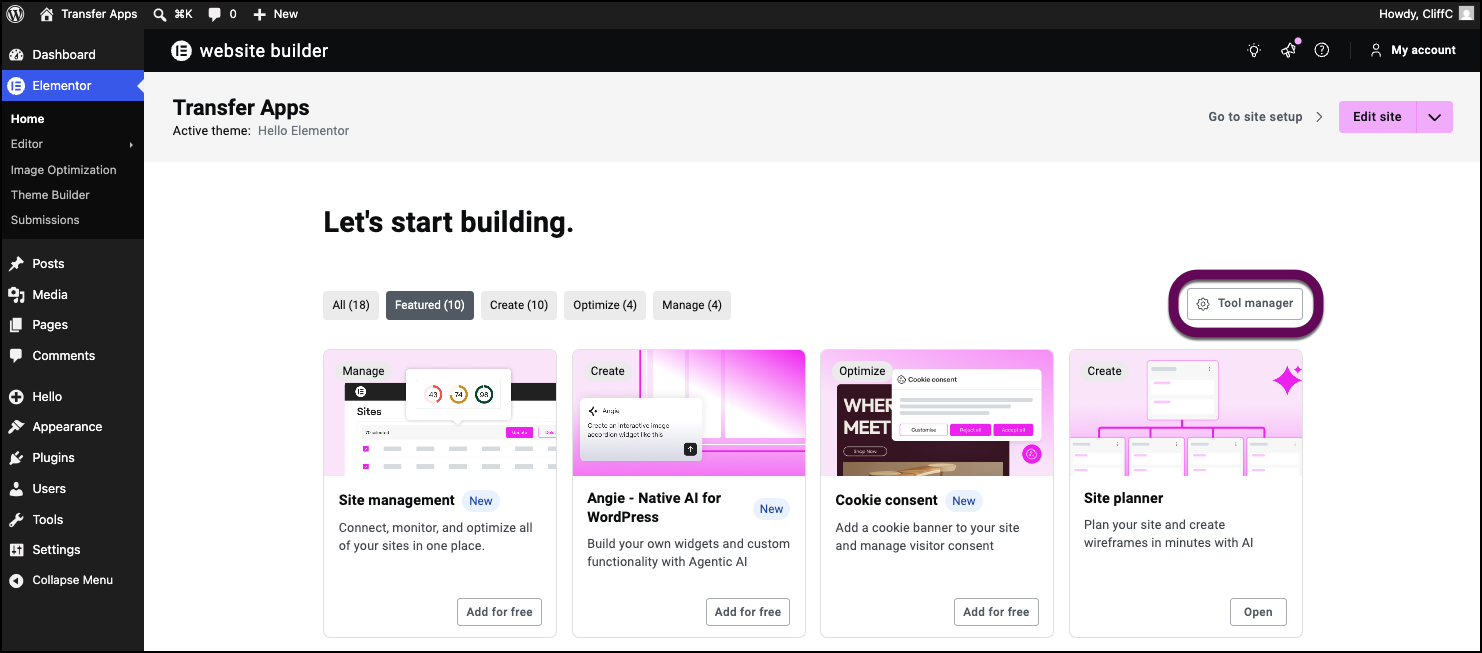
- Find the app you want to migrate.
- Connected apps will show a Move to One button.
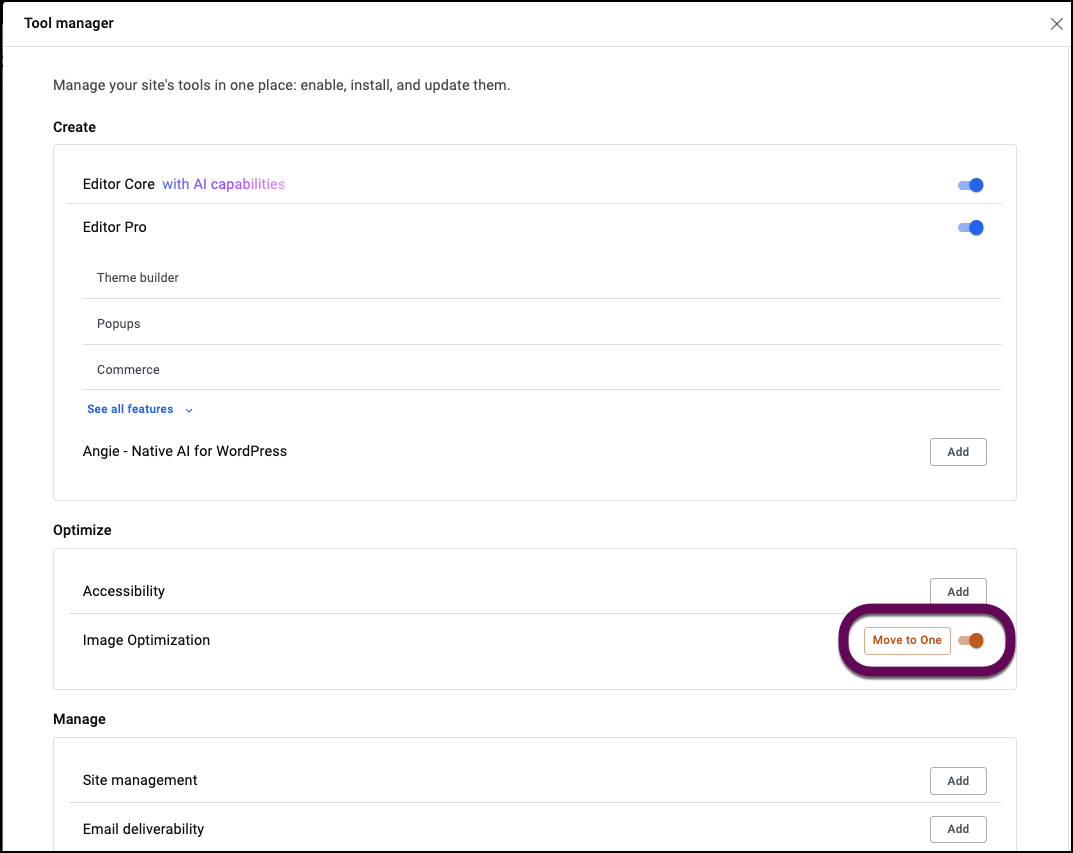
- Connected apps will show a Move to One button.
- Confirm the switch.
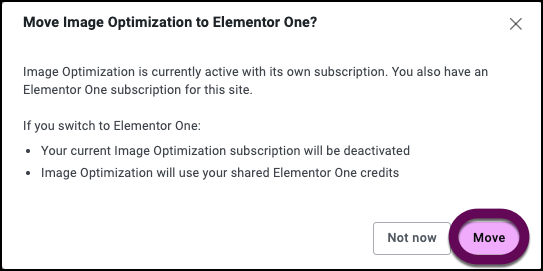
- The plugin will be reactivated with your Elementor One subscription.
- If the plugin needs an update, you’ll be prompted to update before the switch completes.
After the switch, the app will use the credits included in your Elementor One plan (when applicable).
Switch back to an individual subscription
If you want to reactivate an app to a specific subscription later:
- Open the app in Tool Manager.
- Toggle the capability/app off and in the modal that opens, select Detach. This will disconnect Elementor One from the app.
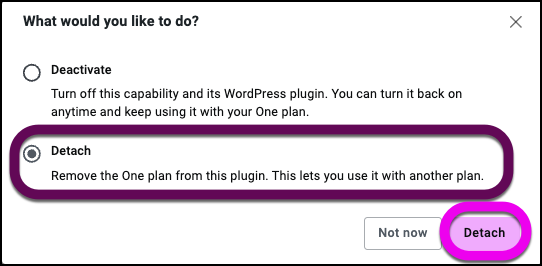
- Go to the app and start the activation process. Select the subscription you’d like to activate and complete the process.
For details, see How to manage your addons with the Tool Manager.