The Atomic editor has the ability to import and export your design system, including variables and classes, between different websites. This feature allows you to standardize and reuse your styling foundation across multiple projects, streamlining your workflow and ensuring design consistency.
What are Elementor Design Systems?
Elementor Design Systems are a collection of reusable styling logic, such as Variables (for colors, fonts, and sizes) and Classes (for reusable element styles). These systems help you maintain consistency and scalability across your website by defining styles once and applying them globally.
How to export your Elementor Design System
Exporting your design system allows you to save your variables and classes into a single ZIP file, ready to be imported into another Elementor website. This is particularly useful for agencies or professional creators who want to reuse a consistent styling foundation across client projects.
Example: You have established a comprehensive design system on a development site, including custom typography variables, a color palette, and several reusable button classes. You want to transfer this entire system to a new client website.
- Open the Elementor Editor on the website containing the design system you wish to export.
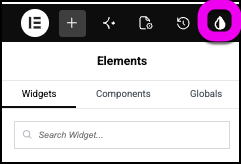
- Click the Design System icon in the top bar.
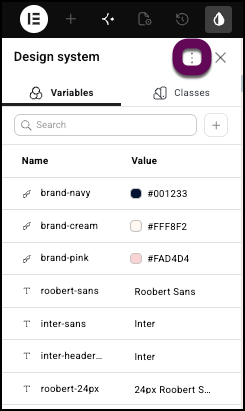
- In the Design System panel, click the ellipses.
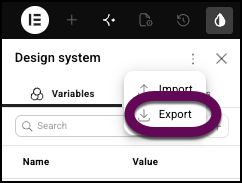
- Select Export.
- Confirm that a ZIP file containing your variables and classes is downloaded to your computer.
How to import an Elementor Design System
Importing a design system allows you to apply a previously exported collection of variables and classes to a new or existing Elementor website, instantly applying your standardized styling.
Example: You have exported a design system from a previous project and now want to apply it to a new client website to quickly establish its visual identity.
- Open the Elementor Editor for site where you want to import the design system.
- Click the Design System icon in the top bar.
- In the Design System panel, click the ellipses.
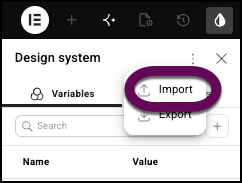
- Select Import.
- Upload the ZIP file you previously exported.
- Confirm that the imported variables and classes appear in the Design System panel.
- If there are any duplicate variables or classes you’ll be asked to either replace or keep the existing settings.
What are the limitations of importing and exporting design systems?
Currently, the import/export functionality applies to the entire ZIP file, meaning you cannot selectively import individual variables or classes. Additionally, the system does not support adding imported items to existing lists with different prefixes; name conflicts are managed by choosing to override existing values or keep your current values.
Elementor Design System FAQ
Can I import individual Variables or Classes?
No, currently, the import/export functionality applies to everything included in the ZIP file and cannot be separated by Variables or Classes.
What happens if there are name conflicts during import?
When importing, you can manage name conflicts by choosing to override existing values or keep your current values.
Is the Design System import/export feature available in Elementor Free or Pro?
This feature is available in Elementor Core and Pro.
Does this feature support older Elementor versions?
No, this feature is part of Elementor V4 and requires the Atomic Editor to be active.