Elementor’s Accessibility Assistant scans any page, post, or template you choose and highlights only the accessibility violations it finds on that specific URL. Issues are grouped into clear categories, allowing you to understand what needs attention quickly.
- Improve user experience: More people can navigate and engage with your site.
- Save time: Fix issues inline, one by one, without leaving Elementor or WordPress.
- Become more compliant, and stay competitive: Meet WCAG-based best practices that many clients now require.
How to scan your site for accessibility
Ally can scan your site, locating and correcting accessibility issues.
To scan for accessibility issues:
- From WP Admin, navigate to Elementor>Accessibility.
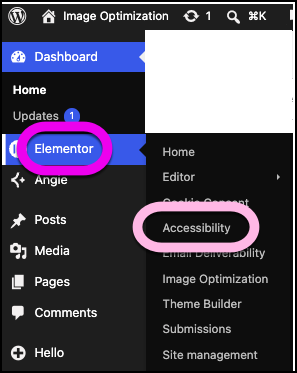
The Web Accessibility dashboard opens up in the right pane.
The scan options appear in the right pane. - If this is your first scan, you’ll begin by scanning the home page.
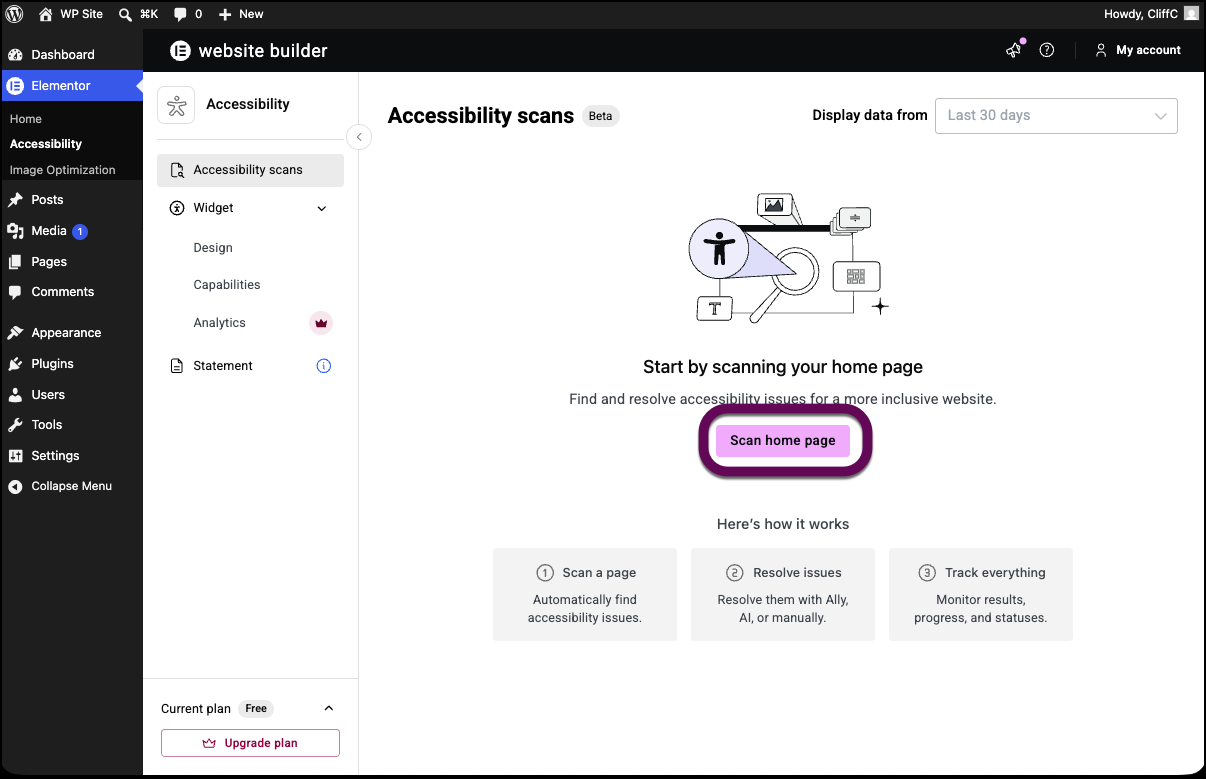
- Click Scan home page.
The Accessibility Assistant opens to the home page.
For details about the scanning process, see Scan Your Pages for Accessibility Issues.
Add accessibility to Elementor One
Elementor One subscribers can add accessibility to their subscription:
- When installing Elementor One, you can install accessibility
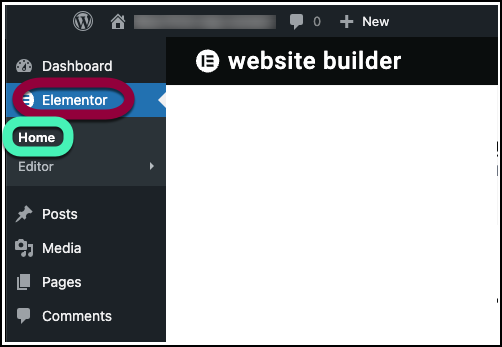
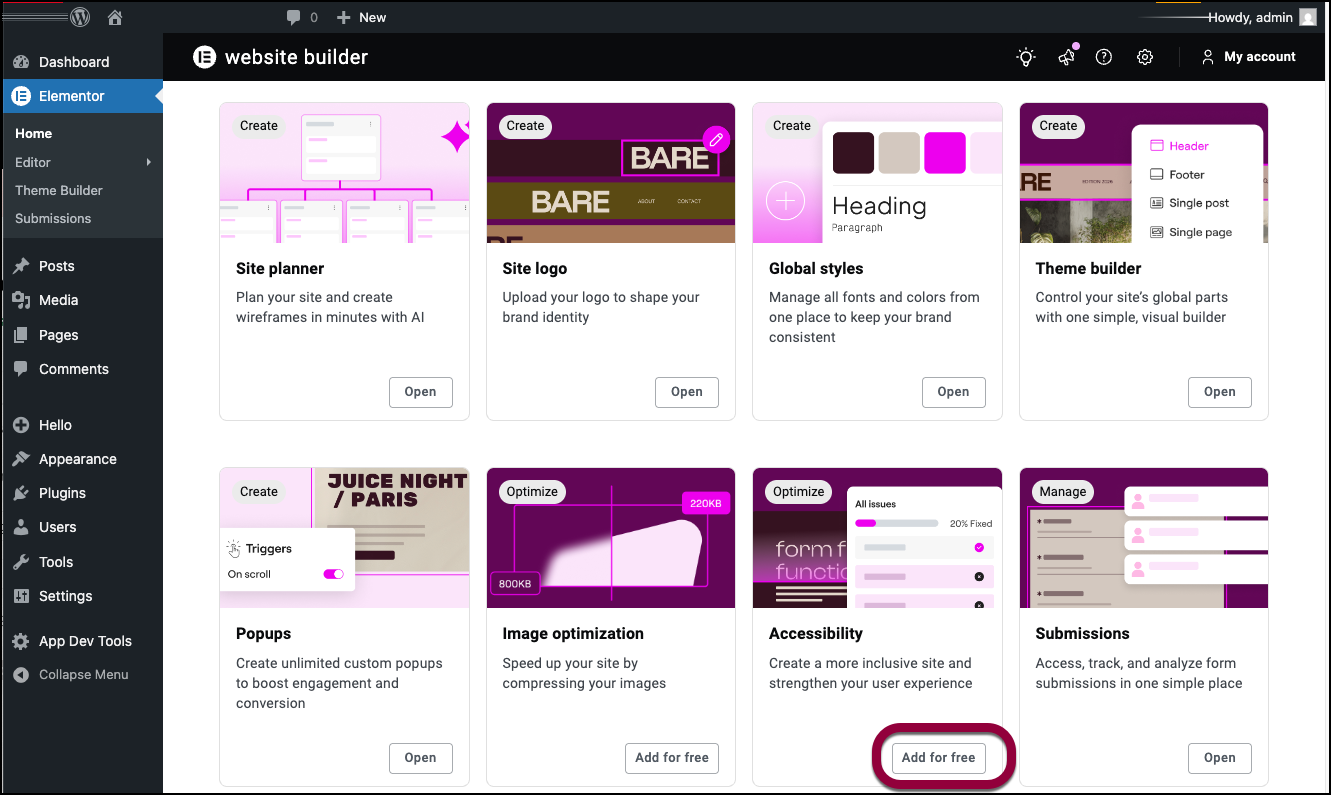
- After installing Elementor One, you can install accessibility from Elementor>Home.
Add accessibility on installation
When you install Elementor One, use the checkmark to add accessibility to Elementor One.
Add accessibility in Elementor home
- From WP admin, navigate to Elementor>Home.
- Locate the accessibility card.
- Click Add for free.
The Audit dashboard
After you run your first scan, clicking Scans will bring up the Audit dashboard in the right pane. The Audit dashboard gives you an overview of your site’s accessibility at a glance. The dashboard appears after you’ve run your first website scan.