Elementor AI (Angie) integrates directly into the Atomic Editor, enabling faster creation of reusable design systems, Components, Forms, Tabs, Classes, and Variables using natural language prompts. This accelerates scalable web creation while maintaining full control over your site’s structure and styling.
How to activate Angie AI
To utilize Angie AI features, ensure the Atomic Editor is active and Angie is installed.
- Open the Elementor Editor for any page or template.
- Click the Angie icon on the left side of the top bar to open the Angie panel on the left.
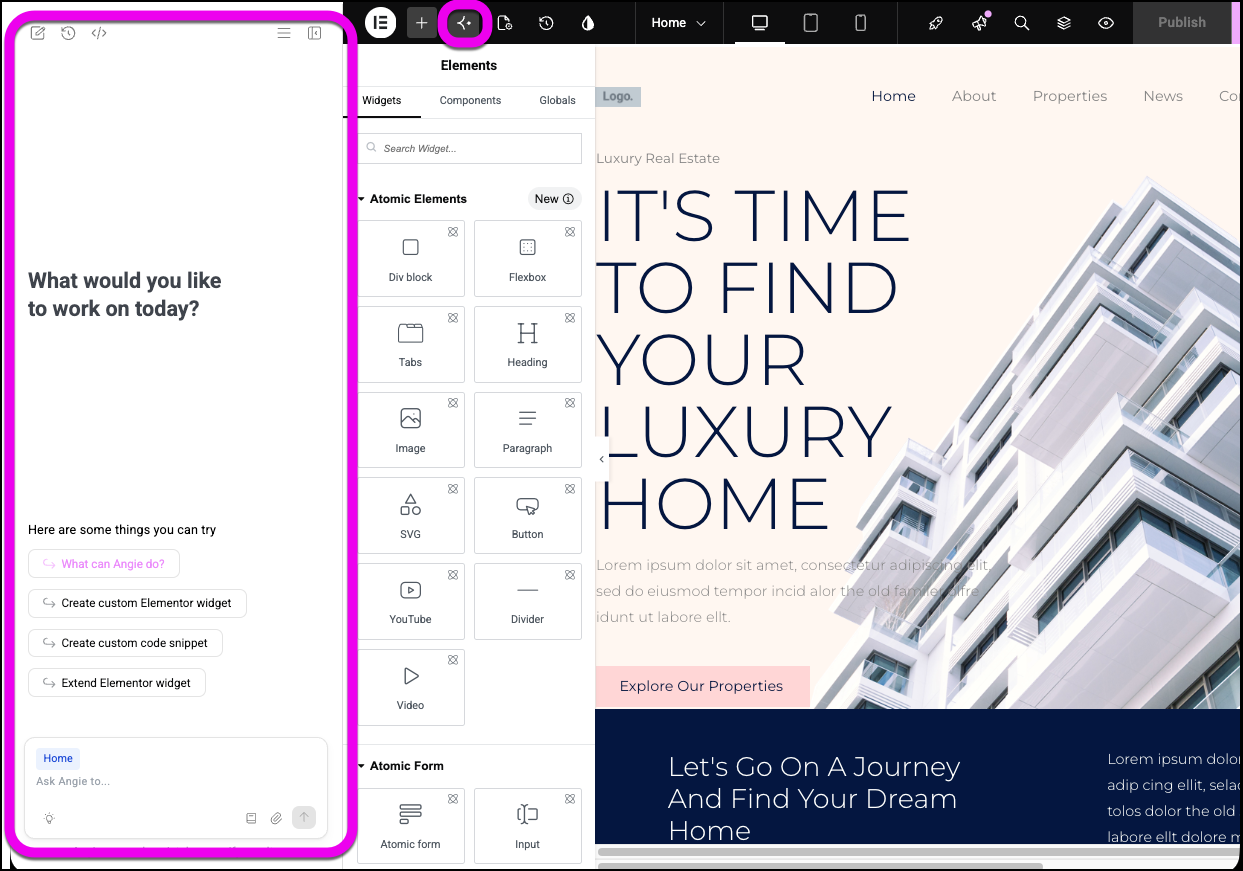
- Enter a prompt in the Angie prompt box.
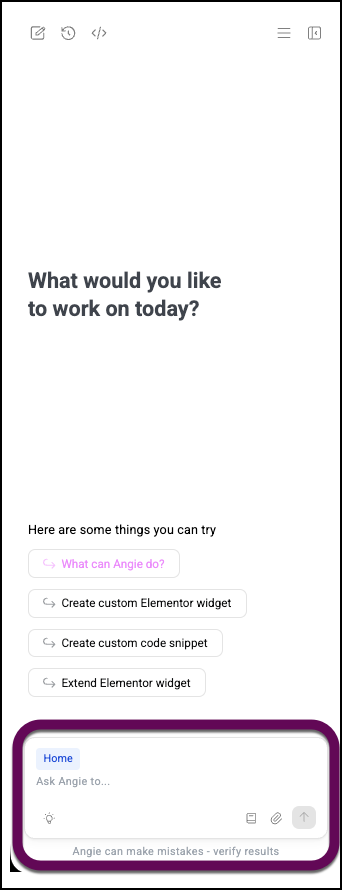
How to Get the Best Results with Angie AI?
Angie AI performs best with clear, specific prompts and relevant context. Providing detailed information helps Angie generate more accurate and reusable results.
To add context to Angie AI:
- Open the Elementor Editor.
- Click the Angie icon in the Top Bar.

This opens the Angie panel.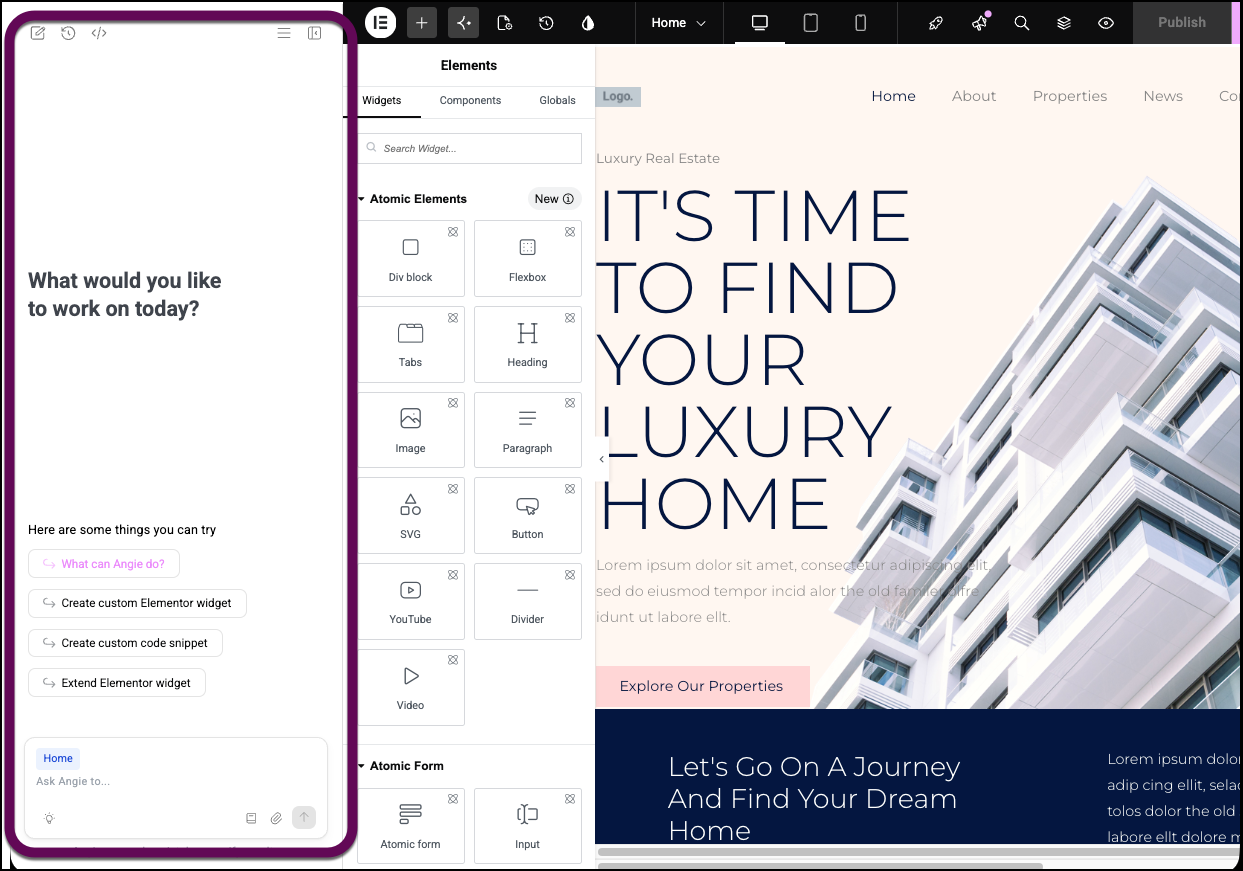
- Click the three lines (hamburger icon) on the top right of the Angie panel.

- Go to AI context.
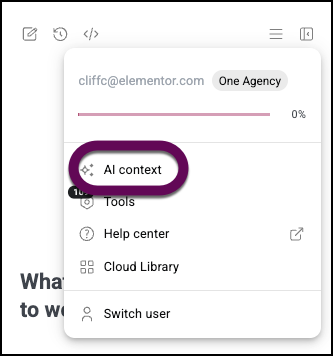
- Add information about your business/website, desired voice and tone, and relevant keywords.
For details, see Build a customized website with AI Context.
How to generate reusable elements with Angie AI?
Angie AI can generate structured compositions and reusable components with exposed properties, accelerating scalable workflows while maintaining full control over structure and styling. For example, you can create reusable retreat cards for a wellness retreat website.
For details, see How to create custom widgets using Elementor Angie AI.
Since these elements are generated as part of the Atomic editor, they are fully compatible with the latest version of the Element Editor, including Variables and Classes.
Speed Up form creation with Angie AI
Angie AI can help generate Forms directly from prompts, providing structured starting points that are fully editable within the Elementor Editor. For instance, you can quickly create a contact form for a design agency.
For details, see How to build a form with Angie AI.
This capability helps you move from initial setup to refinement more quickly, while preserving the flexibility and control of the Atomic Editor.
How to Create Classes and Variables Faster with Angie AI?
Angie AI simplifies the implementation of reusable styling systems by allowing you to generate Classes and Variables using prompts, references, or existing design directions. This is ideal for establishing typography scales, spacing systems, color tokens, and reusable button styles.
- Open the Elementor Editor.
- Click the Angie icon in the Top Bar.
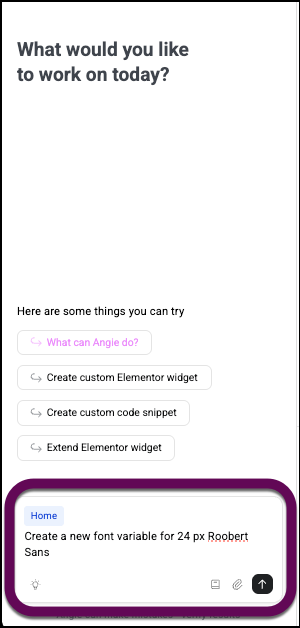
This opens the Angie panel. - In the Angie panel, enter a prompt. For this example, we’ll use the prompt, Create a new font variable for 24 px Roobert Sans.
- Review the generated classes and variables.
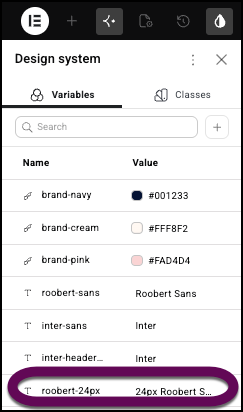
For an example of generating classes and variables from an existing page, see Use Angie AI to create variables and classes based on existing pages.
Generated Variables and Classes become native parts of the Atomic system, ensuring they are fully editable, reusable, and maintainable throughout your project.
How to build a Tabs element with Angie AI
Angie can generate Tabs elements directly from prompts, providing structured starting points that are fully editable within the Elementor Editor. This is useful for creating onboarding forms, pricing comparison tabs, or lead-capture flows.
For instance, you can quickly generate a pricing comparison tab structure for a service website.
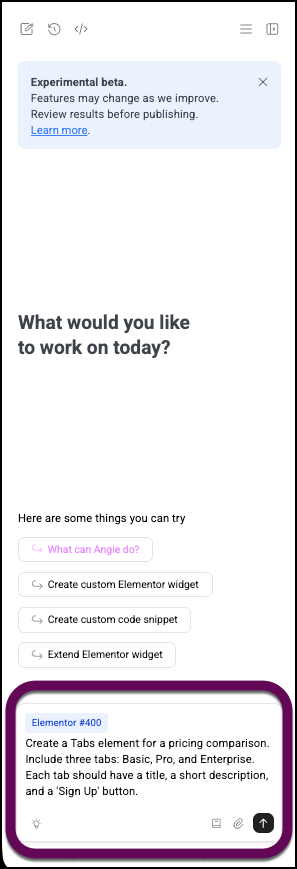
Example Prompt for Tabs: “Create a Tabs element for a pricing comparison. Include three tabs: Basic, Pro, and Enterprise. Each tab should have a title, a short description, and a ‘Sign Up’ button.”
To generate a Tabs element using Angie:
- Open the Elementor Editor.
- Click the Angie icon on the left side of the Editor top bar.
- In the Angie panel, enter your specific prompt for the Tabs element.
- The Tabs element is added to your canvas.
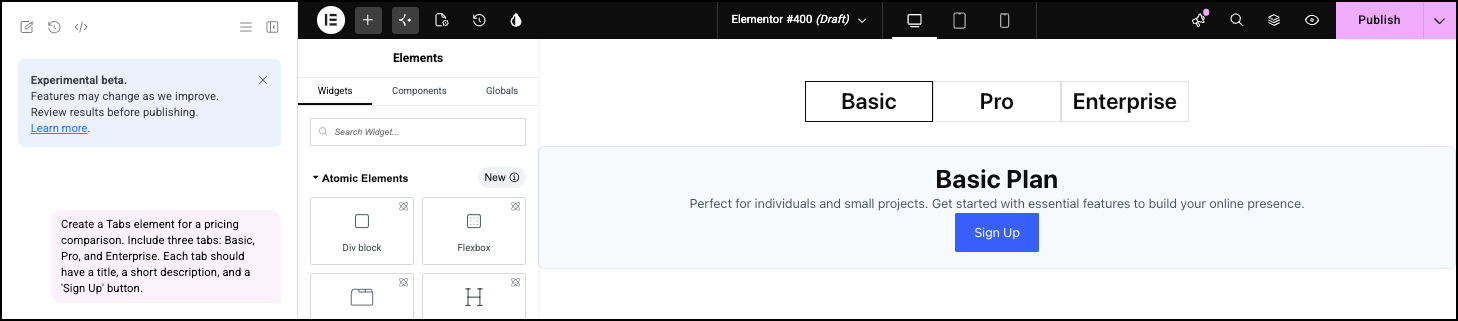
The generated Tabs element is fully editable within the Elementor Editor, allowing you to customize its structure and styling.
Frequently Asked Questions
Can I use Angie AI to modify existing elements on the canvas?
Yes, Angie AI allows direct modifications to elements on the canvas, which helps reduce manual adjustments and iteration time.
What are the benefits of using Angie AI with the Atomic Editor?
Angie AI accelerates the creation of production-ready assets, reusable design systems, and complex layouts within the Atomic Editor. It helps streamline workflows, improve consistency, and maintain control over your site’s structure and styling, especially for advanced functionalities that might otherwise require custom development.
How does Angie AI handle existing design systems when generating new elements?
Angie AI generates outputs that remain connected to your existing editing environment and reusable site structure. This means generated elements, classes, and variables integrate seamlessly with your current design system, allowing for continued editing and maintenance within the Atomic Editor.