If the automated connection process fails, you can manually connect Elementor Pro to your account.
Warning
In order to manually connect Elementor Pro, you must be using the most recent versions of Elementor, Elementor Pro and WordPress.
To manually connect Elementor Pro:
From WP Admin, navigate to Elementor>License.

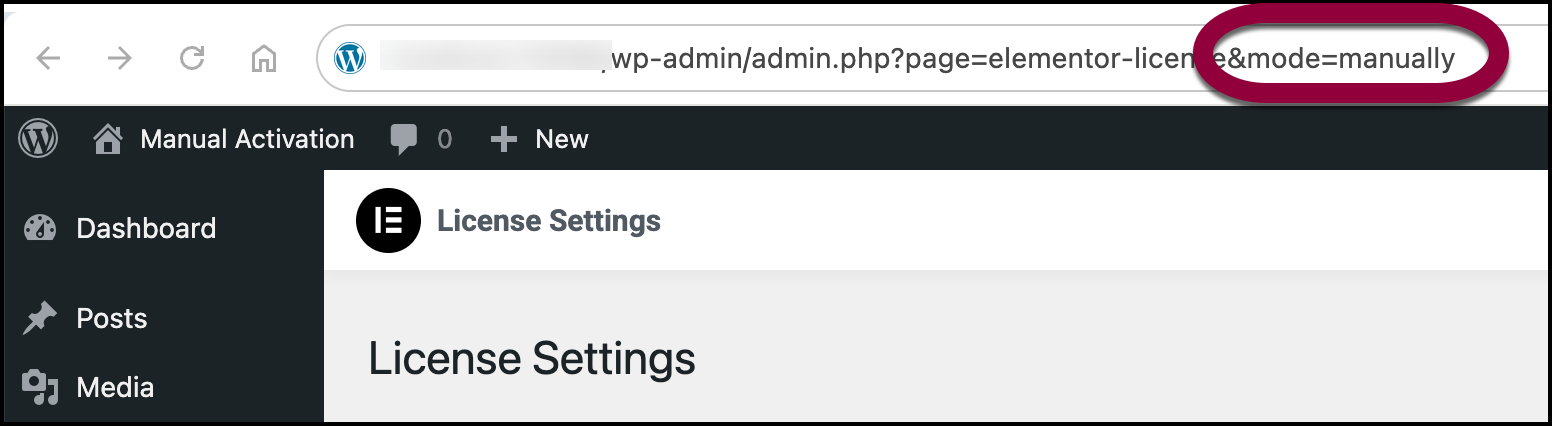
In the browser’s address bar, add this string at the end of the existing address: &mode=manually and hit Return.
The Manual connect window appears.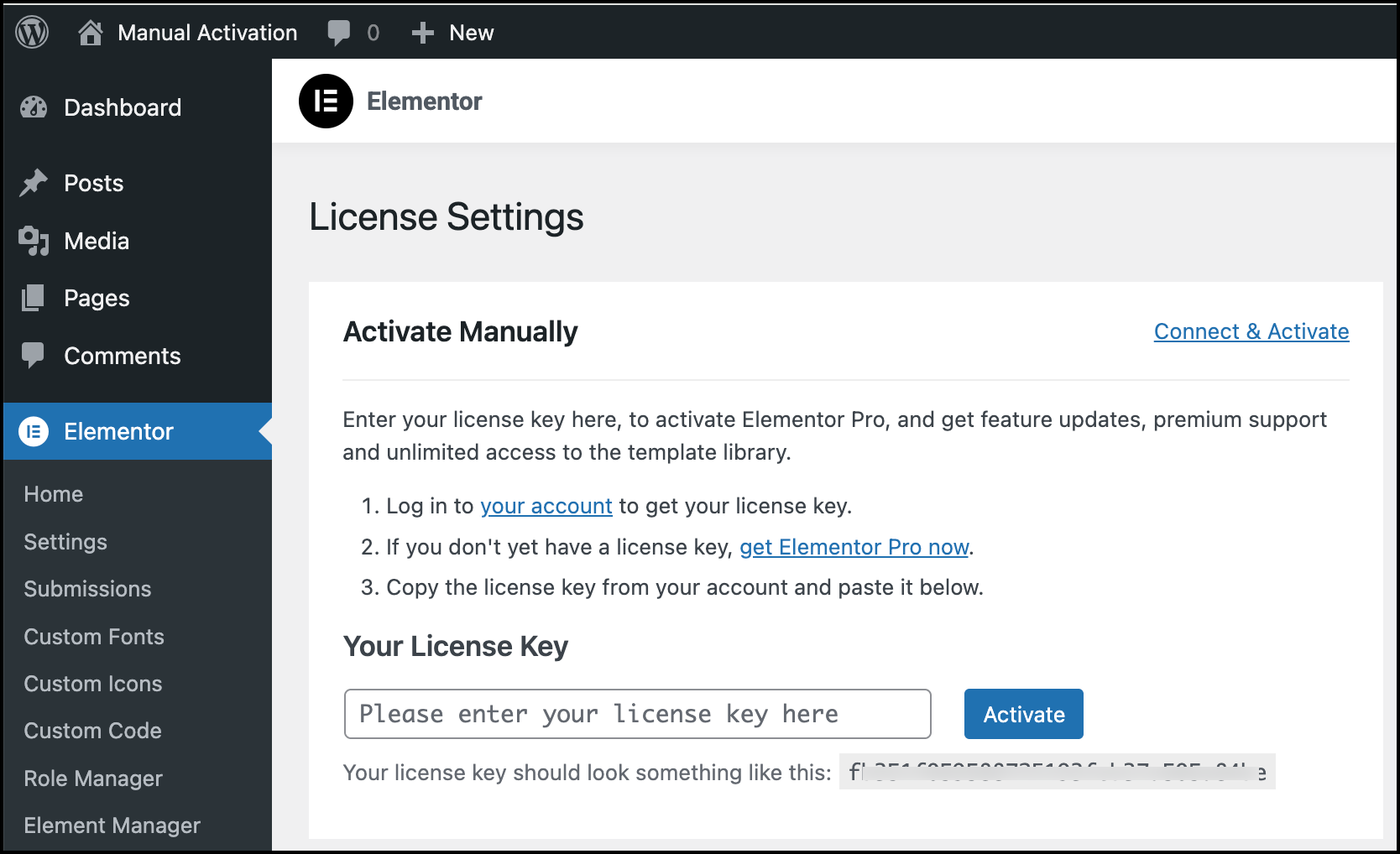
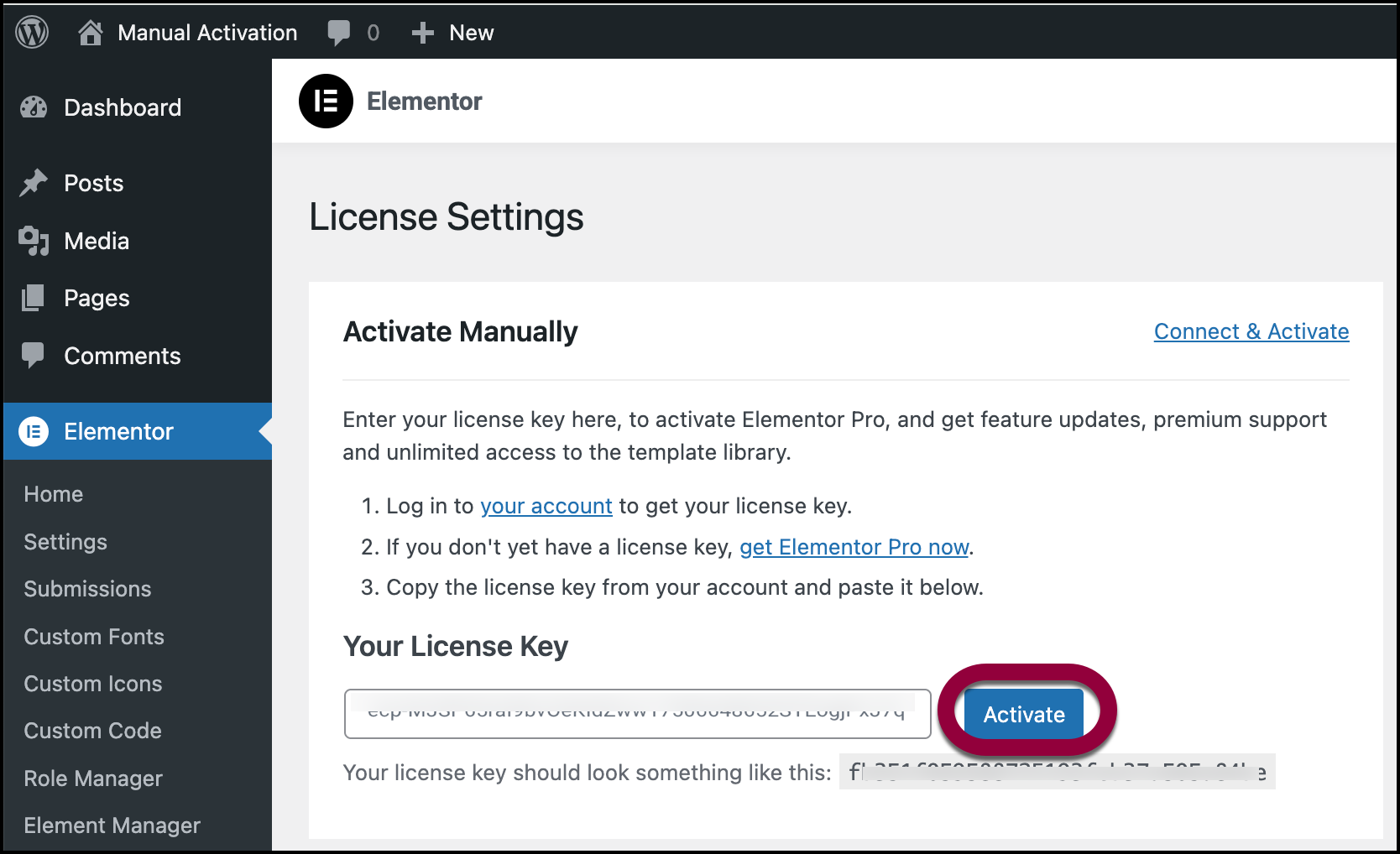
Enter your license key and click Activate.
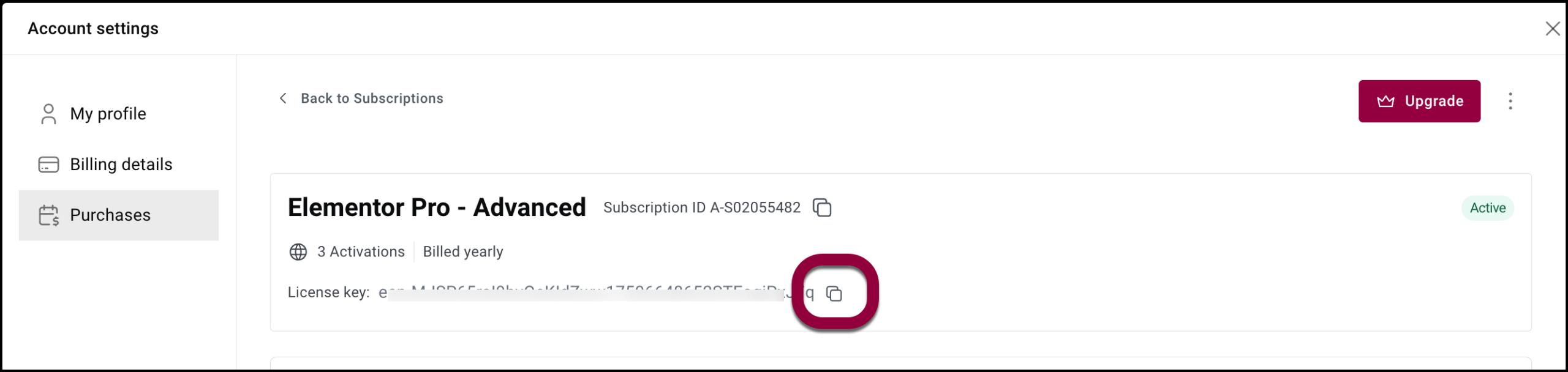
Locate your license key
To manually connect Elementor Pro, you’ll need your license key.
To copy the key:
Go to your My Elementor dashboard.
Click the account icon in the upper right.

Select Subscriptions from the dropdown menu.

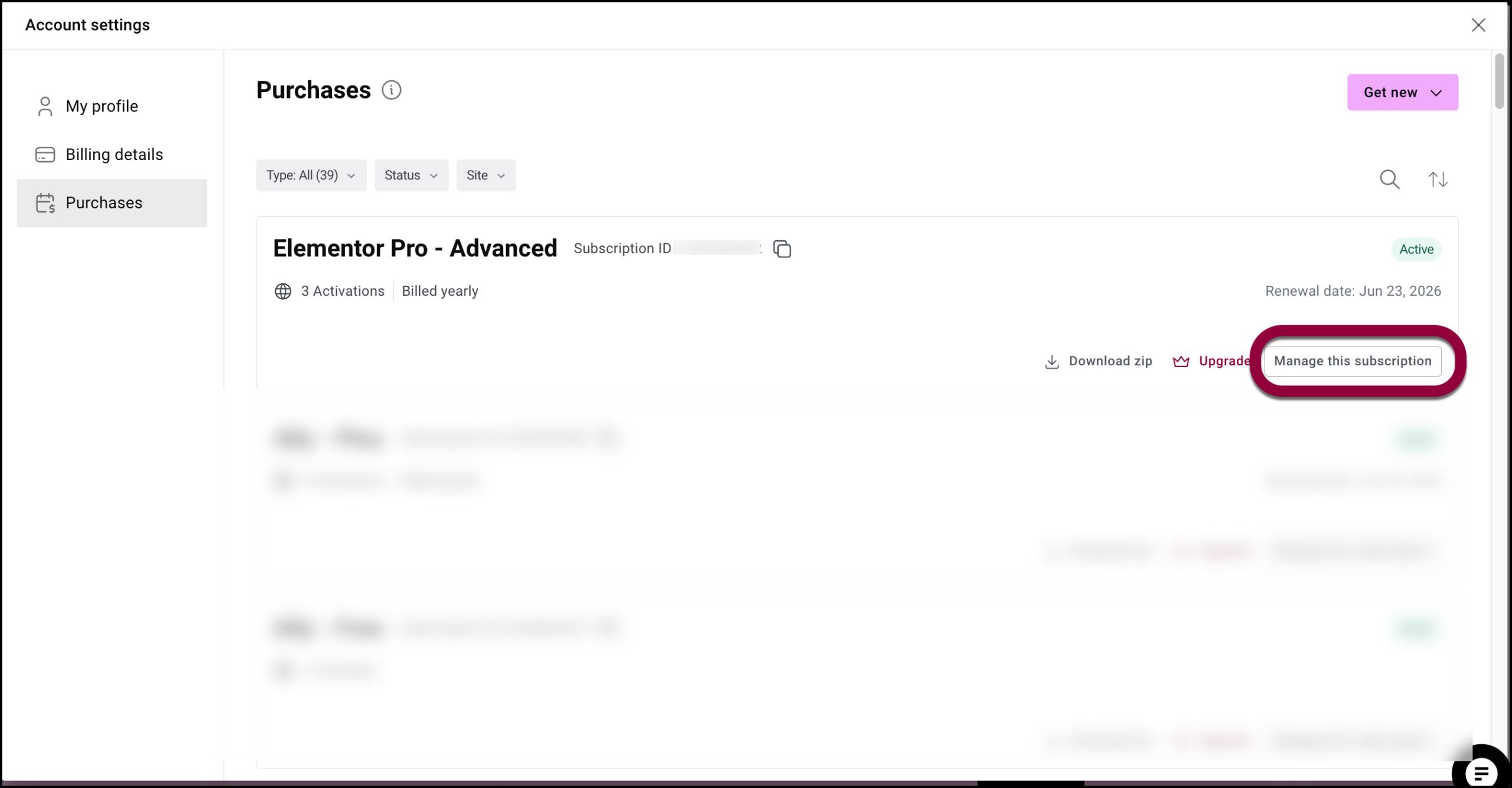
A list of your subscriptions appears.Click Manage this subscription for the subscription associated with the license key.
Click the copy icon to copy the key.