Plugins are a great way to add features and flexibility to your site. To keep your site running smoothly, you need complete control over which plugins are installed, active, and updated. Using the My elementor dashboard, you can install, delete and update your site’s plugins.
To access your site plugins:
Go to your My Elementor dashboard.
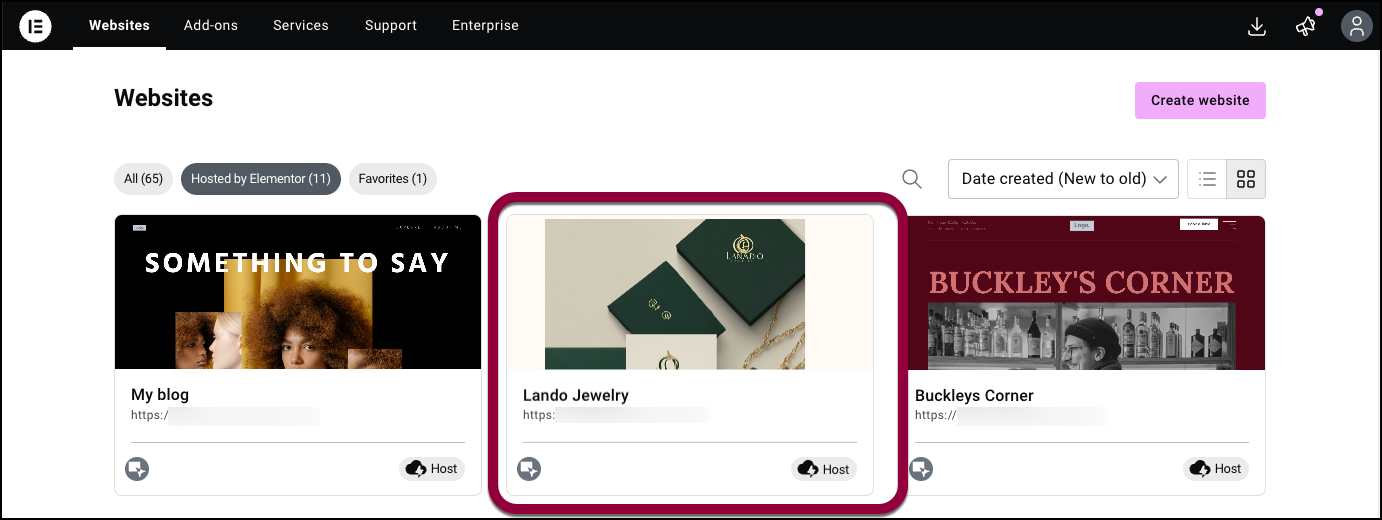
Click the website card of the site with the plugins you want to manage.
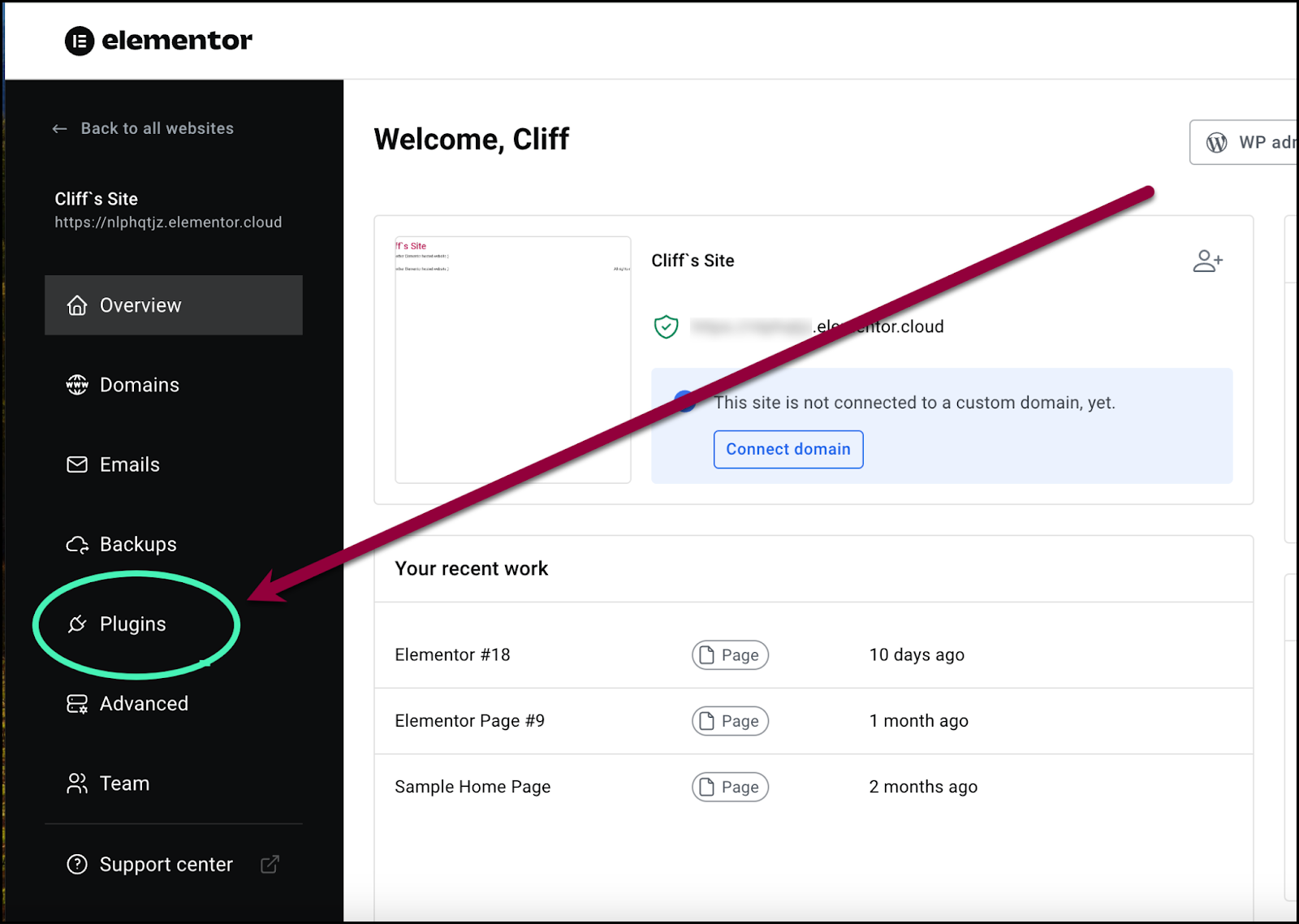
In the panel, click Plugins ( the menu will say WordPress Tools if you are using the manage plugin on your site ).
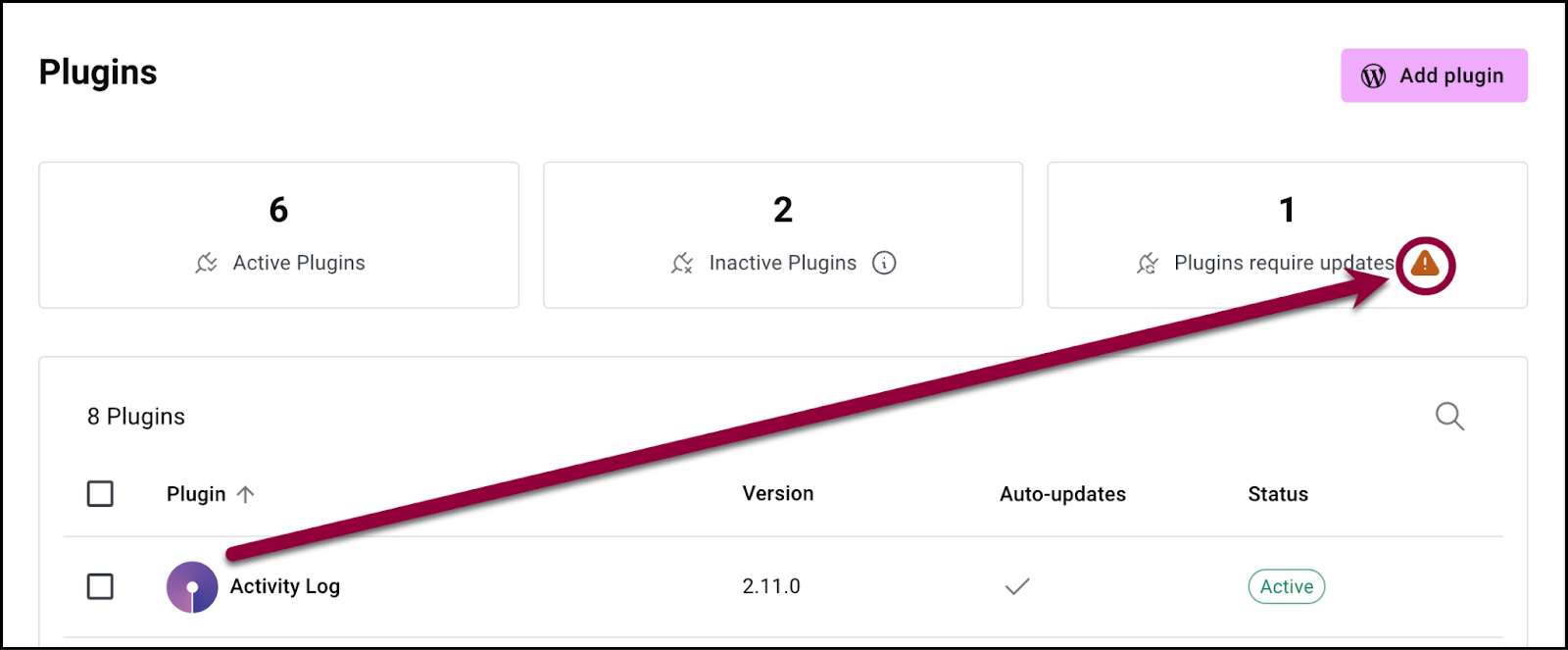
The Plugin dashboard displays:
How many plugins you’ve activated & How many plugins are installed but not activated |  |
removec this | remove this table |
How many plugins need updates |  |
A list of all installed plugins |  |
Install a new plugin
Expand your website’s capabilities by installing new plugins directly from your dashboard.
To add a plugin:
Click Add New in the upper right corner.

This will take you to the WordPress Plugin Repository.
Update a plugin
Plugin updates are a critical part of keeping your site secure.
To update a plugin:
Option 1 – Update one plugin
Locate the plugin in the list of plugins.

The list will note which plugins have updates available.
Click Update available.
Select Update from the list.
The plugin is updated.
Option 2 – update all plugins
In the upper right of the screen, hover over the caution icon
The update notice appears.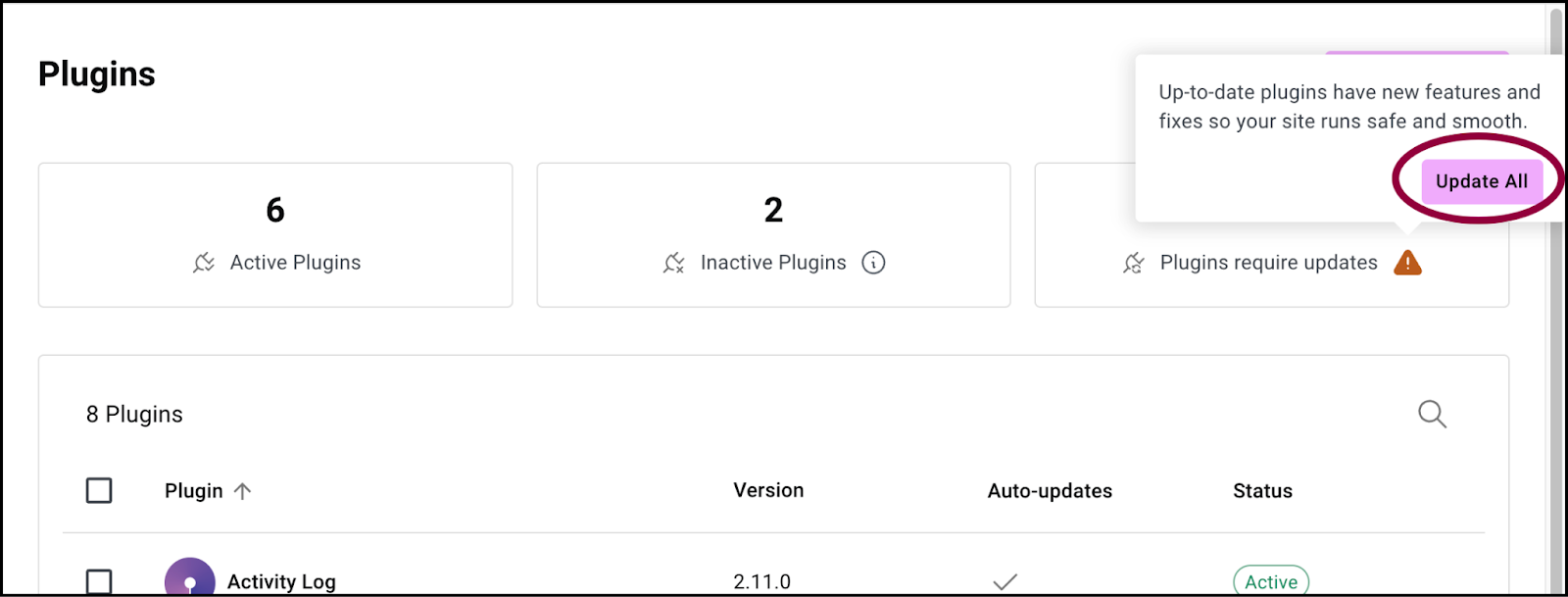
Select Update All.
Deactivate a plugin
Locate the plugin in the list of plugins.

Toggle the switch to Deactivate an activated plugin.

Have your plugins update automatically
Locate the plugin in the list of plugins.

Hover over the plugin you want to auto update.
Click the ellipses on the right-hand side.

Select Enable auto update from the list.
The plugin will update whenever a new version of the plugin is available. Use this option cautiously because some updates can break your site.
Delete a plugin
Locate the plugin in the list of plugins.
Hover over the plugin you want to delete.
Click the ellipses on the right-hand side.

Select Delete from the list.
The plugin is deleted.