Who can use this feature:
This article is for Editor v4 users. If you’re using Editor v3, check out the relevant article here: Advanced tab
Adding a border to your element can help it stand out or distinguish it from other elements on the page.
Add a border to an element
To add a border:
- Open the Elementor Editor.
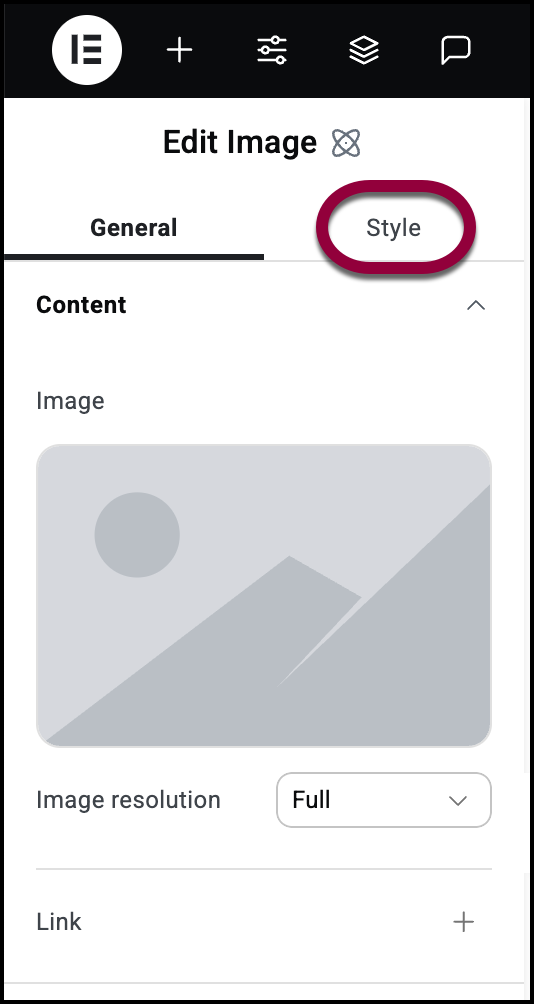
- Click the Style tab.
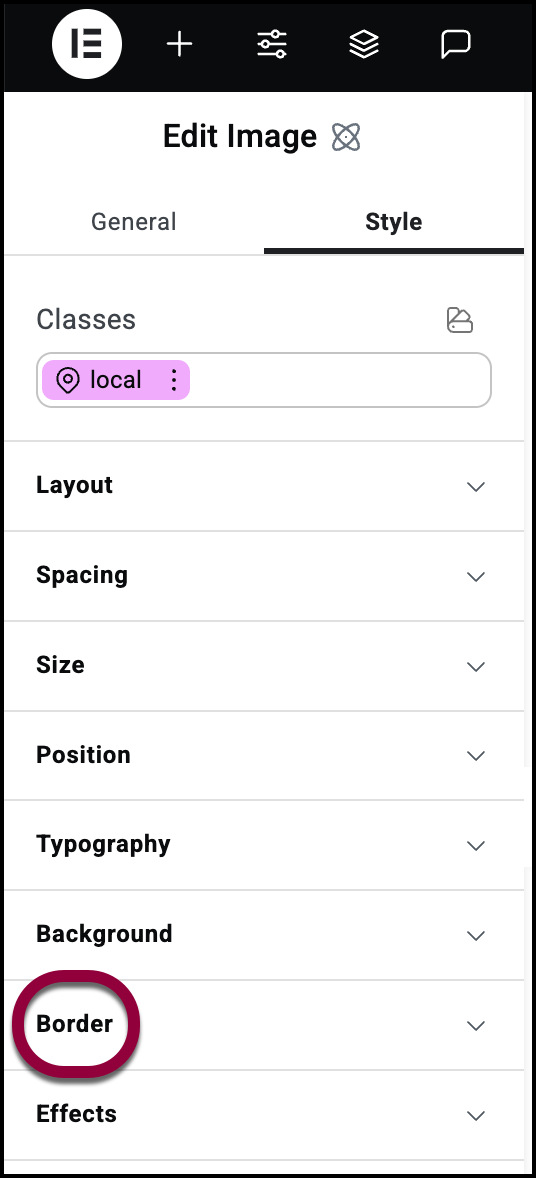
- Open the Border field.
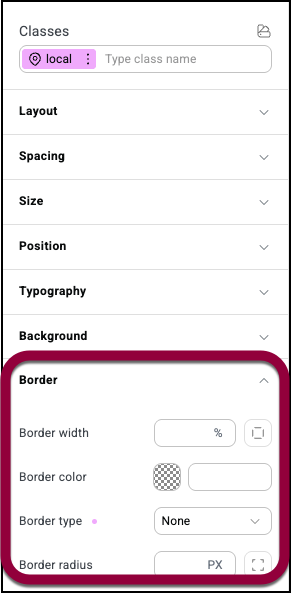
- In the Border width box, Use the number field to set a thickness for the border. Click the Adjust borders button if you want to set different thicknesses for the four borders..
- You then have the following options:
- Border color: Set a color for the border. For details, see Use the color picker.
- Border type: Use a dropdown menu to determine how the border will look. Your choices are:
- Solid
- Dashed
- Dotted
- Double
- Groove
- Ridge
- Inset
- Outset
- Border radius: Add a number to the border radius field to round the corners of your border. Click the Adjust corners button if you want to set different cornering for the four corners.