If you manage multiple sites under an unlimited Elementor One Agency subscription, setting credit limits in Elementor gives you full control over your central credit pool for AI tools, image optimization, and other credit-based features. You can assign fixed site budgets, maintain a shared pool, or disable credit access per domain so no single site accidentally consumes your entire monthly balance.
What credit limit options are available for connected sites?
Credit limits give you full control over how your monthly credit pool is distributed so no single domain accidentally consumes your entire balance. For any connected domain, you can choose from three configuration options:
Set a credit budget (Budgeted): Reserves a fixed monthly credit quota for a site. Once the site reaches this limit, credit-based tools pause for that domain until the next billing cycle.
Leave a site unbudgeted (Shared Pool): Allows a site to draw freely from whatever credits remain in the central pool after all budgeted site allocations are subtracted.
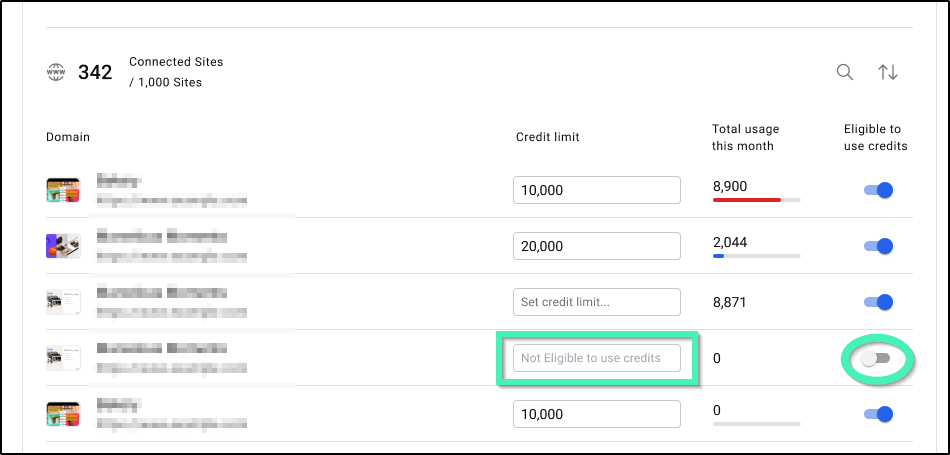
Turn off credit access (Disabled): Completely blocks a site from using credit-based features for the remainder of the billing cycle.
How do you access credit limit settings in the My Elementor dashboard?
To access and configure credit distribution settings across your agency domains, follow these steps:
Log in to your My Elementor dashboard.
Select your Elementor One Agency subscription.
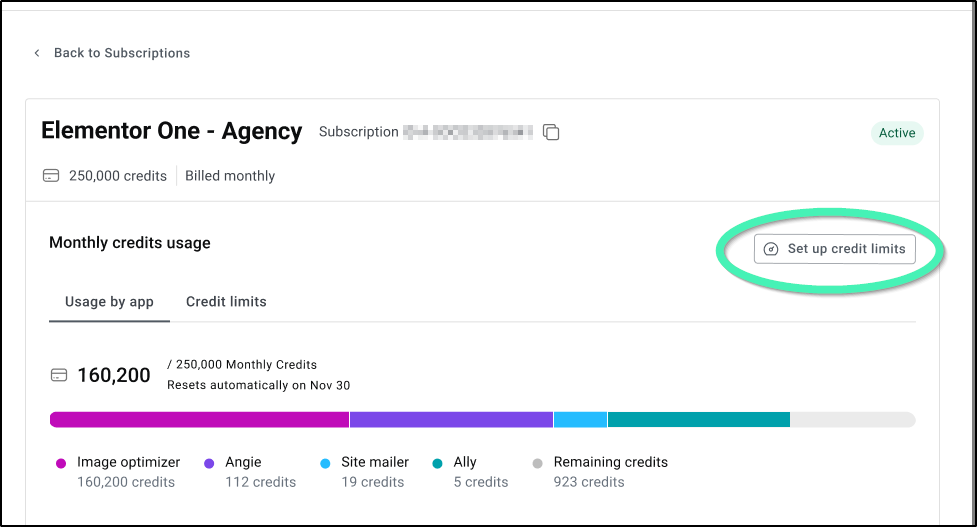
Under Monthly credits usage, select the Credit limits tab.
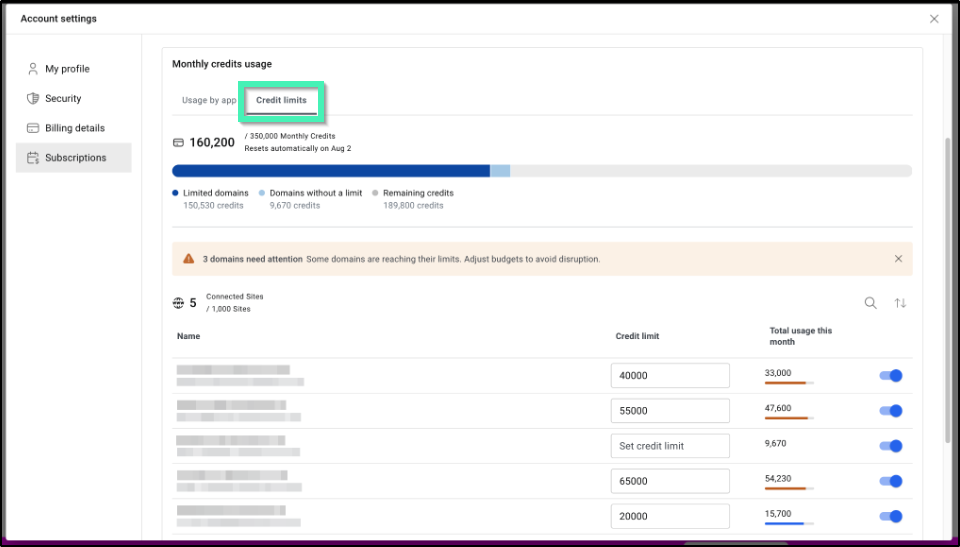
If configuring limits for the first time, click Set up credit limits.
How do you set or update a site credit budget?
Find the domain in the Credit limits table.
Enter a number in the Credit limit field.
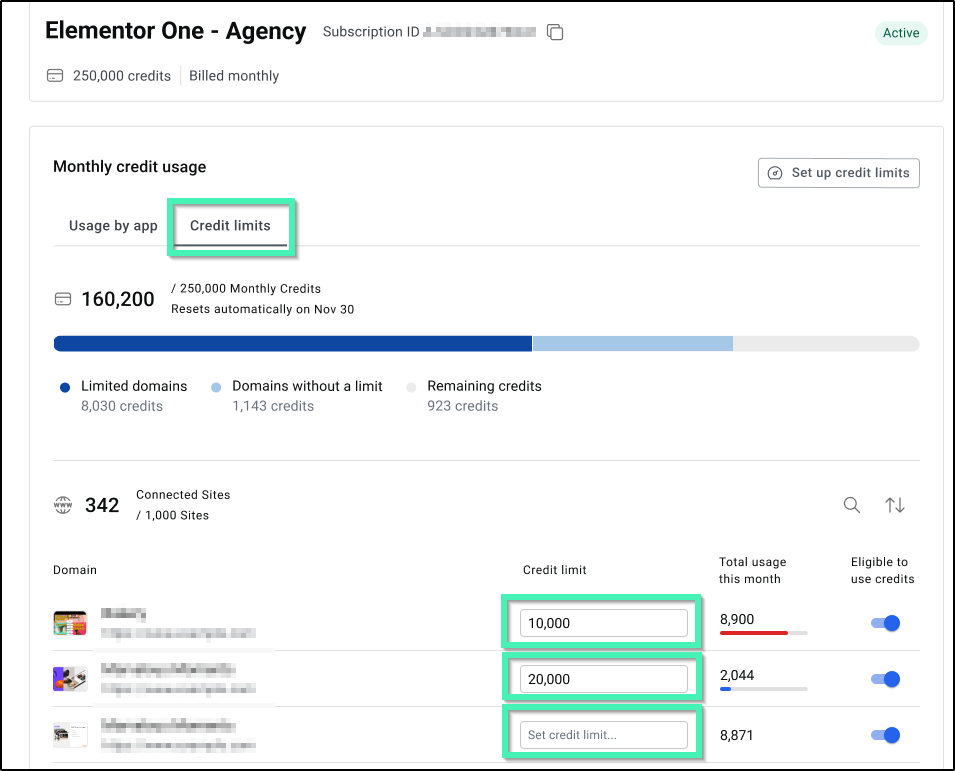
Click anywhere outside the input box to automatically save your changes.
Keep the following rules in mind when setting a limit:
Total Pool Limit Rule: The combined total of all site credit limits cannot exceed your plan’s total monthly pool. Note: While your One Agency plan now supports an unlimited number of sites, the monthly credit pool for AI and optimization tools remains based on your specific subscription tier. If an entry exceeds the total capacity, Elementor prompts you with the maximum allowed limit. Lower another site’s limit to free up capacity.
Active Cycle Warning: If you set a budget lower than what the site has already consumed this month, Elementor displays a warning. Confirming immediately locks that domain from further credit usage until your next billing cycle starts.
How do you remove a credit limit or turn off access?
Find the domain in the Credit limits table.
Clear the number in the Credit limit field.
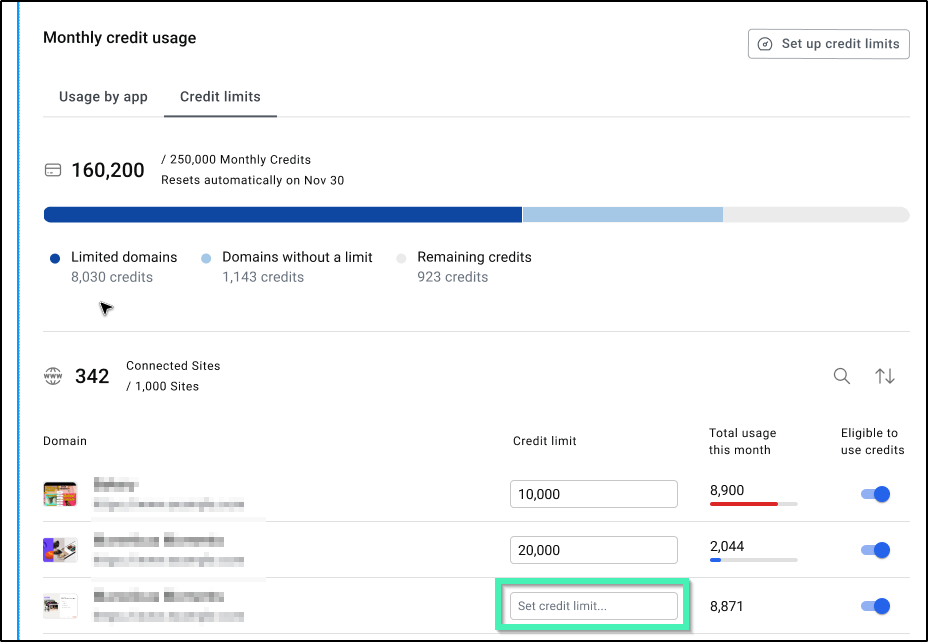
Click anywhere outside the input box to automatically save your changes.
Turn off credit access
Find the domain in the Credit limits table.
Switch off the toggle switch for that site.
How does the Elementor shared credit pool work?
Budgeted Sites: Draw strictly from their assigned budget and cannot dip into leftover pool credits.
Unbudgeted Sites: Share whatever balance remains after all budgeted site limits are subtracted from the subscription total.
Depleted Shared Pool: If the unbudgeted pool reaches zero, all unbudgeted sites are blocked from credit features – even if budgeted sites still have unused credits sitting in their allocations.
Disconnected Sites: Disconnecting a domain removes its credit limit rule. Used credits remain logged against the current cycle, while unused budgeted credits immediately return to the shared pool. Reconnecting a site requires setting a new limit.
How do you track credit usage from the Sites view in Elementor?
You don’t need to open your subscription to check credit usage. On the All sites and Managed sites views, each site row shows a Credit usage indicator alongside its usage this month.
Go to the All sites or Managed sites view in your dashboard.
Locate the Credit usage indicator next to the site’s monthly usage metric.
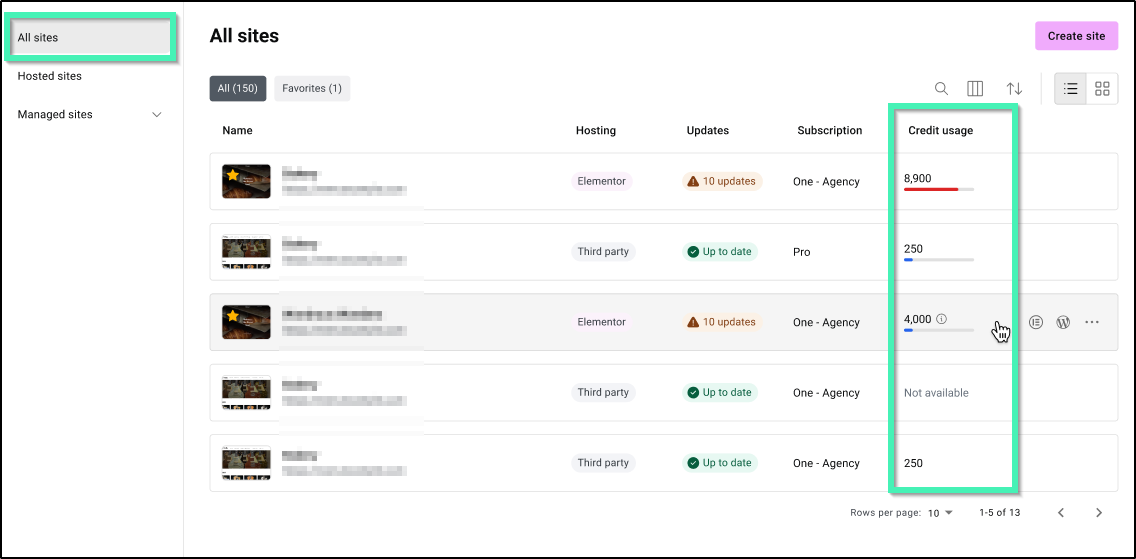
Hover over the indicator for a quick usage summary, or click it to jump directly to the detailed usage view for that site.