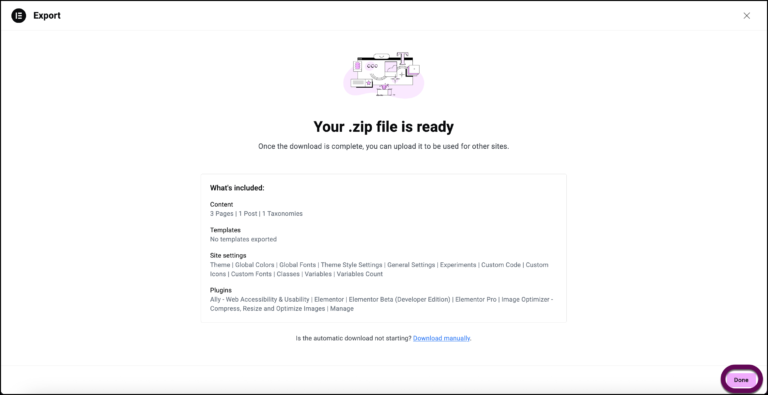
To import and export classes and variables, simply follow the standard import or export process, and turn off all options except classes and variables.
By default, classes and variables are exported or imported along with the rest of the website. However, you do have the option to only the classes and variables.
To only import or export classes and variables:
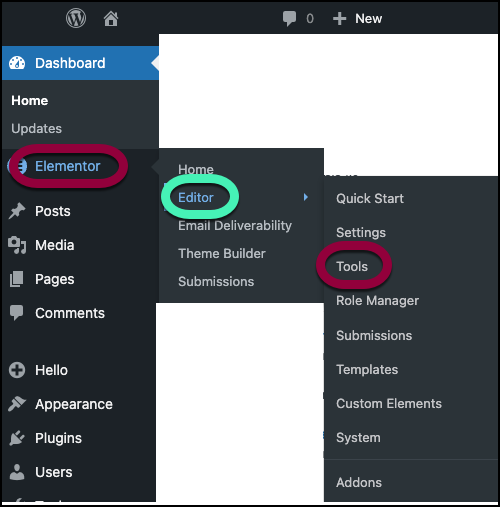
- From WP Admin, navigate to Elementor>Editor>Tools.
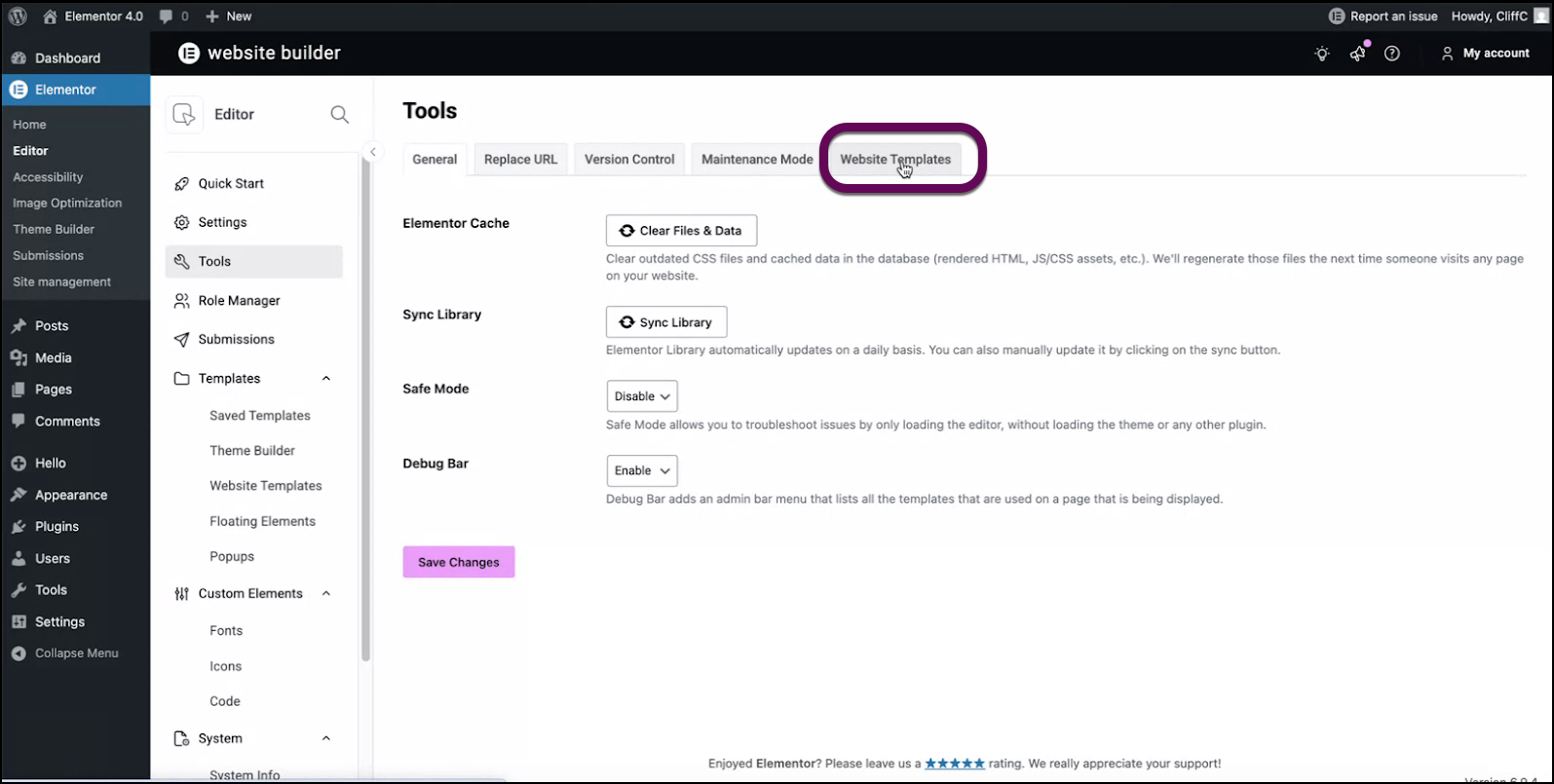
- Click the Website Templates tab.
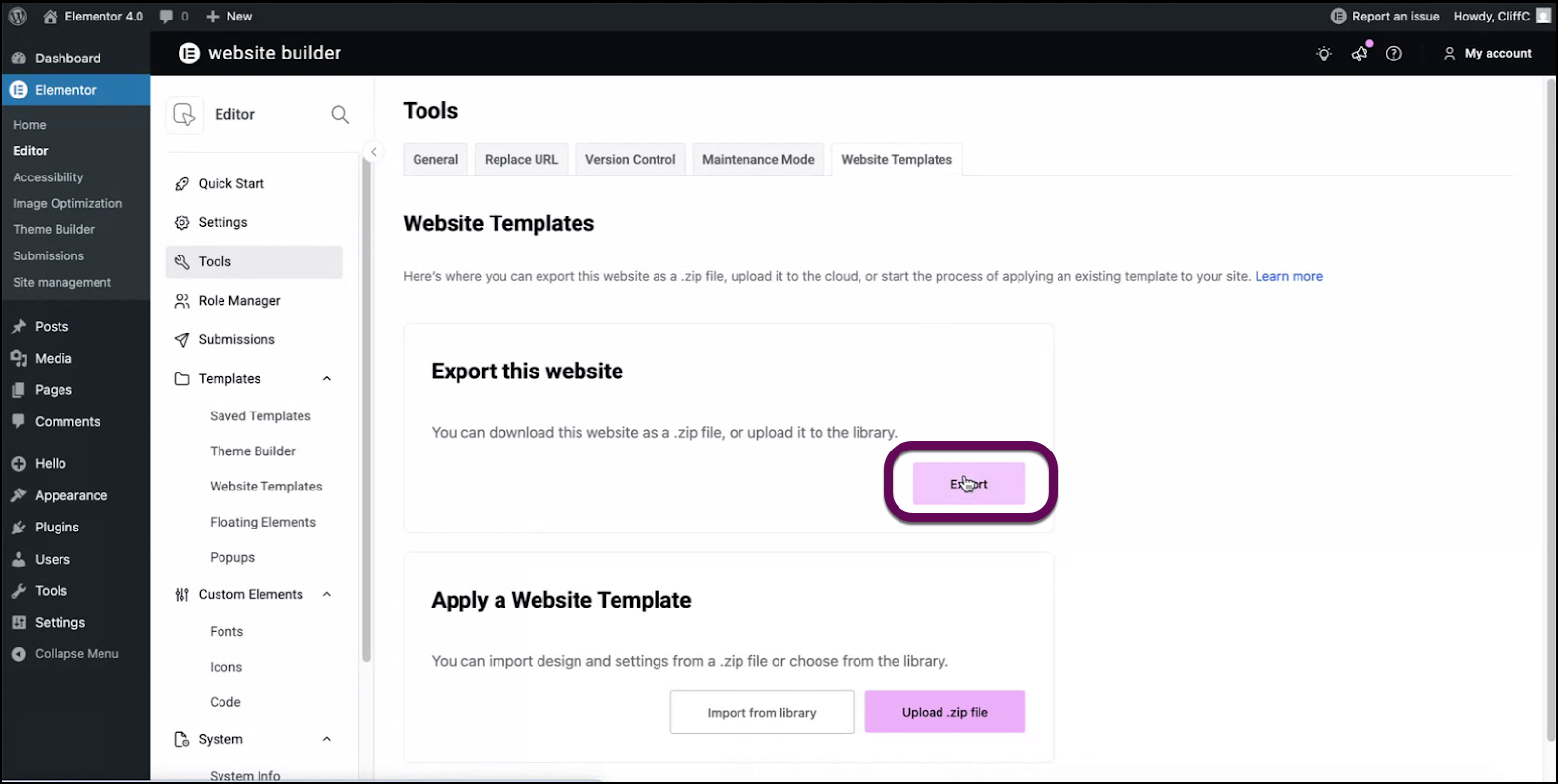
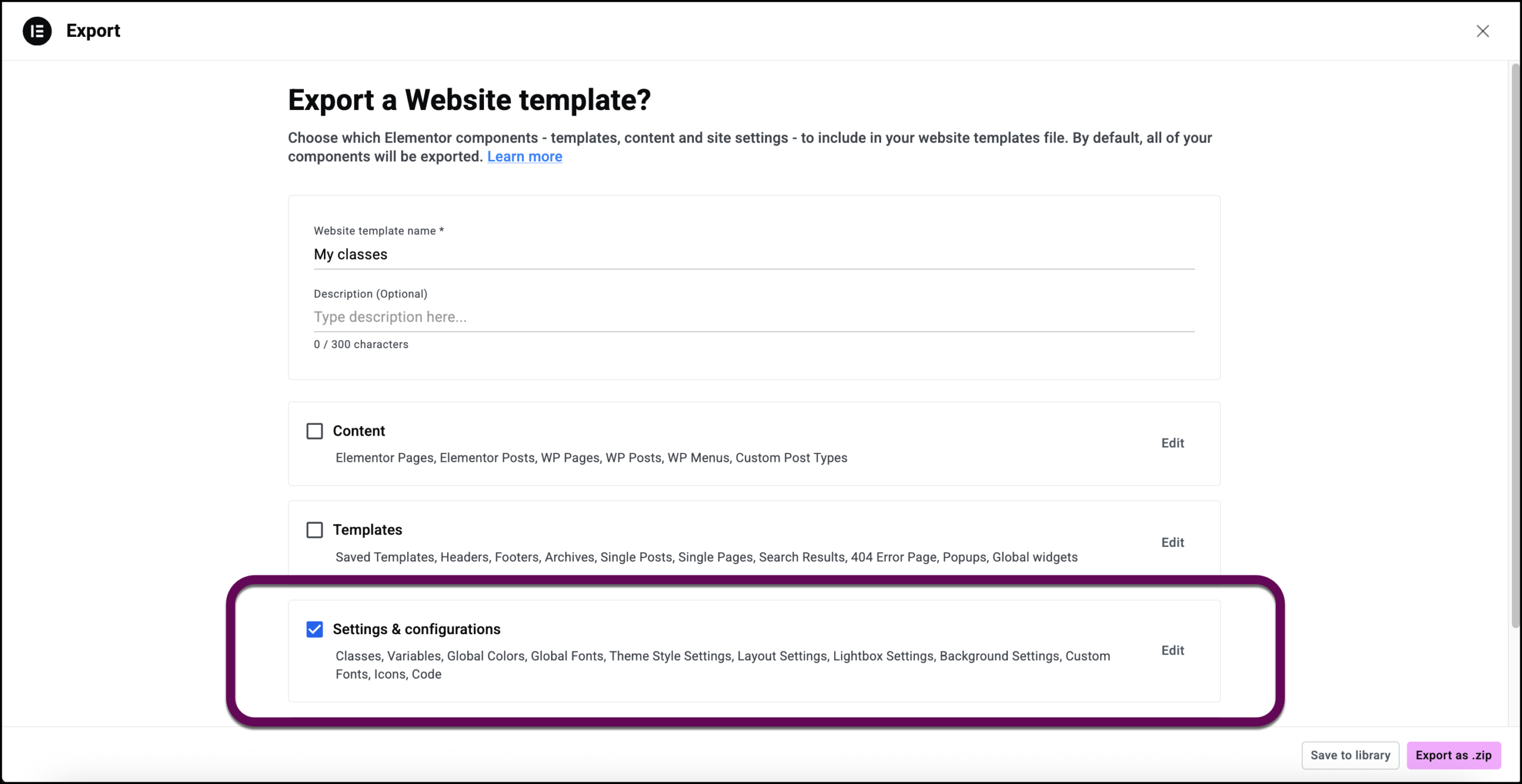
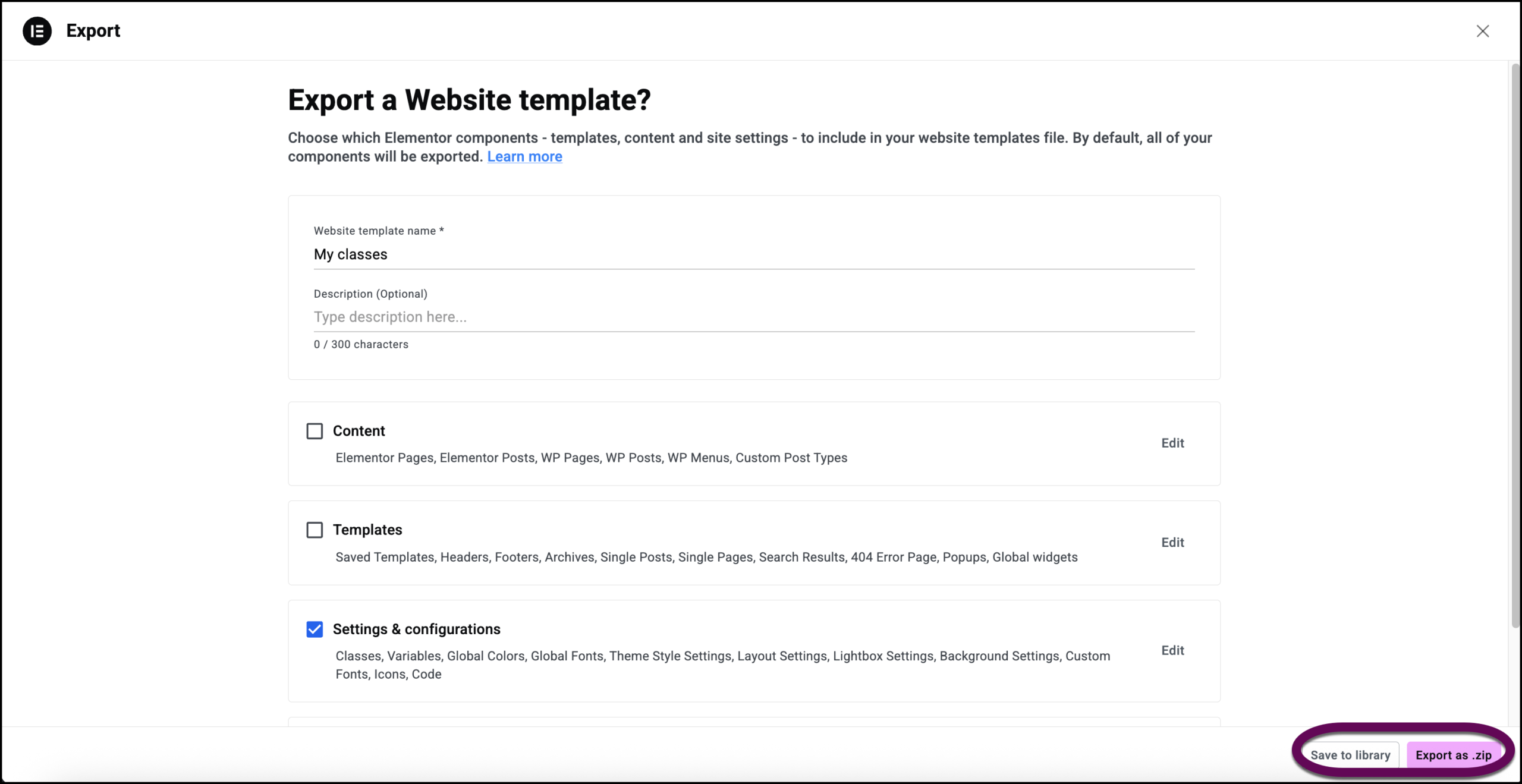
- Turn off all options except for Settings & configurations.
- Name the template.
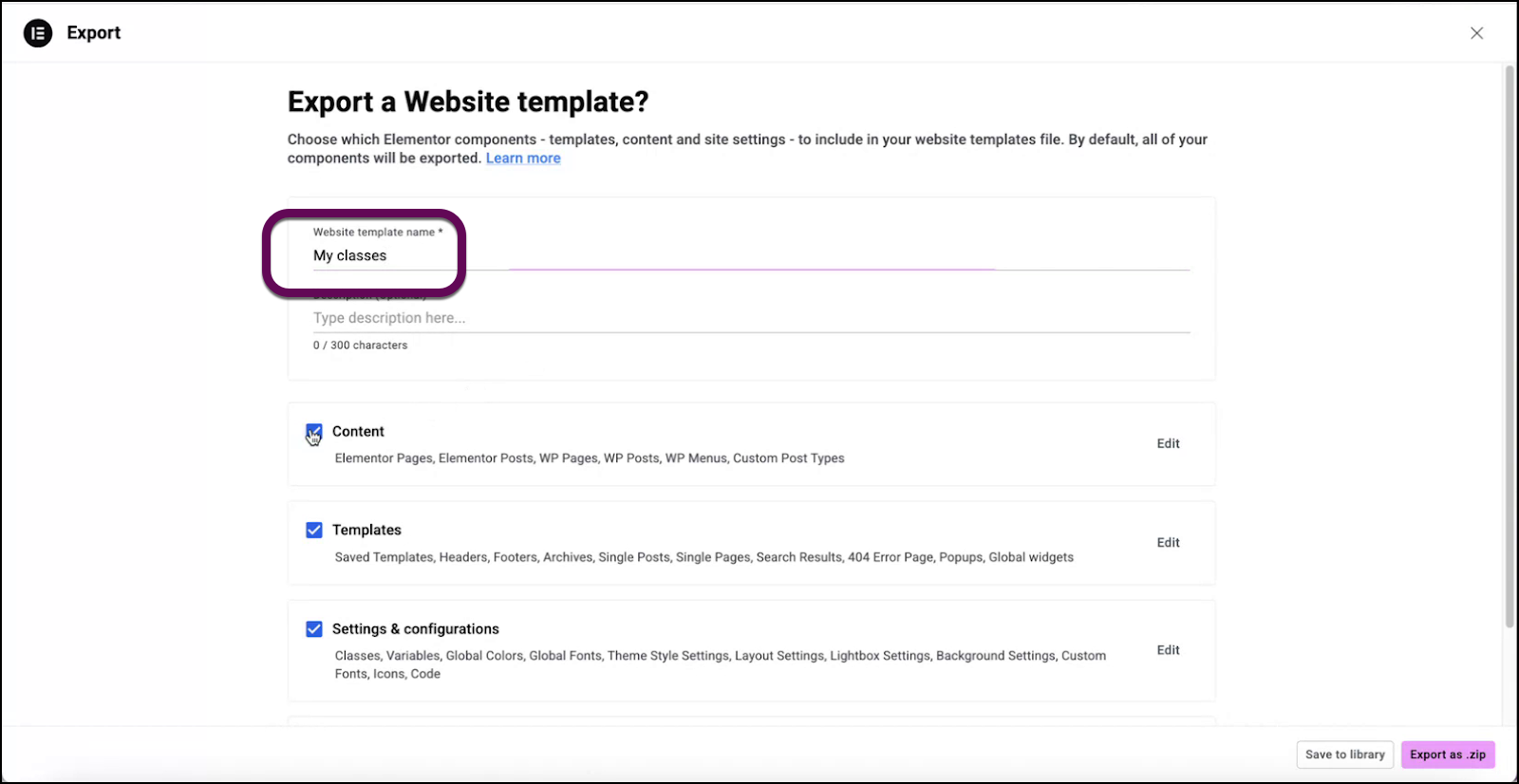
- Toggle off all options except for Settings & configurations.
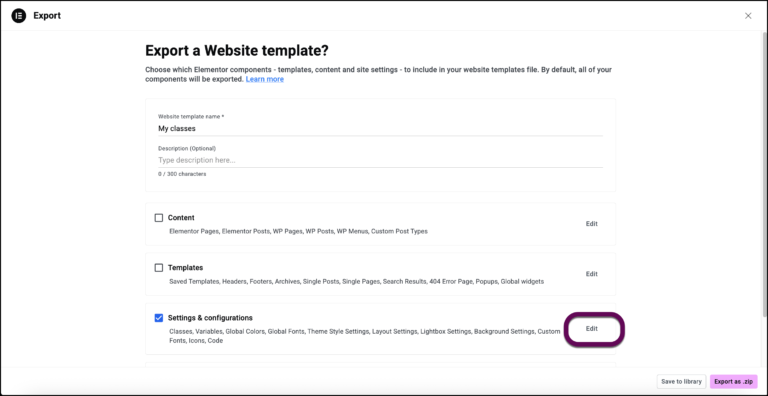
- Click Edit.
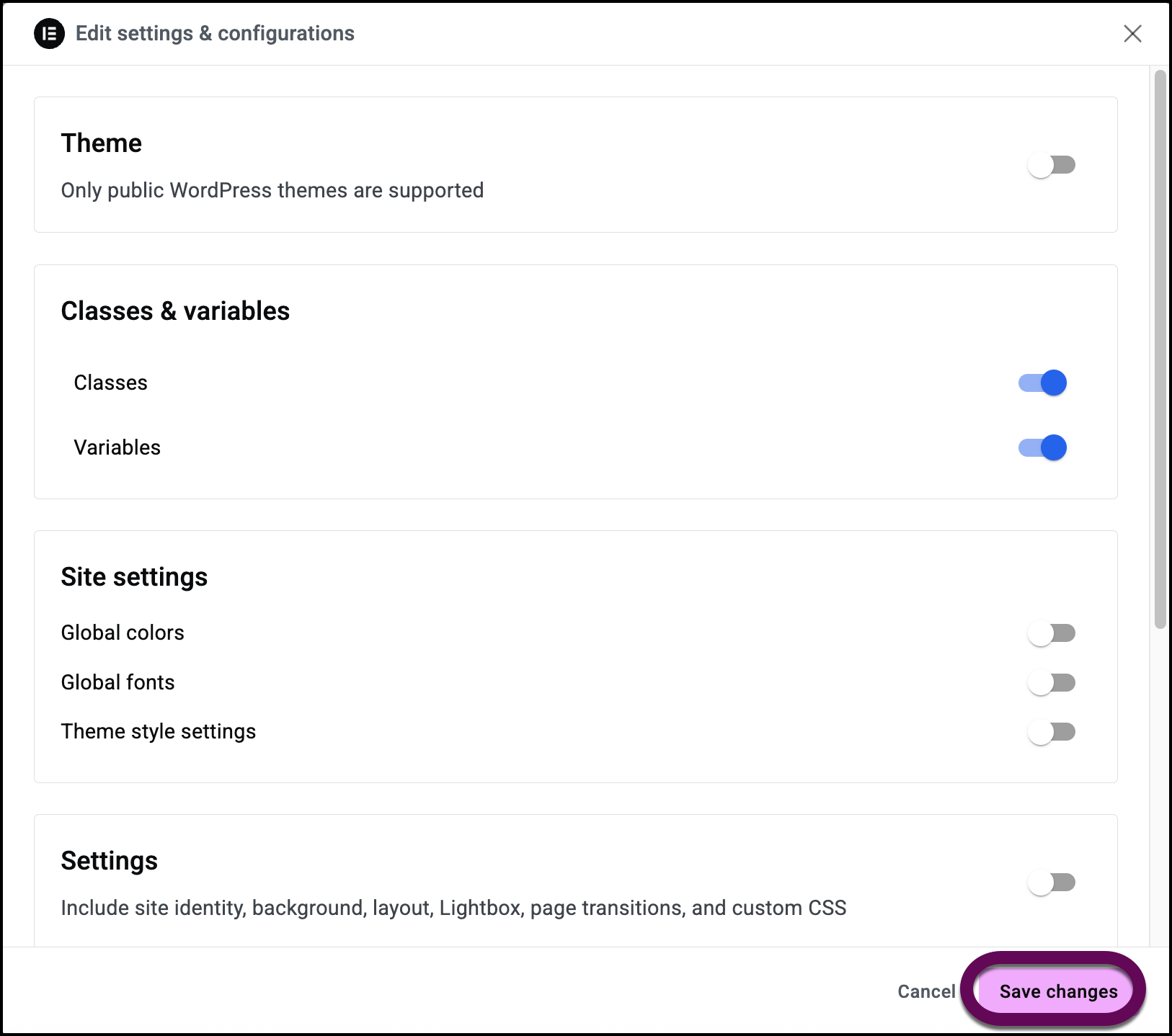
- Toggle everything off except Classes and Variables.
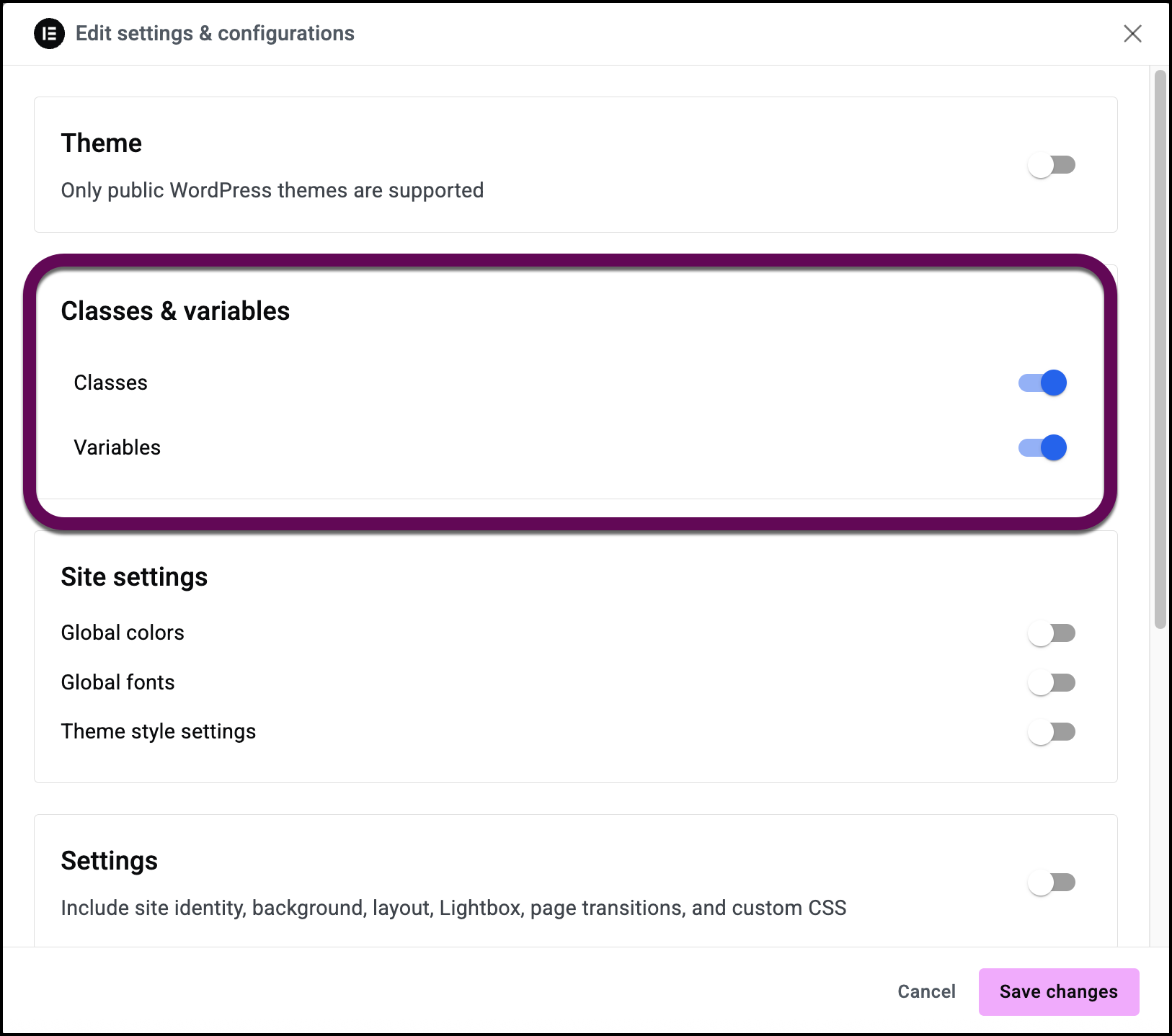
- Click Save Changes.
- Click Save to library to save the classes and variables to the template library or Export as zip to create a file that can be imported into another site.
- Click Done.