To troubleshoot SEO and indexing issues in Elementor, verify your search engine visibility settings, audit your robots.txt file, check domain URLs, and resolve plugin conflicts.
Elementor natively integrates with top SEO plugins like Yoast SEO, Rank Math, and AIOSEO to streamline metadata, schema markup, and performance.
What is the support scope for Elementor SEO troubleshooting?
Developing an overall SEO strategy, selecting keywords, or managing ongoing search rankings falls outside the scope of Elementor Technical Support. However, Web Creators can use standard technical troubleshooting practices to isolate and resolve site barriers – such as indexing blocks, server headers, or missing metadata.
Why is your Elementor website or page not being indexed?
If search engines are not indexing your website or updating recently published changes, complete the following step-by-step diagnostic workflow:
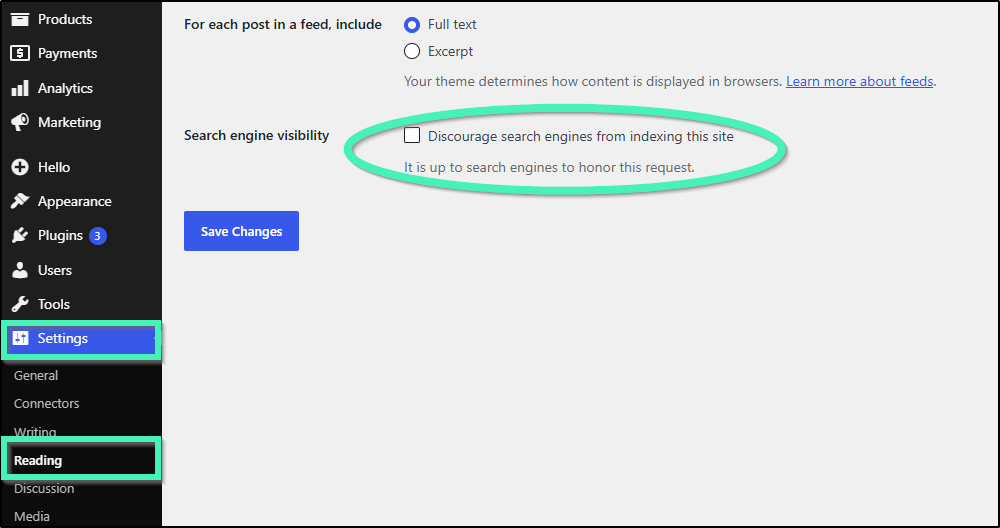
- Verify Search Engine Visibility settings: Navigate to WP Dashboard > Settings > Reading and verify that “Discourage search engines from indexing this site” is unchecked. Save changes if modified.
- Inspect robots.txt and URL configurations: Ensure your
robots.txtfile is not blocking crawler access to essential directory paths. Confirm under Settings > General that both the WordPress Address (URL) and Site Address (URL) accurately match your active domain setup.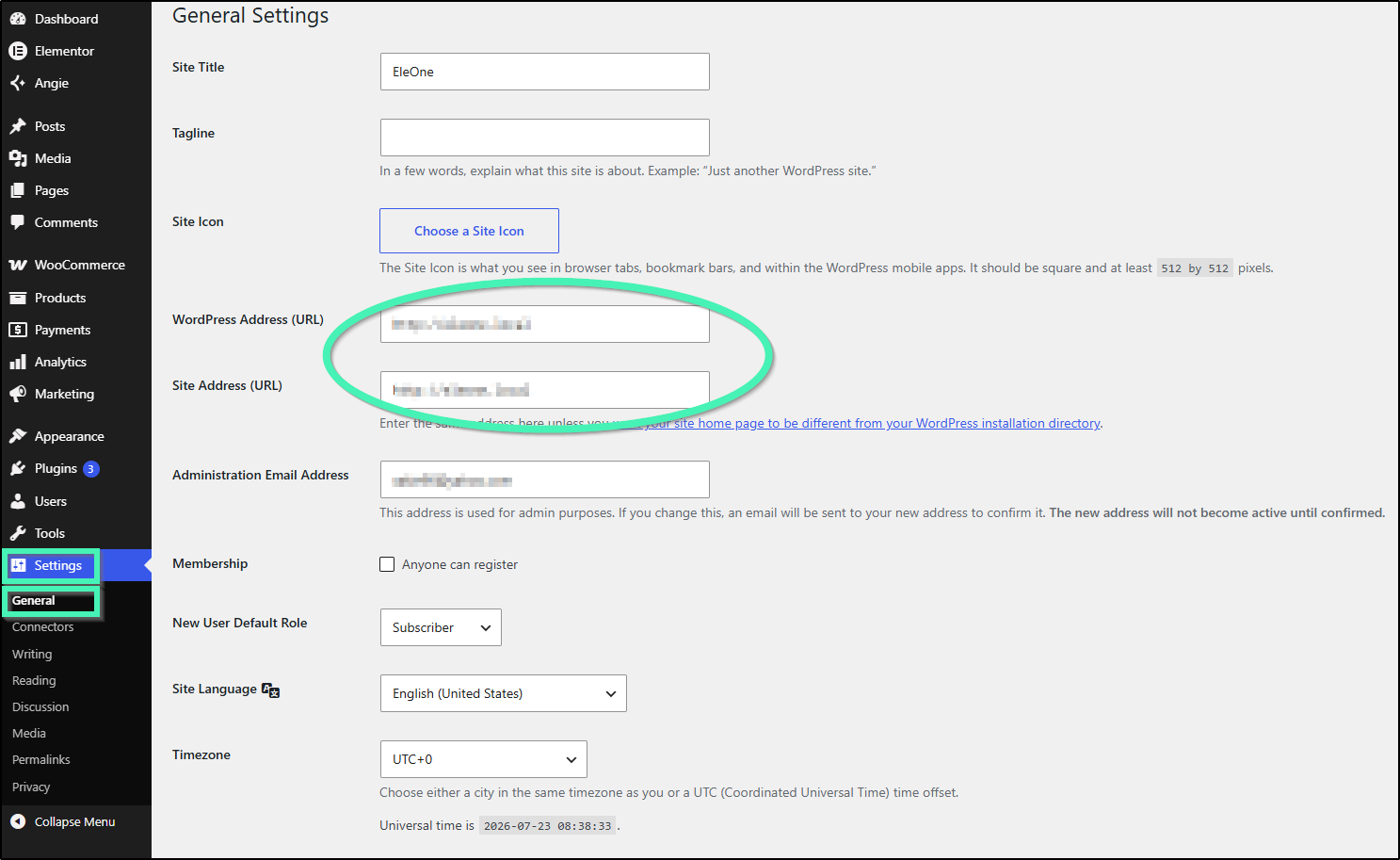
- Perform system maintenance and plugin conflict checks: Keep WordPress core, PHP, and active plugins updated. Deactivate non-essential plugins to test if a security or performance plugin is injecting unwanted
noindextags. - Check domain DNS and SSL configurations: Verify that your domain name system (DNS) records are properly mapped and your SSL certificate is functioning without security errors.
Which diagnostic tools help monitor Elementor site indexing?
Use these specialized tools to audit site health and structured data visibility:
- Google Search Console: Track crawl status, sitemap submissions, and indexing health directly from Google’s diagnostic engine.
- Google Rich Results Test: Validate structured data and schema markup implementation on individual page URLs.
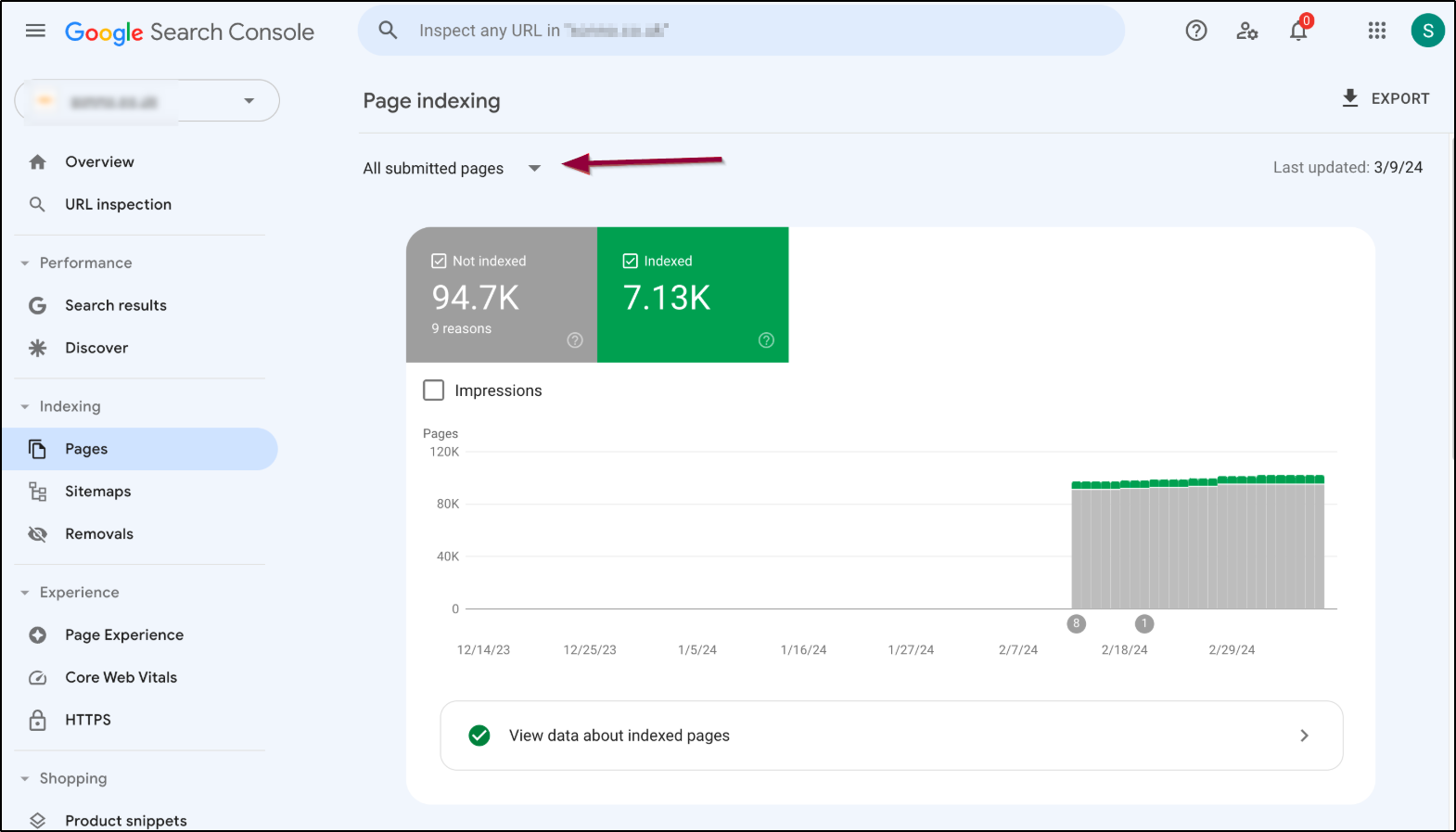
- Filter by Sitemap: In Google Search Console, go to Indexing > Pages, click the dropdown at the top, and select All submitted pages. This filters out utility or draft pages and focuses strictly on the URLs submitted in your sitemap.
Why is your site favicon not displaying in search results?
If your site favicon displays correctly inside browser tabs but fails to appear in Google search engine results pages (SERPs), follow these resolution steps:
- Allow time for search indexing delays: Google updates search result favicons independently from regular page content. Updating or replacing a favicon image can take several days or weeks for search crawlers to re-index.
- Upload the file via manual FTP: Upload your
favicon.icofile directly to the root directory (public_html/) using an FTP client or hosting File Manager. Confirm accessibility by visiting[https://yourdomain.com/favicon.ico](https://yourdomain.com/favicon.ico)in a browser.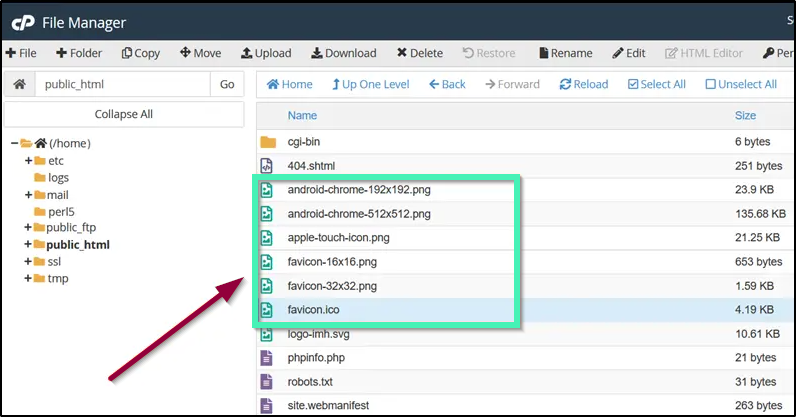
- Configure SEO plugin favicon settings: Manage favicons, site verification, and meta tags directly through supported SEO plugins such as Rank Math, Yoast SEO, or AIOSEO.
- Verify Google Favicon Guidelines compliance: Ensure your icon strictly complies with Google’s dimension, format, and crawl accessibility rules.
How do Elementor SEO plugin integrations and performance tools work?
Elementor natively integrates with leading WordPress SEO plugins – including Yoast SEO, AIOSEO, and Rank Math – enabling users to manage titles, meta descriptions, and schema markup directly inside the Elementor Editor sidebar.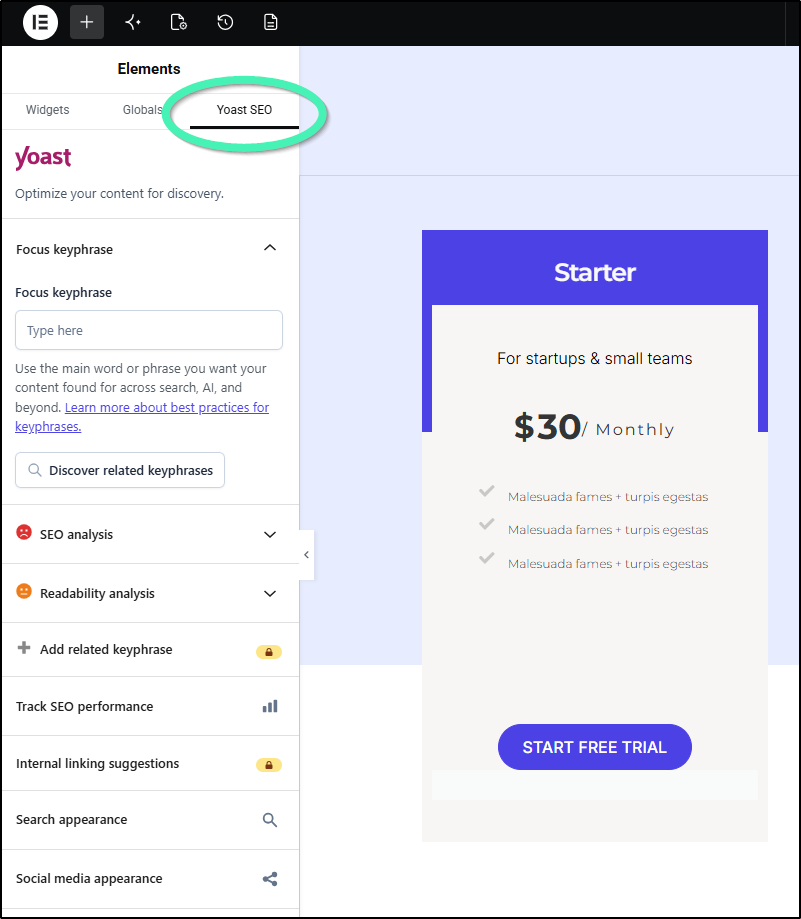
To optimize your Elementor pages for search crawlers, implement these essential features:
- Performance & Core Web Vitals: Maintain fast loading times by combining managed hosting and server-side caching with tools like Image Optimization by Elementor.
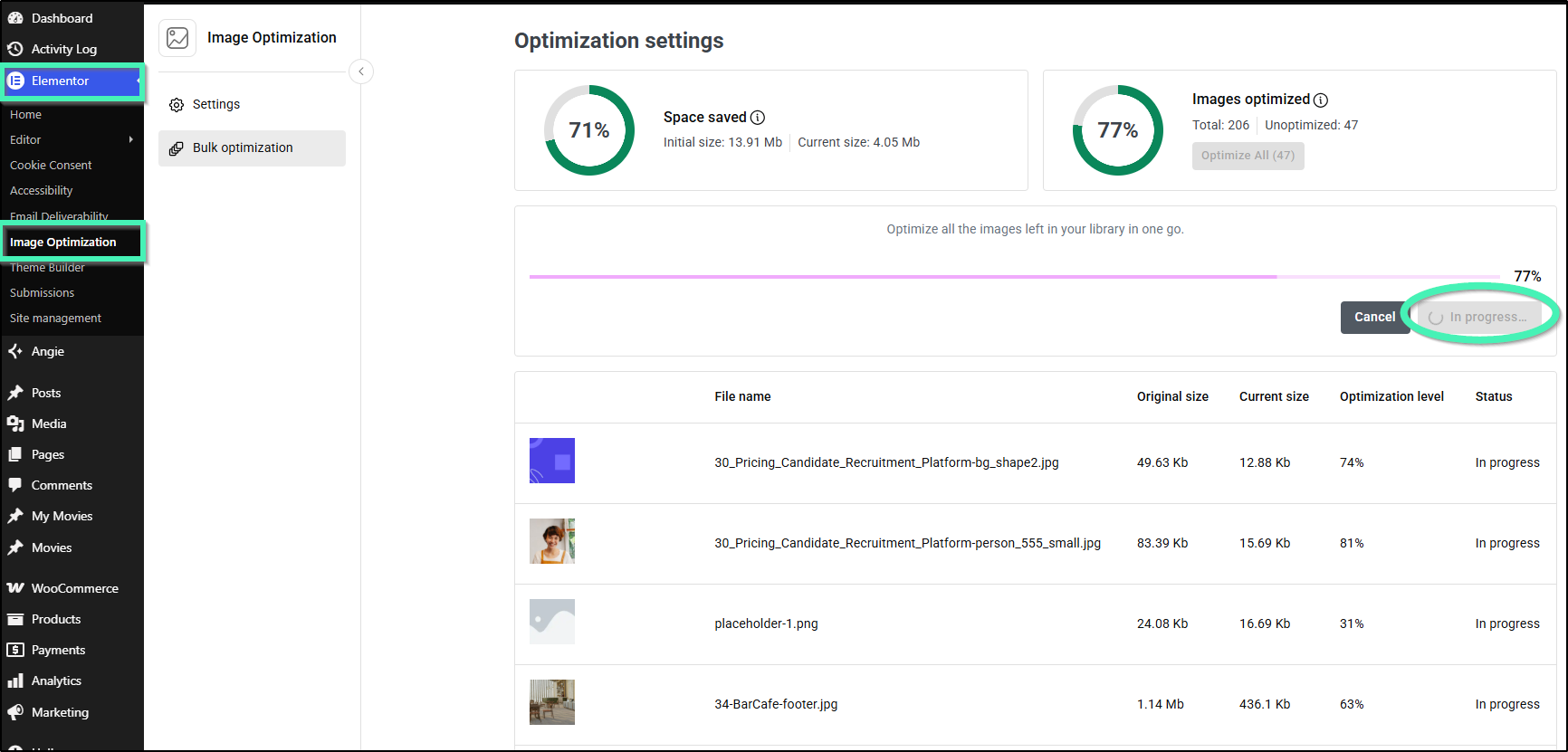
- Accessibility & Content Structure: Establish clear heading hierarchies (a single H1 per page followed by logical H2/H3 tags), supply descriptive image alt text, and utilize tools like Web Accessibility by Elementor to make content accessible to screen readers and search bots.
Where can you access additional Elementor SEO resources and guides?
Explore these integrated tools and guides to further enhance your site’s search engine performance:
- SEO Plugin Integrations:
- Elementor Optimization Tools:
- Performance & SEO Guides: