What is Super Admin Mode?
Activating Angie’s Super Admin Mode unlocks direct PHP execution on your live WordPress server. This gives Angie the ability to accomplish virtually any WordPress task – including ones that go beyond the standard tool set.
When active, Angie operates with three dedicated tools:
| Tool | What it does | Requires confirmation? |
| Execute PHP | Runs a PHP snippet on the live server with WordPress loaded | Yes |
| Read File | Reads any file under the WordPress root (up to 512 KB) | No |
| List Directory | Lists files and subdirectories (up to 1,000 entries) | No |
How to Enter Super Admin Mode
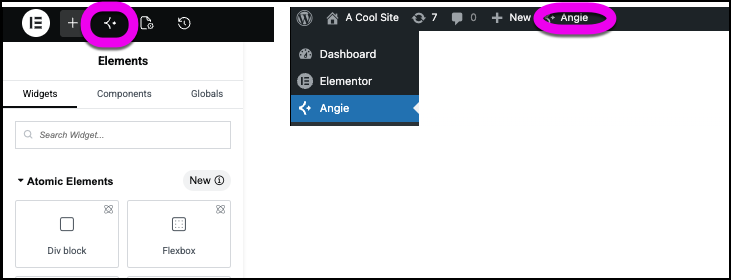
- Open the Angie sidebar in the Elementor editor or WP Admin.
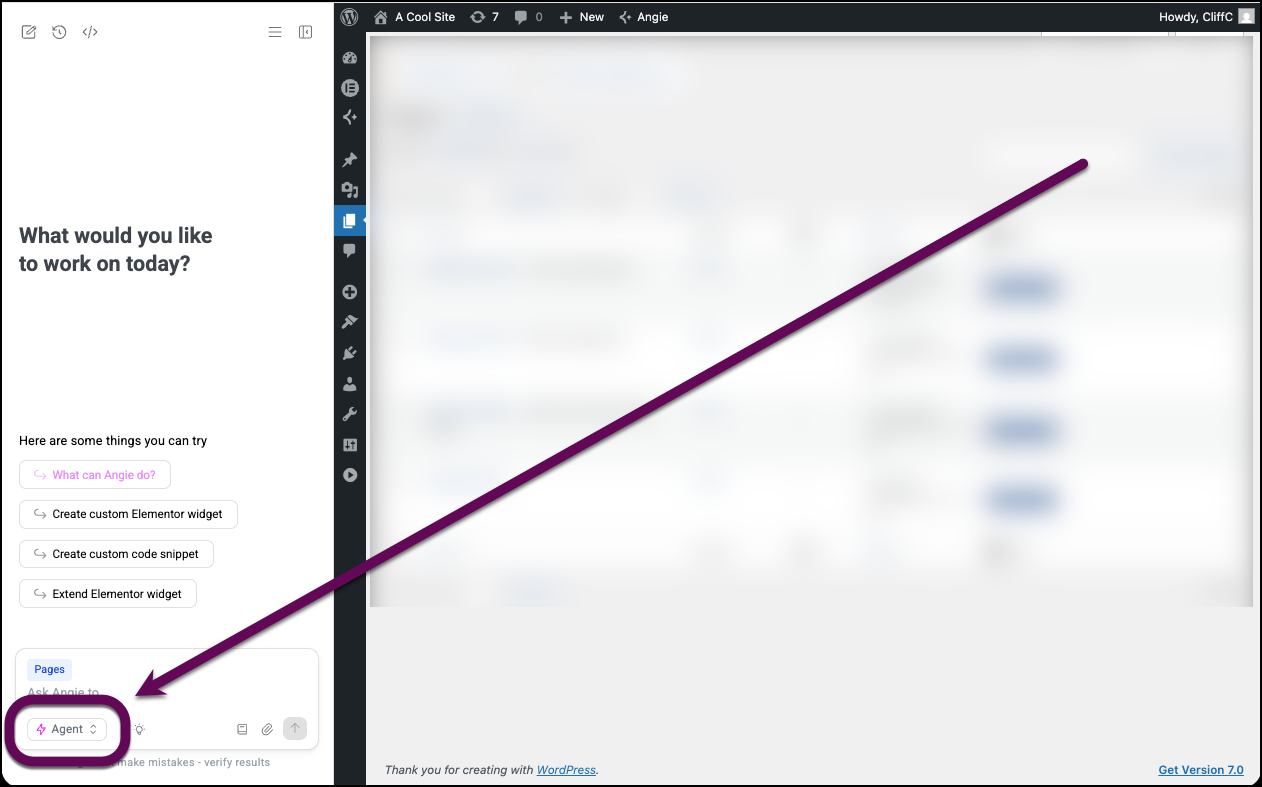
- Click the mode selector at the bottom-left of the chat input area.
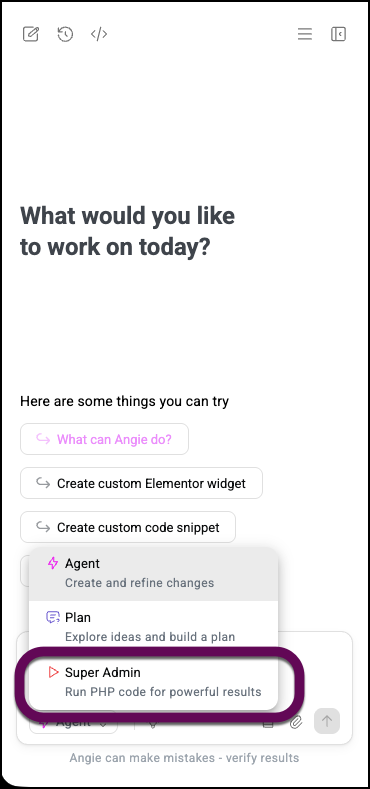
- Choose Super Admin from the list.
- A confirmation screen appears warning you about the risks. You must click Enter Super Admin Mode to proceed.
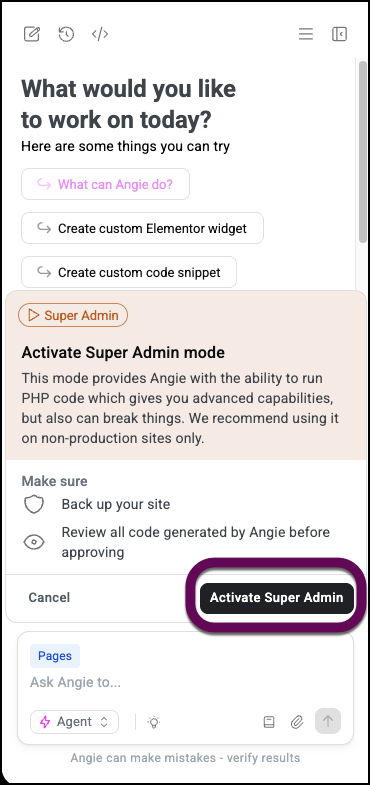
- Back up your site before proceeding to Super Admin Mode.
- Review all code generated by Angie before approving.
To leave Super Admin Mode, simply switch back to Agent or Plan using the same mode selector.
Confirmation & Safety
Every destructive action requires Angie to show you a confirmation message describing exactly what it will do before executing. You will need to confirm the action.
What Can You Do With Super Admin Mode?
Super Admin Mode has direct PHP execution with full access to the WordPress, Elementor, WooCommerce, and third-party plugin APIs, so Angie can read the database, query options, manipulate posts/users/products, inspect files, and write persistent sandbox code to automate fixes. Here are some examples of what can you do with super admin mode:
Debugging
- Check why my emails aren’t sending.
- Verify if the server can successfully talk to external APIs right now.
- Check my website’s debug log for any issues.
- I moved the site from staging to live, but Elementor images are still pointing to the staging URL.
Mass Data Manipulation
- Find all products over $100 and add a custom metadata field premium_shipping = true.
- I changed my site URL and now some plugin settings are broken.
- Downgrade all users who haven’t logged in for a year from ‘Editor’ to ‘Subscriber’.
- Increase all prices in the ‘Shoes’ category by 10%.
- Flatten all categories to a maximum of 2 levels, and re-assign the orphaned sub-category posts to the closest parent category.
Dynamic Workflow Automation & Maintenance
- Clear all website caches.
- Check my debug log for errors in my site.
- Check if my wp-config.php settings are loaded securely.
- My SMTP plugin was down yesterday. Resend all form notifications from the last 24 hours.
- We have 500 products where the ‘Color’ attribute was accidentally created as a custom text field instead of a global product attribute. Fix this.
SEO
- Generate meta descriptions for all posts missing them, using the first 150 characters of the post.
- We just deleted a major product category; set my redirection plugin to redirect traffic immediately to the homepage to avoid 404s.
- Change the URL slug of all portfolio items to lowercase, replace underscores with hyphens, and ensure old URLs don’t 404.
Performance
- Our site is slow because the wp_options table has too much autoloaded data. Clean it up.
- Delete all images in the Media Library that are not actively used in any post content, featured images, or product galleries.
- Identify the slowest loading page or query happening on the site right now.
Content
- Proofread all my pages and suggest fixes.
- Find any dummy content (texts, images) and suggest fixes.
- Find any broken or empty links and suggest fixes.
Security
- Search the database for hidden base64 malware injections or rogue <script> tags.
- Audit all users to see if anyone has administrator capabilities who shouldn’t.
- Clean up leftover database tables from plugins I uninstalled years ago.
Tips for Using Super Admin Mode Effectively
- Use it on a staging site first.
Super Admin Mode runs real PHP on your live server – test on staging before production. - Always back up before activating.
A single PHP snippet can modify your database, change files, or alter site behavior. Have a restore point ready. - Read the confirmation messages carefully.
Before every destructive action, Angie describes what it will do. Don’t approve blindly – review the description and the generated PHP code. - Ask Angie to do a dry run.
You can ask Angie to “show me what you’d change first” or “read the current state before modifying.” It’s designed to read-then-write by default, but being explicit helps. - Keep snippets focused.
PHP execution has a 30-second time limit. Ask Angie to break large tasks into smaller steps rather than one massive script. - Know what it won’t do.
Angie will only decline requests that are genuinely outside WordPress scope – for example, calling external APIs the server can’t reach. For anything WordPress-related, it will always attempt the task.