What are Code Revisions?
Code Revisions automatically saves every version of a code snippet created or edited by Angie.
This allows you to:
- Review previous versions
- Compare changes over time
- Restore earlier versions
- Undo unwanted edits
Think of Code Revisions as version history for your code.
How versions are created
Angie automatically creates a new version whenever a snippet is created or updated.
Create a new snippet
When Angie creates a new snippet, the first saved version becomes v1.
Update an existing snippet
Whenever Angie edits a snippet, a new revision is automatically added to the history.
Each revision includes:
- Version number
- Date and time
- Author name
- Change summary
Revision notes might describe changes such as:
- “Added star rating component”
- “Fixed mobile spacing”
- “Updated button styles”
Open Code Revisions
You can access the Revisions page from the WordPress Snippet Editor or directly through Angie.
Open Code Revisions from the WordPress Snippet Editor
- From WP Admin, navigate to Code Snippets.
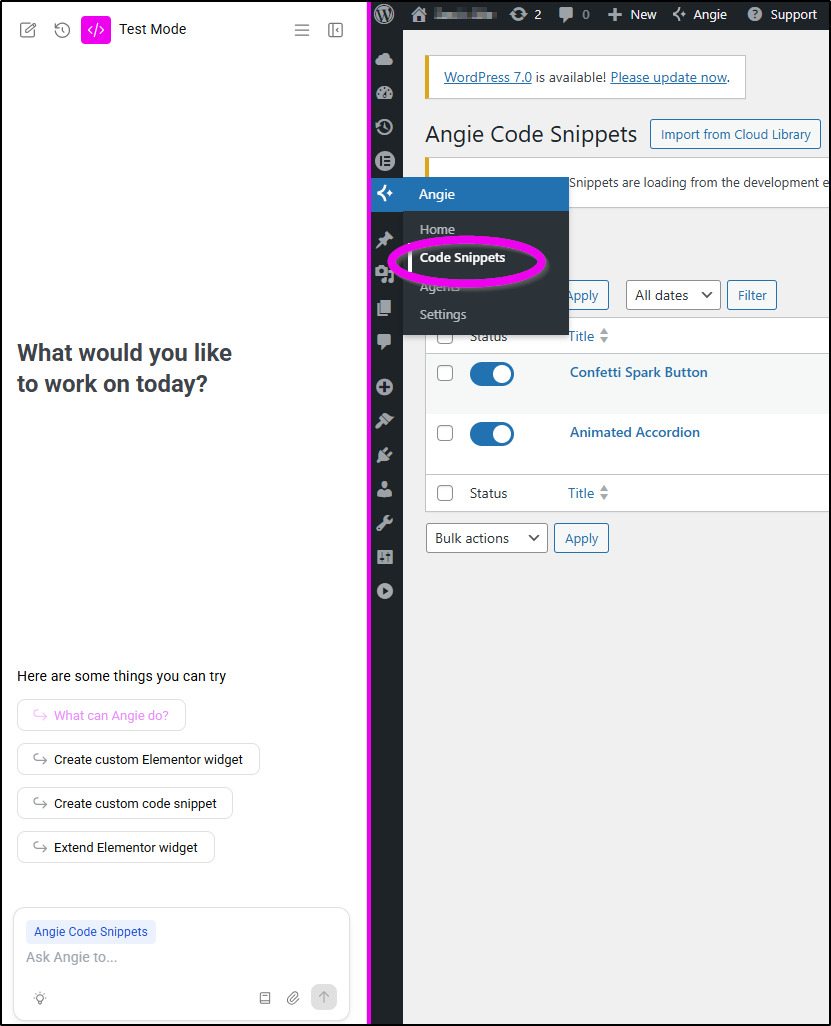
- Open the relevant snippet.
- In the Publish meta box, locate the Revisions row.
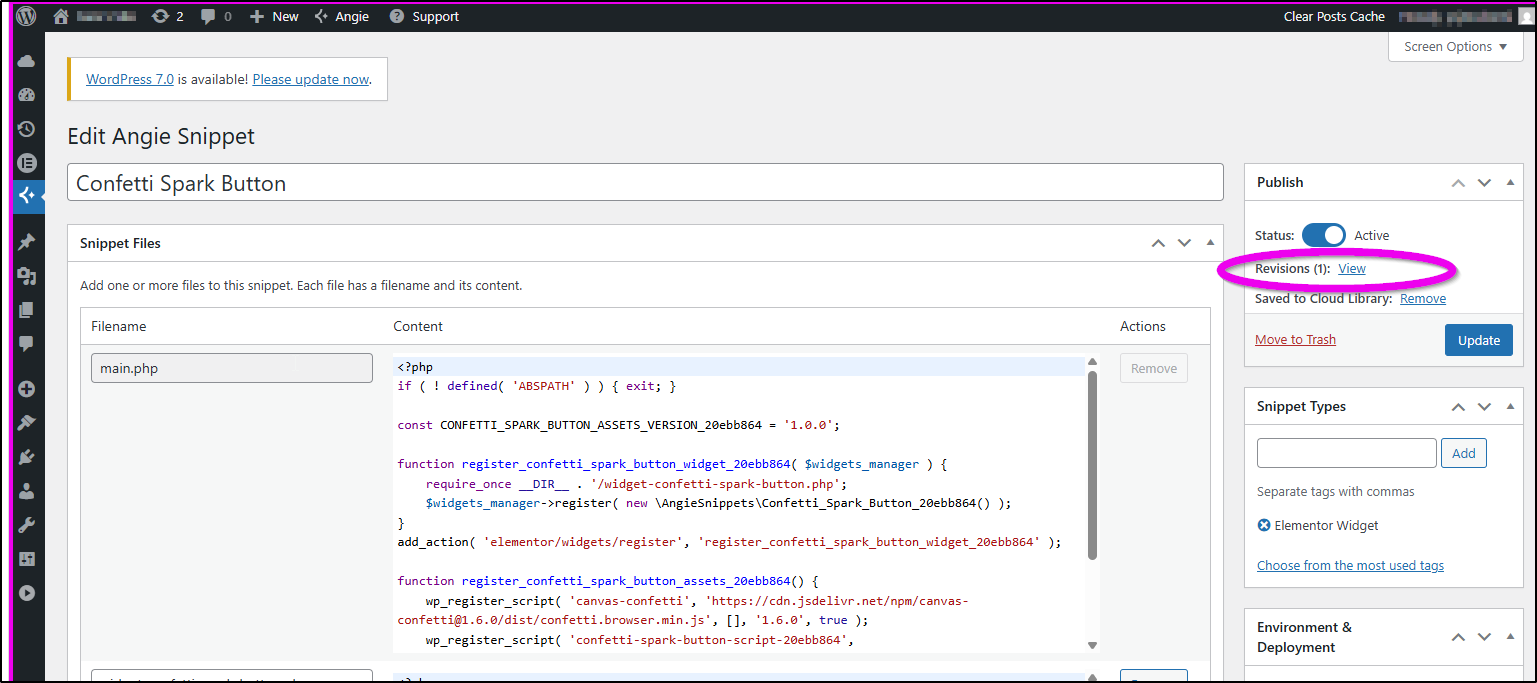
- Click View to open the Revisions page inside Angie’s studio panel.
Open Code Revisions from the Angie chat
You can also ask Angie to display a snippet’s revision history.
For example:
- “Show me the revisions for my Pricing Table snippet”
- “Undo the last change to my snippet”
- “Go back to the previous version”
Click the Open Revisions button to open the Revisions page.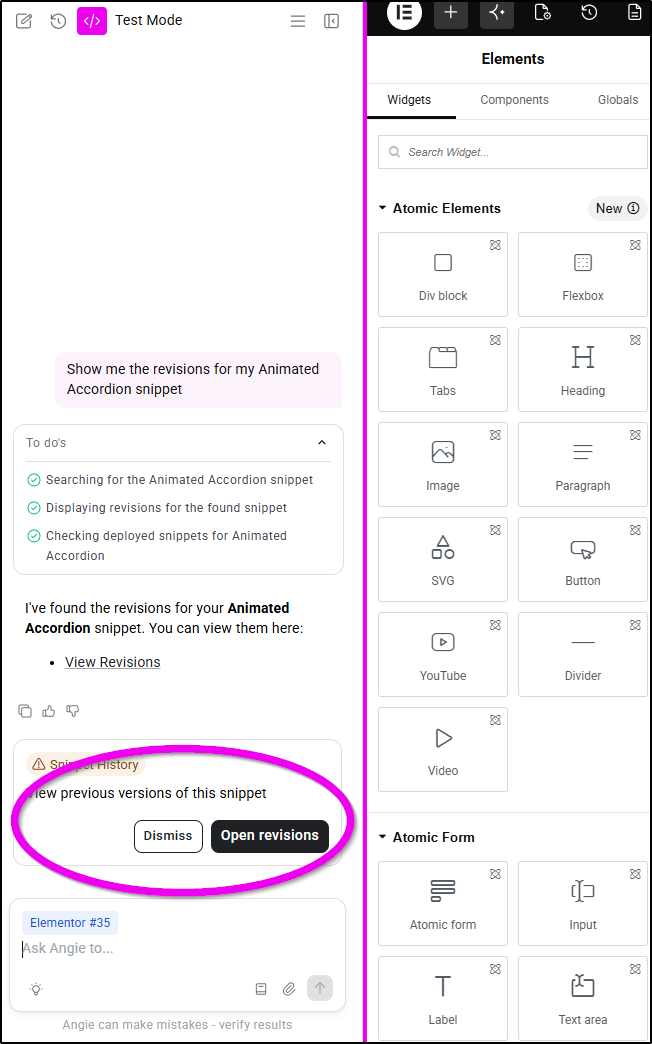
Understand the Revisions page
The Revisions page contains two panels.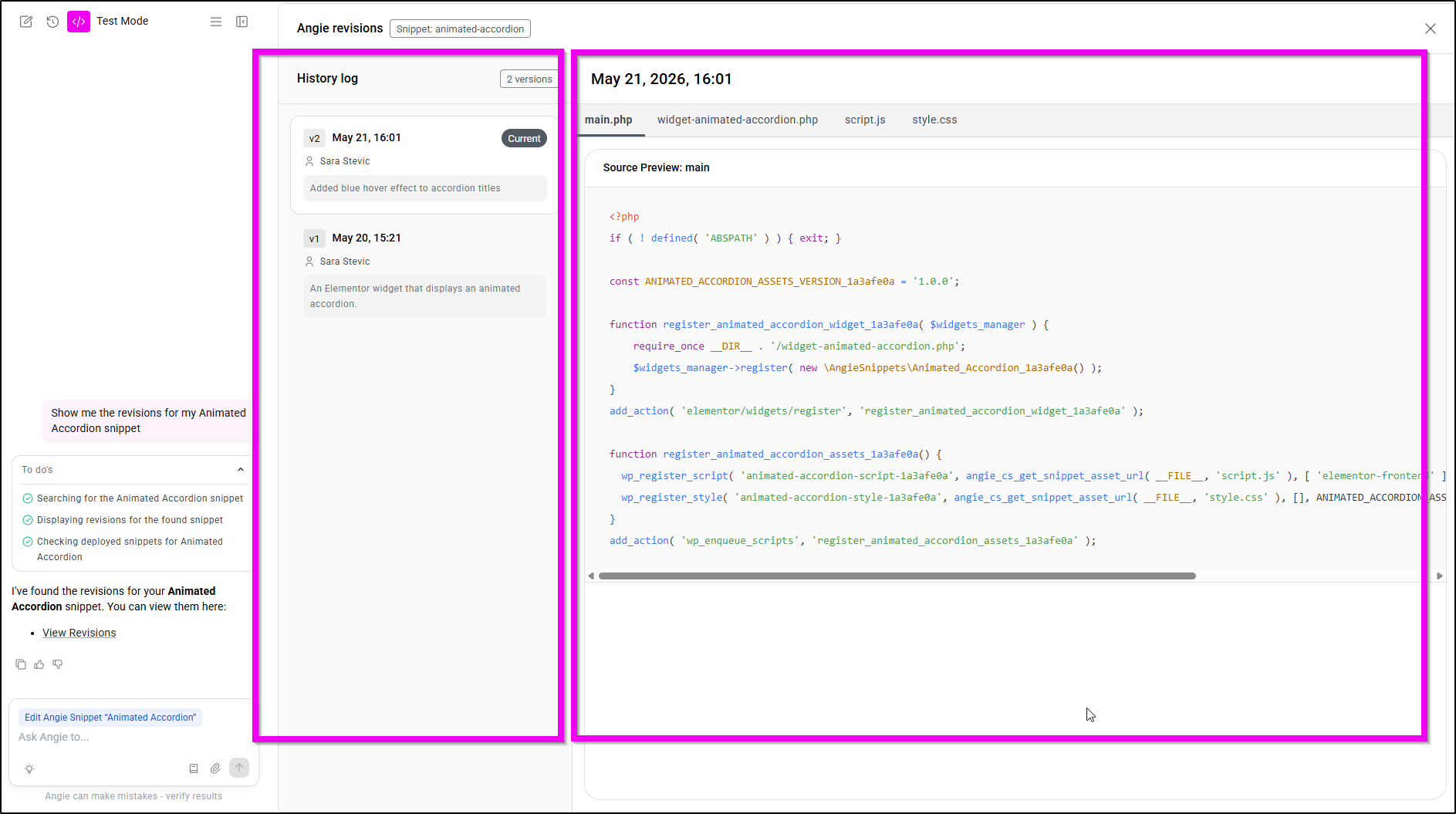
History Log panel
The left panel displays the full revision timeline.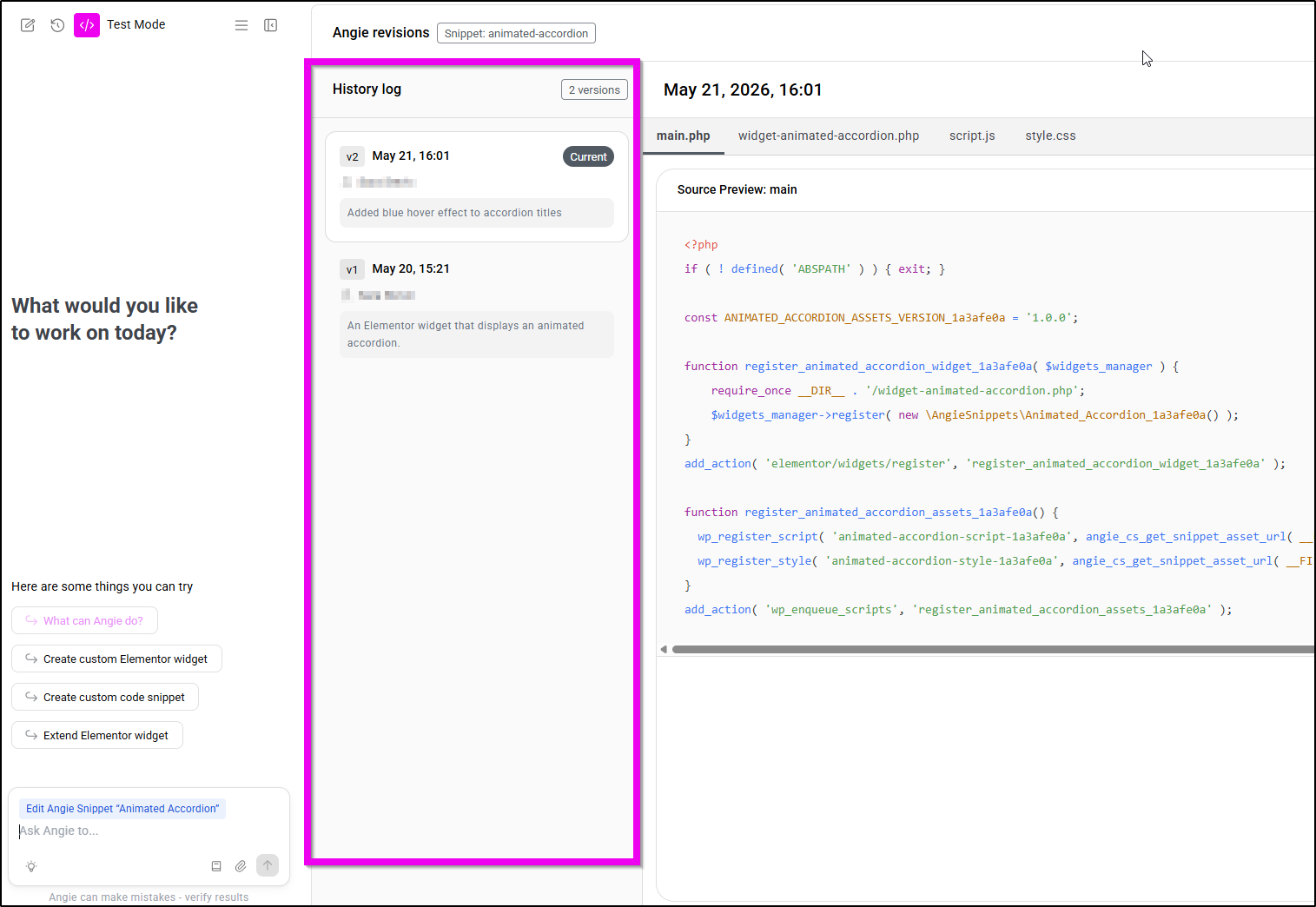
Each revision includes:
- Version number such as v1, v2, or v3
- Creation date
- Author name
- Change summary
- Current badge for the active version
The newest version appears at the top.
If additional revisions exist, click Load more to display older versions.
Select any revision to preview its code.
Source Preview panel
The right panel displays the contents of the selected revision.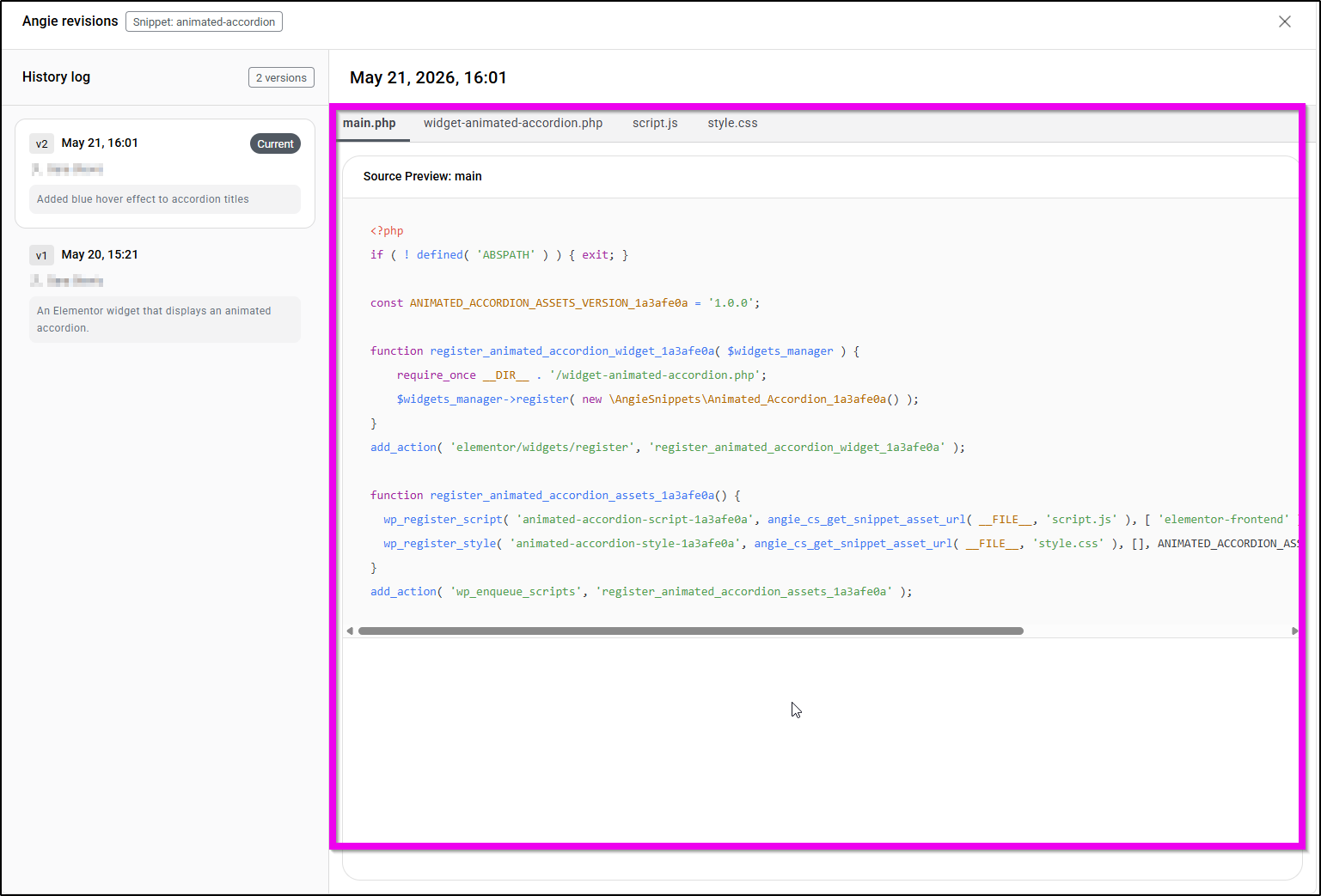
This panel includes:
- Full date and time
- File tabs for multi-file snippets (if the snippet has multiple files (e.g., main.php, style.css), use the tabs to switch between them)
- Syntax-highlighted code preview
- Restore version button (appears when you’re viewing a version that is not the current one)
The preview is read-only.
Preview previous versions
To review older revisions:
- Open the Revisions page (from the WordPress Snippet Editor or directly through Angie).
- Click a revision in the History Log.
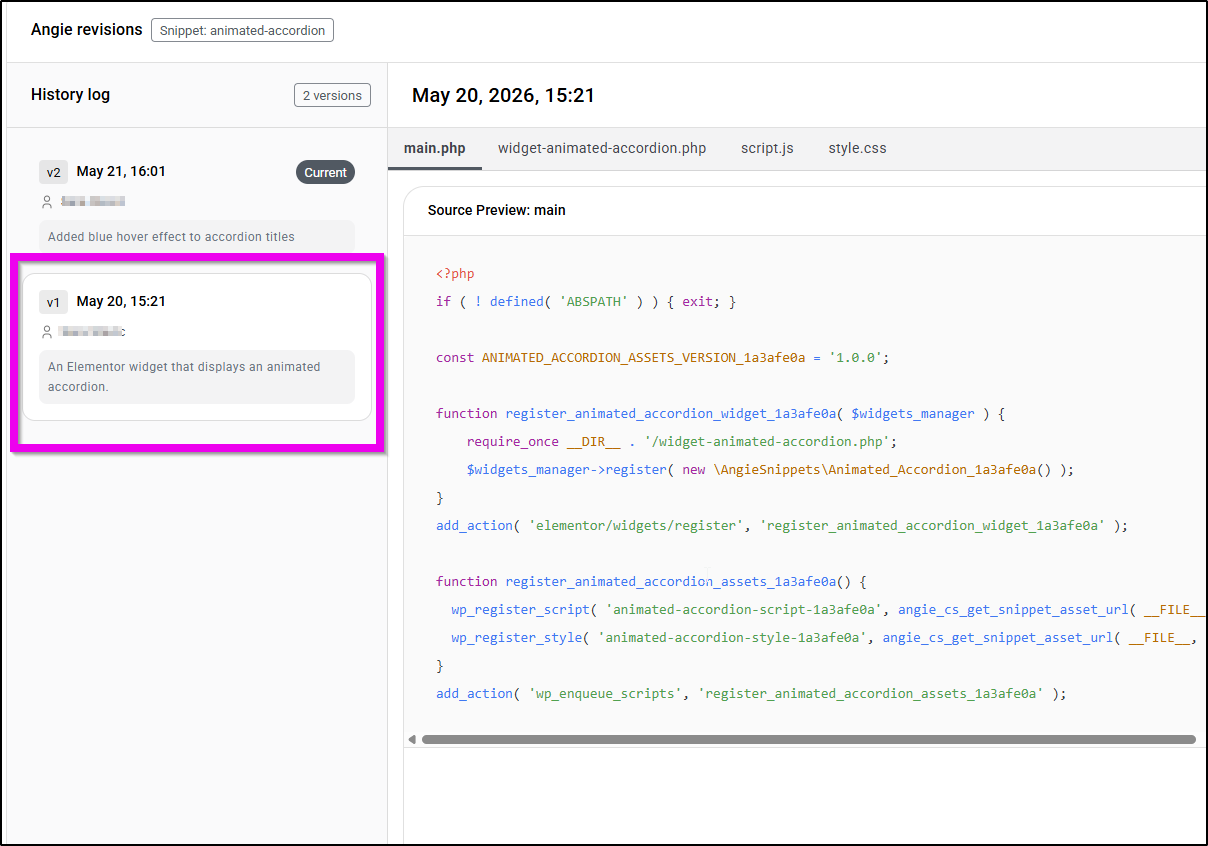
- Review the code in the Source Preview panel.
Selecting a revision only previews the code. It does not change the live version on your website.
Restore a previous version
If you want to revert a snippet to an earlier revision:
- Open the Revisions page (from the WordPress Snippet Editor or directly through Angie).
- Select the revision you want to restore.
- Click Restore version button.
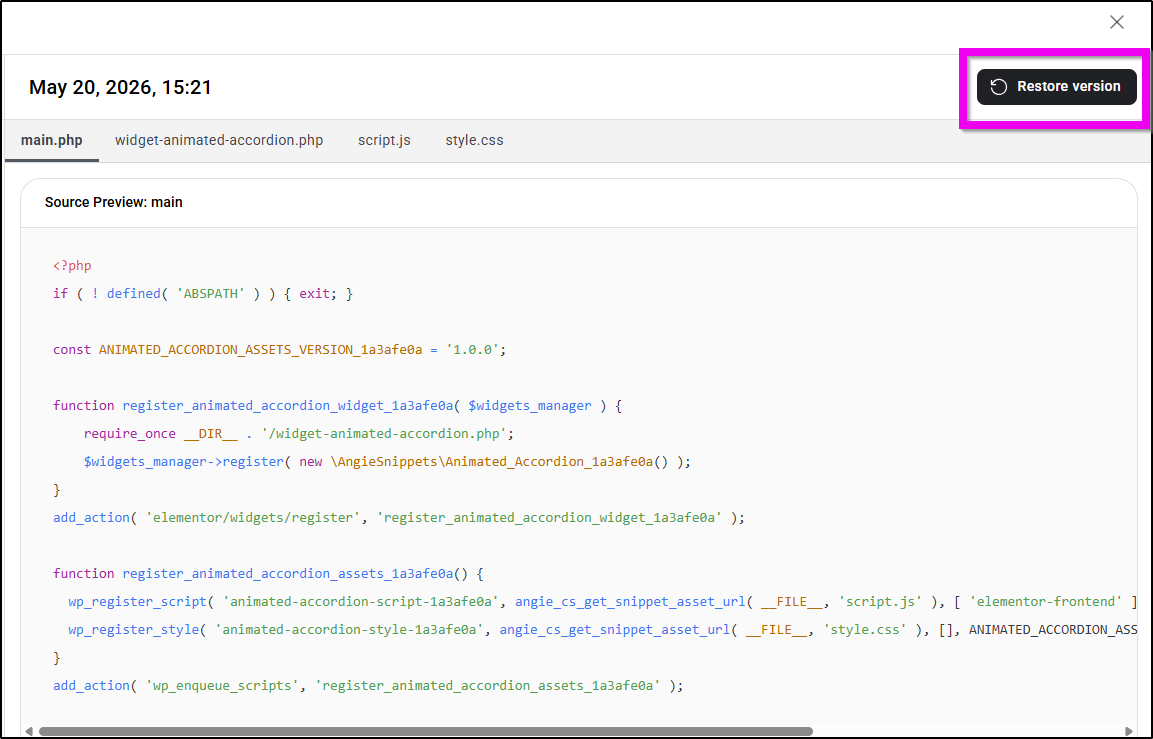
- Confirm the action.
A new revision is created from the restored code and becomes the current active version.
The previously active version remains available in the revision history.
What happens after restoring?
When a revision is restored:
- The restored version becomes the new current version
- Previous versions remain preserved
- The code is pushed to WordPress automatically
- Test Mode is enabled so you can safely review the changes
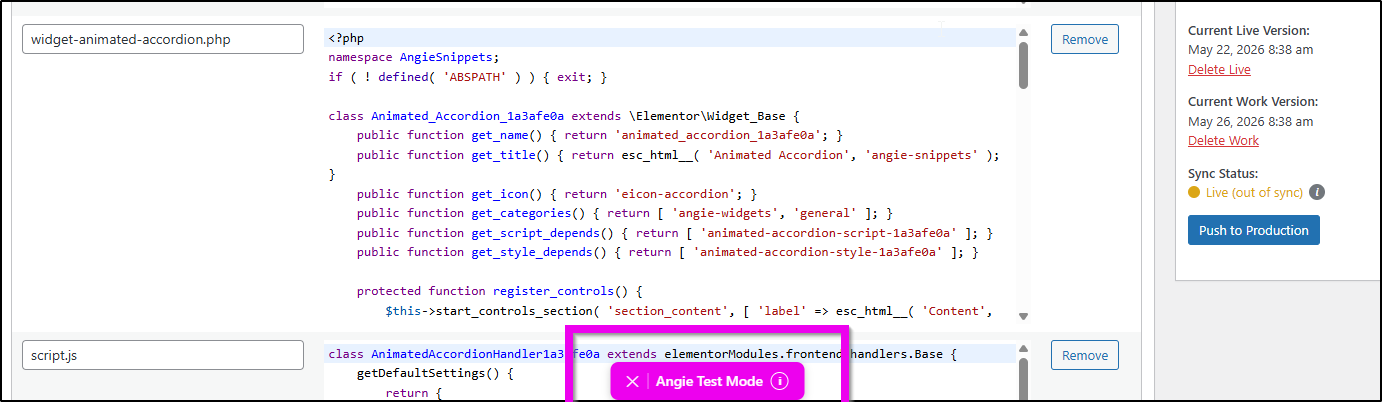
Restoring a revision never deletes revision history. Every version is preserved, so you can always undo a restore by restoring again.
Edit a revision note
You can rename revision notes to make your revision history easier to understand.
To edit a revision note:
- Hover over the revision note in the History Log.
- Click the pencil icon.
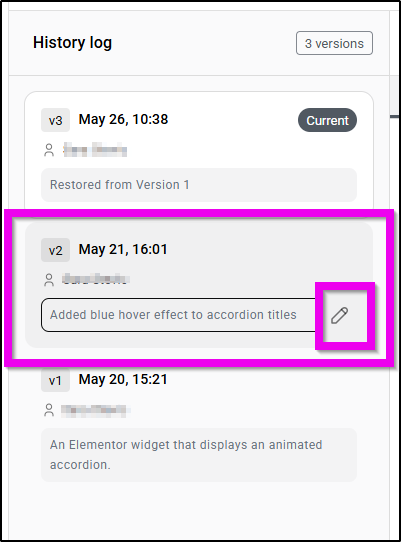
- Enter a new description.
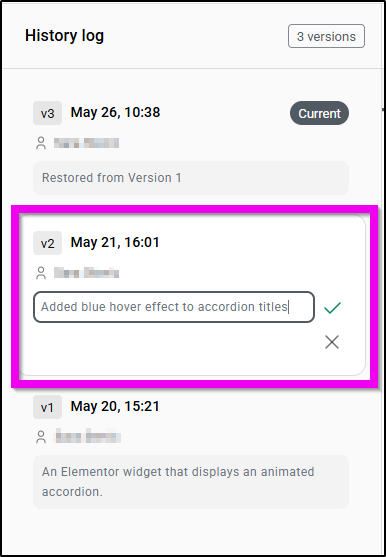
- Press Enter or click the checkmark icon.
To cancel changes, press Escape or click the X icon.
Revision notes support up to 500 characters.
Undo changes using Angie
You can ask Angie to restore a previous version directly from the chat.
For example:
- “Undo the last change”
- “Go back to the previous version”
- “Revert my snippet to before the color change”
Angie automatically:
- Restores the selected revision
- Pushes the code to your website
- Enables Test Mode
- Displays the Revisions card for additional review
FAQ
Can I undo a restore?
Yes. Restoring a version creates a new revision entry, so you can always restore a different version later.
Does restoring a version immediately affect my live website?
The restored code is pushed to your website, but Test Mode is automatically enabled so only administrators can preview the changes until they are published.
What happens if the restore process fails?
If WordPress cannot apply the restored version, Angie displays an error message.
The restored version still exists in the revision history and can be retried later.
Can I edit code directly from the Revisions page?
No. The Revisions page is read-only.
To modify the code, return to the Angie chat and ask Angie to update the snippet.
How do I identify the currently active version?
The active version displays a Current badge in the History Log.