To resolve common mobile layout issues in Elementor, users should utilize the responsive mode to adjust column direction, toggle element visibility, and scale typography. Key fixes include using the “Direction: Column Reversed” icon for stacking and the “Regenerate Files & Data” tool for CSS synchronization. This ensures your Elementor site displays correctly on all devices.
Want to learn faster? Book a 1-on-1 expert session today.
How do I access responsive mode in Elementor?
Check out Responsive editing for mobile and tablets to learn how to access and use responsive editing.
How do I reverse the column stacking order on mobile?
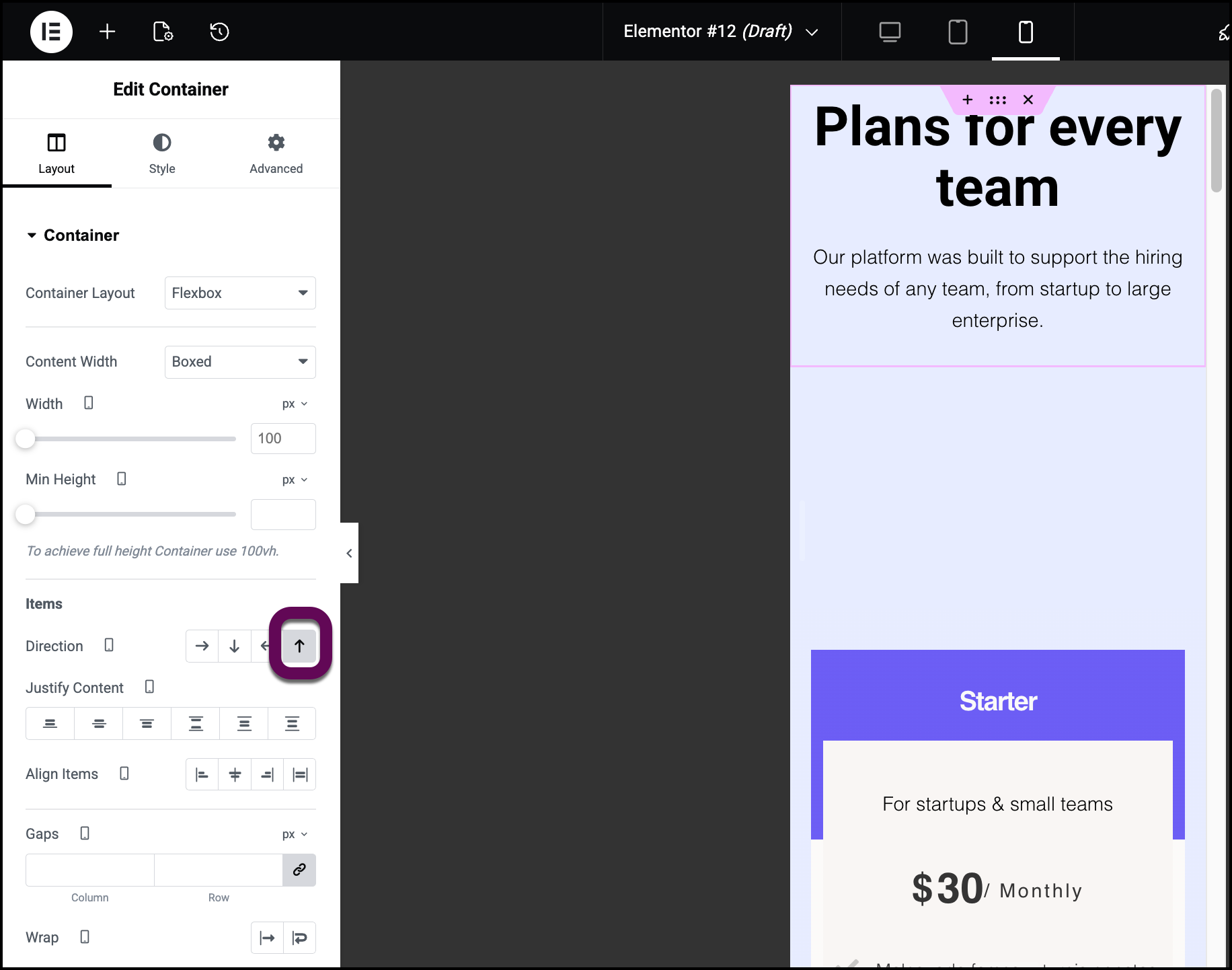
When using two-column layouts, the Elementor Flexbox Container stacks elements vertically by default. To change the visual order so the right-side element appears on top on mobile devices:
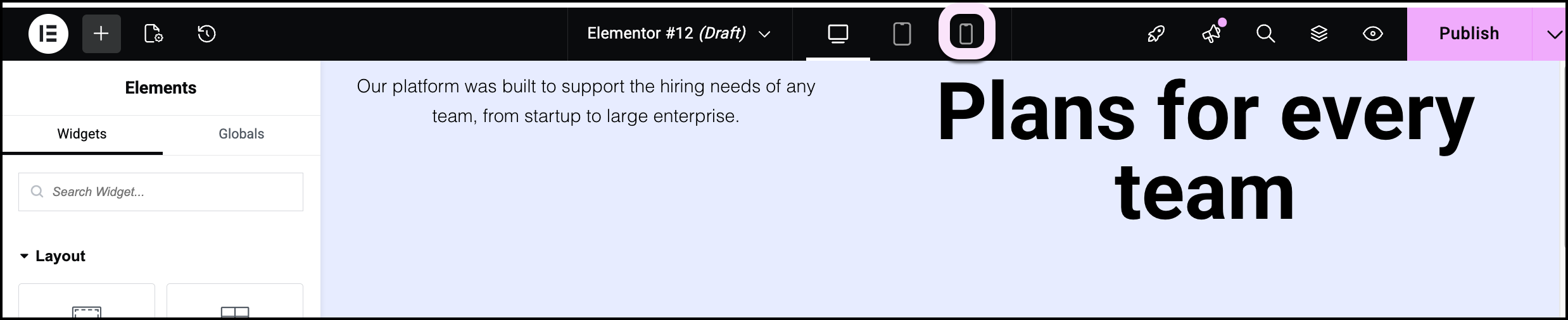
Enter responsive mode.
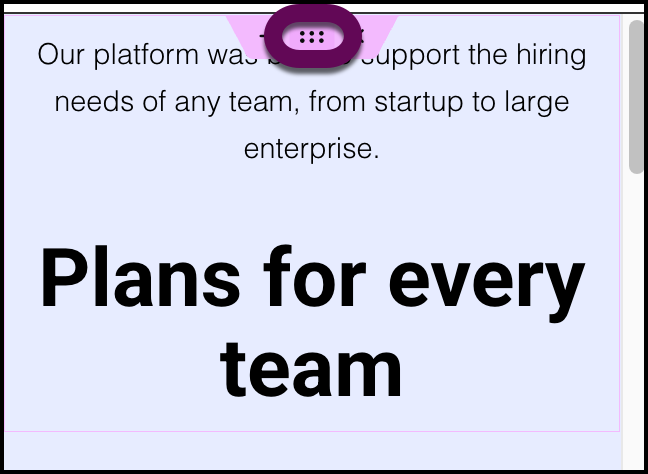
Click the container handle of the parent container.
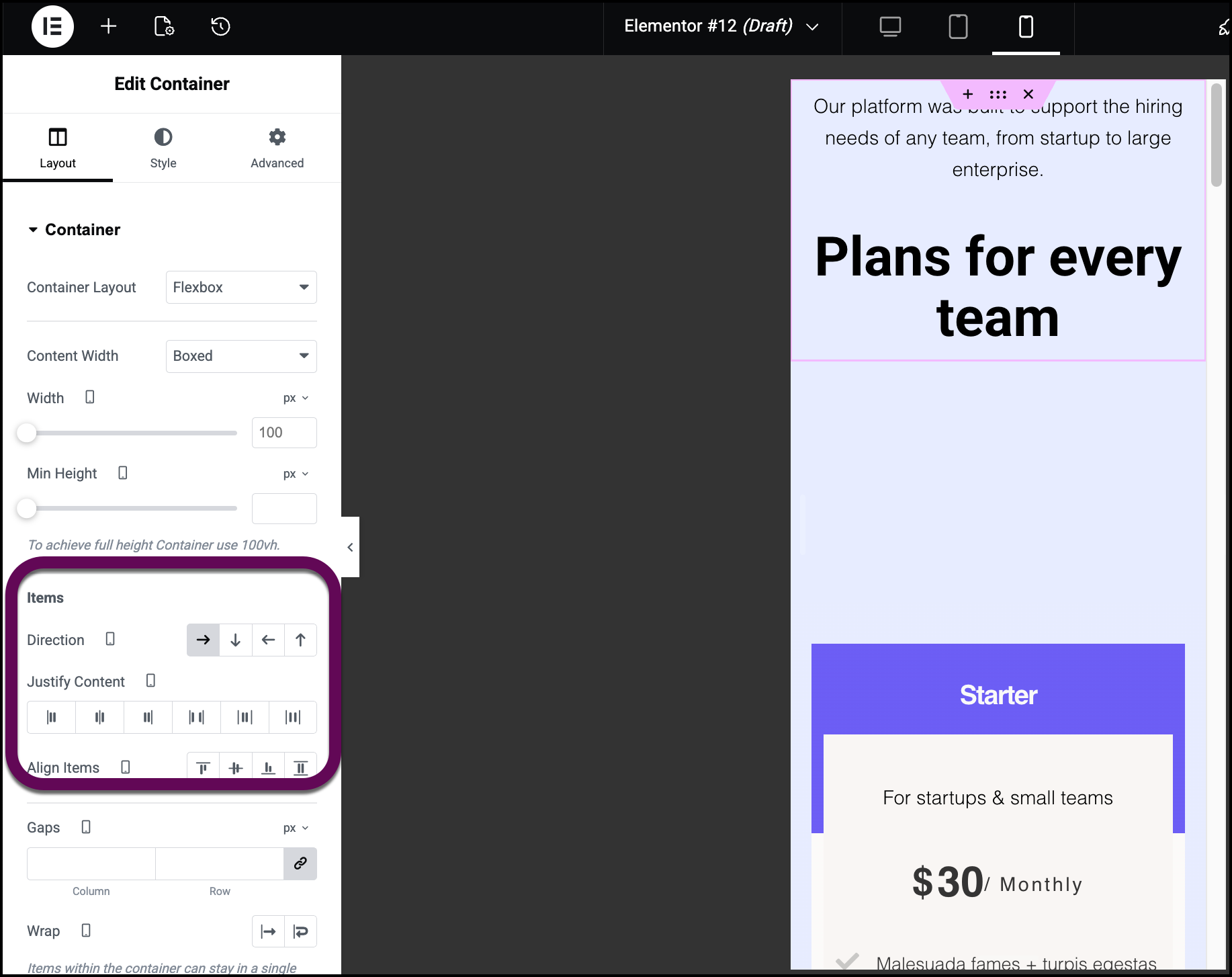
Navigate to the Layout tab.
Locate the Items section.
Click the column reversed icon (the upward-pointing arrow).
Can I hide specific elements on mobile devices?
If a complex widget clutters the mobile experience, you can hide it specifically for smaller viewports while keeping it visible on desktop.
Select the specific widget or, container.
Open the Advanced tab in the settings panel.
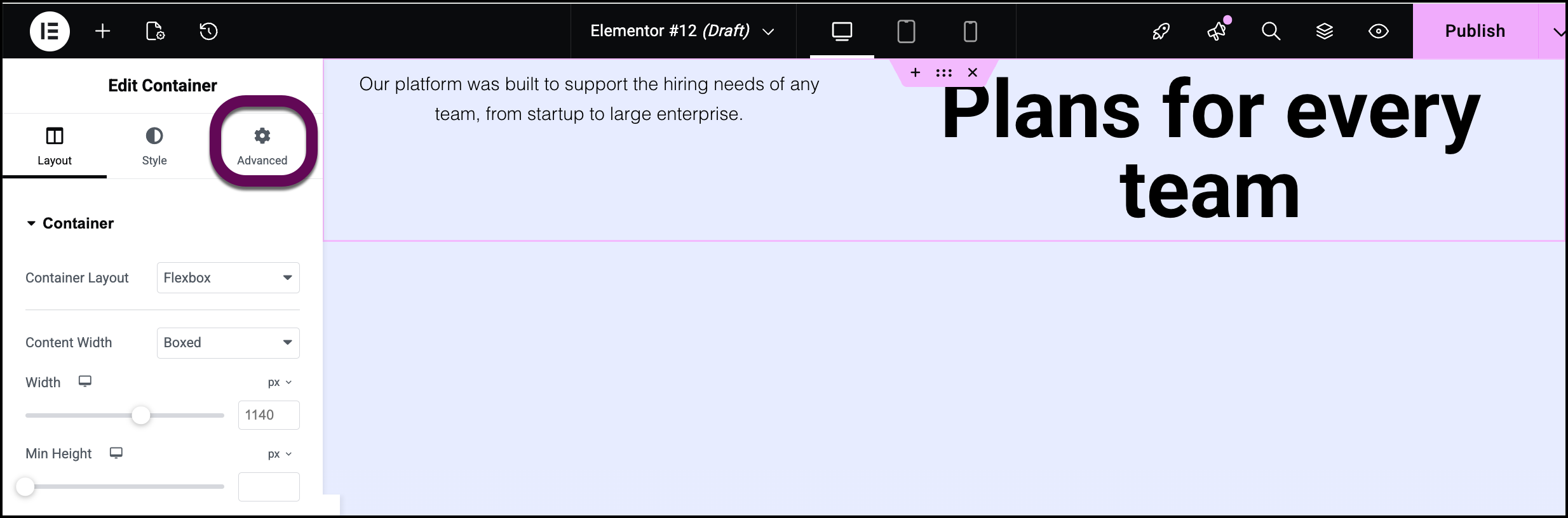
Open the Responsive section.
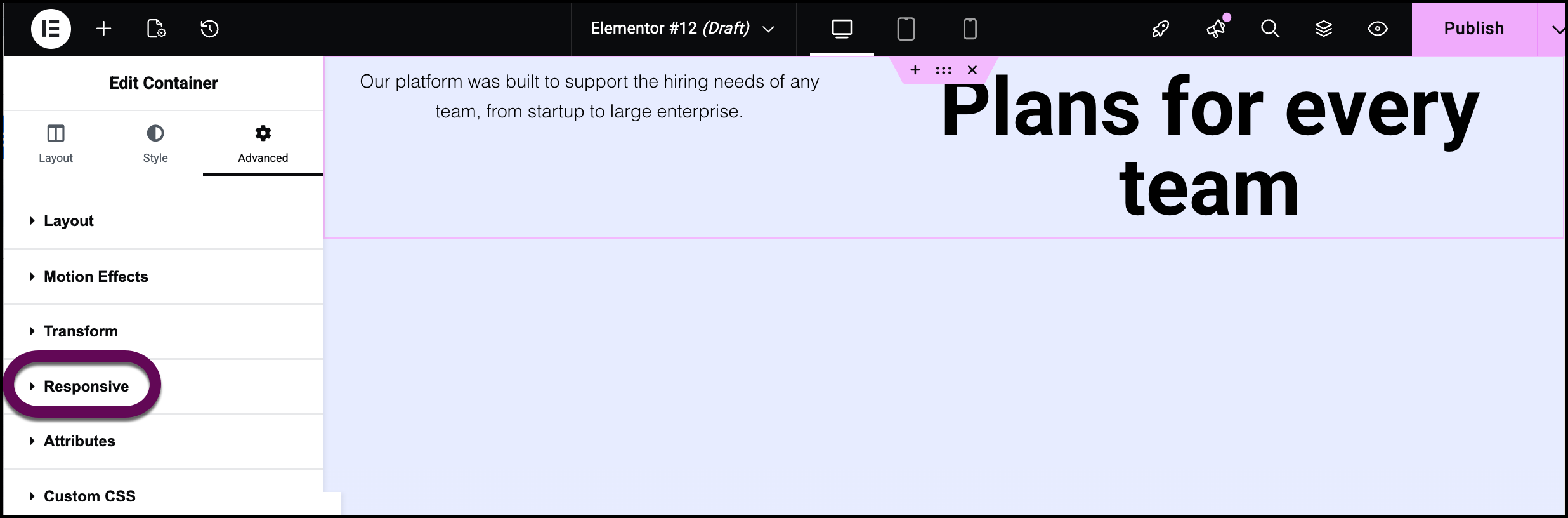
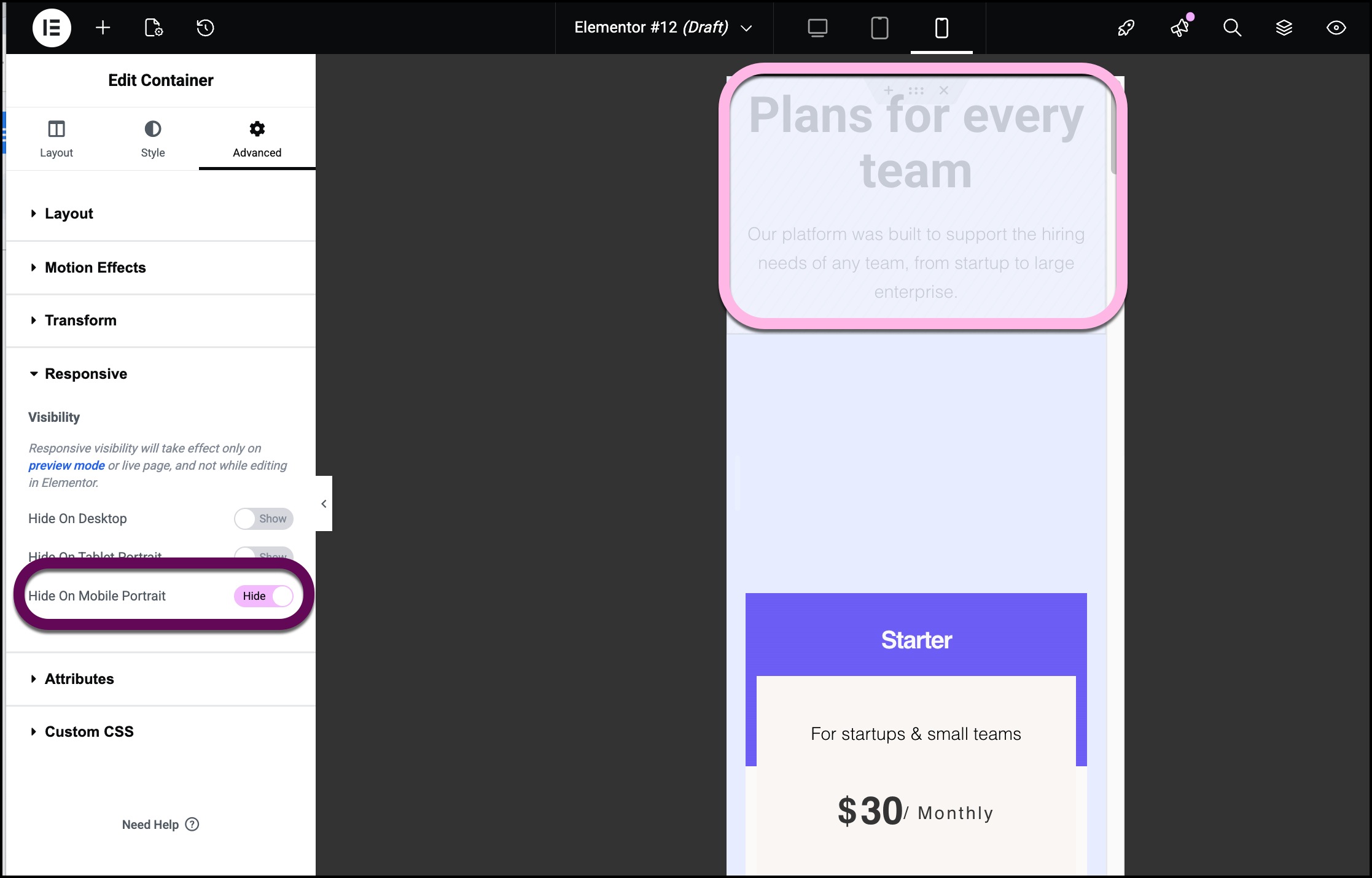
Toggle any modes you want hidden to Hide.
How do I adjust text size and spacing for mobile viewports?
Elementor allows for device-specific styling for typography and spacing without affecting the desktop layout.
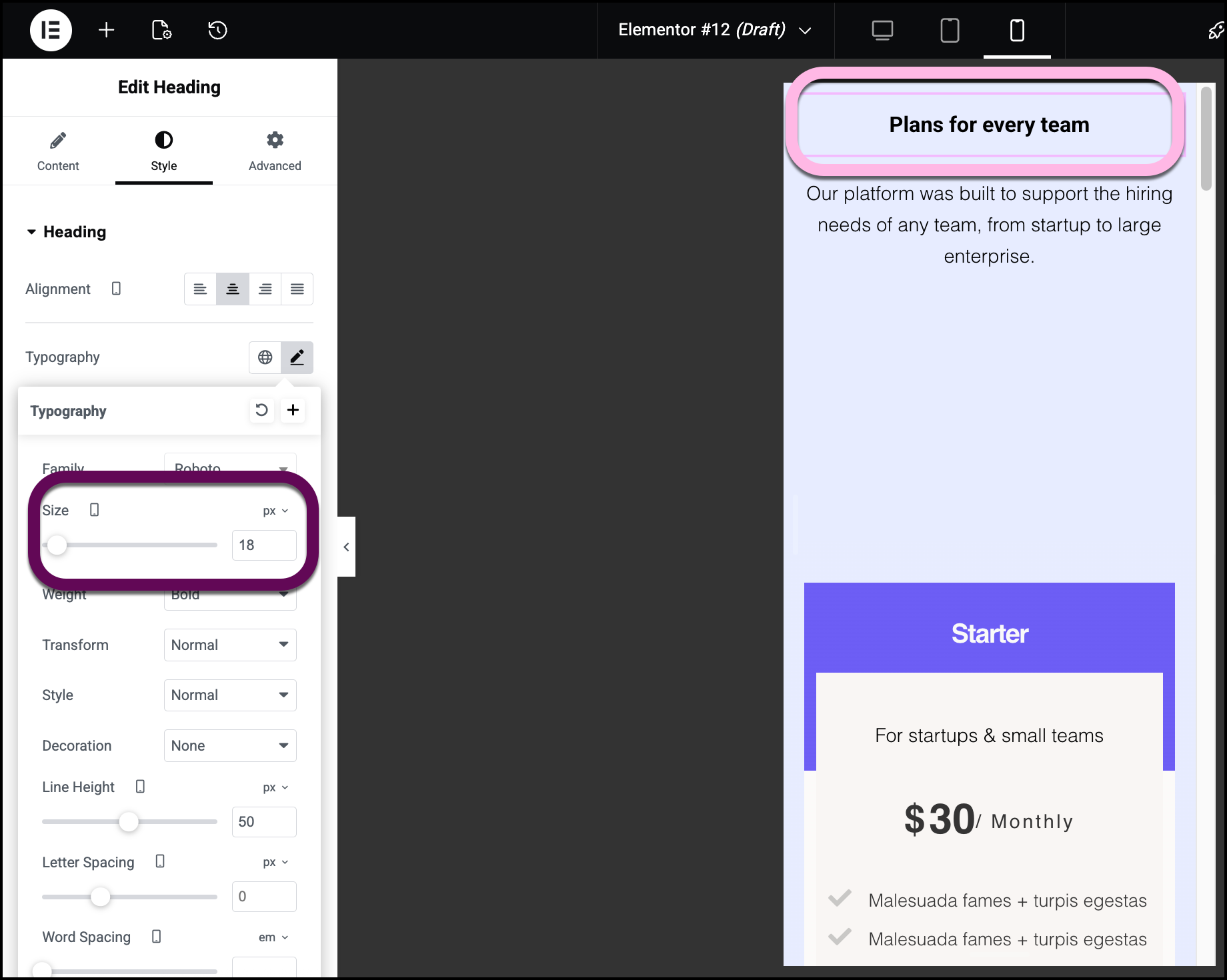
Responsive Typography: Adjust font sizes specifically for phone screens.
Mobile Padding: Set custom spacing to ensure text does not touch the edges of the screen.
Margin Control: Define vertical gaps between stacked widgets.
Click the responsive icon next to a setting with a responsive option: these settings have a responsive icon next to them.
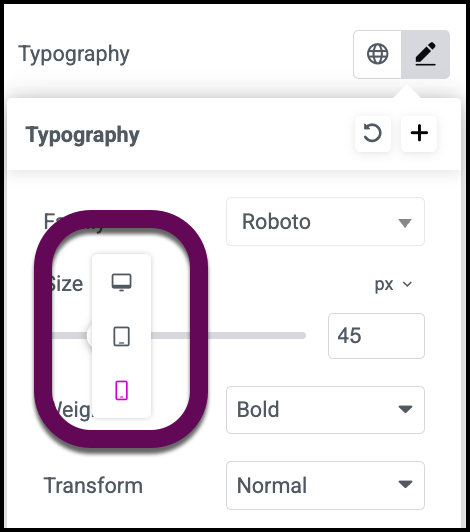
Input the desired value for the mobile viewport.
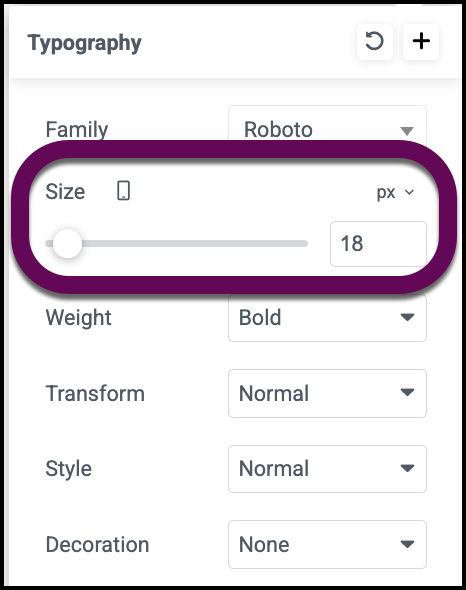
Observe the live change in the editor.
What should I do if mobile changes are not appearing?
If your mobile optimizations are not reflecting on live mobile browsers, follow these troubleshooting steps to clear the system cache:
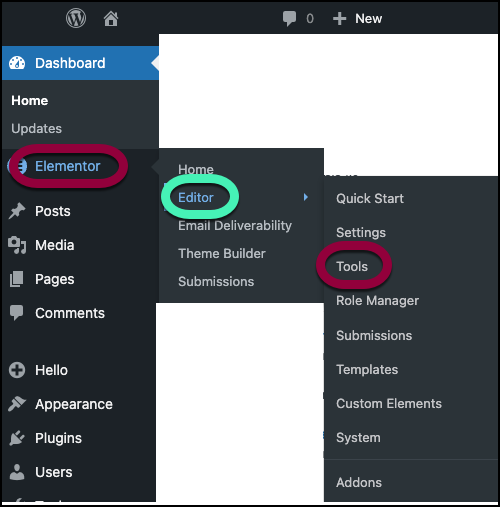
Go to WP Admin and navigate to Elementor>Tools.
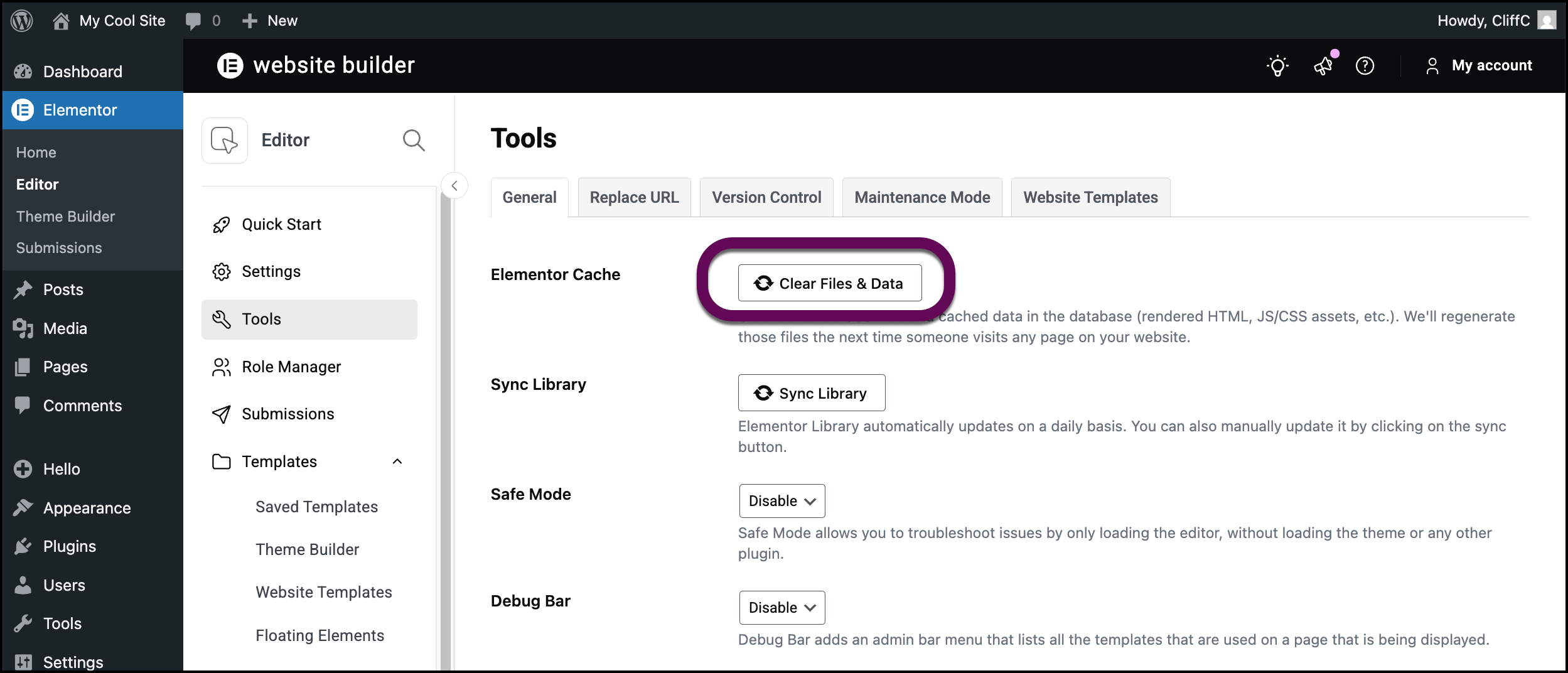
Click Clear files & data.
Access your My Elementor dashboard and use Object caching to clear the cache. For details, see Object caching.