Angie can quickly and efficiently create forms using just your prompts.
To create a form with Angie AI:
- Open the Elementor Editor.
- Click the Angie icon in the Top Bar.

This opens the Angie panel.
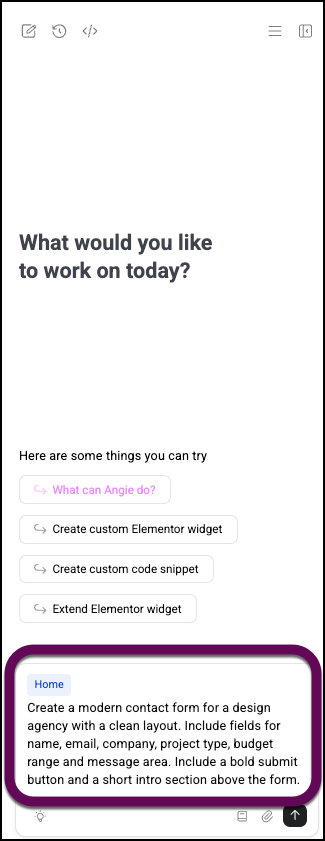
- Enter a prompt in the prompt box. For this example, we’ll enter the prompt: Create a modern contact form for a design agency with a clean layout. Include fields for name, email, company, project type, budget range and message area. Include a bold submit button and a short intro section above the form.
- Submit the prompt.
Angie generates a form using the brand colors and style.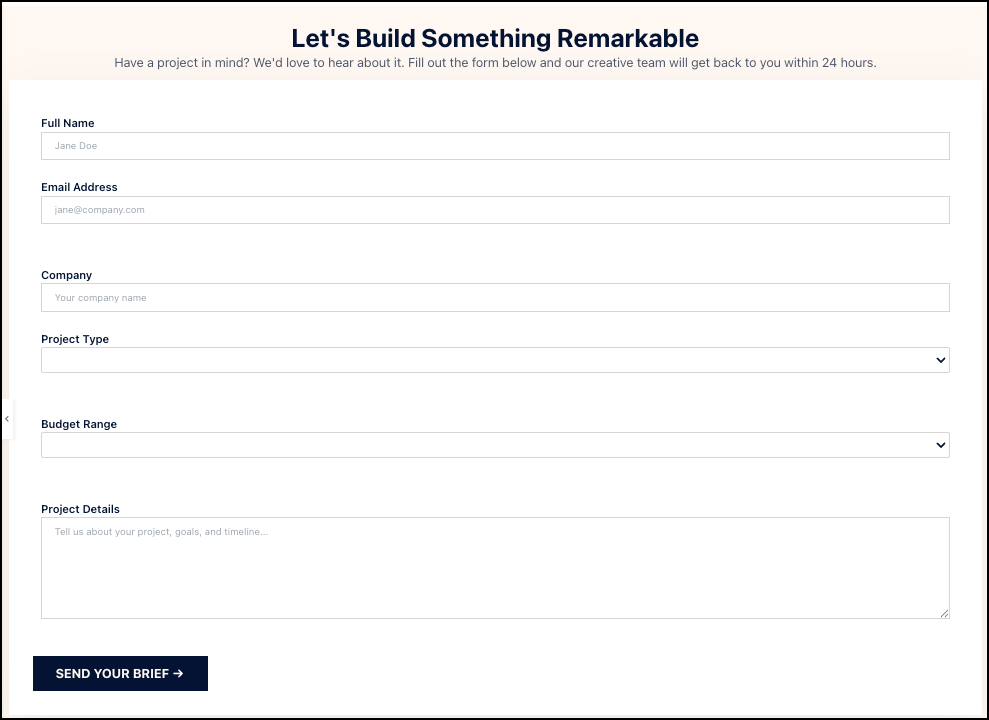
The form is even responsive for mobile devices.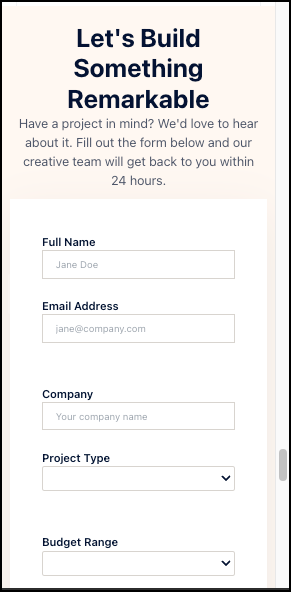
- Edit the form to perfect it. For details, see Atomic form element.