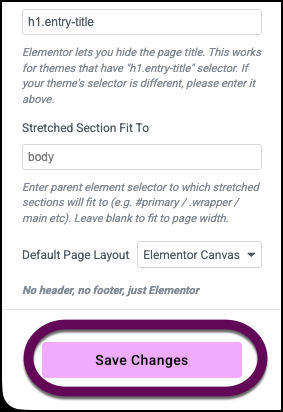
An Elementor Canvas Page removes the site’s header, footer, and sidebars.
This is great for creating specific pages inside your website that don’t need these elements such as:
- Landing pages
- Coming soon pages
- Maintenance mode pages
Create a Canvas Page
To create an Elementor canvas page:
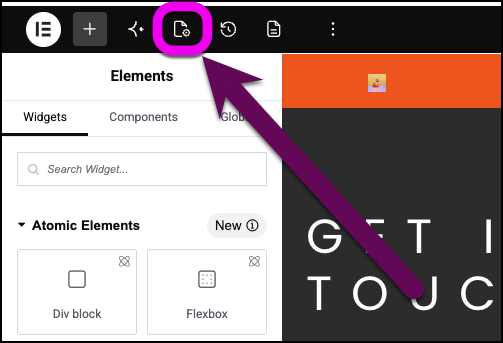
- In the center of the Elementor toolbar, click the Page Settings icon
 .
.
The page settings menu opens in the panel.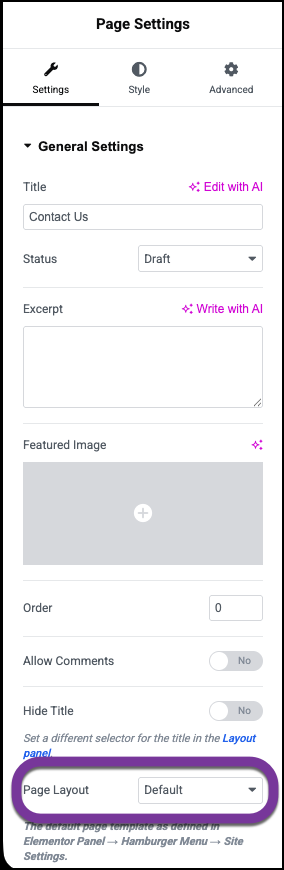
- In the panel, use the Page Layout dropdown to select Elementor Canvas.
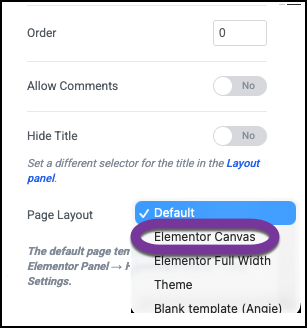
The page is now an Elementor Canvas page.
Make Elementor Canvas the default layout for your site
If you want to use Elementor Canvas for most of your site, you can make Elementor Canvas the default page layout.
To make Elementor Canvas the default layout:
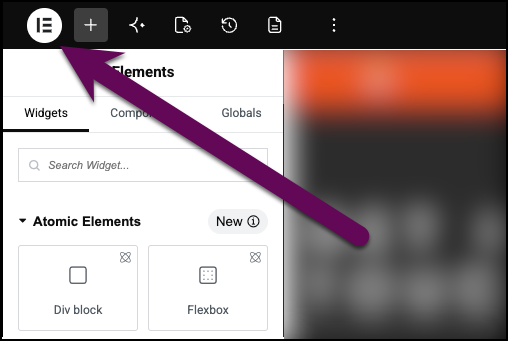
- In the Elementor Editor, from the top bar, click the Elementor logo.
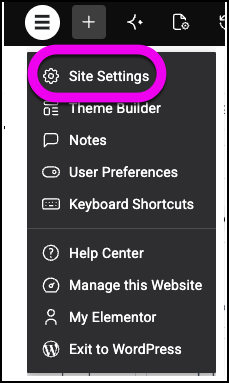
- Select Site Settings from the dropdown menu.
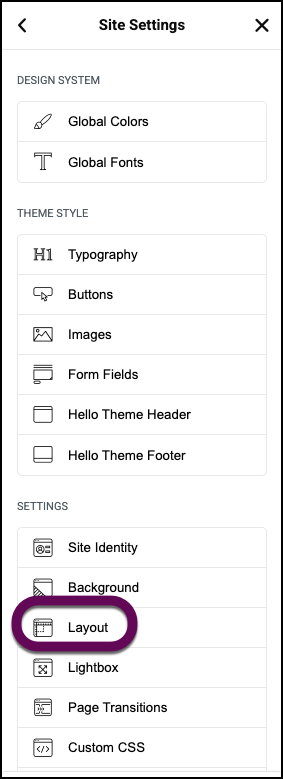
In the panel, the Site Settings menu appears. - In the panel, click Layout.
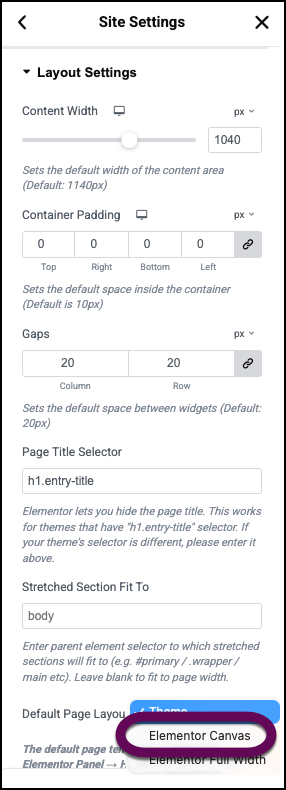
- Use the Page Layout dropdown to select Elementor Canvas.
- Click Save Changes.