Search Results Page is an Archive, displaying your results in an archive template.
- Go to WP Admin.
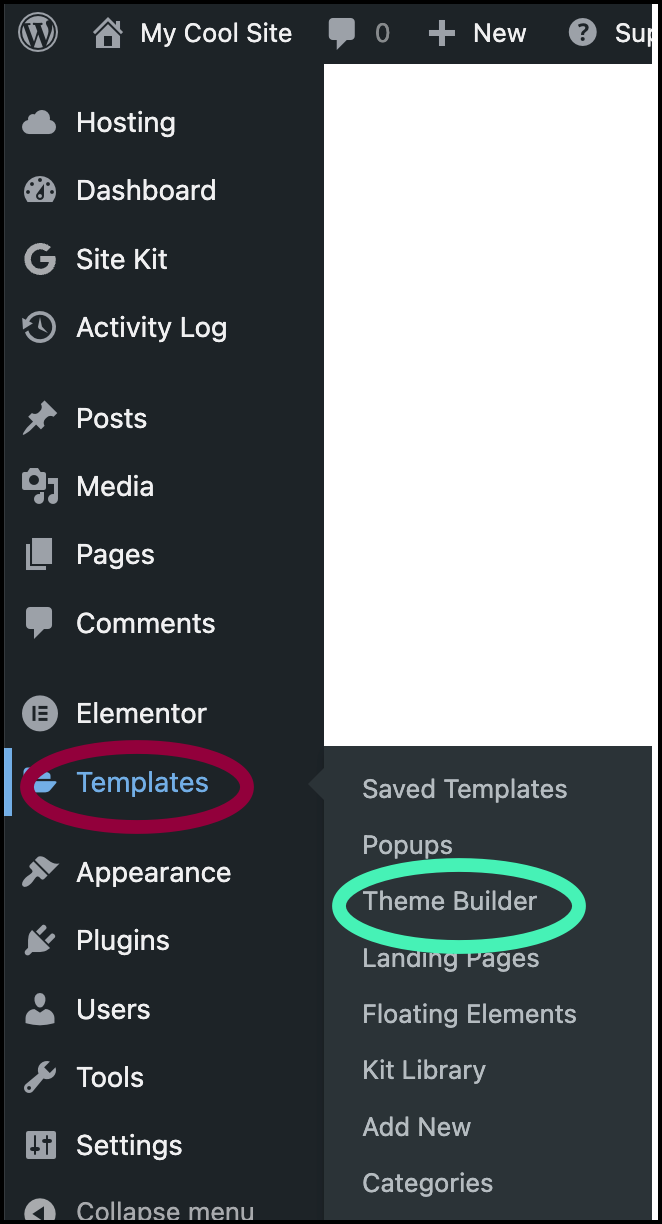
- Navigate to Templates>Theme Builder.
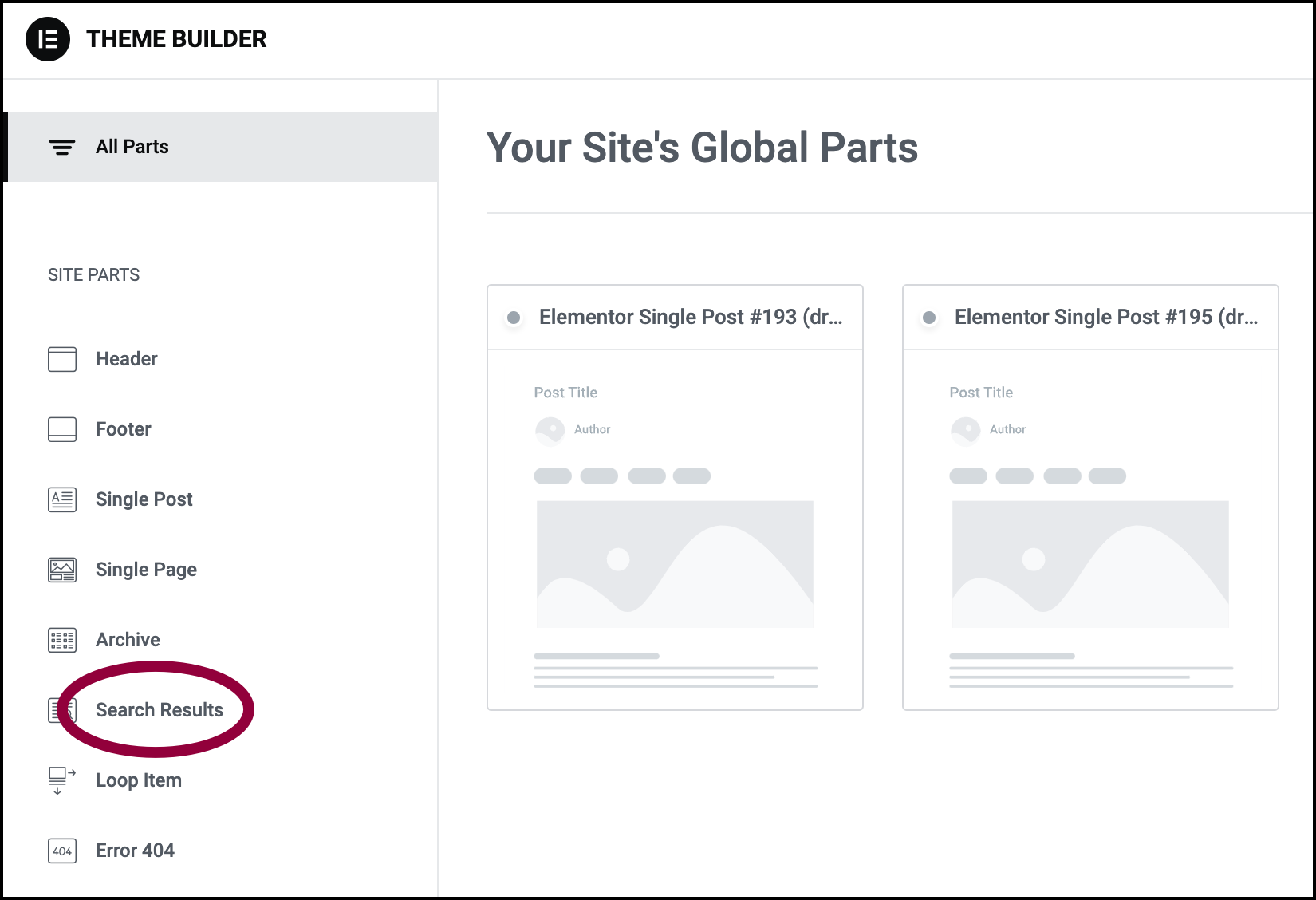
- In the panel, click Search Results..NoteIf you already have a search results template, you can elect to edit that template. For details about managing Search Results archives, see Create or edit a Search Results page.
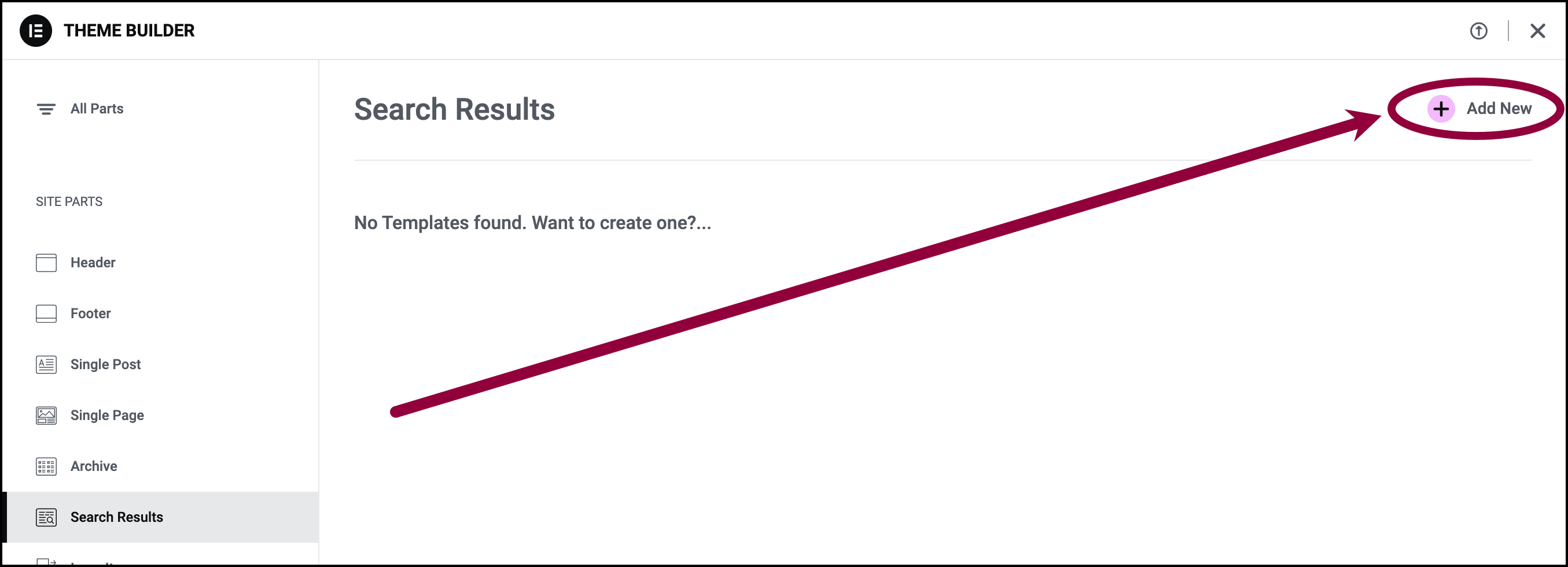
- Click Add New in the upper right to create a new template.
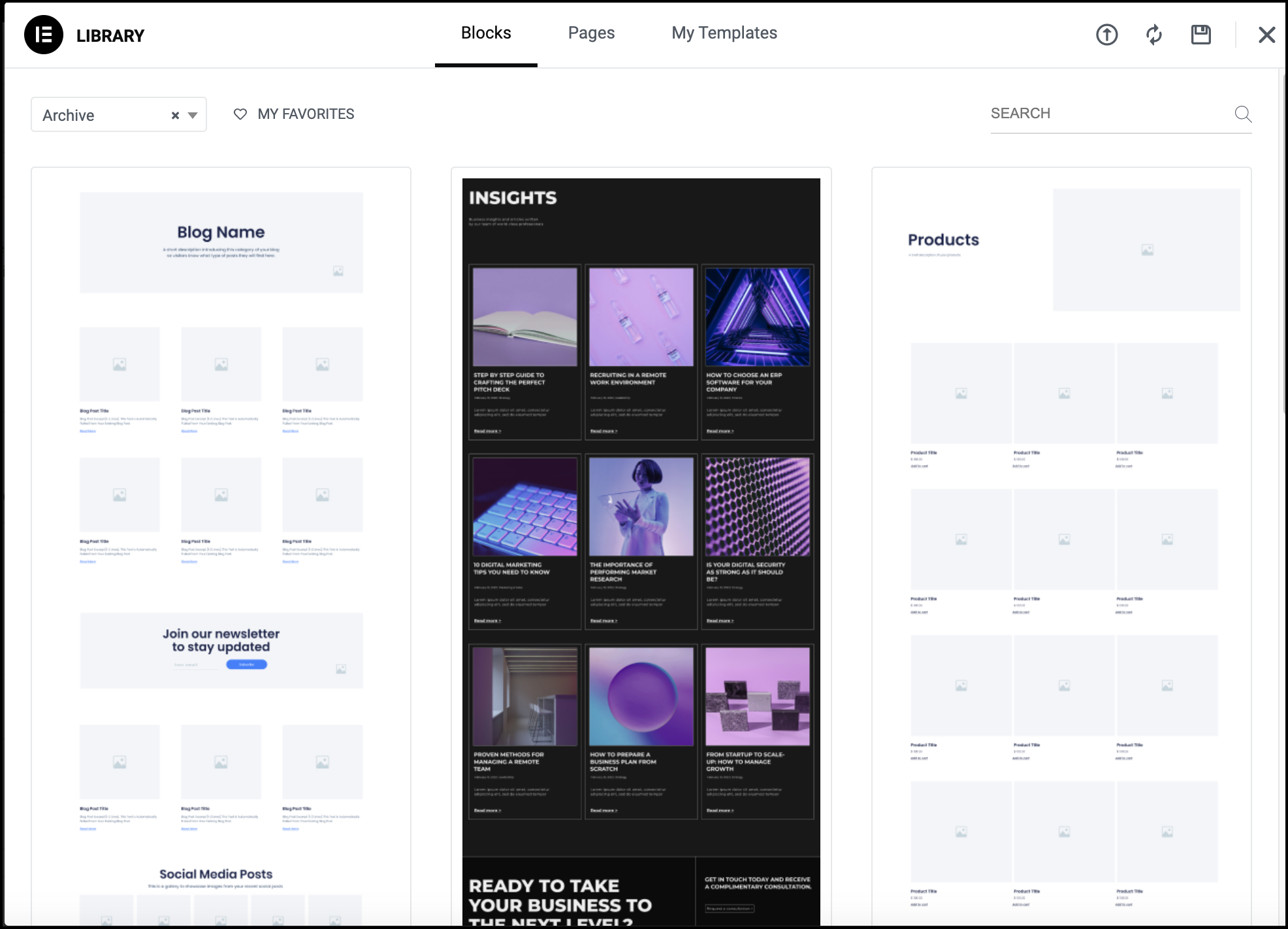
The Template Library opens up.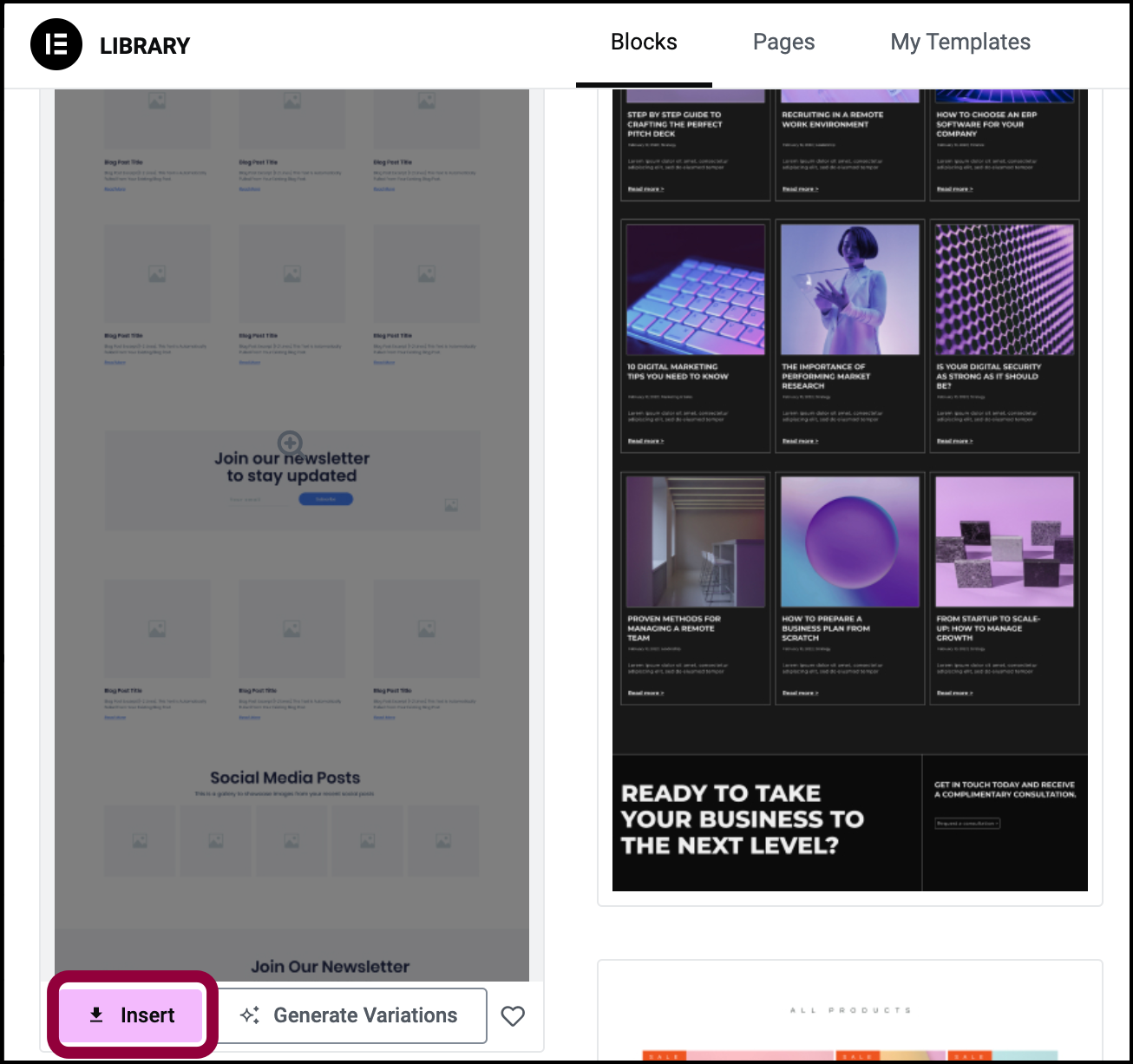
- To create a Search Results archive based on a template, choose and template and click Insert.
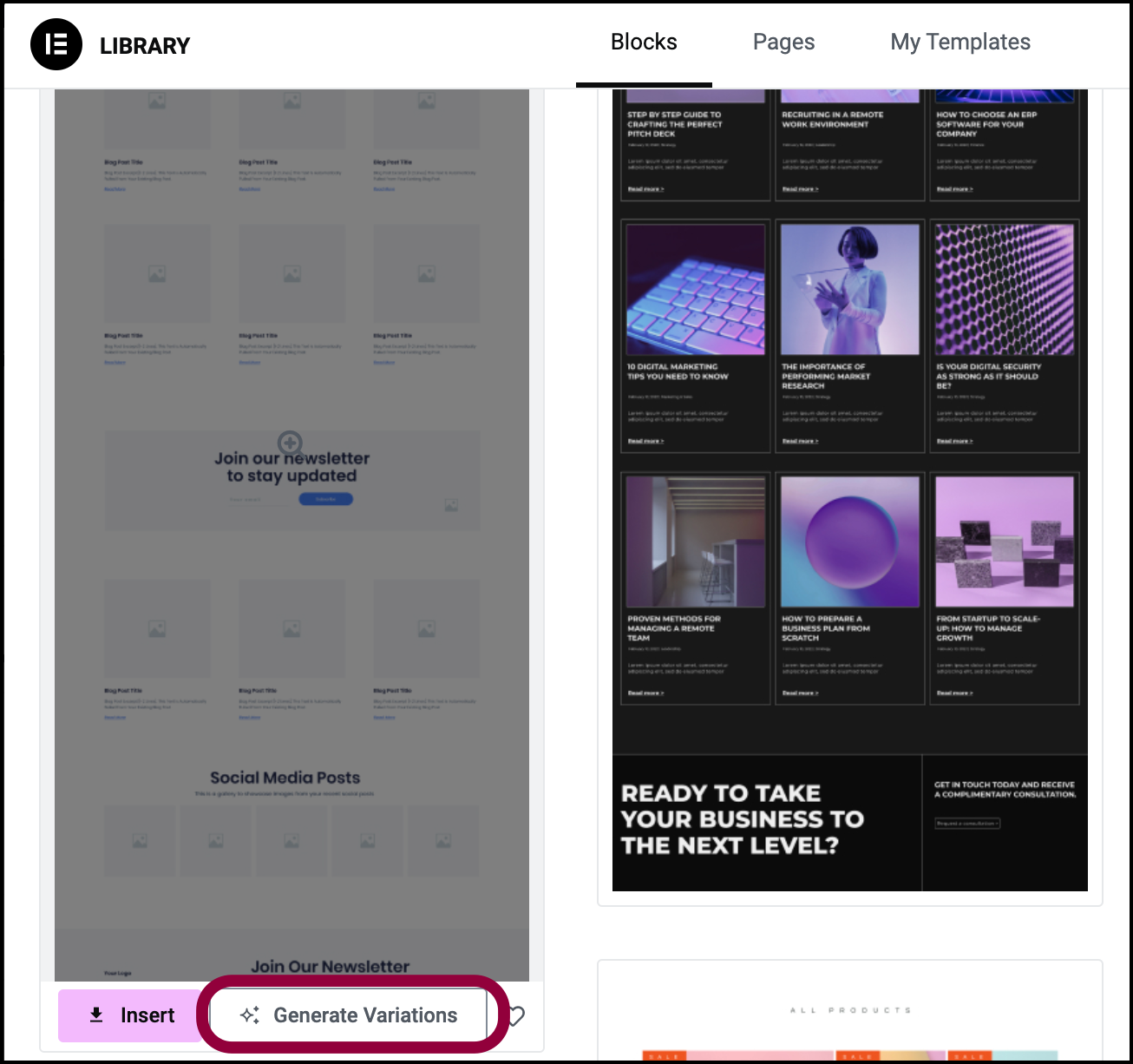
- To create an AI designed archive based on an existing design, click Generate Variations.
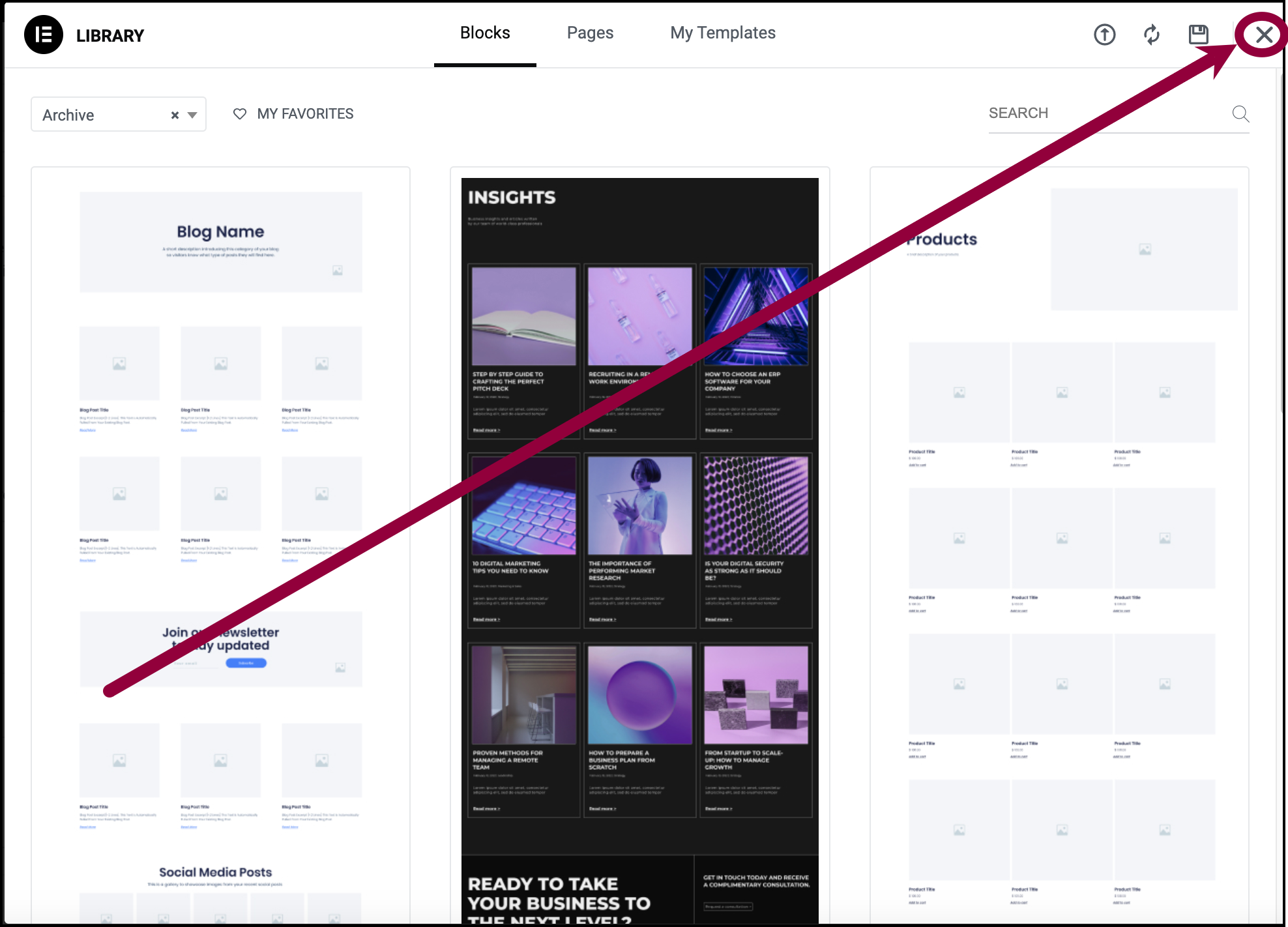
- To create a Search Results archive from scratch, click the X in the right corner to close the Template.
After you’ve made your selection, the Elementor Editor opens. - Edit the page in the Elementor Editor.
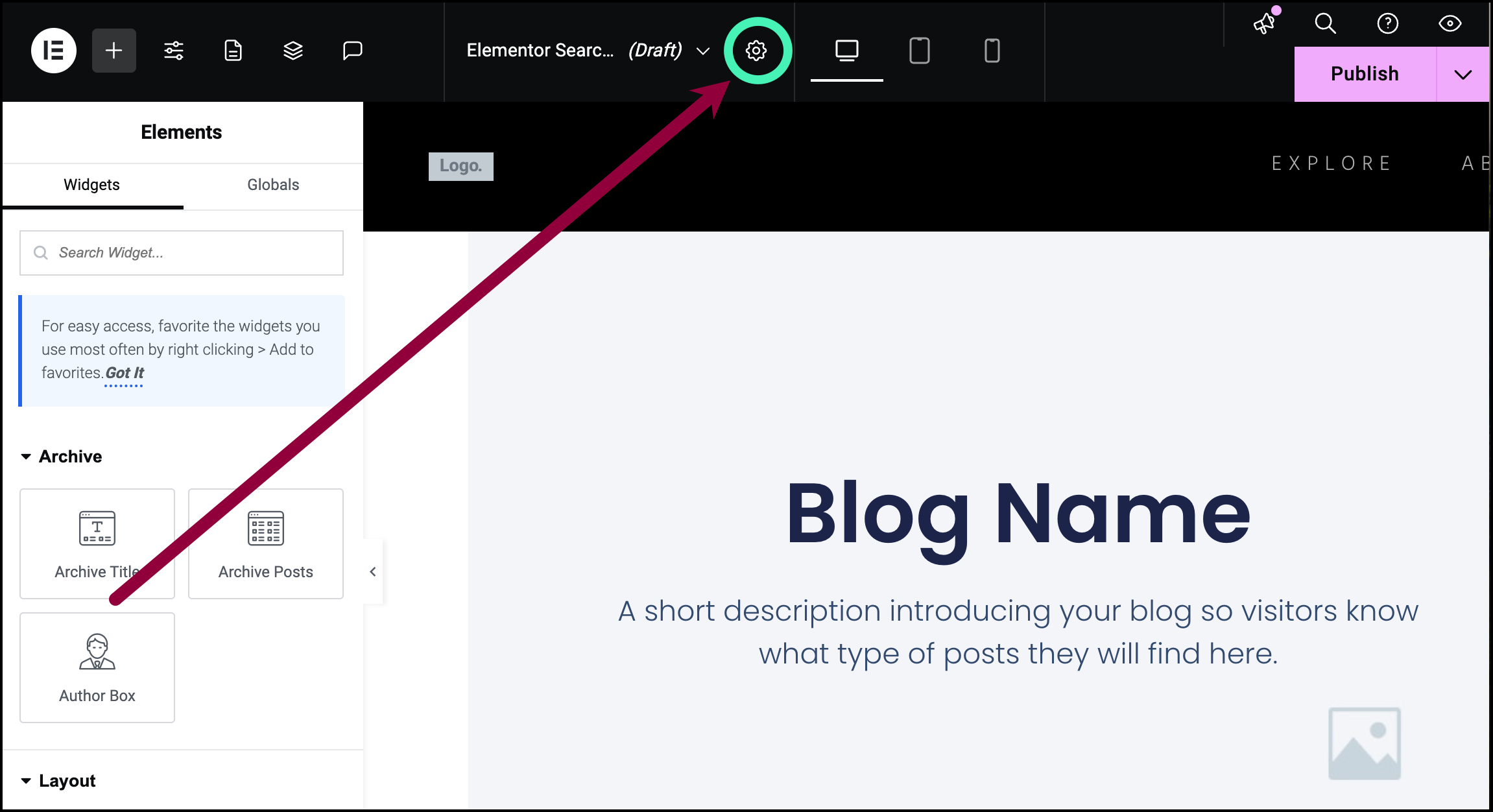
- To preview this Archive as a Search Results page, click the Settings icon in the top bar.
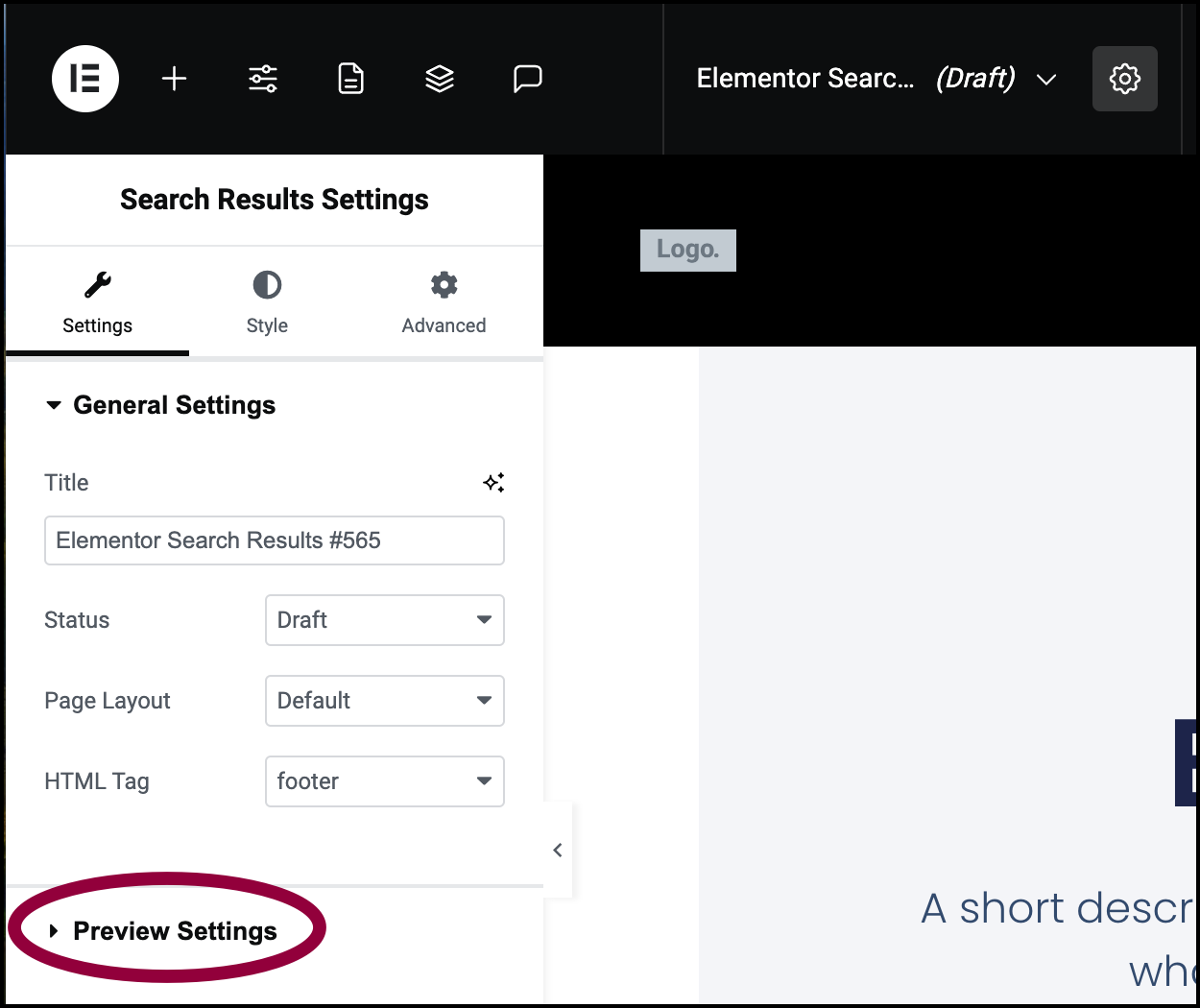
- In the panel, open the Preview Settings field.
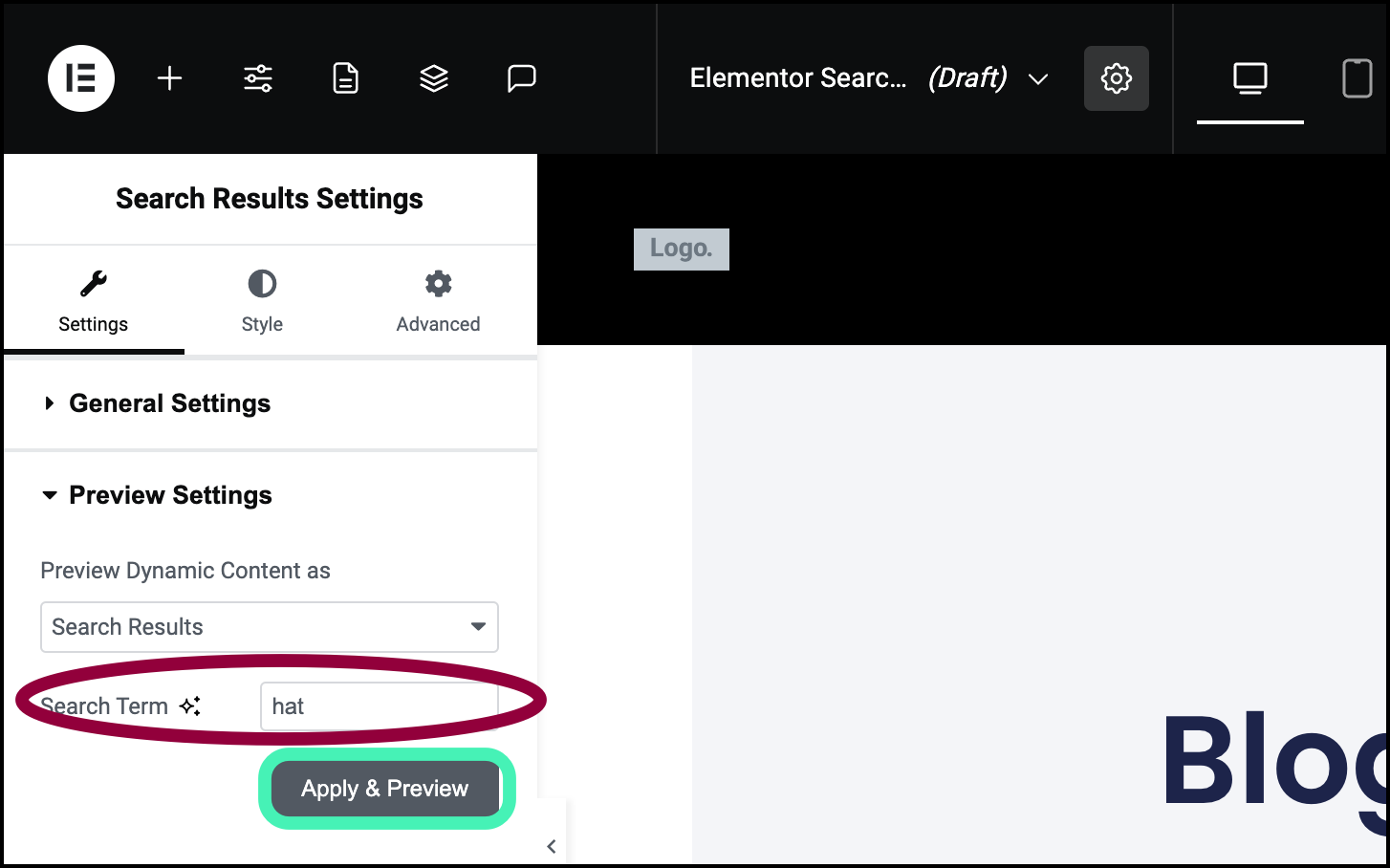
- In the Search Term field, enter a word you know is used in at least one post and click Apply & Preview.
- To see what the page looks like when there are no results, enter a search term you know is not used on your site and click Apply and Preview.
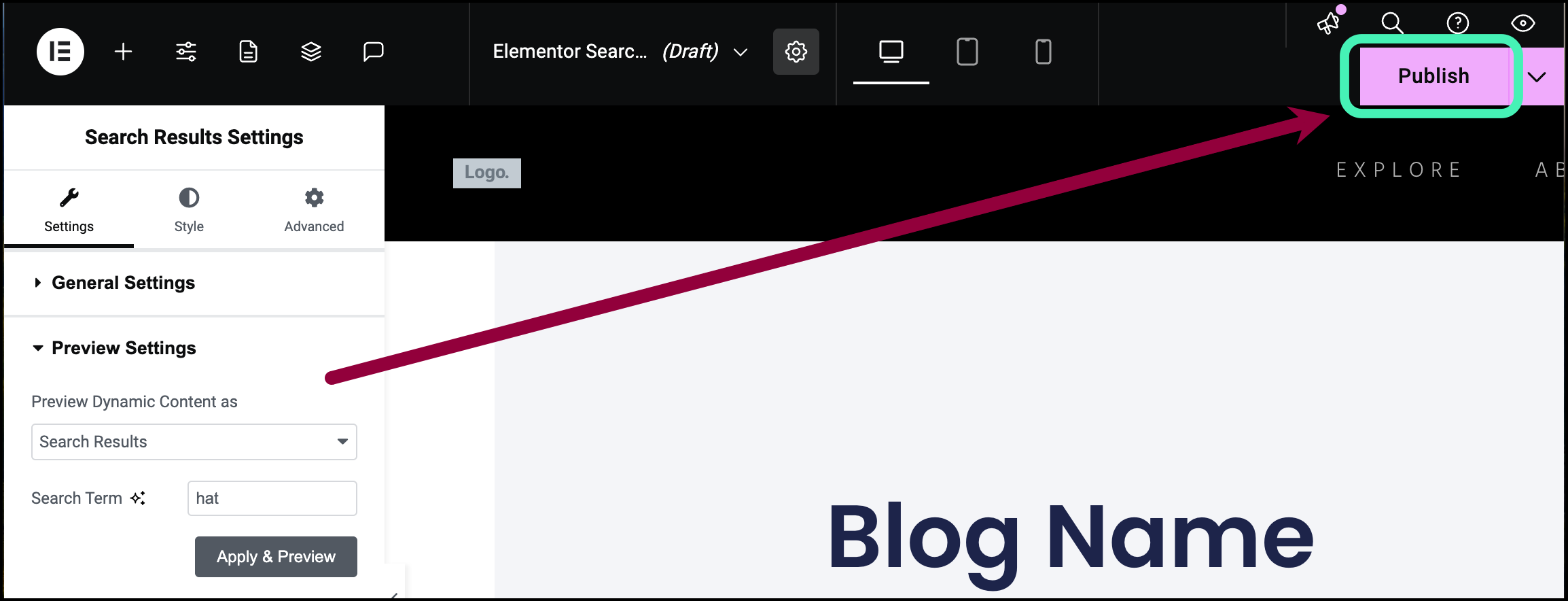
- To save this template, click Publish in the top bar.
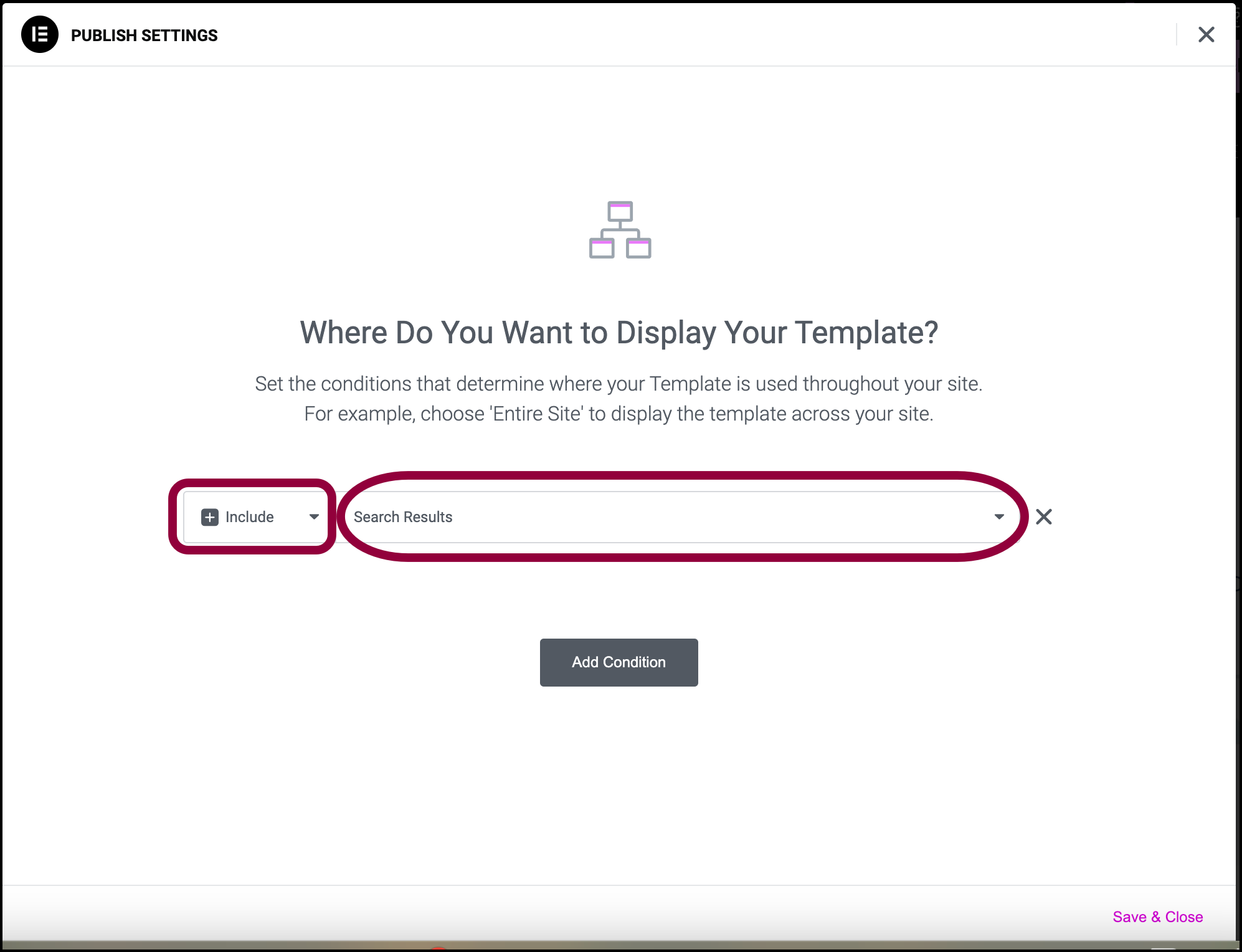
- Make sure the condition is set to Include and Search Results.
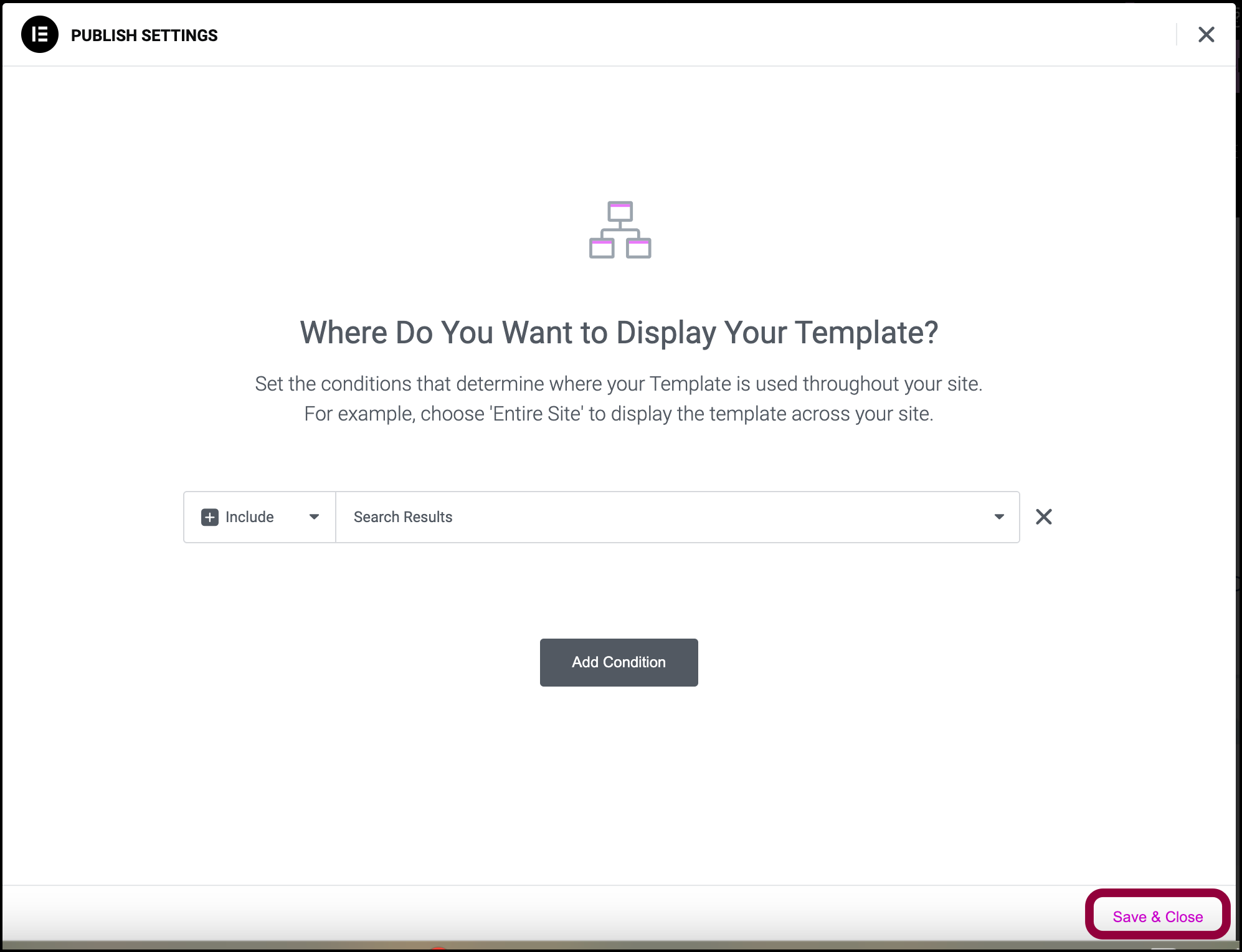
- In the bottom left, click Save & Close.
Your Search Results page is now customized.