With Elementor WooCommerce Builder you can now design your single product and archive page templates. Here is a breakdown of all the parts that make up a regular WooCommerce product page, and it’s corresponding Elementor Widgets.
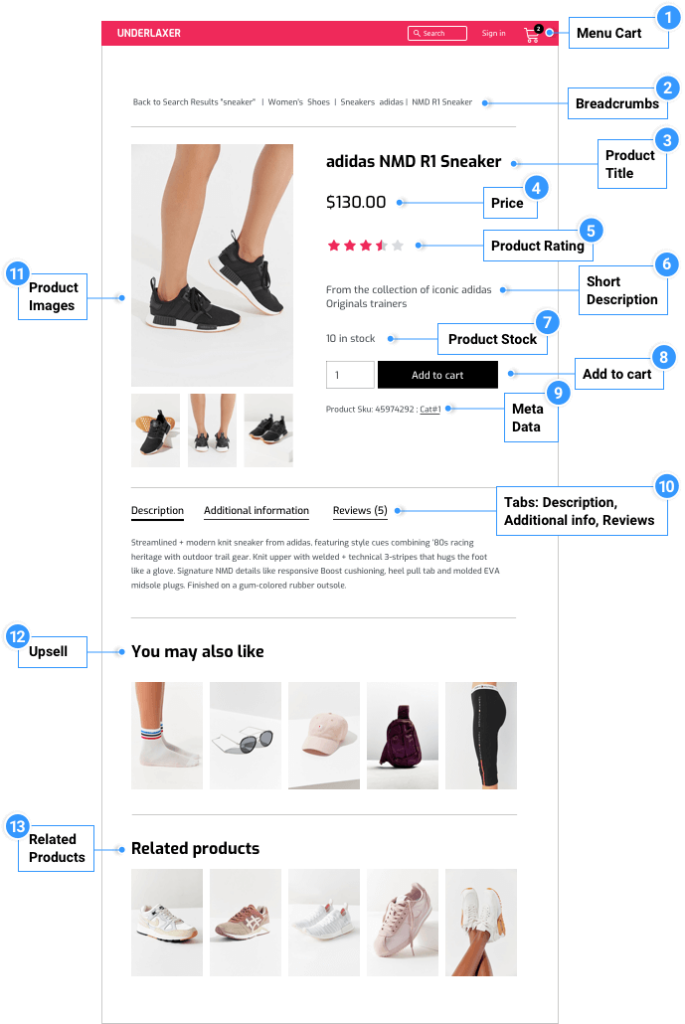
 | Menu Cart Widget – This special custom widget we’ve built, opens the cart in a window, so you can display your cart from any page of your website without leaving it. |
 | Woocommerce Breadcrumbs Widget – Control the colors and layout for WooCommerce Breadcrumbs. |
 | Product Title Widget – Control the style and layout of your Product Title. |
 | Product Price Widget – Set the Product Price position and style. |
 | Product Rating Widget – Add a Product Rating Widget. |
 | Short Description Widget – Control the Short Description layout and style. |
 | Product Stock Widget – Add a Product Stock Widget to display the product’s stock number. |
 | Add To Cart Widget – Control the layout and style of the Add To Cart button. |
 | Product Meta Widget – Set the distance between the text, display it stacked or inline, and control the style of your Metadata. |
 | Product Data Tabs Widget – Control the Data Tabs style. |
 | Product Images Widget – Set the image or gallery you wish to display. |
 | Upsells Widget – Set your own style to the Upsell Products. |
 | Product Related Widget – Set your own style to the Related Products. *See note below. |
 | Additional Information Widget – Add Additional Information to your product display. |
How to create a Single Product Template
Under Elementor > Theme Builder > Single Product > Add New, from the dropdown choose Single Product, give it a name, and click Create Template.
Choose a Single Product Block and Insert. Alternatively, you can design your own.
After you’ve finished designing, click Publish.
Choose a Condition. Click to learn about conditions.
Important! In order for the Woocommerce Builder to work, you need Elementor pro 2.1 + WooCommerce 3.4 or higher.
*Note: The Product Related Widget uses the WooCommerce related products function to link products with the same tags and categories, not with the same up-sells and cross-sells.