Using variables can help speed up your workflow and increase efficiency. The Variable Manager gives you greater control over your variables.
Access the Variables Manager
When you create a variable it is added to the Variables Manager where you can edit or delete it.
There are two ways to access the Variables Manager:
- From the Top Bar
- From the element panel
To access the Variables Manager from the top bar:
- Click the three dots icon in the Top Bar and select Design System.
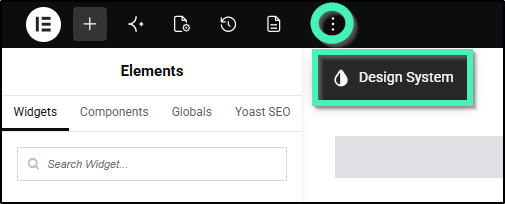
- The Design System panel opens with the Variables tab selected.
To access the Variables Manager from the element panel:
- Click on the variable icon. For details, see Variables.
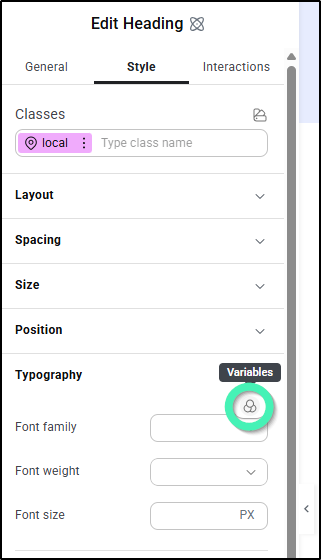
- In the variables popup window, click the Variable Manager icon
 .
.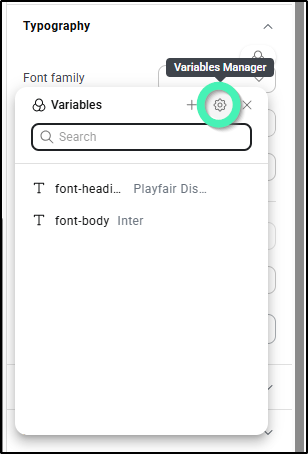
The Variable Manager opens.
Create a variable in the Variables Manager
To create a new variable using the Variables Manager:
- Open the Variables Manager.
- Click Create a variable if this is your first variable or the new variable icon – +.
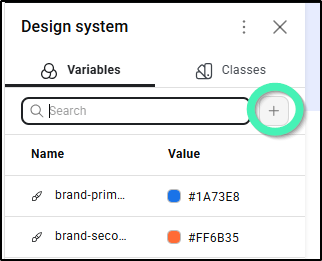
- Choose whether you want to create a:
- Color variable
- Font variable
- Size variable
- A default variable will be created.
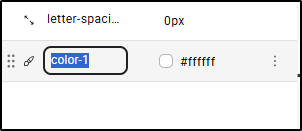
- Set a value for the variable.
Delete a variable in the Variable Manager
To delete a variable:
- Open the Variables Manager.
- Hover over the variable you want to delete.
- Click the ellipses to the right of the variable you want to delete and select Delete.
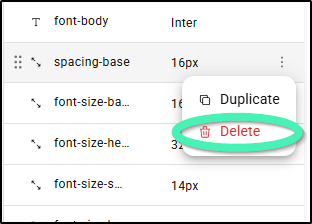
- Confirm the deletion.
Edit a variable in the Variables Manager
To edit a variable in the Variable Manager:
- Open the Variables Manager.
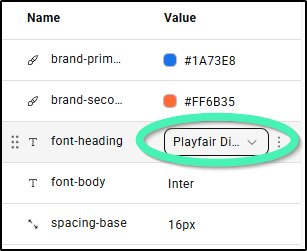
- Double-click the variable you want to edit.
- Change the value.
Use a variable from the Variables Manager
Using variables to build your site can save you time and increase consistency throughout your site.
To use a variable from the Variables Manager:
- In the panel, click the Variable icon.
- The variable window contains a list of relevant variables.
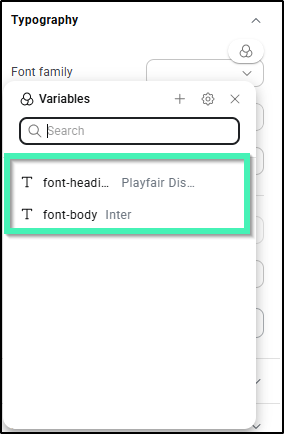
- Select one of the variables from the list.