Overview
If your website receives traffic from the European Union (EU) or the United Kingdom (UK), Google requires your site to send privacy consent signals to maintain your Google Analytics 4 (GA4) data and personalized Google Ads tracking.
Cookie Consent includes a seamless, built-in integration that handles these signals automatically without changing the look or feel of your cookie banner.
How to Enable Google Consent Mode
- Log into your WordPress dashboard.
- Navigate to Elementor>Cookie Consent>Settings.
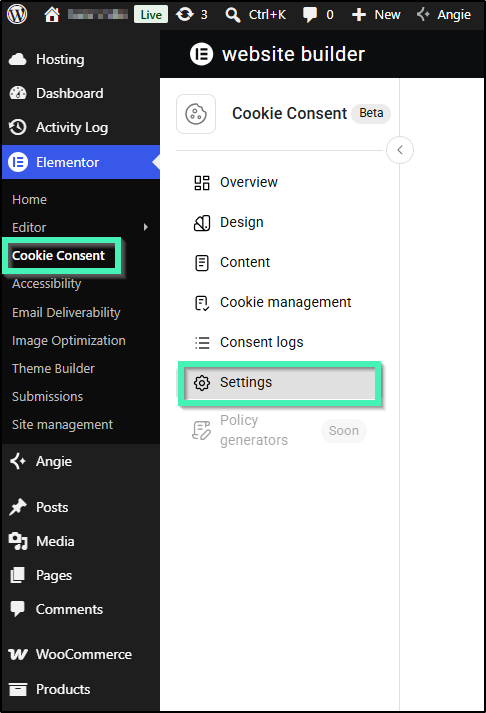
- Scroll down to the Google consent mode (GCM) section.
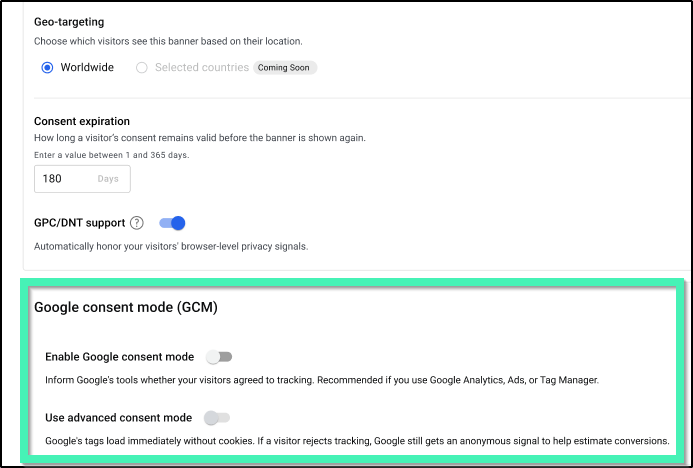
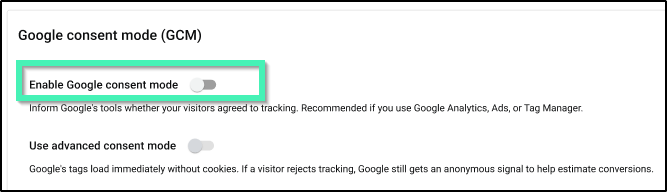
- Toggle Enable Google Consent Mode on.
- (Optional) Choose your operational mode (see below).
- At the bottom of the screen, click Save Changes.
Choosing Your Operational Mode
Cookie Consent offers two ways to handle Google tracking scripts, depending on your preferred legal privacy posture:
Basic Mode (Default)
- How It Works: Google tracking scripts are completely blocked from loading until the visitor explicitly clicks Accept on your cookie banner.
- If a Visitor Rejects: No data, tracking scripts, or background signals are ever sent to Google.
- The Benefit: Offers a strict, conservative privacy approach that ensures absolute user consent before any tracking occurs.
Advanced Mode
- How It Works: Google tracking scripts load immediately when the page opens, but they run in a restricted, cookieless state before the user interacts with the banner.
- If a Visitor Rejects: If the visitor clicks decline, Google does not drop tracking scripts. Instead, it sends secure, anonymous background pings to Google’s servers.
- The Benefit: These anonymous pings allow Google’s AI to power statistical modeling, which restores reporting completeness in your GA4 dashboards and preserves your Google Ads conversion tracking without violating user privacy.
- How to switch: Navigate to Elementor>Cookie Consent>Settings, scroll to the Google consent mode (GCM) section, switch the toggle to Advanced Mode, and click Save Changes.
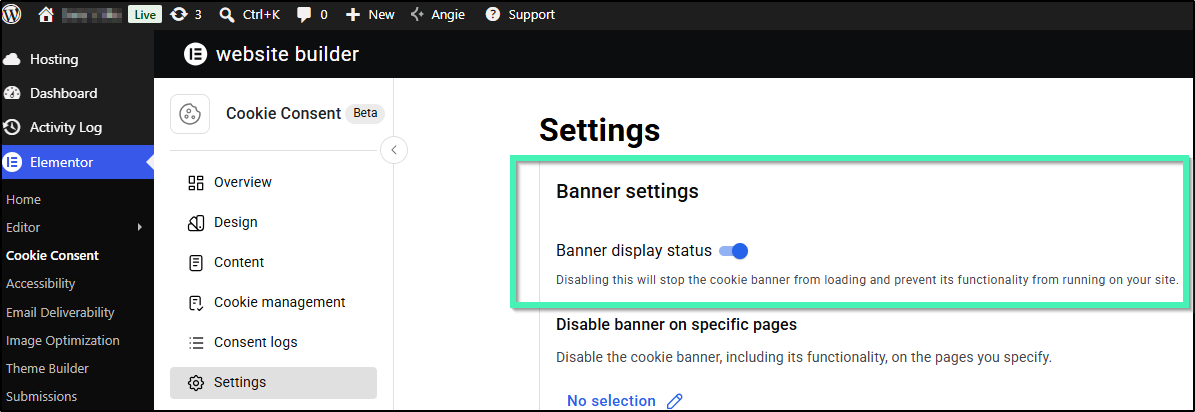
Using Google Site Kit?
By default, Cookie Consent starts in Basic Consent Mode for strict, out-of-the-box compliance.
If you also use Google Site Kit, the two work together through the WordPress Consent API, so your visitors’ choices reach Google through a single path. When that connection is active, they stay in sync; if it isn’t, you may see duplicate or conflicting tracking. To ensure the link is active, see How to verify your Google Consent Mode v2 Setup.