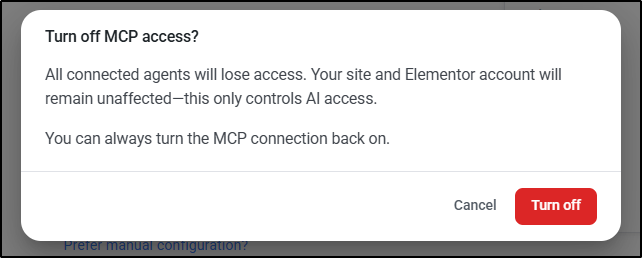
To connect Elementor to an external AI tool using MCP, go to Elementor > Elementor MCP in your WordPress admin dashboard. Click Enable MCP access, select the AI client you want to connect (such as Claude Code, Claude Desktop, Codex, Cursor, or Other), check the acknowledgment checkbox, click Generate Prompt, and click Copy prompt to paste the generated connection script into your AI client.
What is Elementor MCP?
Elementor MCP (Model Context Protocol) allows third-party AI tools to interact directly with your Elementor visual editor through WordPress AI Abilities. Instead of locking site creation into a single built-in AI tool, MCP lets external clients – like Claude, Cursor, or Codex – read page structures, build Atomic elements, manage global classes and variables, connect dynamic data, and update site templates natively.
What are the system requirements and user permissions for Elementor MCP?
Before connecting an AI tool to your site, confirm that your setup meets these technical requirements:
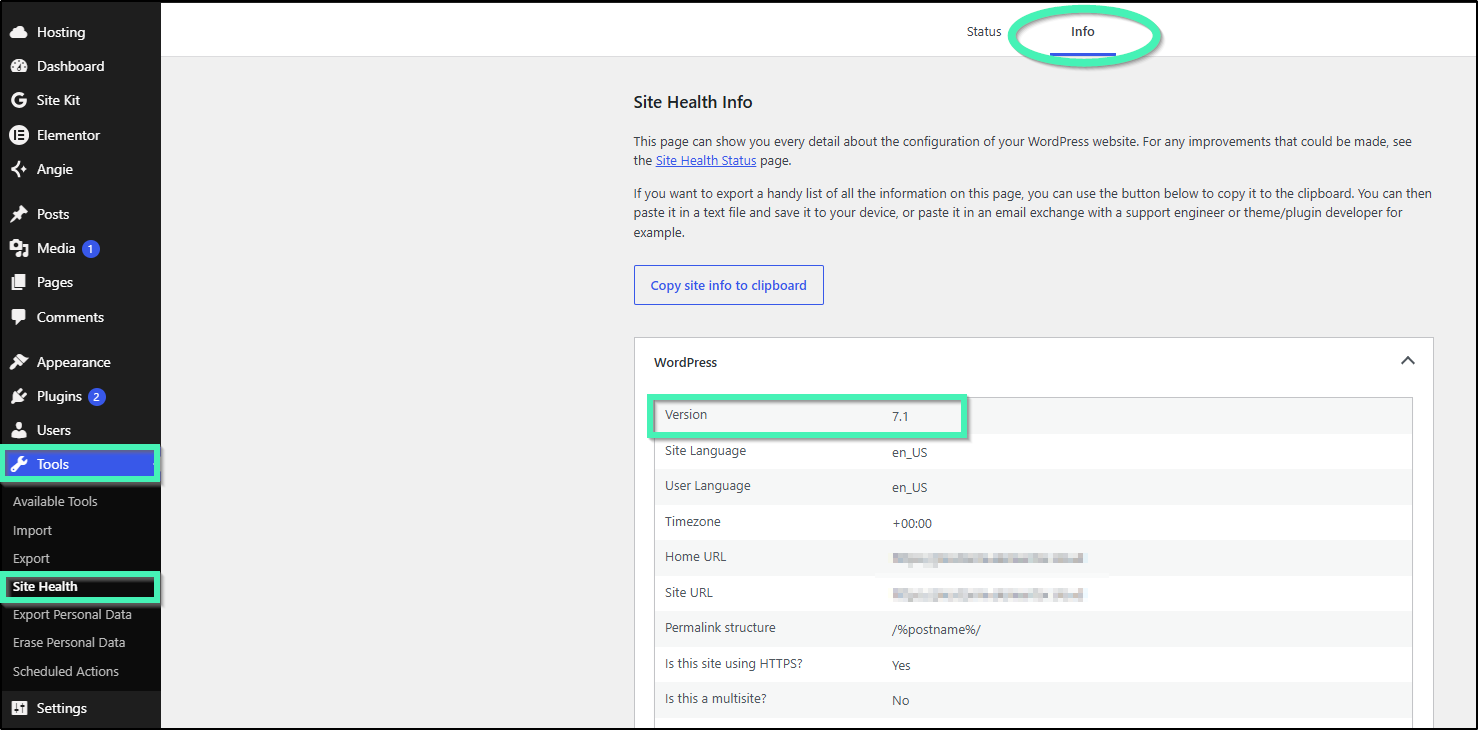
- WordPress Core Version: WordPress 6.8 or higher (verify by navigating to Tools > Site Health > Info in your WordPress dashboard and checking the WordPress dropdown section).
- Elementor Plugin Version: Elementor Core and Elementor Pro version 4.3.0 or higher.
- User Permissions: Connected AI tools inherit the exact permission profile of the logged-in WordPress user account. The AI agent cannot edit pages, modify site settings, or publish content beyond what your assigned user role permits.
How do you connect an AI tool to Elementor?
Follow these steps to link your AI client to your WordPress website:
- Open your WordPress admin dashboard and navigate to Elementor > Elementor MCP (or Elementor > Editor > Elementor MCP inside the editor menu).
- Click the Enable MCP access button.
- Choose the AI tool you want to connect from the available tabs: Claude Code, Claude Desktop, Codex, Cursor, or Other.
- Select the required acknowledgment checkbox (“I understand that clicking Generate Prompt will create an application password for this site”).
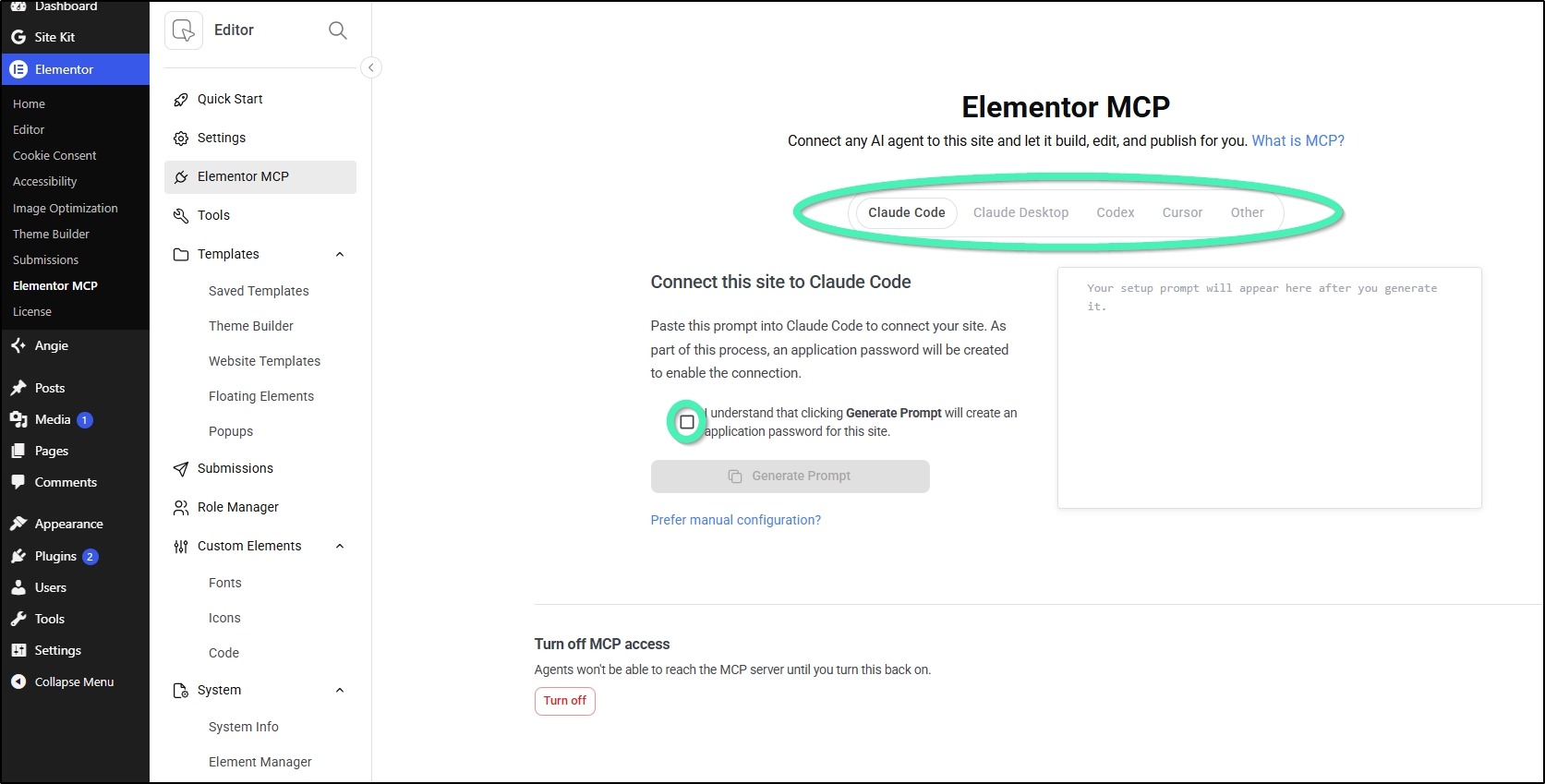
- Click Generate Prompt to generate your application password and output script.
- Click Copy prompt (or copy the connection details directly from the text box).
- Copy the generated setup prompt from the text box and paste it into your external AI tool to establish the connection.
Which AI clients are supported by Elementor MCP?
Elementor MCP provides dedicated support for major development environments, command-line tools, and open-protocol clients:
- Claude Code and Claude Desktop: Direct connection pathways for Anthropic’s terminal tool and desktop app to build and inspect canvas layouts.
- Codex and Cursor: Native integration with developer-focused coding assistants and AI-powered IDEs.
- Third-Party MCP Clients: Universal compatibility with any custom, self-hosted, or third-party AI tool that follows the open Model Context Protocol standard.
How do you manage, disconnect, or turn off MCP access?
You can manage active client connections individually or turn off MCP access site-wide:
To revoke access for an individual client:
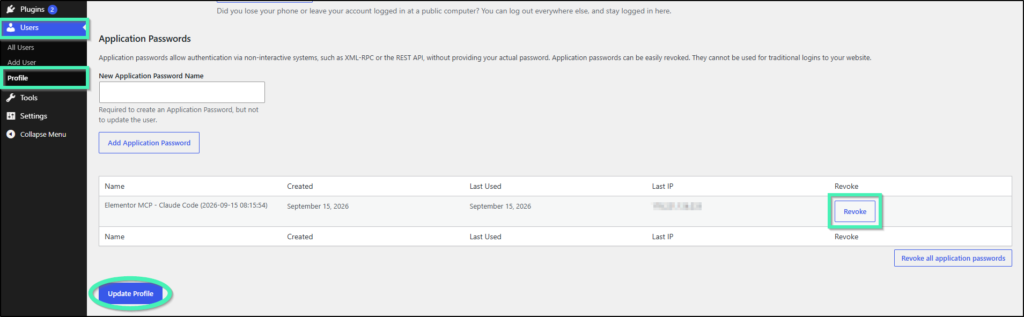
- Open Users > Profile from the WordPress admin menu.
- Scroll down to the Application Passwords section.
- Locate the client entry in the list (e.g., Elementor MCP – Claude Code).
- Click the Revoke button directly next to the corresponding application password.
To turn off MCP access site-wide:
- Navigate to Elementor > Elementor MCP in your WordPress admin panel.
- Locate the Turn off MCP access section at the bottom of the screen.
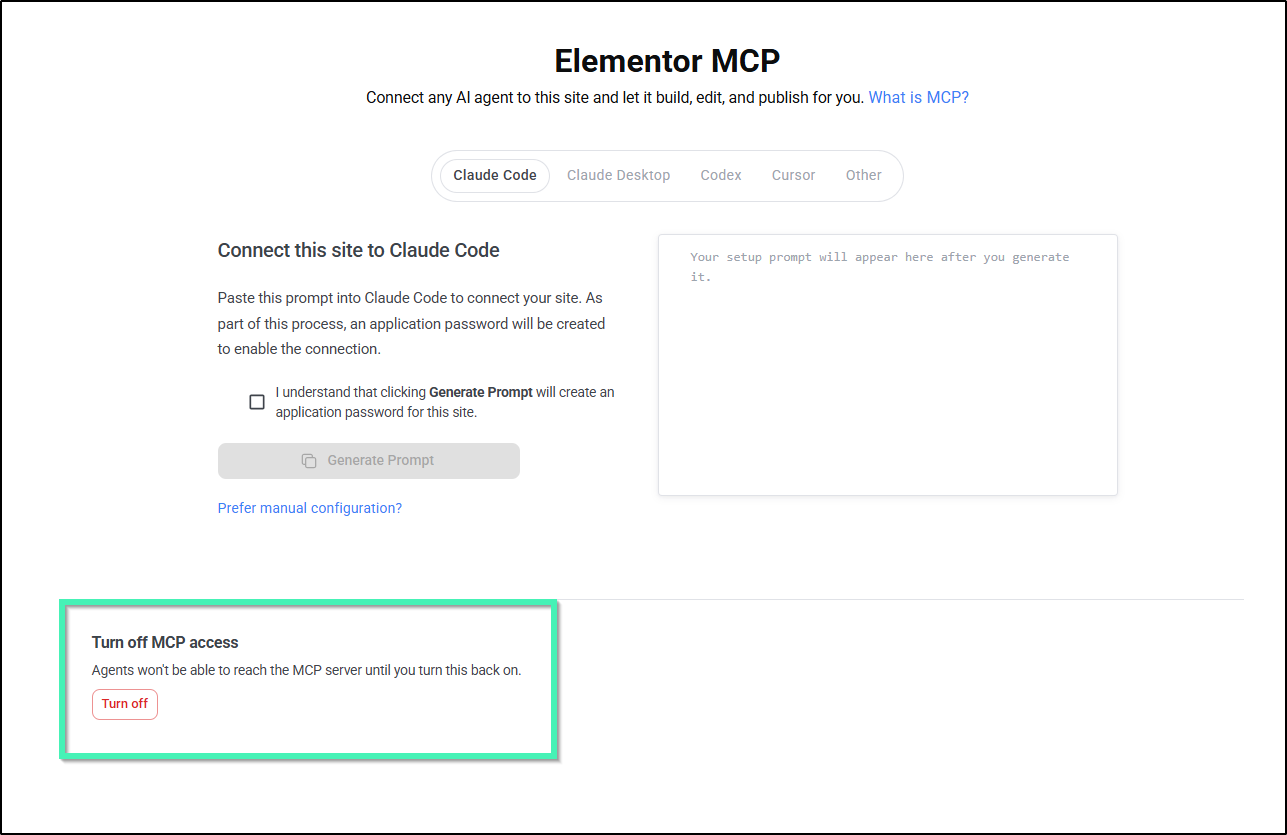
- Click the red Turn off button.
- In the confirmation popup (“Turn off MCP access?”), click Turn off to immediately block all connected AI agents from reaching the MCP server.