Although there are many uses for the classic popup, it traditionally places an opt-in form in the middle of the screen, with an overlay that obscures the background. For this example, we’ll trigger the popup sitewide when the user shows intent to exit the page.
Create Popup
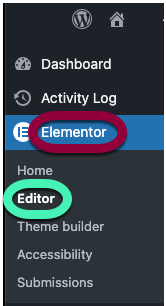
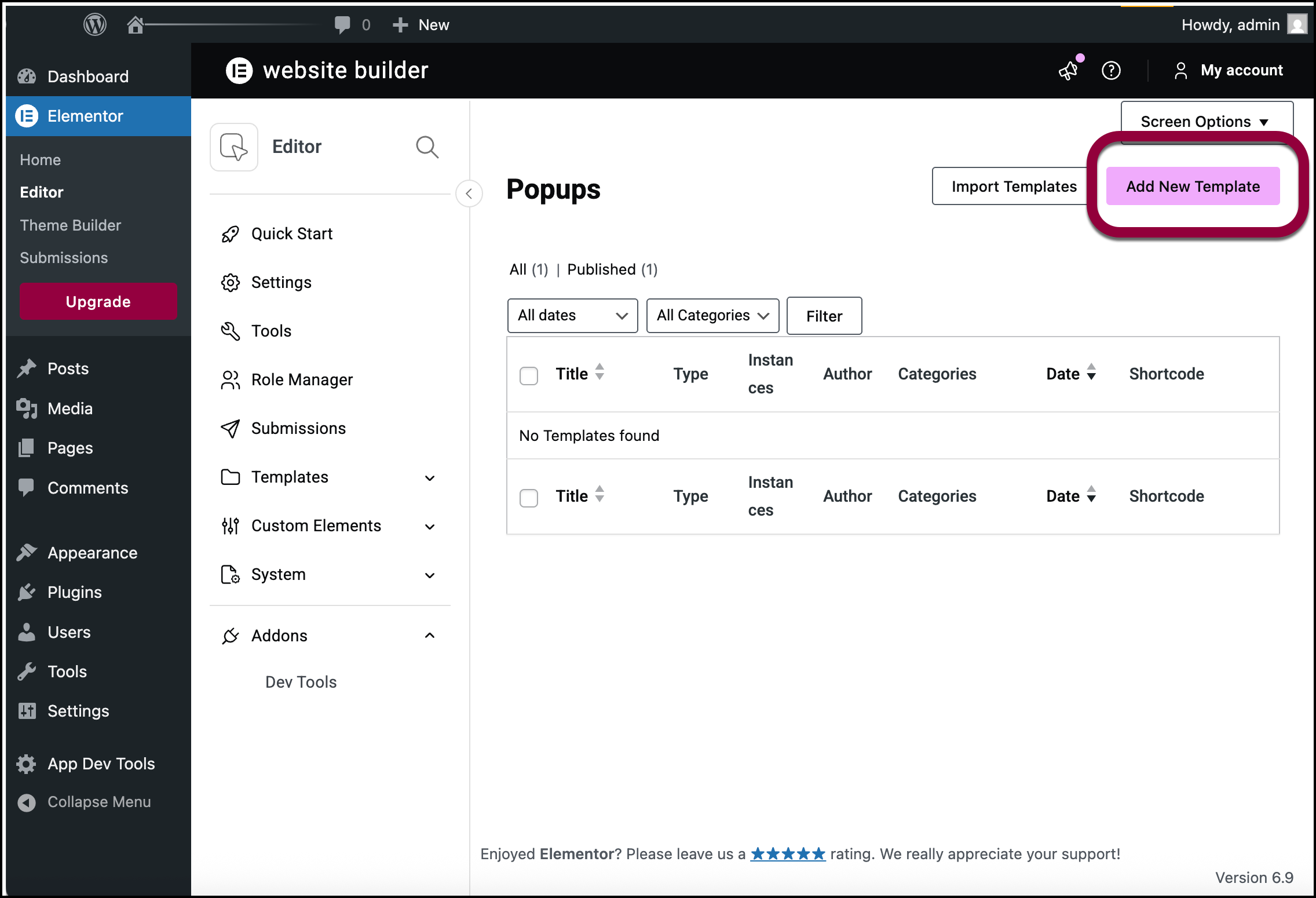
- From WP Admin, navigate to Elementor>Editor.
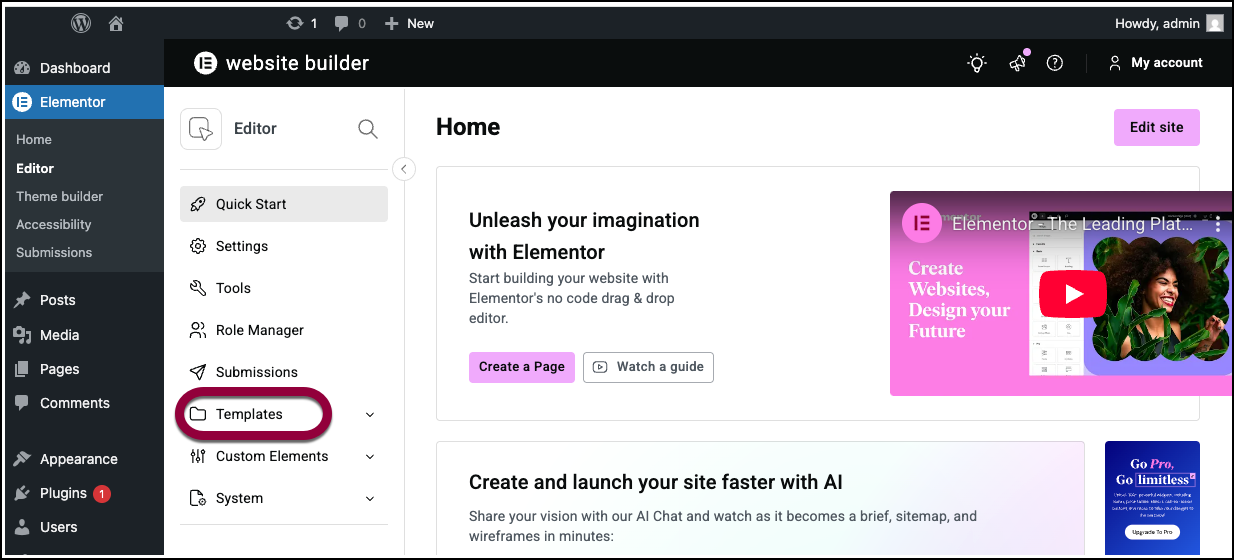
- In the left panel, open the Templates field.
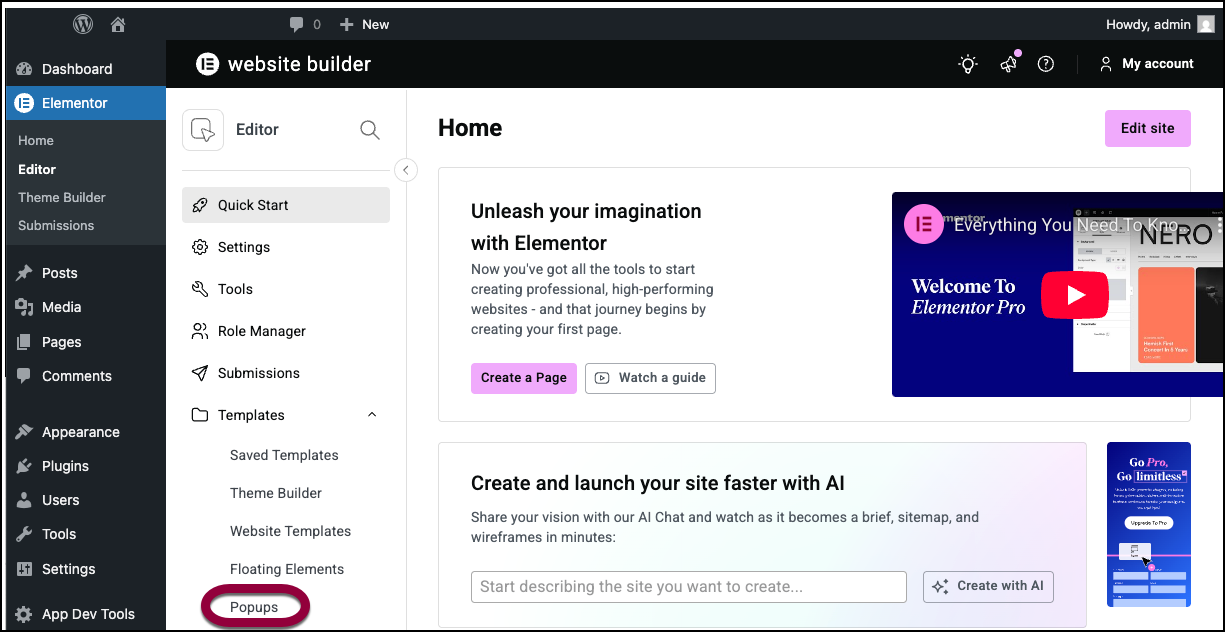
- Click Popups.
- Click Add new template.
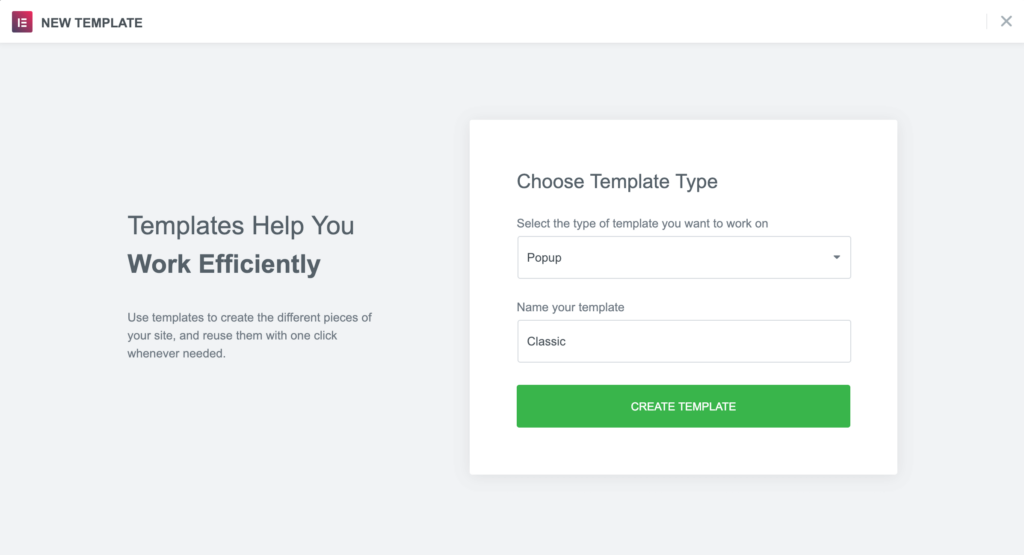
- Choose a template from the Library or create your own design
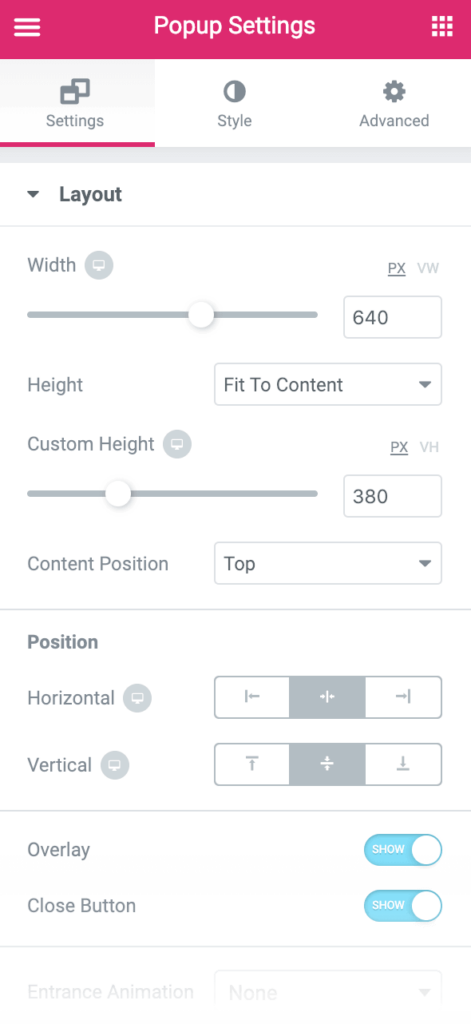
Popup Settings
Settings
- Set the Horizontal position to Center and the Vertical position to Center
- Show Overlay
- Show Close Button
Style
Change text, background image, button, and styling as needed.
Publish Settings
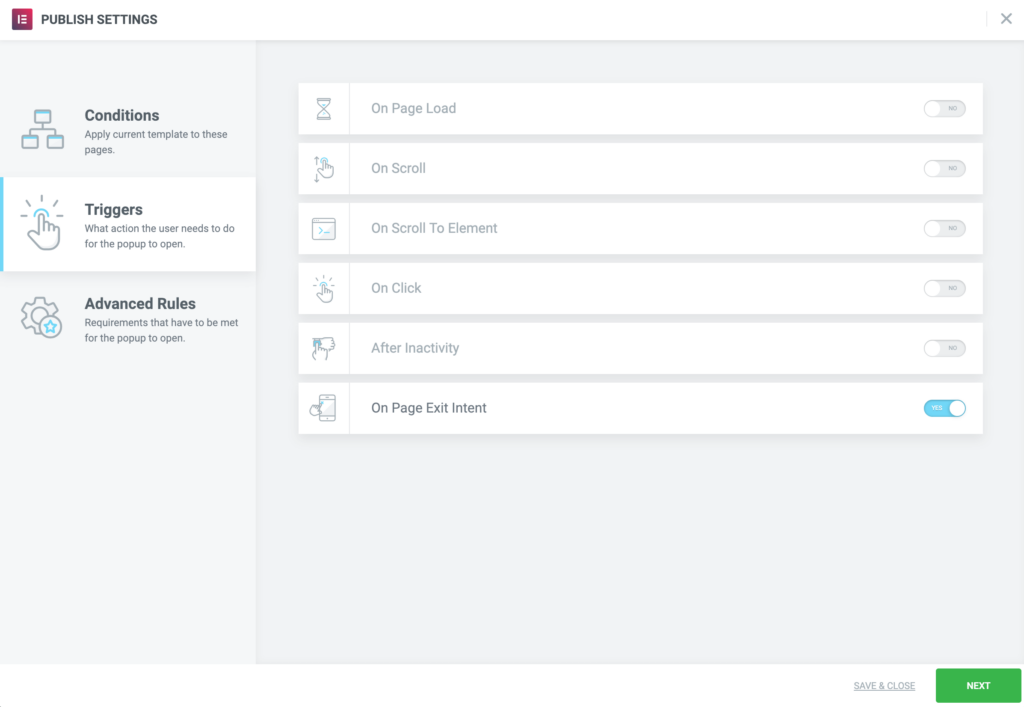
Conditions: Include: Entire Site
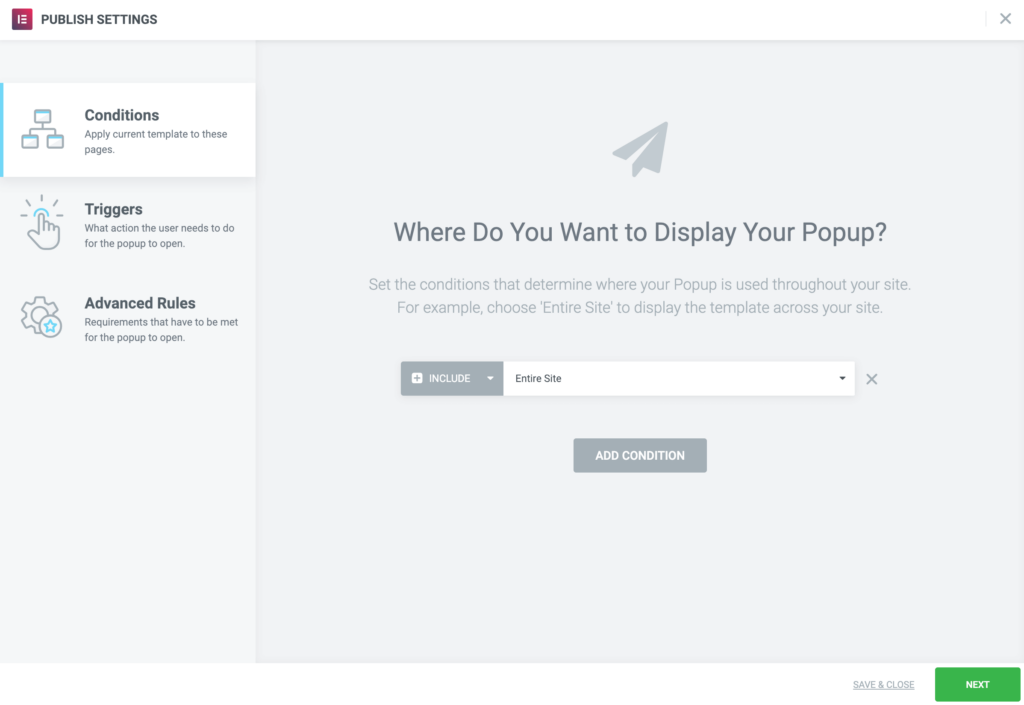
Triggers: On Page Exit Intent