After installing Elementor Pro, you need to activate your license. This gives you access to the Elementor Pro widgets. Follow the steps below to connect your account and then activate your license.
Connect your account
Start the connection process:
After installation, click Connect & Activate to activate your license and get automatic updates.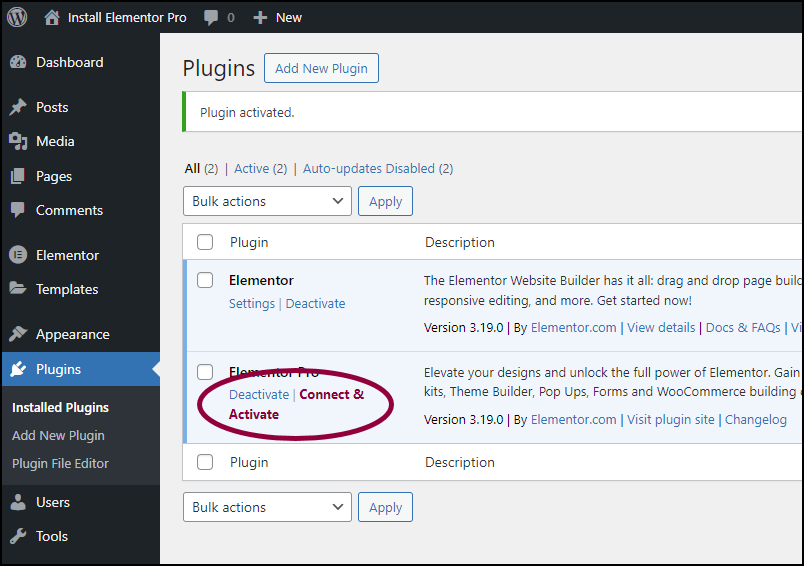
- Go to WP admin> Plugins, and click Connect & Activate from the dashboard.
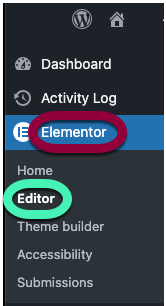
- From WP Admin, navigate to Elementor>Editor.
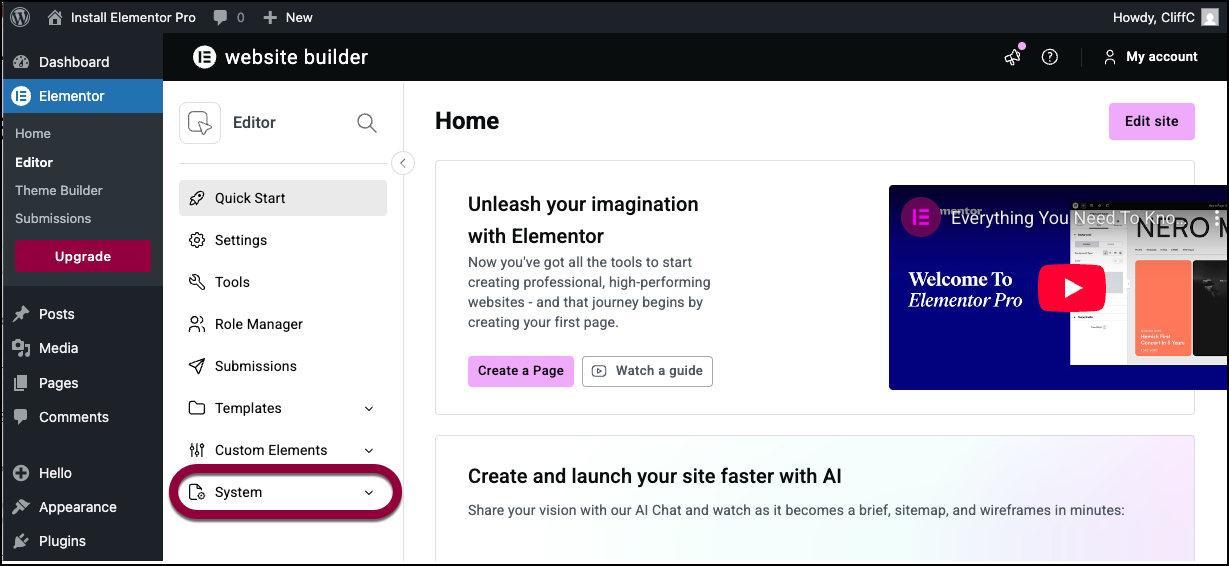
- In the left panel, open the System field.
- Click License.
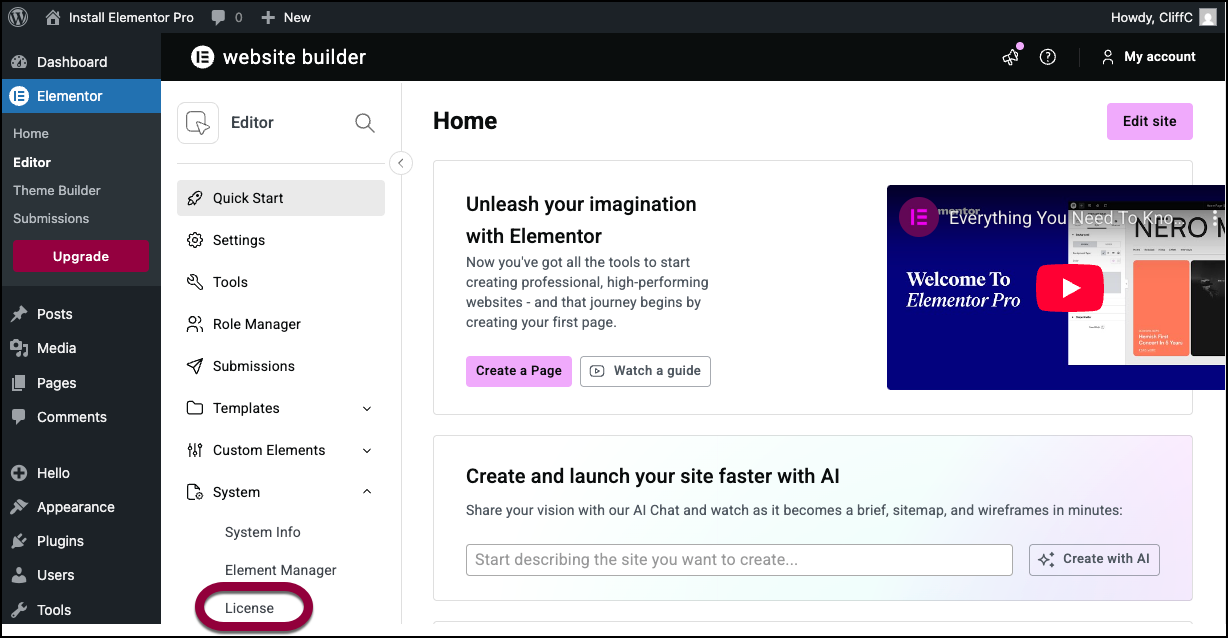
The license section will only show up if you have activated Elementor Pro.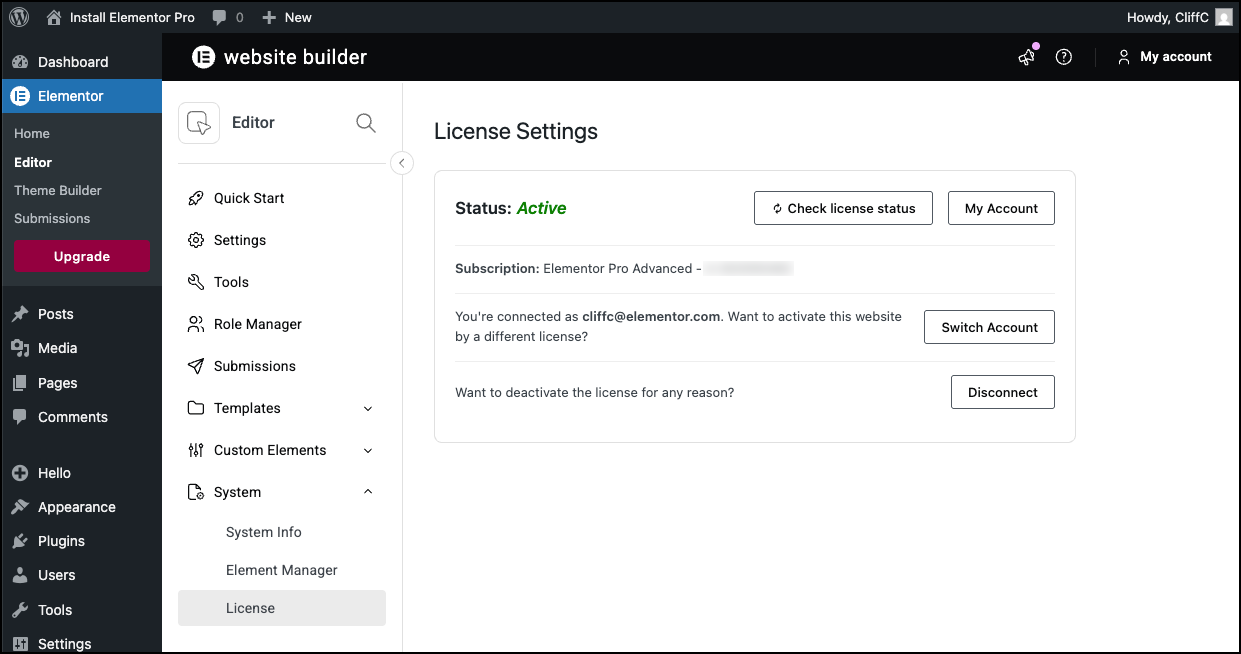
Activate your license
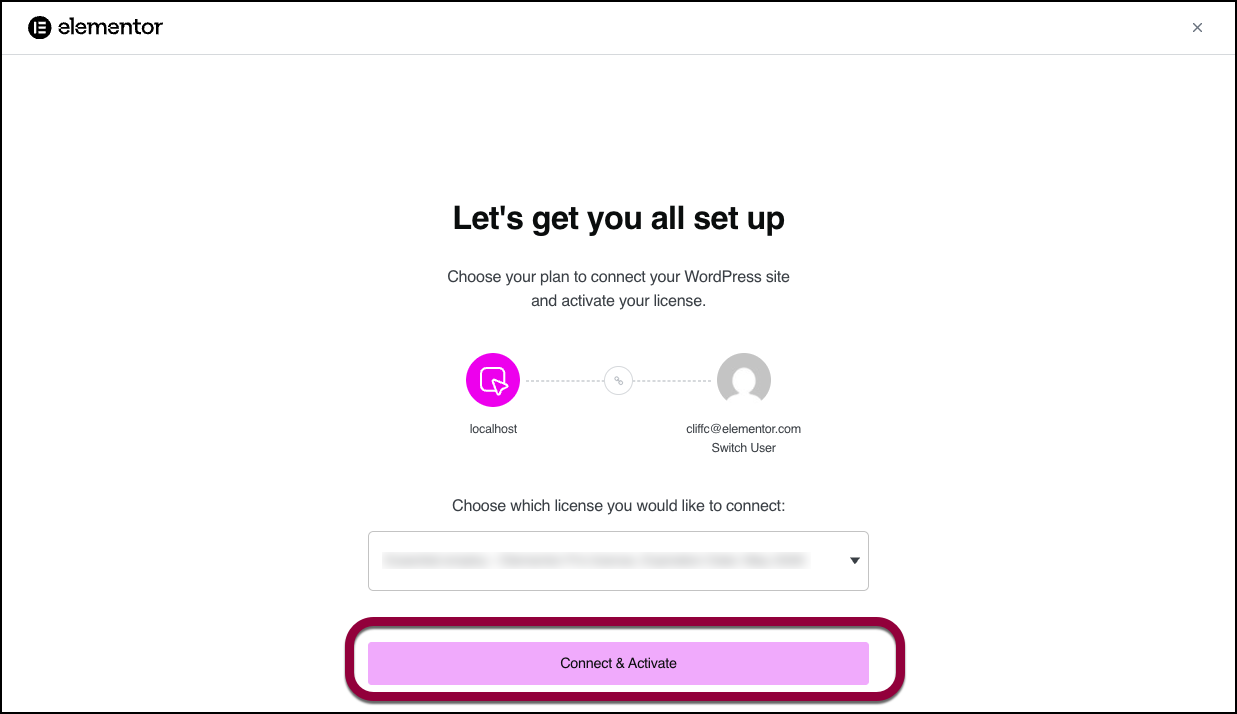
After clicking Connect & Activate, the connection window appears.
- Check the default username, for example myemail@example.com.
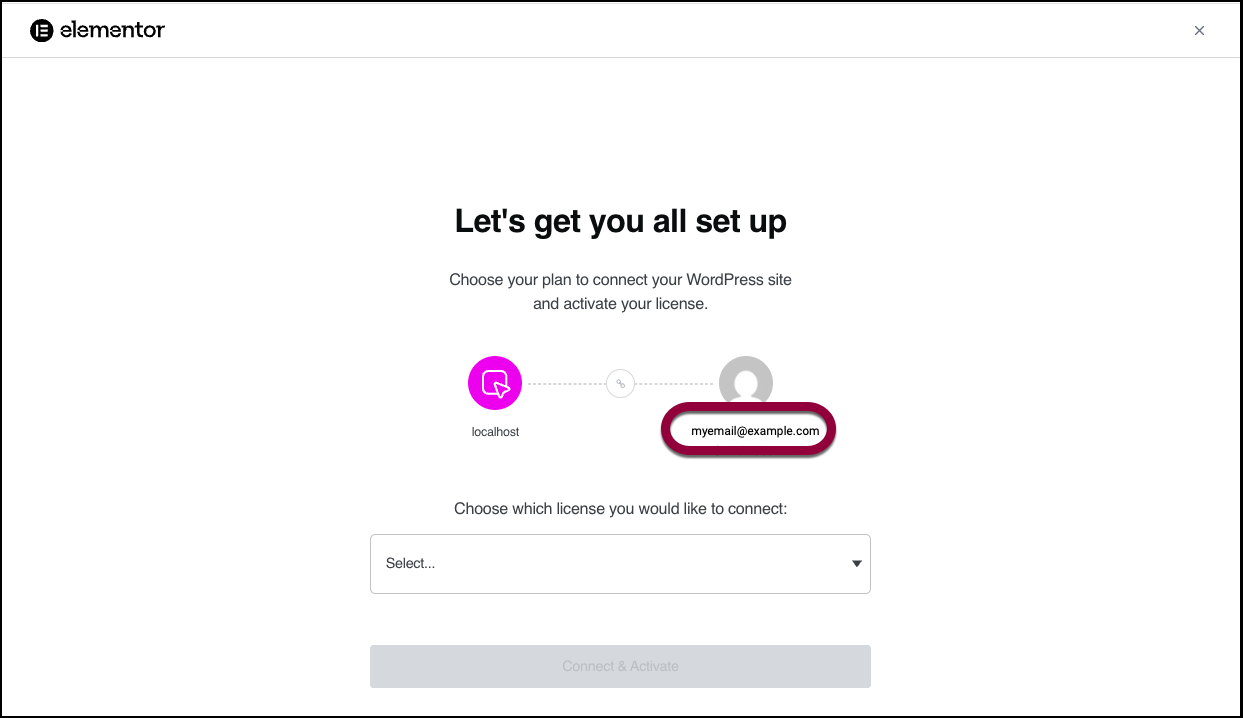
Your username appears. - If the default username is incorrect, click Switch User.
- Log into the account you want to connect to. For details, see Log into your Elementor account.
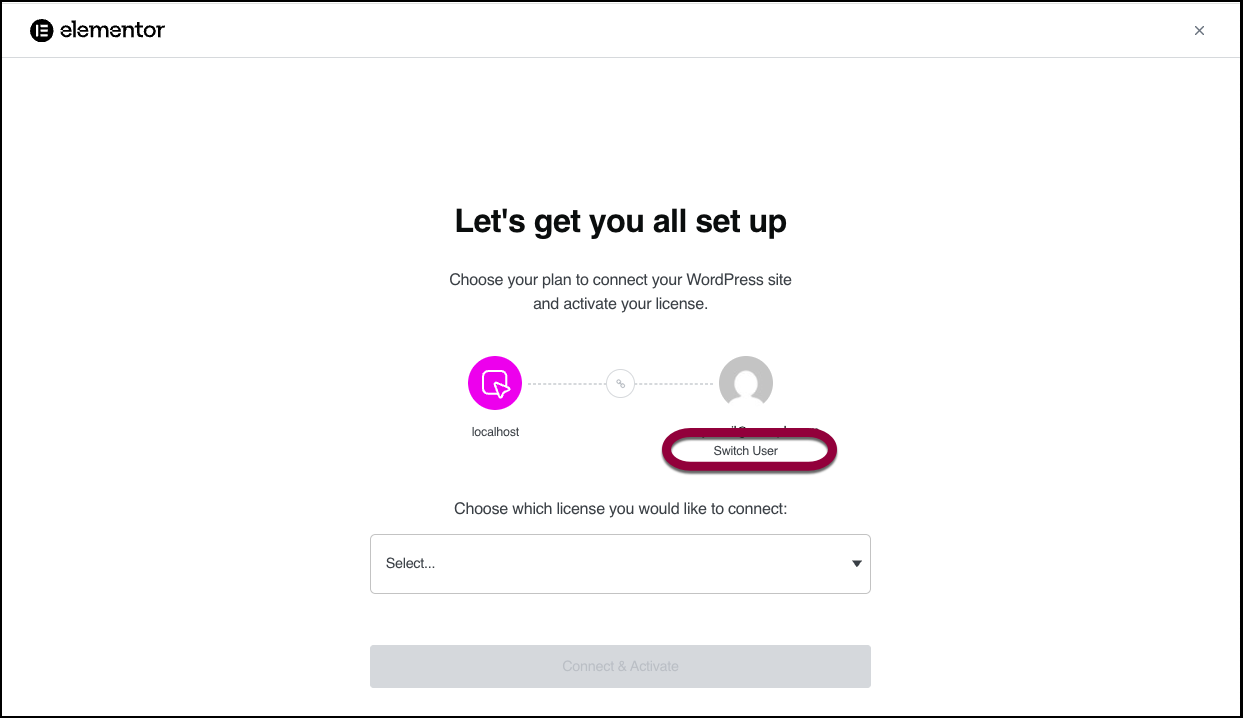
- Log into the account you want to connect to. For details, see Log into your Elementor account.
- If you have more than one subscription, select which subscription you want to connect to.
- From the dropdown, select the subscription you want to use.
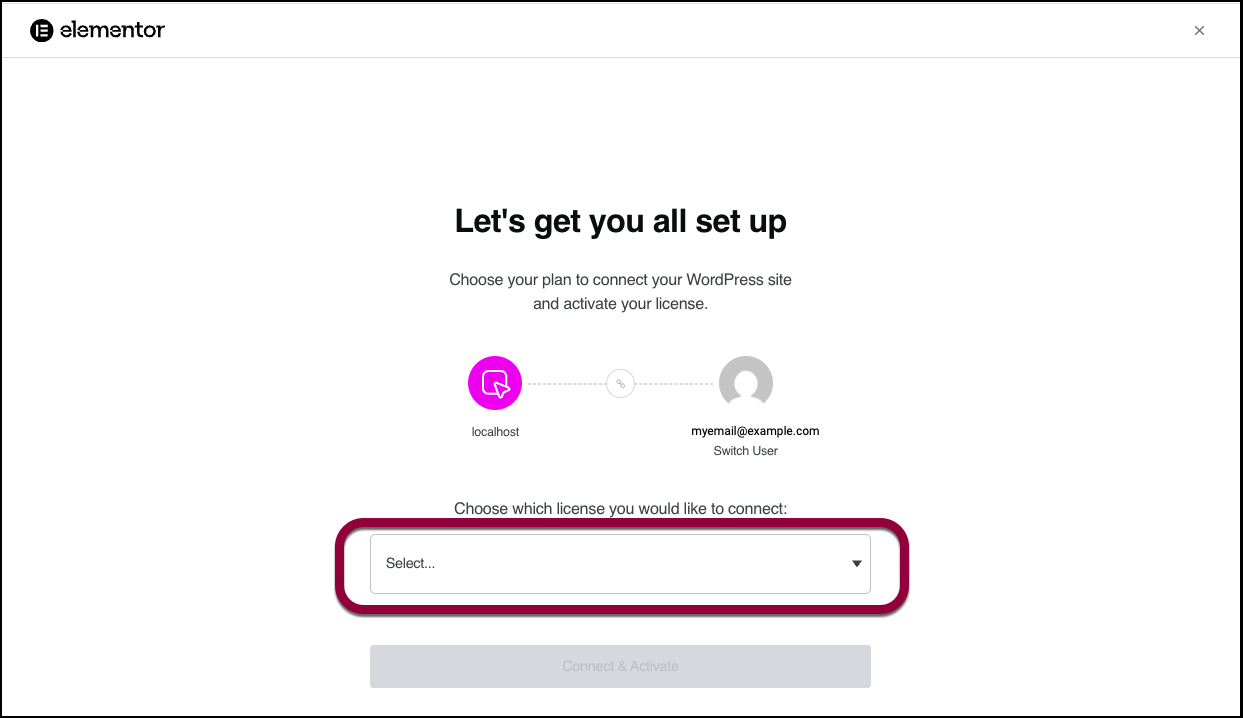
- From the dropdown, select the subscription you want to use.
- Click Connect & Activate.
Resync your license
In rare cases, you may need to resync Elementor Pro to restore the activation status.
To resync your account:
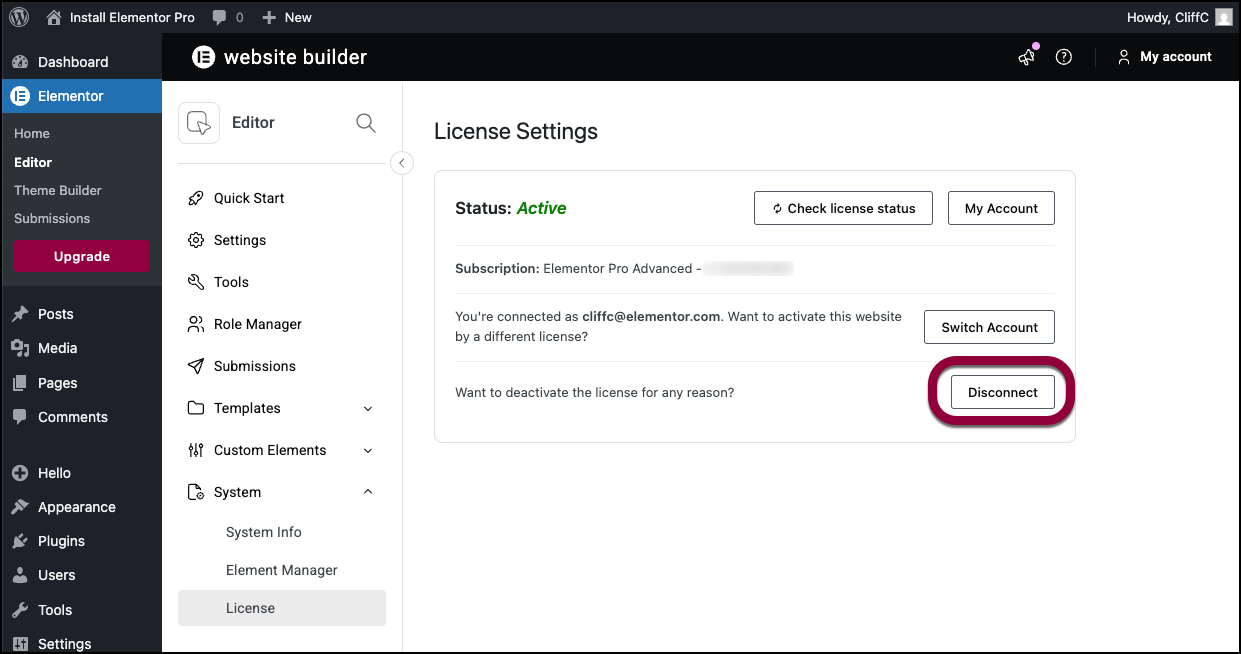
- From WP Admin, navigate to Elementor>Editor.
- In the left panel, open the System field.
- Click License.
The license section will only show up if you have activated Elementor Pro. - Click Disconnect.
- Go to your My Elementor dashboard and deactivate the website. For details, see Deactivate an Elementor Pro license.
- Clear your browser’s cache.
- Reconnect your Elementor Pro account using the procedure described above.
Troubleshooting
Manually connect your license
If your license does not connect automatically, you have the option to manually connect your license. For details, see Manually connect Elementor Pro.
License shows expired or unavailable after renewal
If you renewed but WordPress still shows “Expired” or “Unavailable”:
- Wait a few minutes and clear caches (plugin/server/CDN/browser).
- WordPress > Elementor > License > Disconnect, then Connect & Activate again (or use manual activation).
- Verify renewal on my.elementor.com > Subscriptions (ensure you’re logged into the correct account/email).
- Update both Elementor (free) and Pro plugins to the latest versions.
- If you still see “Unavailable,” reinstall Pro from the latest ZIP and reconnect the license.
Can’t find the License tab or the Connect & Activate button
If you don’t see Elementor > License in WordPress or there’s no Connect & Activate button:
- Make sure Elementor Pro is installed and active (the License menu appears only when the Pro plugin is active).
- Ensure you’re logged in as a WordPress Administrator.
- Update Elementor (free) and Elementor Pro to the latest versions.
- If on Elementor Hosting and your plan does not include Pro, the License option will not appear. You need to purchase Elementor Pro separately.
- If the button appears but clicking it does nothing temporarily disable popup/ad blockers.
- Try a different browser or an incognito window.
Login and account mismatches and activation loops
If you can’t activate because the site is connected to the wrong Elementor account or you used different emails:
- Disconnect the license in WP Admin by navigating to Elementor > License and clicking Disconnect.
- Log out of my.elementor.com in the browser, then log back in with the account that owns the Pro subscription.
- Clear cookies or use an incognito window to avoid auto-logging into the wrong account. For details, see Common troubleshooting steps.
- After these steps, click Connect & Activate again.
Connectivity and server issues that block activation
If activation pages don’t load or Pro attributes are unavailable, the request might be blocked by server security, firewalls, or SSL issues.
- Temporarily disable security/firewall plugins and try again.
- Ensure a valid SSL certificate is installed and your WP URLs use https if applicable.
- Allow outbound HTTPS traffic to my.elementor.com (port 443) on your server/firewall/CDN.
- Check server time and TLS configuration; outdated cURL/OpenSSL can block secure requests.
- After changes, clear cache and retry activation (or use manual activation).
“Links not working properly” and the site is not connected to your subscription
If parts of your site behave as if Pro is missing or links to Pro features prompt an upgrade:
- Verify the site is listed under your active subscription and is connected to the correct Elementor account.
- Ensure both Elementor and Elementor Pro are installed and active.
- Sync your license. From WP Admin navigate to Elementor > License and click Sync.
- Clear caches and refresh the editor. If the site still doesn’t appear under your subscription, deactivate it from an old domain in your account and reconnect the current site.
Elementor Pro features are locked or your experiencing connectivity issues
If your site says it’s connected but Pro features are locked or you get connection errors, go through this list of troubleshooting steps:
- Check to see that you’ve installed both plugins:
- Elementor (free) — must remain installed and active
- Elementor Pro — must be installed and active with a valid license
- Version compatibility: Update WordPress, Elementor, and Elementor Pro to their latest compatible versions. Mismatched versions can hide Pro features.
- License status: From WP Admin, navigate to Elementor > License and click Sync or Check license status to make sure your license is current.
- Account check: Make sure you are signed into the Elementor account that owns the license.
- Cache/CDN: Clear all caches (server, plugin, CDN, browser). Caching can delay license sync.
- Connectivity: Hosting firewalls or security plugins can block remote requests. Temporarily disable security layers to test, or whitelist elementor.com endpoints.
- Site URL: Ensure WordPress Address and Site Address reflect your live domain (not a temporary URL) and match the site listed under your subscription. To check this, from WP Admin navigate to Settings > General and check the WordPress Address and the Site Address.
- Deactivate and reactivate: If your Elementor Pro license is connected but you can’t use Pro features: Deactivate and reactivate the Elementor Pro plugin after syncing the license; then refresh the editor. If you still receive the message Something went wrong, submit this issue using the chatbot located in the bottom-right corner of the screen.