What is a Footer?
Footers appear at the bottom of most web pages. In general sites have one standard footer used for every page on the site – although some pages on a site may not have a footer or need a custom footer.
The Footer Site Part section of the Theme Builder lists all footers you’ve created, if any, giving quick access to add, edit, or delete any footer.
Create a Footer
Create your first header using the Theme Builder.
To create a Footer:
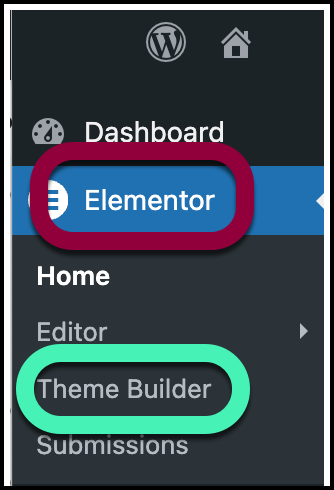
- From WP Admin, navigate to Elementor>Theme Builder.
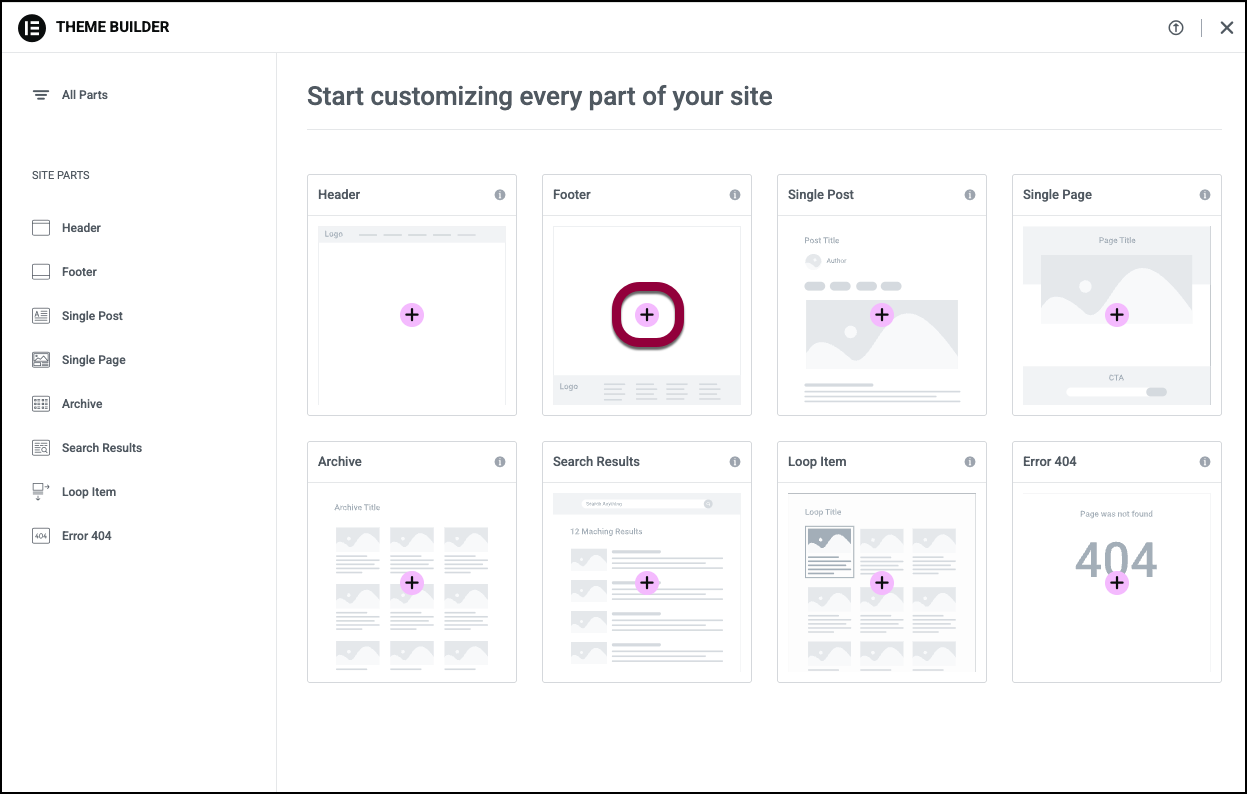
- In the right pane, click the plus sign in the Footer card.
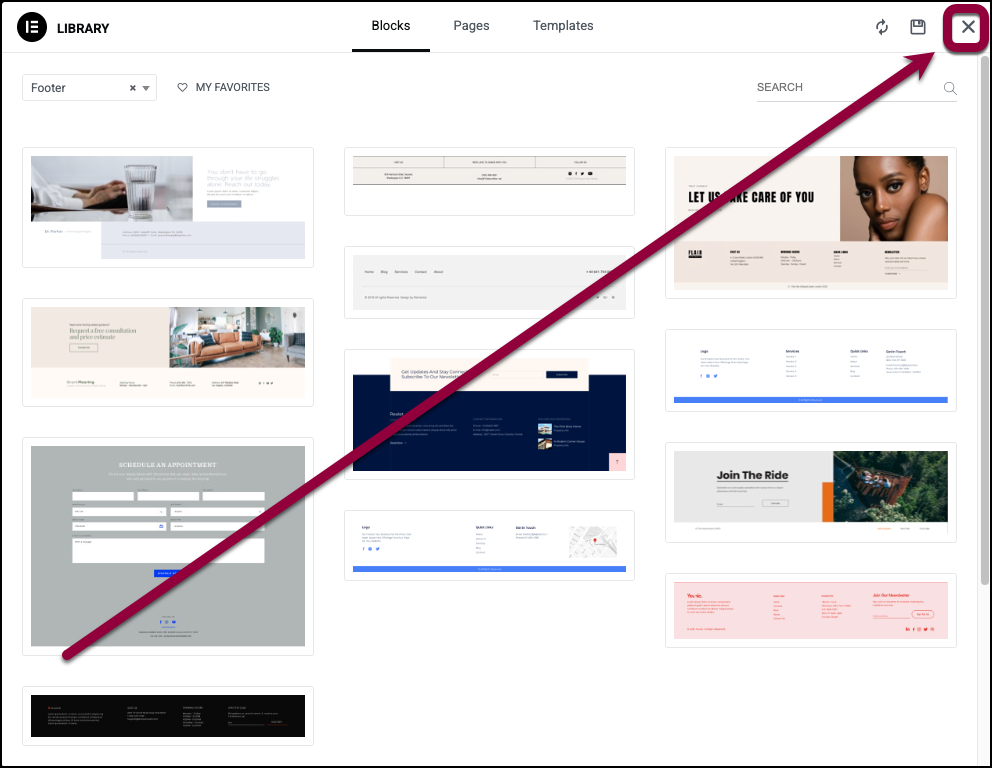
The Template Library opens.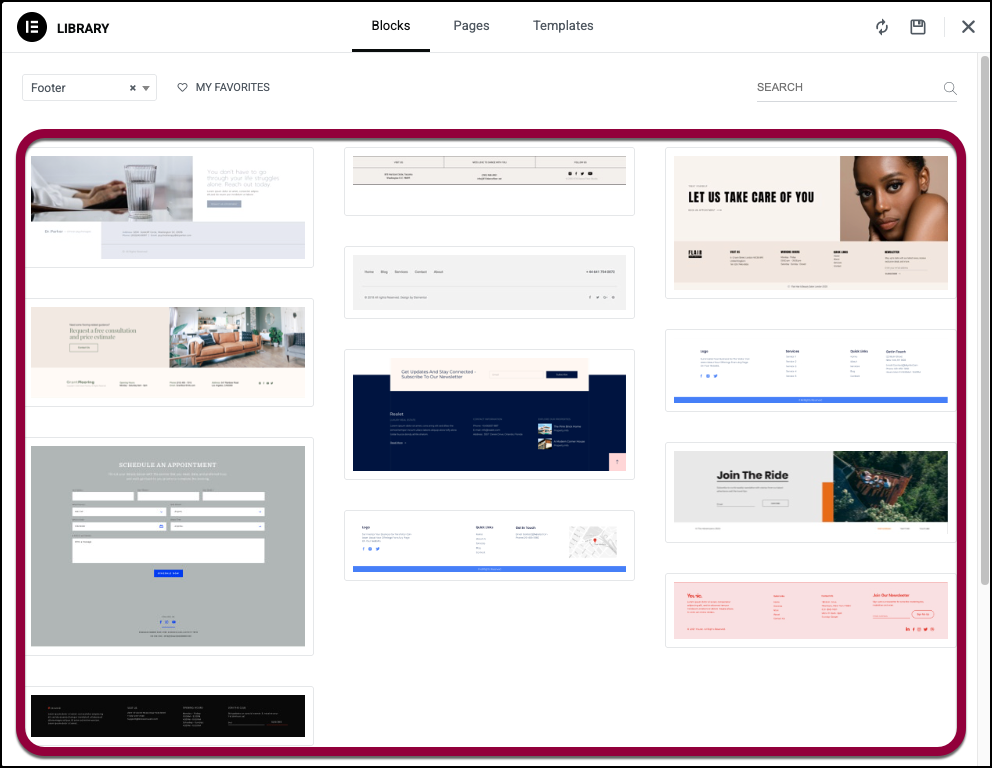
- (Optional) Choose a pre-designed Footer from the Template Library.
- (Optional) Close the Template Library to design your Footer from scratch.
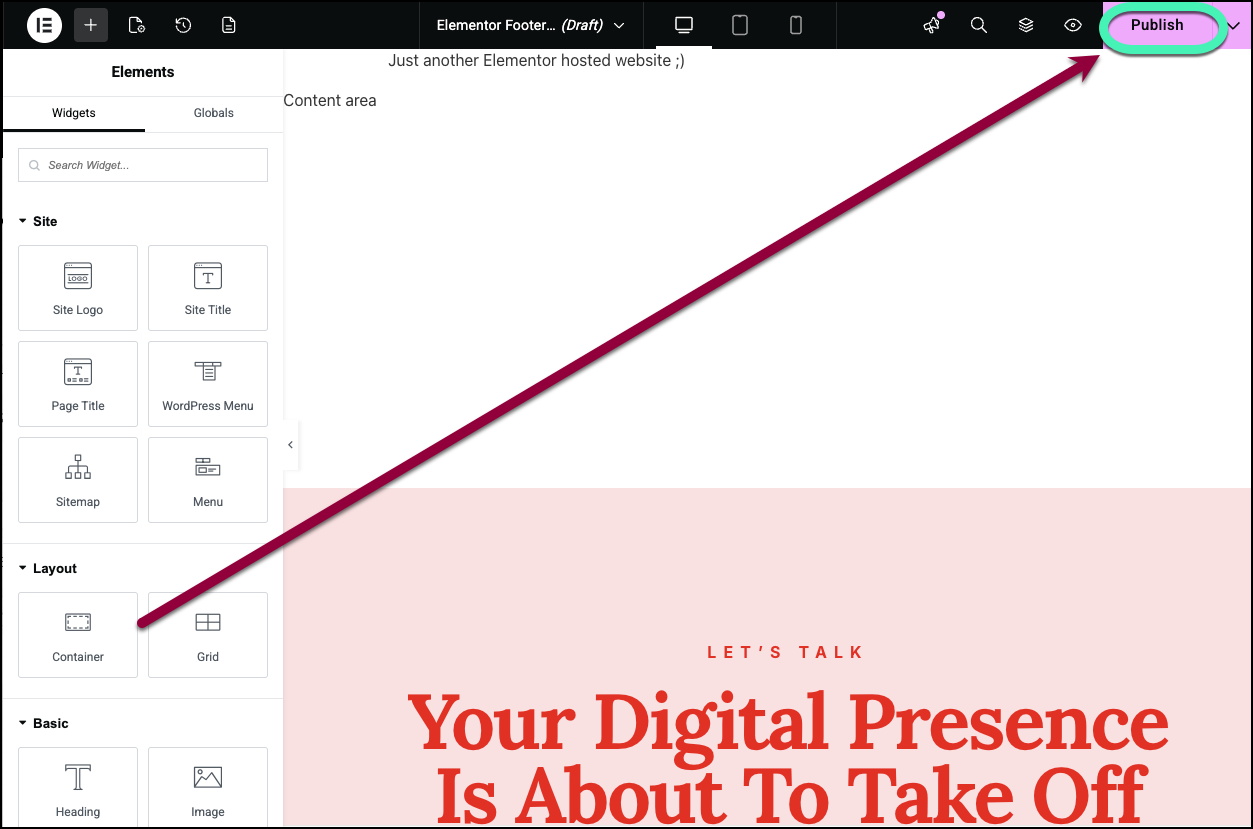
- Design your Footer in the Elementor Editor.
- When you finish, click Publish to save the Footer.
You will be asked to choose the pages where the Footer will appear. For details, see Set conditions for site part templates.
Edit a Footer
You can also edit the Footer using the Theme Builder.
To edit a Header:
- From WP Admin, navigate to Elementor>Theme Builder.
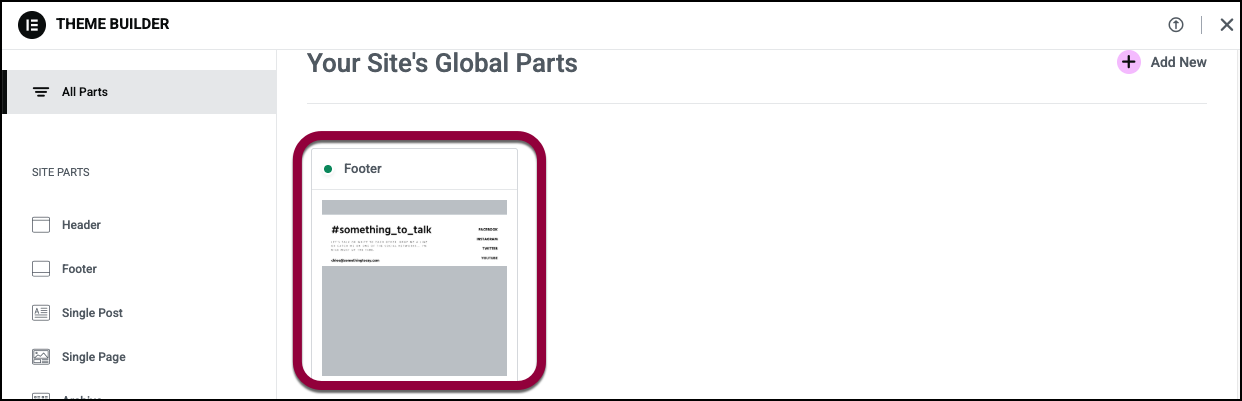
- In the right pane, click the card of the Footer you want to edit.
- To edit the contents of the Footer, click Edit.
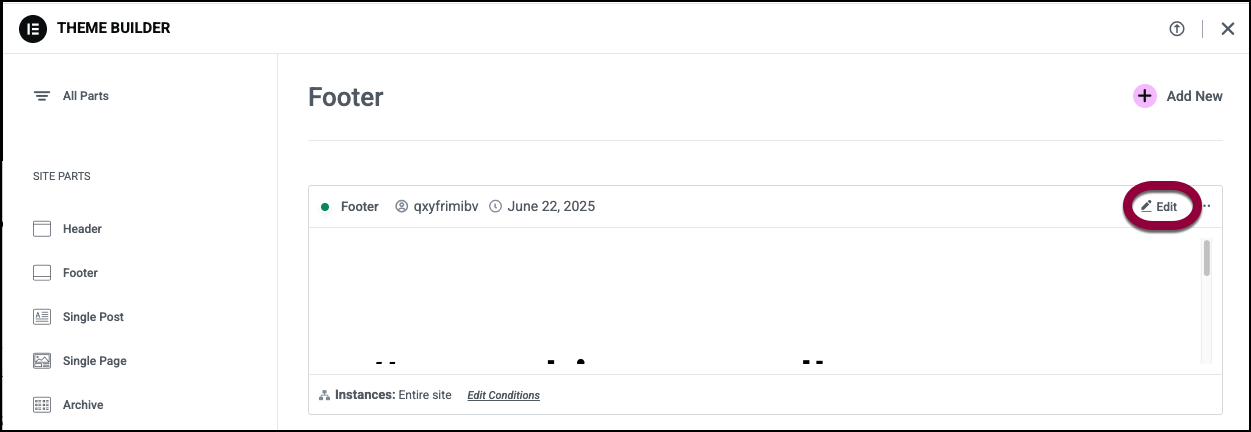
- To change the pages where the Footer appears, click Edit Conditions. For details, see Set conditions for site part templates.
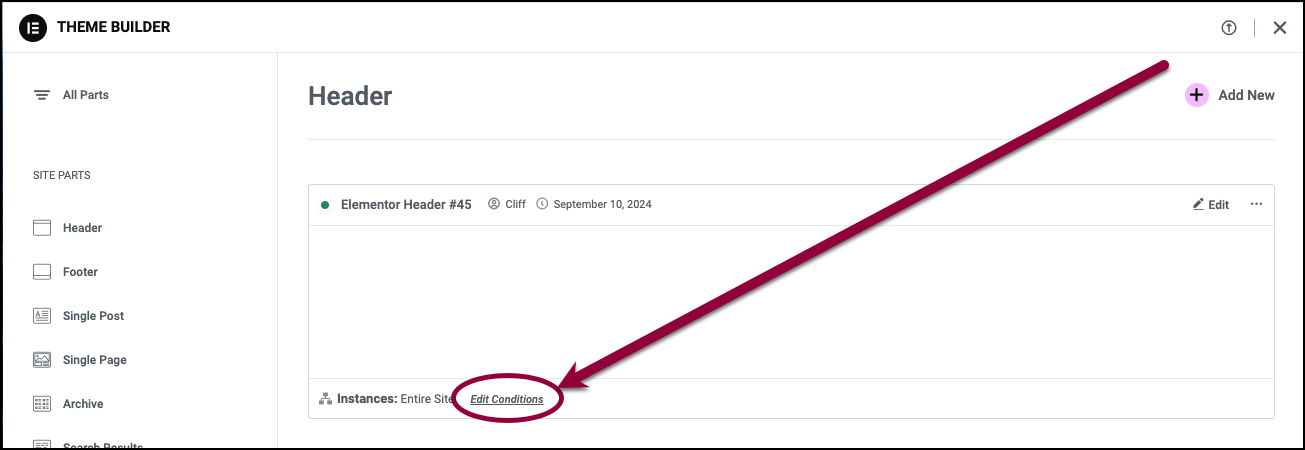
Add a HTML tag to your Footer
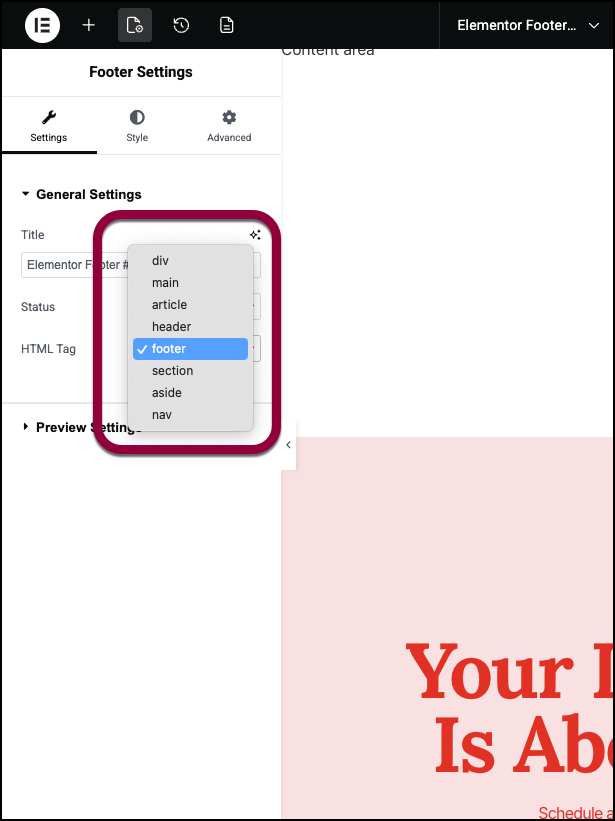
The footer HTML tag identifies your header to screen readers and is an important part of accessibility.
To tag your header:
- Open your Header in the Elementor Editor.
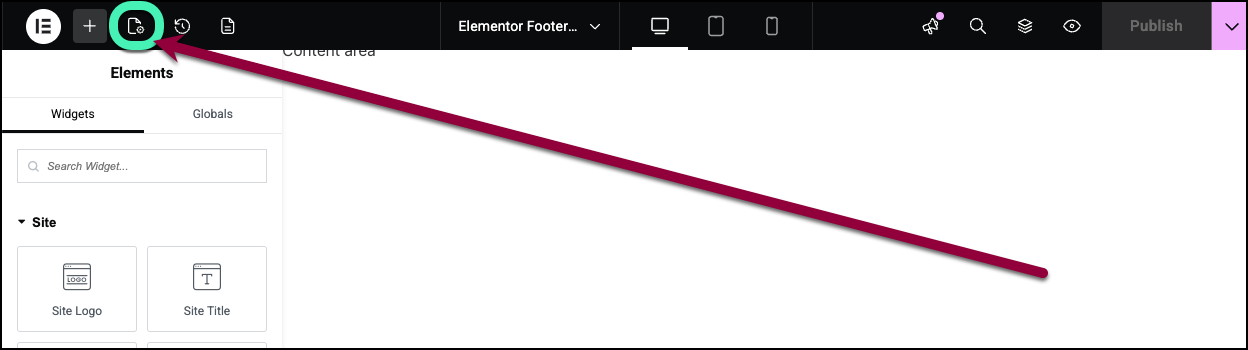
- On the top bar, click the Footer Settings icon.
- In the panel, use the HTML Tag dropdown to select footer.
Export A Footer
- From WP Admin, navigate to Elementor>Theme Builder.
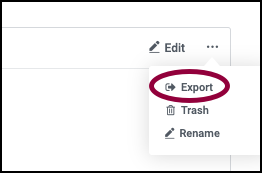
- Click the Three Horizontal Dots in the upper right of the Footer you wish to export.
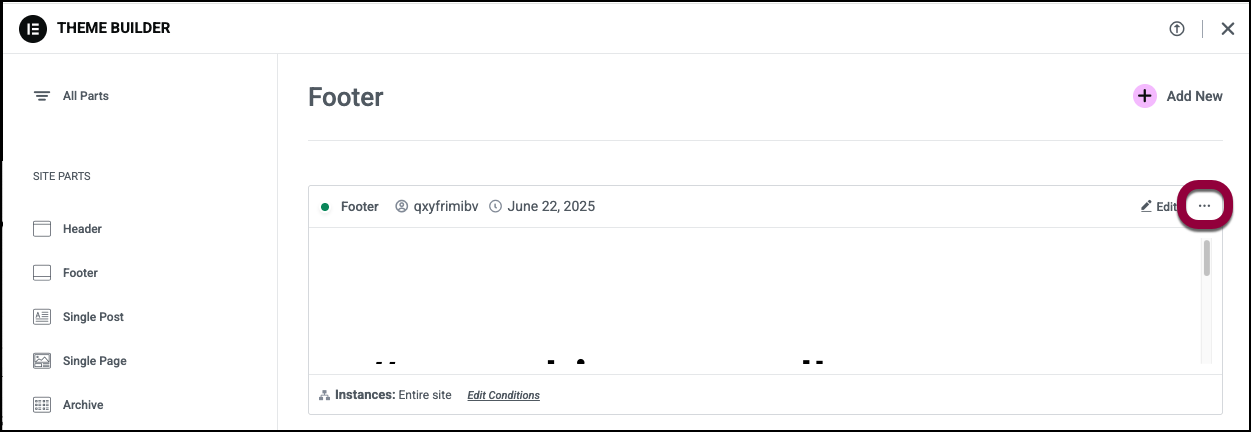
- Select Export to save a .json file to your computer.
Delete A Footer
- From WP Admin, navigate to Elementor>Theme Builder.
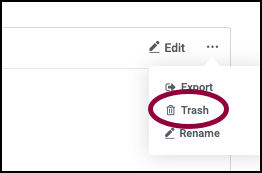
- Click the Three Horizontal Dots in the upper right of the Header you wish to delete.
- Choose Trash to delete the Footer.
- You need to confirm the deletion.

Rename A Footer
- From WP Admin, navigate to Elementor>Theme Builder.
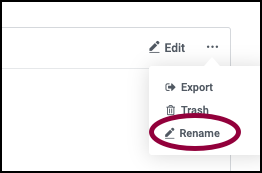
- Click the Three Horizontal Dots in the upper right of the Header you wish to rename.
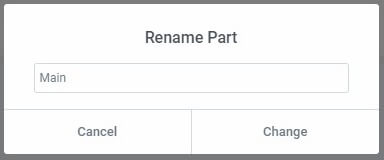
- Choose Rename which will open a Rename Part dialog box.
- Enter the new name and click Change to complete the rename process, or click Cancel if you change your mind and decide you don’t want to rename this Footer.