Overview
To keep uninterrupted access to all premium features as part of your plan, your subscription must stay active. Subscriptions are set to auto-renew by default, so when your current term ends, Elementor automatically renews your plan to ensure you don’t lose access.
When you can renew
- You cannot renew early. Paying to renew a subscription before its renewal/expiration date is not supported.
- The manual renew button only appears on the exact renewal date or after it expires.
- Auto‑renew renews your subscription on the due date. If Auto‑renewal is enabled and your payment method is valid, we’ll attempt to charge it automatically on the renewal date. There’s nothing you need to click.
- Need to pay earlier due to budgeting or a sale? Early payment isn’t available. Make sure Auto‑renewal is enabled and your payment method has sufficient funds on the due date.
Verify your renewal date
To see the status of your subscription:
- Go to your My Elementor dashboard.
- Click the profile icon.
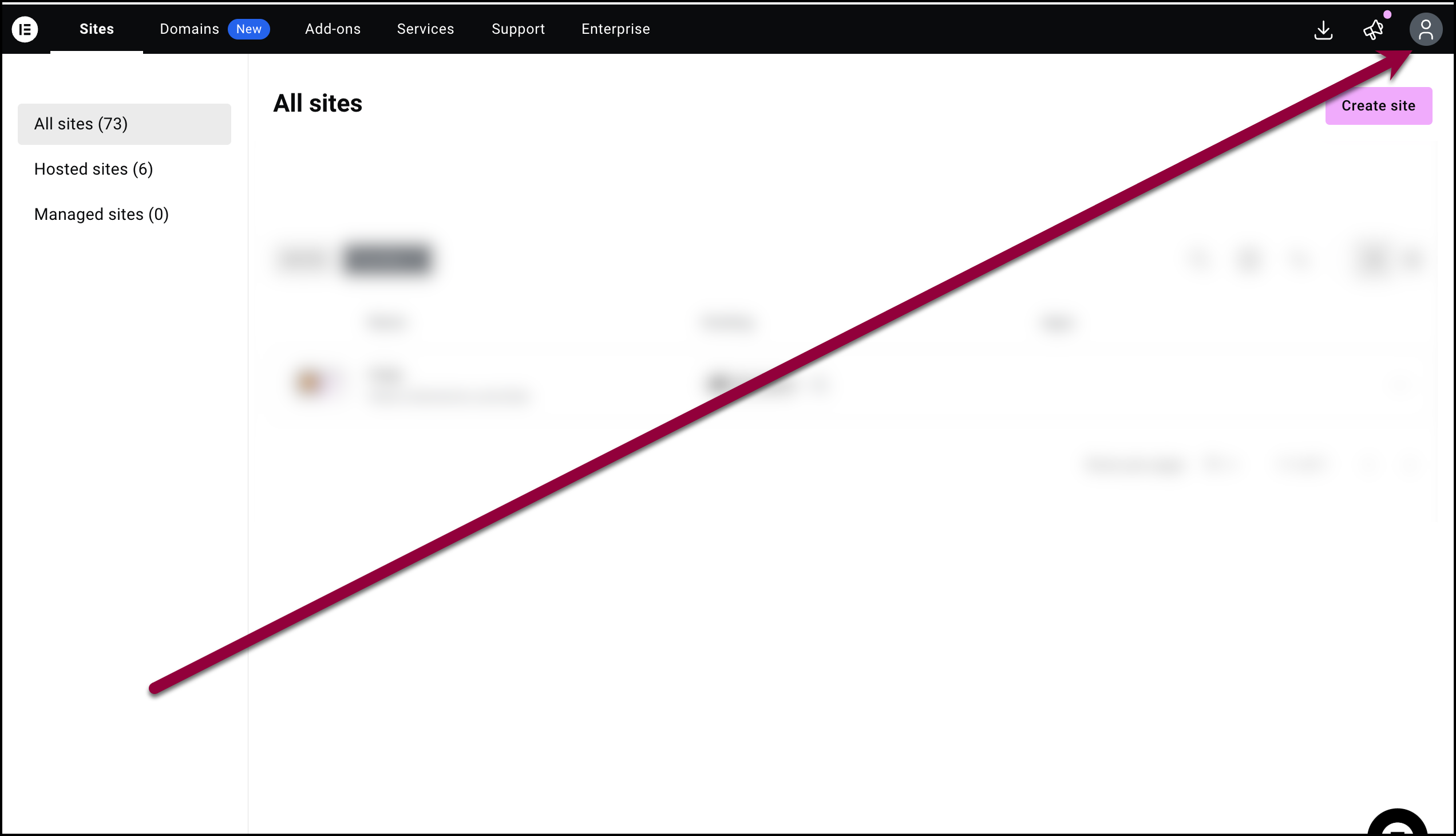
- Select Purchases from the dropdown menu.

A list of your subscriptions with their renewal dates appears.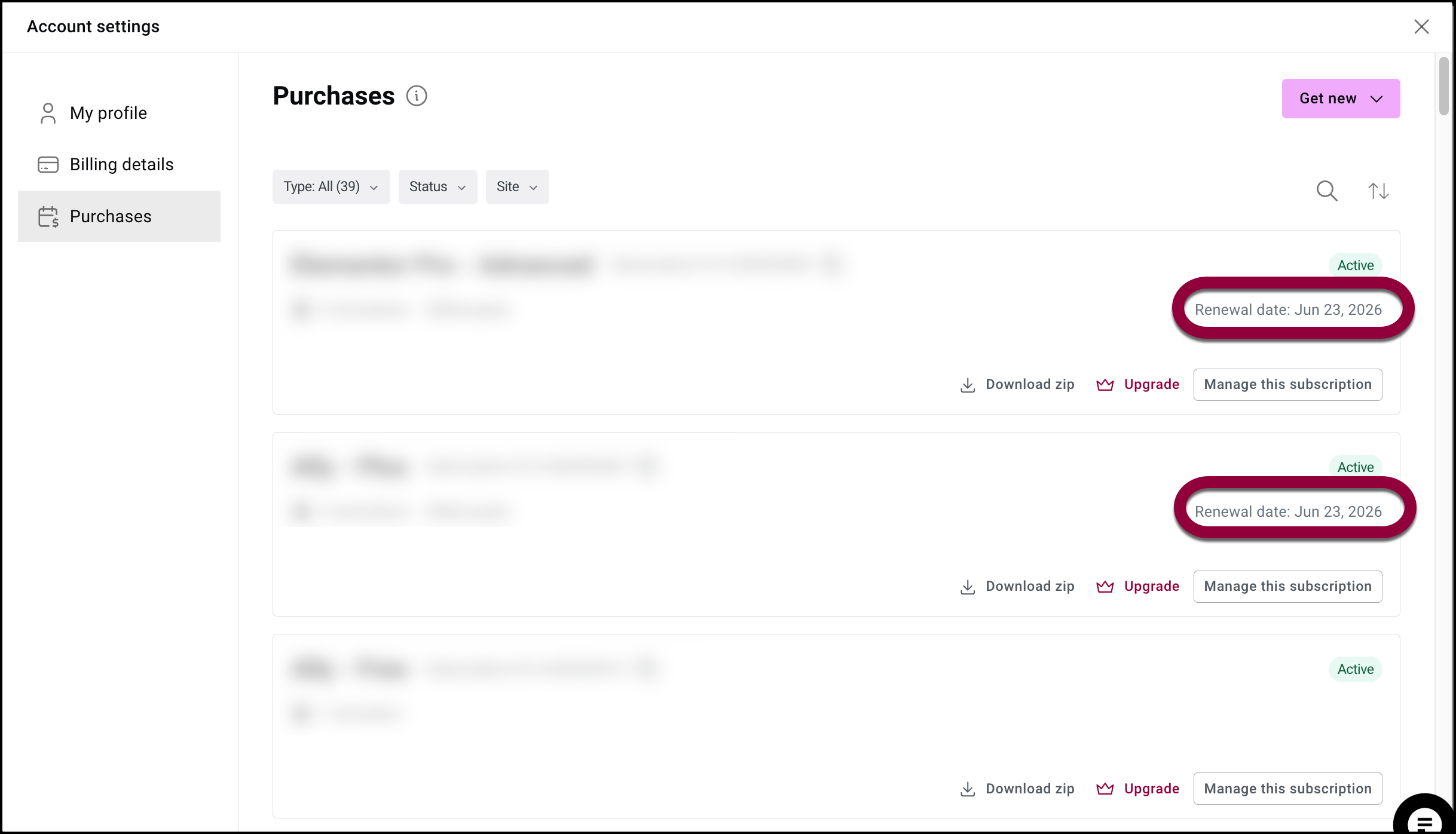
If your Subscriptions are active and your renewal date is in the future, your plan is in good standing. If it shows past due/expired, complete payment from that page to restore service.
You may receive automated reminders before the due date or failed‑payment notices if a charge attempt fails.
Manual renewal of your subscription
You can renew your subscription manually if you have turned off the auto-renewal feature or your subscription is not auto-renewed for various reasons.
- Navigate to your My Elementor dashboard.
- Go to the My Profile icon in the top right corner and select Subscriptions from the dropdown menu.
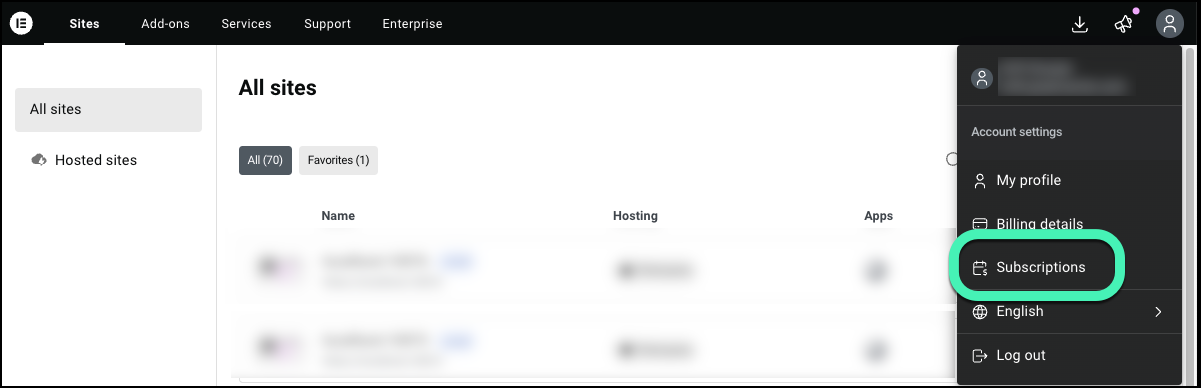
A notification regarding the subscription expiry appears when you are close to the due date of subscription expiration.
- Click Manage this subscription.
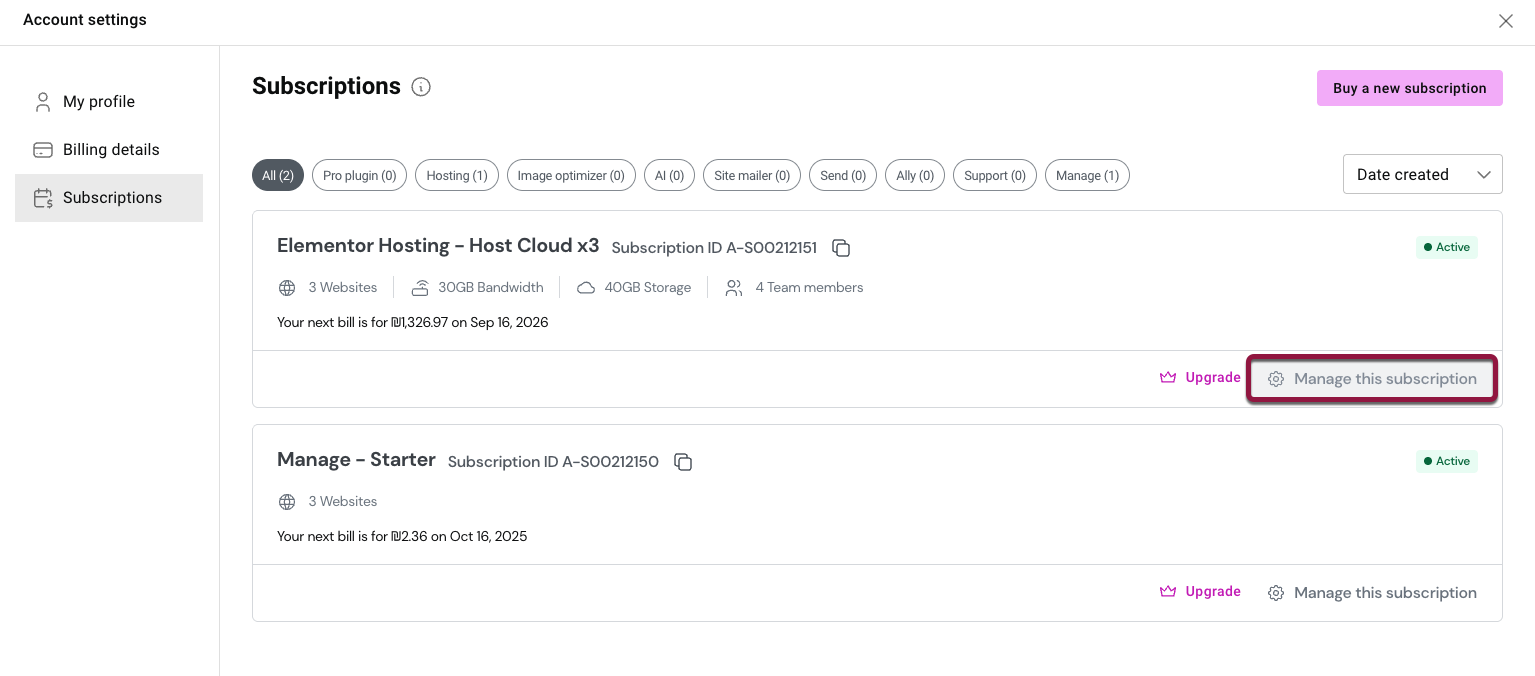
The Elementor subscription page appears. - Scroll down to the Billing Information section..
- Under Billing information, click the pencil icon and toggle the auto-renewal switch to On.
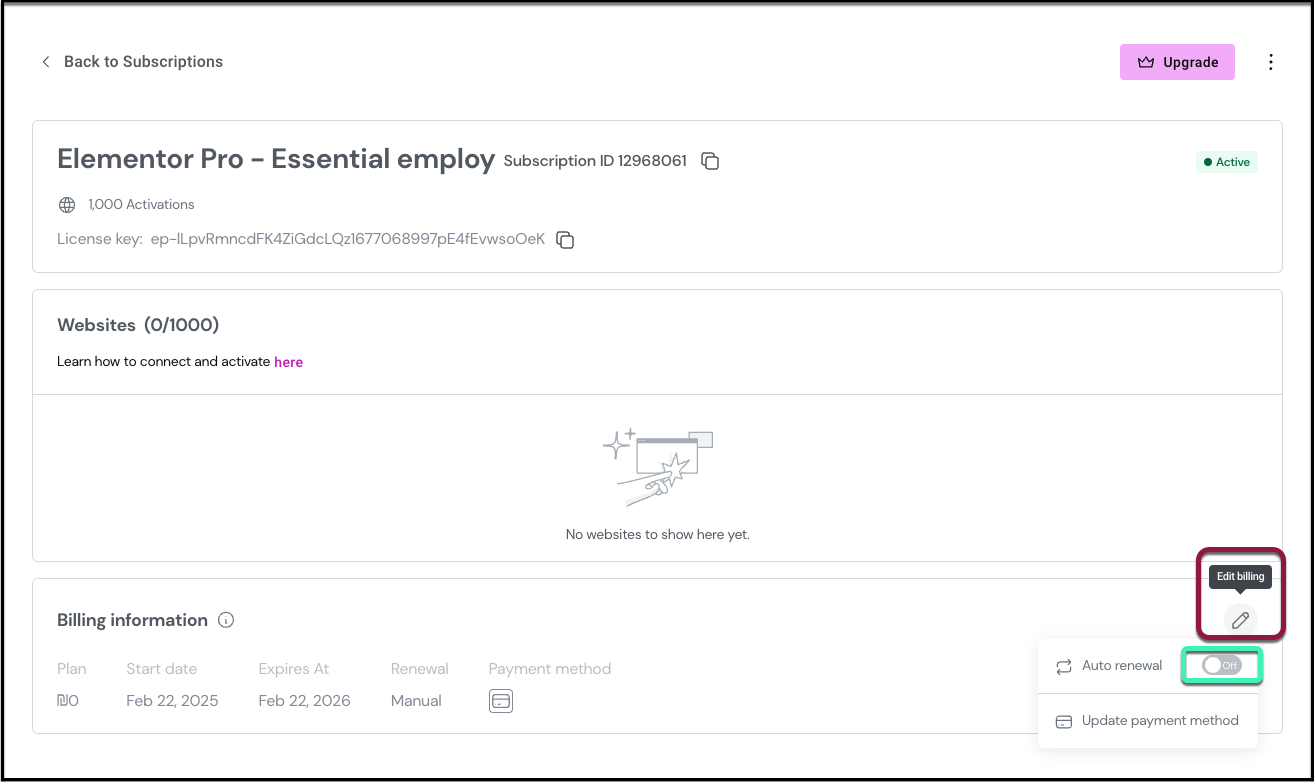
If you have payment information added to the record, you get a prompt to confirm the use of this record or submit an alternative form of payment.
If you do not have payment information added to the record, the Add a payment method dialog will appear for you to add the payment information.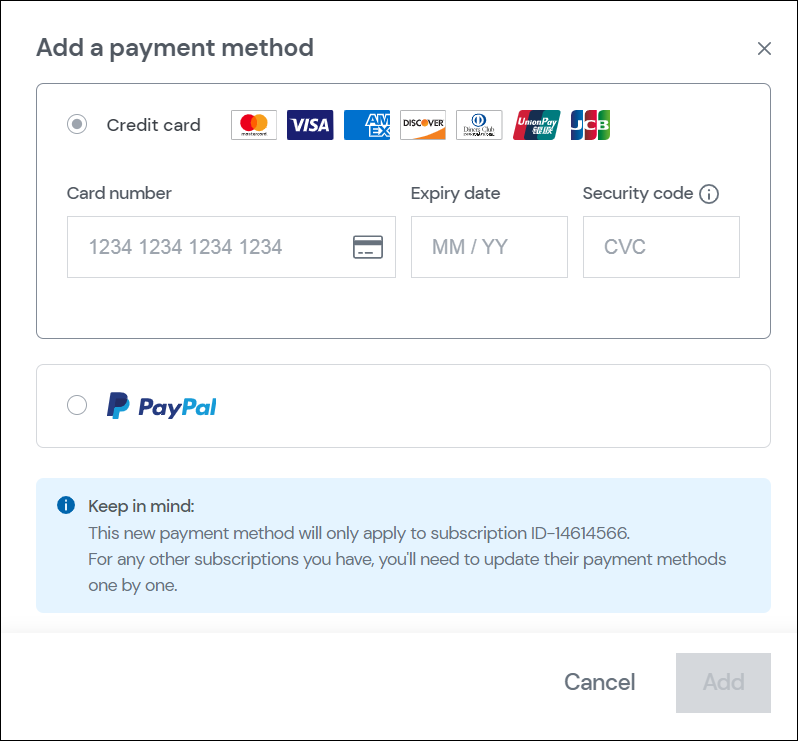
Renewal window
When your subscription expires, Pro features stop immediately until you renew or connect a new license.
- Renewal window: In some cases, you can renew the same plan for a limited time after the expiration date (typically up to 30 days). This is a billing window only; it does not extend Pro feature access.
- After the renewal window: If your subscription has been inactive beyond the allowed window or the plan has been discontinued, you cannot renew it. Purchase a new, currently available plan and connect it to your site(s).
- If your plan was discontinued: It cannot be re‑subscribed to or repurchased. Choose from the available plans instead.
Renew a subscription when account owner is unavailable or the wrong account was used
If you can’t access the account to renew:
- Provide support with details to locate the subscription: the account email, subscription ID/order number, site URL(s), and the last four digits and brand of the card used. We can verify ownership and guide next steps.
If you accidentally created a new account instead of renewing: - Share purchase details from the original subscription so we can locate it. Without purchase details, we can’t link accounts.
- If you can’t recover access to the original account, you can purchase a new plan and connect it to your site when you activate the new license.
Troubleshooting renewals
Updating billing information, payment methods, and fixing failed renewals
Before you renew, make sure your billing profile and card are complete and valid.
To update your billing profile:
- Go to your My Elementor dashboard.
- Click the profile icon in the upper right.
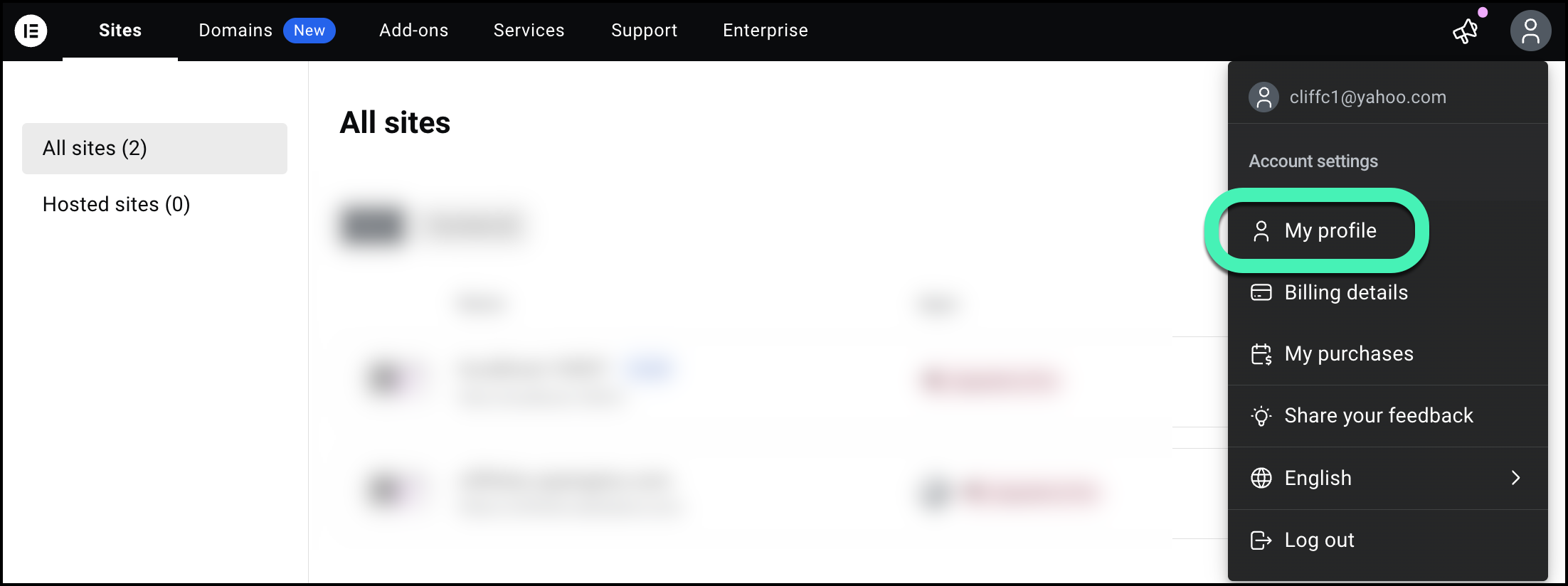
- Select Billing details from the dropdown menu.
- Make sure the information is correct.
- (Optional) Click the pencil icon to update the Billing address.
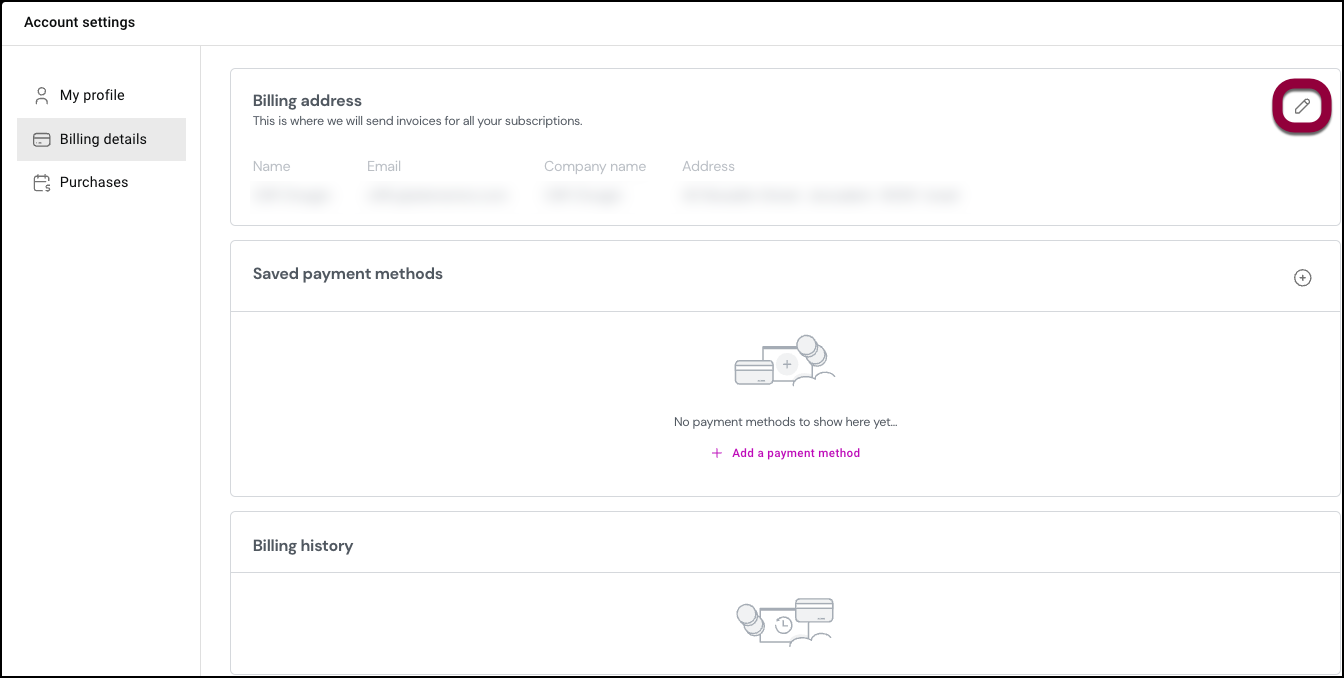
- (Optional) Add a payment method.
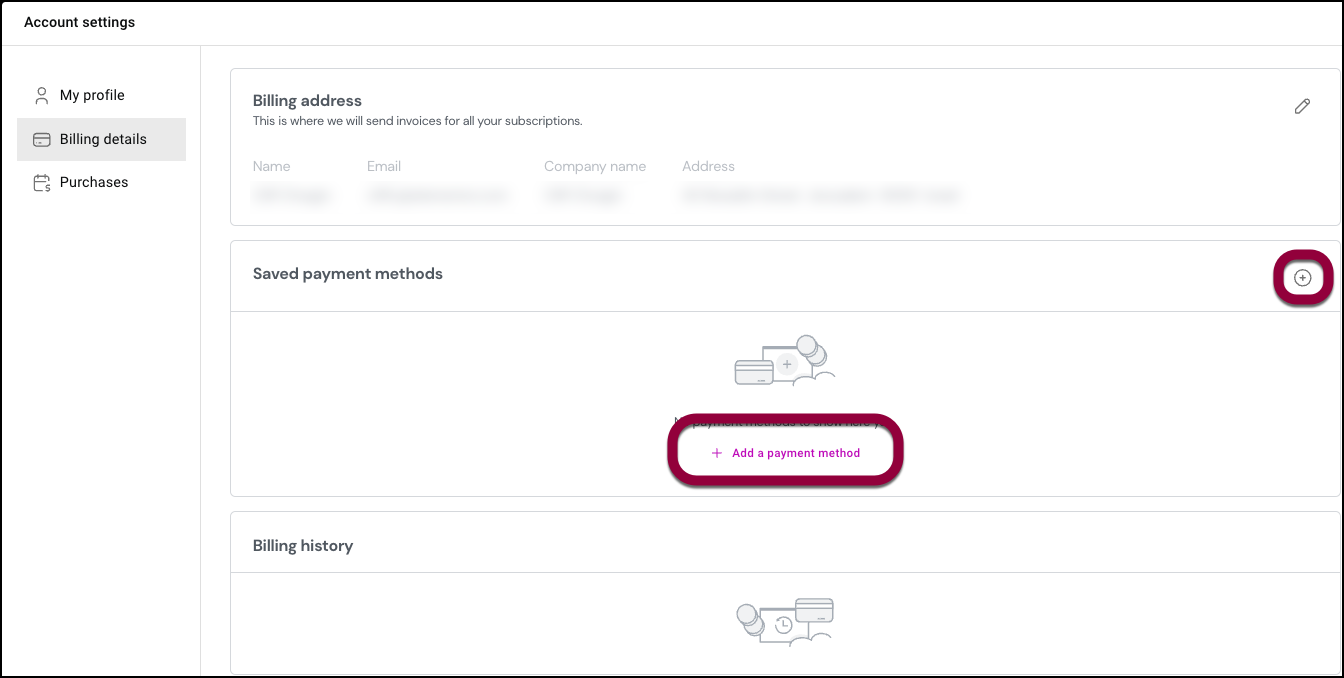
If you run into issues, try the following: - Verify the billing address matches what your bank has on file.
- Confirm your card is enabled for online and international transactions.
- Check that the card currency is supported for your account’s billing currency. NoteStripe does not enable USD purchases using cartes_bancaires cards (EUR only). If your account bills in USD, use a different card or one that supports USD transactions.
- Try a different supported browser or an incognito/private window.
- Disable browser extensions (especially ad‑blockers and privacy tools) temporarily.
- Clear cache/cookies and retry.
- If the issue persists, take a screenshot and then contact Elementor using the chatbot. Include the browser and OS you’re using.
If your payment keeps failing: - Reattempt the manual renewal after fixing the above.
- Subscriptions are billed annually; monthly billing is not available.
- We can’t issue renewal invoices in advance for manual bank transfers or similar. A valid card is required to renew.
I renewed my subscription but am still receiving renewal requests or license expired messages
If your account shows an active subscription but your site still displays renewal prompts, resync the license on the site:
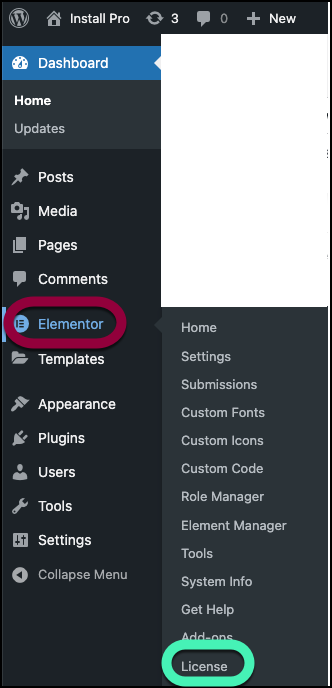
- From WP Admin, navigate to Elementor>License.
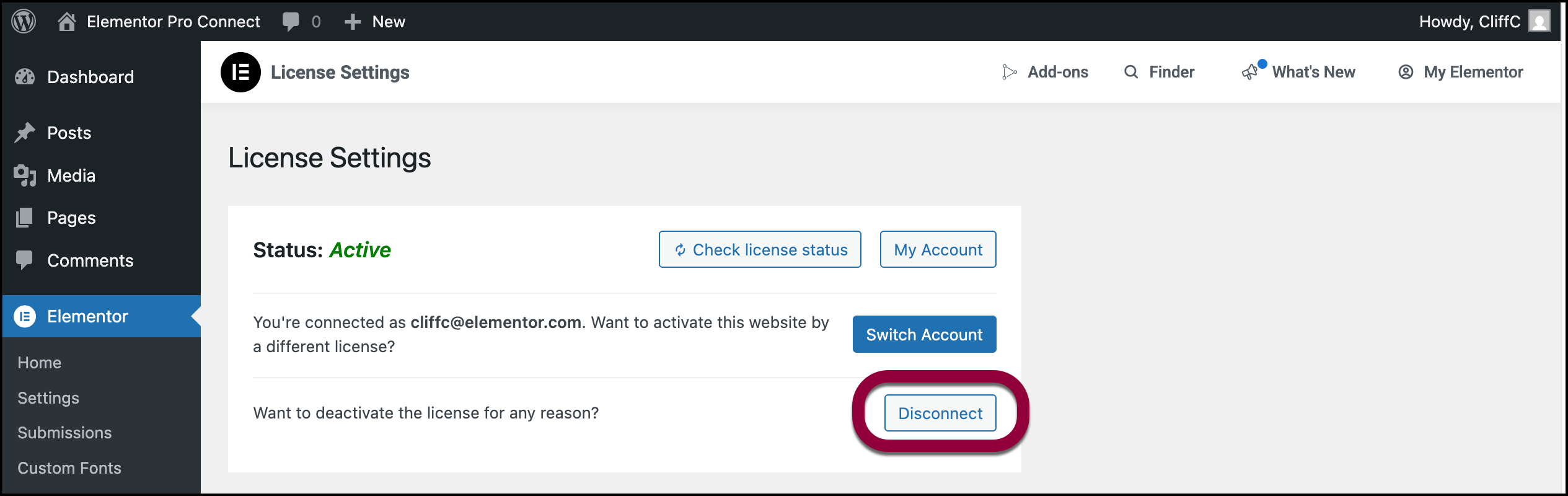
- Click Disconnect.
- Click Connect & Activate.
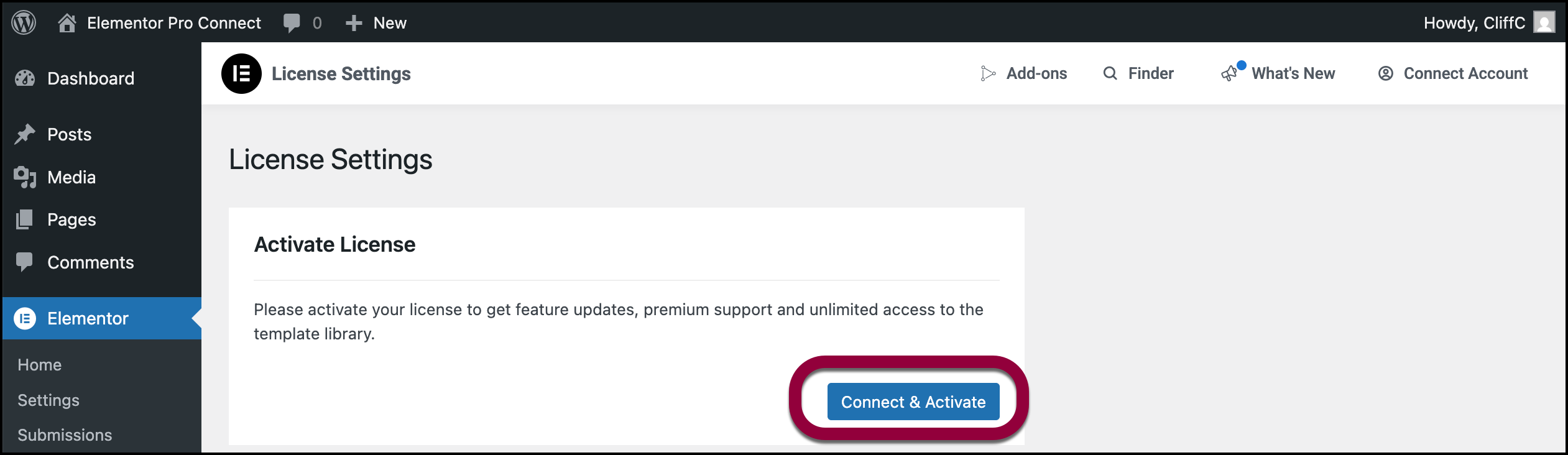
- Connect to the correct account.
if this doesn’t work, try: - Clearing any caching (plugin, server, CDN) and refresh the page.
- Ensure the site is connected to the subscription that actually has the valid license.
Auto-renew failed
If Auto‑renewal is active, we charge the saved payment method on the renewal date. If the payment succeeds, your subscription is renewed.
Auto-renew can fail if:
- You have insufficient funds.
- Your credit card expired
- The billing details are incorrect
- Bank declined payment
If your payment fails:
- Update your billing details as described above.
- Check to make sure auto-renewal is active. For details, see Activate or deactivate auto-renewal.
If auto‑renew was inactive and you missed the date: Activate it and either wait for the next attempt (if still within the renewal window) or renew manually