Elementor Safe Mode is a built-in diagnostic tool that loads the editor without third-party plugins, theme code, or experimental features active. It helps isolate whether loading errors – such as infinite spinners or blank screens – stem from external code conflicts. To activate it, go to Elementor > Editor > Tools in your WordPress dashboard, set Safe Mode to Enable, and click Save Changes.
WARNING: Back Up Your Site First
Always create a complete backup of your website files and database before enabling Safe Mode or changing site settings.
What Is Elementor Safe Mode and What Are Its Core Capabilities?
Safe Mode lets you test the editor in a clean environment without third-party plugins or theme code getting in the way:
- Conflict Isolation: Helps determine whether editor crashes and infinite loading loops are caused by active plugins or theme functions.
- Non-Destructive Testing: Runs an isolated troubleshooting session without permanently deactivating your plugins site-wide or interrupting live site traffic for visitors.
- Clean Theme Loading: Temporarily loads an empty fallback theme structure to bypass custom hooks, scripts, or broken child theme functions.
Who Can Use Safe Mode and What Does It Affect?
Here is who can use Safe Mode and how it affects your site:
- Administrator Privileges: Only users with WordPress Administrator roles (or Super Admins on WordPress Multisite networks) can turn Safe Mode on or off.
- Editor-Only Scope: Safe Mode only applies to logged-in administrators while actively working inside the Elementor Editor. Public visitors continue seeing your standard live site.
How Do You Activate Safe Mode in WordPress Dashboard Settings?
Follow these step-by-step instructions to enable Safe Mode through your WordPress admin panel:
- Log into WordPress: Sign in to your dashboard using an Administrator account.
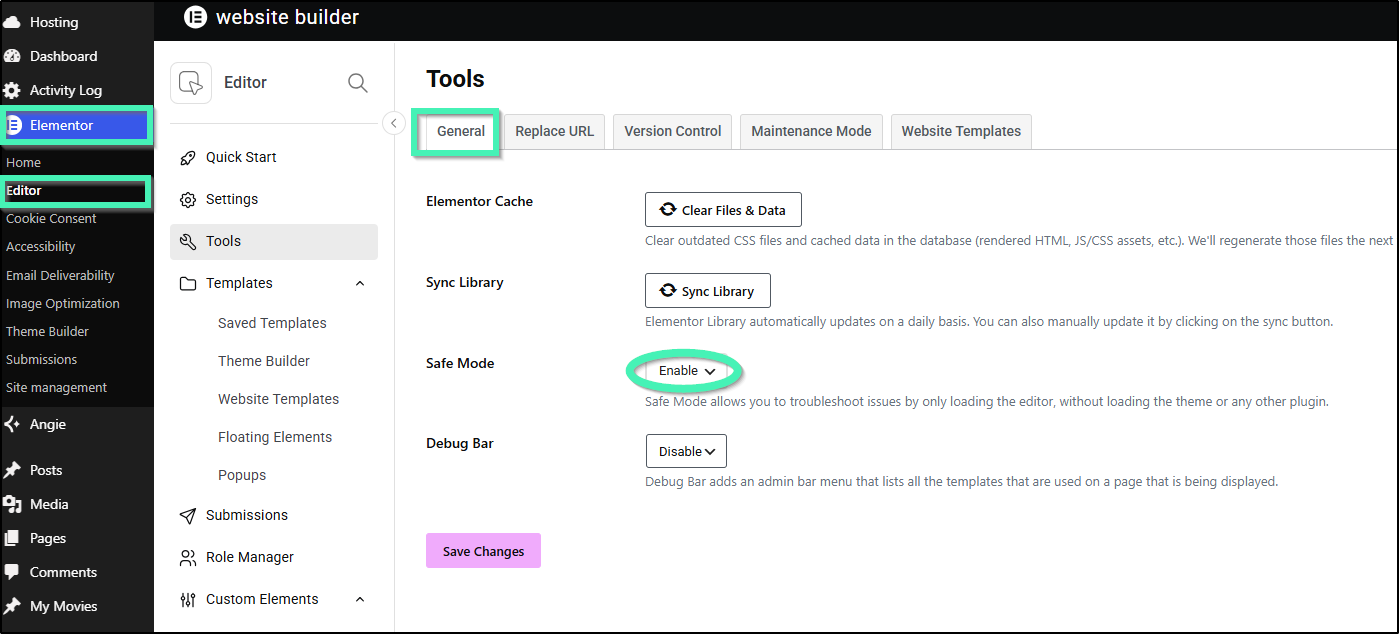
- Navigate to Tools: In the left sidebar, go to Elementor > Editor > Tools
- Locate Safe Mode: Find the Safe Mode setting under the General tab.
- Enable the Setting: Select Enable from the dropdown menu and click Save Changes at the bottom of the page.
- Launch the Editor: Open any page, post, or template by clicking Edit with Elementor.
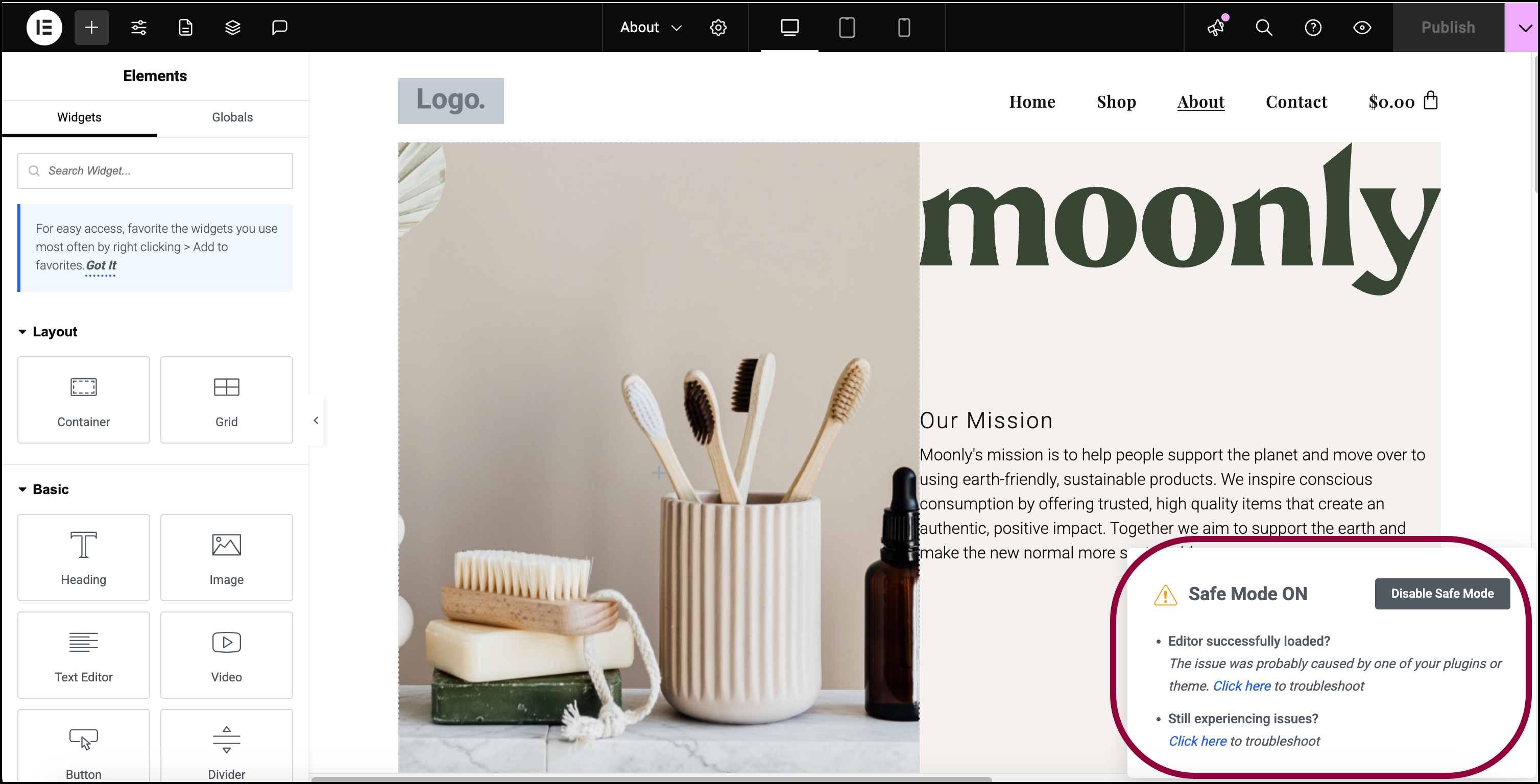
- Verify Safe Mode Is Active: Look at the lower-right corner of the editor canvas to confirm the Safe Mode badge is visible.
How Do You Activate Safe Mode From the Editor Error Screen?
If the editor freezes while opening a page, you can enable Safe Mode directly from the error pop-up:
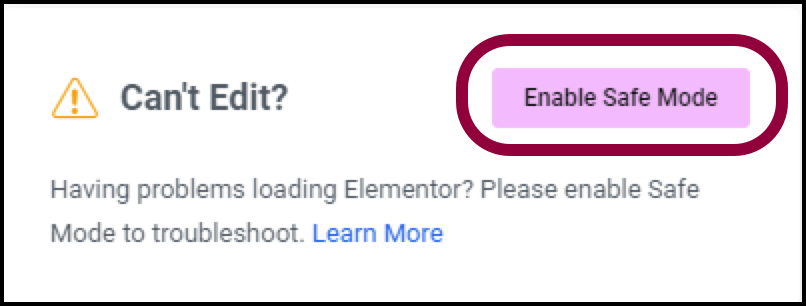
- Trigger the Error Screen: Attempt to open a page in Elementor until the canvas displays the “Can’t Edit?” error window.
- Launch Safe Mode: Click the Enable Safe Mode button inside the error window.
- Reload the Canvas: Allow the editor to refresh automatically inside the isolated troubleshooting environment.
What Are the Boundaries and Limitations of Safe Mode?
Keep these key limitations in mind while troubleshooting:
- Editor-Only Scope: Safe Mode only resolves loading errors inside the editor canvas. It will not fix layout or styling discrepancies on live published pages, nor will it fix changes that do not appear online.
- Widget Panel Exclusions: Safe Mode only addresses the main editing canvas. It does not fix issues that prevent the widget panel from loading, nor does it disable third-party scripts running inside the widget panel itself.
IMPORTANT: Temporary Feature Deactivation
Safe Mode automatically turns off all Elementor Experiments (such as Containers). Disable Safe Mode once you finish debugging to restore your active experiments.
Frequently Asked Questions
Does enabling Safe Mode affect public visitors on my live site?
No. Safe Mode only affects authenticated administrators during active Elementor Editor sessions, keeping your live site fully visible and unchanged for public visitors.
Why didn’t Safe Mode fix front-end layout issues on my live page?
Safe Mode is designed specifically to troubleshoot loading errors inside the Elementor Editor, not front-end layout or CSS styling issues on live published pages.
What should I do if the editor still fails to load in Safe Mode?
If loading issues persist in Safe Mode, check for server memory exhaustion, reverse proxy or firewall restrictions, or browser extension interference.
Related articles
- For details on debugging Safe Mode, see Debugging With Safe Mode.
- If debugging with Safe mode does not resolve your issue, see Safe Mode Activation Isn’t Solving My Problem | Elementor.