Issue
When editing a page with Elementor, the editor may fail to load, displaying a blank, grey screen. This can be caused by several different issues. Possible causes and suggested fixes are outlined below.
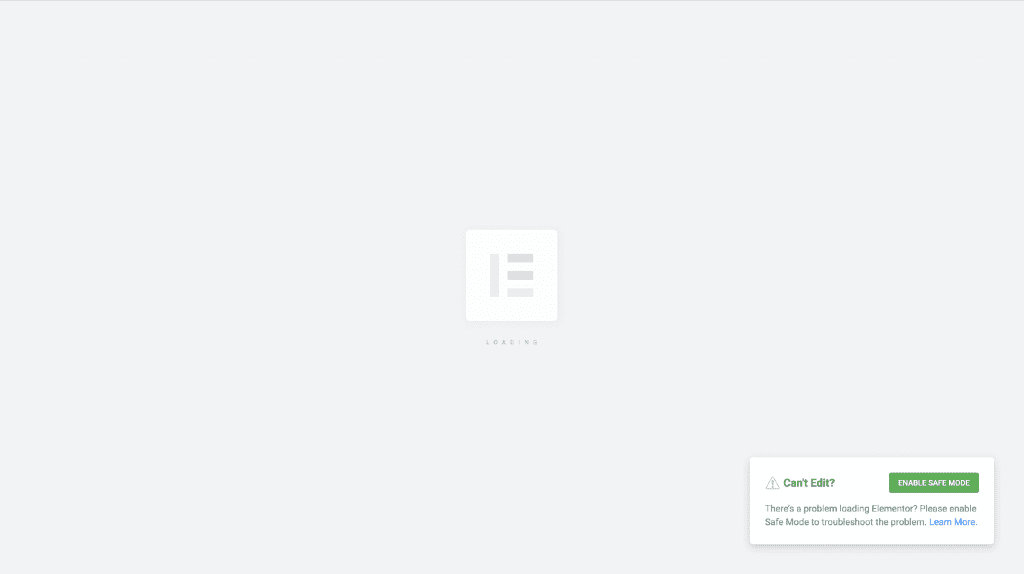
Possible causes & how to fix them
Conflict with a Plugin or Theme Script
The grey screen may be caused by a conflict with:
- Another plugin
- A custom script inserted in your theme
How to fix
- Enable Safe Mode to test without third-party plugins and theme interference.
- If it helped: Deactivate each plugin one by one, besides Elementor and Elementor Pro to figure out which one is causing the issue.
- If this does not help contact support.
Note: Essential, Advanced, Advanced Solo, and Elementor App subscriptions include access to the Elementor chatbot. Expert, Agency, Elementor One, Elementor Hosting, and Priority Support plans also include access to the Elementor support team.
- If you find a plugin conflict:
- Report it to the plugin developer.
- Submit a ticket to support.
Browser Add-ons or Extensions
Some browser add-ons can block Elementor scripts, preventing the editor from loading properly.
How to fix
Try editing in a different browser such as:
- Safari
- Chrome
- Firefox
- Opera
Custom Code
Incorrect, outdated, or conflicting custom code can prevent the editor from initializing properly.
How to fix
Temporarily disable the custom code (draft) and then attempt to reload the editor.
To temporarily disable custom code:
- From WP Admin, navigate to Elementor>Editor>Custom Elements.
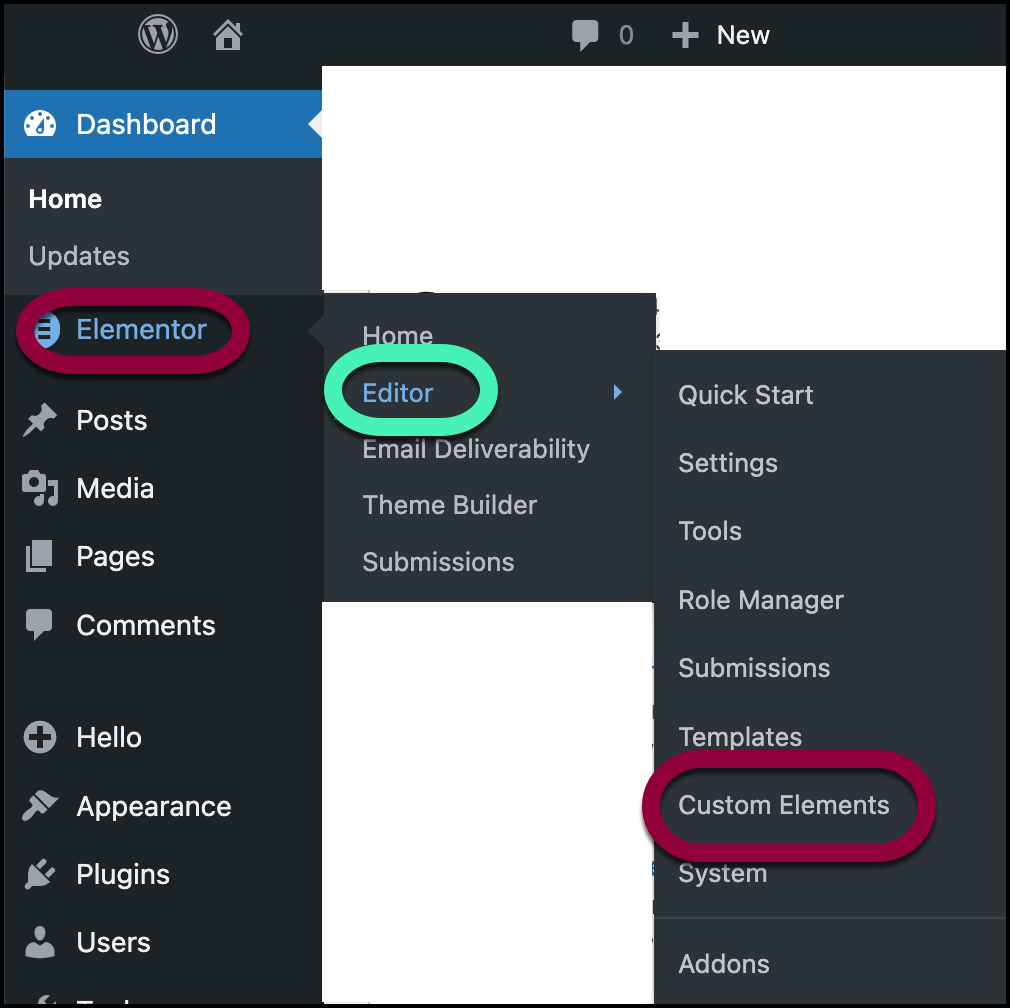
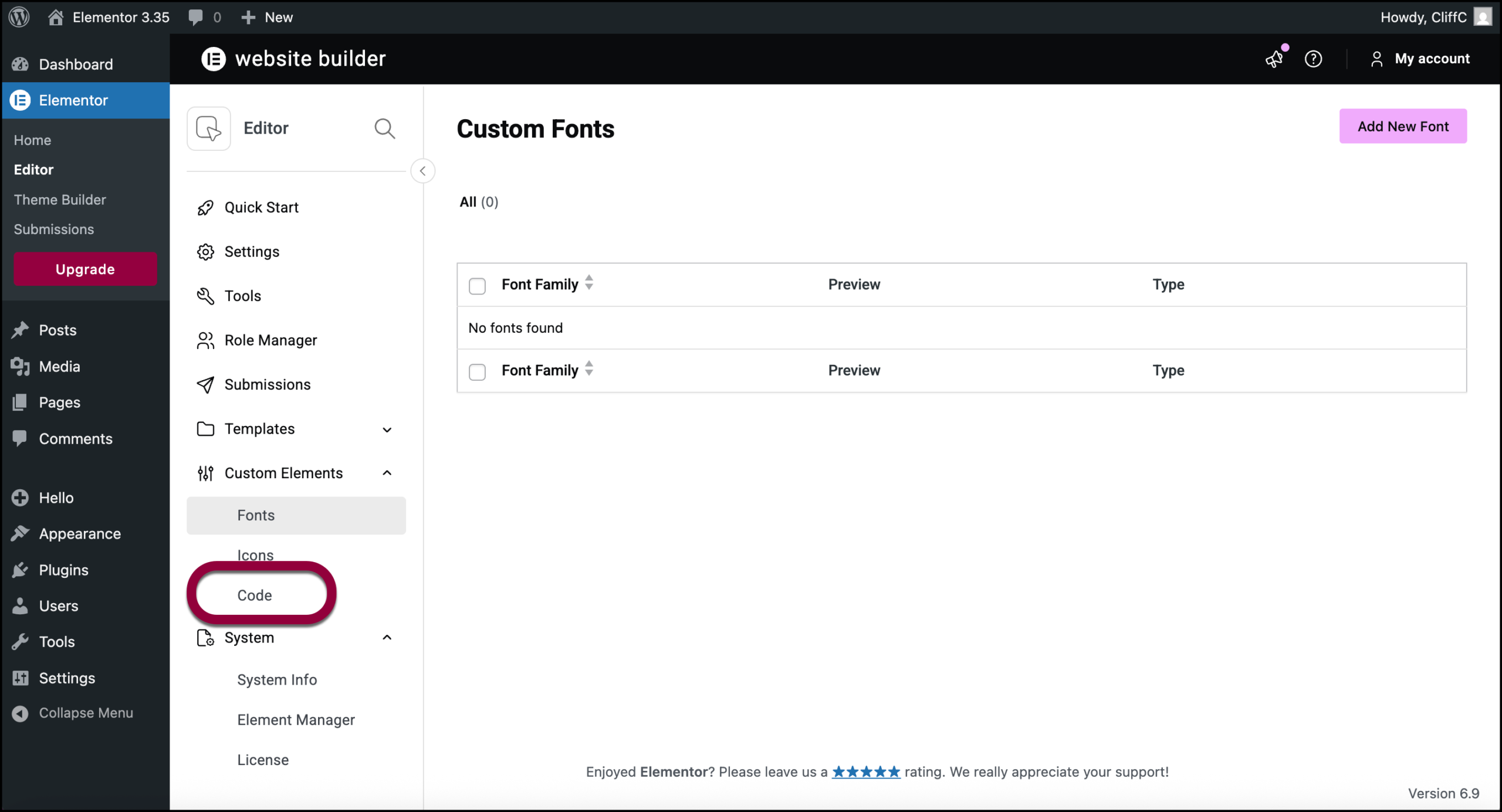
- In the left panel, click Code.
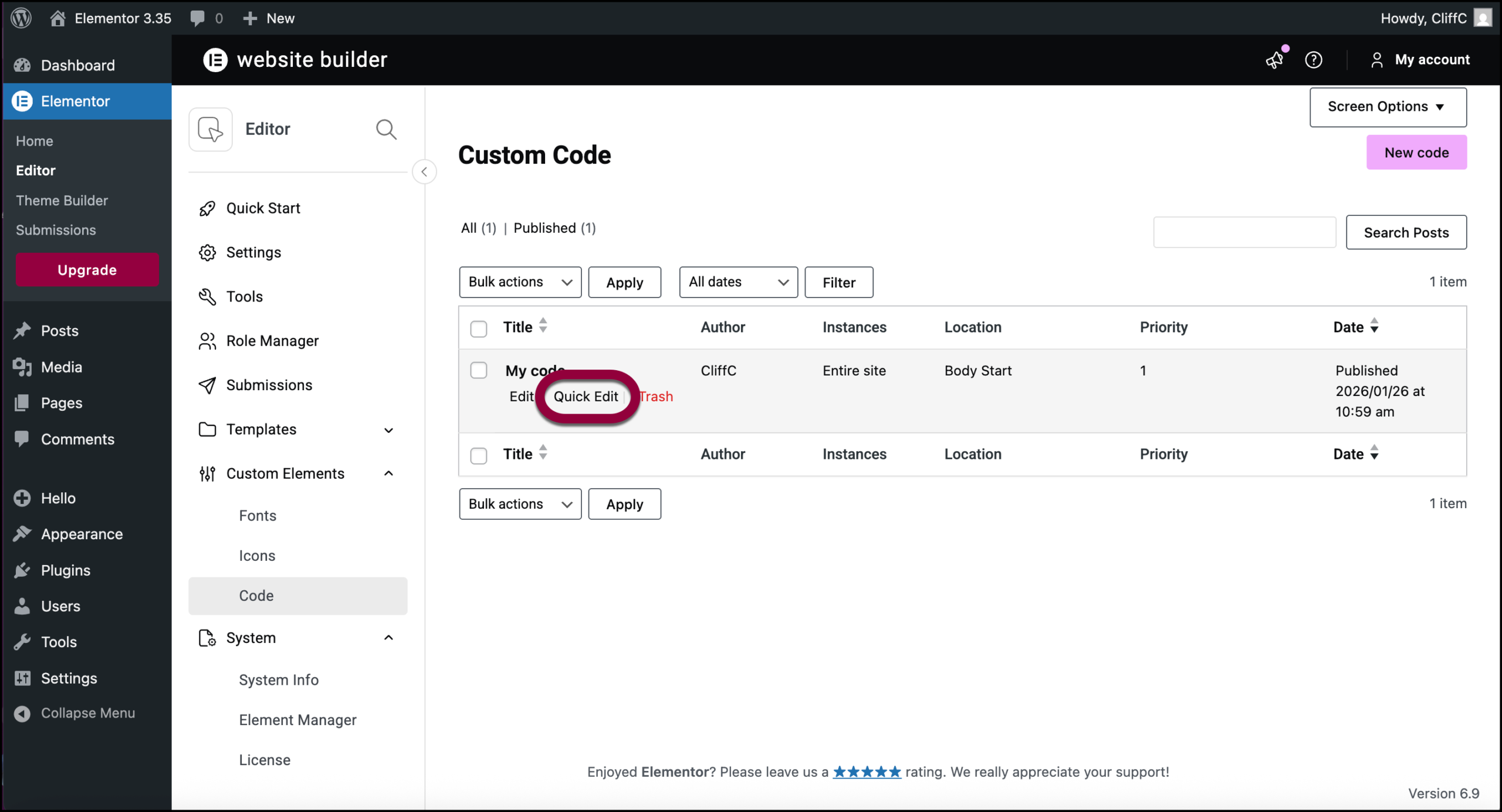
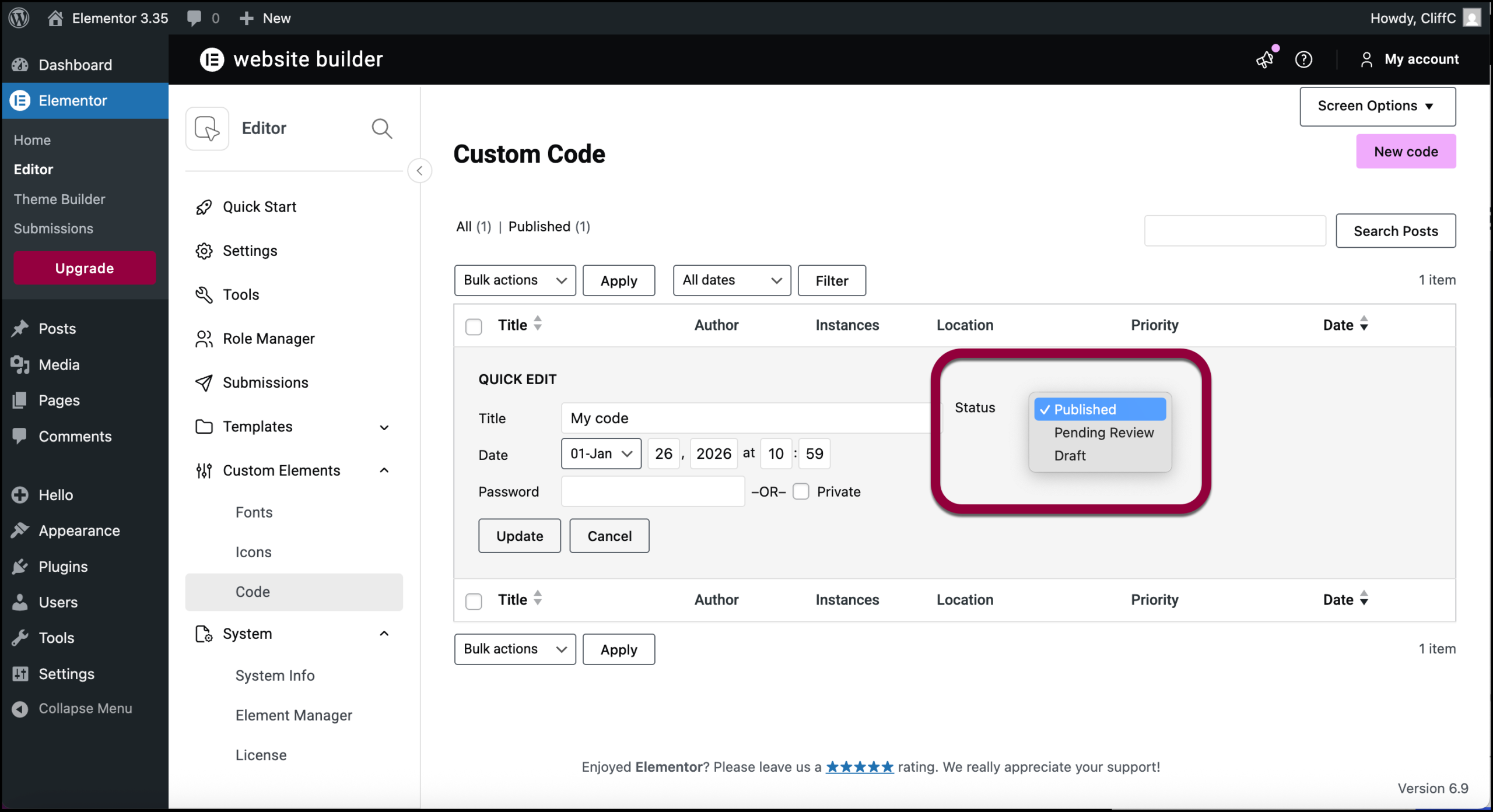
- Hover over the code you want to deactivate and click Quick Edit.
- Use the dropdown menu to change the status to Draft.
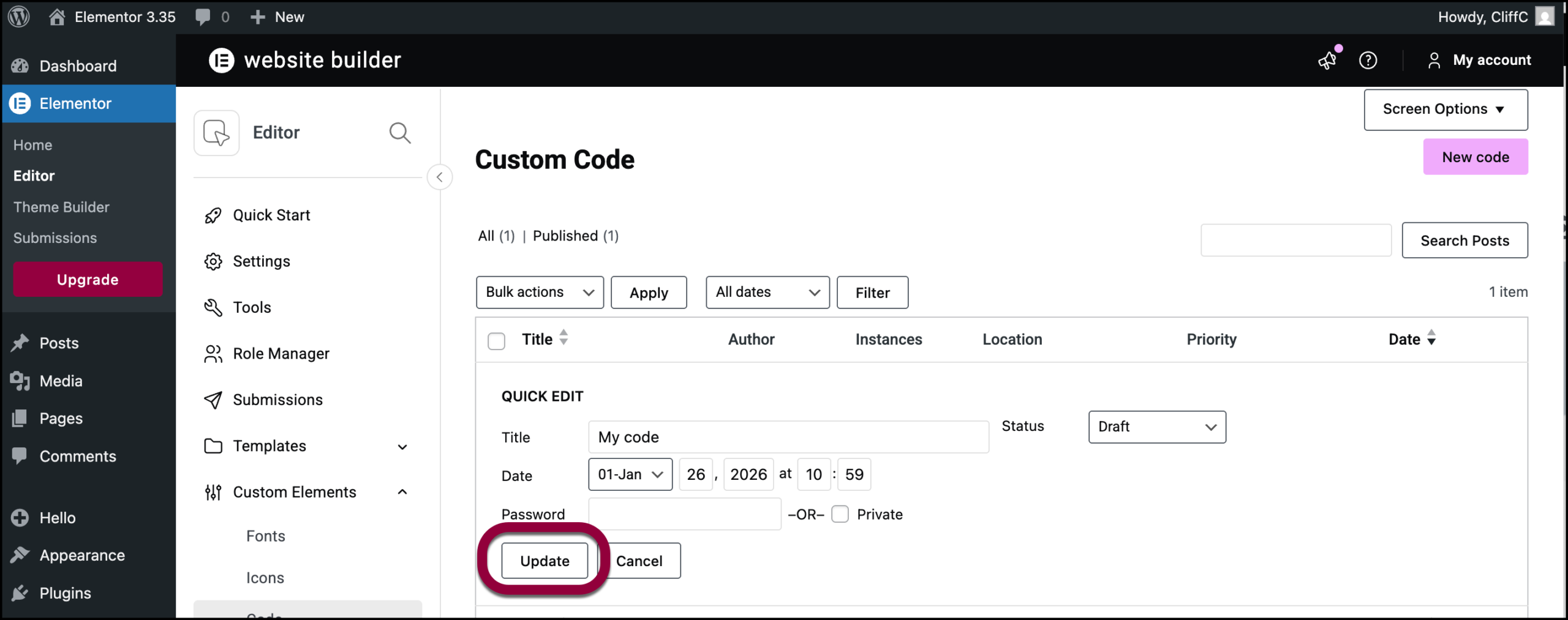
- Click Update.
Theme uses preloader
If your theme includes a page preloader, it can interfere with Elementor loading.
How to Fix:
- Disable the preloader in your theme settings or WordPress Customizer
- Refer to: Is Elementor Compatible With All WordPress Themes?
X frame restrictions or Cross-origin issues
Security settings like X-Frame-Options can block Elementor from rendering.
How to Fix:
- Right-click on the grey page and select Inspect.
- Open the Console tab. For details, see Open a Browser Console.
- Look for error messages in red.
- Ask your hosting provider to set
X-Frame-OptionstoSAMEORIGINinstead ofDENY.
Rocket Loader takes time to load for Cloudflare users
Cloudflare’s Rocket Loader can delay or block the loading of Elementor scripts, causing you to get stuck on the grey loading page.
How to Fix:
- Clear or deactivate your Cloudflare cache before updating Elementor or Elementor Pro.
- Create specific Cloudflare rules to bypass Rocket Loader for Elementor.
- Learn more: Elementor and Cloudflare Rocket Loader
Incompatible versions of Elementor and Elementor Pro
Using mismatched versions of Elementor and Elementor Pro can cause editor issues.
How to Fix:
- Outdated versions may contain deprecated functions or code incompatibilities.
- Make sure both Elementor and Elementor Pro are updated to their latest versions.
Corrupted Content
Widget corruption can occur when a widget’s stored configuration becomes out of sync with the site’s current state. This is not limited to Elementor widgets and commonly happens due to:
- Active caching or optimization while editing (page cache, object cache, JS/CSS optimization)
- Plugin or theme updates that change how a widget or its data is handled
- Dynamic content changes (posts, products, templates, or fields removed or modified)
- Custom code or third-party integrations interacting with widgets
When this happens, the widget may reference data or settings that no longer exist, causing display issues, editor crashes, or blocked page access.
How to fix
Follow these steps to safely replace the corrupted widget with a clean instance. In the following example, a Loop Grid widget has become corrupted:
- From WP admin, navigate to Elementor → Element Manager.
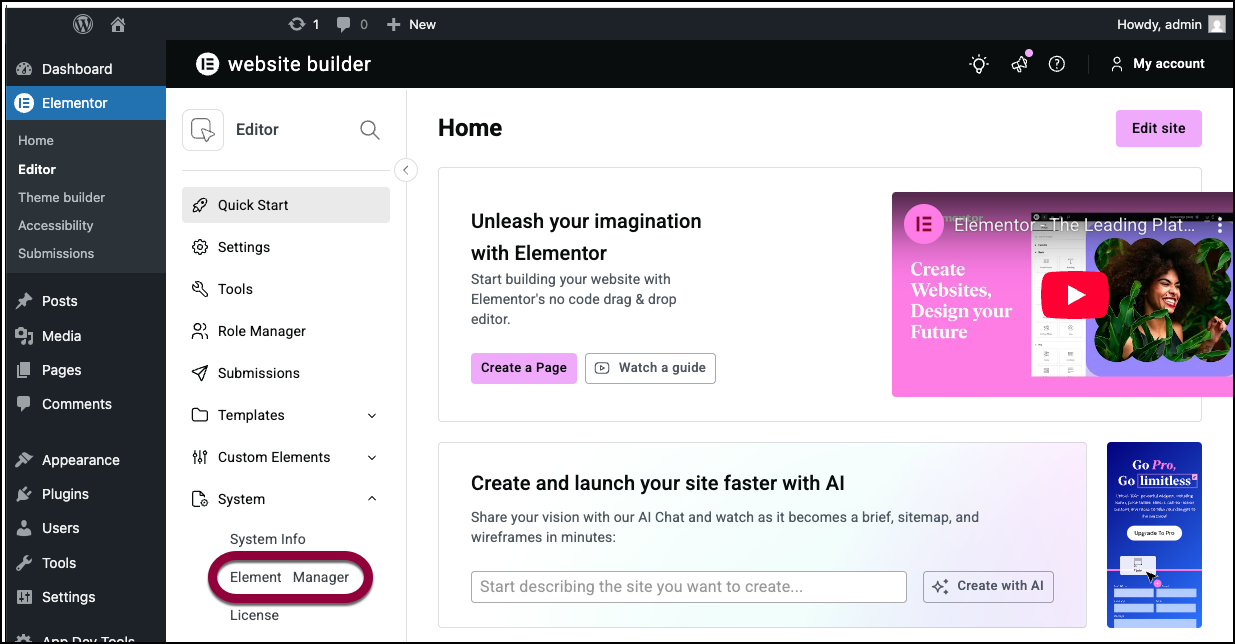
- Temporarily disable the Loop feature. For details, see Element Manager.
- Open the affected page/template in the editor.
- Save/Update the page without any Loop widgets present.
- Return to Element Manager and re-enable the Loop feature.
- Edit the page again and re-create the Loop widget from scratch.

Important notes:
- If you have used any custom code within the corrupted widget, do not immediately re-add it. First, confirm the default widget after the reaction works correctly. This process ensures the corrupted widget configuration is fully replaced with a clean, stable one.
- If you use custom code or dynamic filters, reintroduce them gradually to identify any trigger.
V4 Elements
V4 elements are in beta and can lead to loading screen errors. If you’re using V4 elements, try deactivating V4 and see if the page loads. For details, see Get started with the Elementor Editor V4.