Configuring the Web Application Firewall (WAF) IP allowlist in Elementor Hosting lets trusted users, external APIs, and developers bypass firewall rules and rate limits without getting blocked. You can set this up directly from your My Elementor dashboard under your site’s Advanced Security settings.
What are the prerequisites and limitations for the WAF allowlist?
Before adding IP addresses to your allowlist, keep these requirements and limits in mind:
- Active Custom Domain: The allowlist only works on websites connected to an active custom domain. It does not apply to temporary staging URLs.
- 40-Entry Limit: You can add up to 40 IP entries per hosted website.
- Supported Formats: You can add standard IPv4 addresses, IPv6 addresses, and CIDR subnets up to a /24 limit.
How do you access the WAF IP allowlist in your dashboard?
Follow these steps to locate your firewall allowlist settings:
- Log into My Elementor.
- Go to the Hosted Sites tab.
- Click your website card to open its site management page.
- Select Advanced from the left-hand menu.
- Click the Security tab at the top.
- Scroll down to the WAF IP allowlist section at the bottom of the page.
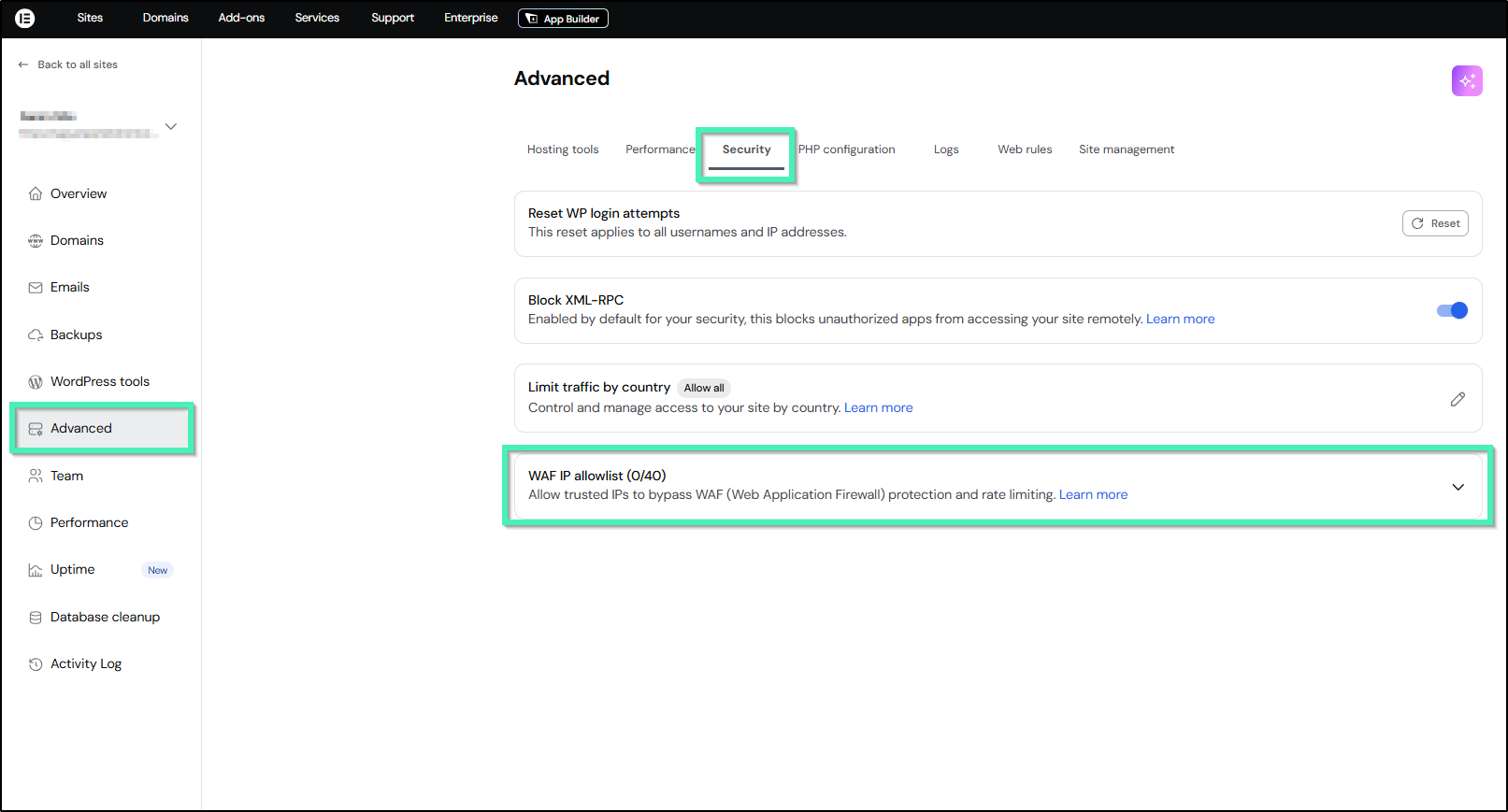
How do you add an IP address to the allowlist?
To make sure your team or connected services don’t get accidentally blocked, add their addresses using these steps:
- In the WAF IP allowlist section, click Add IP.
- In the Name field, enter a clear label so you can easily identify it later (e.g., Office Network, Webhook API, or Dev Team VPN).
- In the IP Address field, enter the address using one of these supported formats:
- IPv4 Address: Standard single IPs (e.g., 192.0.2.1).
- IPv6 Address: Full IPv6 addresses (e.g., 2001:0db8:85a3:0000:0000:8a2e:0370:7334).
- CIDR Notation: Subnet ranges up to a /24 mask (e.g., 192.0.2.0/24). Broader subnets like /16 or /8 cannot be added to prevent overly broad bypass rules.
- Click Add IP to save.
How do you remove an IP address from the allowlist?
When a team member or service no longer needs direct access, remove them to re-enable standard firewall filtering:
- Locate the entry in the WAF IP allowlist table.
- Click the Trash icon next to that row.
- Confirm the prompt to remove the IP. The address will immediately be subject to standard firewall rules and rate limiting again.