The Elementor Cookie Consent plugin helps you manage website cookies and comply with global privacy regulations like GDPR and CCPA. With Geo-Targeting, your consent banner automatically detects a visitor’s location and displays the correct legal posture, ensuring compliance without imposing unnecessary friction on international visitors.
What is Geo-Targeting?
Websites with mixed international traffic often face a compliance trade-off: choosing a single fixed banner setting for all visitors either over-restricts non-EU users with strict opt-in prompts or risks under-complying with EU regulations.
Geo-Targeting acts as a dynamic switch, serving the appropriate consent model based on where each visitor is located:
- GDPR (Opt-in model): Automatically applied to visitors from heavily regulated regions (such as the EU, EEA, and UK). Non-essential cookies are blocked until explicit consent is granted.
- CCPA (Opt-out model): Automatically applied to visitors in opt-out regions. Non-essential cookies load by default, while providing an option to opt out.
How Geo-Targeting Works
To ensure compliance across all GDPR and CCPA visitor rules, the plugin initially loads the opt-in banner first for all visitors, and then automatically corrects itself based on the detected country.
For maximum accuracy without impacting page performance, Geo-Targeting follows a multi-tiered location lookup process:
- Trusted Header Check: The banner first checks for location data provided directly by your host or CDN headers for instantaneous detection.
- Local IP Lookup: If no trusted header is present, it performs a local IP lookup using the integrated MaxMind GeoLite2 database.
- Fail-Safe Cache Protection: To prevent static or cached pages from serving the wrong consent mode, the banner defaults to a strict posture until location resolution is fully complete.
How to Set Up Geo-Targeting
Follow these steps to configure and enable Geo-Targeting on your site:
Step 1: Get a Free MaxMind License Key
- Go to the MaxMind GeoLite2 Signup Page (or click Get a license key inside your Cookie Consent settings).
- Create a free MaxMind account.
- Log in, navigate to My License Key under the Account menu, and click Generate new license key.
- Enter a description (e.g., “Elementor Cookie Consent”), select ‘No’ when asked if using GeoIP Update, and confirm key generation.
- Copy the generated license key.
Step 2: Select the Adaptive Consent Template
- Log in to your WordPress Dashboard.
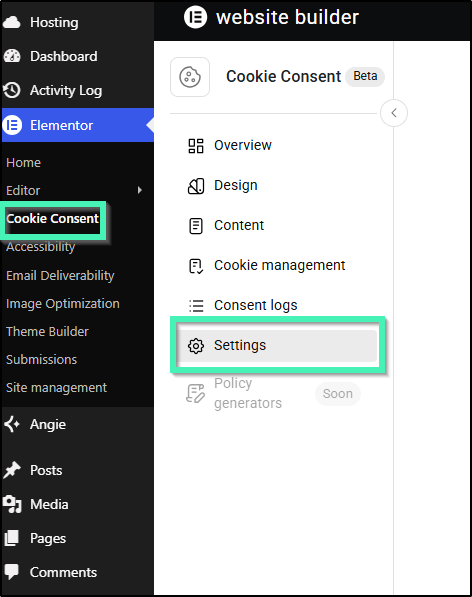
- In the sidebar menu, navigate to Elementor > Cookie Consent > Settings.
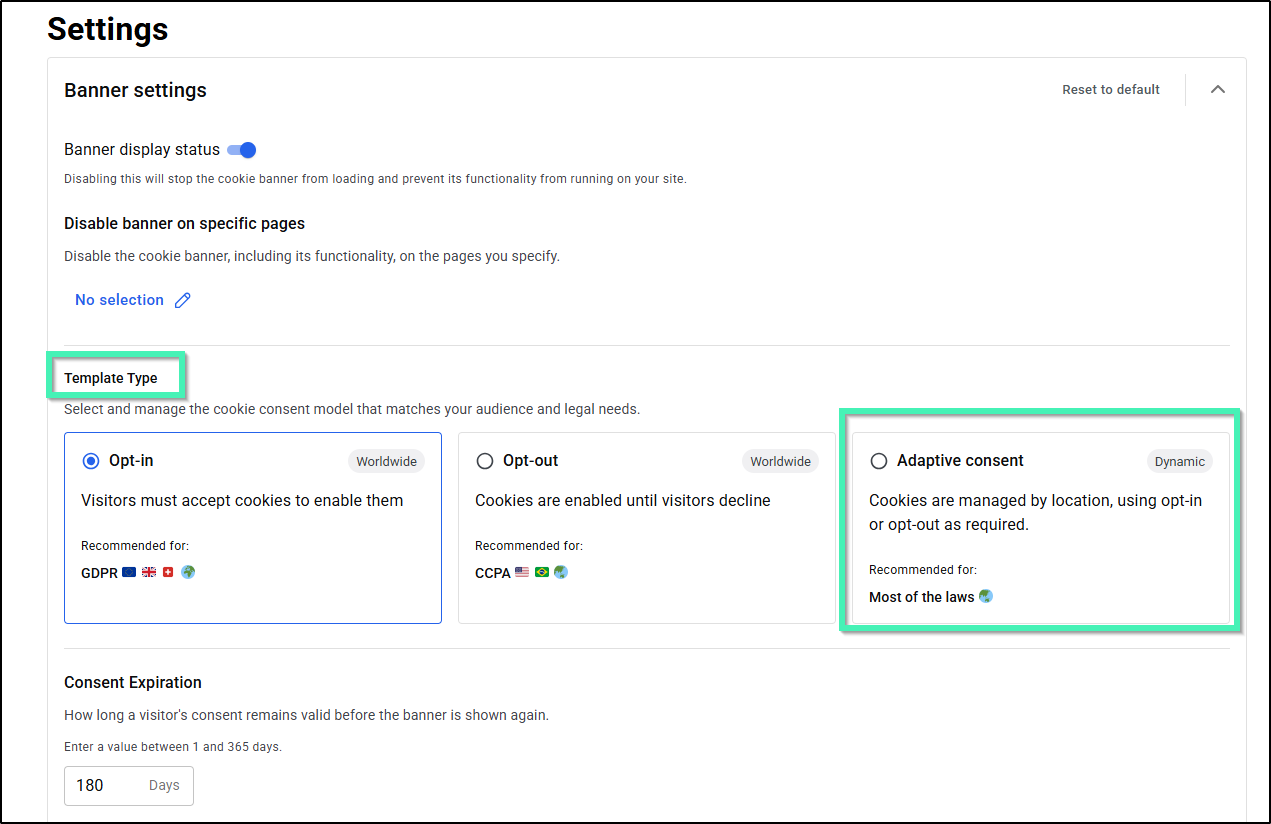
- Under Banner settings, locate the Template Type section.
- Select Adaptive consent (labeled Dynamic).
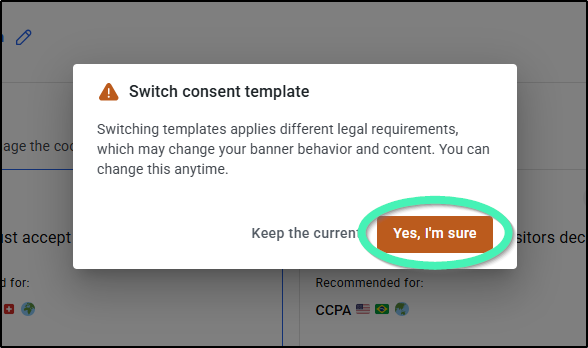
- If a modal titled Switch consent template appears, click Yes, I’m sure to confirm.
Step 3: Enter Your MaxMind License Key
- Scroll down to the MaxMind GeoLite2 License Key section.
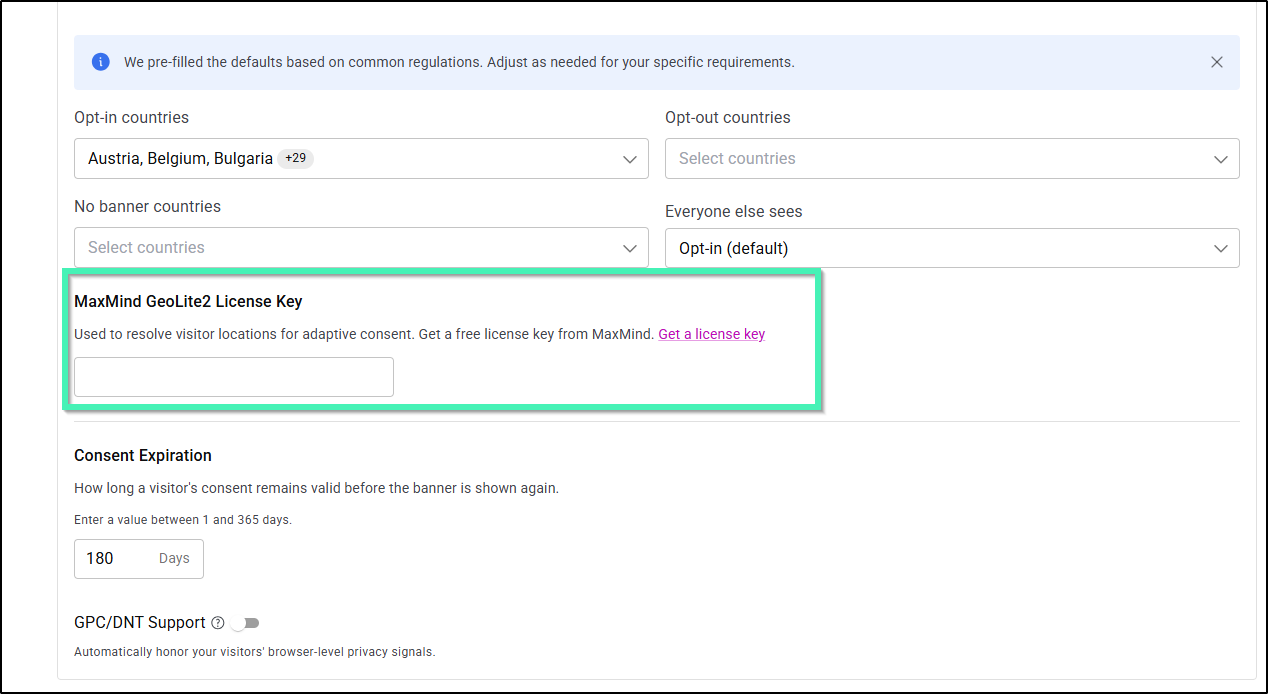
- Paste your copied license key into the text field.
- Click Save Changes.
Step 4: Configure Regional Rules
Once Adaptive consent is selected in Step 2, the Regional rules section will appear on the settings page.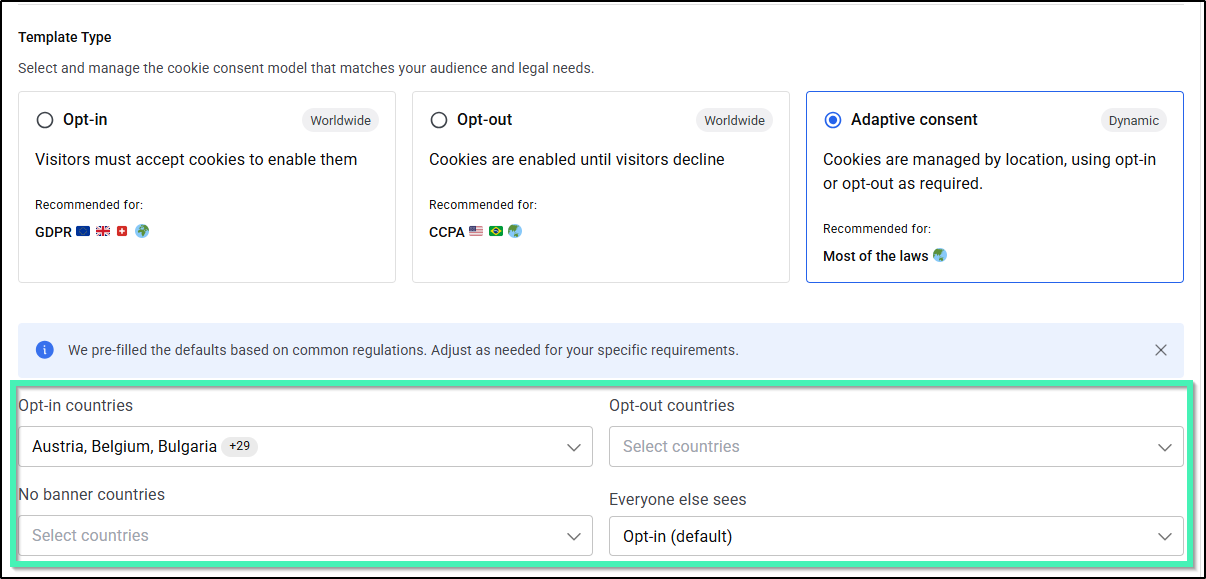
- In the Regional rules section, use the country pickers to organize regions into:
- Opt-in countries: Visitors must give explicit consent before cookies load (e.g., GDPR regions).
- Opt-out countries: Cookies load by default; visitors can choose to opt out (e.g., CCPA regions).
- No banner countries: The consent banner is hidden completely for visitors in these regions.
- (Optional) Use the preset chips (such as EEA and UK, United States, APAC, or Rest of the world) to bulk-fill regions quickly.
Note: A country already assigned to one bucket will appear disabled/taken in the other pickers to prevent duplicate assignments. - Under Everyone else sees, select the fallback consent model (Opt-in, Opt-out, or No banner) for any unassigned countries.
Note: Selecting No banner as the fallback displays a compliance warning in the UI: “Selecting ‘No banner’ might make your site non-compliant in some regions. Check your local legal requirements.” - Click Save Changes.
Availability
The Geo-Targeting feature is included automatically for all Elementor One users.
If you are on a different plan, upgrade to Elementor One to unlock Geo-Targeting in your Cookie Consent dashboard Settings.