If images are not loading on your website after enabling SSL or moving from HTTP to HTTPS, some image URLs may still use insecure links.
Replace HTTP URLs
If your website recently moved from HTTP to HTTPS:
- Go to WordPress Dashboard > Elementor > Editor > Tools.
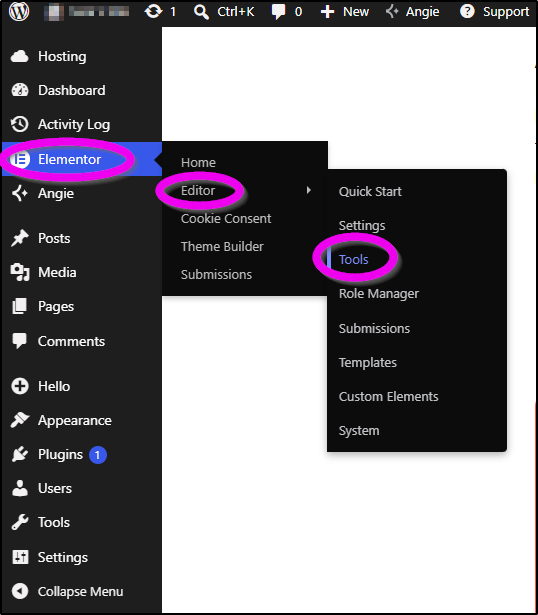
- Open the Replace URL tab.
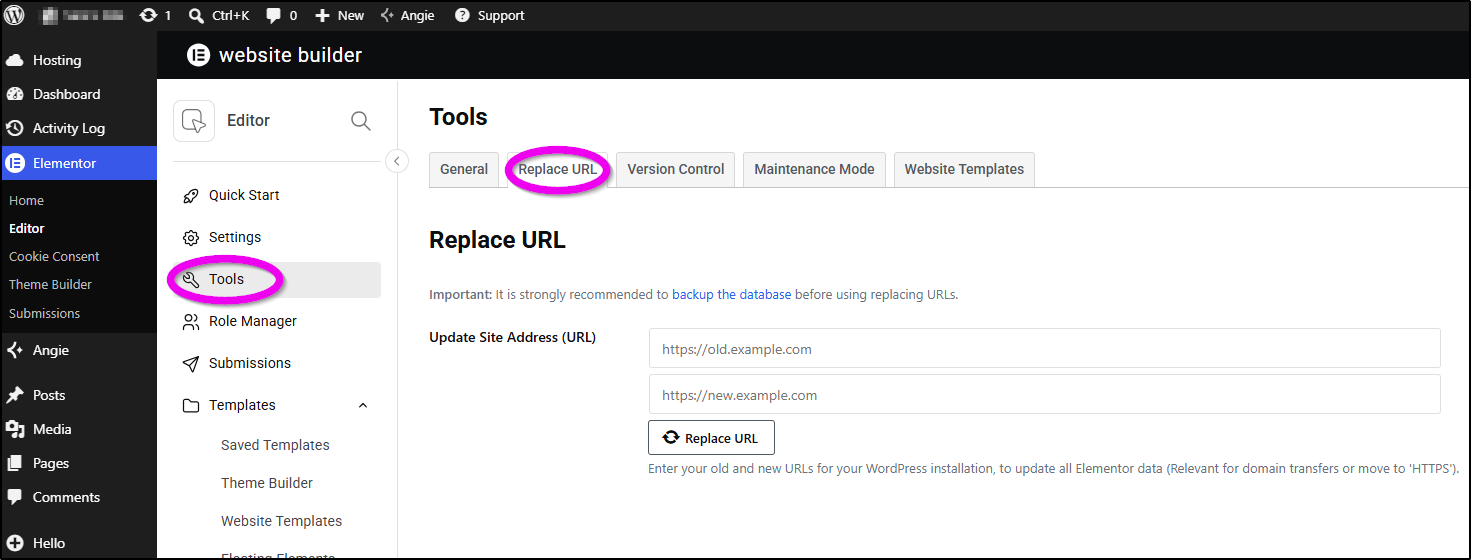
- Replace the HTTP version of the URL with the HTTPS version.
- Click Replace URL.
Example:
- Old URL: http://yourwebsite.com
- New URL: https://yourwebsite.com
Clear cache
After replacing HTTP URLs with HTTPS URLs, clear all website caches:
- Browser cache
- WordPress cache
- Hosting cache
- CDN cache
For detailed instructions, see: How to Clear Cache in WordPress: 9 Simple Methods.
Regenerate CSS & Data
- Go to WordPress Dashboard > Elementor > Editor > Tools.
- Under General, click Clear Files & Data.
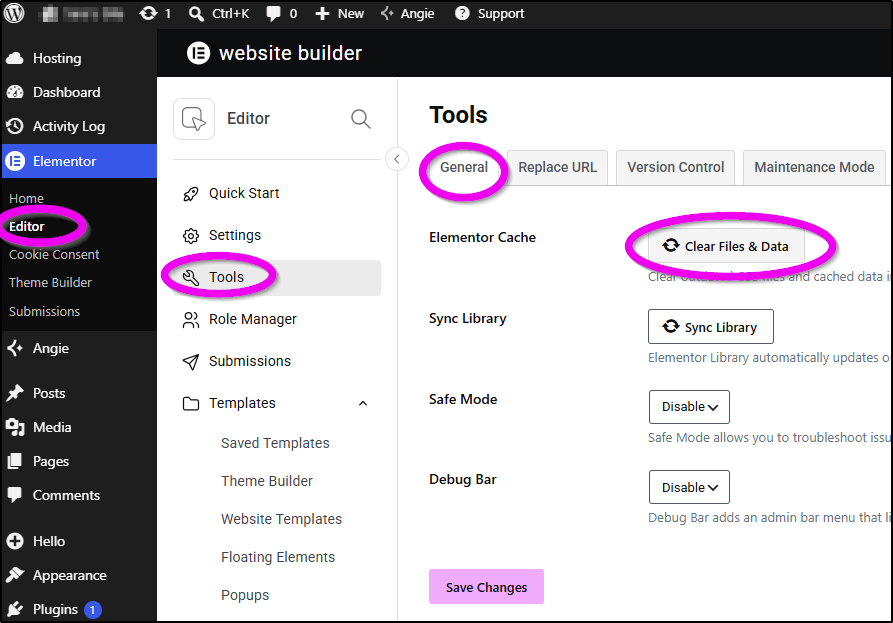
- Save changes and refresh the website.
Check custom code
Mixed content issues can also be caused by hardcoded HTTP image URLs inside custom code.
Check for custom code in:
- Elementor widgets
- WordPress Dashboard > Elementor > Editor > Code
- Site Settings > Custom CSS
- WordPress Theme Customizer
- Third-party plugins
Replace any http:// image URLs with https://.
Check third-party plugins
Third-party plugins or external services may still load insecure image resources.
Temporarily deactivate third-party plugins and test the website again.
Check the browser console
To identify blocked image resources:
- Open the website.
- Right-click and select Inspect.
- Open the Console tab.
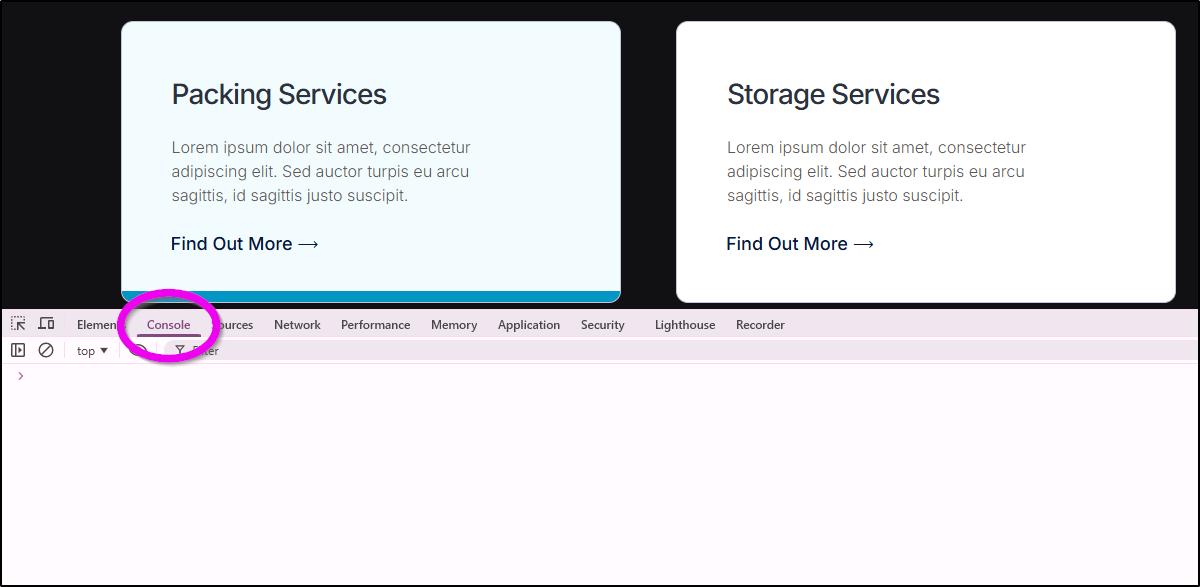
- Look for “Mixed Content” errors.
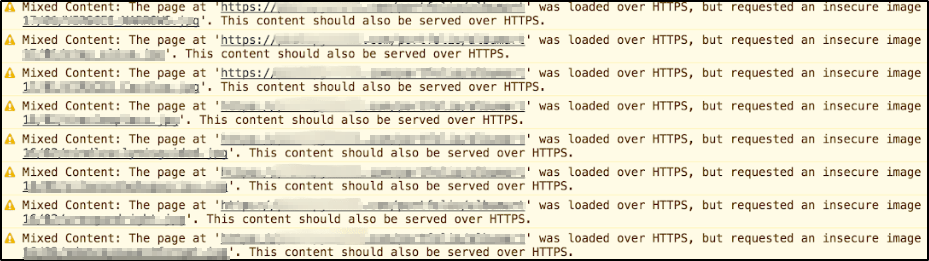
The browser console usually identifies the blocked image URL directly.