What is the Cloud Library?
The Cloud Library is your personal cloud-based storage for all code snippets and widgets created by Angie.
The Cloud Library allows you to:
- Save snippets to the cloud
- Access snippets from any connected website
- Reuse snippets across multiple WordPress websites
- Back up your work securely
- Save credits by reusing existing snippets
Save a snippet to the Cloud Library
You can save snippets to the Cloud Library from either the WordPress Snippet Editor or the Angie chat.
Save a snippet from the WordPress Snippet Editor
- From WP Admin, navigate to Code Snippets.
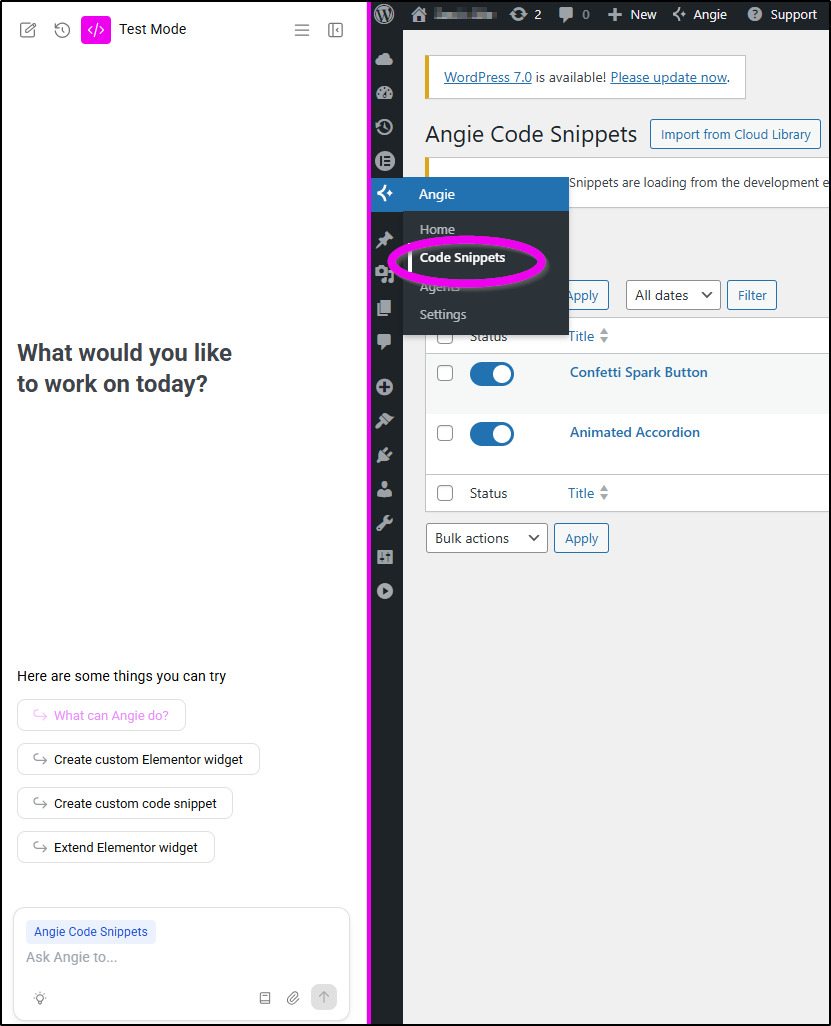
- Open the snippet you want to save.
- Next to the snippet title, click Save to Cloud Library.
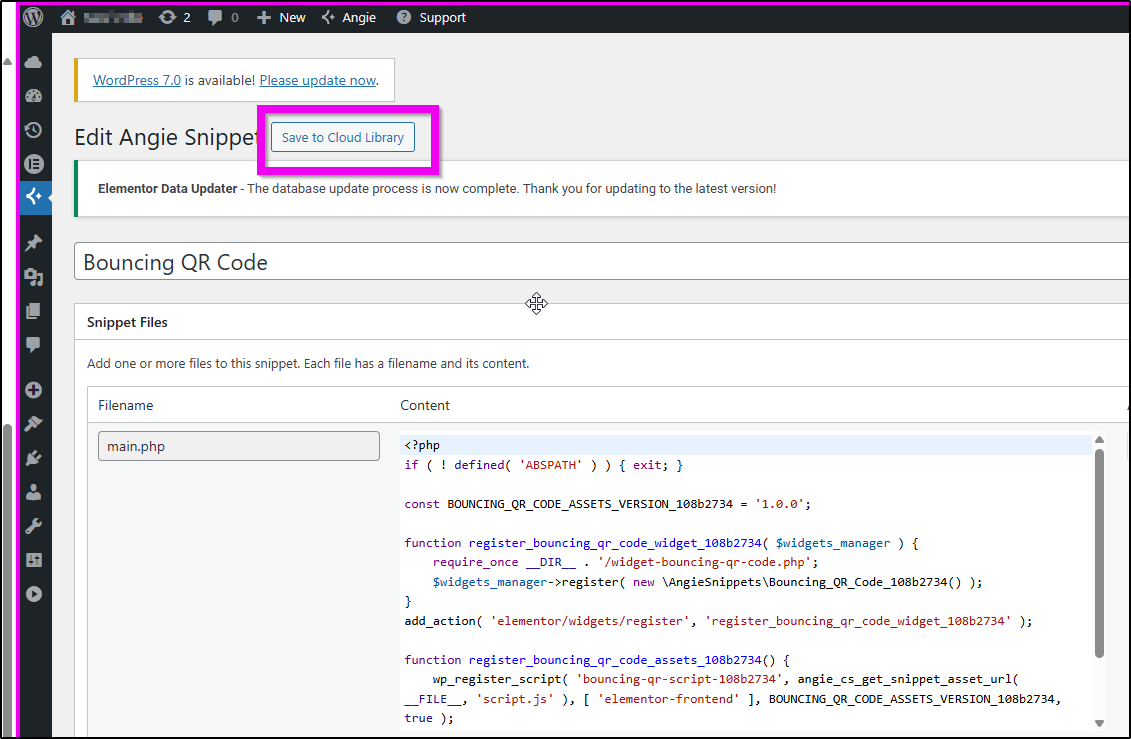
- The snippet is now saved to your Cloud Library.
- After saving the snippet, the Publish meta box displays a Saved to Cloud Library status with a Remove link.
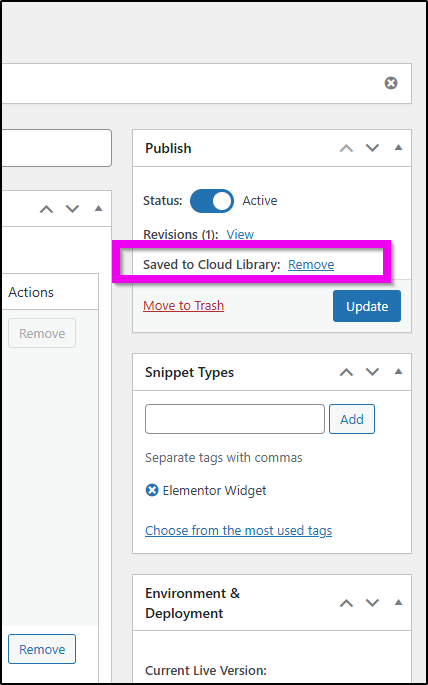
Removing a snippet from the Cloud Library does not delete it from your website.
Save a snippet from the Angie chat
When Angie creates a new snippet, a publish box appears in the chat.
To save the snippet to the Cloud Library:
- Turn on Save to Cloud Library.
- Click Publish to live.
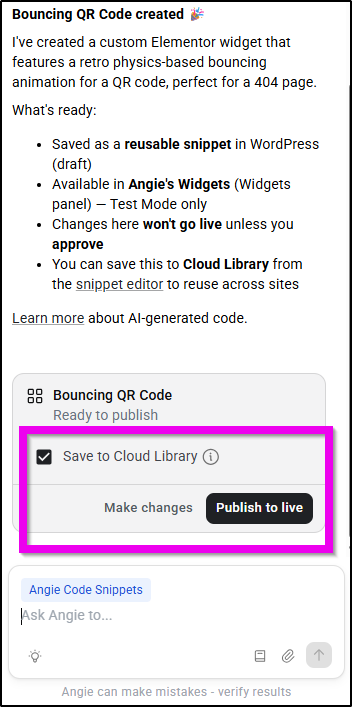
The snippet is published to your website and saved to the Cloud Library.
Open the Cloud Library
You can open the Cloud Library in two ways.
Open the Cloud Library from the Angie chat
- Open the Angie chat panel.
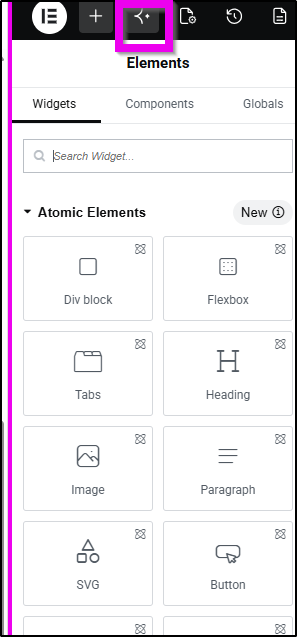
- Click your profile icon in the top navigation.
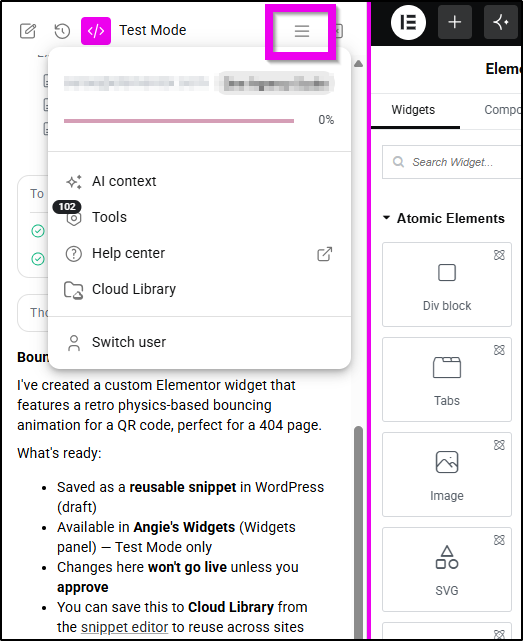
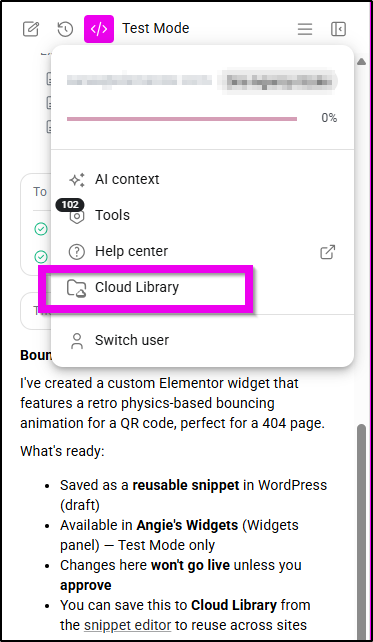
- Select Cloud Library
Open the Cloud Library from the Snippets page
- From WP Admin, navigate to Code Snippets.
- At the top of the page, click Import from Cloud Library.
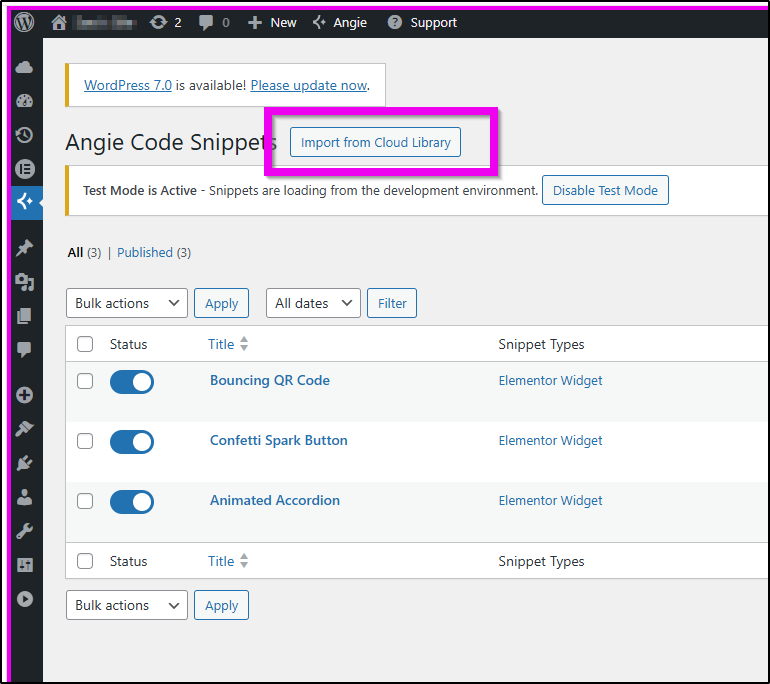
- The Cloud Library opens and displays all saved snippets.
Browse the Cloud Library
The Cloud Library displays all saved snippets and widgets in a table.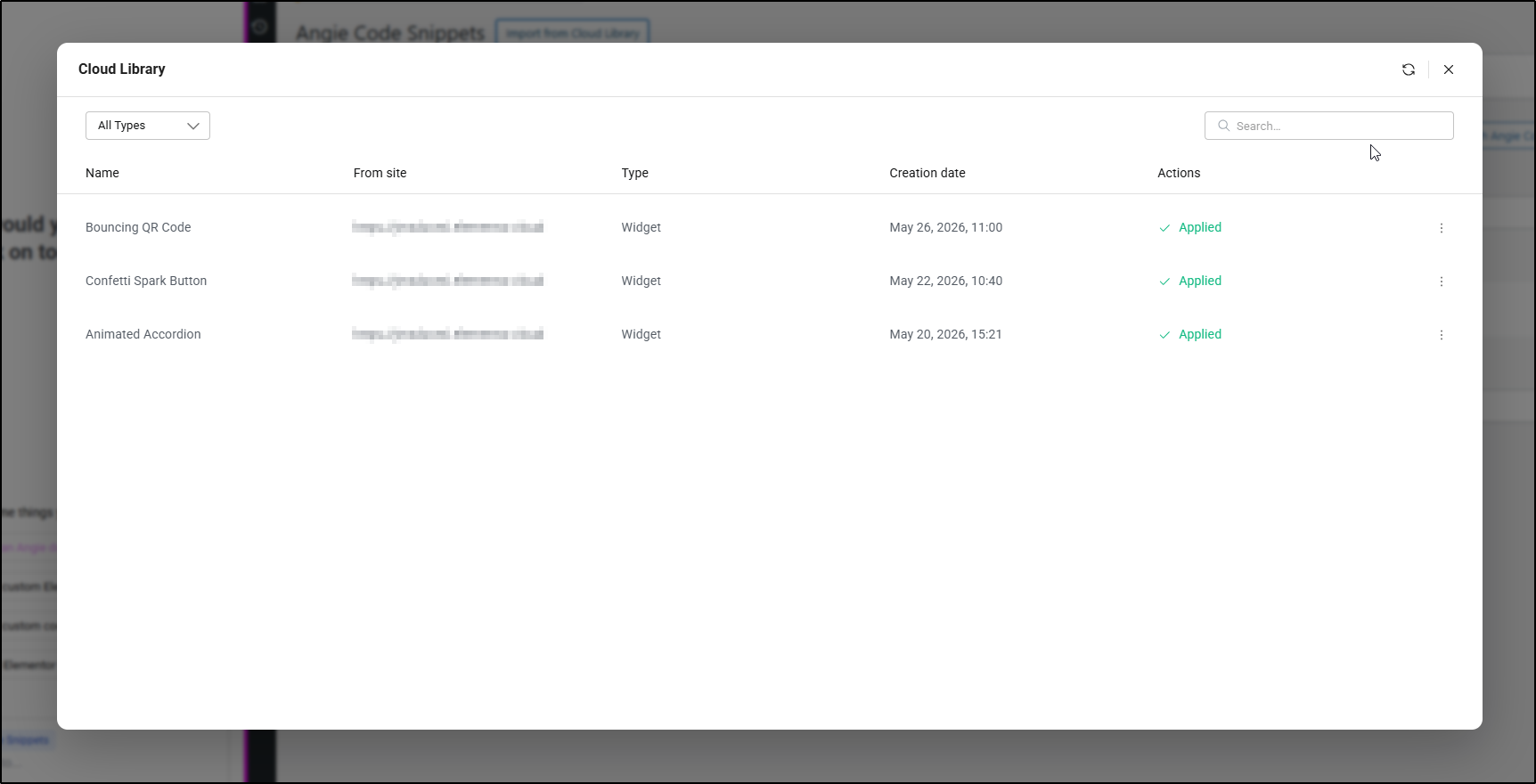
The table includes:
- Name – The snippet title
- From site – The website where the snippet was created
- Type – The artifact type
- Creation date – When the snippet was created
- Apply to site – Deploy the snippet to the current website
- Actions – Additional options such as Rename or Delete
Search and filter snippets
Use the toolbar at the top of the Cloud Library to search and filter snippets.
Filter by type
Use the Type dropdown to display only specific artifact types such as:
- Code Snippets
- Widgets
- Blocks
Select All Types to display all artifacts.
Search by keyword
Use the search bar to search snippets by name.
Results update automatically while typing.
Apply a snippet to another website
You can deploy any cloud snippet to another connected website.
To apply a snippet:
- Open the Cloud Library (from the Angie profile menu or the Snippets list page).
- Locate the snippet you want to deploy.
- Click the “Apply to site” button in the Actions column for that snippet.
- Wait for the process to complete – you’ll see a brief “Applying…” indicator.
After deployment:
- A confirmation message appears
- A link to the Snippet page becomes available
- The snippet is added to the current website
Refresh the page to see the snippet marked as applied.
Already applied snippets
If a snippet was already deployed to the current website, the Cloud Library displays an Applied checkmark instead of the Apply to site button.
This prevents duplicate deployments.
Manage snippets in the Cloud Library
Rename a snippet
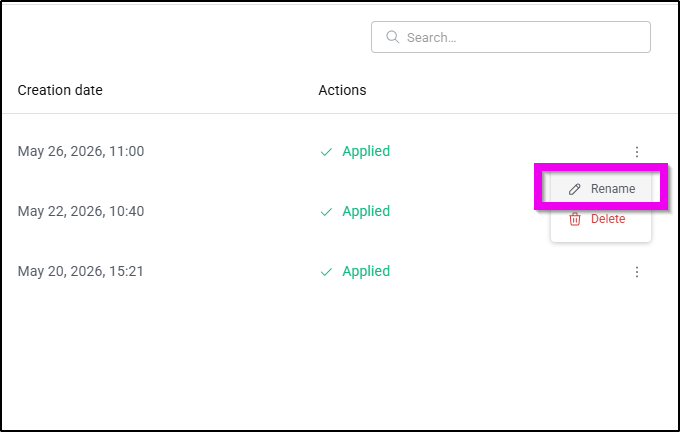
To rename a snippet:
- Click the three-dot menu next to the snippet.
- Select Rename.
- Enter the new name.
- Click Save.
Renaming a snippet only updates the cloud version. It does not rename snippets already deployed on websites.
Delete a snippet from the Cloud Library
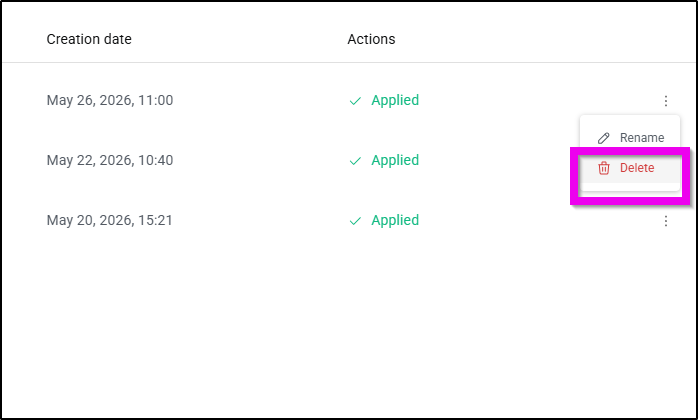
To permanently delete a snippet:
- Click the three-dot menu next to the snippet.
- Select Delete.
- Confirm the deletion.
Deleting a snippet removes it permanently from the Cloud Library.
Any versions already deployed on websites continue working normally.
Remove a snippet from the cloud (Without Deleting)
If you saved a snippet from the WordPress Snippet Editor, you can remove it from the Cloud Library without deleting it from your website.
To remove a snippet from the cloud:
- Open the snippet in the WordPress Snippet Editor.
- Locate the Saved to Cloud Library section in the Publish box.
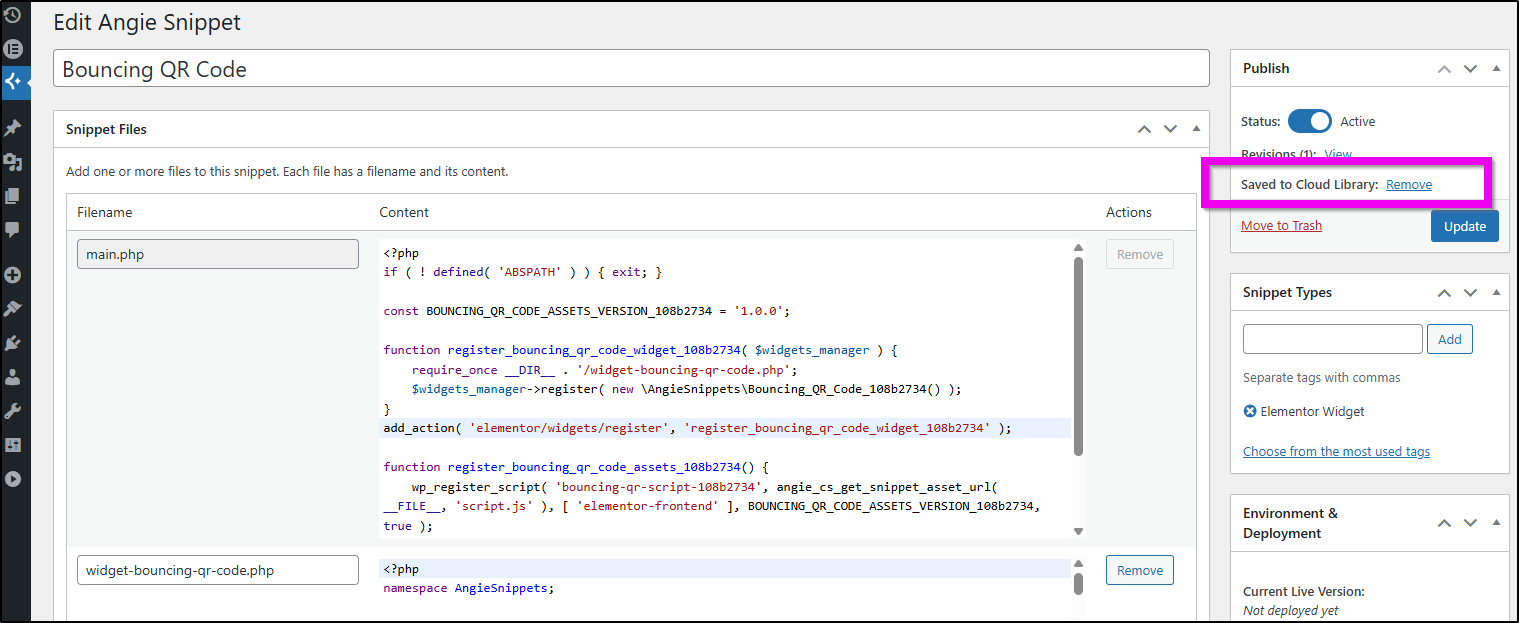
- Click Remove.
The snippet is removed from the Cloud Library but remains active on your website.
FAQ
Can I use the same snippet on multiple websites?
Yes. Save the snippet once to the Cloud Library and apply it to any connected WordPress website.
Does editing a snippet on one website affect other websites?
No. Once a snippet is applied to a website, it becomes an independent copy. Changes made on one website do not affect the cloud version or other websites.
What happens if I apply a snippet that already exists on my website?
The Cloud Library detects previously applied snippets and displays an Applied indicator instead of allowing a duplicate deployment.
Is the Cloud Library connected to my Elementor account?
Yes. Your Cloud Library is linked to your Elementor account and is available on any website where you are logged into Angie using the same account.