What is Elementor Cookie Consent?
Elementor Cookie Consent is a comprehensive solution designed for WordPress and Elementor websites to manage cookie consent and comply with privacy regulations such as GDPR and CCPA. It provides tools for scanning cookies and scripts, logging user consent, and controlling the execution of third-party scripts.
This plugin offers an all-in-one solution that includes a banner, consent management, scanning capabilities, and logs. It features a design-first approach with full customization options, including integration with Elementor. The banner loads locally from your site, and the system tracks consent interactions rather than page views.
To comply with privacy regulations and manage user consent for cookies on your Elementor website, install and activate the Elementor Cookie Consent plugin.
This guide provides an overview and quick start instructions for setting up basic cookie consent functionality.
Elementor Cookie Consent is a dedicated plugin designed to help website owners manage user consent for cookies directly within the Elementor ecosystem. It provides tools to display a cookie consent banner, allowing visitors to accept or decline different categories of cookies, ensuring compliance with various data privacy regulations.
To learn more, check out the Elementor Cookie Consent product page.
How to install and activate Cookie Consent?
To begin using Elementor Cookie Consent, you must first install and activate the plugin on your WordPress website. The process differs depending on whether or not you have an Elementor One subscription.
- Installation for Elementor One users
- Installation for others
Install Cookie Consent and create a basic consent popup for Elementor One subscribers
- When installing Elementor One, use the checkmark to install Cookie Consent as part of the setup.
If you chose not to install Cookie consent when setting up Elementor One you can install it afterward. - From WP Admin, navigate to Elementor>Home.
- Locate the Cookie Consent card and click Add for free.
If the Cookie Consent card does not appear, you’ll need to add it from the WordPress repository. - From WP Admin, navigate to Plugins>Add New.
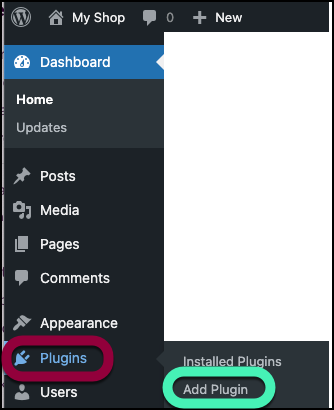
- In the search bar, type Cookie Consent and press Enter.
- Click Install Now.
- Once installed, click Activate.
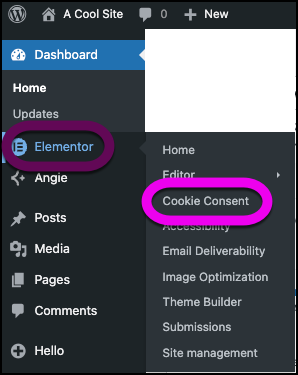
- Navigate to Elementor>Cookie Consent.
You can configure the initial settings for your cookie consent banner. This will display a simple banner at the bottom of your site with options to accept or decline cookies. - Choose a template for your cookie consent banner:
- Opt-in: Visitors must agree to accept cookies. This is the strict standard found mostly in European countries.
- Opt-out: Cookies can be used unless visitors actively decide otherwise. This is the standard in the US and many APAC countries.
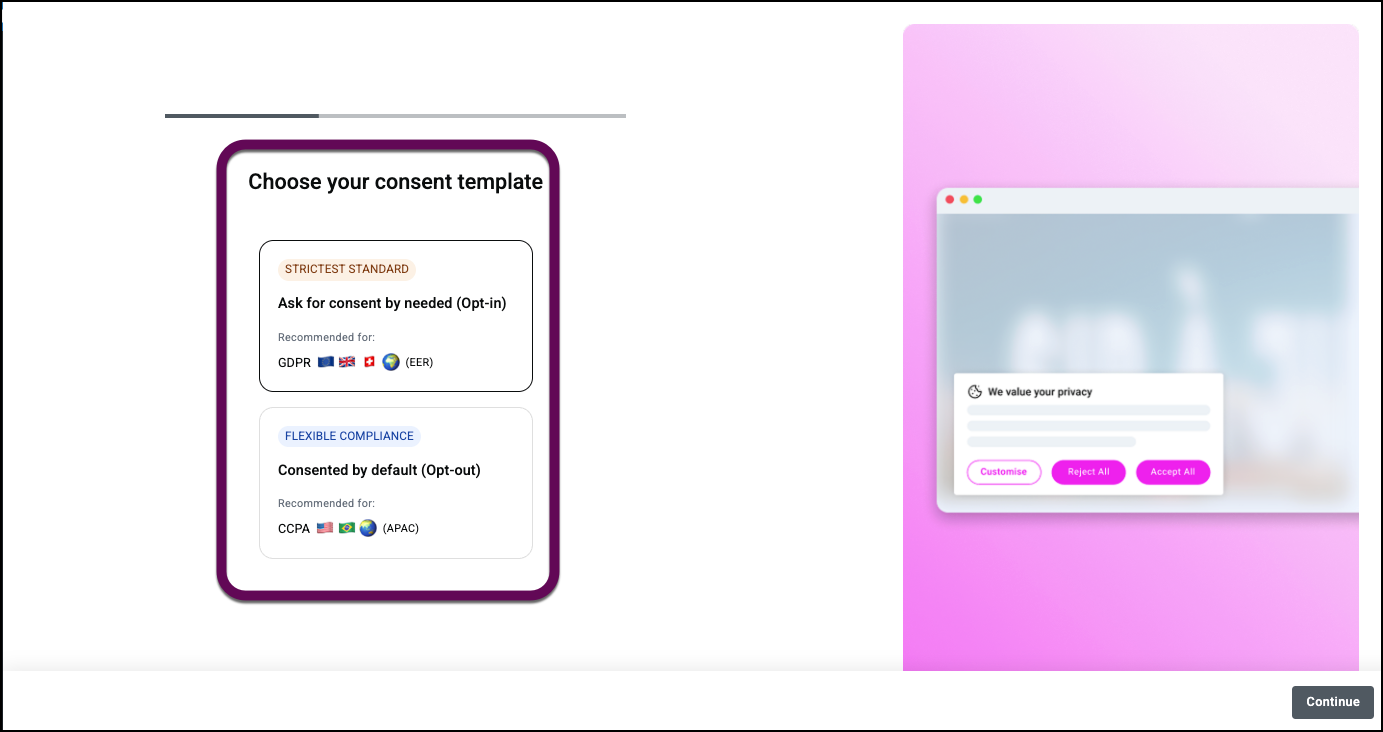
- Click Continue.
- Choose a layout for your cookie consent. You can choose:
- Banner: Runs along the bottom of the screen.
- Box: placed at the lower left of your screen.
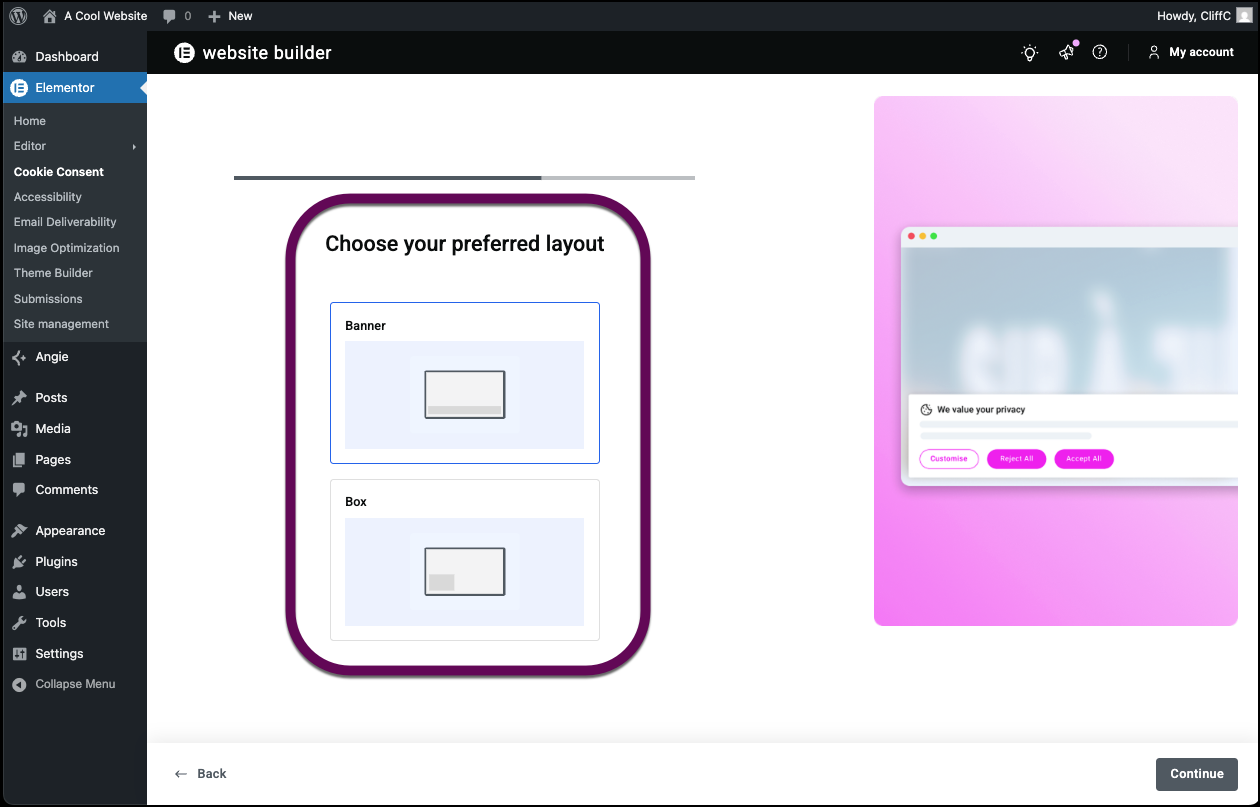 NoteYou can customize the positioning in the Design section of your dashboard.
- Click Continue.
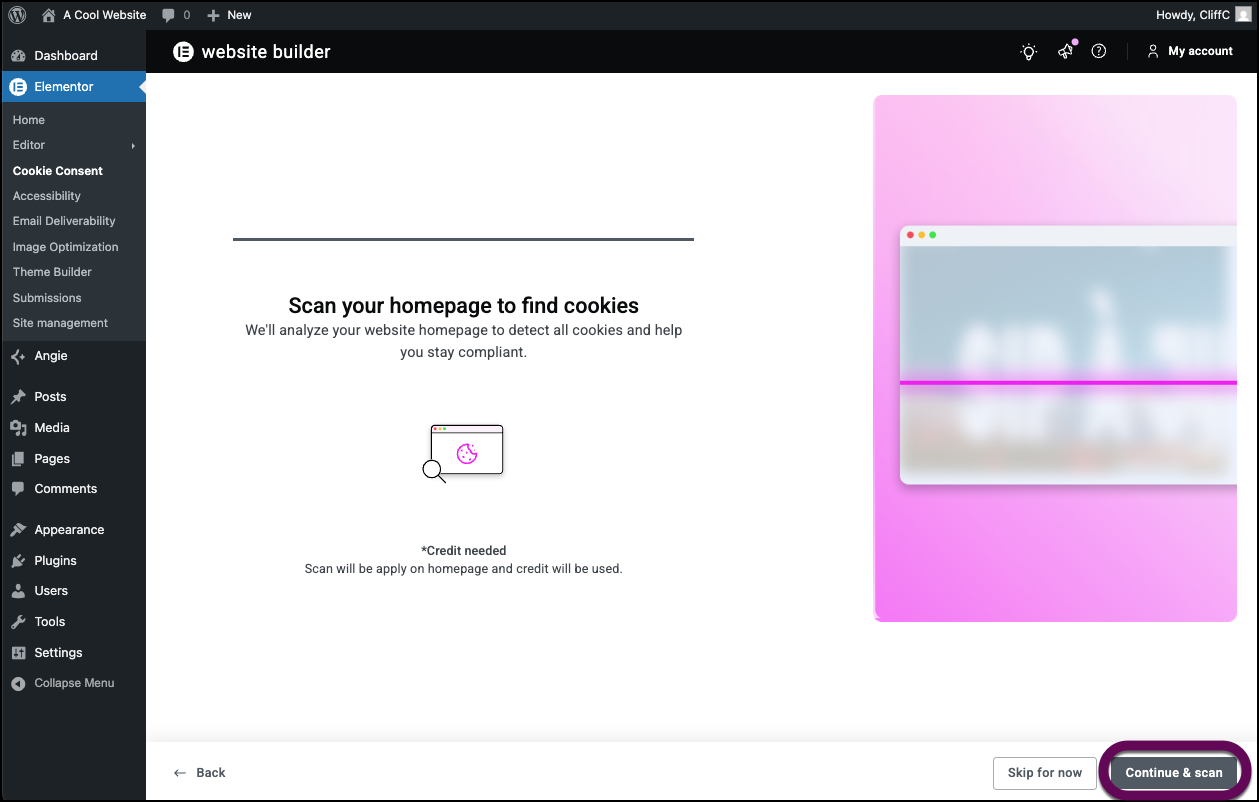
- Cookie Consent asks to scan your homepage in order to prepare an appropriate Cookie consent. Click Continue & scan.
Install Cookie Consent and create a basic consent popup
How to add a basic cookie consent banner to your website to inform visitors about cookie usage and collect their consent.
- From WP Admin, navigate to Plugins>Add New.
- In the search bar, type Cookie Consent and press Enter.
- Click Install Now.
- Once installed, click Activate.
- From WP Admin, navigate to plugins.
After activation, the Elementor Cookie Consent plugin will be ready for configuration, and a new menu item for its settings will appear in your WordPress dashboard.
You can now set up a simple banner at the bottom of your site with options to accept or decline cookies. - Navigate to Elementor>Cookie Consent.
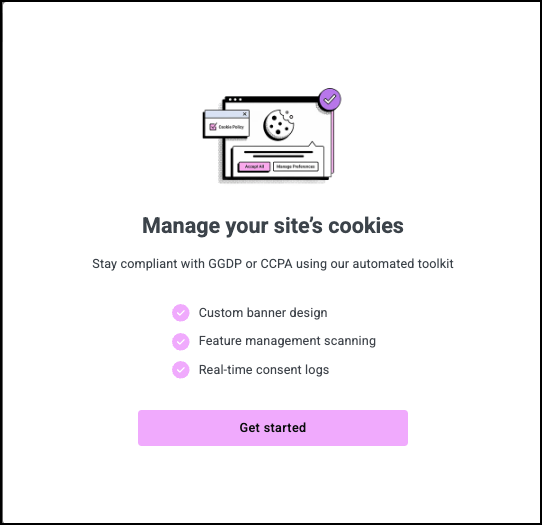
- Click Get started.
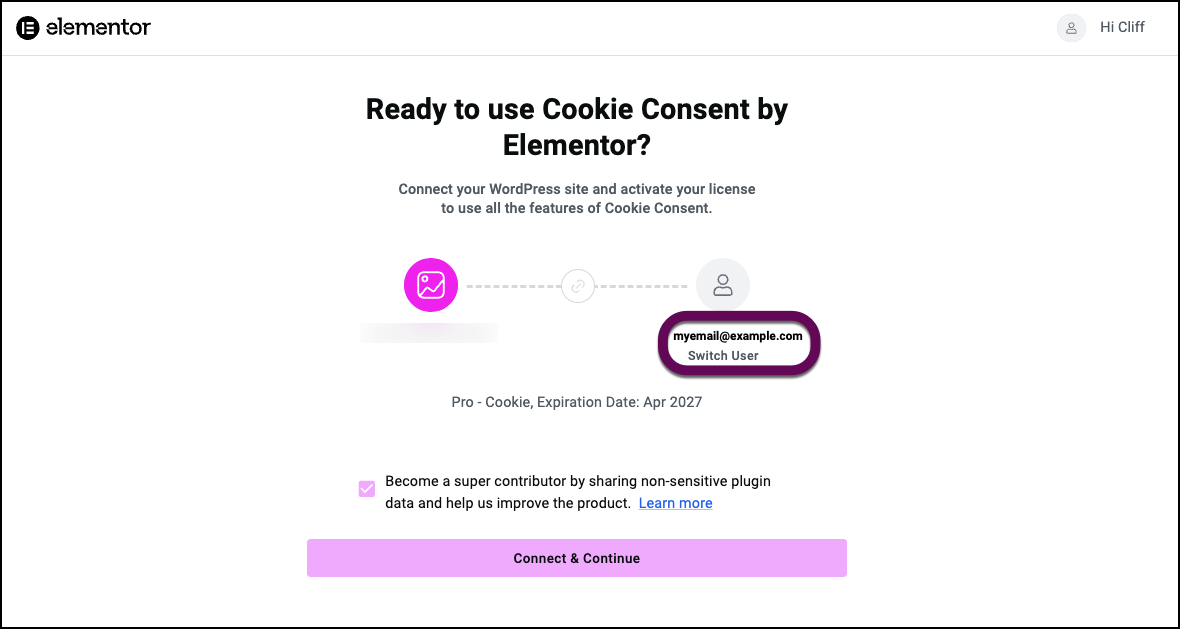
- In the window, make sure you’re connecting Cookie Consent to your Elementor user. If you’re not connecting to your user account, click Switch User and log into your account.
Click Connect & Continue.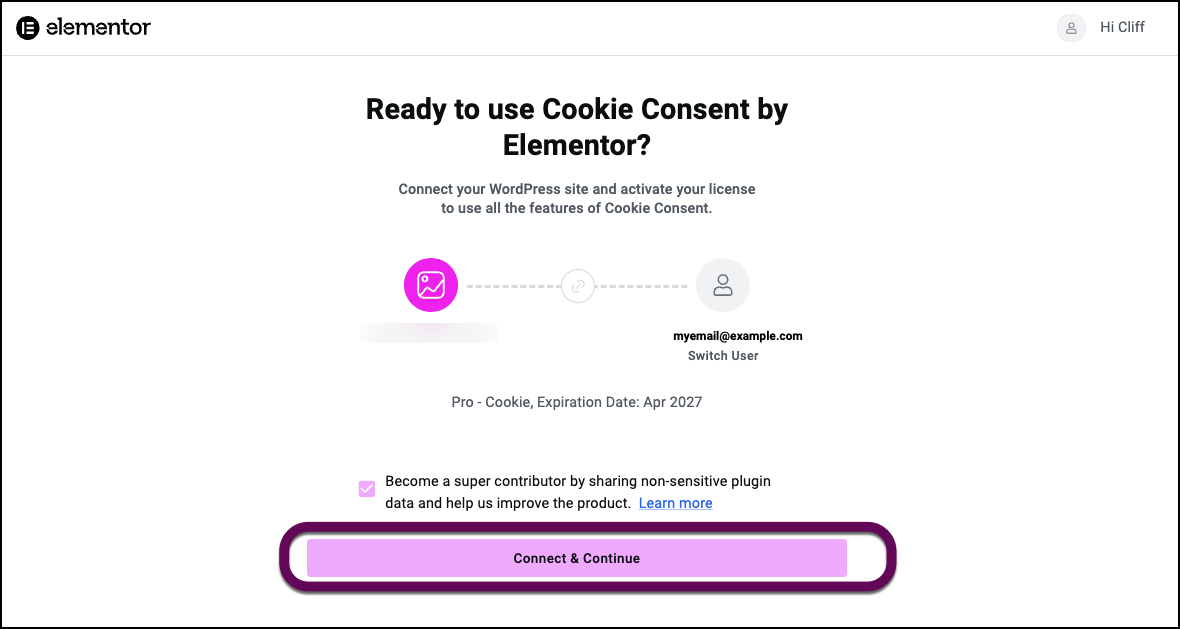
After activating the plugin and connecting to your Elementor account, you can configure the initial settings for your cookie consent banner. This will display a simple banner at the bottom of your site with options to accept or decline cookies. - Choose a template for your cookie consent banner:
- Opt-in: Visitors must agree to accept cookies. This is the strict standard found mostly in European countries.
- Opt-out: Cookies can be used unless visitors actively decide otherwise. This is the standard in the US and many APAC countries.
- Click Continue.
- Choose a layout for your cookie consent. You can choose:
- Banner: Runs along the bottom of the screen.
- Box: placed at the lower left of your screen.NoteYou can customize the positioning in the Design section of your dashboard.
- Click Continue.
- Cookie Consent asks to scan your homepage in order to prepare an appropriate Cookie consent. Click Continue & scan.
Install Cookie Consent and create a basic consent popup for Elementor One subscribers
- When installing Elementor One, use the checkmark to install Cookie Consent as part of the setup.
If you chose not to install Cookie consent when setting up Elementor One you can install it afterward. - From WP Admin, navigate to Elementor>Home.
- Locate the Cookie consent card and click Add for free.
Elementor Cookie Consent FAQ
Does Elementor Cookie Consent require Elementor Pro?
No, the Elementor Cookie Consent plugin is a standalone solution and does not require Elementor Pro to function. It is available for all Elementor users.
Can I customize the appearance of the cookie consent banner?
Yes, Elementor Cookie Consent offers various styling options to match your website’s design.
Does Elementor Cookie Consent support multiple languages?
Yes, the plugin is designed to be translatable, allowing you to provide consent messages in different languages.
Is Elementor Cookie Consent compliant with GDPR and CCPA?
Yes, Elementor Cookie Consent is built to help you achieve compliance with major privacy regulations like GDPR and CCPA by managing user consent.
Can I categorize different types of cookies?
Yes, Elementor Cookie Consent allows you to define and categorize different types of cookies (e.g., essential, analytics, marketing) for granular user control.
What happens if a user declines cookies?
If a user declines cookies, the plugin will prevent non-essential cookies from being set on their browser, respecting their privacy choice.