On rare occasions, you may run into an issue of your sites not syncing properly with Manage. When this occurs, you’ll be notified by a failure icon.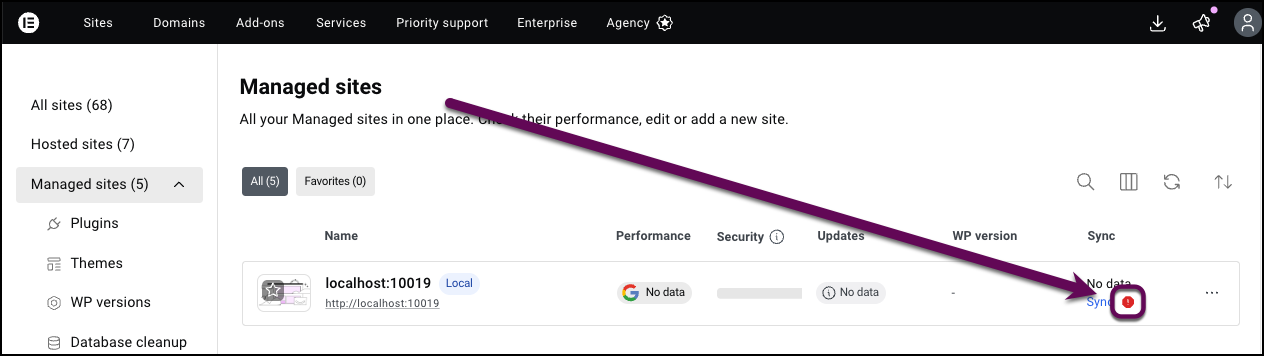
If your Manage plugin is not syncing properly to all your sites, you are probably running into one of the following issues:
- Outdated plugin
- Firewall or security plugin issues
- Permalink issues
- License issues
To fix these sync issues, take the steps outlined below.
Prerequisites:
- Your site must be running the latest version of the Manage plugin
How to solve firewall and security issues
Firewall and security issues are the most common cause of Manage syncing issues.
- Deactivate security plugins such as:
- Wordfence
- Sucuri
- iThemes Security
- All In One WP Security
For details, see Activate and deactivate plugins.
- Manually sync your Manage plugin with these plugins deactivated.
- Reactivate the security plugins.
If this doesn’t solve the problem, there may be a firewall issue. This can happen when services like Cloudflare or Sucuri Firewall may strip authorization headers from incoming REST API requests. - Check firewall logs for blocked requests originating from Elementor’s servers and ensure the REST API is not being throttled or blocked. In order to check your firewall logs, consult your hosting provider’s documentation.
- If you do find blocked requests, contact your hosting provider to remove these blocks or whitelist Elementor servers.
If this doesn’t resolve the issue, proceed to the next troubleshooting step.
How to solve URL and Server configuration issues
Manage needs to use the WordPress REST API to properly sync with your sites. WordPress REST API depends on a proper URL structure. First, you’ll need to correct the permalink structure, and then apply a fix to make sure you’re not missing an authorization header.
- From WP Admin, navigate to Settings>Permalinks.
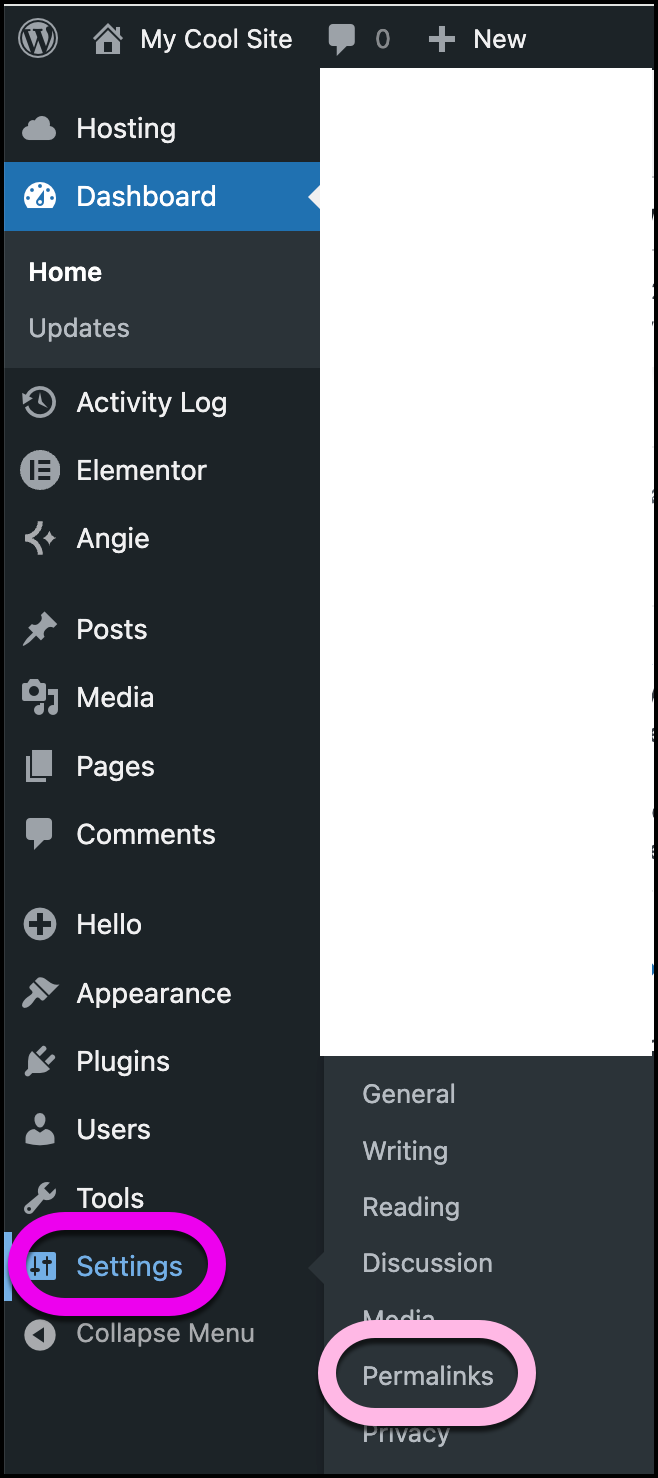
This displays the permalinks settings. - To change the permalinks settings:
- If the site uses Custom Structure, switch to Post Name.
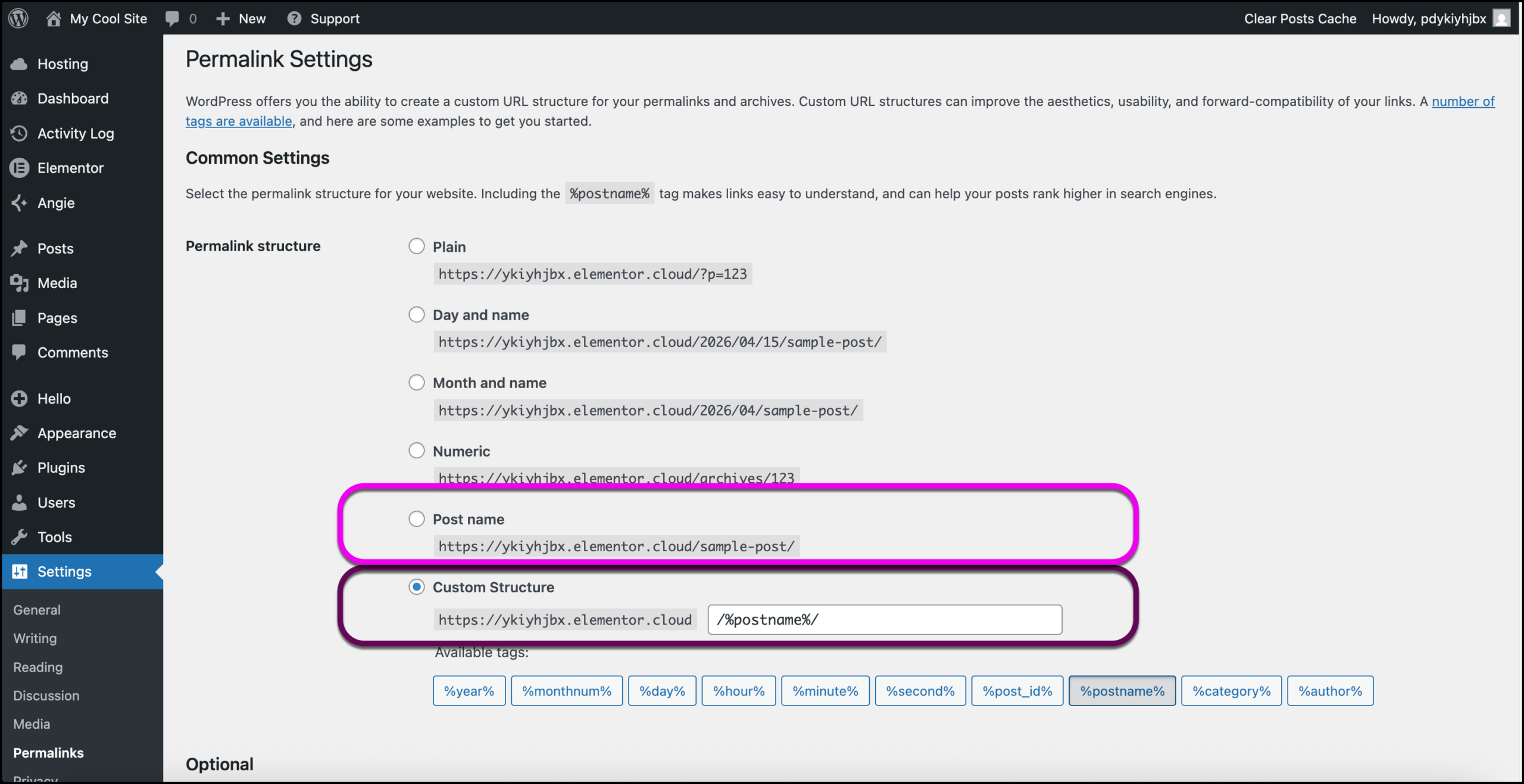
- If the site uses Post Name, change the setting to Plain, and then back to Post Name. This flushes the rewrite rules.
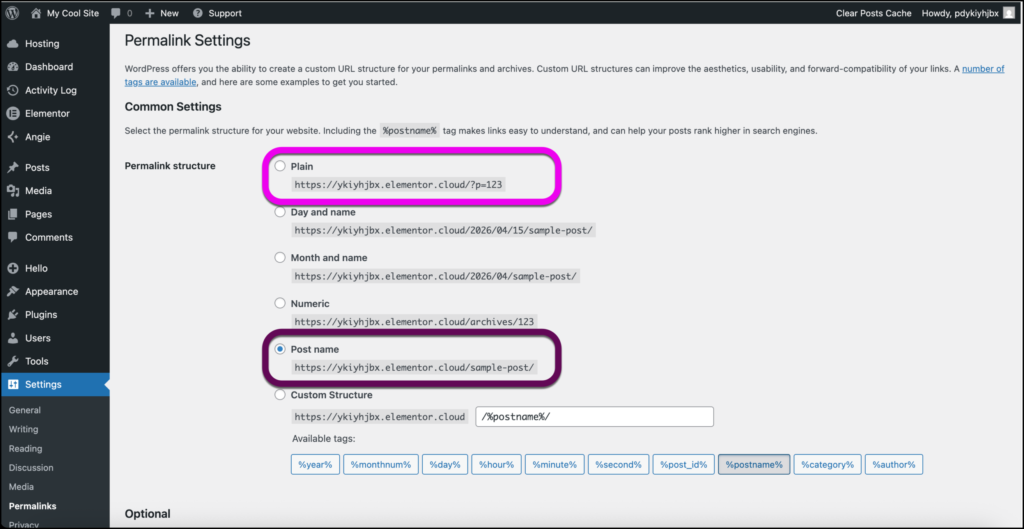
If you’re still experiencing issues, you may need to fix the authorization header if the host is running Apache.
- If the site uses Custom Structure, switch to Post Name.
- Go to your site’s files and open the .htaccess file. You may need to consult your host’s documentation to access the file.
- Enter the following before the # BEGIN WordPress block:
RewriteRule .* – [E=HTTP_AUTHORIZATION:%{HTTP:Authorization}]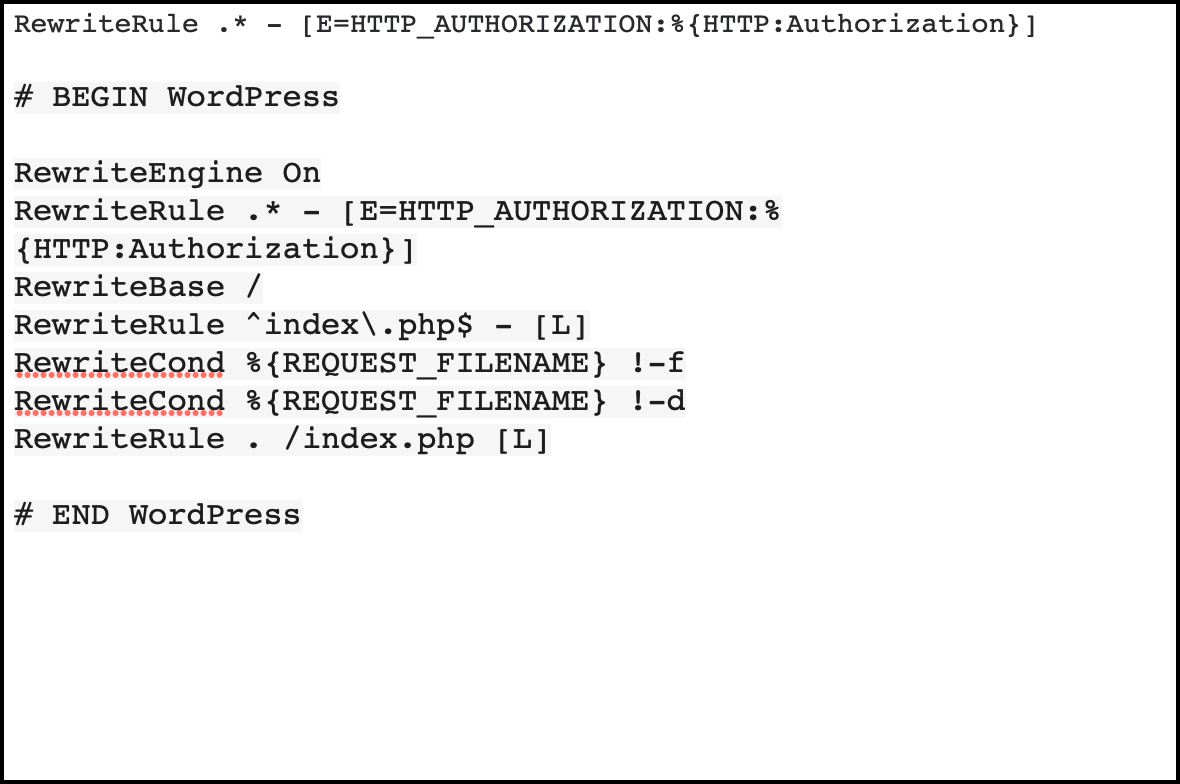
If you’re still having issues, try the steps below.
How to refresh your Elementor Manage license
- Reset your license connection. For details, see Install and connect Elementor One.
- Manually sync the site as shown above.