To sync variables between classic widgets and atomic elements, open the Variables Manager in the Elementor panel. Click the ellipses next to your chosen variable, select Sync to Global Colors or Sync to Global Fonts, and save changes. This makes atomic variables available as selectable global assets in classic widgets.
Classic widgets use global colors and fonts to keep website design consistent. Atomic elements use classes and variables for this purpose. In order for Version 3 and 4 elements to work together, you can sync variables with global fonts and colors.
To sync variables and classes:
In this example, we’ll start with a Heading atomic element.
- Create a variable Green_bk and use it as the background for this element. For details, see Variables and Style tab- Background.
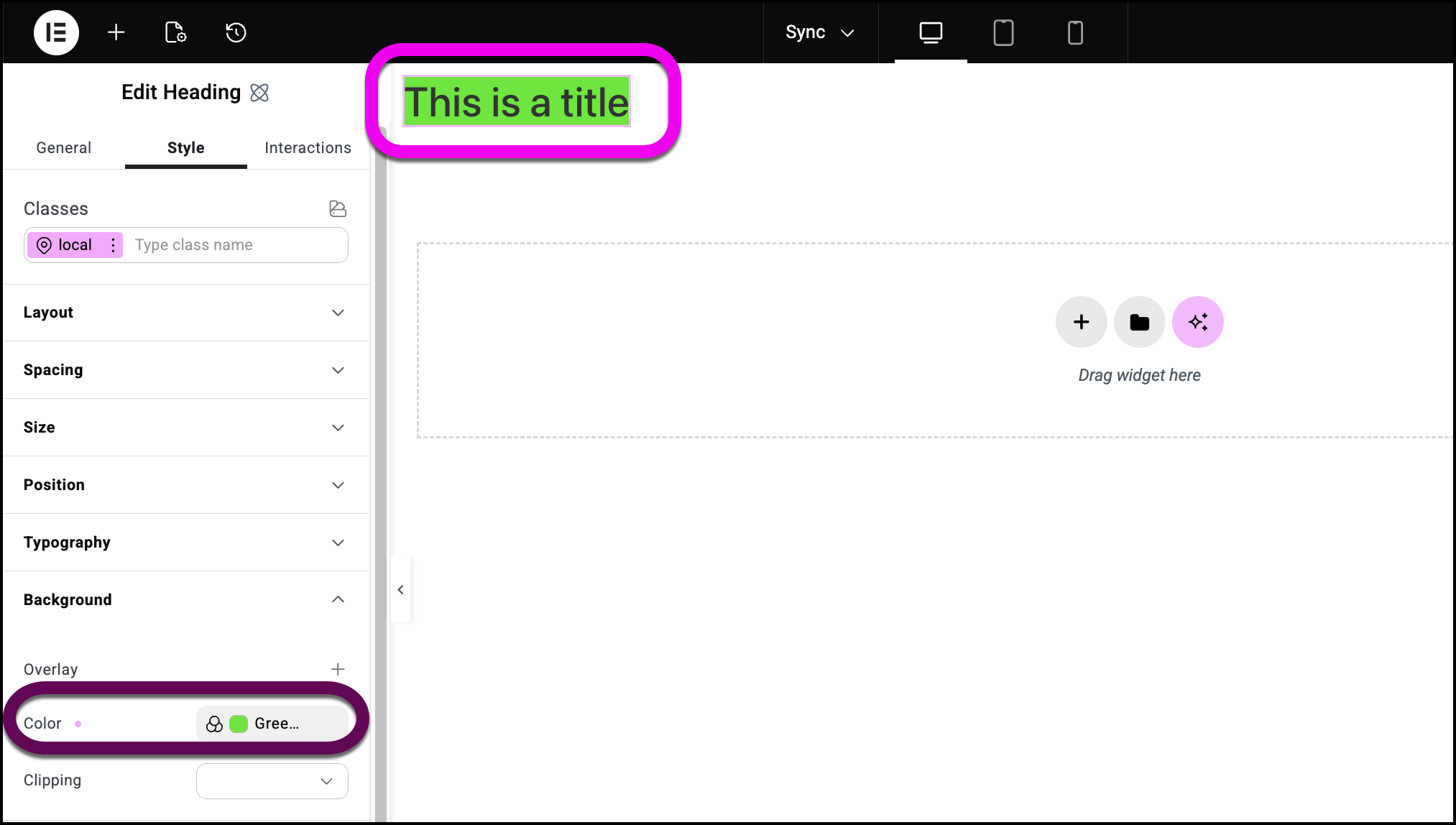
- Open the Variables Manager. For details, see Variables Manager.
- Click the ellipses to the right of the variable.
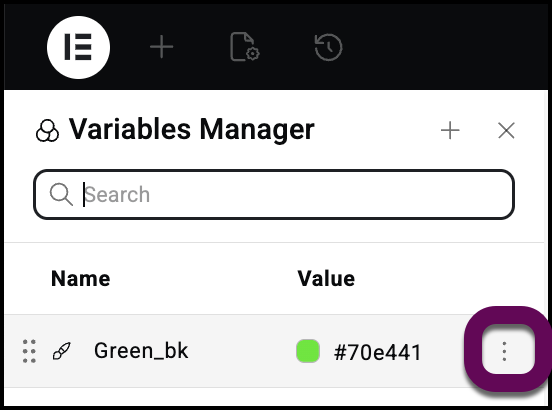
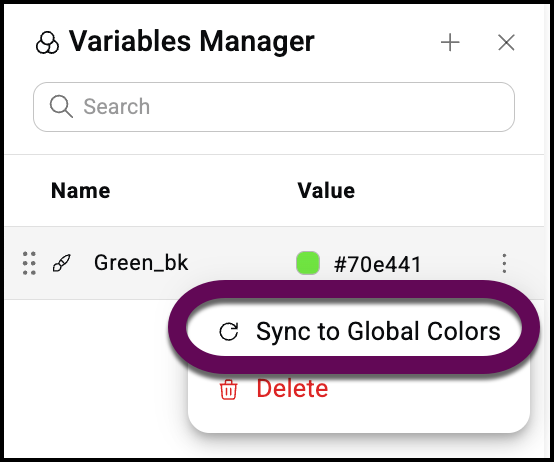
- Select Sync to Global Colors or Sync to Global Fonts from the dropdown menu.
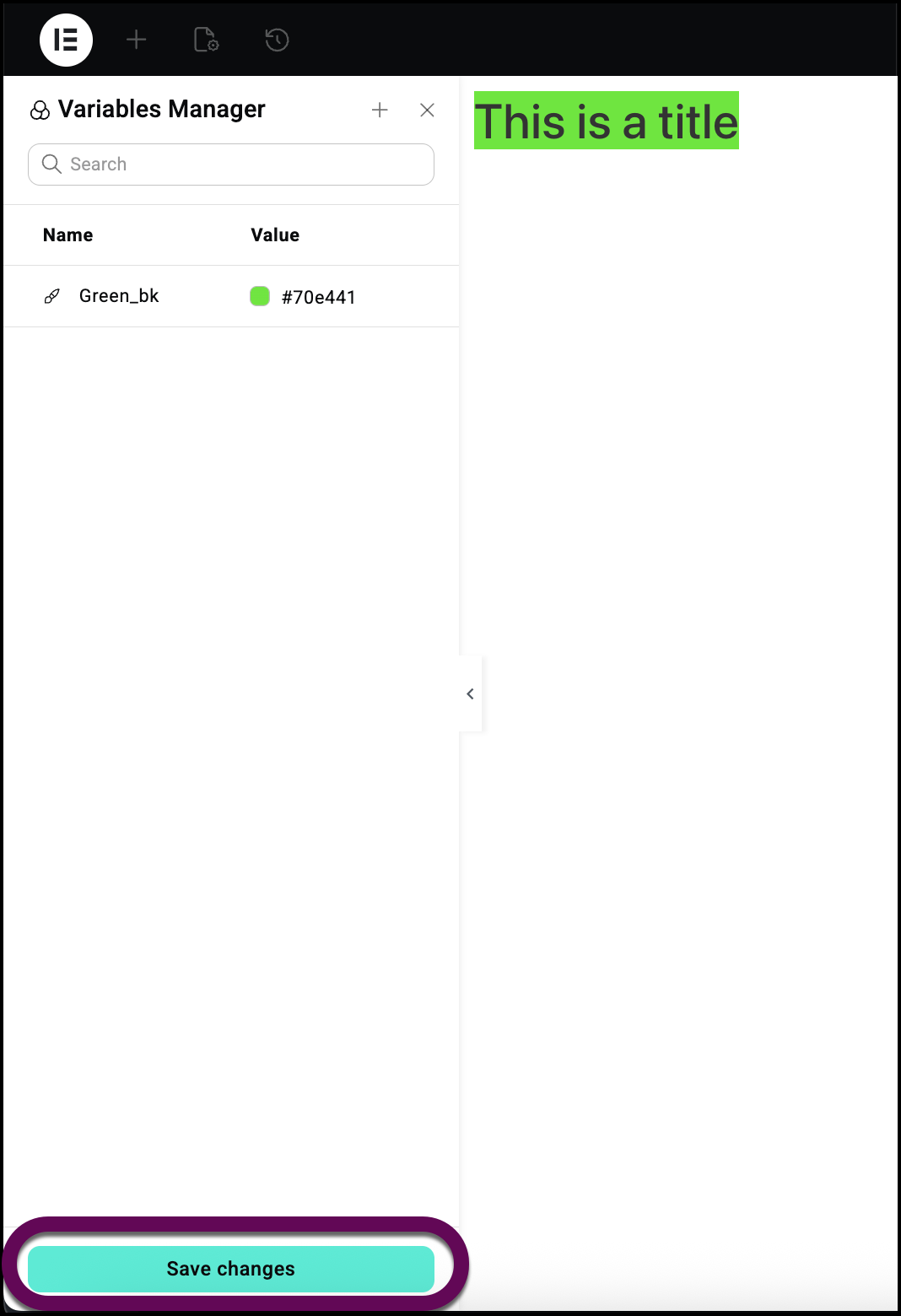
- Click Save Changes.
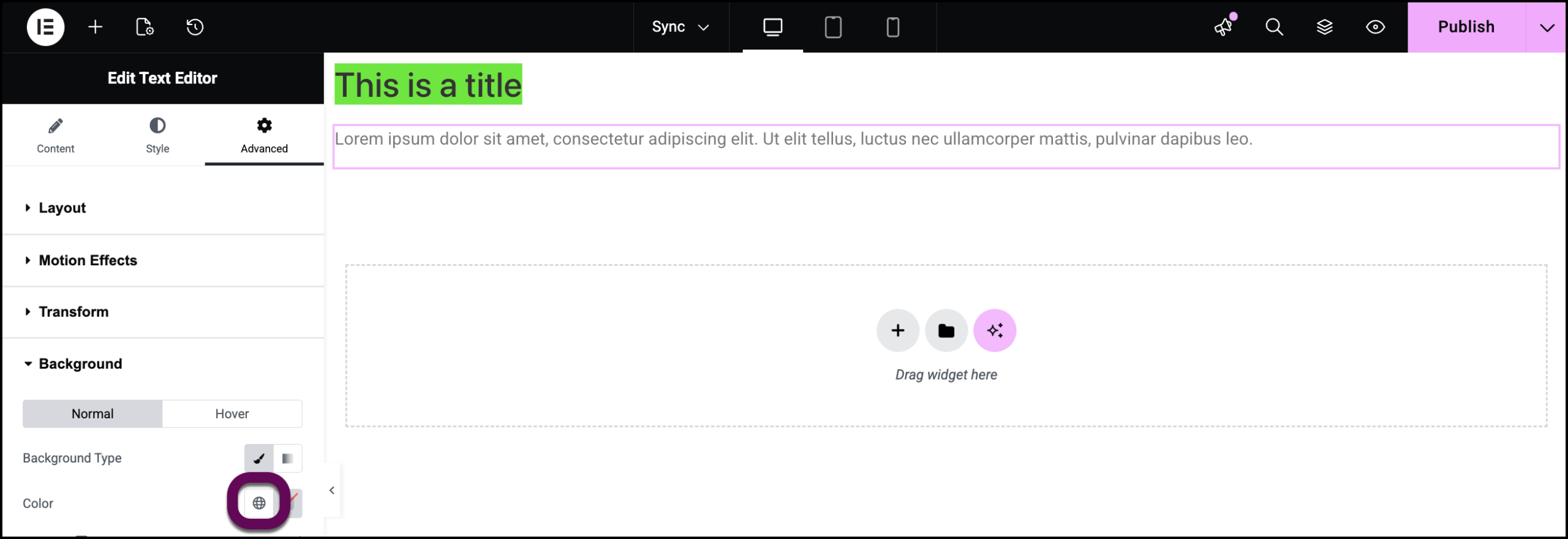
- Select a color setting in a classic Elementor widget and click the global color icon.
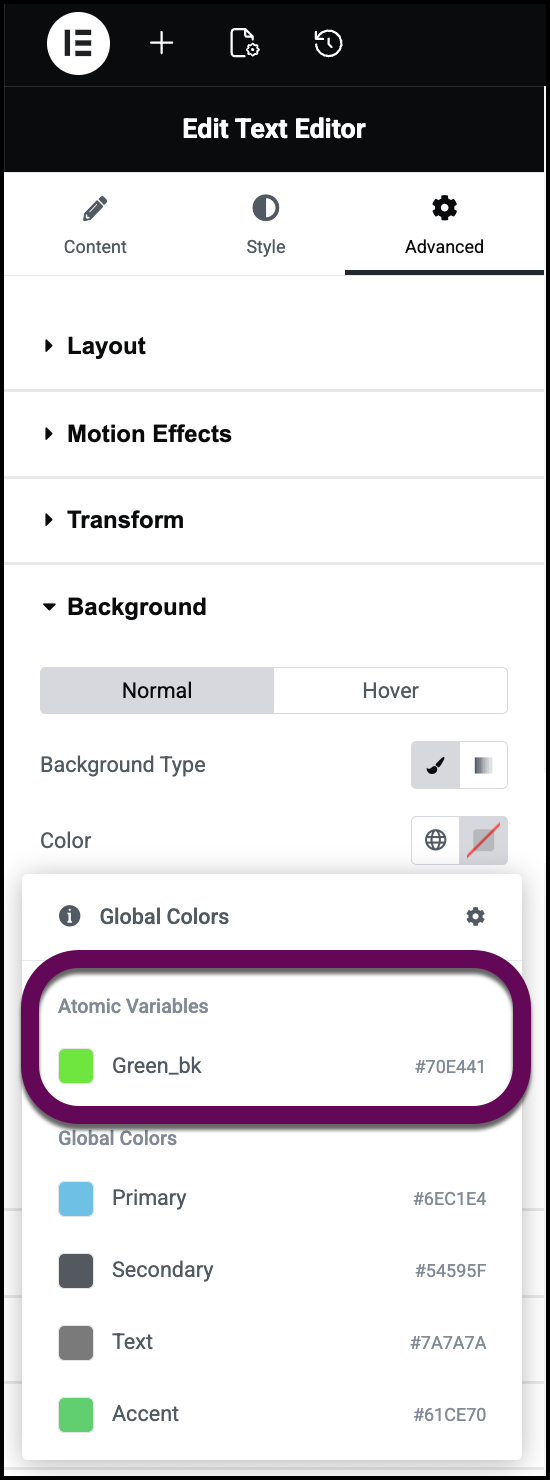
- The variable appears as one of the choices.
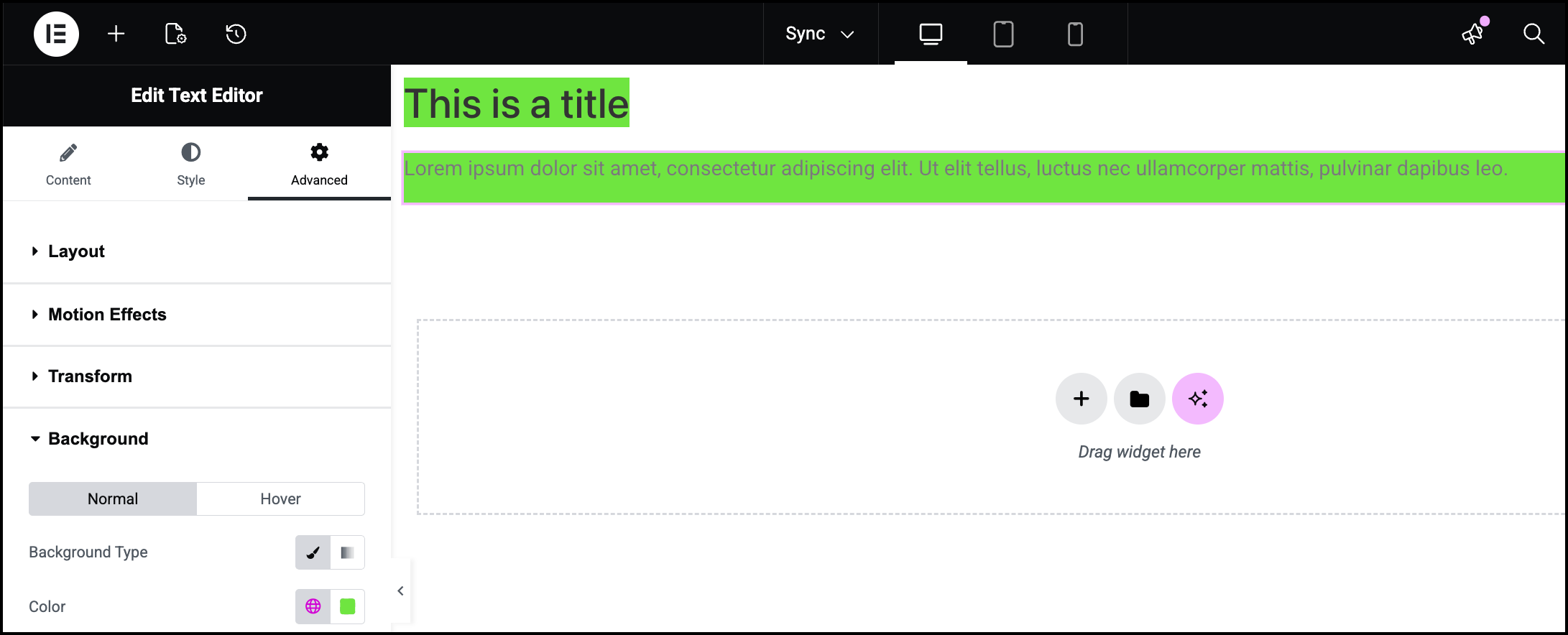
- The background is added to the widget.
Remove syncing
If you decide to separate the variables from global fonts and colors you can unlink them.
To unlink variables:
- Open the Variable Manager. For details, see Variables Manager.
- Click the ellipses and select Stop syncing to global colors or Stop syncing to Global fonts.
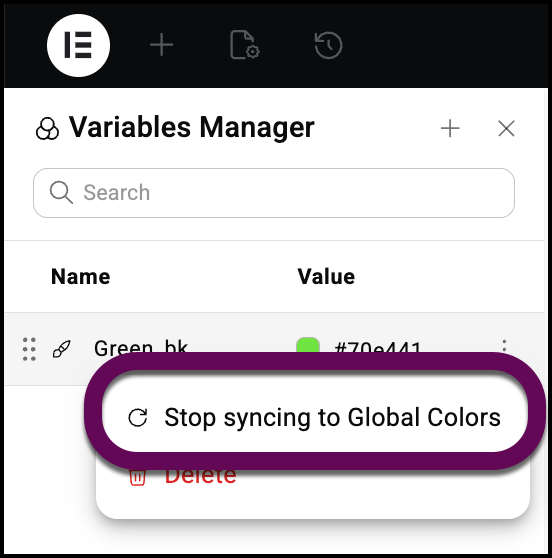
- Any Elementor 3 widgets using this variable may substitute the variable with an appropriate global color or font.