While Elementor Host provides the optimized infrastructure for your website, your Elementor Pro features, such as the Theme Builder, Popup Builder, and Pro widgets, are controlled by a separate plugin license. License resyncing is the process that ensures your hosting environment correctly recognizes your purchased Elementor Pro subscription.
What license resync does
License resyncing refreshes the “digital handshake” between your WordPress website and the Elementor licensing server.
Since Elementor Pro is purchased separately from your hosting plan, this sync confirms that a valid license is active for your domain. It validates your subscription status to unlock Pro features and enables automatic updates for the plugin.
Automatic resync
The system attempts to sync your license automatically during key events:
- Initial Setup: If you assigned a license during the site creation process.
- Domain Changes: When you connect a custom domain (e.g., changing from elementor.cloud to yourdomain.com), the system updates the license to match the new URL.
When do I need to manually resync my license?
Because the hosting and the plugin license are separate entities, you will often need to manually trigger a sync in these situations:
- After Purchasing Pro: If you bought Elementor Pro after creating your hosted site, you must manually connect and sync the license to unlock the features.
- Subscription Renewal: Sometimes after renewing an expired Pro subscription, a manual resync is needed to tell the site the payment was successful.
- Site Migration: If you have migrated a site from another host, the database may still be looking for the old license file.
- “License Invalid” Errors: If you see a notification in your dashboard that your license is missing or mismatched.
How do I manually resync my Elementor Pro license on an Elementor Host site?
To resync your Elementor license, navigate to the License menu within your WordPress dashboard and check your license status. This action refreshes the connection with Elementor servers, instantly validating your Pro subscription status. It ensures that all premium widgets and the full Template Library are accessible for your web design projects.
Refreshing your connection ensures your website communicates correctly with your subscription data. Follow these steps to perform a manual synchronization:
- Log in to your WP Admin dashboard.
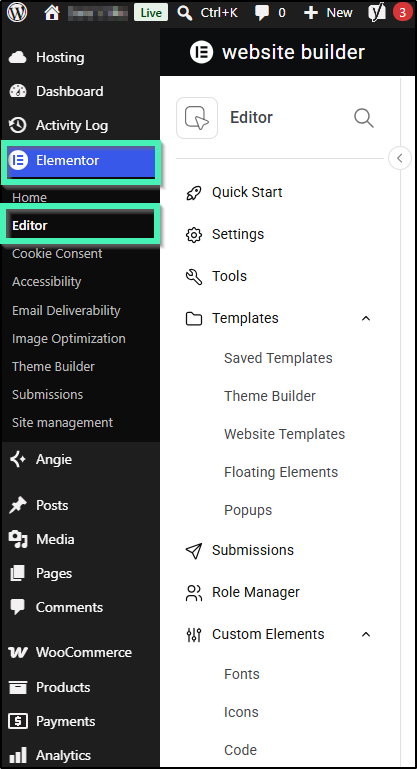
- In the left navigation menu, go to Elementor > Editor.
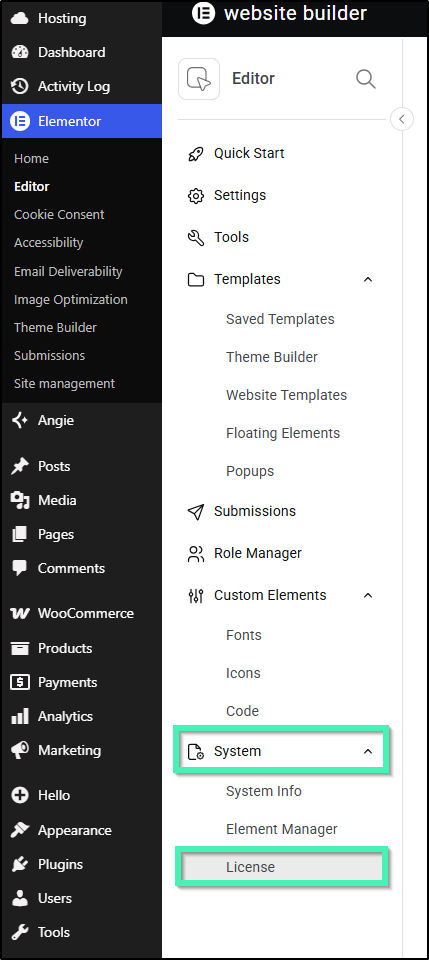
- In the panel menu, expand or scroll down to System and select License.
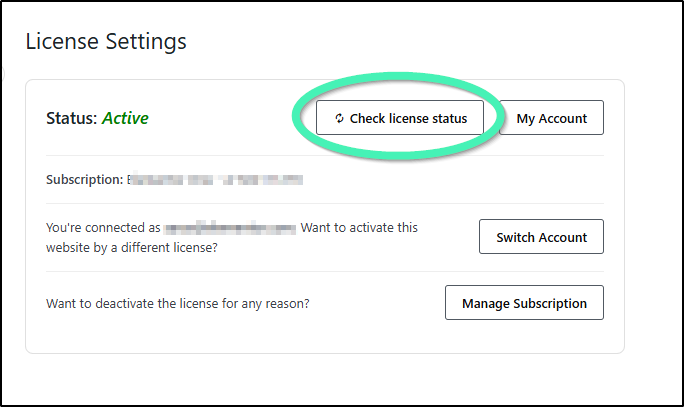
- Click the Check license status button.
What should I expect during the synchronization process?
The resyncing process is designed to be seamless and non-disruptive to your live environment. Here is a breakdown of the technical details:
- Immediate Duration: The synchronization typically completes within 2 to 5 seconds.
- Zero Downtime: Your website remains fully functional and visible to the public throughout the update.
- Instant Access: Successful syncing removes all “Go Pro” notifications from the interface.
- Feature Unlock: You gain immediate access to the Elementor Pro widget panel and the extensive Template Library.