Angie Test Mode is a protective staging environment within the Angie plugin that allows you to preview code snippets and widgets without affecting your live Elementor site. It activates automatically when creating new elements, isolating changes in a “Test Mode” state until you manually select the Publish to Live button within the Snippets menu.
What are the different widget modes?
Widgets can be in one of the three modes:
- Test environment only: – The snippet isn’t live on your site. It’s visible only when entering test mode. This is used to check the quality of the code before going live.
- Test & Live Not Synced: The snippet is live on your site, but there are unsaved changes made in Angie that are only visible in test mode. If you’re happy with the changes, you can publish them to make them live.
- Live & Synced: The snippet is live on your site and visible to all users.
What are the prerequisites for using Test Mode?
- Angie plugin: Must be installed and activated.
How do I enter Test Mode?
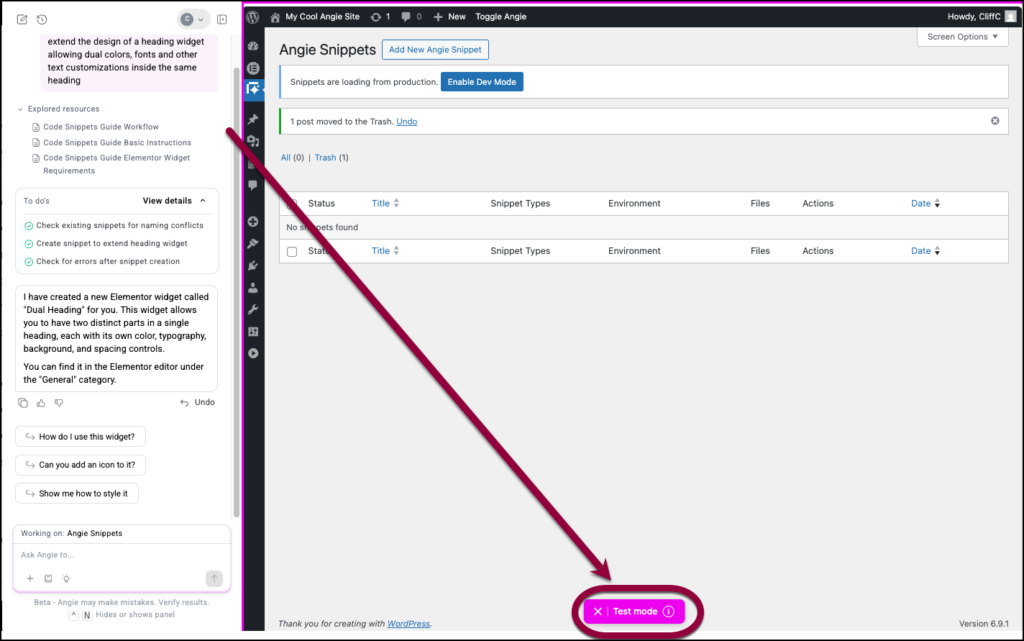
Test Mode triggers automatically during the creation process. You can verify the status using these visual indicators:
- Locate the Test Mode indicator at the bottom of the screen.
- Observe the Pink Frame surrounding the right pane of the editor.
How can I exit Test Mode and save my changes?
If you’re satisfied with the changes Angie made, you can save them and exit test mode.
To save and exit test mode:
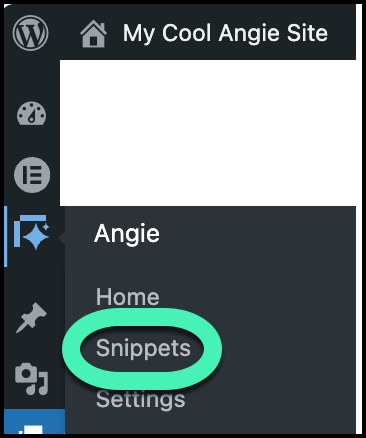
- From WP Admin: Navigate to Angie>Snippets.
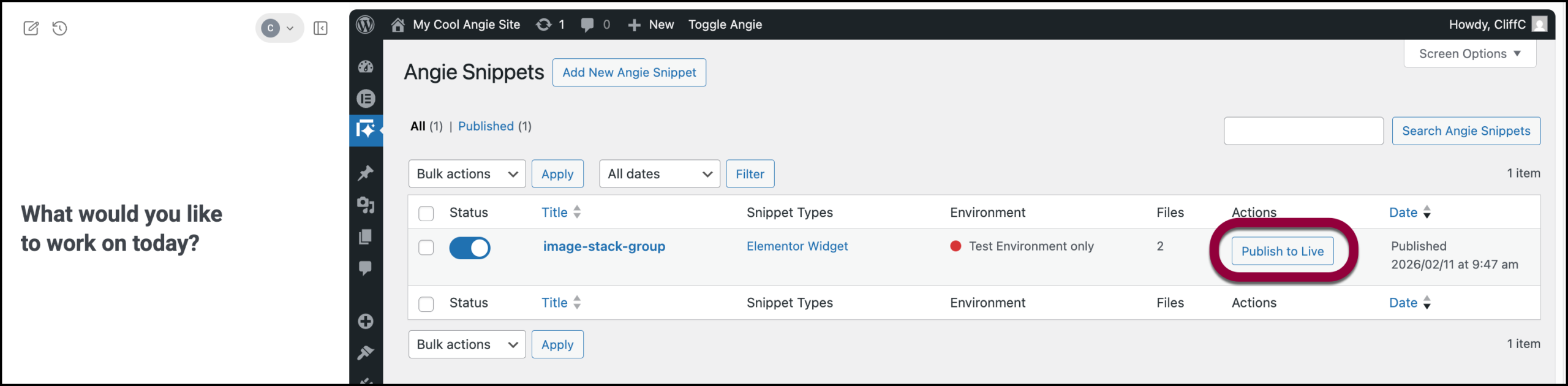
- Publish the snippet: Locate the snippet you want to save and click Publish to Live.
If the widget or snippet is causing issues with your site, or you simply want to check the live site, you can easily backtrack by exiting test mode without saving.
To exit test mode without saving:
- Exit without saving: Click the X in the Test mode box.
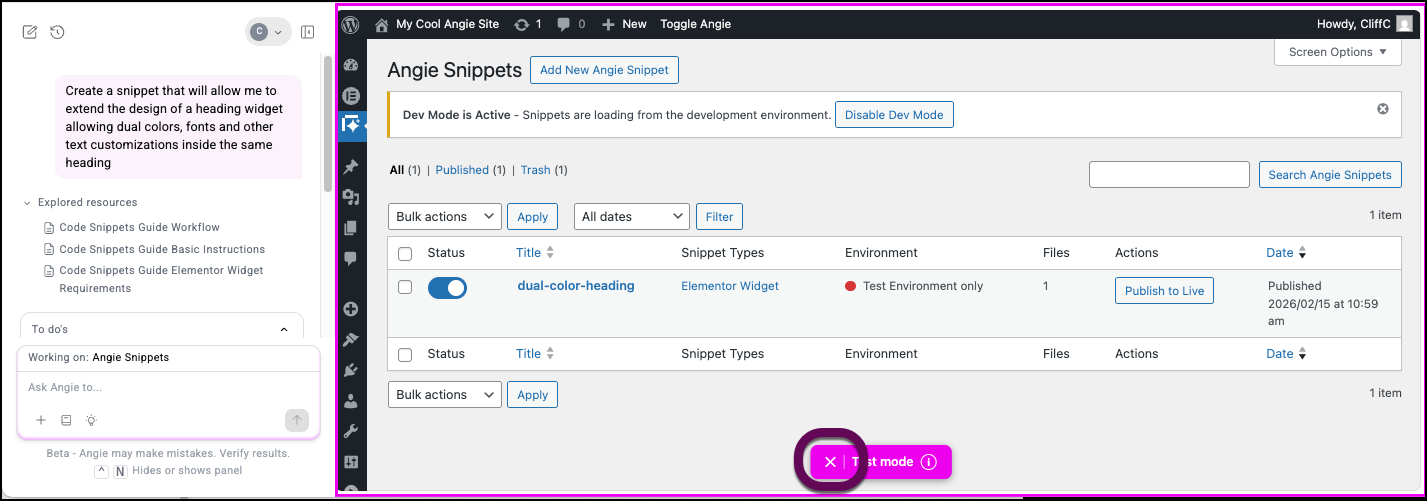
Warning: If you exit test mode without saving, you will no longer see your widget or snippet. You will be able to access them again by re-entering test mode.
Restart test mode
If a snippet causes errors or you wish to discard changes, you can backtrack using this process:
- From WP Admin: Navigate to Angie>Snippets.
- Turn on testing: At the top of the screen, click Enable Dev Mode.
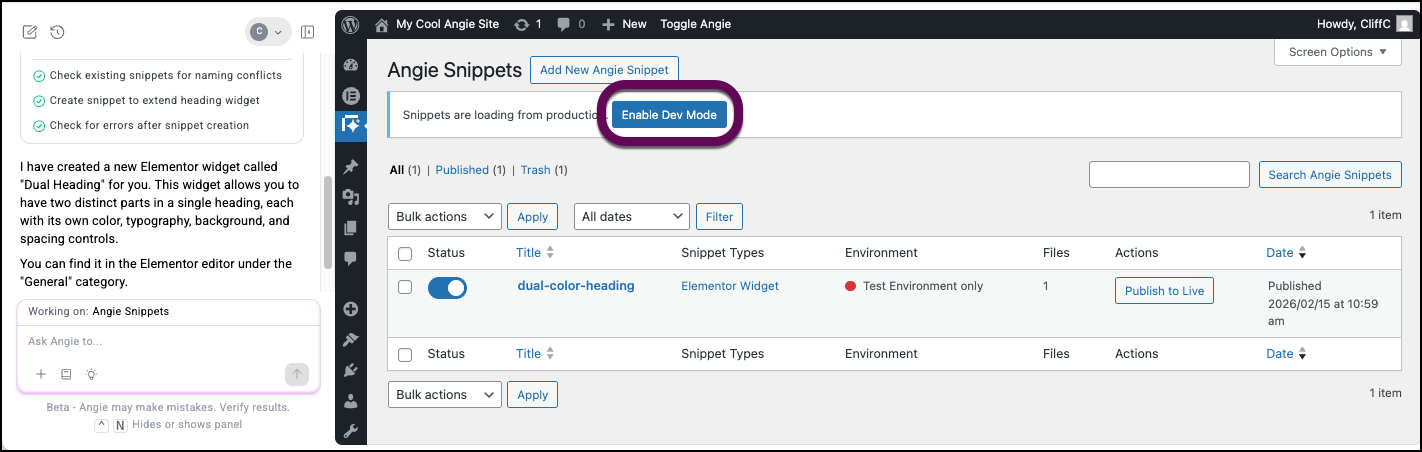
Test mode is re-enabled and you can access the unsaved widgets and code snippets.
When you open a page containing the widget or code snippet, you may have to refresh the page in order to see the widget or snippet.