To download your Elementor hosted website files, navigate to the Backups tab within your My Elementor dashboard, select your site, and click the Download icon next to any backup. Elementor will then generate a secure ZIP archive containing your full WordPress files and database and send the download link directly to your registered email address.
Elementor Host includes automated daily backups. You can also manually download a full backup of your website at any time.
The exported backup includes both your WordPress files and your database in a single ZIP archive.
Want to learn faster? Book a 1-on-1 expert session today.
How do I access the backups page in Elementor?
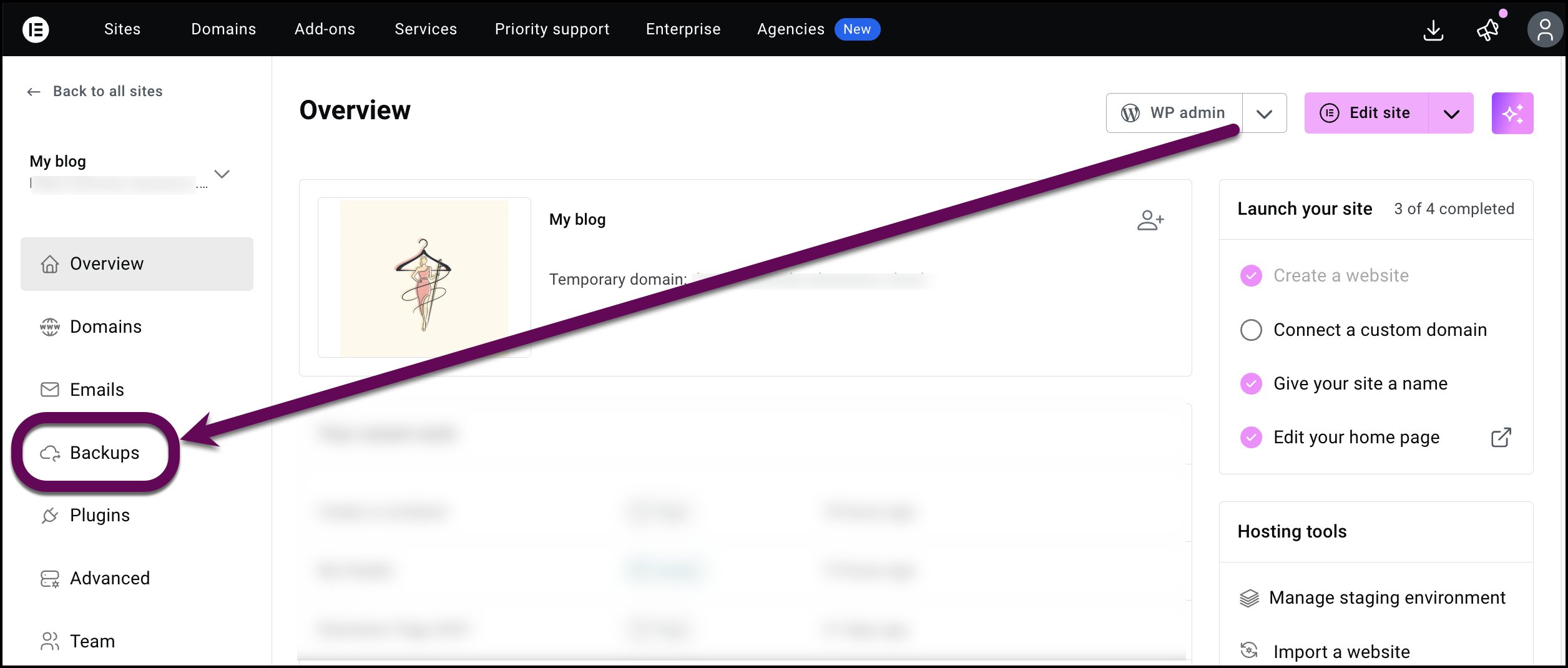
To manage and export your data, you must first navigate to the backup management section of your account:
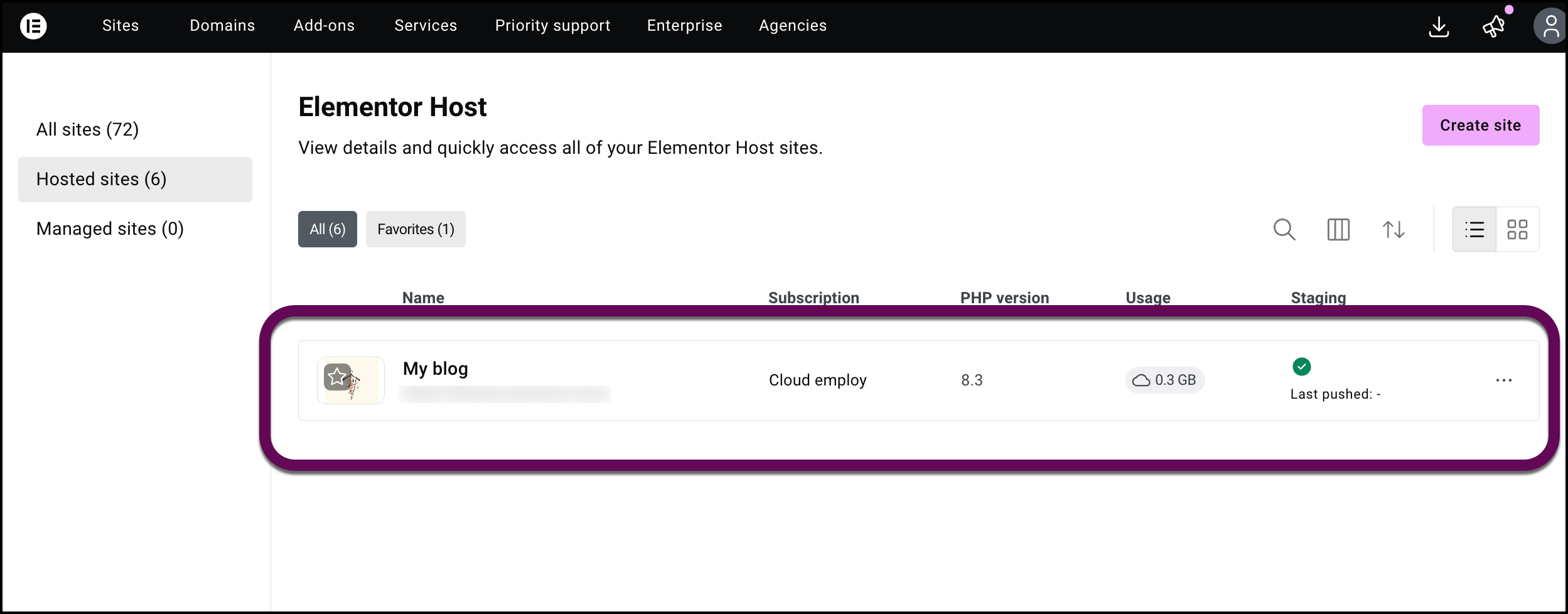
- Go to your My Elementor dashboard.
- Select the website you want to back up.
- In the left-hand panel, click Backups.
How can I download an existing website backup?
You can export any automatic daily backup or previously created manual backup from your history:
- Locate the backup you want to download.
- Hover over the backup row.
- Click the Download icon.
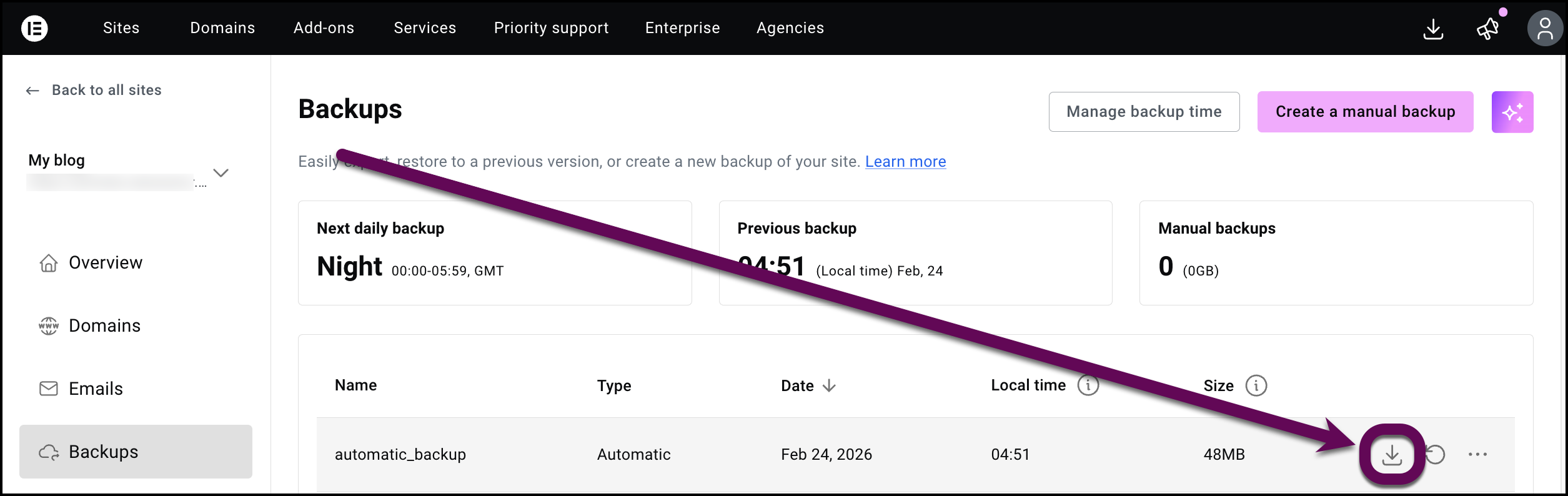
- A confirmation tooltip will appear indicating that the download link will be sent to your email.
Elementor will prepare a ZIP archive containing your website files and database.
Once the archive is ready, a secure download link will be sent to the email address associated with your account.
Open the email and click the link to download the backup to your computer.
Create a new manual backup (optional)
If you have made recent changes and want to export the latest version of your site immediately, check out Back up your Elementor Host site.