Issue
Custom fonts do not appear on your live site.
Possible causes & solutions
Cache Issue
The problem may be due to a cache issue.
To clear the cache:
- Clear WordPress cache plugin, if applicable.
- Ask your host to clear server-side caching, if applicable.
- Clear your browser’s cache.
- After clearing all cache, check again.
- You may need to use another browser, or a browse in incognito mode if the browser’s cache did not fully clear.
For more information on WordPress and cache, see the WordPress support article on the subject.
HTTP/HTTPS mis-match
If you have recently migrated from HTTP to HTTPS, your font files may need to be re-uploaded.
To re-upload the font files:
- Check your settings to make sure your URL begins with https. For details, see URL change disrupts Elementor functioning.
To check your fonts: - From WP Admin, navigate to Elementor>Editor>Custom Fonts.
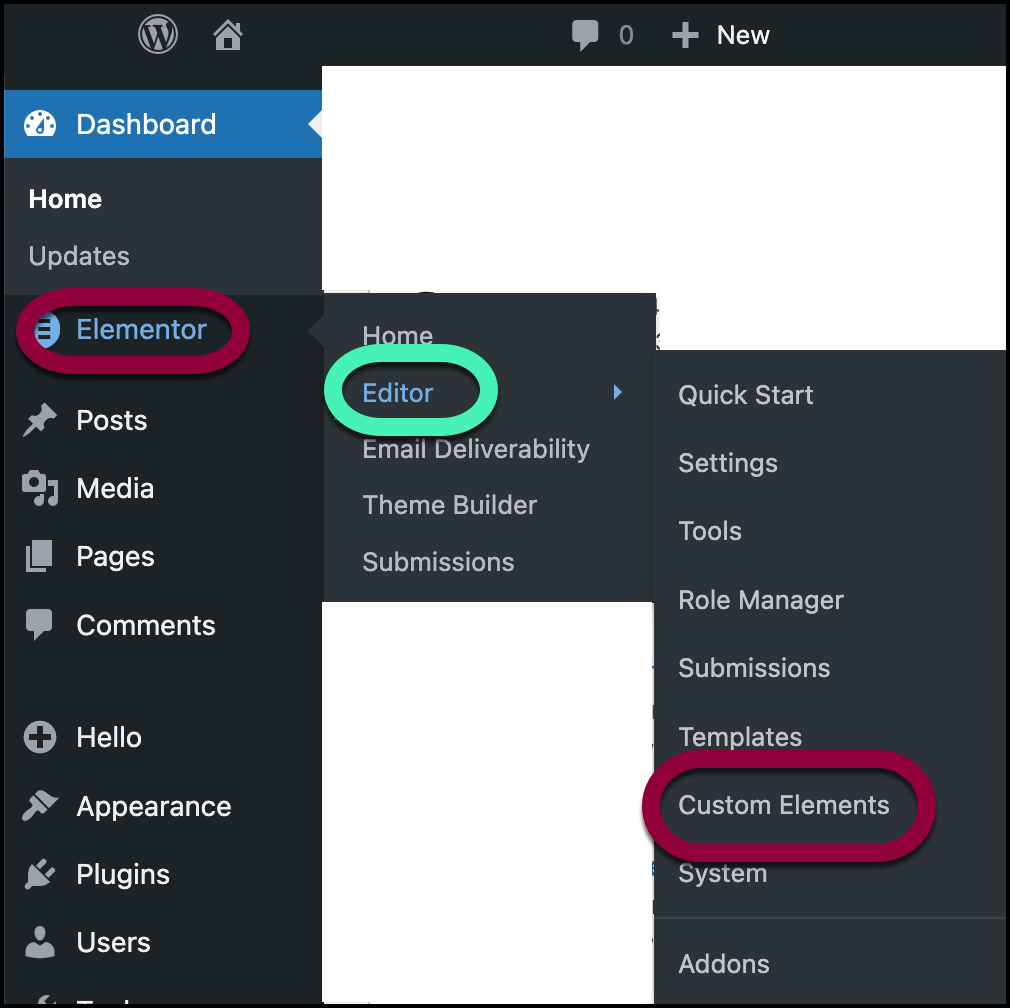
- If the URLs listed do not begin with https, click DELETE.
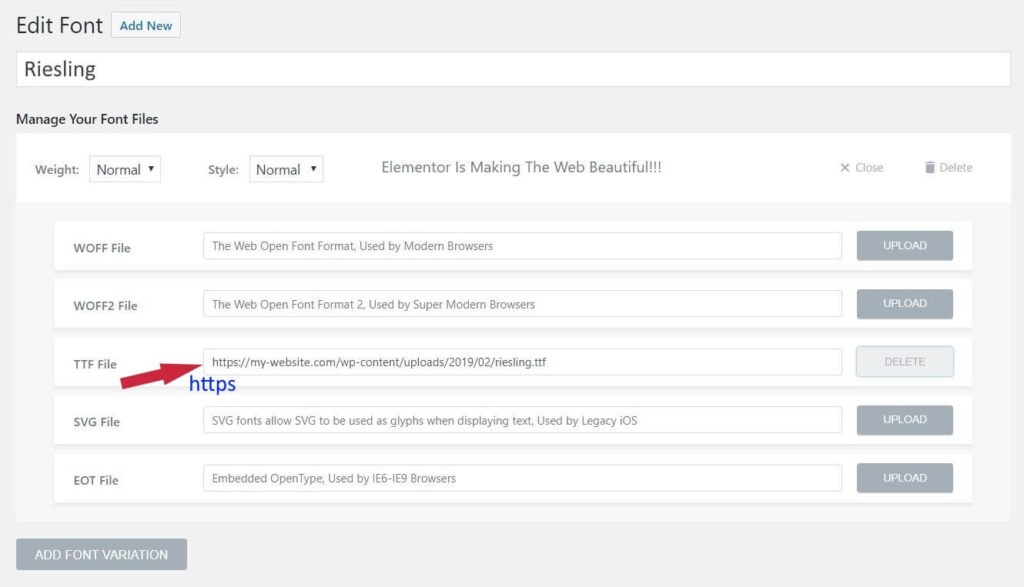
- Add the necessary fonts. for details, see Add custom static fonts or Use Variable fonts.
- From WP Admin, navigate to Elementor>Editor>Tools.
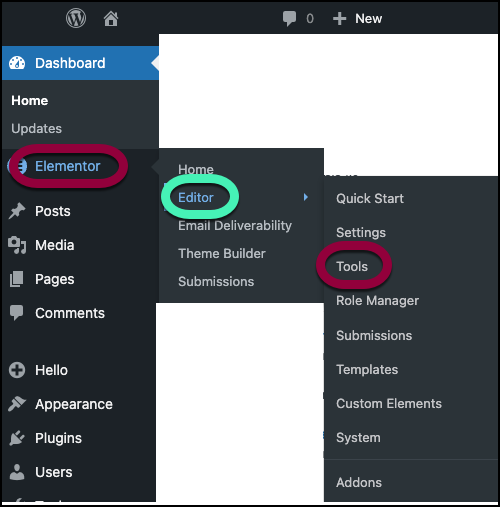
- Click Clear Files & Data.
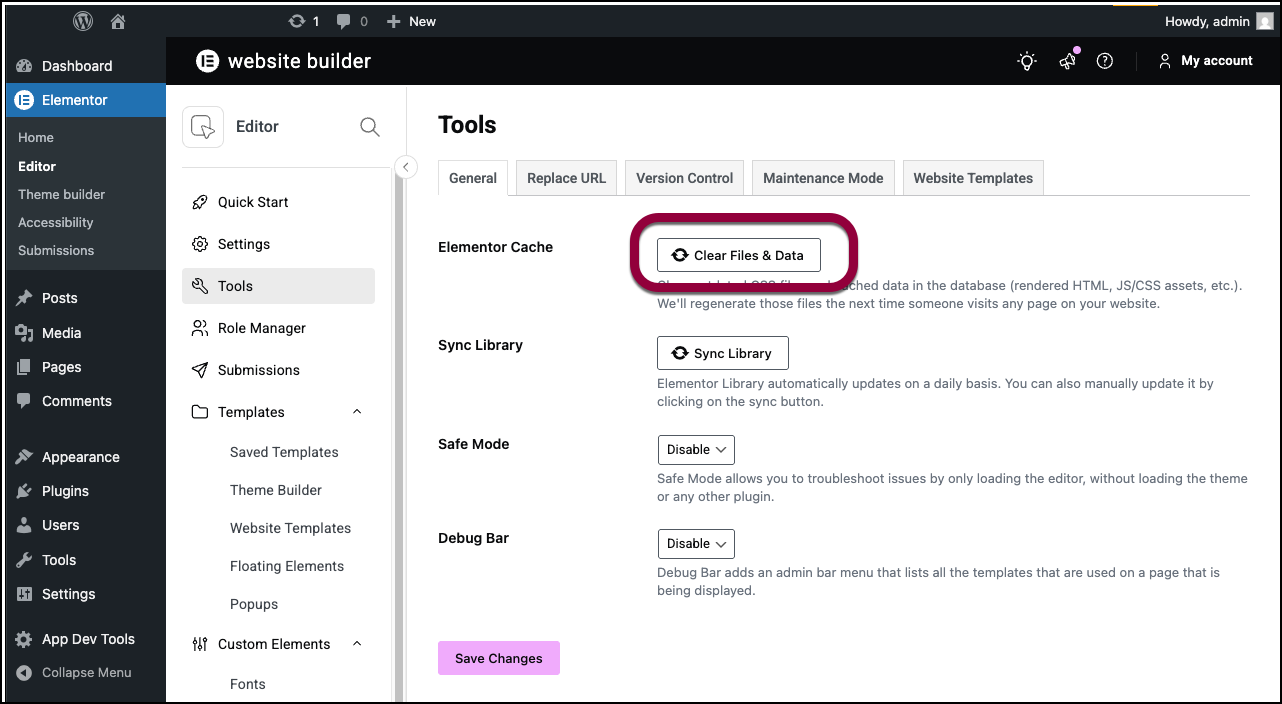
The URLs should now begin with https and your fonts should appear on the front end.
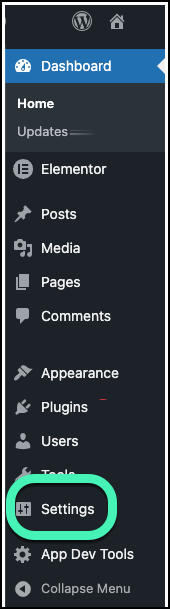
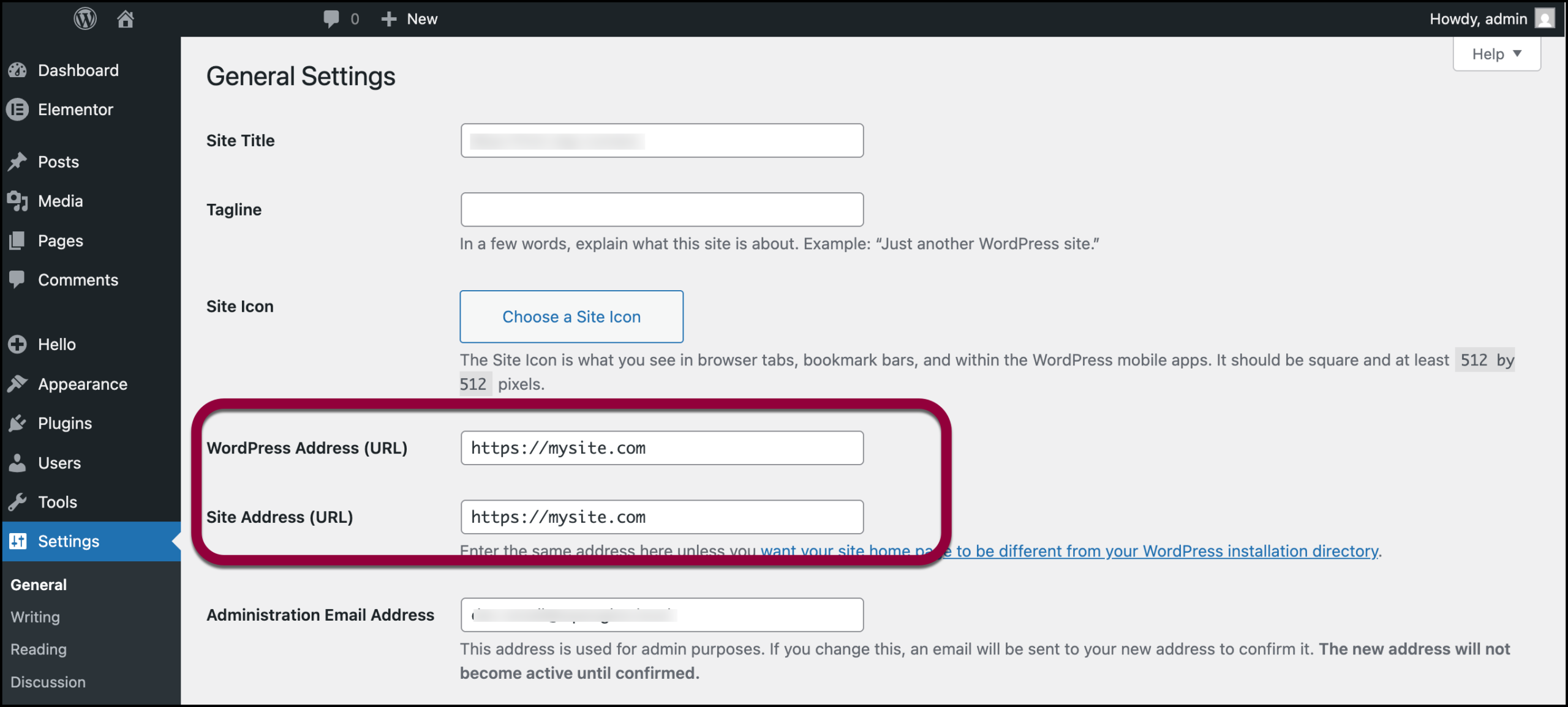
If you’re still having issues, check for a URL mismatch, - From WP Admin, navigate to Settings.
- Make sure the WordPress Address and the Site Address match and are both https.
CORS Error in Console
If your custom font is not showing and you receive a CORS error in your browser console, ask your hosting company to modify the server’s CORS policy.
For more details, see:
- https://developer.mozilla.org/en-US/docs/Web/Security/Same-origin_policy
- https://htaccessbook.com/increase-security-x-security-headers/
Importing Templates
If you imported a template that included custom fonts, you need to add the custom fonts manually. Template fonts are not imported automatically.
Selected font weight is not available
Custom fonts may not have all available font weights available. If you select a specific font-weight in Typography options, but your custom font does not have that specific weight available, it may not display that font at all. In this case, select a different font weight that is available for your custom font. You may need to consult the font designer for this information.
Invalid Custom Code
If you add invalid custom CSS or other code it can lead to many different display problems, including the inability to display custom fonts. Remove or fix the improper code to solve this issue.
All Font variations not included
Different devices/browsers may need different font variations. For example, if fonts are not displaying on iOS devices make sure you have uploaded all font variations, including .ttf .svg .woff .woff2 and .eot
If any variations is missing then either of the following can happen:
- default font is displayed
- text will not appear on the website
This happens because different browsers render fonts differently, so to prevent any inconsistencies, it is important to add all font variations to maintain full browser support.
To fix this issue, you can use the generator tool from Font Squirrel.