The Elementor List element allows you to create flexible lists with customizable markers, such as icons or bullets, and manage content for each item. This guide explains how to add and configure the List element in Elementor Editor.
What is the List Element?
The List element, introduced in Elementor 4.4, enables you to build structured lists on your website. It supports flexible content for each list item and offers options to customize the visual markers, including icons or traditional bullets. This element is available in Elementor Free.
How to Add an Atomic List Element
Open the Elementor Editor for the page or template where you want to add the list.
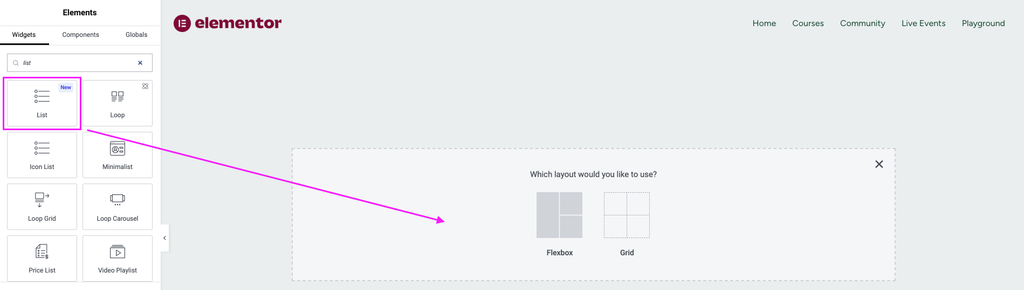
In the Elementor Panel, search for the List element.
Drag and drop the List element onto your canvas.
How to Configure List Items
After adding the Atomic List element, you can customize each item’s content.
Select the List element on your canvas.
In the Elementor Panel, navigate to the General tab
Click on an existing list item to rename it, or click “+” to create a new one.
In the item’s name, enter the desired name for your list item. For example, “Intuitive User Interface”
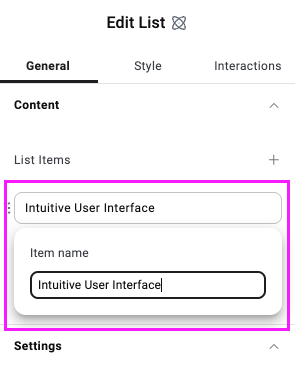
5. To reorder items, drag and drop them within the List Items section.
6. To delete an item, click the X icon next to it.
How to Style the Atomic List Element
You can further customize the appearance of your list using various styling controls.
- Select the List element on your canvas.
- In the Elementor Panel, go to the Style tab.
- Use the List section to style the list as a whole. From here you can adjust:
- Text Color: Set the color for the list item text.
- Typography: Configure the font family, size, weight, and other text properties.
- Spacing: Adjust the spacing between list items.
- To style the list container itself, explore the other sections in the Style tab, such as padding, margins, or background color.
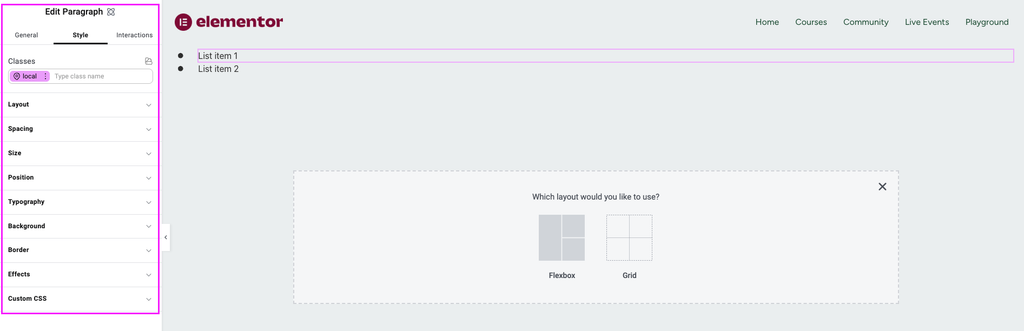
Styling the content inside a list item:
If you want to style the marker or the content area of an item, don’t do it from the List element. Instead, select the element (atom) you placed inside the list item and style it directly through its own Style tab.