To add the Google Maps element in Elementor, drag it onto your page. Configure its display by entering an address and adjusting the zoom level directly within the Elementor Editor. For full functionality, integrate your Google Maps API key in the element’s settings.
What is the Google Maps Element?
The Google Maps element is a new feature in Elementor 4.4 that allows you to easily embed interactive Google Maps onto your website. This element supports displaying a specific address, controlling the map’s zoom level, and integrating with a Google Maps API key for enhanced functionality. This feature is available in Elementor (Free).
How to Add the Atomic Google Maps Element
To display a business location on your Elementor page, you can add the Atomic Google Maps element.
- Open the page or post where you want to add the map with the Elementor Editor.
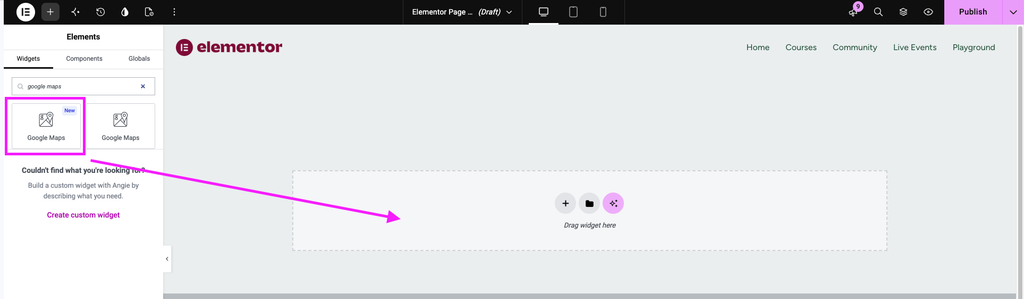
- In the Elementor Panel, search for the Google Maps element.
- Drag the Google Maps element onto your canvas.
- The map will appear on your page, ready for configuration.
How to Configure Address and Zoom Controls
After adding the Atomic Google Maps element, you can specify the location and adjust how closely the map displays it.
- Select the Atomic Google Maps element on your canvas.
- In the Elementor Panel, navigate to the General tab.
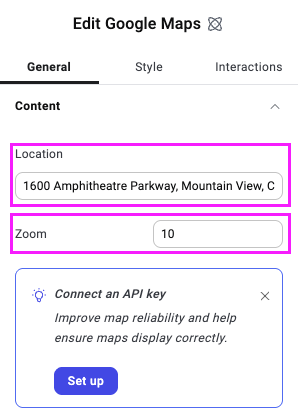
- Locate the Address field. Enter the full address you wish to display (e.g., “1600 Amphitheatre Parkway, Mountain View, CA”).
- Find the Zoom control. Adjust the slider or input a numerical value to set the default zoom level for the map. A higher number means a closer zoom.
How to Set Up the Google Maps API Key
To ensure your Google Maps element functions correctly and avoids usage limits, you need to integrate a Google Maps API key.
- Select the Atomic Google Maps element on your canvas.
- In the Elementor Panel, navigate to the General tab.
- Locate the Connect an API key field.
- Select Set up
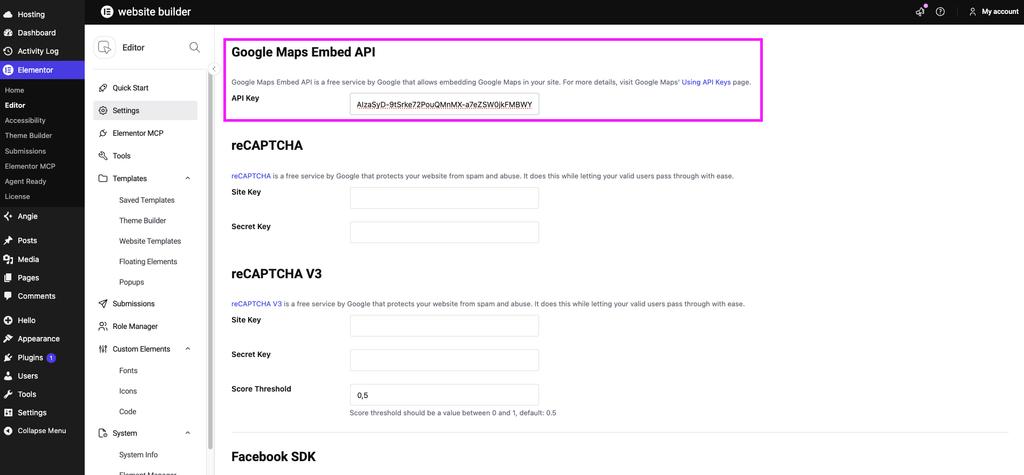
- You will be redirected to the Elementor Settings page where you can enter you API key.
Frequently Asked Questions
Why is my Google Map not displaying correctly?
If your map is not displaying, ensure you have entered a valid Address and that your Google Maps API Key is correctly configured within the element’s settings.
Do I need Elementor Pro to use the Atomic Google Maps element?
No, the Atomic Google Maps element is available with Elementor (Free).
Does the Google Maps element replace the old Google Maps widget?
No, the new Google Maps element does not replaces the legacy Google Maps widget.
What kind of address format should I use?
You should use a full, clear address (e.g., “1600 Amphitheatre Parkway, Mountain View, CA”) to ensure accurate map display.