Elementor Teams Overview
The Elementor Teams allow you to include your colleagues, partners, assistants, or co-workers within your supported Elementor Builder subscription or your Elementor Host subscription. The team members can also add the websites they are working on to their Elementor Dashboard for easy access.
The Teams feature is available for Elementor One and Elementor One Agency subscriptions.
Team members must have an Elementor account associated with the email address their invitation is sent to.
Build a team
To build a team, the following are necessary.
The subscription member should invite others to become team members.
The invited members should accept the invitation to become team members.
Invite team members
For Elementor Builder subscriptions
To invite team members, follow the steps below:
Navigate to your My Elementor Dashboard.
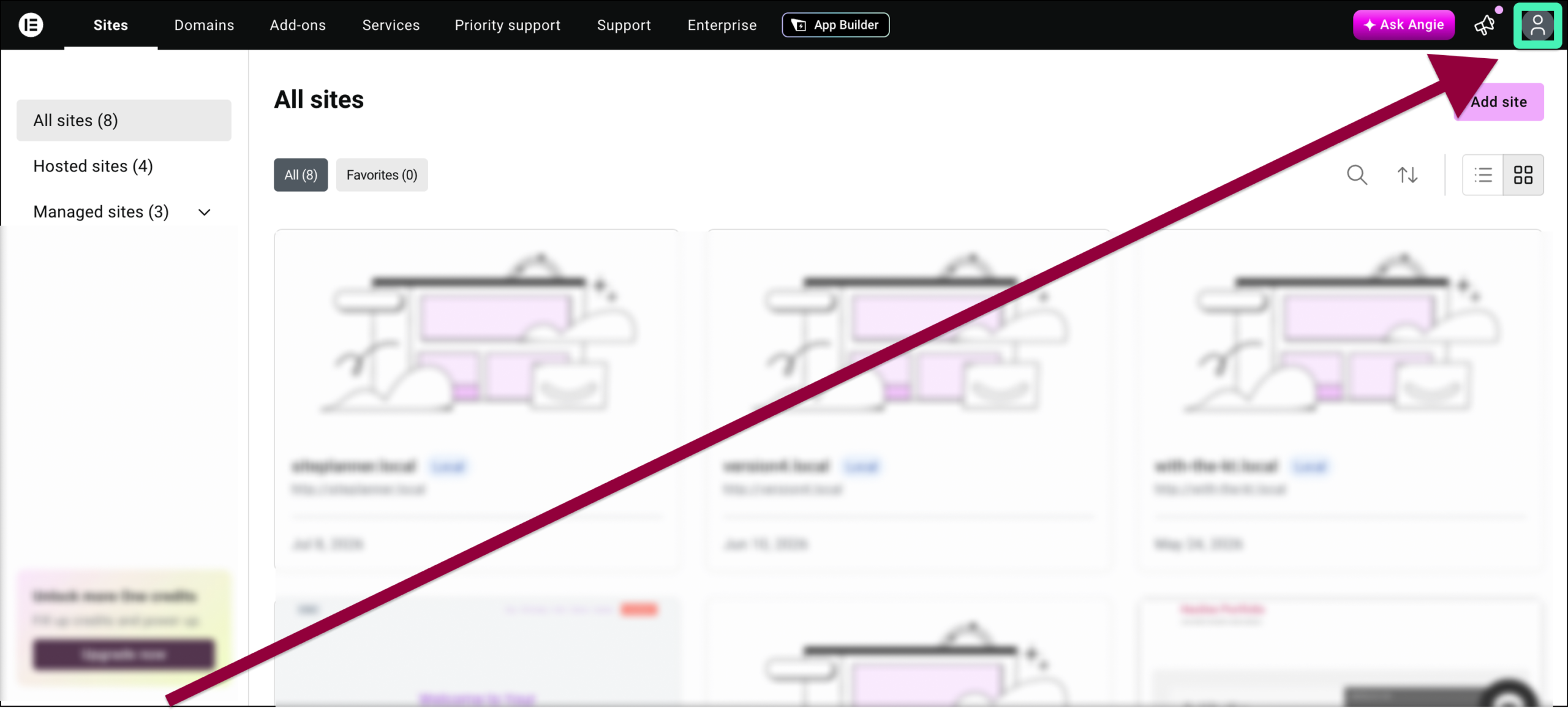
Click the account icon in the upper right.
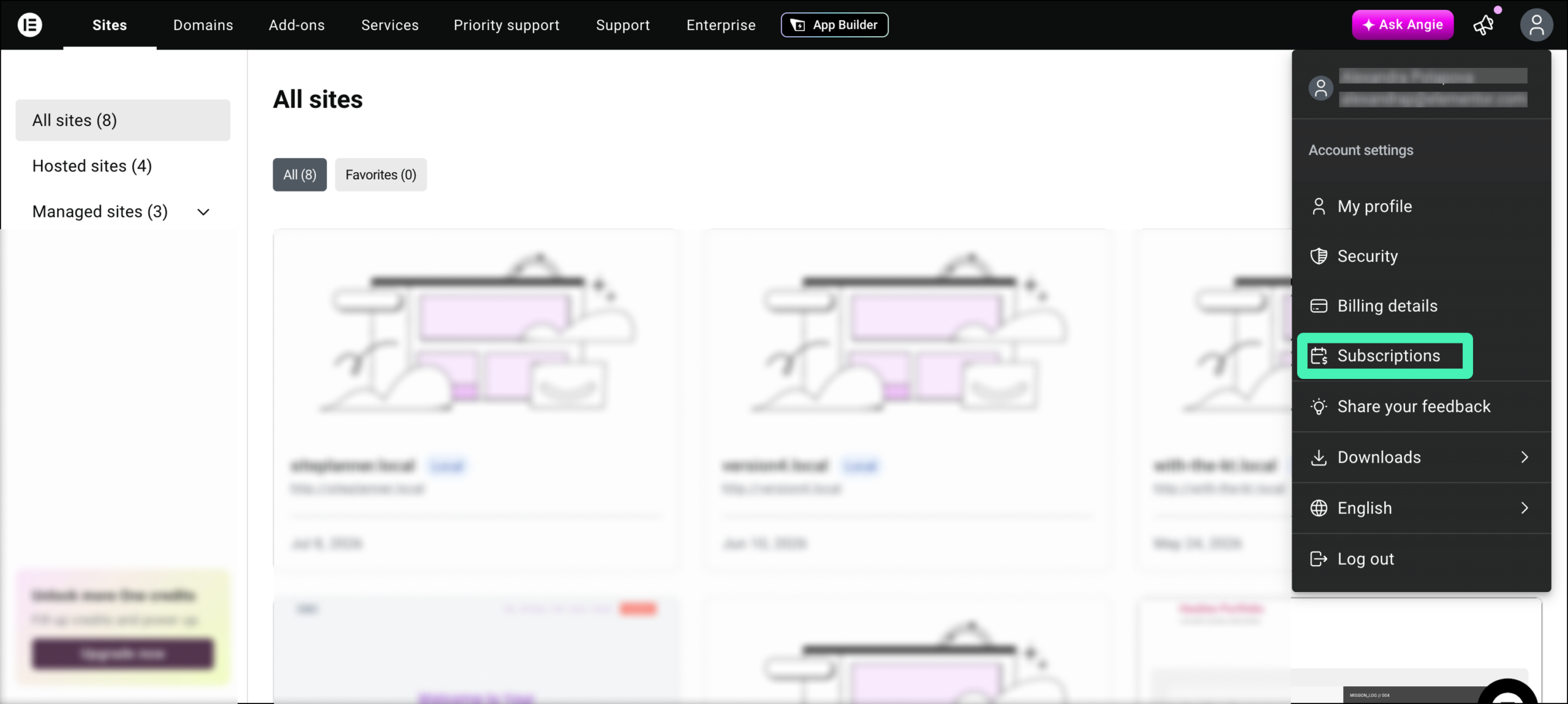
Select Subscriptions from the dropdown menu.
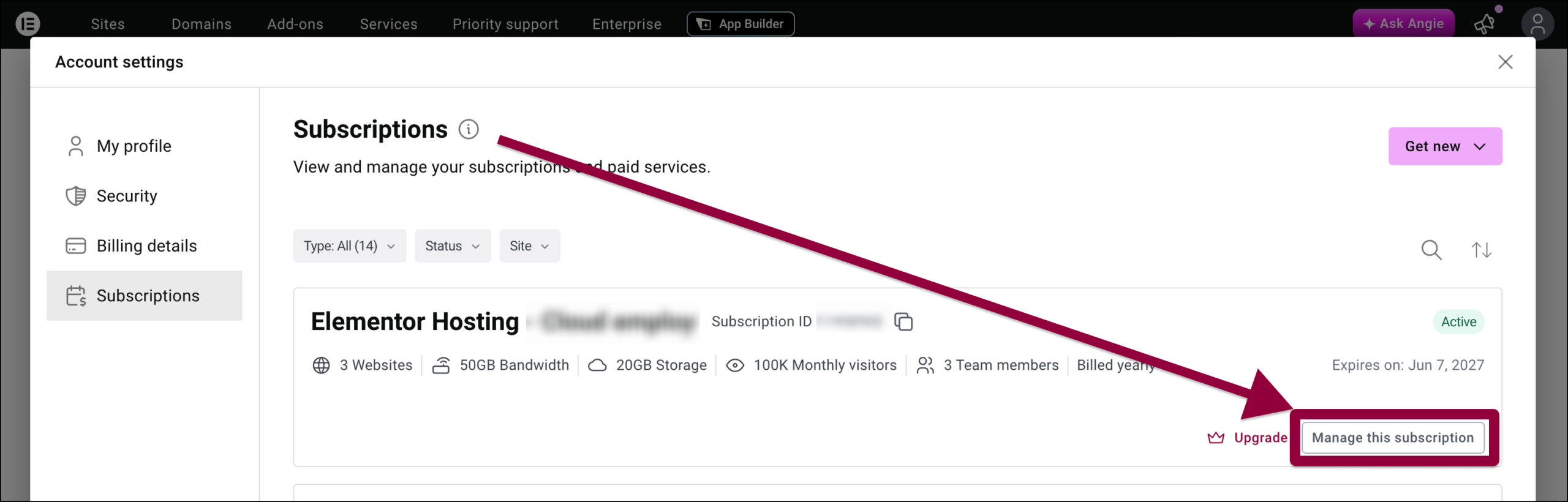
Locate the subscription you want to add a team member to, and click Manage this subscription.
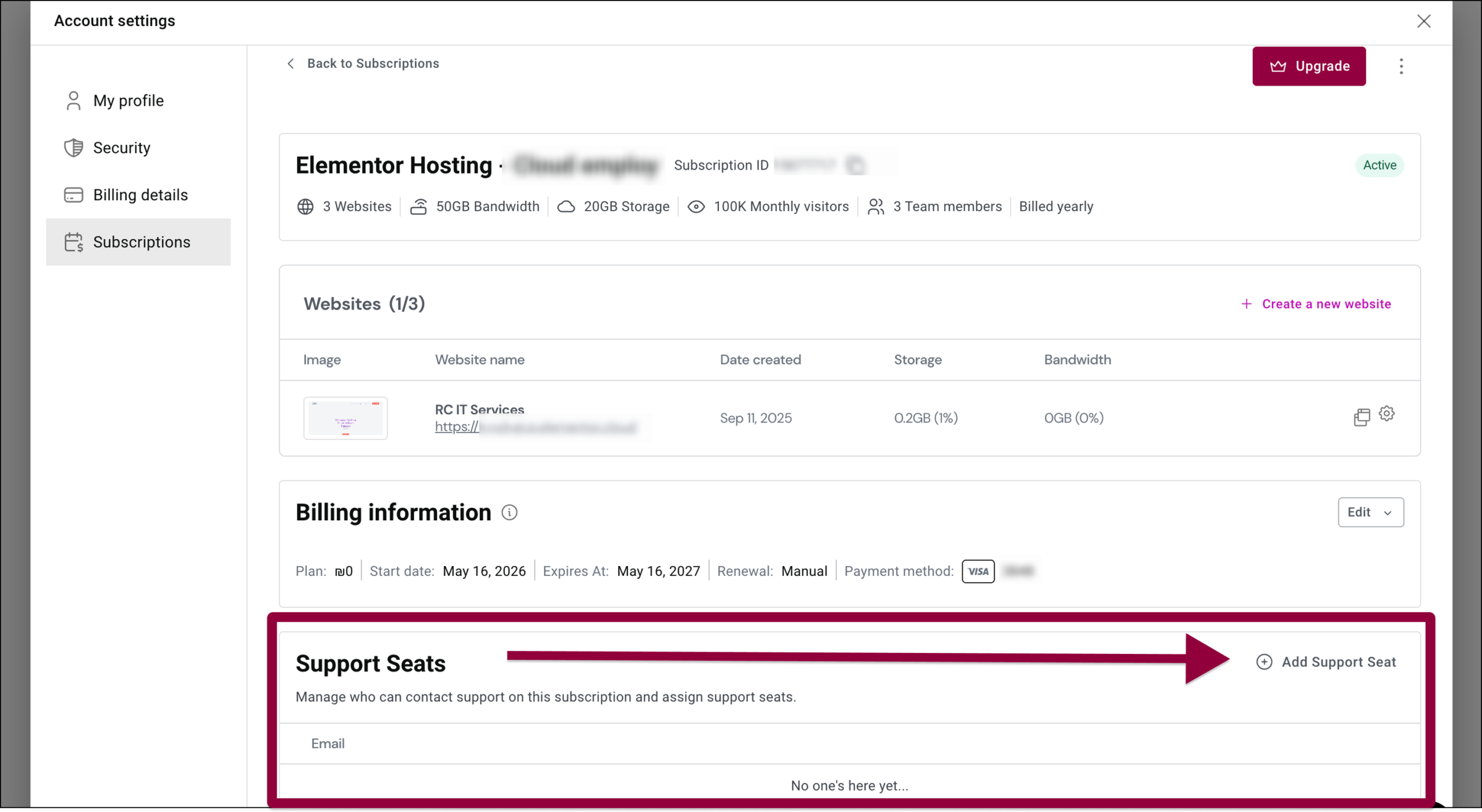
Scroll down to the Support for Seats section.
Click Add Support Seat.
The Add Support Seats dialog appears.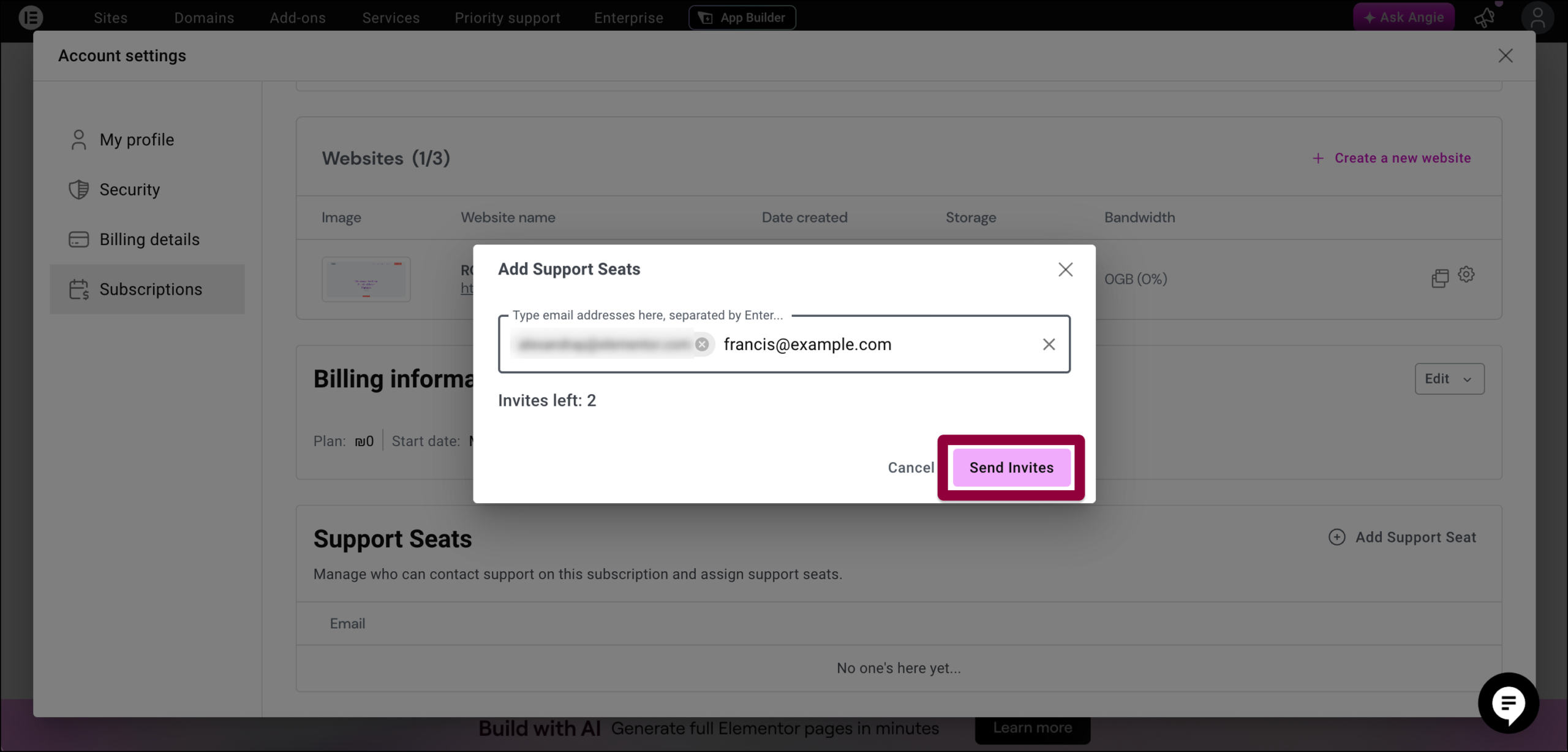
In the textbox, enter the email address of the individual you wish to invite as a team member.
NoteYou can add team members based on your subscription plan. If your plan allows you to enter more team members, input the email addresses of the individuals by pressing enter to separate them.Click Send Invites.
The Sent dialog appears. The invited individuals receive an email invitation, which they need to accept within 24 hours of receiving the email to join your team.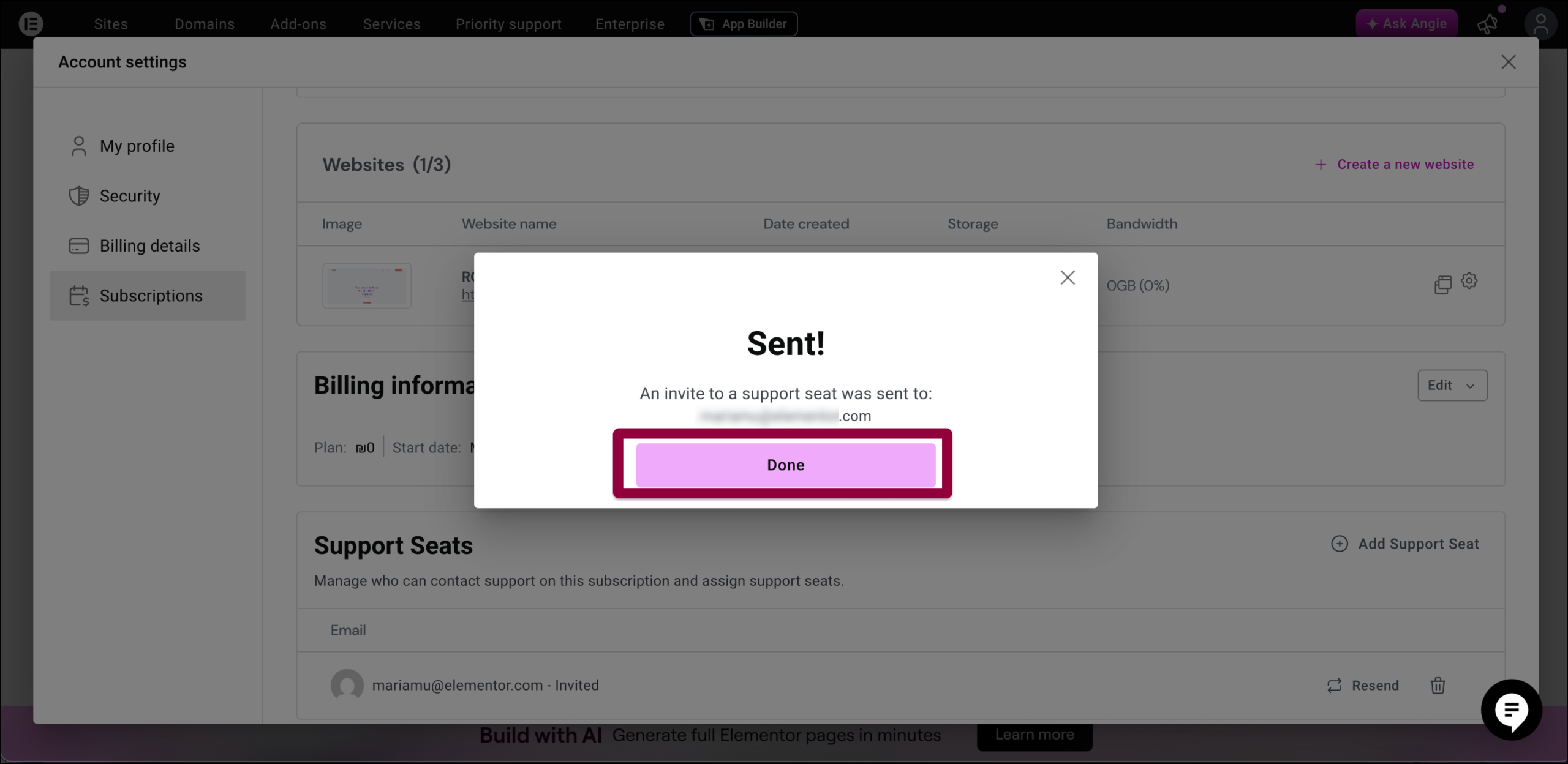
Click Done.
You can access the list of invitees in the Support Seats section from the selected Subscription.
(Optional) You have the option of:
Resend the invitation by clicking

Cancelling the invitation or deleting the team member by clicking

(Optional) Add the new team members as Users to your website with the role of either a Contributor, Author, Editor, or Administrator. Please refer to Add a user for more information about adding users to your site.
NoteTeam members must have an Elementor account associated with the email you used to invite them.  If they already have an account, they should log in. Otherwise, they should create an account on the redirected account creation page before they accept the invitation.
For Elementor Host users
Navigate to your My Elementor Dashboard and open the Hosted Sites Tab.
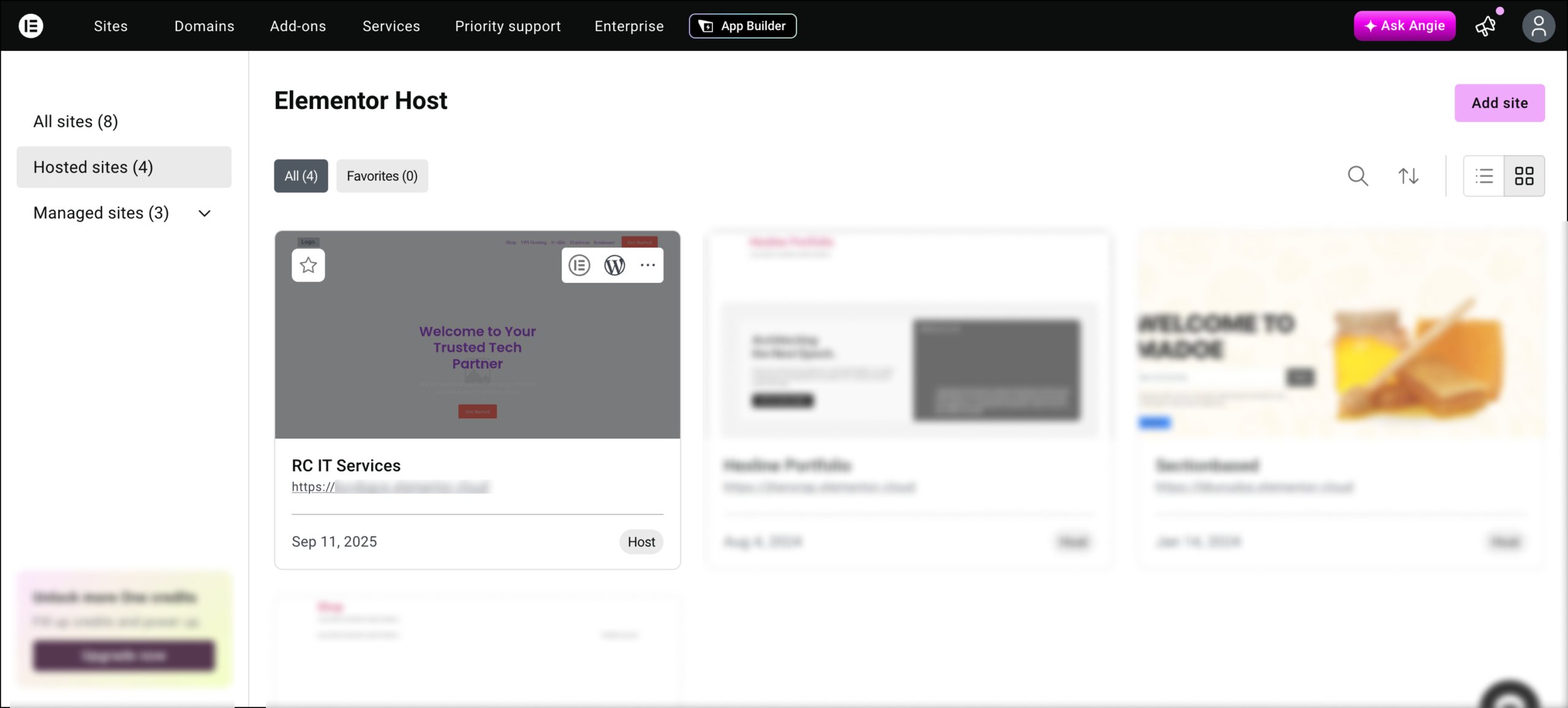
Hover over the website card/list item of the site you want to add members to, and click on it.
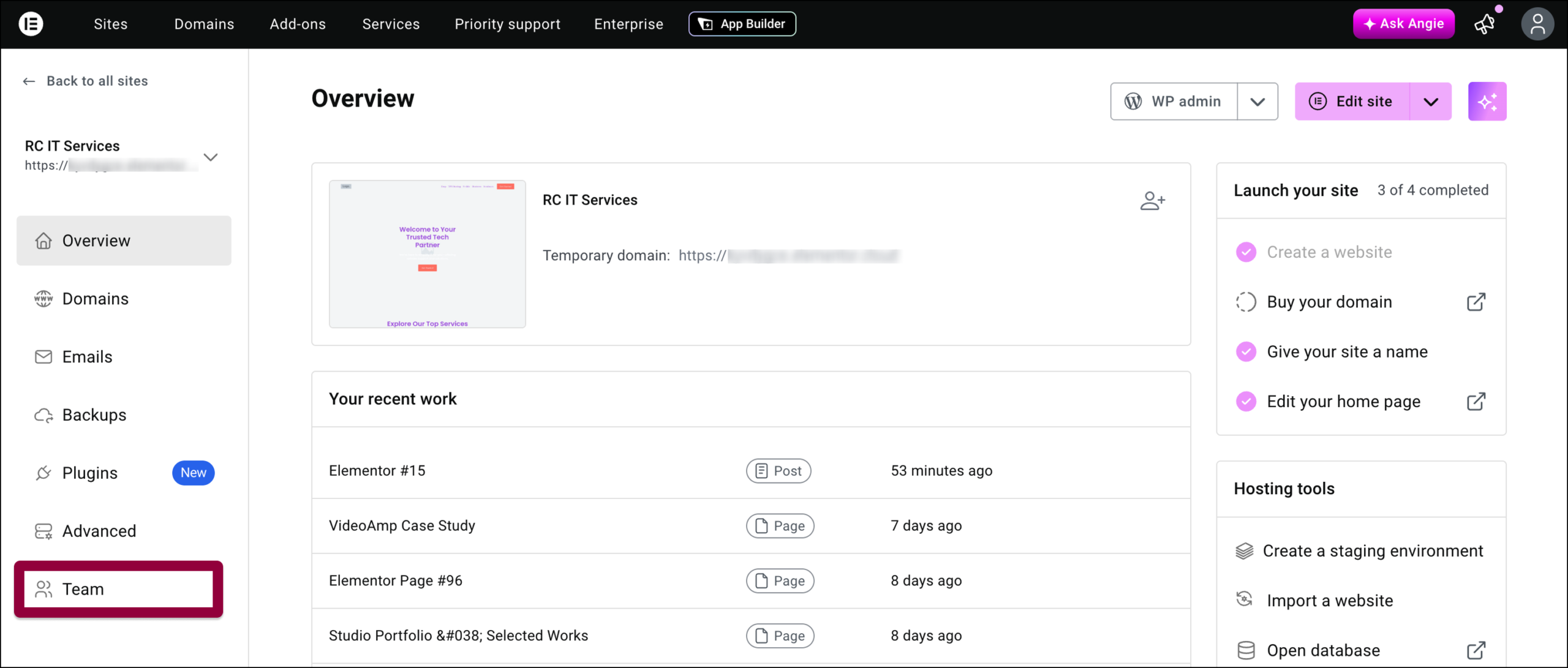
Click Team.
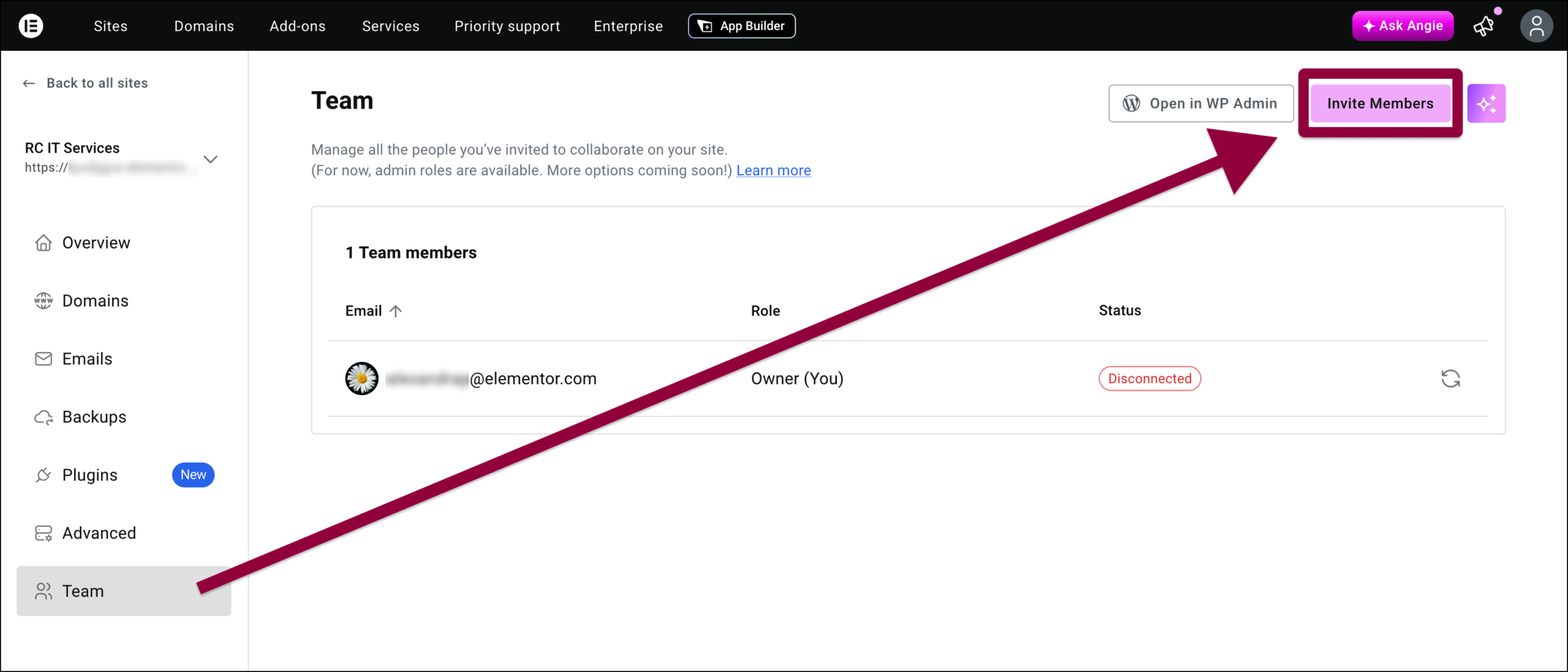
Click Invite Members.
The invite members window appears.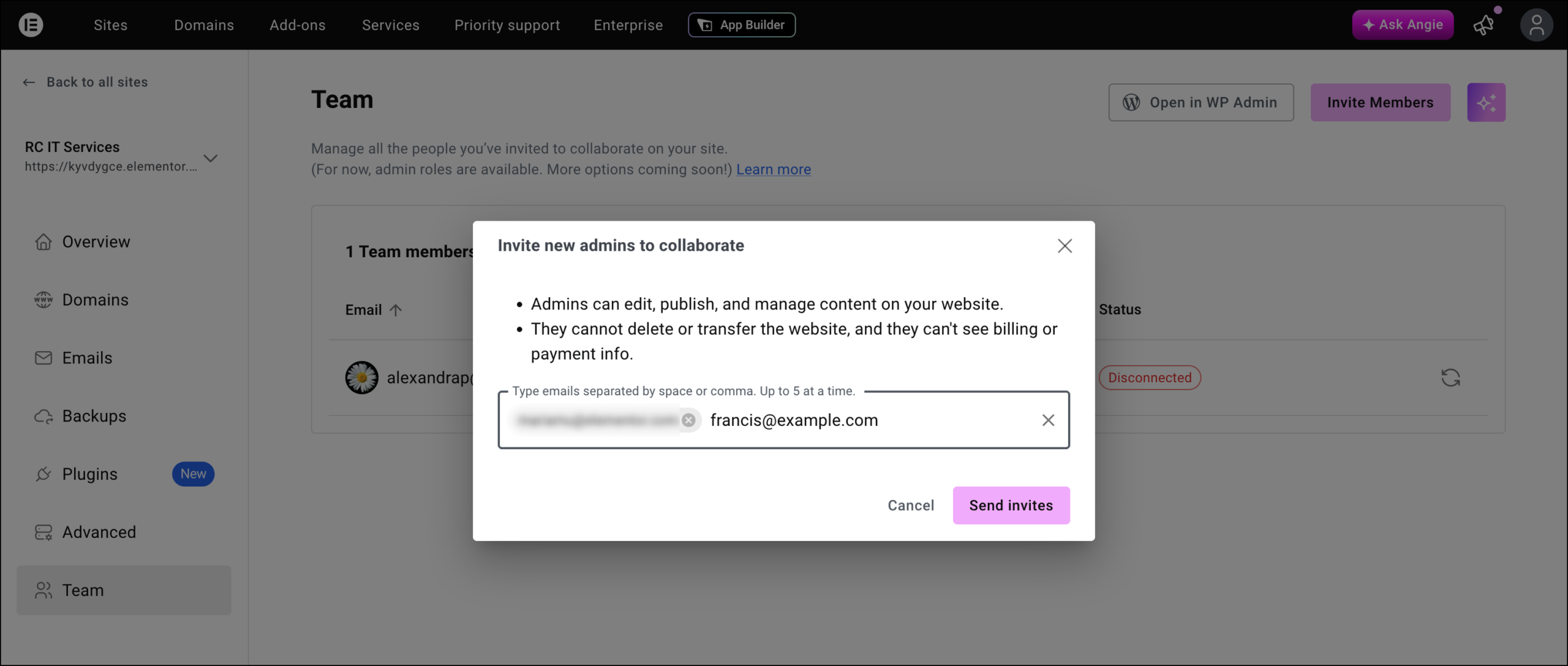
In the textbox, enter the email address of the individual you wish to invite as a team member and hit Enter. You can send up to five invitations at a time.
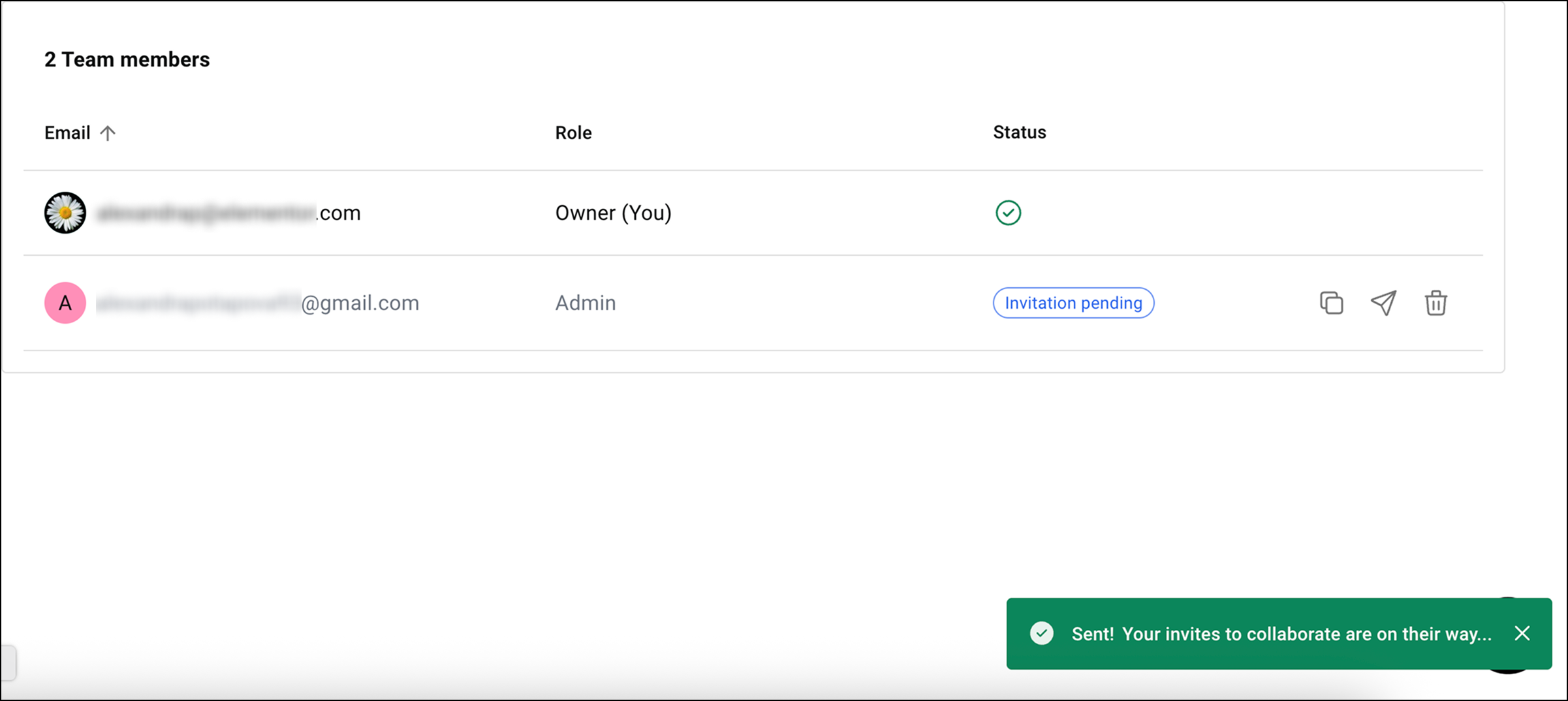
Click Send Invites.
The Sent dialog appears. The invited individuals receive an email invitation, which they need to accept within 24 hours of receiving the email to join your team.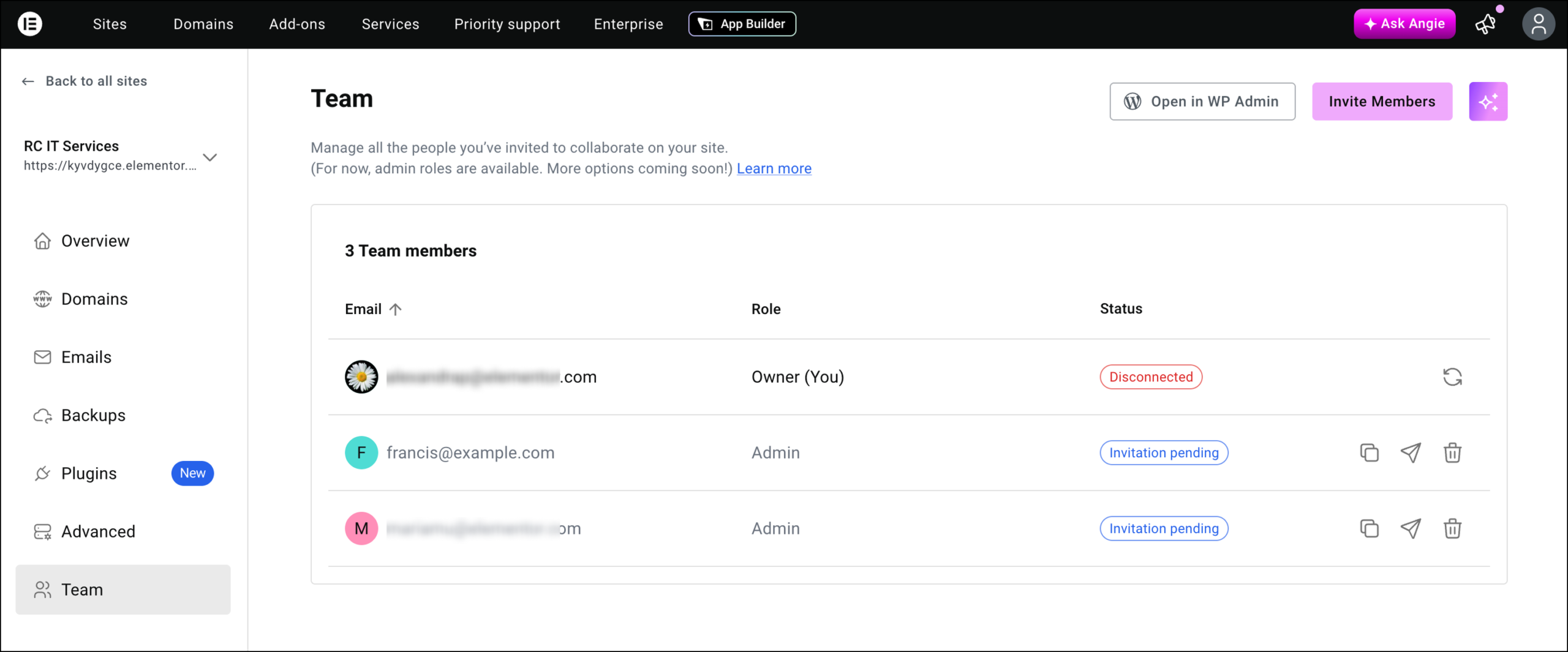
The name of the invitee will appear in the Team member list with the note: Invitation pending, until the invitation is accepted.(Optional)From this window you can:
Copy the invitation link by clicking

Resend the invitation by clicking

Cancel an invitation or delete a team member by clicking
Become a team member
You can become a team member in someone’s supported Elementor subscription by accepting their invitation sent via email as a WordPress User of the site and the other as an Elementor team member.
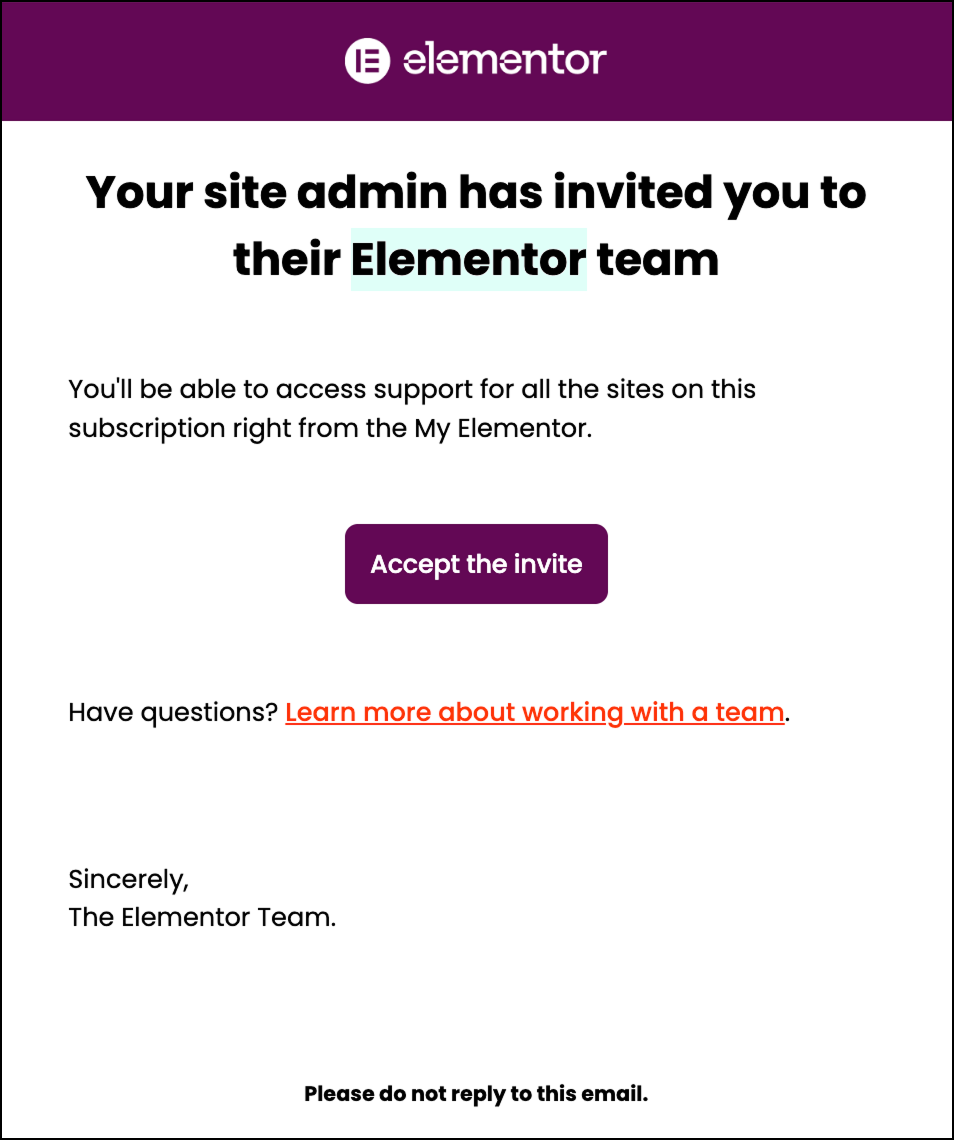
Navigate to your email address and open your Elementor Team Invitation mail.
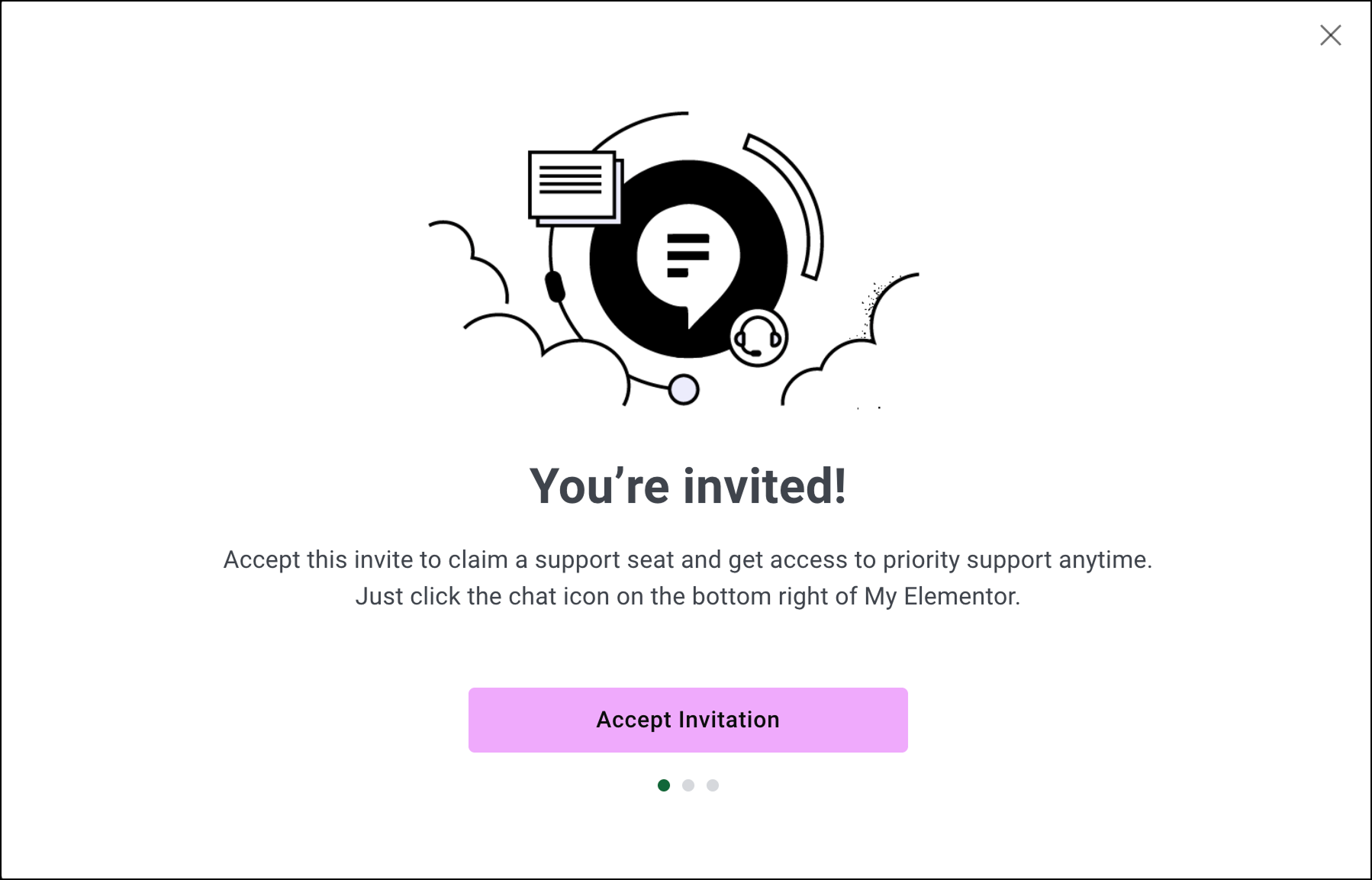
Click Accept Invitation.
The Connect your account to your site dialog appears.