Default Styles for Atomic Elements allow you to centrally define and manage the styling for all supported HTML tags across your site. Managed directly from the Defaults tab within the Design System panel, this feature gives you global design control over core Atomic elements from a single dashboard.
What are Elementor Default Styles?
Default Styles provide a centralized system to control HTML tags utilized by V4 Atomic elements. By configuring tag-level defaults, you establish consistent foundational styling for headings, paragraphs, divs, buttons, forms, lists, and media across your entire website.
Instead of manually editing individual elements or relying on theme defaults, setting HTML tag rules ensures every newly added Atomic element inherits your baseline brand styles immediately.
How to access and configure Default Styles
Example Scenario: You want to set a consistent font weight and primary accent color for all H2 headings across your website using Default Styles.
Prerequisites: Ensure your site is running Elementor version 4.3.0 or higher on WordPress 6.8+.
- Open the Elementor Editor for any page or template.
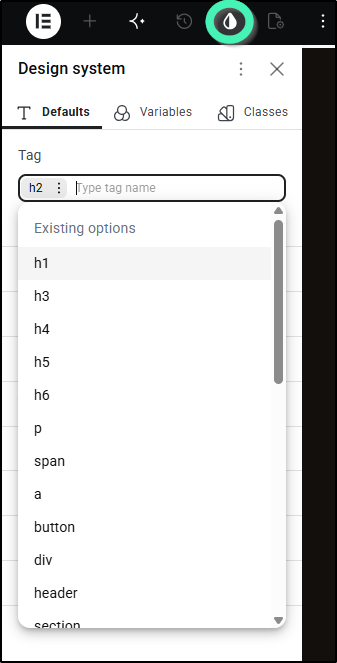
- Click the Design System icon in the top bar
- Select the Defaults tab inside the Design System panel.
- In the Tag field, select or type the HTML tag you wish to style (e.g., h2, p, div, button).
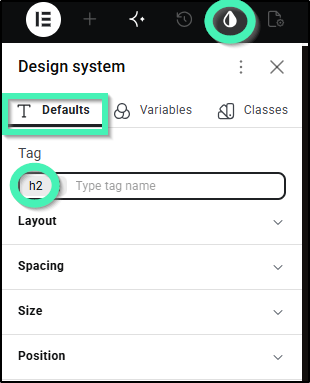
- Click the three vertical dots (⋮) on the selected tag pill to open the States menu, then choose the state you want to customize (Normal, Hover, Focus, or Active).
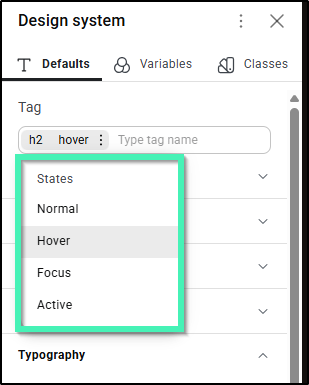
- Adjust the available styling controls below (such as Typography, Color, or Spacing) for the selected state.
- Click Save Changes to apply your baseline tag styles site-wide.
Outcome: All Atomic elements utilizing the selected HTML tag will automatically adopt these default styles across your site.
How do Default Styles interact with other Elementor styling options?
Default Styles sit at the base of Elementor’s visual styling hierarchy:
- HTML Tag Defaults vs. Element Fallbacks: Default Styles take higher priority than built-in element fallback defaults. For example, because a Flexbox container uses a <div> tag under the hood, setting a 0px padding default on the div tag in Default Styles overrides the Flexbox element’s standard 10px default padding.
- Design System Classes & Variables: CSS classes and global design variables applied to an element will override tag-level Default Styles.
- Individual Element Styling: Direct styling applied to an individual Atomic element on the canvas takes the highest priority, overriding both Default Styles and applied CSS classes.
Default Styles FAQs
- Which HTML tags can be managed under Default Styles?
Default Styles allow you to target any standard HTML tag supported by the Atomic Editor. You can choose from the pre-populated Existing options dropdown or type custom HTML tags directly into the Tag field.
Supported tags in the Design System panel include:- Headings & Text: h1 through h6, p, span, a
- Layout & Structure: div, header, section, article, aside, footer, main, nav
- Forms & Controls: form, input, textarea, select, label, button
- Lists & Dynamic Content: ul, li, details, summary, hr
- Media Assets: img, video
- Can I set pseudo-classes like Hover or Focus for HTML tag defaults?
Yes. Default Styles allow you to define styling rules across Normal, Hover, Focus, and Active states for any supported tag. - Can I override a Default Style for a specific element on the canvas?
Yes. You can easily override HTML tag defaults by applying custom CSS classes or adjusting style settings directly on the individual Atomic element in the Editor. - What happens if I don’t define Default Styles?
If Default Styles are not configured, Atomic elements fall back to standard Elementor default values or your active WordPress theme baseline stylesheet.