To fix a missing header or footer in Elementor, navigate to the Theme Builder and verify that Display Conditions are set properly. Ensure your Page Layout is set to “Default” rather than “Canvas,” confirm the template is “Published,” and use the “Clear Files & Data” tool in Elementor settings to clear any persistent cache.
The Issue
You created a custom header or footer using the Theme Builder, and it appears correctly in the Elementor editor. However, when viewing your live website, the theme’s default header appears instead, or the section is missing.
This is usually caused by display conditions, layout settings, publish status, or caching.
Follow the steps below to identify and resolve the issue.
How do I check the display conditions for Elementor templates?
If you haven’t assigned display conditions, the theme builder won’t know where to render your template. Follow these steps:
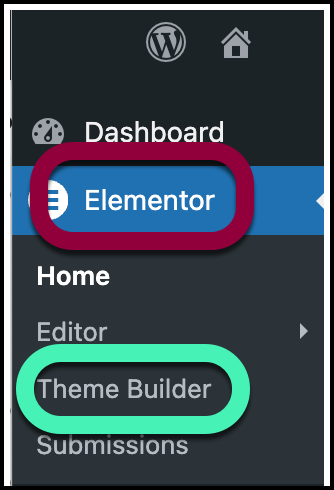
- From WP Admin, navigate to Elementor>Theme Builder.
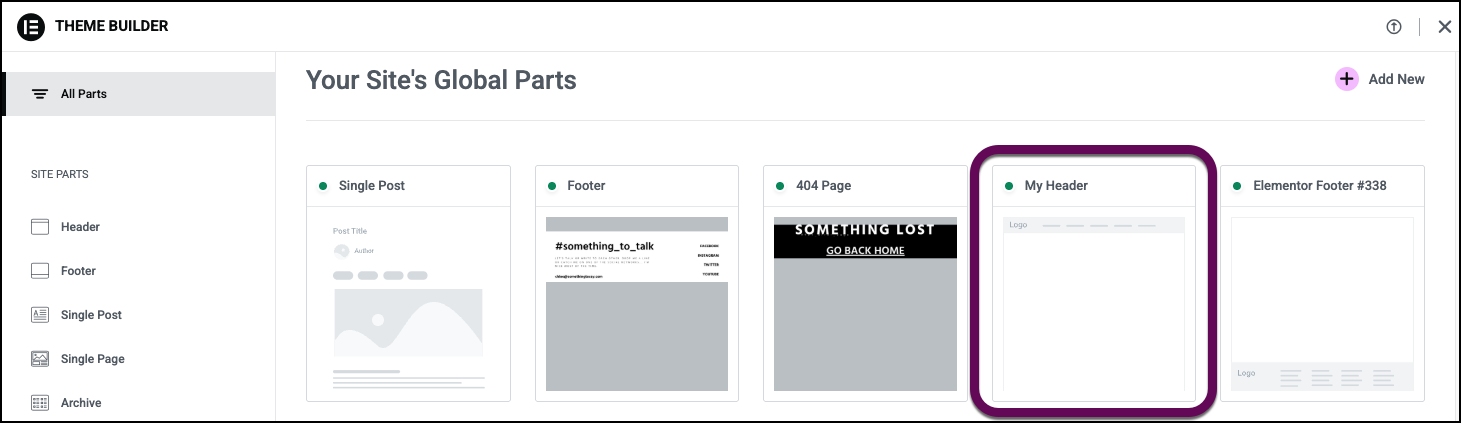
- Click the header or footer template to open it.
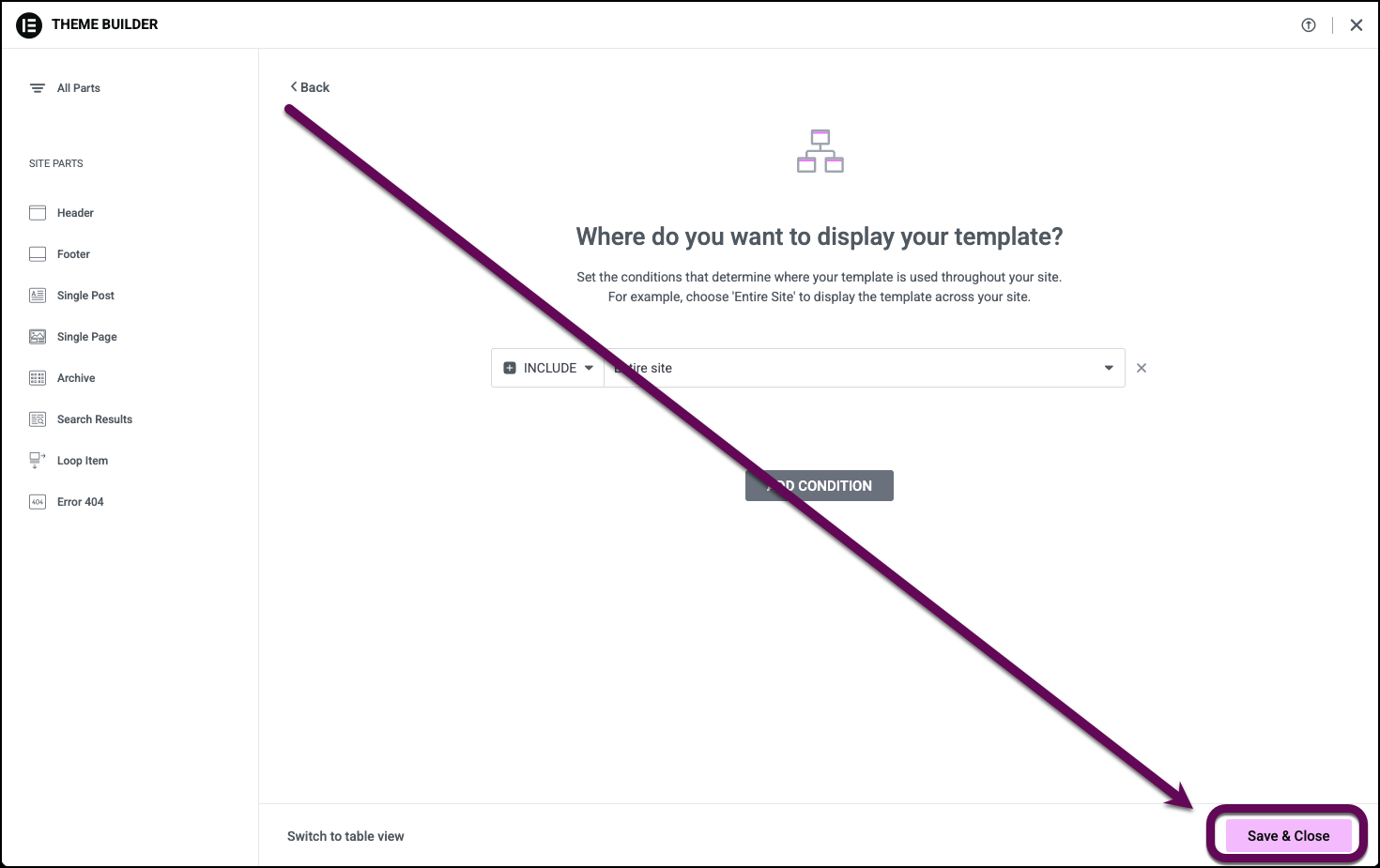
- Click Edit Conditions.
- Edit the conditions to fit your site design. For details, see Set conditions for site part templates.TipFor a global header or footer, select Entire Site.
- Click Save & Close.
Why is my header missing on only one specific page?
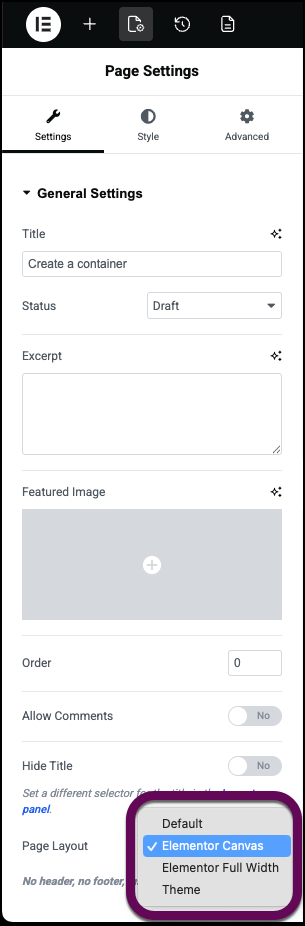
The page layout setting often overrides the global header and footer. If a page uses the “Canvas” layout, Elementor intentionally hides these elements.
- Open the affected page in the Elementor editor.
- Click the Page Settings icon in the top bar.
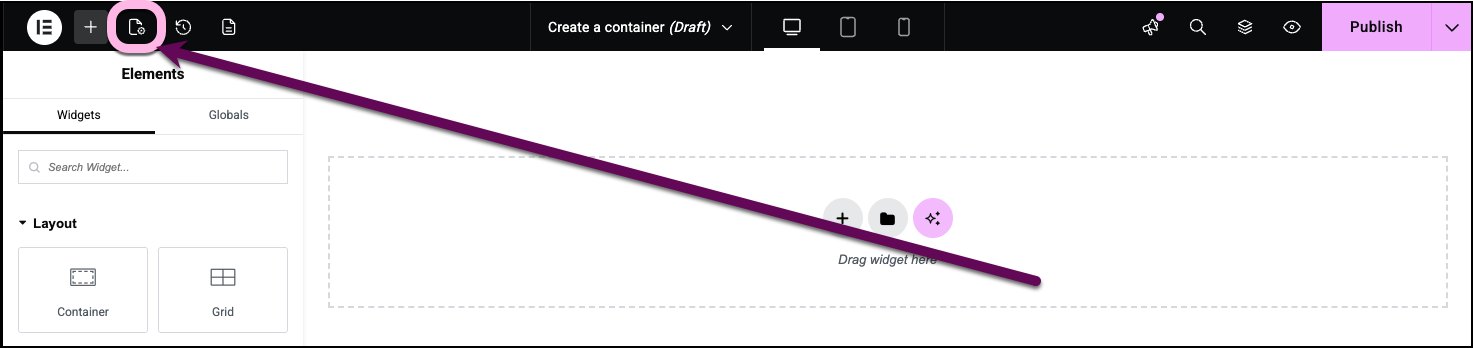
- Locate the Page Layout dropdown.
- If it is set to Elementor Canvas, change it to Elementor Full Width or Default.
Is my Elementor template currently published?
A template saved as a Draft or Private will not appear on the live front-end of your website.
To verify the publish status:
- Open the header or footer template in the editor.
- Check the Publish button in the right of the top bar.
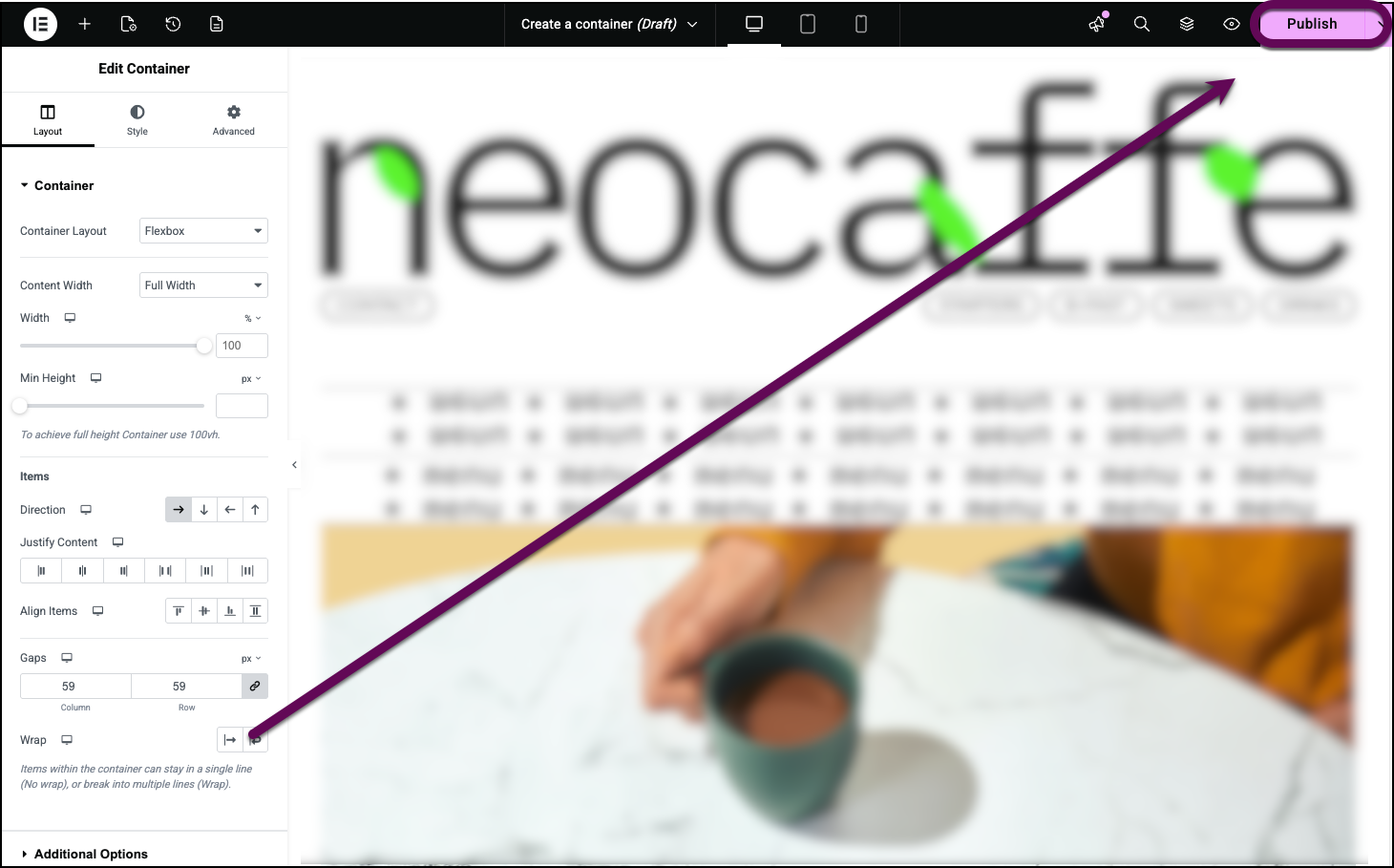
- If the button displays Publish in pink, your template is currently a draft; click it to go live.
- If the button displays Update, or is grayed out the template is already published.
How do I check responsive visibility for headers and footers?
If your header is visible on desktop but missing on mobile, it may be hidden via responsive controls.
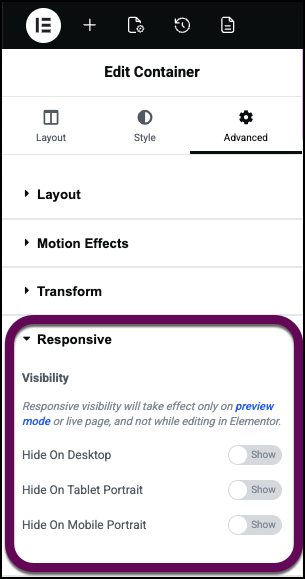
- In the editor, select the container of the header or footer.

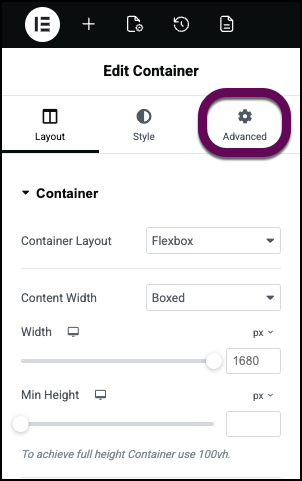
- Click the Advanced tab in the left panel.
- Expand the Responsive section.
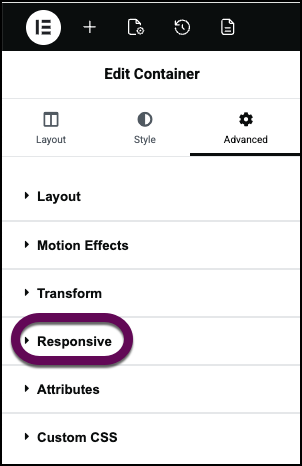
- Ensure that Hide on Desktop, Hide on Tablet, and Hide on Mobile are not enabled.
How do I clear the cache to show my new header?
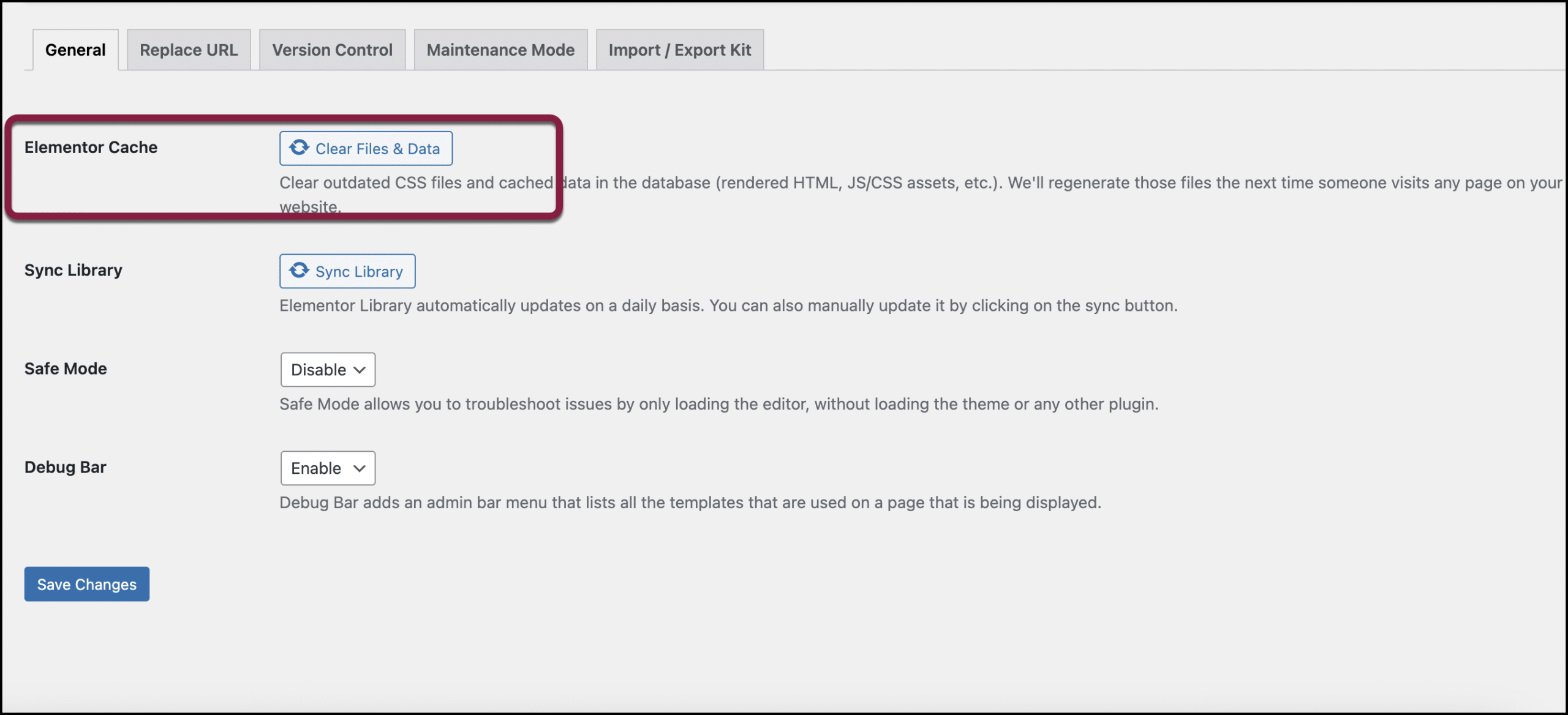
Caching can prevent new changes from appearing on the live site. You must manually regenerate the CSS files.
- From WP Admin, navigate to Elementor>Editor>Tools.
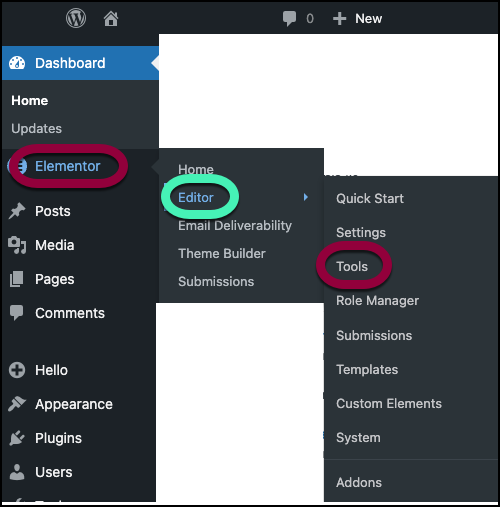
- Under Elementor Cache, click Clear Files & Data.
You can also:
- Open the site in an Incognito or Private browser window.
- Clear your browser cache.
- Clear your server cache if you are using a caching solution.
For details, see Common troubleshooting steps.