To fix a malware-infected website on an Elementor Host website, restore your site to a clean state using the Backups tab in the My Elementor dashboard. If backups are unavailable, use the File Integrity Checker in a Health Check plugin, manually delete suspicious files in the /wp-content/plugins/ directory, and reset all administrative credentials.
When your site is compromised, every second counts. Malware can lead to unauthorized redirects, stolen data, and catastrophic damage to your SEO.
As an Elementor Hosting user, you have a built-in advantage. Our infrastructure includes Cloudflare protection, a Web Application Firewall (WAF), and automated daily backups to help mitigate these risks. However, if malware has bypassed your primary defenses, follow this guide to clean your site and restore your digital presence.
You can also get professional help cleaning and securing your infected website.
How can I restore my Elementor site from a backup?
Restoring from an uninfected backup is the fastest way to revert malicious code injections.
- Make sure you back up your website. For details about how to back up your site, see Manage your Elementor Host backups.
- To restore an uninfected version of your backup, see Restore previous version of your website.
How do I check the integrity of my WordPress core files?
If backups are not an option, you must verify that the core WordPress files have not been tampered with by malicious scripts.
- Install the Health Check & Troubleshooting plugin from the official WordPress.org repository. For details, see Install WordPress plugins.
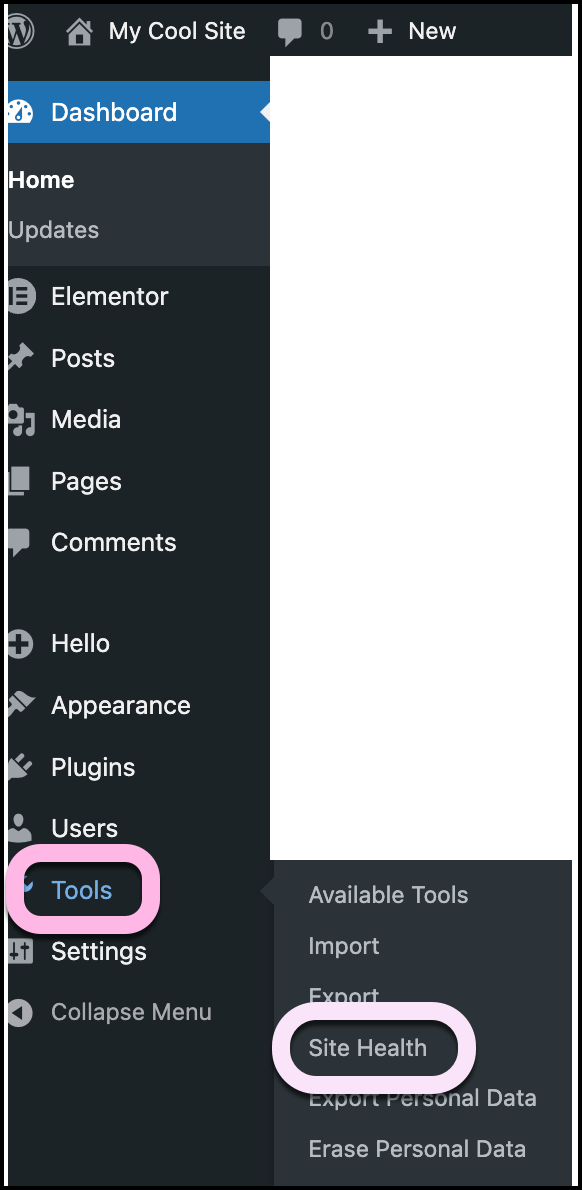
- Navigate to Tools > Site Health.
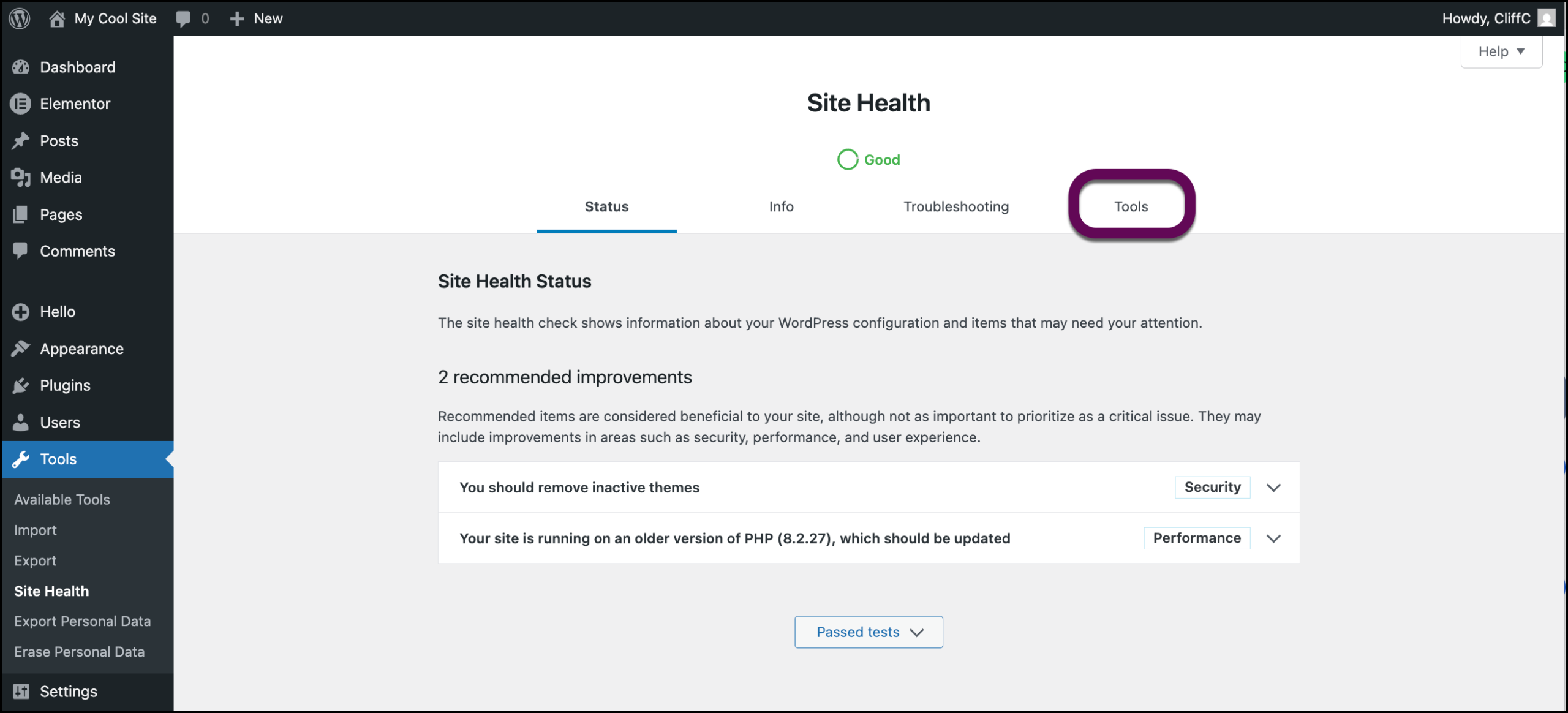
- Click the Tools tab.
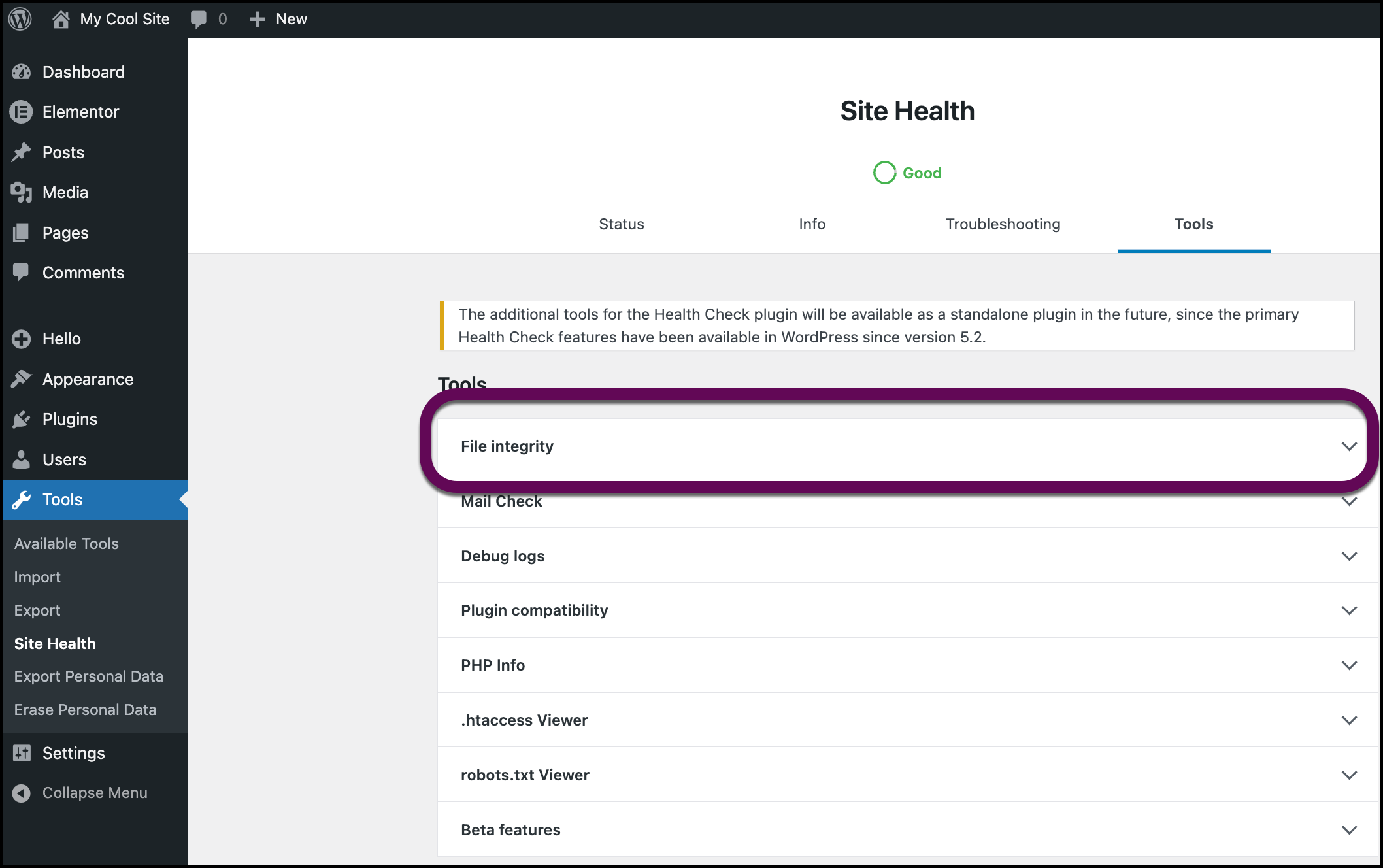
- Open the File Integrity section.
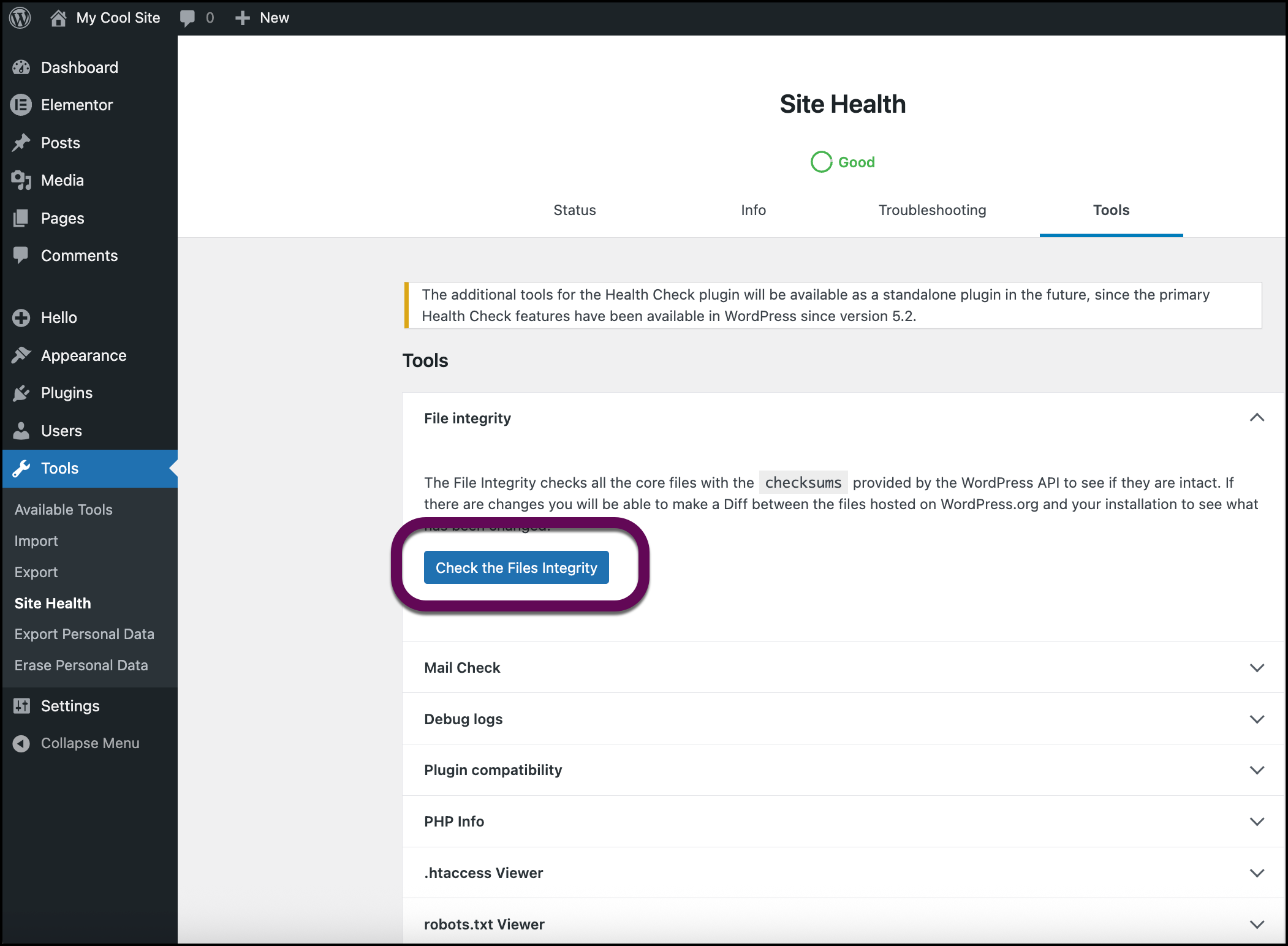
- Click Check the Files Integrity.
- Review the results to see if any core files differ from the official versions.
- Replace any flagged files with fresh copies from a clean WordPress installation.
How can I manually audit my Elementor plugin folders?
Malware often persists within plugin directories under disguised file names.
- Access your site’s file directory. For details, see Access the files of your Elementor Host site.
- Navigate to the /wp-content/plugins/ directory.
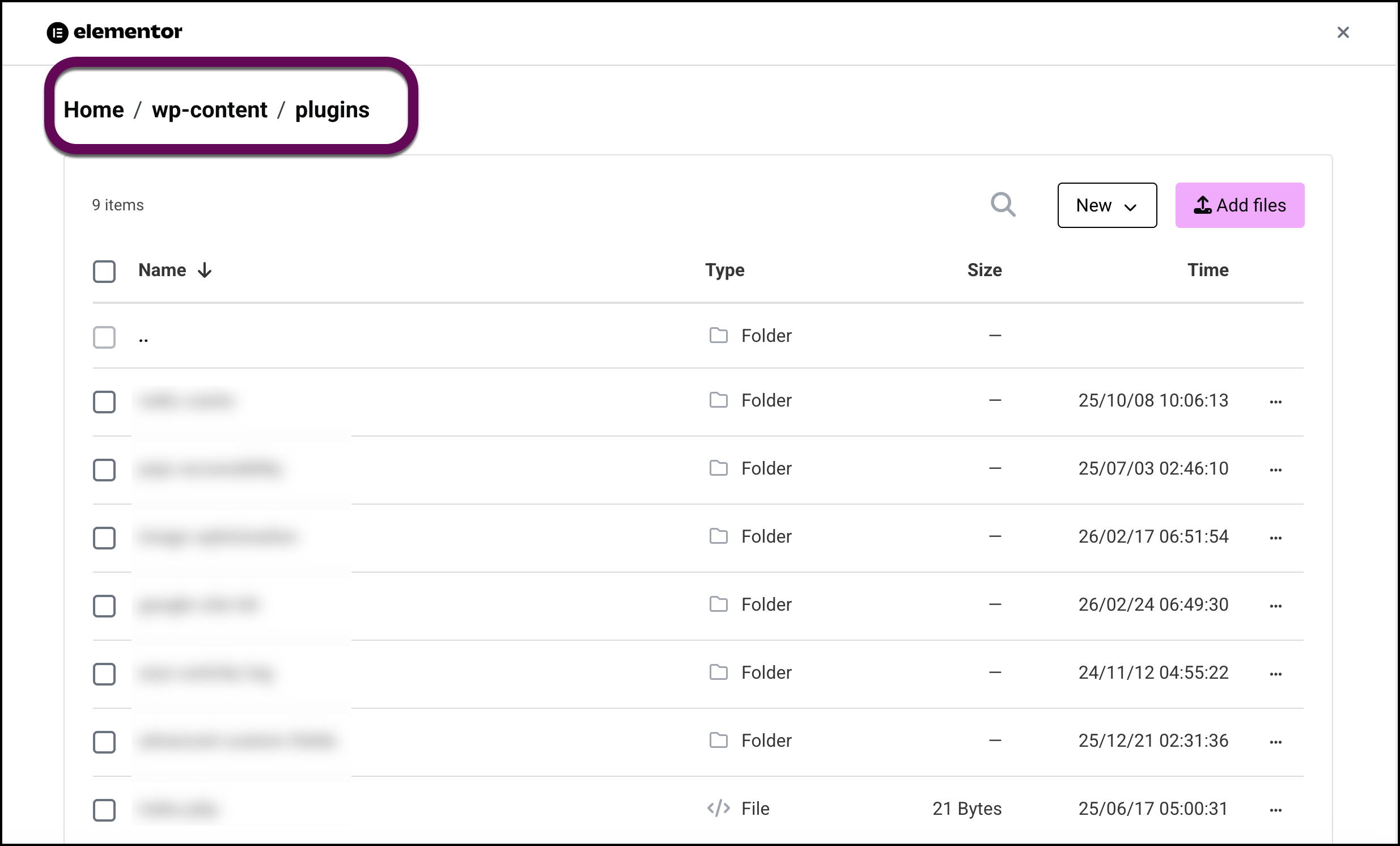
- Audit the folders for the following:
- Unrecognized folder names.
- Plugins that have not been updated for over six months.
- Files with random character names (e.g., “xh7dy.php”).
- Delete suspicious or unused folders and reinstall essential plugins from trusted sources.
How should I audit users and reset passwords for security?
After cleaning the files, you must remove unauthorized access points to prevent reinfection.
- Go to the Users section in your WP Admin dashboard. For details, see Add Users to your website.
- Delete any accounts you do not recognize, particularly those with Administrator roles.
- Reset credentials for the following entities:
- WordPress Admin accounts.
- SFTP access credentials.
- Database user passwords.
- Implement security hardening features:
- Strong Passwords (alphanumeric with special characters).
- Two-Factor Authentication (2FA).
How do I monitor my site’s health after cleaning?
Continuous monitoring ensures that “backdoor” scripts are not re-executing.
- Navigate to the Logs tab in your My Elementor Advanced dashboard. For details, see Access your error logs.
- Search the PHP error logs for suspicious functions such as:
- eval()
- base64_decode()
- Clear the site cache. For details, see How do I clear my Elementor Host website’s cache?
- Confirm all site software is running the latest stable version.
[Image: Logs and Performance Tab – The Advanced dashboard interface in Elementor showing the Logs tab and the Clear Cache button under the Performance section.]
When should I use the Elementor Malware Removal Service?
If the infection persists or you are uncomfortable with manual file editing, professional intervention is recommended.
- Comprehensive deep-cleaning of the entire installation.
- Eradication of hidden “backdoor” scripts.
- Security hardening tailored for Elementor Hosting.
- Protection against future SEO-damaging redirects.