Activate experimental feature
The YouTube element is part of the V4 editor.
Learn more about activating V4 features here.
Add the widget
Add the element to the canvas
To access and use a widget:
In Elementor Editor, click +.
All available elements are displayed.Click or drag the element to the canvas. For more information, see Add elements to a page.
What is the Video element?
The Video element lets you quickly embed videos hosted on your site into your web page.
Common use case
Francis is designing a home page for a fan page dedicated to a television series. On the front page they want to show a video interview they held with the series’ star.
Video element video
See a video demonstrating the widget in action.
Adding a Video element: Step-by-step
In the example below, we’ll embed a YouTube video using the YouTube element.
Add a Video element
To add a Video element:
- Drag the element to page.
The element options appear in the left panel. - Click the video field.
- Click Select video to add a video from your media library or Upload to add a video to your media library.
- Select the video you want to display.
- (Optional) Enter a Start and/or a Stop time to only show a portion of the video.TipThe times entered should be in seconds.
- Enter any additional options for the video. These options are explained below.
- Click the Style tab to adjust the look and feel of the element, for example adding a background.
Settings for the Video element
You can customize your elements using the General and Style tabs. Click the tabs below to see all the settings available for this widget.
General tab
Add, delete, and edit menu items and controls.
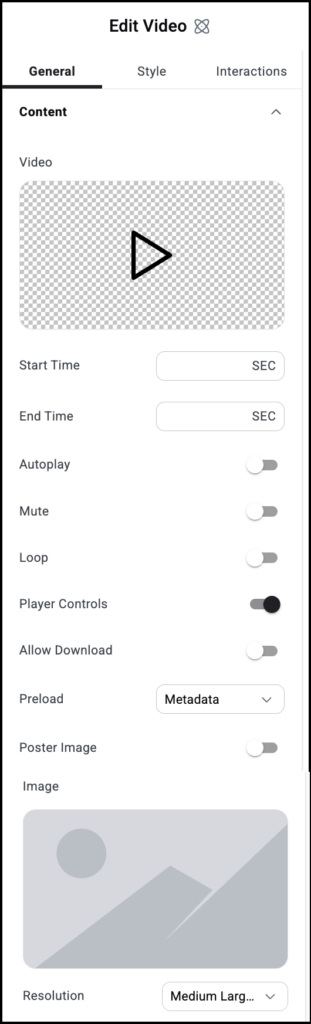
Start time
Specify a time for the video to start (in seconds). Allows you to only show a portion of the video to visitors.
End time
Specify a time for the video to stop (in seconds). Allows you to only show a portion of the video to visitors.
Autoplay
Decide if the video should start playing automatically when someone visits the page.
If enabled, you can choose:
- Play On Mobile: You can also enable the autoplay for mobile devices.
Mute
Toggle on if you want the video to start without sound.
Loop
Toggle on to continuously play the video.
Player Controls
Show or hide buttons like Play, Pause, and Volume.
Allow download
Toggle to Yes if you want to give visitors the ability to download the video to their device.
Preload
Use the Preload setting to determine what information the browser will download automatically when the page is loaded:
- Auto: Let the browser determine what is preloaded.
- Metadata: Preloads only the Metadata.
- Lazy Load: Loads the extra video stuff only once someone hits the play button. This feature helps in improving page speed. Learn more about Lazy Loading.
Poster image
Toggle on if you want to display an image representing the video. You will also need to upload an image by clicking the Image field.
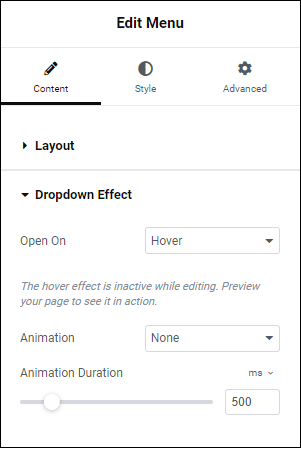
Open On
Allows you to choose when the dropdown menu will activate, when you select it (Click), or when you mouse over it (Hover).
Animation
You can choose to have your dropdown slowly appear. If you do, Animation Duration determines the amount of time it will take for the dropdown to fully appear.
Style tab
Determine the look and feel of menu items and controls.
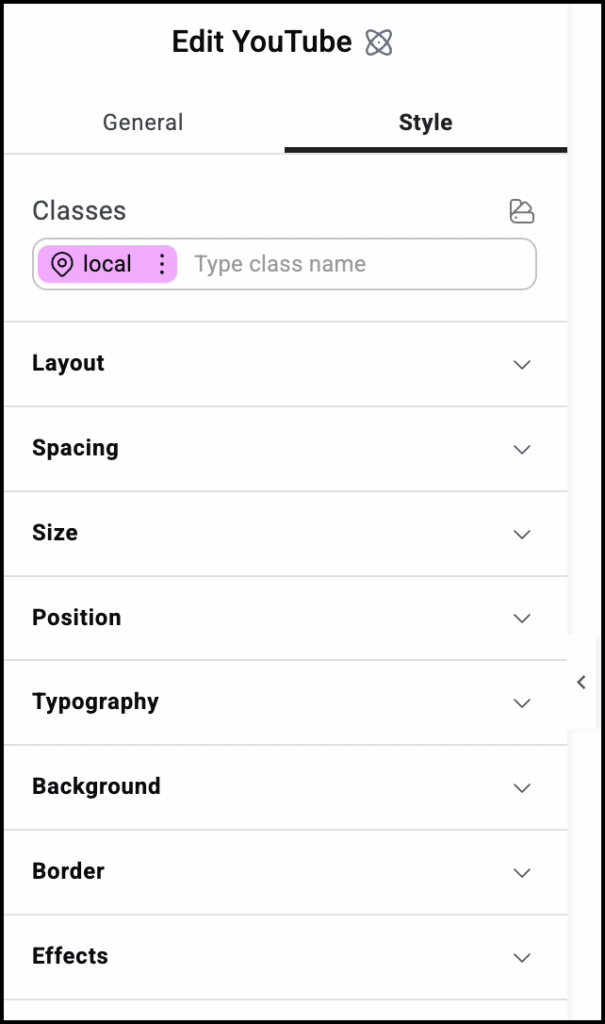
Style options
See the individual articles on Style options:

