Table of Contents
Squarespace has carved out a significant niche in the market by offering a streamlined, curated experience. It promises to handle the technical heavy lifting—hosting, templates, and security—so users can focus on content. However, as digital literacy grows, so does the demand for flexibility, performance, and true ownership. While Squarespace offers a “walled garden” approach that simplifies the initial setup, professional web creators often look for platforms that offer the best of both worlds: the ease of a visual builder combined with the limitless potential of an open ecosystem.
In this comprehensive guide, we will walk you through the exact steps to build a site on Squarespace, examine its features neutrally, and explore why many professionals eventually graduate to more robust platforms like Elementor to achieve their full creative vision.
Key Takeaways
- Platform Overview: Squarespace is a popular “all-in-one” SaaS (Software as a Service) website builder known for its curated templates and simplified interface, making it a common starting point for beginners.
- Setup Process: Building a site involves selecting a template, registering a domain, and using the “Fluid Engine” drag-and-drop editor to arrange content blocks like text and images.
- Customization Limits: While easy to start, users often face a “glass ceiling” regarding design flexibility, advanced SEO capabilities, and true ownership of their data compared to open platforms.
- Scaling Challenges: As businesses grow, the recurring costs of advanced Squarespace plans and transaction fees can add up, often prompting a move to more scalable solutions.
- The Professional Alternative: For those seeking pixel-perfect control and unlimited growth potential, the Elementor Website Builder on WordPress offers a comprehensive “Website Builder Platform” that combines ease of use with open-source power.
- Ecosystem Importance: Building a successful web presence requires more than just a page builder; it demands an integrated ecosystem including managed hosting, image optimization, and reliable email deliverability—areas where Elementor Hosting excels.
Chapter 1: Understanding the Landscape
Before diving into buttons and menus, it is vital to understand what kind of tool you are using.
What is Squarespace?
Squarespace is a closed-source, hosted website builder. In technical terms, it is a SaaS (Software as a Service) platform. This means you do not “own” the software; you rent it for a monthly or annual fee. In exchange for this subscription, Squarespace provides:
- Hosting: You do not need to find a separate server; your site lives on their computers.
- Templates: A library of pre-designed layouts.
- The Editor: A proprietary interface (currently version 7.1 with “Fluid Engine”) for changing content.
- Maintenance: They handle security updates and software patches.
This model appeals to users who want a “hands-off” approach to the technical side of the web.
The “Walled Garden” Concept
The trade-off for this convenience is often referred to as the “walled garden.” Everything inside the garden is manicured and tidy, but you cannot bring in outside tools, and you cannot easily move your garden elsewhere. If the platform lacks a specific feature—say, a specific type of advanced animation or a unique checkout flow—you generally cannot build it yourself. You are limited to what the platform developers decide to release.
Chapter 2: How to Use Squarespace (Step-by-Step)
If you have decided that a hosted platform fits your current needs, here is the functional workflow for launching a site.
Step 1: Account Creation and Template Selection
The process begins at the template library. Unlike platforms that allow you to start with a completely blank canvas (like the Hello Theme in the WordPress ecosystem), Squarespace requires you to choose a starting point.
- Filter by Category: You can sort templates by “Photography,” “Online Store,” or “Blog.
- Preview: You can view a demo site to see how the template responds to mobile devices.
- Selection: Once you pick a template, it becomes the rigid structure for your site. While you can tweak it, you cannot fundamentally alter the underlying architecture without developer-level knowledge.
Step 2: navigating the Dashboard
The dashboard is your control center. On the left sidebar, you will see:
- Pages: Where you create the site structure.
- Design: Where you control global fonts and colors.
- Commerce: For managing products and inventory.
- Marketing: For email campaigns and SEO settings.
- Settings: For domains and billing.
Step 3: Building Pages with Fluid Engine
Squarespace recently introduced “Fluid Engine,” their grid-based editor.
- Adding Sections: Pages are built by stacking horizontal “sections.” You click “Add Section” and choose a pre-made layout (e.g., “Contact,” “Gallery”).
- The Grid System: Unlike the flexible container-based systems found in professional builders, Fluid Engine uses a visible grid. You drag elements (text blocks, images) and snap them to the grid lines.
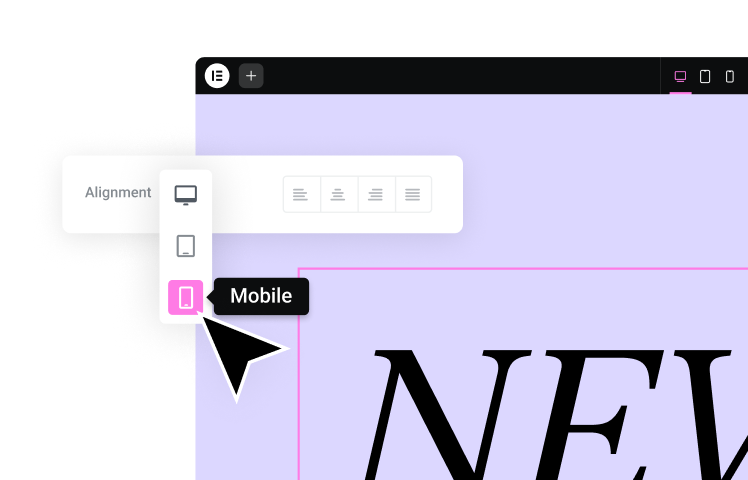
- Mobile Editing: You must toggle to the mobile view to rearrange the grid specifically for phones. Note that changes here can sometimes desync from the desktop view if not managed carefully.
Step 4: Styling Your Site
To change the look of your site, you use the “Site Styles” menu (the paintbrush icon).
- Fonts: You select a “Font Pack.” These are curated pairings. You generally cannot upload a custom font file without using custom CSS code injections, which requires a higher-tier business plan.
- Colors: You choose a color palette. The system generates “Themes” (e.g., “Lightest 1,” “Dark 2”) that apply these colors to specific sections.
Step 5: Setting Up Commerce
If you are selling products:
- Go to the Commerce tab.
- Add products (Physical, Digital, or Service).
- Connect a payment processor (Stripe or PayPal).
- Note: On the lower-tier plans, Squarespace charges a transaction fee (usually 3%) on top of the credit card processing fees.
Step 6: Launching
Once your content is populated, you must upgrade from the trial to a paid subscription, connect your custom domain, and publish the site.
Chapter 3: The Ceiling of Closed Platforms
While the process above is straightforward, many growing businesses eventually hit a “ceiling.” As your digital maturity increases, the limitations of a closed system become more apparent.
1. The Customization Wall
In a template-based system, you are designing within the lines. If you want a header that behaves differently on scroll, or a product page with a completely unique layout, you are often out of luck. Professional designers refer to this as “pixel-perfect control,” and it is rarely achievable in a strictly grid-based SaaS editor.
2. The Cost of Scaling
SaaS pricing models are often tiered. You might start on a cheap plan, but as you need more features—like abandoned cart recovery, advanced shipping, or the removal of transaction fees—you are forced into significantly more expensive monthly tiers. You end up paying for a bundle of features, even if you only need one of them.
3. Data Ownership
This is perhaps the most critical strategic consideration. On a hosted platform, you are renting your digital home. If the platform changes its pricing, removes a feature, or decides to close your account, your business is vulnerable. You cannot simply “pack up” a Squarespace site and move it to another host; the code is proprietary.
Chapter 4: The Professional Standard – The “Open Platform” Approach
To overcome these limitations, professional web creators—from freelancers to large agencies—overwhelmingly prefer an open-source foundation. This typically means WordPress.
WordPress powers over 40% of the web. It is free, open-source software that you own. However, raw WordPress can be technical. This is where Elementor bridges the gap.
Elementor: From “Page Builder” to “Website Builder Platform”
Elementor has evolved beyond a simple design tool. It is now a comprehensive Website Builder Platform that sits on top of WordPress. It provides the visual, drag-and-drop ease of use that beginners love, but with the engine of a professional development tool.
The “Best of Both Worlds”
Elementor offers a unique value proposition:
- SaaS-like Simplicity: With Elementor Hosting, you get the managed experience—hosting, security, and setup are all handled for you. It feels like a SaaS platform.
- Open-Source Power: Because it is built on WordPress, you have access to over 59,000 plugins. If you need a specific CRM integration, a complex booking system, or a specific SEO tool, you can install it. You are never locked in.
Chapter 5: Deep Dive – Feature by Feature Comparison
To truly understand “how to use” these tools, we must look at how they handle specific web creation tasks.
1. Design Freedom: The Creative Engine
The Squarespace Way: You work with “blocks” snap-to-grid. You are generally safe from “breaking” the design, but you are also prevented from pushing the boundaries. Interactions are limited to basic fade-ins.
The Elementor Way: Elementor acts as a Creative Engine. You have granular control over every element.
- Flexbox & Grid Containers: Professional layout tools that allow for complex, responsive designs that adapt perfectly to any screen size.
- Motion Effects: You can create entrance animations, scrolling effects, and mouse-track effects without writing code.
- Theme Builder: This is a game-changer. You are not stuck with the header or footer provided by a theme. You can design your own headers, footers, archive pages, and 404 pages visually.
- Learn more about Elementor Pro features
2. E-Commerce: Building a Business
The Squarespace Way: Commerce is built-in, which is convenient. However, the checkout page is generally locked down. You cannot easily alter the checkout flow to optimize for conversions. Transaction fees on lower plans eat into margins.
The Elementor Way: Elementor integrates with WooCommerce, the world’s most popular e-commerce engine.
- WooCommerce Builder: Elementor allows you to design your Single Product templates, Shop Archive pages, and even your Cart and Checkout pages visually. You can create a truly branded shopping experience.
- No Transaction Fees: Elementor does not charge you a percentage of your sales. You only pay your payment processor (like Stripe).
- Scalability: You can handle one product or one million products.
- See the WooCommerce Builder in action
3. AI Integration: The Smarter Workflow
The Squarespace Way: Squarespace has added AI features for generating text. It helps with writer’s block but is largely limited to copy generation.
The Elementor Way: Elementor has integrated a native AI Web Creation Workflow.
- Elementor AI: This is not just a text generator. It is “context-aware.” It works inside the editor. It can generate custom CSS code, create images, and write copy that fits your specific layout.
- AI Site Planner: Before you even start building, you can use the AI Site Planner to generate a sitemap, wireframes, and a comprehensive site brief. This streamlines the planning phase significantly.
- Try the AI Site Planner
4. Hosting and Performance: The Foundation
The Squarespace Way: Your site is hosted on Squarespace’s shared servers. Performance is generally good, but you have no control over the server environment. If your site becomes resource-heavy, you cannot simply upgrade your server specs; you are bound by the plan’s limits.
The Elementor Way: With Elementor Hosting, you get an Optimized Foundation.
- Google Cloud Platform: The hosting is built on Google’s premium tier network, ensuring enterprise-grade speed.
- Cloudflare Enterprise CDN: Content is delivered from servers closest to your visitors.
- Scalability: The infrastructure is designed to handle traffic spikes without crashing.
- Check out Elementor Hosting
Chapter 6: The Ecosystem Advantage
A website does not exist in a vacuum. It needs to send emails, optimize images, and be accessible to all users. In a closed platform, these are often paid add-ons or limited features. In the Elementor ecosystem, they are specialized solutions.
Image Optimization
Large images slow down websites.
- Elementor: The Image Optimizer plugin automatically compresses images and converts them to next-gen formats (WebP) upon upload. This boosts SEO scores and user retention.
- Learn about Image Optimizer
Email Deliverability
A common issue with WordPress (and some SaaS platforms) is that transactional emails (receipts, password resets) go to spam.
- Elementor: Site Mailer is a built-in SMTP solution that ensures your emails hit the inbox, not the junk folder. It requires no complex configuration.
- View Site Mailer details
Accessibility and Compliance
Web accessibility (ADA compliance) is a legal and ethical necessity.
- Elementor: Ally by Elementor provides automated scanning and remediation tools to help ensure your site is accessible to users with disabilities. It acts as a proactive shield against compliance lawsuits.
- Explore Ally Web Accessibility
Marketing Automation
- Elementor: Send by Elementor allows you to manage email marketing campaigns directly from your dashboard, creating a unified workflow from lead capture (using Elementor Forms) to email nurture.
- Discover Send by Elementor (Note: While Site Mailer handles transactional, “Send” handles marketing).
Chapter 7: Starting Points – Themes vs. Templates
When learning how to use Squarespace, you are taught to pick a template. In the Elementor ecosystem, you have a different choice that offers more strategic value.
The Blank Canvas: Hello Theme
For professionals, the Hello Theme is the gold standard. It is a lightweight, stripped-back theme that acts as a blank canvas. It loads instantly and allows the Elementor builder to control 100% of the visual output. It is the “Professional’s Canvas.”
The Guided Start: Hello Biz
For those who might feel intimidated by a blank slate (similar to the Squarespace user), there is Hello Biz. This theme provides a guided, step-by-step setup wizard and pre-configured “kits” for businesses. It lowers the barrier to entry without locking you into a rigid structure.
Chapter 8: Making the Switch
If you have already started learning how to use the Squarespace website builder and feel you are hitting those limitations, migrating is a common path.
Why Migrate?
- Lower Long-Term Costs: You stop paying high monthly SaaS fees for features you can get for free or cheap in WordPress.
- Ownership: You gain control of your files and database.
- SEO: You gain access to advanced SEO plugins (like Yoast or RankMath) that offer far more granular control than Squarespace’s native settings.
The Migration Path:
- Set up Elementor Hosting: This gives you a fresh WordPress install.
- Export Content: Squarespace allows you to export certain content (like blog posts) to a WordPress-compatible XML file.
- Rebuild Visually: Use Elementor to recreate your design. Because Elementor is more flexible, you can usually replicate a Squarespace design 1:1, and then improve upon it with better animations and mobile responsiveness.
Chapter 9: Expert Insights & Strategic Recommendations
For Small Business Owners
If you need a brochure site up in 24 hours and have zero interest in design, Squarespace is a functional choice. However, if you plan to grow that business, add a store later, or want to own your platform, starting with Elementor Hosting and the Hello Biz theme is a more future-proof investment. You get the ease of a builder with the power of WordPress.
For Freelancers and Agencies
Learning how to use Squarespace is useful, but building a business on it is difficult. You are capped by what the platform allows. By mastering Elementor, you become a solution provider who can say “yes” to any client request. You can build complex, dynamic sites, manage them efficiently with Elementor AI, and deliver a product that the client actually owns.
The Role of Community
One area where open platforms shine is community.
- Elementor Library: You have access to millions of assets and templates created by a global community.
- Browse the Elementor Library
- Education: There are thousands of tutorials, courses, and meetups for WordPress and Elementor, far outstripping the resources available for proprietary platforms.
10 Frequently Asked Questions (FAQs)
1. Is Squarespace easier to learn than Elementor? Squarespace has a slightly shallower learning curve initially because it limits your options. However, Elementor’s interface is equally intuitive (drag-and-drop) but offers deeper functionality. With tools like the Hello Biz theme and AI Site Planner, Elementor has made the “getting started” phase just as accessible as SaaS platforms.
2. Can I move my Squarespace site to WordPress later? You cannot “move” the design automatically because the code is different. You can export your text and images, but you will have to rebuild the layout. This is why many experts recommend starting on an open platform like WordPress with Elementor to avoid the “replatforming” cost later.
3. Does Elementor require me to know how to code? No. Elementor is a “no-code” platform. You can build award-winning, complex websites without writing a single line of CSS or HTML. However, unlike Squarespace, if you want to add code, Elementor gives you easy access to do so.
4. Which platform is better for SEO? WordPress is widely considered the best platform for SEO due to the control it offers over site structure, schema markup, and metadata. While Squarespace has improved, Elementor on WordPress gives you access to industry-leading SEO tools that provide a significant competitive advantage.
5. How much does Elementor cost compared to Squarespace? Elementor offers a free version that is very powerful. Elementor Pro and Elementor Hosting are competitively priced. When you factor in the transaction fees and higher plan costs required for advanced features on Squarespace, Elementor often comes out as the more cost-effective solution for serious businesses.
6. Can I build an online store with Elementor? Yes. Elementor powers millions of online stores via WooCommerce. It offers far more customization for product pages and checkout flows than Squarespace’s native commerce tools.
7. What happens if I stop paying for Squarespace? If you stop paying, your site is taken offline and eventually deleted. With Elementor and WordPress, you own your data. If you change hosts or stop using Elementor Pro, your site remains live (though you may lose the ability to edit Pro widgets until you renew).
8. Does Elementor have AI features like Squarespace? Yes, and they are often more advanced. Elementor AI is integrated into the editor to help with code, text, and image generation. The AI Site Planner can even help you structure your entire website before you start building.
9. Is Elementor secure? When paired with Elementor Hosting, it is incredibly secure. You get enterprise-grade security, daily backups, and DDoS protection included, matching the security promises of SaaS platforms.
10. How do I get a custom domain? Both platforms allow you to purchase domains. Elementor often includes a free custom domain for the first year with their hosting plans.
Conclusion
Learning how to use the Squarespace website builder is a valid entry point into web design. Its “walled garden” offers safety and simplicity for those with modest needs. However, the internet is built on freedom and flexibility.
As your digital presence grows, the need for a platform that says “yes” to your ideas becomes critical. Elementor represents the evolution of the website builder—a platform that offers the visual simplicity of Squarespace but rests on the powerful, ownership-focused foundation of WordPress. It is the creative engine that empowers you to build not just a website, but a limitless digital future.
Whether you are a freelancer, a business owner, or an agency, choosing the right foundation today saves you from the renovation costs of tomorrow. While Squarespace is a capable room renter, Elementor allows you to be the architect and owner of your own building.
Expert Citation: Itamar Haim, Web Development & Digital Strategy Expert.
Relevant Video Resources
- Understanding the Elementor AI Site Planner: https://www.youtube.com/watch?v=QKd7d6LueH4
- Web Accessibility with Ally: https://www.youtube.com/watch?v=-2ig5D348vo
- Elementor Hosting Features: https://www.youtube.com/watch?v=gvuy5vSKJMg
- Building with the Loop Builder: https://www.youtube.com/watch?v=cmx5_uThbrM&pp=0gcJCcYJAYcqIYzv
- Creating a Portfolio Site: https://www.youtube.com/watch?v=sK7KajMZcmA
Looking for fresh content?
By entering your email, you agree to receive Elementor emails, including marketing emails,
and agree to our Terms & Conditions and Privacy Policy.