Table of Contents
In that “old world,” if you wanted to move a logo five pixels to the right, you had to call a developer and wait a week. If you wanted to add a simple contact form to a landing page, you had to install a third-party plugin, configure an API key, and pray it didn’t crash your entire site due to a script conflict. It was a fragmented, frustrating, and expensive process.
Today, that era is effectively over. The landscape of professional web creation has shifted entirely.
We have entered the age of the Website Builder Platform. It is no longer about just editing text on a page or dragging a generic image into a box; it is about having full, granular control over your digital presence. From the server infrastructure and site architecture to pixel-perfect design and sophisticated marketing automation, you can now manage the entire lifecycle of a website without writing a single line of code.
This guide is not a quick “five-minute setup” tutorial. It is a comprehensive, expert-level masterclass into the professional workflow of using a WordPress website builder in 2025. We will explore how to leverage a complete web creation ecosystem to plan, design, host, and grow a website that drives real business results. We will move beyond the basics to understand the strategic, technical, and creative decisions that distinguish a professional site from an amateur one.
Key Takeaways
- The Ecosystem Advantage: Success in 2025 isn’t about finding the best individual plugin; it’s about choosing a unified platform where hosting, builder, and marketing tools talk to each other to eliminate technical debt.
- AI as a Strategic Partner: Artificial Intelligence is no longer a gimmick—it is an essential co-pilot for generating sitemaps, writing code snippets, and creating visual assets that dramatically accelerate your workflow.
- Performance is Design: Your choice of hosting and theme acts as the foundation of your user experience; a slow site ruins a beautiful design instantly, no matter how good the layout is.
- Global Design Systems: Professional creators don’t style individual elements; they build global design systems (fonts, colors, spacing) that ensure consistency and scalability across hundreds of pages.
- Beyond the Build: A website is a living asset. Integrating tools for email deliverability, image optimization, and accessibility is just as critical as the visual design for long-term success.
Part 1: The Evolution of Web Creation and the Platform Mindset
To understand how to use a WordPress website builder effectively, you must first understand the environment you are working in. WordPress is the operating system of the web, powering over 43% of all websites. Its dominance is built on flexibility and open-source freedom. However, the traditional WordPress experience was often fragmented and frustrating for beginners and professionals alike.
The “Frankenstein” Problem
In the traditional workflow, a site owner acts as a general contractor. You buy a domain from one registrar, purchase shared hosting from another provider, buy a theme from a marketplace, and then stitch it all together with a dozen plugins from different developers.
This approach often leads to what we call the “Frankenstein” effect. Your site becomes a patchwork of conflicting code. The slider plugin fights with the menu script; the caching plugin breaks the contact form; the security plugin blocks the backup tool. When something breaks—and it eventually does—the hosting provider blames the theme, the theme developer blames a plugin, and you are left stuck in the middle with a broken site and no support.
This “technical debt” accumulates over time, making the site slow, insecure, and difficult to manage. It forces creative professionals to become server administrators, wasting valuable time that should be spent on design and strategy.
The SaaS Limitations
While other platforms exist, many rely on a closed-source model. SaaS (Software as a Service) builders like Squarespace or Wix offer a unified experience but lock you into their proprietary ecosystem. If you outgrow their features, you cannot easily migrate or extend the functionality with custom code. You trade freedom for convenience, often hitting a “glass ceiling” where you cannot optimize specific technical aspects of your site because the platform doesn’t allow access to the underlying infrastructure.
The Integrated Platform Solution
The modern solution is the Integrated Website Builder Platform. This approach combines the open flexibility of WordPress with the unified, seamless experience of a SaaS tool.
By centralizing your tools—hosting, builder, theme, and growth utilities—you eliminate compatibility issues. You get a single support channel and a cohesive interface. When you choose a builder today, you aren’t just choosing a design tool; you are choosing the infrastructure for your entire business. This shift allows you to focus on creation rather than maintenance.
When you adopt this platform mindset, you stop looking for “quick fixes” and start building a digital asset. You realize that your hosting impacts your design (via speed), your design impacts your marketing (via conversion), and your marketing impacts your infrastructure (via traffic). Everything is connected. By utilizing an integrated website builder, you gain the ability to control every variable in this equation from a single dashboard.
Part 2: Strategic Planning with AI
Most beginners make the critical mistake of jumping straight into the visual editor without a plan. They start dragging widgets onto a canvas, hoping a design will magically appear. This is how you end up with a cluttered, confusing website that looks unprofessional and fails to convert visitors.
Professional web creators start with strategy. Before you touch a single pixel or install a single theme, you need a blueprint. In 2025, this planning phase is supercharged by Artificial Intelligence.
Defining Your Persona and Goals
Every decision you make in the builder should be dictated by your answers to three core questions. Writing these down clarifies your design direction:
- Who is the primary user? Be specific. Instead of “everyone,” think “A busy corporate executive aged 40-55 looking for high-end consulting services.” This dictates your font size (larger for readability), color contrast (high for clarity), and tone of voice (professional, concise).
- What is the primary action? What is the one thing they must do? (e.g., Booking a 15-minute discovery call vs. buying a $20 product). This dictates your button placement and hierarchy.
- What is the brand vibe? How should they feel? (e.g., Trustworthy, minimal, authoritative vs. playful, colorful, energetic). This dictates your imagery and whitespace usage.
The AI-First Workflow
In the past, creating a sitemap and wireframes required specialized software like Figma or Sketch, plus hours of tedious work. Today, Artificial Intelligence has democratized this strategic phase. You don’t need to be an information architect to build a solid site structure.
You can now use AI tools to generate a comprehensive structural blueprint in minutes. An AI Site Planner can take a simple prompt—like “I need a portfolio website for a high-end landscape architect in Seattle”—and output a complete strategy. It will map out exactly which pages you need (Home, Portfolio, Services, About, Contact) and, crucially, suggest the specific sections required for each page to tell a compelling story.
Using a dedicated AI planner allows you to:
- Visualize the User Flow: See how pages connect before you build them, ensuring a logical navigation structure.
- Generate Content Briefs: Get a head start on your copy. The AI can suggest headlines and key selling points for each section, saving you from “lorem ipsum” placeholders.
- Export to Wireframe: This is the game-changer. You can instantly convert your AI-generated plan into a low-fidelity wireframe directly inside your builder. This gives you a structural skeleton to work from, meaning you never have to face the dreaded “blank page.”
This strategic phase is where you win or lose. A site built on a solid plan is easy to design. A site built without a plan is a never-ending series of revisions. By leveraging Elementor AI, you effectively hire a digital strategist to sit beside you, ensuring your foundation is solid before you start building.
Part 3: Setting the Digital Foundation
A house built on sand will eventually collapse, no matter how beautiful the architecture is. In web design, your “ground” is your hosting and your “frame” is your theme. These two technical choices dictate the performance potential of your website.
The Hosting Infrastructure
Your hosting provider is the engine of your website. It dictates your site’s speed, security, and reliability.
Shared Hosting vs. Managed Hosting
Many beginners opt for generic “Shared Hosting.” This is where your website sits on a server alongside hundreds or thousands of other websites. If one of those other sites gets a traffic spike or gets hacked, your site slows down or crashes. It is cheap, but the performance is often inconsistent, leading to slow “Time to First Byte” (TTFB) metrics that hurt your Google rankings. Generic hosts also rarely offer support for specific plugin issues, leaving you to debug complex errors alone.
For a professional website builder, Managed WordPress Hosting is the superior choice. In a managed environment, the server is optimized specifically for the CMS (Content Management System).
- Server-Side Caching: The server saves copies of your pages to load them instantly for visitors, reducing the strain on the database.
- Content Delivery Network (CDN): Your site’s images and assets are distributed to servers around the world (e.g., Cloudflare Enterprise), ensuring fast load times whether the visitor is in New York or Tokyo.
- Security Layers: Managed hosts implement Web Application Firewalls (WAF) and DDoS protection specifically tuned to block WordPress vulnerabilities before they reach your site.
When you use a solution like Elementor Hosting, you benefit from vertical integration. The team that builds the software also manages the hardware. This means the memory limits, PHP versions, and caching rules are pre-configured to ensure the builder runs smoothly, eliminating the common “loading” errors found on underpowered shared hosts. This integration provides a “Google Cloud” powered infrastructure that is usually reserved for enterprise clients, made accessible to everyone.
The Theme Strategy
In the context of a modern visual builder, the role of the WordPress “Theme” has changed fundamentally. You no longer need a theme that dictates your design (like where the logo goes or what font to use). In fact, a theme with too many “features” (often called a “Multipurpose Theme”) is a liability—it adds code bloat that slows down your site and fights with your builder settings.
You want a theme that acts as a stable, lightweight canvas.
The “Hello” Concept
The ideal approach is to use a minimalist framework theme. A theme like Hello Elementor is stripped down to the bare essentials. It loads almost zero styling of its own. It exists purely to load the builder. This ensures that:
- Maximum Performance: Your site loads faster because there is no unused CSS or JavaScript.
- Total Design Freedom: You don’t have to write code to “undo” the theme’s default styling (like removing a sidebar you didn’t ask for or fixing a font size that won’t change).
- Perfect Compatibility: The theme and builder communicate perfectly, reducing the risk of conflicts after updates.
For those who need a slightly faster start, the Hello Biz theme offers a middle ground—providing the lightweight architecture of a framework but including a setup wizard and basic structural templates to help business owners launch faster without sacrificing performance. This approach is favored by designers who want a blank slate without technical hurdles.
The combination of managed hosting and a lightweight theme creates the “Performance Stack” that modern web design requires. Without this, your beautiful visual design will be too slow to convert visitors.
Part 4: Mastering the Visual Editor
Now that we have our plan, our host, and our theme, we enter the core of the process: the Visual Editor. This is where your website comes to life.
Understanding the Interface
Most professional builders utilize a “WYSIWYG” (What You See Is What You Get) interface. This immediate visual feedback loop is what makes modern builders so powerful.
- The Canvas: This is your live preview. You can interact with it directly—typing text, dragging borders, and resizing images.
- The Widget Panel: On the sidebar, you have a library of elements (Widgets) ranging from basic text and images to advanced carousels, maps, pricing tables, and forms.
- The Navigator: A structural view of your page (like a layer panel in Photoshop) that lets you manage complex, nested layouts easily without trying to click tiny elements on the screen.
The Power of Containers (Flexbox & Grid)
To create professional layouts that adapt to every screen size, you must understand Containers. Modern builders have moved away from rigid “sections and columns” to use CSS Flexbox and Grid technology.
Think of a Container as a smart box. You place widgets inside this box and then define rules for how they behave:
- Direction: Should items stack vertically (like a list on mobile) or sit side-by-side (like a menu on desktop)?
- Alignment: Should items be centered, pushed to the start, or spaced evenly apart?
- Wrap: If the screen gets too narrow, should the items drop to the next line automatically?
Mastering containers allows you to build complex, nested layouts. For example, you can create a “Card” container that holds an image, a heading, and a button. You can then place three of these Cards inside a parent “Grid” container that automatically arranges them into three columns on desktop, two on tablet, and one on mobile—all without creating duplicate versions of the content. This is “Responsive Design” at its core.
Building Your Global Design System
Amateurs style elements individually (changing this button to blue, then that heading to 20px). Professionals use a Design System.
Before you build your homepage, go to your Site Settings. Here you will define:
- Global Colors: Set your Primary, Secondary, Text, and Accent colors. This ensures that if you rebrand later, you change the color in one place, and it updates across 100 pages instantly.
- Global Fonts: Define the typography for H1, H2, H3, Body text, and Buttons. Set your font families, weights, and line heights here.
When you drag a Heading widget onto the canvas, it will automatically inherit your Global H1 style. This enforces consistency and dramatically speeds up your workflow. It also makes your site file size smaller, as you aren’t loading unique CSS for every single element.
Accelerating Design with AI
Designing from scratch can be slow, especially if you are facing “blank page syndrome.” This is where generative AI integration becomes a productivity multiplier.
Instead of switching tabs to ChatGPT or a stock photo site, you can use Elementor AI directly inside the editor:
- Text Generation: Highlight a text widget and ask the AI to “Write a punchy value proposition for a coffee shop” or “Fix the grammar in this paragraph.” You can even translate text instantly to localize your site.
- Image Generation: Need a specific background? Describe it to the AI: “A modern, minimalist office workspace with soft morning light, blue tones.” It will generate unique, royalty-free visuals instantly.
- Custom Code: If you need a specific visual effect—like a gradient border that rotates on hover or a specific shadow effect—you don’t need to know CSS. You can ask the AI code assistant to “Write CSS for a rotating gradient border” and apply it to the element automatically.
This integration transforms the builder from a design tool into a creative partner. It removes technical barriers, allowing you to execute ideas as fast as you can think of them.
Part 5: Building Essential Pages
Every website, regardless of industry, relies on a core set of pages to communicate value and drive action. Here is how to approach them using a builder workflow.
The Homepage: Your Digital Storefront
Your homepage has roughly five seconds to answer two questions: “Who are you?” and “What can you do for me?” It needs to be clear, concise, and directive.
- The Hero Section: This is the “above the fold” area. Use a high-quality background image or video container. Overlay a massive H1 headline that states your value proposition clearly (e.g., “We Build Homes that Last”). Add a primary “Call to Action” (CTA) button that links to your offer.
- Social Proof: Immediately below the hero, place a “Logo Carousel” widget showing brands you’ve worked with, or a “Testimonial” grid. This builds instant trust before you ask for anything.
- Feature Highlights: Use “Icon Box” widgets to break down your services into digestible chunks.
- The Final CTA: End the page with a clear next step—a form or a button to contact you. Do not leave the user at a dead end.
The About Page: Building Connection
People buy from people. This page shouldn’t just be a corporate resume; it should be a story that builds a connection with the visitor.
- The Origin Story: Use a mix of text and video widgets. A video of the founder speaking directly to the camera is highly effective for building rapport.
- Team Grid: Use “Image Box” widgets to introduce team members. Add links to their LinkedIn profiles for authenticity.
- Values: Use visual elements to showcase your core values or mission statement.
The Contact Page: Reducing Friction
Make it impossible to miss how to reach you.
- The Form: Drag in a “Form” widget. Keep it simple—Name, Email, and Message. Every extra field (like “Phone Number” or “Budget”) reduces the chance of someone filling it out.
- Context: Use a “Google Maps” widget if you have a physical location. Use “List Items” with icons to display email, phone, and hours of operation clearly.
Using Kits and Patterns
You don’t always have to build from scratch. The Elementor Library offers “Kits”—full-site template packages designed by professional designers. You can import a kit that includes a consistent design for Home, About, Services, and Contact pages. Then, you simply use the visual builder to inject your own content and apply your Global Design System. This is often the fastest way to get a high-quality result while ensuring technical best practices are followed.
Part 6: Advanced Functionality & eCommerce
A website is more than a digital brochure; it is a functional tool for business growth. To truly scale, you need to move beyond static text and images.
The eCommerce Engine
If you plan to sell products, you will likely use WooCommerce, the standard for WordPress eCommerce. While powerful, a default WooCommerce installation gives you rigid, uninspiring product pages that look like thousands of other sites.
Using a builder with a dedicated WooCommerce Builder allows you to break free from these templates.
- Single Product Design: You can design a completely custom layout for your product page. Place the product gallery on the right, the price on the left, or create a sticky “Add to Cart” button that follows the user as they scroll.
- Cart & Checkout: Checkout abandonment is a major issue. You can customize the cart and checkout pages to remove distractions (like the header and footer), simplify the form fields, and brand the experience to match the rest of your site.
- Dynamic Archives: Create custom product grids that filter products by category or tag, allowing for a tailored shopping experience.
Dynamic Content
For advanced sites (like real estate listings, directories, or recipe blogs), you need Dynamic Content. This allows you to build one design template (e.g., a “Listing Page”) and have it automatically populate with data from the database (Price, Address, Photos) for hundreds of different listings.
You can create Custom Post Types (e.g., “Properties”) and custom fields using tools like ACF (Advanced Custom Fields), then link your builder widgets to these fields. This transforms your site from a static brochure into a powerful, data-driven web application. This capability is available in Elementor Pro and differentiates true website builders from simple page editors.
This capability allows you to build complex applications that are easy for your clients or team to update, without breaking the design. They simply fill out a form in the dashboard, and the design updates automatically.
Part 7: Marketing and Growth Tools
Building the site is only half the battle. You need tools to capture leads and nurture them. A great design without a marketing engine is like a sports car without fuel.
Lead Capture & Popups
“Popups” is often a dirty word, but when used correctly, they are the highest converting tool in your arsenal. Instead of installing a separate plugin, use your builder’s native Popup Builder.
- Exit Intent: Create a popup that only triggers when a user moves their mouse to close the tab. Offer a discount code or a free guide to save the sale.
- Slide-Ins: Create a subtle slide-in box for blog posts that asks readers to subscribe to your newsletter.
- Targeting: Set advanced rules so that a specific popup only shows to visitors coming from Facebook, or only on product pages.
Ensuring Deliverability
A common pain point for WordPress users is that contact form emails often disappear. They never reach your inbox. This happens because WordPress relies on a default PHP function (wp_mail) that many email providers (like Gmail and Outlook) block as spam because it lacks authentication.
To fix this, do not rely on default settings. Use a Site Mailer tool (SMTP replacement). This re-routes your transactional emails through a trusted delivery service, ensuring that every lead, order confirmation, and password reset actually lands in the inbox. This is a non-negotiable step for any business site. By using the Site Mailer by Elementor, you can fix this issue without complex server configuration.
Marketing Automation
Traditionally, you would need to export your leads to an external CRM like HubSpot or Mailchimp. Integrated solutions now allow you to manage this directly within WordPress.
You can connect your forms to a native marketing automation tool. When a user fills out a form, they are automatically added to your contact list. You can then trigger an automated email sequence—sending them a welcome email immediately, followed by a nurture email three days later—all managed from the same dashboard where you built your site. This keeps your data centralized and secure. Tools like Send by Elementor facilitate this integrated workflow.
Part 8: Optimization, Accessibility, and Security
The final phase distinguishes the amateurs from the pros. It is about the unseen infrastructure that keeps your site fast, legal, and safe.
Image Optimization
Large, high-resolution images are the number one killer of website speed. If you upload a 5MB photo directly from your camera, your site will crawl, and visitors will leave.
You need an automated solution. An Image Optimizer plugin integrated with your builder will automatically intercept every image you upload. It compresses the file size without losing visual quality and converts it to modern formats like WebP or AVIF, which load significantly faster on mobile devices. Set it once, and it handles optimization forever.
Web Accessibility
The web must be inclusive. Ensuring your site is accessible to people with disabilities is not just a legal requirement (ADA/EAA compliance); it expands your market reach to the 15% of the population with some form of disability.
You cannot rely on manual checking alone. Use an accessibility tool like Ally by Elementor that scans your site for violations—such as text with low contrast, images missing Alt Text descriptions, or buttons that can’t be navigated via keyboard. It provides an automated remediation checklist and adds an accessibility interface to your site, allowing visitors to adjust font sizes and contrast modes to their needs.
Security and Maintenance
Owning a website is like owning a car; it requires regular maintenance.
- Updates: You must keep WordPress, your theme, and your builder updated. These updates often contain critical security patches.
- Backups: Ensure your hosting provider offers automated daily backups. If an update breaks your site, you need to be able to hit “Undo” and restore the version from yesterday.
- Lockdown: Use a security plugin or host-level protection to limit login attempts and block malicious IP addresses.
Conclusion: The Power is in Your Hands
Learning how to use a WordPress website builder is a journey of empowerment. You are no longer dependent on a developer’s schedule to change a headline or swap an image. You have the tools to control your digital narrative completely.
The key to success in 2025 is to view your website not as a collection of disjointed parts—a host here, a theme there, a plugin here—but as a cohesive ecosystem. By selecting a platform that unifies hosting, design, marketing, and optimization, you reduce the technical friction and allow yourself to focus on what truly matters: creating content, serving your customers, and growing your business.
Start with a strategy, build on a solid foundation, design with a system, and never stop optimizing. The tools are ready; the rest is up to you.
Get Started with Elementor Free
Frequently Asked Questions
1. Do I need to know how to code to use a WordPress website builder? No. Modern website builders use visual, drag-and-drop interfaces that allow you to build complex websites without writing code. While knowing HTML or CSS can be helpful for very specific custom effects, it is absolutely not required for building professional, high-performance websites.
2. What is the difference between a “Theme” and a “Website Builder”? Traditionally, a Theme controlled the header, footer, and overall style of the site, while the Builder only controlled the content area of the page. However, advanced builders like Elementor Pro include a “Theme Builder” feature. This allows the builder to override the theme completely, letting you design headers, footers, and archive pages visually. This makes the theme’s role strictly technical (loading the site) rather than visual.
3. Is managed hosting really worth the extra cost over shared hosting? Yes. Shared hosting is like renting a bed in a crowded hostel—it’s cheap, but noisy and insecure. Managed WordPress Hosting is like renting a private apartment with a concierge. The performance gains (speed), automatic backups, and specialized security protocols found in platforms like Elementor Hosting directly impact your SEO rankings and user experience, providing a high ROI.
4. Can I switch themes after I have built my website? If you used a website builder to create your entire site (including headers and footers), switching themes is usually painless because the builder controls the design, not the theme. If you relied on the theme for your header layout and typography, switching themes will break your design and require significant rework. This is why using a builder for the entire site is recommended.
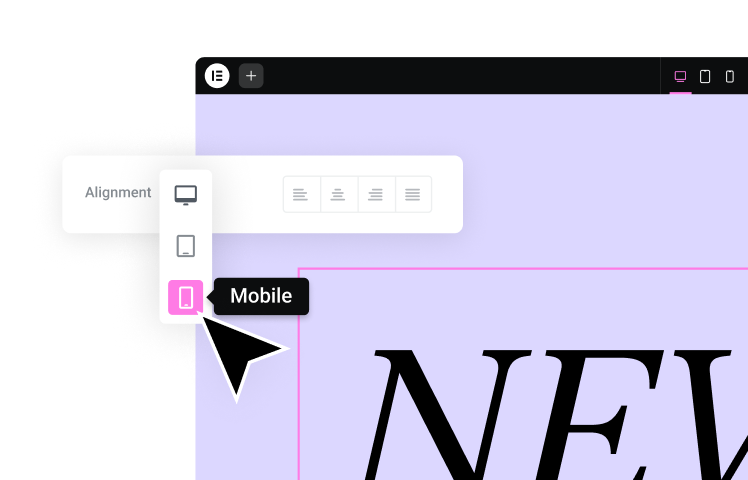
5. How do I make sure my website looks good on mobile? Website builders are responsive by default, but you should not assume it’s perfect. Use the “Responsive Mode” in your editor to toggle between Desktop, Tablet, and Mobile views. You can then adjust font sizes, padding, and margins specifically for the mobile view without affecting the desktop version.
6. Can I build a large eCommerce store with a website builder? Absolutely. Website builders integrate deeply with WooCommerce, which powers some of the largest stores on the web. By using a builder, you can create custom product layouts and optimized checkout flows that are often superior to standard enterprise eCommerce platforms, provided you have robust hosting to handle the traffic.
7. What happens if I stop paying for the website builder plugin? Generally, if you stop paying for a premium builder, your website will still be visible to visitors, but you will lose access to the editing tools, pro widgets, and updates. Over time, this becomes a security risk. It is best to view the builder subscription as a core business expense, similar to hosting.
8. How does AI help in the website building process? AI is a productivity multiplier. It helps with strategy (generating sitemaps and wireframes), content (writing copy and fixing grammar), visuals (generating unique images), and technical tasks (writing custom CSS code snippets). It removes the “blank page” paralysis and speeds up the workflow significantly.
9. Why are my contact form emails not arriving? This is a common WordPress issue. By default, WordPress uses a PHP function that is often blocked by email providers to prevent spam. To fix this, you need a “Site Mailer” or SMTP integration that routes your emails through a legitimate email sending service, ensuring deliverability.
10. How important is image optimization? It is critical. Images are the heaviest part of a webpage. Unoptimized images cause slow load times, which frustrates users and hurts your Google rankings. Using an automated Image Optimizer that compresses files and serves them in next-gen formats (WebP) is essential for a professional site.
Looking for fresh content?
By entering your email, you agree to receive Elementor emails, including marketing emails,
and agree to our Terms & Conditions and Privacy Policy.