Elementor Pro is an extension of the free plugin, Elementor Core. To use Elementor Pro, you must have Elementor Core installed and activated on your website first. (See Install and activate Elementor Core for instructions before proceeding).
Once you have the core plugin, follow the steps below to purchase, install, and activate Elementor Pro.
Step 1: Purchase Elementor Pro
Before you can install the Pro features, you need an active subscription.
- Go to the Elementor website and purchase an Elementor Pro subscription.
- After completing your purchase, you will be redirected to a confirmation page. Keep this page open, or look out for your purchase confirmation email, as you will need the provided download link if you choose the manual installation method below.
Note
Note: If you have an Elementor One account, see Install and Connect Elementor One
Step 2: Choose Your Installation Method
There are two ways to install and activate Elementor Pro:
Method 1: Install and Activate via WP Admin (Recommended)
After purchasing Elementor Pro, the easiest way to activate it is directly through your WordPress dashboard.
- Log in to your WordPress admin dashboard (WP Admin).
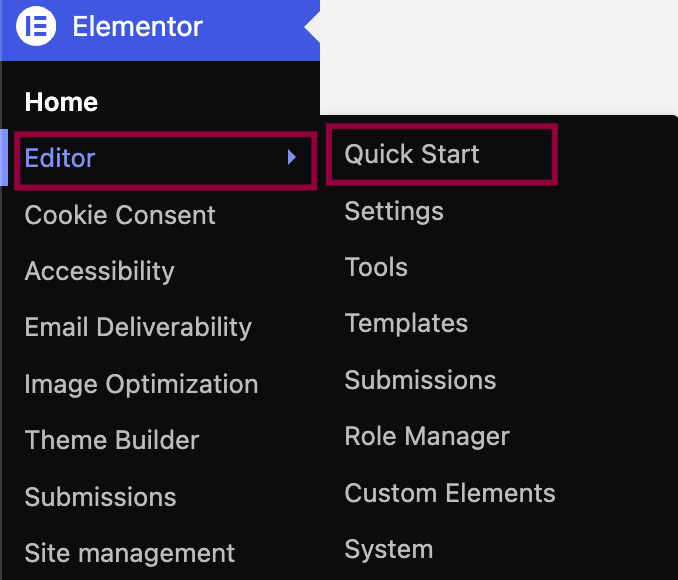
- Navigate to Elementor > Editor > Quick Start.
- Click Connect & Activate.

- Confirm that you are logged into the correct Elementor account.
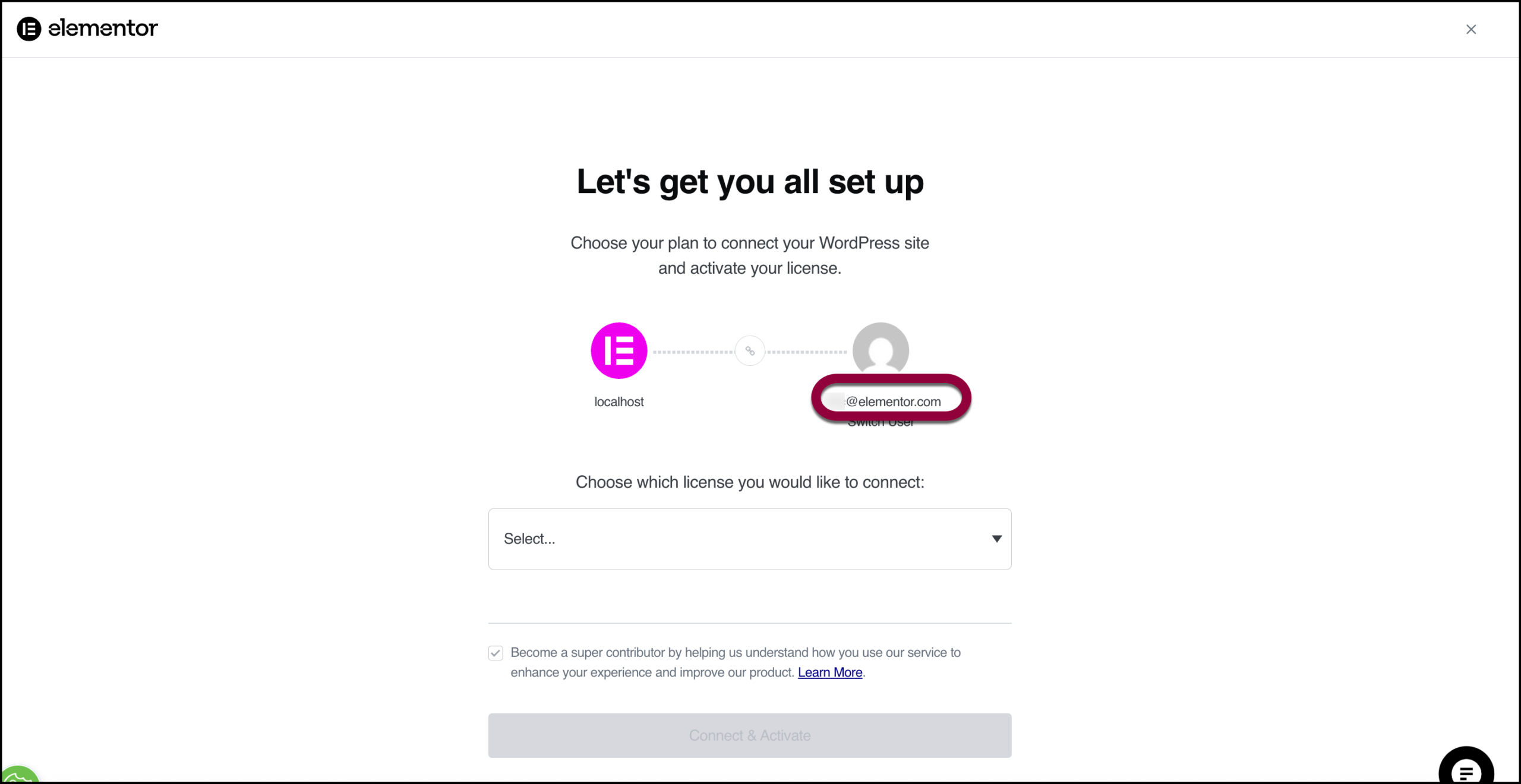
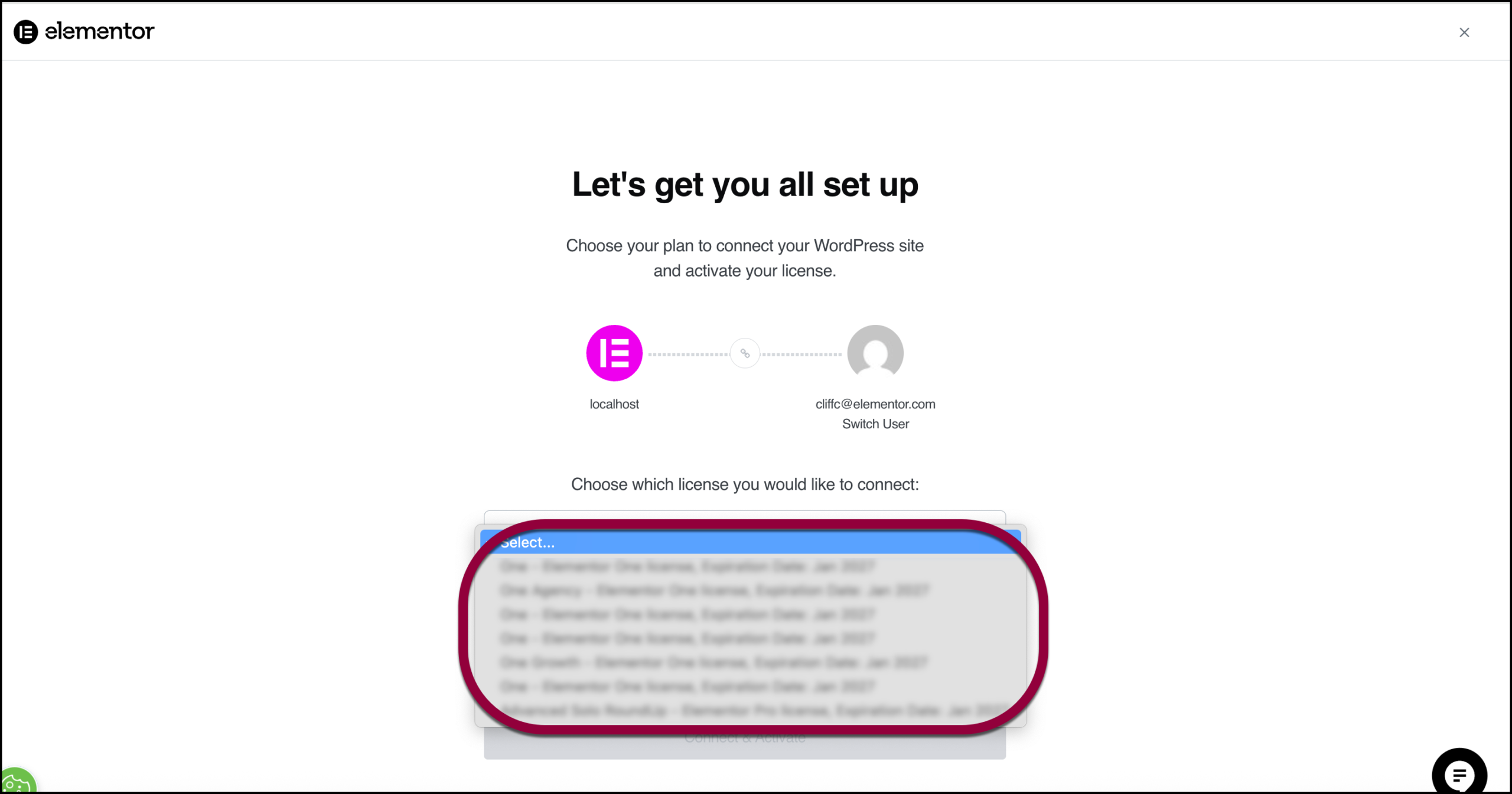
Note: If Elementor tries to connect to the wrong account, click Switch User and log in with the account tied to your new Pro purchase. - Use the dropdown menu to select the subscription you want to use for this site.
- Click Connect & Activate.
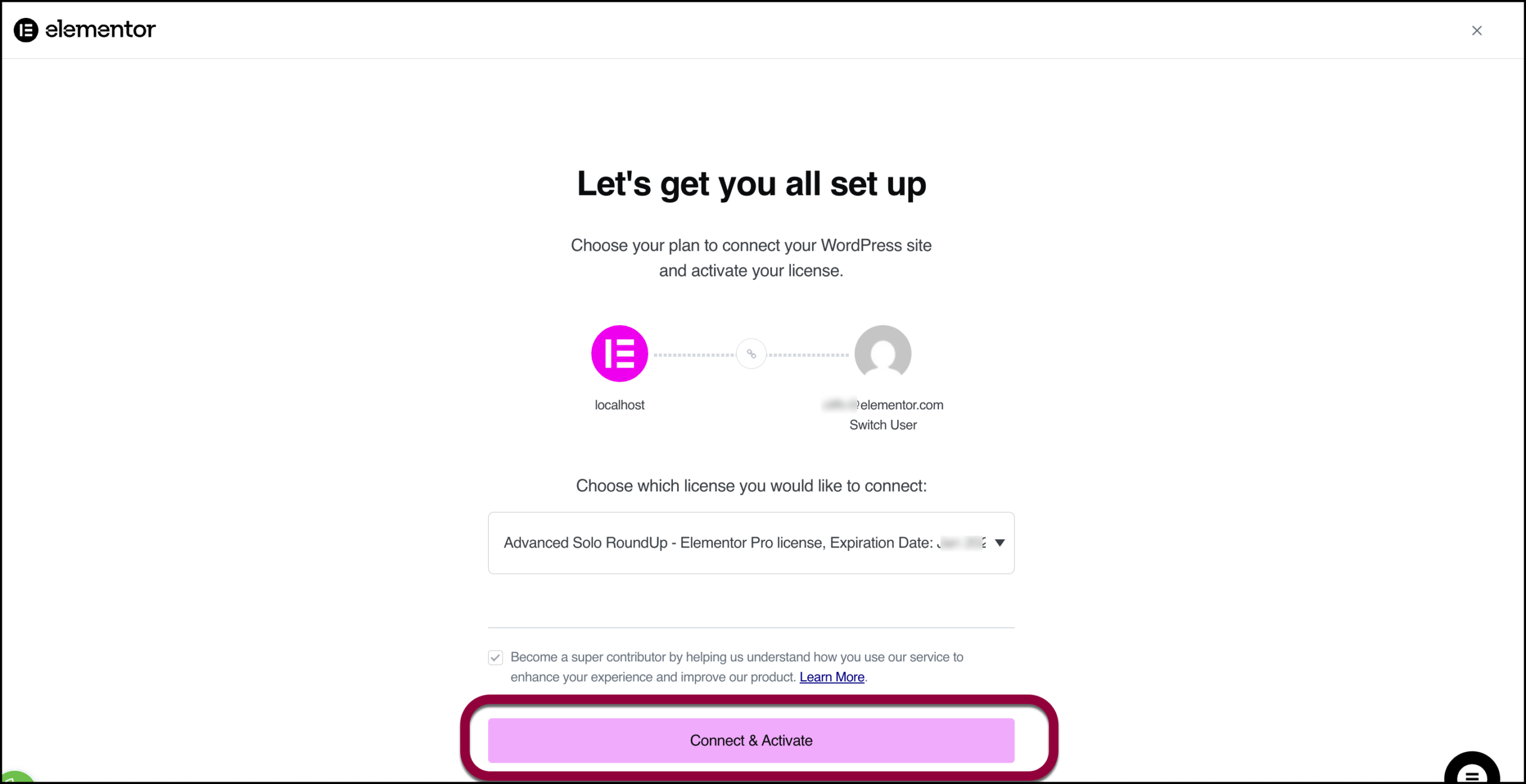
Elementor Pro is now installed, activated, and ready to use!
Method 2: Install and activate by downloading Elementor Pro
This section will take you through the process of:
- Downloading the Elementor Pro plugin.
- Uploading Elementor Pro to WordPress.
- Activating Elementor Pro.
Download the Elementor Pro Plugin
- After purchasing Elementor Pro, you are taken to a page where you can download the Elementor Pro plugin. You also receive an email with a link to download Elementor Pro. In addition, you can download Elementor Pro from your My Elementor dashboard as follows:
- Go to your My Elementor dashboard.
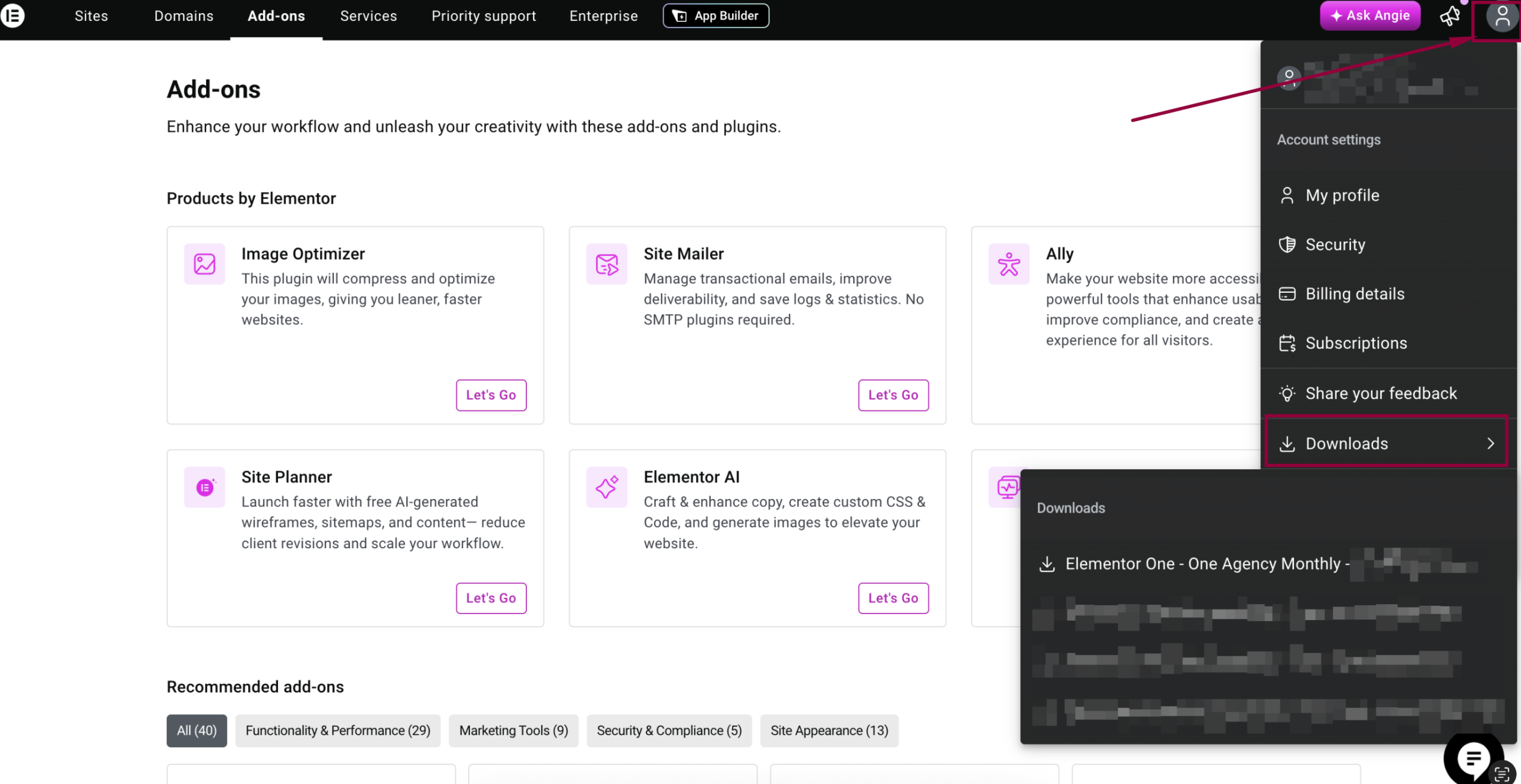
- Click the top-right profile icon then go to Downloads and select your Elementor Pro subscription.
- If you have more than one subscription, select the Elementor Pro version associated with the subscription you want to use.
The Elementor Pro zip file is downloaded to your desktop.
Upload and activate the Elementor Plugin
- Navigate to WP Admin. Click Plugins > Add New Plugin.
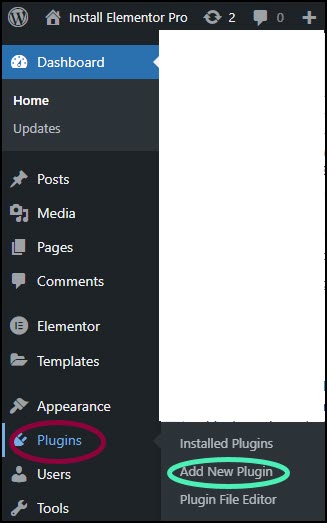
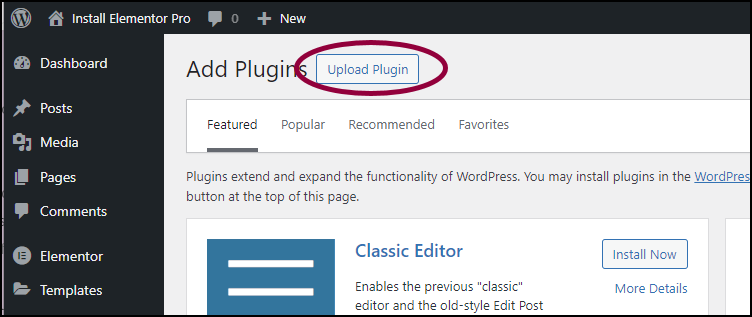
- Click the Upload Plugin button at the top of the page.
- Choose the Elementor Pro zip file you downloaded and click Install Now.
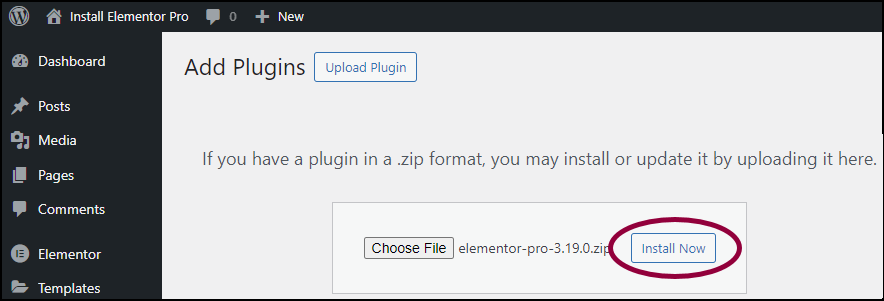
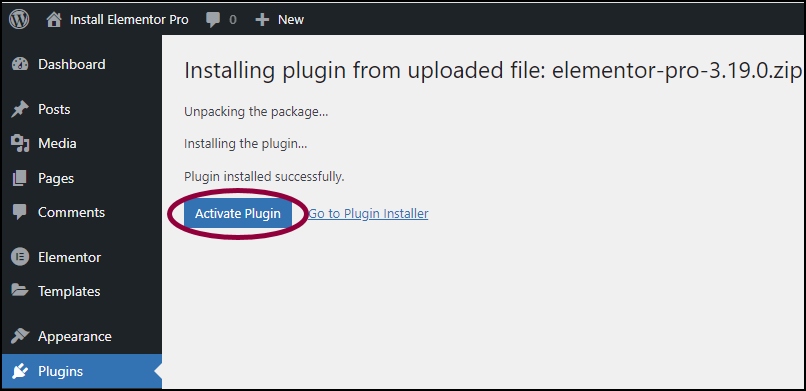
- When the install is complete, click Activate Plugin to complete installation. Follow the instructions below to connect and activate your account.
Warning
If you receive an error message saying that you are missing the style.css stylesheet, that means that you have tried to install this as a theme instead of a plugin. Elementor Pro is a plugin, not a theme. Install it as a new plugin only.
Connect and activate Elementor Pro
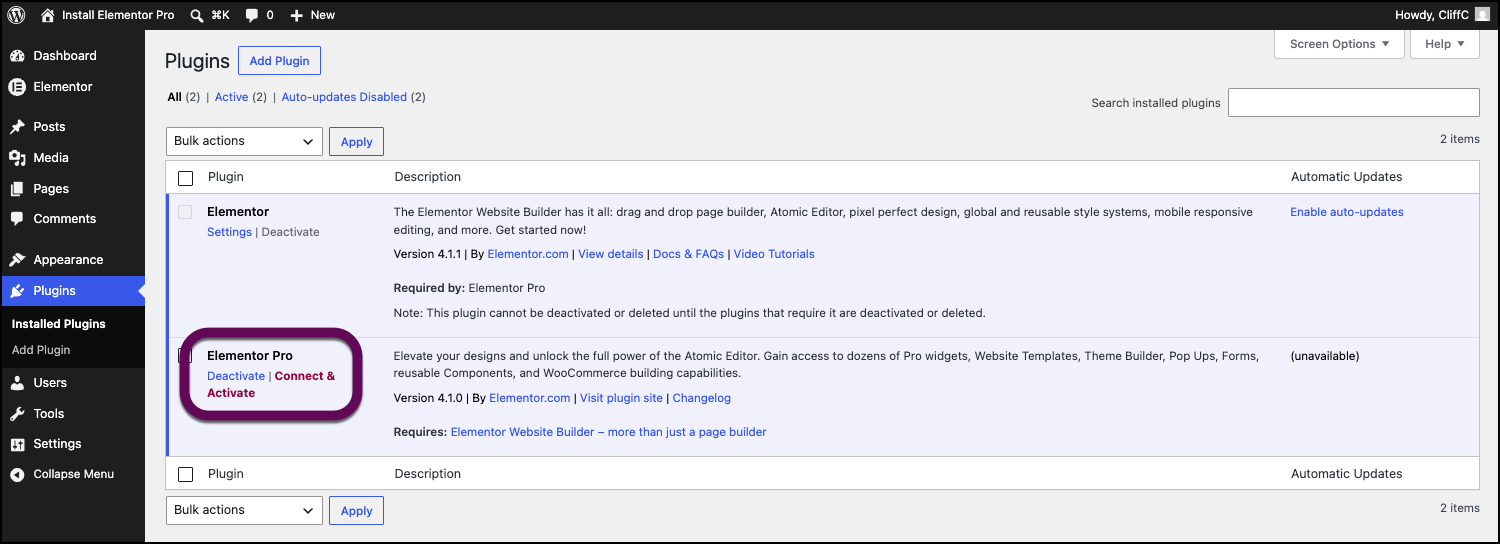
- From WP Admin, navigate Plugins > Installed Plugins.
- Locate Elementor Pro in your list of installed plugins and click Connect & Activate.
- Confirm that you are using the correct account. NoteIf Elementor tries to connect to the wrong account, click Switch User and log into the correct account.
- Use the dropdown menu to select the subscription you want to use.
- Click Connect & Activate.
Elementor Pro is installed and activated.