
Running a WordPress site is rewarding, but keeping up with privacy law can feel like a lot. If you get visitors from Europe, the UK, or California, you need real rules for how you collect and store their data. The good news: it’s easier than it looks, and you’ve got this. We’ll walk through a clear, stress-free compliance audit for 2026, covering your forms, your database, and the scripts running behind the scenes, so everything stays safe and legal. By the end, you’ll know exactly how to protect your visitors and keep your site in good shape.
Key Takeaways
- Mapping your database and script connections is the first step in any site audit.
- Getting active, clear consent before loading tracking cookies is a legal requirement.
- Simple, plain-English legal pages build real trust with your visitors.
- Organized consent logs keep your business ready for any regulatory check.
Demystifying GDPR Compliance for WordPress in 2026
GDPR, the General Data Protection Regulation, has been active for years, but how courts enforce it keeps changing. Compliance today isn’t just about showing a popup banner and hoping for the best. It’s about respecting your users’ digital rights and keeping a clean record of how you handle their data. WordPress site owners need to look closely under the hood, since WordPress core, themes, and design tools like Elementor all interact with user data differently.
Personal data is any information that can identify a person, directly or indirectly, like email addresses, physical locations, IP addresses, and browser cookies. The moment a visitor loads your page, your server and various third-party tools start collecting this data. Without permission, you risk breaking privacy law (a lot of site owners assume tracking cookies are harmless, but that’s exactly what trips people up). The good news: modern compliance tools make this far easier to manage than it used to be.
In 2026, regulators are especially focused on active consent and clear documentation. You can’t pre-check consent boxes, or assume someone agrees to tracking just because they kept scrolling. Give them a real, honest choice. Getting this right keeps you out of legal trouble and shows your audience you value their privacy, which builds a stronger relationship with them.
Phase 1: Mapping and Auditing Your WordPress Site’s Data Flow
Before you can fix any privacy gaps, you need to know exactly where data enters and leaves your site. Many owners add tools and trackers over time without keeping a central record. Start your audit by mapping every spot on your server where personal data gets processed.
Here’s where user data usually gathers on a standard WordPress installation:
- Contact and Registration Forms: Every contact form, signup field, or order form collects sensitive details like names, phone numbers, and emails.
- Comment Sections: By default, WordPress asks for a name, email, and website on every comment, and logs the commenter’s IP address.
- Web Analytics and Trackers: Tools like Google Analytics, Meta Pixels, and heat-mapping software collect browser data and locations to build user profiles.
- E-commerce Transactions: Online stores process physical addresses, payment preferences, and purchase histories, which require high-level security.
- User Management Databases: If you allow public registration, your database stores user profiles, login patterns, and IP details.
- Security and Error Logs: Security features often log IP addresses to block bad login attempts, which still counts as personal data.
To run a thorough data mapping audit, follow these steps:
- Open a clean spreadsheet and write down every tool, form, and script running on your site.
- Identify which of those elements collect personal details from your visitors.
- Track where that data goes (does it stay on your WordPress server, or move to a third-party server like an email marketing platform?).
Once you’ve built this map, you’ll spot which areas need attention and which ones are already fine, which makes the rest of your audit much easier since you’re no longer guessing where your data is hiding.
Phase 2: The Core of Compliance with Cookie Consent
Cookies are the most common way sites track people, so they’re the main target for privacy regulators. To stay safe, you need a reliable system that blocks tracking scripts from firing until a visitor clicks “Accept,” which is where a good Cookie Consent tool becomes a genuine lifesaver for site owners.
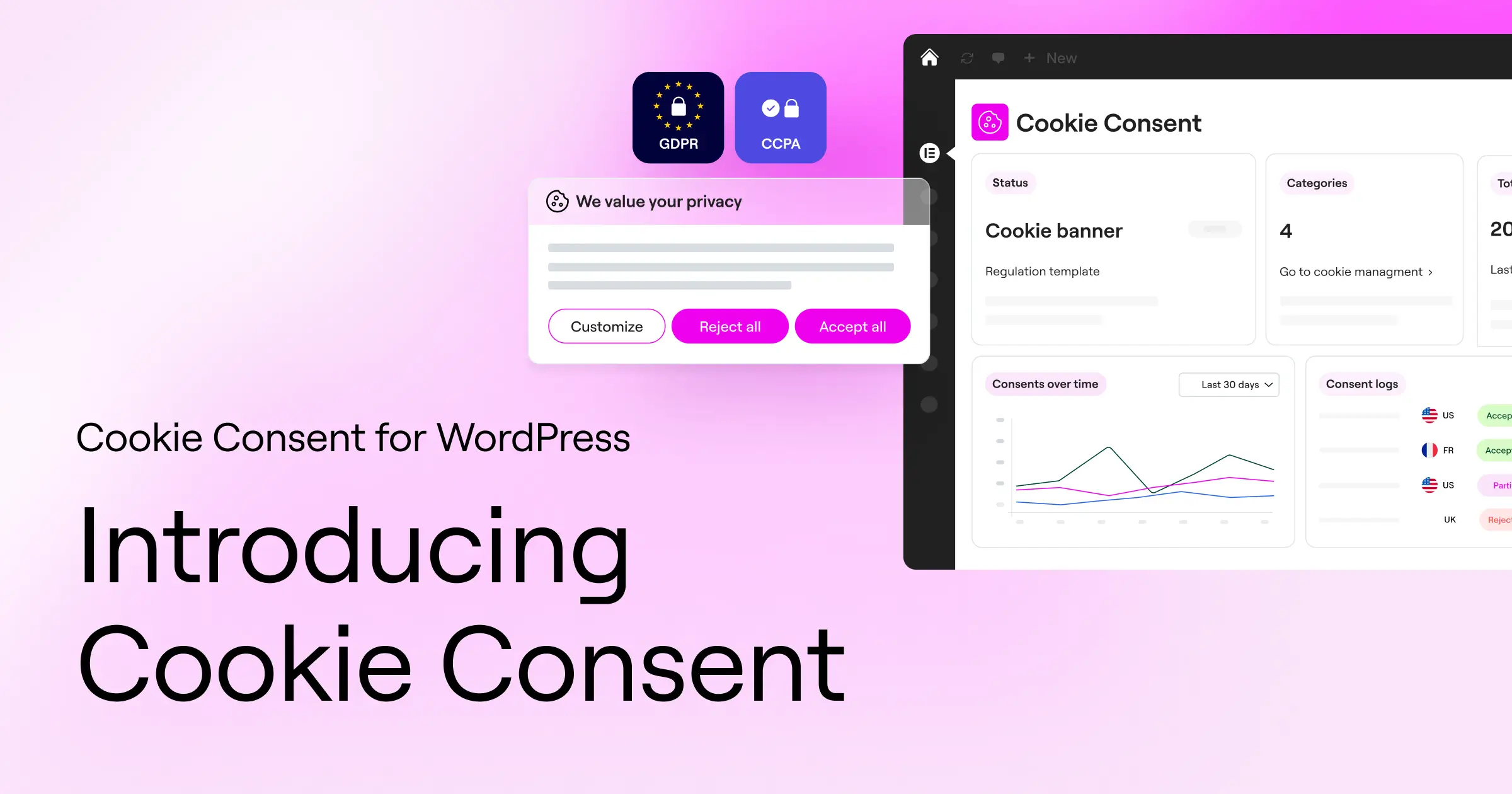
Instead of juggling a setup that has you jumping between platforms, you can use a native solution. The built-in Cookie Consent capability inside Elementor lets you manage GDPR and CCPA compliance right from your WordPress dashboard, with no need to bounce between your site and an external SaaS service. You can run cookie scans, categorize scripts, and design consent banners that match your brand, all without writing a line of code.
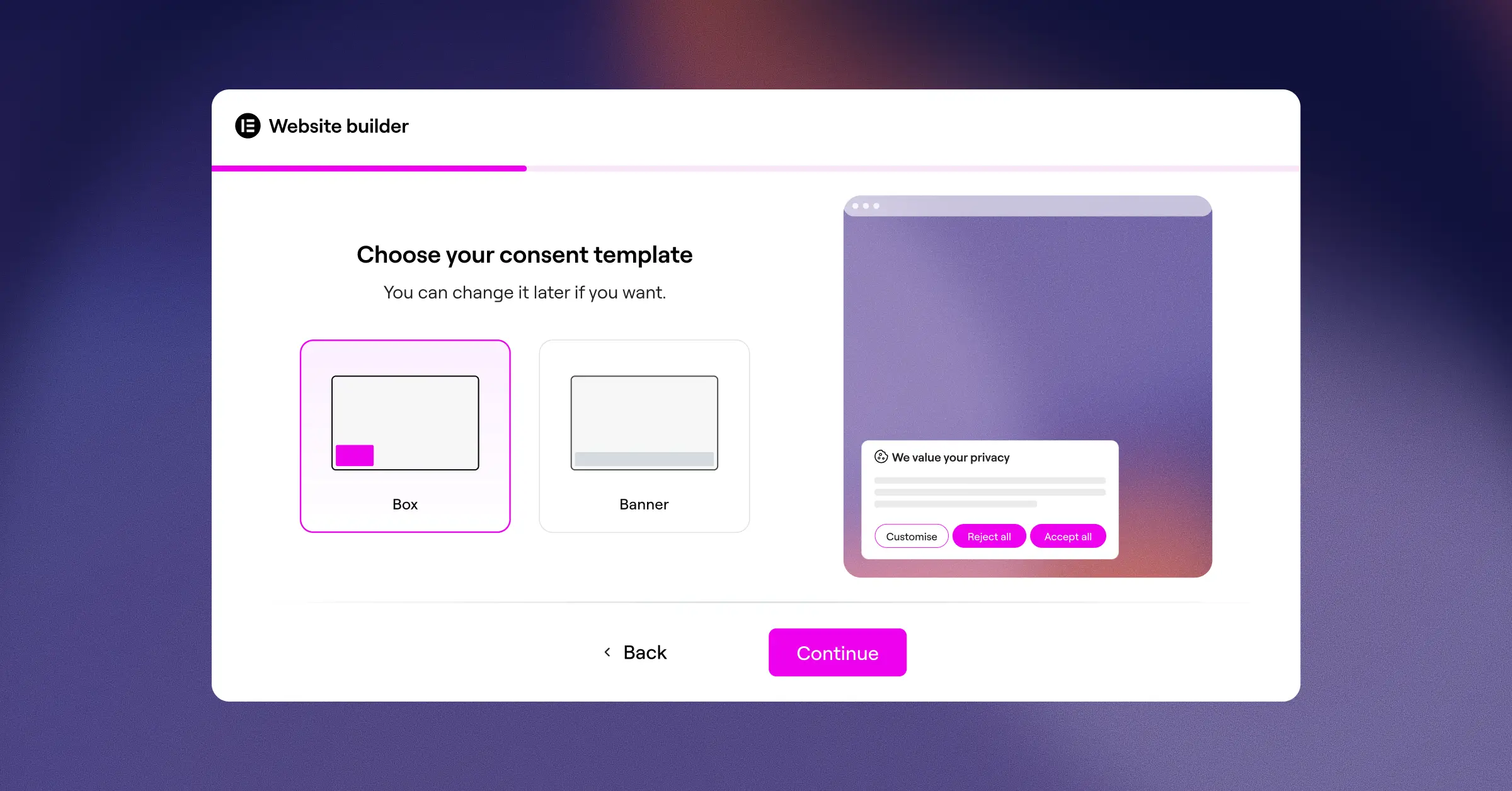
Look for these capabilities in any compliance tool:
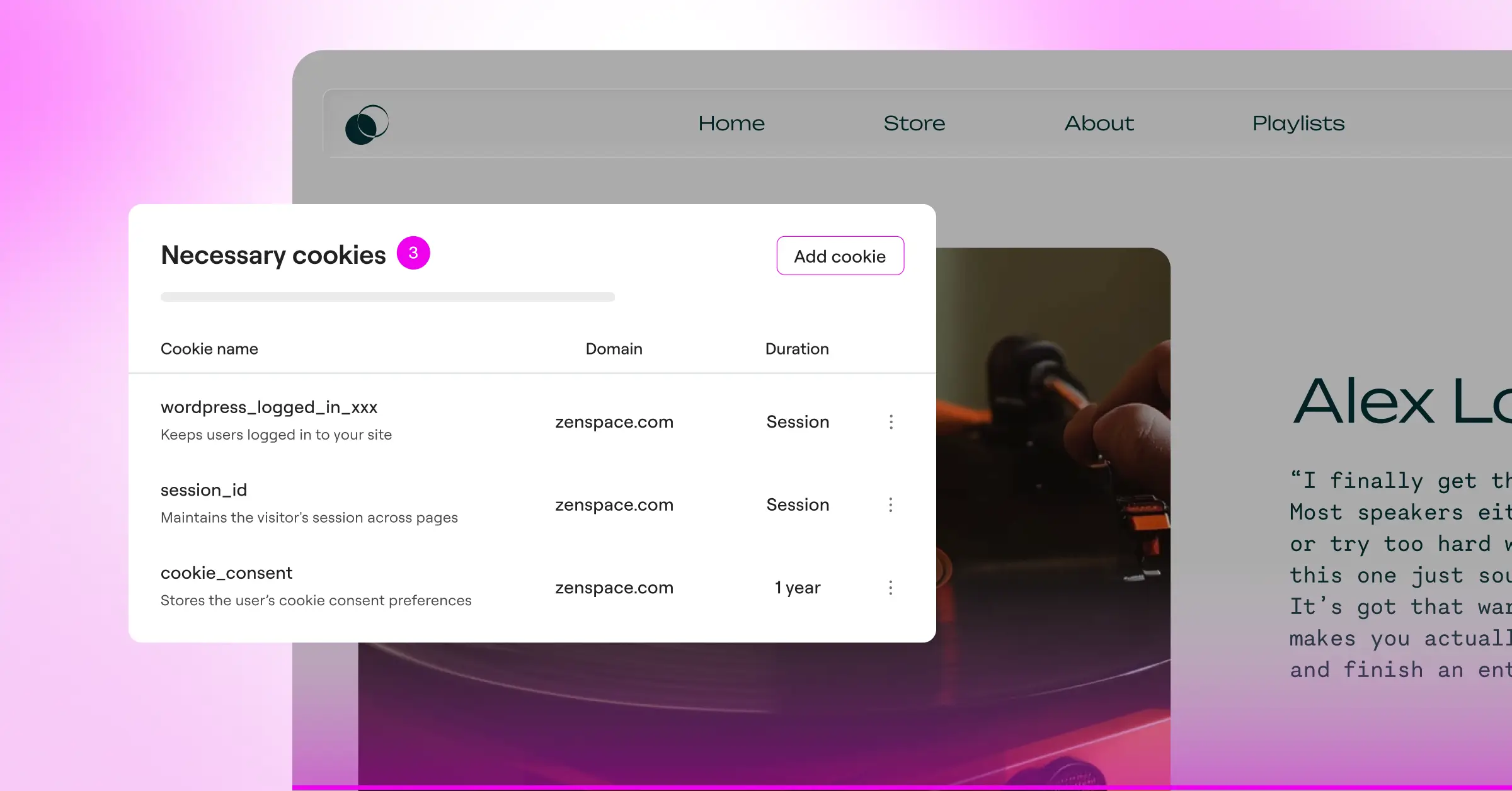
- Scans your website automatically to find and categorize every cookie you use.
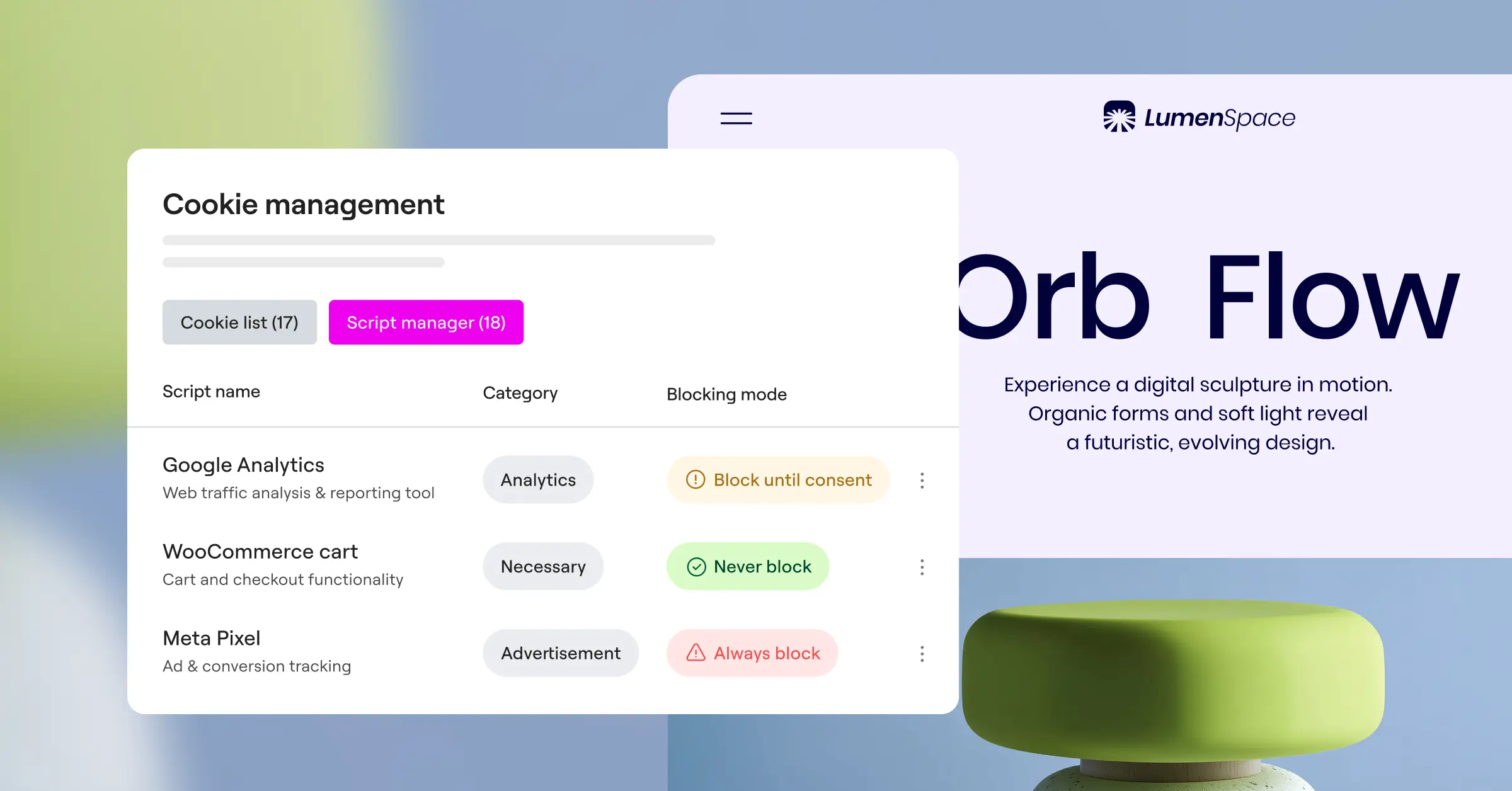
- Blocks non-essential tracking cookies until the visitor gives explicit permission.
- Adapts to your brand identity with customizable fonts, layouts, and colors.
- Records user decisions in a clean consent log to help you pass privacy audits easily.
- Detects visitor locations to show geo-targeted banners based on local privacy rules.
- Supports Google Consent Mode v2 to keep your analytics accurate while respecting privacy choices.
Here’s a factual breakdown of some popular cookie consent options for WordPress:
| Feature / Tool | Cookie Consent (Elementor) | Cookiebot | CookieYes | Complianz |
|---|---|---|---|---|
| Dashboard Location | WordPress Native | External Platform | External Platform | WordPress Native |
| Design Customization | Direct Theme Editor | Script-based CSS | Web App Dashboard | Plugin Settings Panel |
| Google Consent Mode v2 | Fully Supported | Fully Supported | Fully Supported | Fully Supported |
| Consent Logging | Built-in Log System | Cloud-hosted Log | Cloud-hosted Log | Local Database Log |
A native dashboard tool is generally faster to set up than an external platform. If you want a quick setup that keeps your layout polished, the built-in cookie consent capability saves you hours of design and testing work, letting you manage cookies, banners, and compliance logs all in one place.
Phase 3: Crafting Legal Pages and Handling User Requests
Every WordPress site needs a clear, easy-to-read Privacy Policy page, written in plain language instead of dense legalese, so anyone can understand what happens to their information.
Your privacy policy should answer a few specific questions: what data you collect, why, who you share it with, and how long you keep it. It should also explain how users can ask you to change or delete their data, often called a Data Subject Access Request, or DSAR (it sounds intimidating, but it just means someone’s asking you to clean up their personal info).
“GDPR compliance isn’t a one-time checklist; it’s an ongoing commitment to user respect. When you build clear consent practices and keep your records organized, you protect your business and establish genuine trust with your audience.”
Itamar Haim, Web Compliance Specialist
To stay on top of user data requests, set up a simple process on your site. Follow these steps to handle requests cleanly:
- Create a dedicated compliance contact email address (like privacy@yourdomain.com).
- Add a simple form to your privacy page where users can submit a request to view or delete their stored details.
- Use the built-in export and erase features in your WordPress user dashboard to wipe their records when requested.
WordPress has solid tools built right into its core for this. If a user asks you to remove their data, go to your dashboard, search for their email, and erase their comments and profile. It takes only seconds, and having this process mapped out ahead of time saves you from scrambling if a real request comes in.
Phase 4: Hardening Your Security and Managing Third-Party Scripts
Data privacy is closely tied to database security. If your site is easy to hack, you can’t protect your users’ personal data, so a GDPR audit also means looking hard at how well you protect your site from digital threats.
One common issue on WordPress sites is how themes load Google Fonts, pulling them directly from Google’s servers by default. That sends every visitor’s IP address straight to Google without consent, which European courts have ruled breaks privacy regulations. The fix: download your fonts and host them locally on your own server. It’s a small change that removes a real compliance risk.
Next, take a close look at how you manage access to your website’s admin area. To protect your setup, apply these practices:
- Enforce strong passwords and two-factor authentication for every admin account.
- Limit admin user roles so that only people who truly need access can modify your settings.
- Install an SSL certificate to encrypt the connection between your server and your visitors’ browsers.
- Update your core files, themes, and design tools like Elementor whenever a stable release patches security gaps.
- Set up automatic backups that store your site data in a secure, off-site location.
- Use a security firewall to block brute-force attacks and prevent unauthorized access.
Hardening your defenses cuts the risk of a database leak. If a breach happens, GDPR gives you 72 hours to report it to authorities. A strong hosting setup and clean logging make handling that far easier and help you avoid costly legal trouble.
Understanding Consent Logs and Audit Trails
One part of a GDPR audit that site owners often overlook is the consent log. Regulators don’t just want a cookie banner. They want proof you kept records showing users consented before any tracking began, with a trail showing exactly when, what they agreed to, and from where.
This is where the consent logging capability inside Elementor’s Cookie Consent gets genuinely useful. Instead of tracking this by hand or through a third-party cloud dashboard, the built-in log records decisions automatically, so if a regulator asks for documentation, you’ll have it ready.
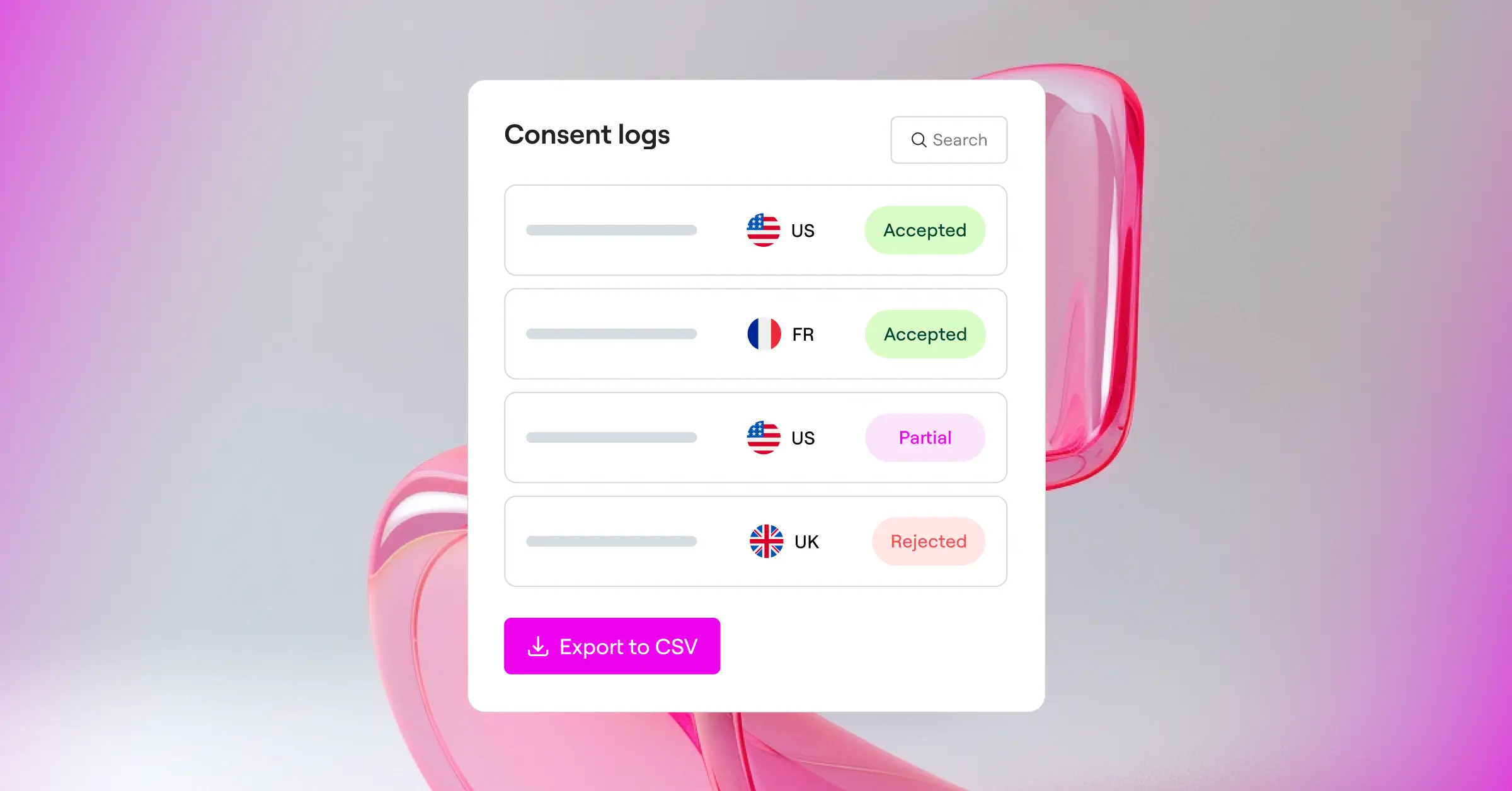
A good consent log should capture a few data points: the date and time a user gave consent, whether they accepted all categories or only some, and ideally the region it came from (this matters for geo-targeted compliance under different regional laws). Confirm the log is tamper-resistant and stored somewhere you can retrieve and export when needed.
It’s smart to run through your consent log now and then. You might find a script that’s categorized wrong, or a recent tool update that added a new cookie nobody’s scanned yet. Keeping your cookie inventory fresh keeps your consent records accurate, which is really the whole point.
The Ultimate WordPress GDPR Checklist for 2026
Now that we’ve covered the main areas of compliance, let’s bring it together into a practical checklist. Use it to run a complete site audit in under an hour, and check back every few months to make sure nothing’s changed your compliance status.
Follow these steps to audit and protect your WordPress site:
- Audit all your forms: Make sure every contact form, registration block, and newsletter signup has an unchecked, optional consent box.
- Review your comments section: Confirm users can choose whether their details get saved in browser cookies for next time.
- Set up your cookie consent banner: Use a native tool like the Elementor Cookie Consent capability to block trackers until visitors opt in.
- Update your privacy page: Write a clear, jargon-free policy explaining your data practices, and link it in your website’s footer.
- Host your fonts locally: Download your Google Fonts and store them on your own server to prevent external IP tracking.
- Clean up your database: Remove old, unused tools and clear out expired user accounts that you no longer need.
- Test your user request system: Run a test to confirm you can easily export or delete user data when someone asks.
Privacy compliance isn’t about achieving perfection overnight. It’s about showing a clear, honest effort to respect your users’ privacy and keep your security current. Follow this checklist, and your site will be in a stronger, safer spot than most sites online.
Frequently Asked Questions
Does a small personal blog really need to follow GDPR rules?
Yes. GDPR applies to any site that collects personal data from EU visitors, no matter where your business is based. If you run analytics, a contact form, or ads for European readers, you need to meet compliance standards.
What is the difference between GDPR and CCPA?
GDPR is an EU law built on “opt-in” consent, meaning you can’t track users unless they agree first. CCPA is a California law built on “opt-out” rights, so you can track users but must give them an easy way to stop you from selling or sharing their data.
Do I have to purchase a separate tool to handle cookie consent?
No, you don’t need an expensive external subscription. Many site owners prefer native tools since they run directly inside WordPress. Using the built-in cookie consent capability in your design dashboard keeps your workflow simple and skips the extra monthly cost.
How do I know if my website is using tracking cookies?
Use a free online cookie scanner, or check your browser’s developer tools under the “Storage” tab. A native compliance tool can also scan your site automatically, find every cookie running in the background, and sort them into neat categories.
Can I just copy a generic privacy policy from another website?
It’s best not to. A generic policy might miss the specific tools, forms, and tracking scripts on your actual site. It’s safer to use a reliable policy builder or customize a solid template to match your own data mapping results.
What happens if a visitor asks me to delete all their data?
You need to respond quickly. Inside your WordPress dashboard, use the built-in “Erase Personal Data” tool under the Users menu. Enter their email address, and WordPress removes their comments and profile.
Do I need to block Google Analytics before a user clicks accept?
Yes. Standard analytics cookies track user behavior and location, which counts as personal data under the law. You need to block these scripts until your visitor clicks accept on your cookie consent banner.
How does Google Consent Mode v2 help my website?
Google Consent Mode v2 adjusts how Google tags behave based on what visitors choose on your banner. If someone declines tracking, it sends anonymous signals instead of full cookies, keeping your analytics useful while respecting privacy choices.