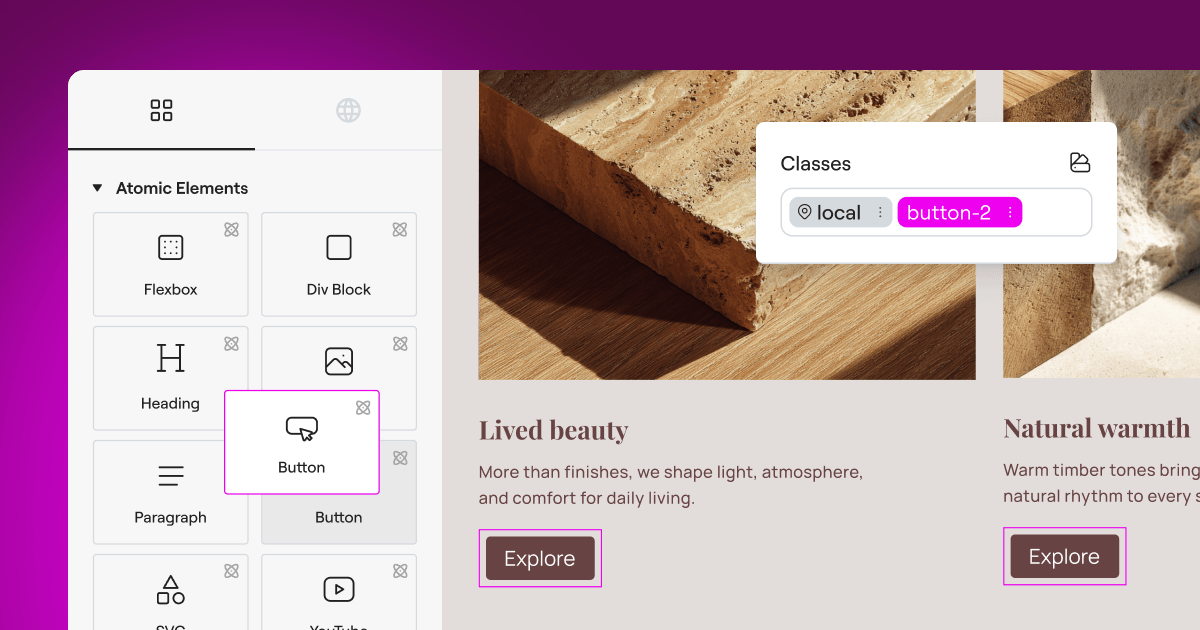
Running a WordPress multisite network lets you manage dozens, even hundreds, of sites from one dashboard. But privacy compliance can turn that convenience into a puzzle. Every site might serve a different audience, run different tracking scripts, and answer to different rules, like GDPR in Europe or CCPA in California. So how do you keep every subsite compliant without losing your mind?
Here’s the good news: you don’t need a dozen external accounts or a line of code. With the right tool and a clear plan, you can build one central system that keeps your network safe and your visitors happy. Let’s walk through how.
Key Takeaways
- Centralized control matters: managing consent from one dashboard saves time and closes compliance gaps across your network.
- Your architecture shapes cookie behavior: subdomains and subfolders handle cookie sharing differently, which changes how your consent banners need to work.
- Google Consent Mode v2 is now required: if your network uses Google services and targets EU traffic, proper consent integration isn’t optional.
- Native tools keep things lean: staying inside WordPress means a cleaner database, faster load times, and simpler administration.
Why Multisite Cookie Consent Is a Unique Challenge in 2026
Managing privacy compliance on a single site is simple: scan your pages, set up a banner, done. A multisite network is different, with multiple domains, different server behaviors, and diverse audiences on one shared database.
Cookies behave differently depending on your domain style. In a subfolder setup, a cookie from the main site can carry over into subsite paths. With subdomains or mapped domains, browsers treat each site separately, so visitors may have to accept your policy again and again, which hurts engagement.
Privacy laws have also gotten stricter, with specific consent records, Global Privacy Control support, and deep ad-system integration now expected. If your sites run ads or analytics, you need Google Consent Mode v2 in place, or a basic banner tool will leave you with database bloat and slow load times.
Then there’s cost. External consent services often charge per domain per month, and for a network of fifty or a hundred sites that adds up fast. Managing compliance right from WordPress keeps costs predictable and your workflow in one place.
Meet Cookie Consent: The Native WordPress Solution
Elementor‘s Cookie Consent tool solves these multisite headaches right from your WordPress dashboard, handling GDPR, CCPA, and global privacy requirements without sending you to an external platform or a separate account.
Because it lives inside your existing workflow, there’s no copy-pasting scripts or API keys from an outside dashboard, and setup takes just a few steps across your network. Built natively for WordPress, it also skips the heavy database queries and external calls that tend to slow multisite networks down.
Here’s what Cookie Consent brings to a multisite setup:
- Scans your website automatically to find, categorize, and block tracking scripts before consent is given.
- Builds custom, brand-aligned consent banners that look good on any screen size.
- Connects directly with Google Consent Mode v2 to keep your analytics and ad campaigns compliant.
- Pulls localized translations automatically so banners show up in your visitors’ preferred language.
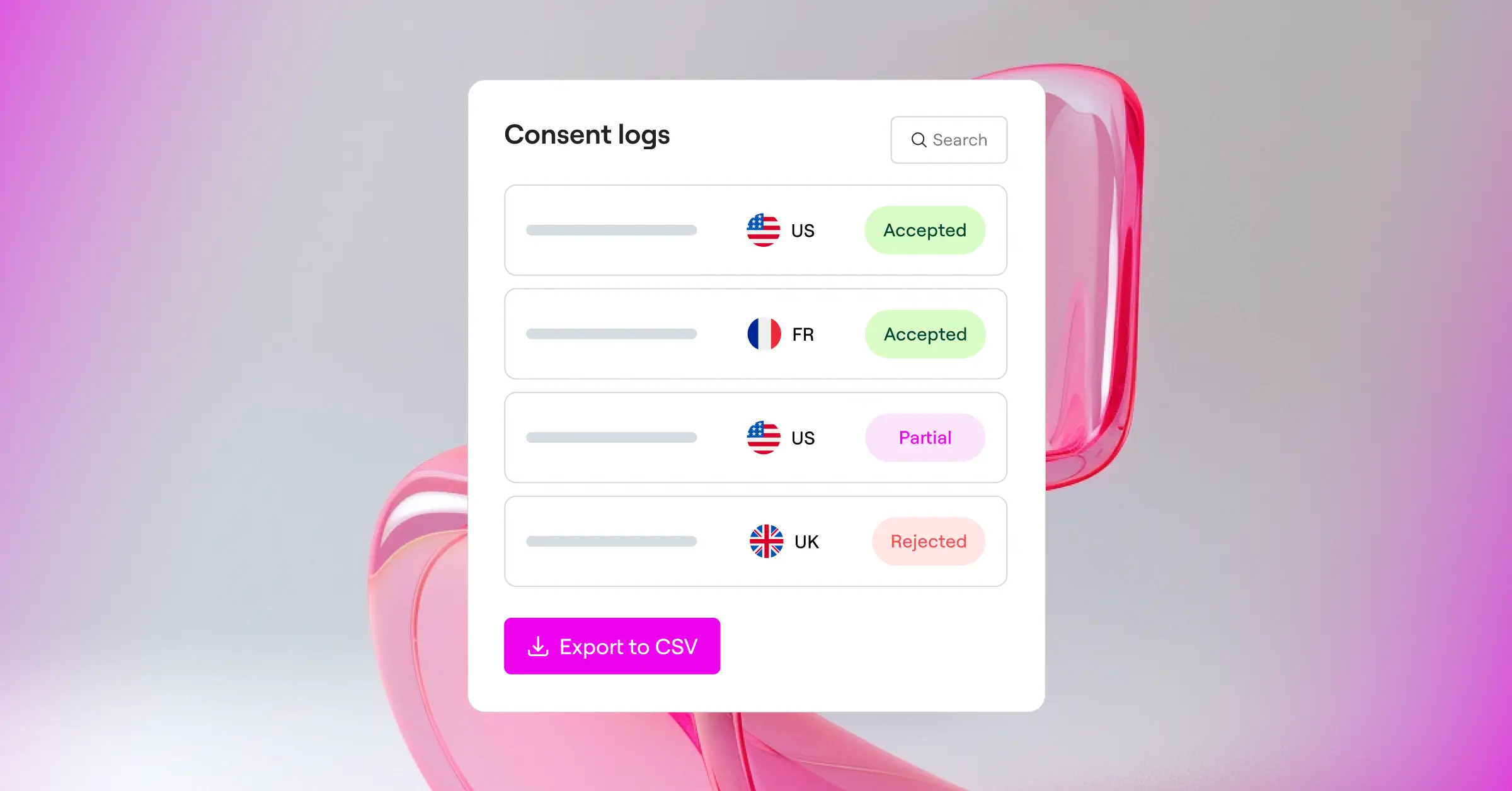
- Logs consent events locally, giving you an audit-ready trail for regulatory checks.
- Saves custom layouts as cloud templates so you can push consistent designs across your network instantly.
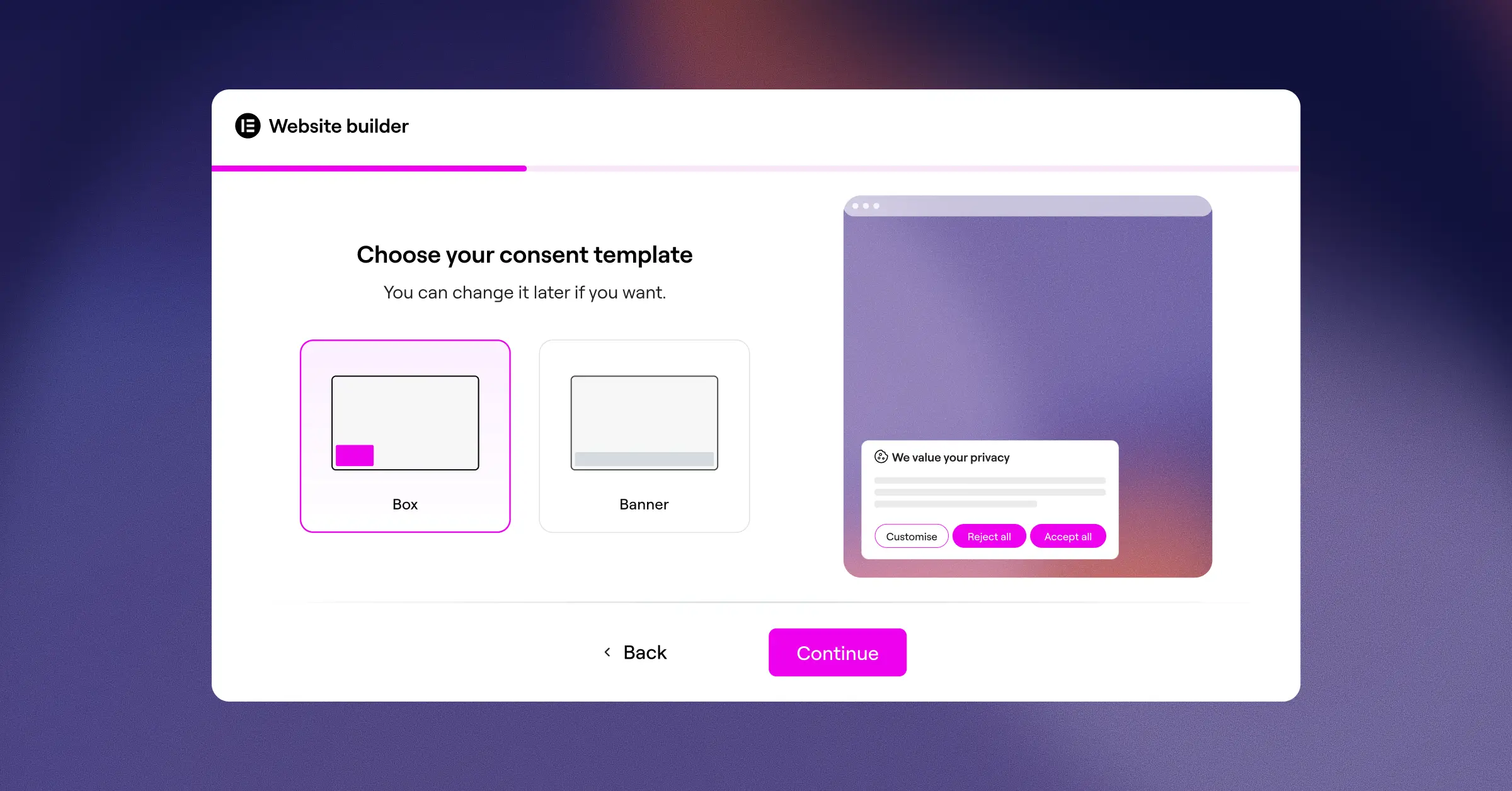
It’s also included in Elementor One, with a free tier to get started, making it one of the more accessible options for network admins who want compliance without a steep price tag.
Multisite Architecture: Subdomains vs. Subdirectories vs. Mapped Domains
Before you configure anything, it helps to understand how your network’s structure affects cookie storage. Browsers use domain names to decide which cookies a site can access, so your architecture shapes how consent behaves. (This part trips up a lot of people, so get it right before you touch any settings.)
How do cookies behave on subfolders?
In a subfolder setup, your sites look like example.com/site1 and example.com/site2. Since all subsites share the same primary domain, a cookie set on the main site can be read by the subsites. That keeps user sessions consistent, and it means a visitor’s consent choice on the homepage carries through to subfolders automatically, so nobody sees the same banner twice.
How do cookies behave on subdomains?
With subdomains, your network looks like site1.example.com and site2.example.com. Browsers treat these as separate destinations by default, but you can configure your tool to write cookies to the wildcard domain .example.com so your sites share consent choices. Once a visitor accepts on your main domain, subdomain sites read that signal and skip their banners entirely.
How do cookies behave on mapped domains?
Mapped domains are trickiest. Here, your sites have completely different addresses, like firstsite.com and secondsite.com, even though they run on the same WordPress installation. Browsers strictly block cookies from crossing between domains to protect privacy, so your tool must run independently on each mapped domain, with its own scan, banner, and local consent log.
“In a multisite environment, mapping your cookie domains correctly is the difference between a compliant network and a legal headache. Administrators must treat mapped domains as independent legal entities when managing script blocklists and consent states.”
– Itamar Haim, Web Compliance Specialist
Step-by-Step: Setting Up Cookie Consent Across Your Network
Now that you know how your network handles cookies, let’s walk through building a solid consent workflow. It’s easier than it sounds, and each step builds on the last.
Step 1: Decide between network-wide and site-by-site activation
First, decide how to deploy the tool. You can network-activate Cookie Consent from your Network Admin dashboard so every site administrator has access. If you’re running mapped domains with different owners or brands, it’s usually better to let individual site admins configure their own settings. For a centralized subdomain network, manage everything from the main site and push templates to subsites yourself.
- Navigate to your WordPress Network Admin dashboard.
- Go to your integration settings and enable the Cookie Consent tool.
- Choose whether to enforce a single global policy or let individual site administrators customize their own compliance rules.
Step 2: Scan and categorize your cookies
Before you can block scripts, you need to know what cookies your sites actually use. Each site might run different integrations, embed different videos, or fire different tracking pixels, and a scan is the only reliable way to map that out.
- Open the Cookie Consent dashboard within a subsite’s admin menu.
- Click the automatic scanner to start finding cookies and active scripts.
- Review the discovered cookies and sort them into standard categories: Essential, Analytical, Marketing, and Functional.
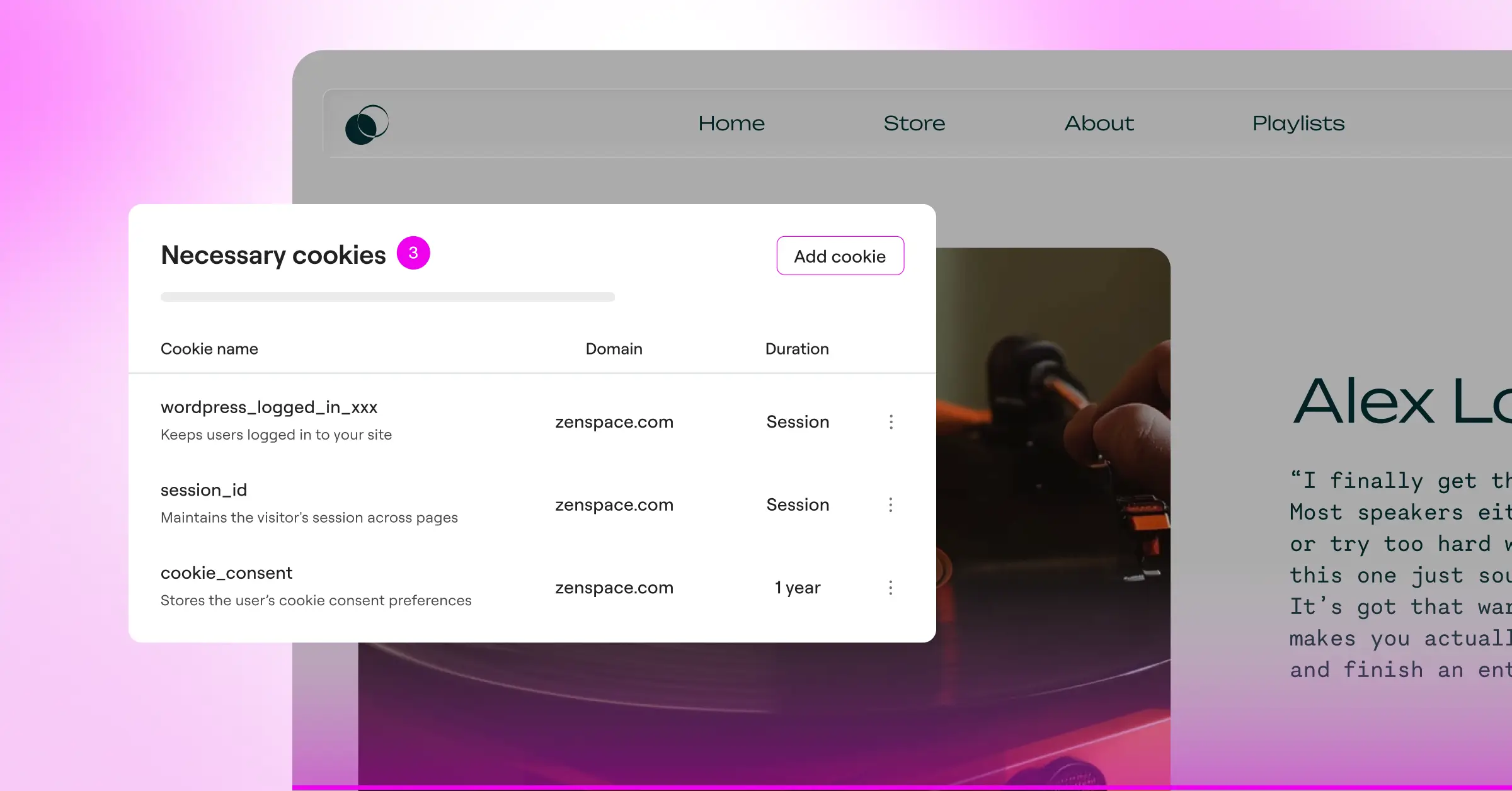
Run this scan for each unique subsite, especially across different brands. A portfolio site and an e-commerce store on the same network will have very different cookie footprints.
Step 3: Create and style your consent banner
Your banners should match your site design so they feel like part of the experience, not an afterthought. With cloud templates, you can design a polished, accessible banner once and reuse it across your entire network.
- Open the banner visual editor to customize your layout, fonts, colors, and button placements.
- Make sure your design meets accessibility requirements, with clear contrast ratios and keyboard navigation support.
- Save your completed design as a cloud template so other subsites can import it instantly, keeping your brand consistent everywhere.
This is especially handy for agencies. Design one polished, legally compliant banner template and deploy it to every new client site you launch in seconds.
Step 4: Set up geo-targeting and regional compliance rules
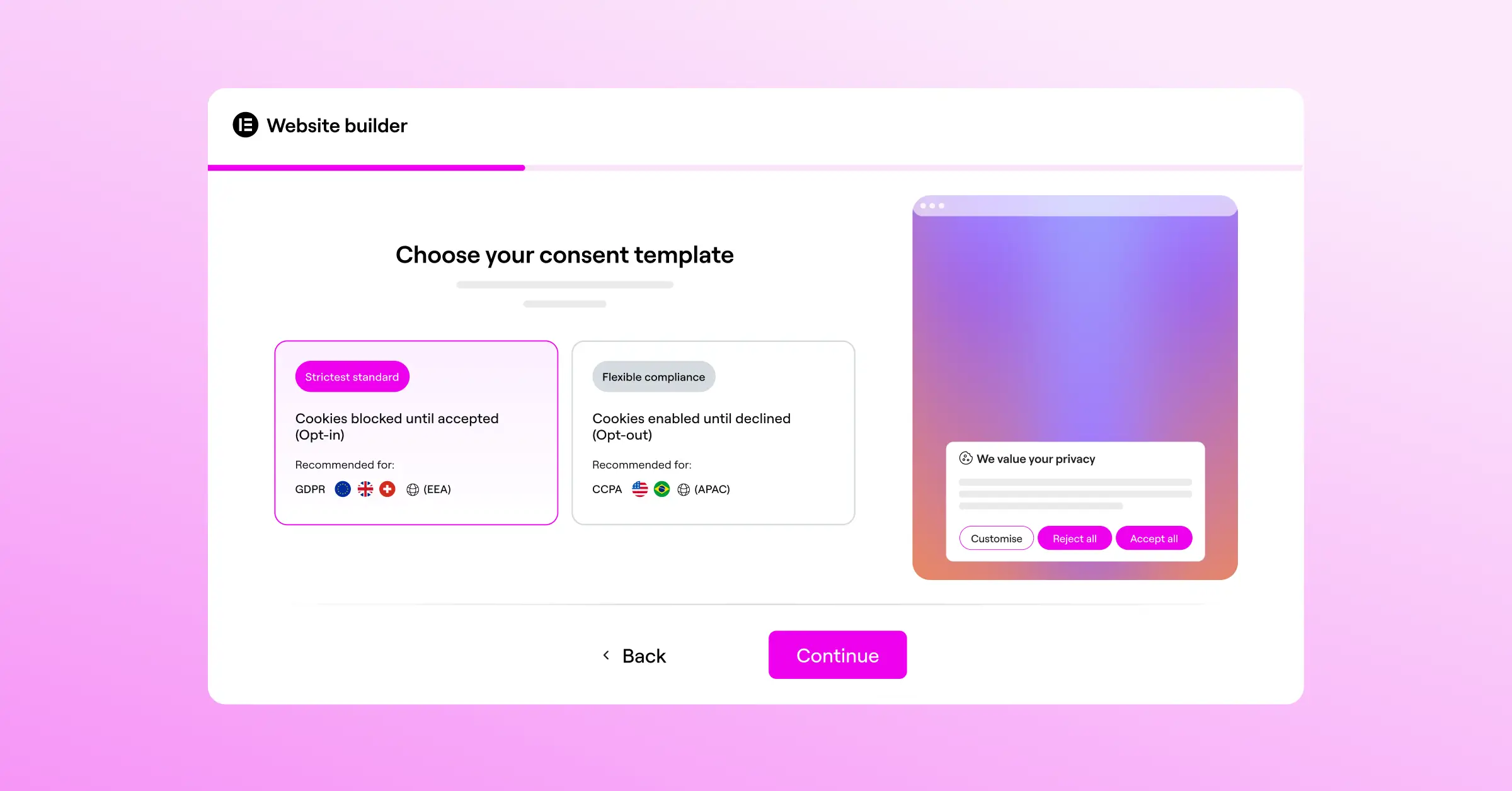
Different regions call for different approaches. GDPR in Europe uses an “Opt-In” model, where non-essential cookies stay off until the visitor clicks accept. CCPA/CPRA in California uses an “Opt-Out” model, with a “Do Not Sell My Info” link instead. A heavy European-style banner for a California visitor can hurt your conversion rates.
- Enable geo-targeting in your cookie consent settings.
- Set the default behavior for EU visitors to strict opt-in, keeping scripts blocked until they consent.
- Configure a simpler opt-out notification for visitors from regions with less restrictive requirements.
Step 5: Activate Google Consent Mode v2
If your network sites use Google Analytics or Google Ads, you need to send consent signals back to Google. Consent Mode v2 passes your visitors’ preferences directly to Google’s tags, adjusting their behavior based on whether consent was granted or declined.
- Navigate to the Google Consent Mode settings in your dashboard.
- Toggle the option to enable Consent Mode v2 integration.
- Verify that your existing Google Tag Manager or tracking scripts are configured to wait for the consent signal before firing at full capacity.
This keeps your tracking active and legal. If a visitor declines, Google Analytics still collects anonymous, cookieless signals, so you keep your conversion data without breaking privacy rules.
Comparing Multisite Consent Tools
When choosing a consent system for your multisite network, it helps to see how the leading options compare. Some are built directly for WordPress; others are enterprise platforms living entirely outside your dashboard.
| Feature / Tool | Cookie Consent (Elementor) | Cookiebot | CookieYes | Complianz | iubenda | OneTrust |
|---|---|---|---|---|---|---|
| WordPress Native | Yes (Direct Dashboard) | No (External Portal) | No (External Portal) | Yes (Local Plugin) | No (External Portal) | No (External Portal) |
| Multisite Friendly | Excellent (Cloud Templates) | Moderate (Requires Keys) | Moderate (Requires Keys) | Good (Network Settings) | Moderate (Script-Heavy) | Complex (Enterprise) |
| Consent Mode v2 | Yes (Built-in) | Yes (Requires Setup) | Yes (Requires Setup) | Yes (Built-in) | Yes (Requires Setup) | Yes (Enterprise Setup) |
| Geo-Targeting | Yes (Built-in) | Yes (Premium) | Yes (Premium) | Yes (Built-in) | Yes (Premium) | Yes (Enterprise) |
| Cloud Templates | Yes | No | No | No | No | Limited |
| Free Tier | Yes | Limited | Yes | Yes | Limited | No |
| White Label | Yes | No | No | Limited | No | Yes (Enterprise) |
The biggest practical difference comes down to where your configuration lives. External portals mean a second login, separate API keys per domain, and costs that scale with your site count. Cookie Consent keeps everything inside WordPress, protecting you from escalating per-domain costs as your network grows.
Advanced Configurations for Multisite Administrators
For large networks, the basics only take you so far. Here are three advanced techniques for keeping your network running well while staying compliant across every subsite.
Managing third-party scripts at scale
Managing scripts by hand across fifty subsites becomes a real time sink, and nobody wants to log into fifty dashboards to block one tracking script. A centralized tag management approach solves this: combine your cookie consent settings with a network-wide Google Tag Manager container, and control every script from one place.
Set up variables in that container that listen to local consent events from Cookie Consent on each subsite. If a visitor declines marketing cookies, the container blocks Facebook Pixels, TikTok pixels, and Hotjar tracking across your network at once, keeping legal exposure low and your workflow organized.
White-labeling consent banners for client networks
If you run an agency or host client sites on a multisite setup, branding matters. You want your tools to look like they belong to your agency, not a third-party service. Cookie Consent’s white-label controls let you remove default branding and match the interface to your agency’s identity.
That means you can offer your compliance setup as a premium service in your monthly maintenance packages. Clients see a polished privacy control center that matches their brand, and you get the credit for keeping their business legally compliant.
Optimizing database and asset performance
One of the bigger risks in a multisite network is database bloat. Thousands of consent log rows written daily across every subsite means bigger backups and slower queries, so keep your asset loading lean.
Elementor’s Cookie Consent tool uses modern database structures that handle log data efficiently, keeping your tables manageable over time. It also skips loading external JavaScript from third-party servers, serving styles and scripts from your own server or a CDN instead, so page speeds and Core Web Vitals stay healthy for visitors and search rankings alike.
For full compliance coverage, Cookie Consent pairs naturally with Elementor’s Web Accessibility tool, covering privacy and accessibility from the same dashboard. Explore the full suite through Elementor One.
Frequently Asked Questions
Can I share a visitor’s consent choice across my entire multisite network?
Yes, but it depends on your domain structure. Subfolder setups share cookies across paths, so consent applies network-wide. Subdomain setups can write to a wildcard root domain so subsites share the same choice. Fully mapped custom domains block cross-domain sharing, so visitors must consent on each domain they visit.
How does Google Consent Mode v2 work inside a WordPress multisite?
Consent Mode v2 sends signals to Google’s tagging servers based on the choices a visitor makes on your banner. Each subsite’s Cookie Consent instance communicates local choices to the active Google tags on that site, keeping your analytics and ad data compliant without separate setups per domain.
Do I really need unique consent logs for every subsite?
Yes. GDPR requires proof that a visitor gave explicit consent before any tracking scripts loaded, and since each subsite operates as its own web presence, it needs its own consent log. Cookie Consent stores timestamped logs automatically in your WordPress database, ready to export if a regulator ever asks.
Can subsite administrators override network-wide consent settings?
As the network super admin, you decide how much flexibility to give site managers. Enforce a strict, network-wide banner design and script blocklist for corporate or franchise networks, or leave Cookie Consent open so site owners run their own scans and design banners suited to their audience.
Is a privacy policy generator included in the WordPress dashboard?
Yes. Cookie Consent includes a built-in policy generator that creates a compliant privacy policy from the cookies and scripts found during your automatic scan, taking the guesswork out of legal writing so you can publish an accurate policy in a few clicks.
Does cookie consent affect my website’s loading speed or SEO?
It can, if you use a heavy tool that relies on slow external API calls to render banners. Cookie Consent keeps asset sizes small and avoids unnecessary database requests, loading scripts and styles from your own server or CDN, so performance, Core Web Vitals, and search rankings stay unaffected.
Can I customize banners for different languages across a multisite?
Absolutely. Cookie Consent automatically pulls localized translation strings and displays notices in each visitor’s preferred language, so multilingual banners need no extra setup. You can also customize the layout of translated banners to match localized brand guidelines, keeping the experience polished everywhere.
What happens if a visitor uses a Global Privacy Control (GPC) signal?
Cookie Consent recognizes Global Privacy Control signals automatically. When a visitor with GPC enabled arrives, the tool immediately honors their preference and disables marketing and tracking scripts without requiring any interaction with your banner. It’s the right behavior under modern privacy law, and it needs no manual setup on your part.